
Documents & Contracts in SourCherry allows you to create, send, and track professional contracts, proposals, and estimates directly inside your CRM. With templates, PDF uploads, e-signatures, payments, and workflow automation, this feature centralizes your document management while improving professionalism and efficiency.
TABLE OF CONTENTS
- What is Documents & Contracts?
- Key Benefits of Documents & Contracts
- Overview of the Documents & Contracts Dashboard
- Creating New Documents
- Document Editor Toolbar
- Frequently Asked Questions
What is Documents & Contracts?
Documents & Contracts is a built-in tool under the Payments section in SourCherry that enables businesses to manage legally binding agreements. You can start with a blank document, upload an existing PDF, or use a prebuilt template. It also supports e-signatures, payment collection, automated triggers, and full audit tracking.
This feature is designed to help agencies, small businesses, and service providers streamline client agreements, eliminate paperwork, and close deals faster.
Key Benefits of Documents & Contracts
- Centralized Dashboard: Manage all your contracts and proposals in one organized place under Payments. This reduces time spent searching across different tools and ensures your team always knows the status of every document.
- Custom Templates: Reuse prebuilt templates for recurring agreements like service contracts or proposals. This speeds up document creation while ensuring consistency and professionalism across clients.
- E-Signatures with Audit Trail: Collect legally binding signatures online, with a certificate that records signer details, IP address, and timestamps. This provides legal protection while making the signing process easy for clients.
- Integrated Payments: Add one-time or recurring payments directly inside your contracts. This allows you to close deals and collect revenue instantly, without requiring a separate invoicing process.
- Workflow Automation: Trigger actions when a document is created, sent, viewed, or signed. This keeps deals moving forward automatically, reducing manual follow-ups and improving conversion rates.
Overview of the Documents & Contracts Dashboard
The dashboard provides an at-a-glance view of all contracts, estimates, and proposals. This is your control center for managing agreements.
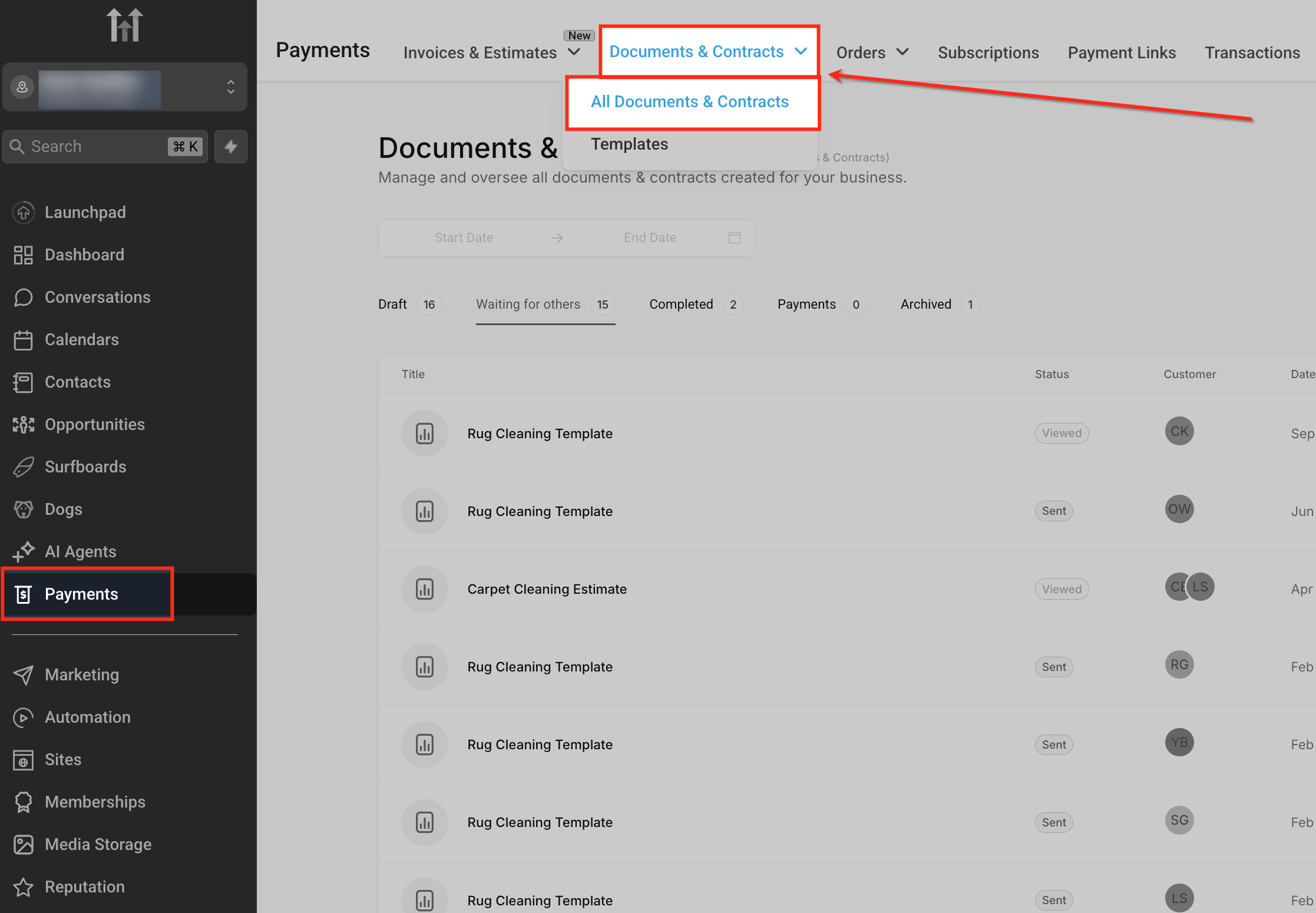
Accessing the Dashboard
To manage all agreements, go to Payments → Documents & Contracts from the left menu. From the dropdown, select All Documents & Contracts to view every draft, sent, completed, or archived document in one place.
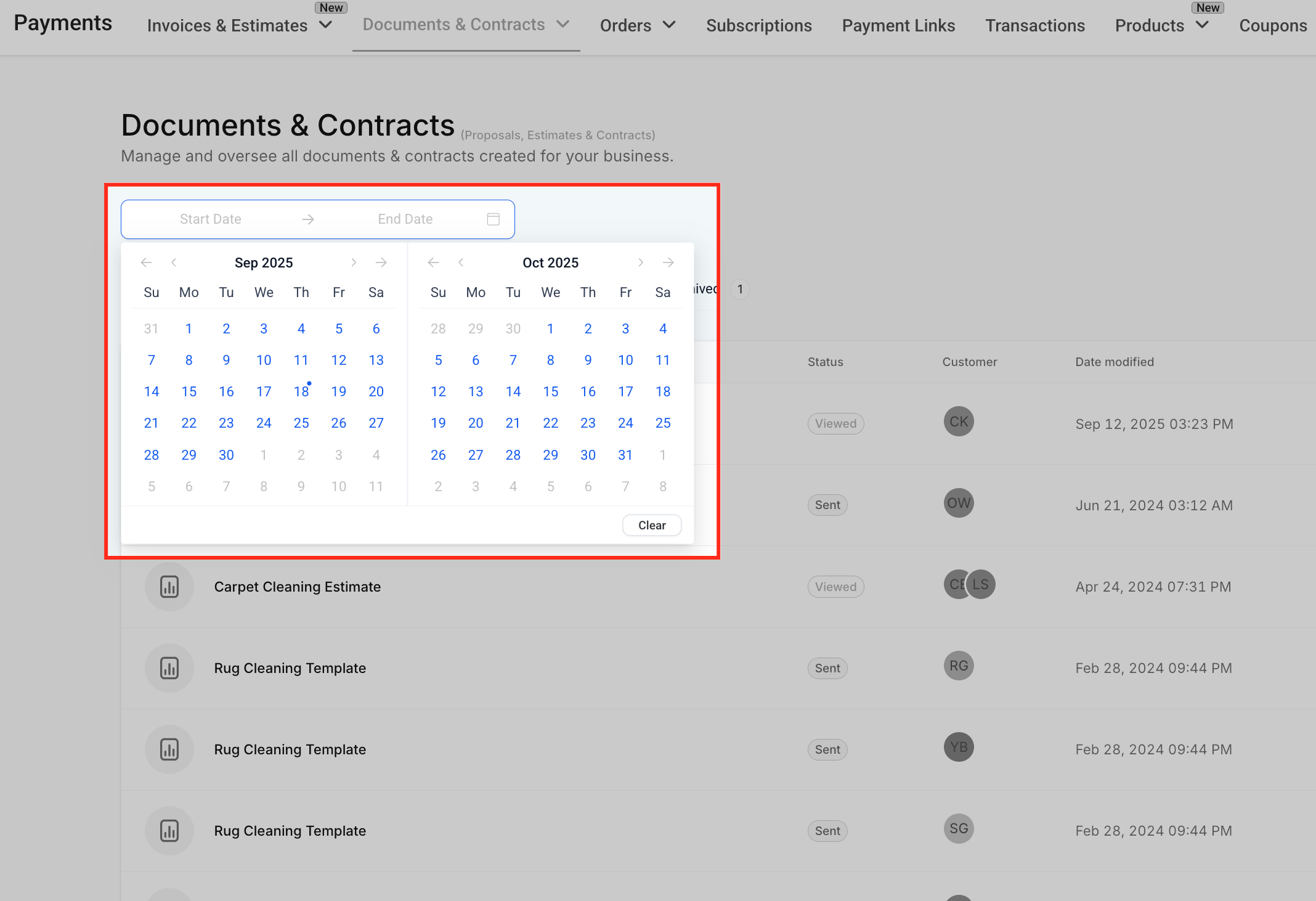
Date Filter
You can narrow down results by selecting a start and end date from the calendar. This is especially useful when tracking contracts created during a specific billing cycle or reviewing proposals sent within a certain timeframe.
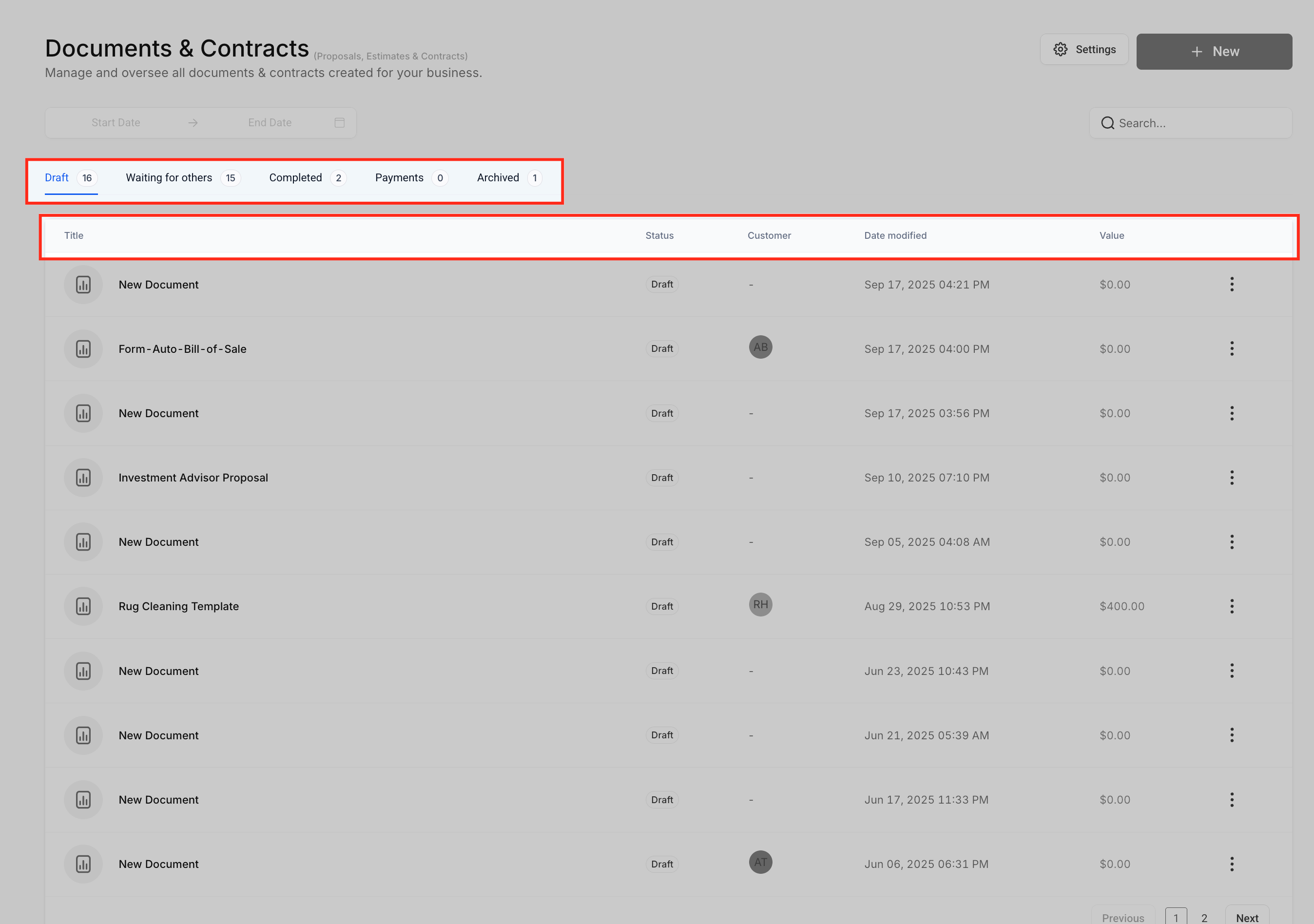
Document Status and Dashboard Columns
- The dashboard organizes your contracts and proposals into tabs: Draft, Waiting for others, Completed, Payments, and Archived. These tabs make it easy to track progress — for example, you can quickly see which clients still need to sign under Waiting for others.
- Each document row displays important details including Title, Status, Customer, Date Modified, and Value. This lets you quickly assess which agreements are active, which ones need follow-up, and which are complete or archived for record-keeping.
- A three-dot menu next to each record provides quick actions like View, Clone, Mark as Completed, Download PDF, Convert to Template, Share via Link, Move to Draft, or Mark as Declined.
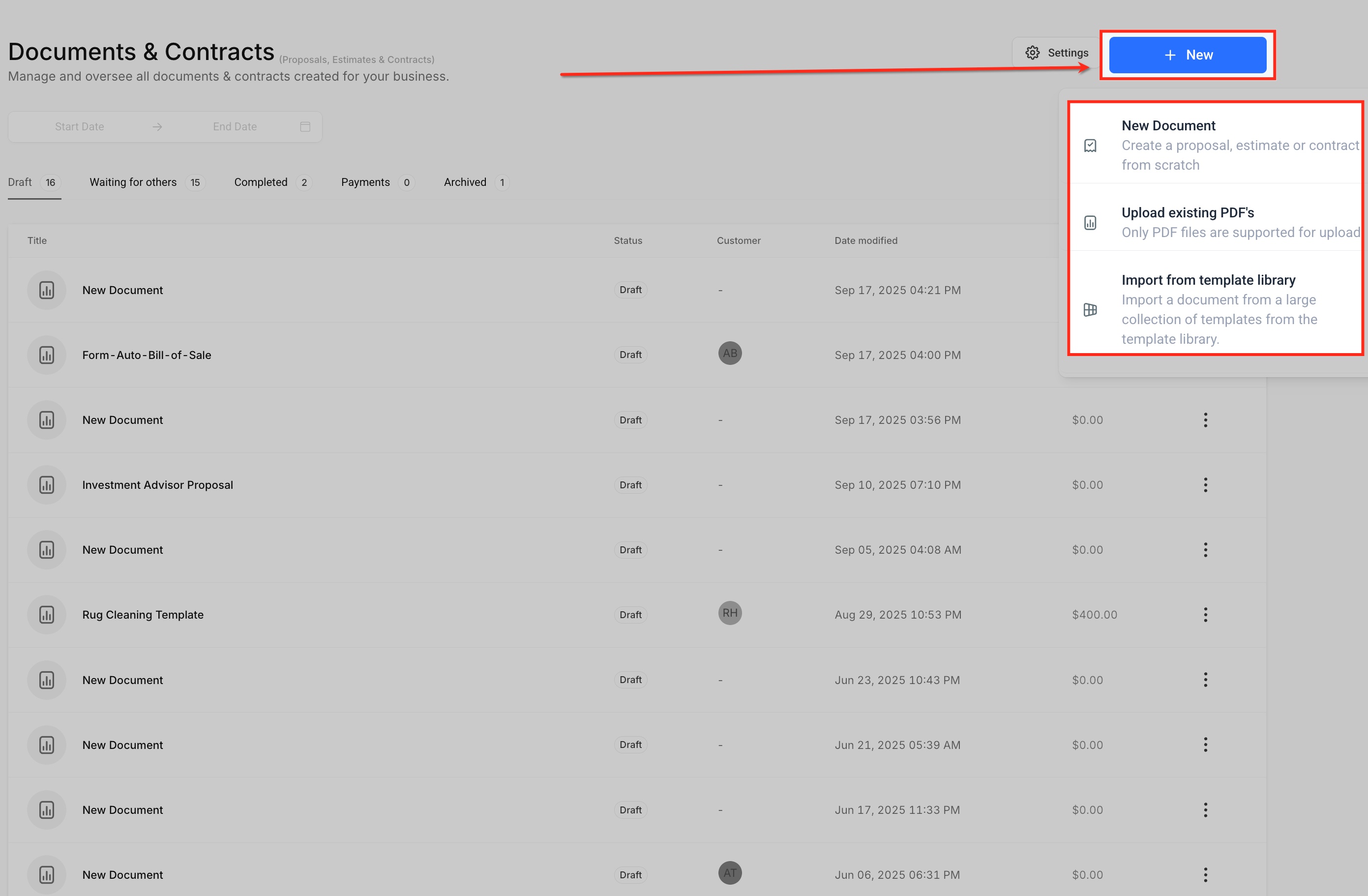
Creating New Documents
You can create documents in three ways, depending on your needs.
Click the + New button at the top right of the dashboard. Choose from:
- New Document: Start from scratch using the editor. Example: Build a fresh proposal with text blocks, pricing tables, and video embeds.
- Upload Existing PDF: Import a PDF and overlay signature or text fields. Example: A coaching contract uploaded for client e-signature.
- Import from Template Library: Choose from existing templates. Example: A cleaning business reuses its standard service agreement.
Document Editor Toolbar
The editor provides a flexible drag-and-drop environment to design, configure, and finalize your documents.
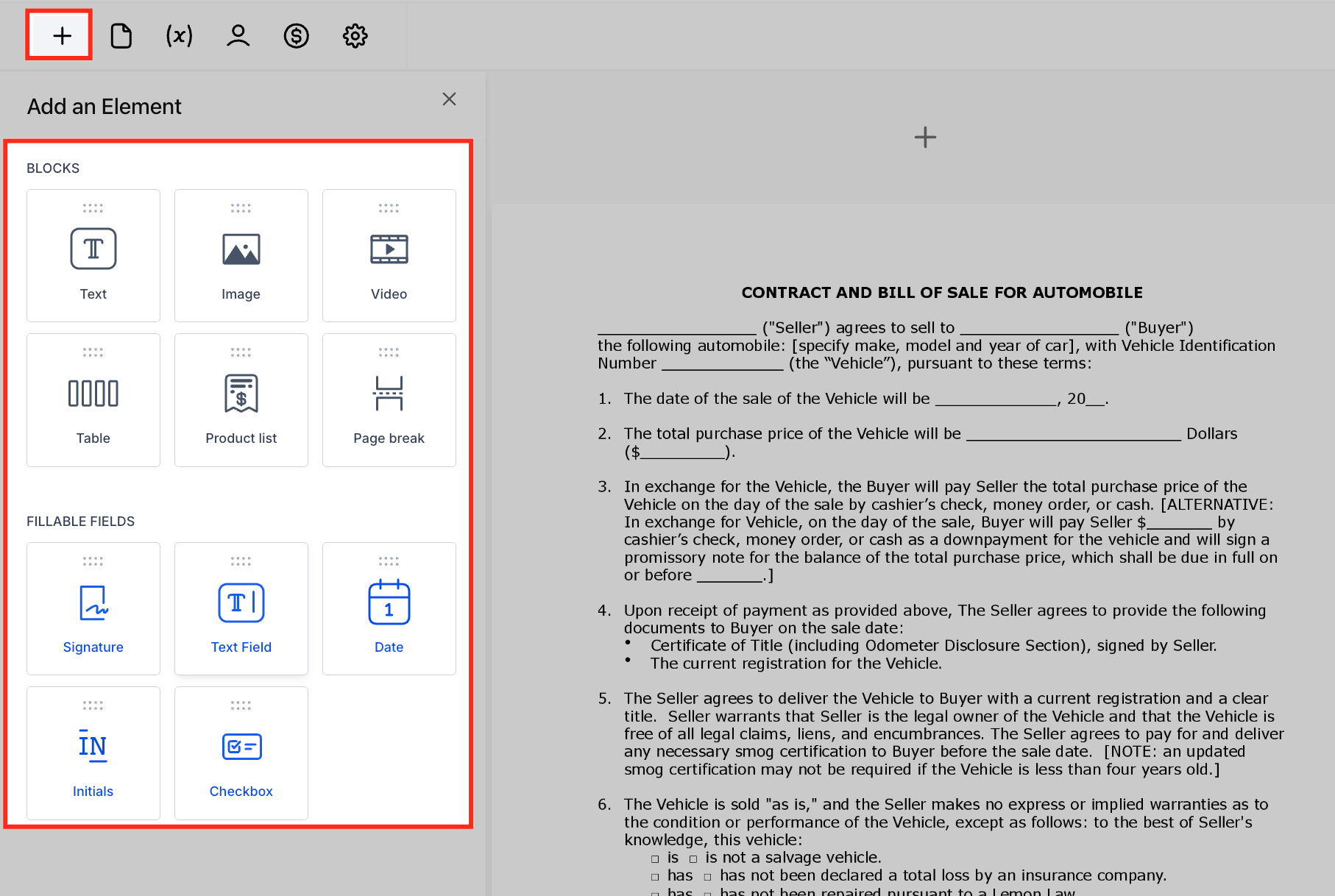
Add Elements
Add text, images, videos, tables, product lists, and page breaks.
Insert fillable fields such as Signature, Text Field, Date, Initials, and Checkbox.
After you add a fillable field (Example: Signature), select the field and use the right-side Properties panel. Use To be signed by to assign the field to the correct signer, including a specific staff member in your sub-account.
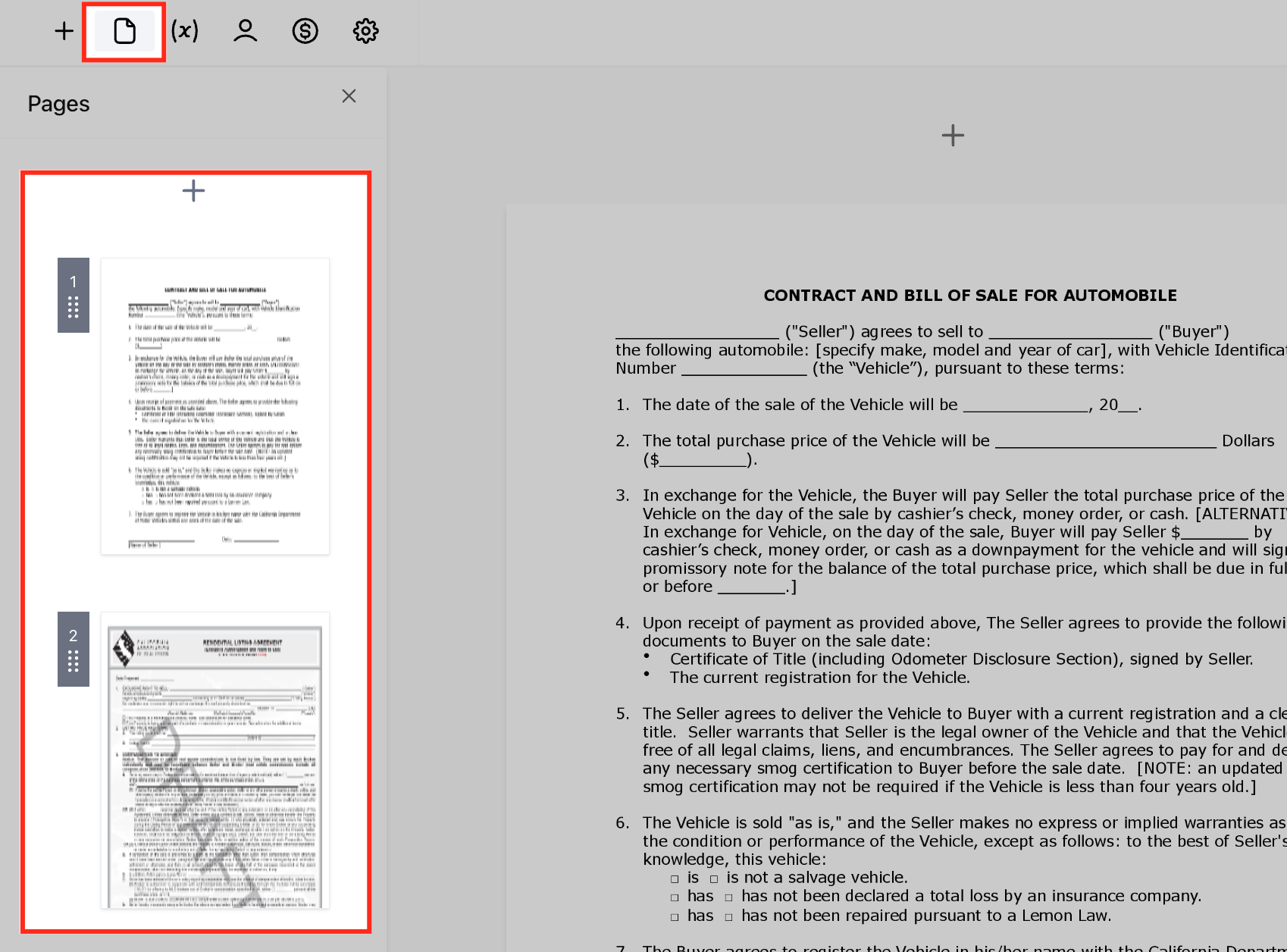
Page Management
Manage multi-page documents.
Add, duplicate, or remove pages as needed.
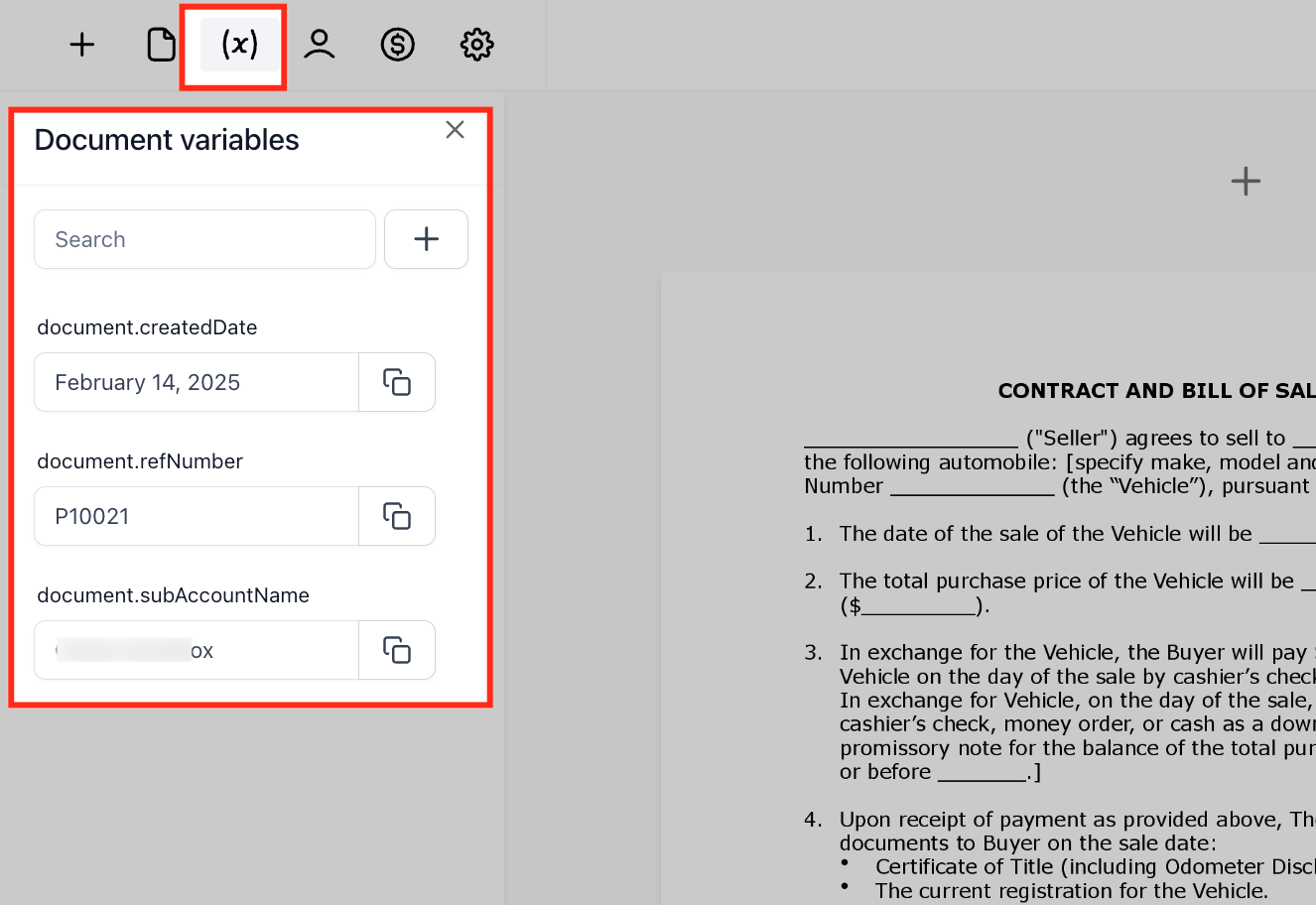
Document Variables
Insert dynamic placeholders like Created Date, Reference Number, Sub-Account Name, and custom fields.
Variables automatically populate with the correct data when the document is sent.
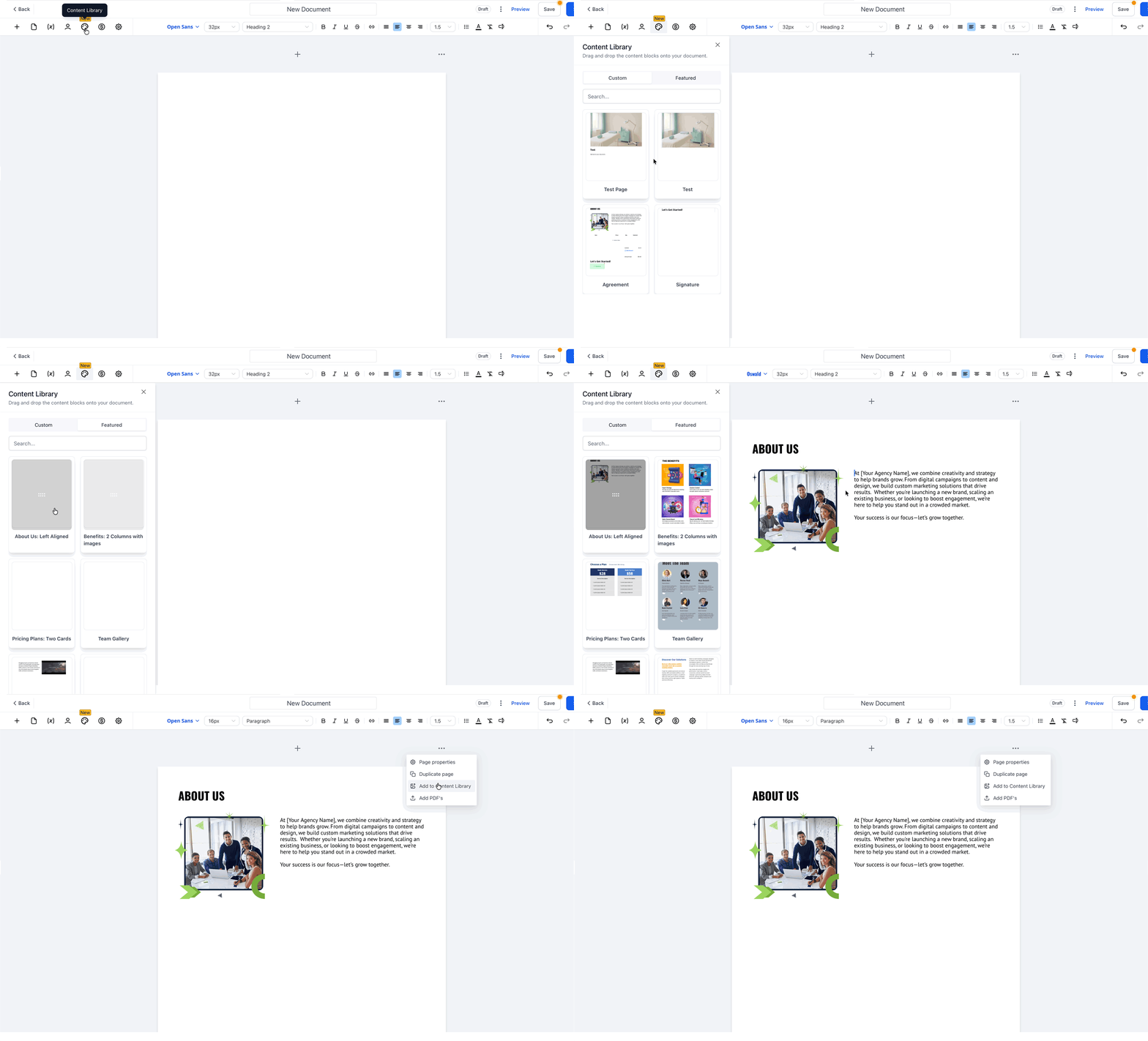
Content Library
Centralized library of reusable blocks and full pages for Documents & Contracts
Save a section/page you’ll reuse via Add to Content Library and name it for easy finding
Insert saved items in any doc/template from Content Library → Custom using drag & drop
Update/customize the inserted content as needed after adding it to the document
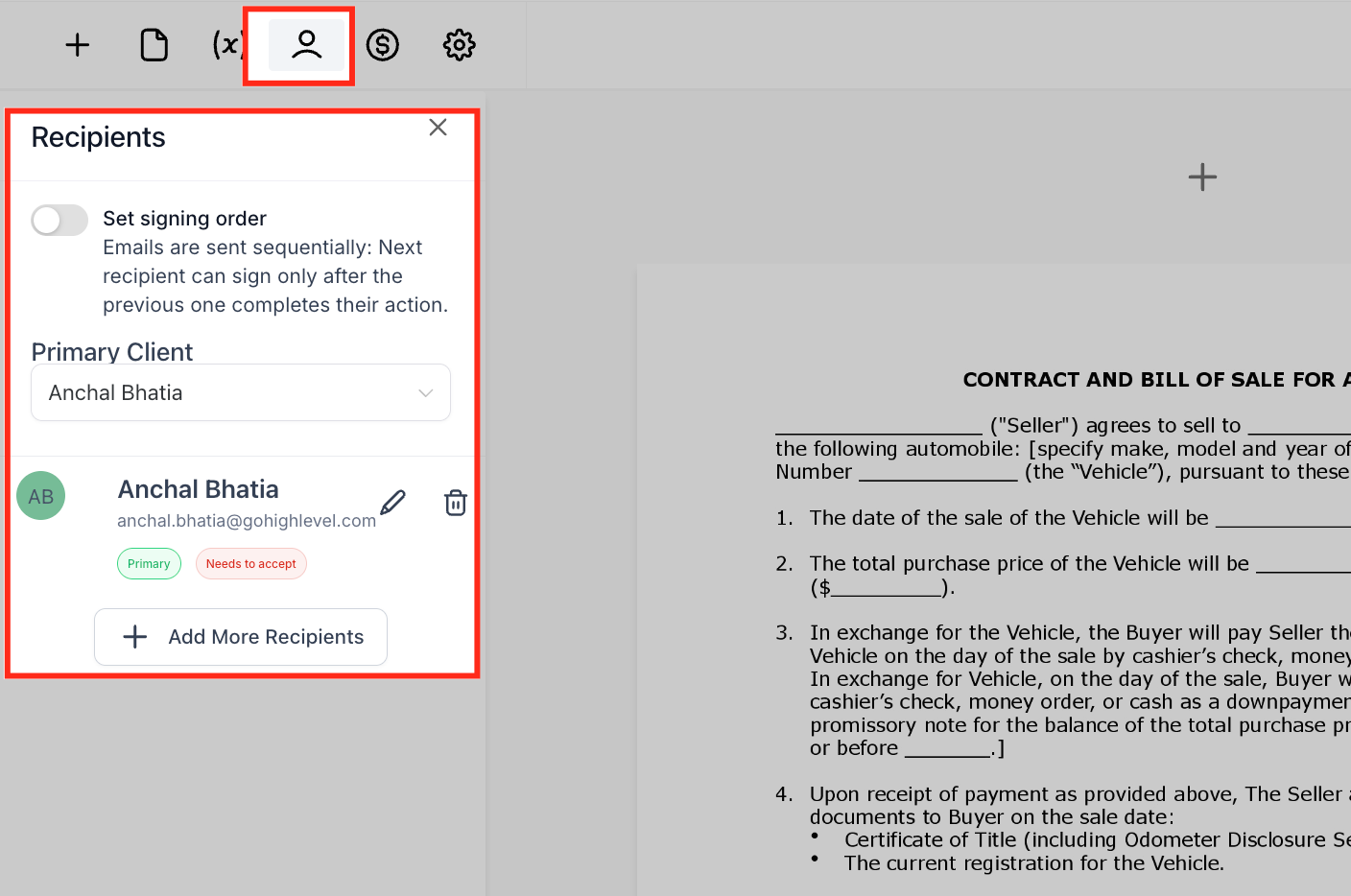
Recipients
Define who needs to sign or receive the document.
Add multiple recipients and set signing order (sequential or simultaneous).
Each recipient is assigned specific fields (e.g., signature, initials).
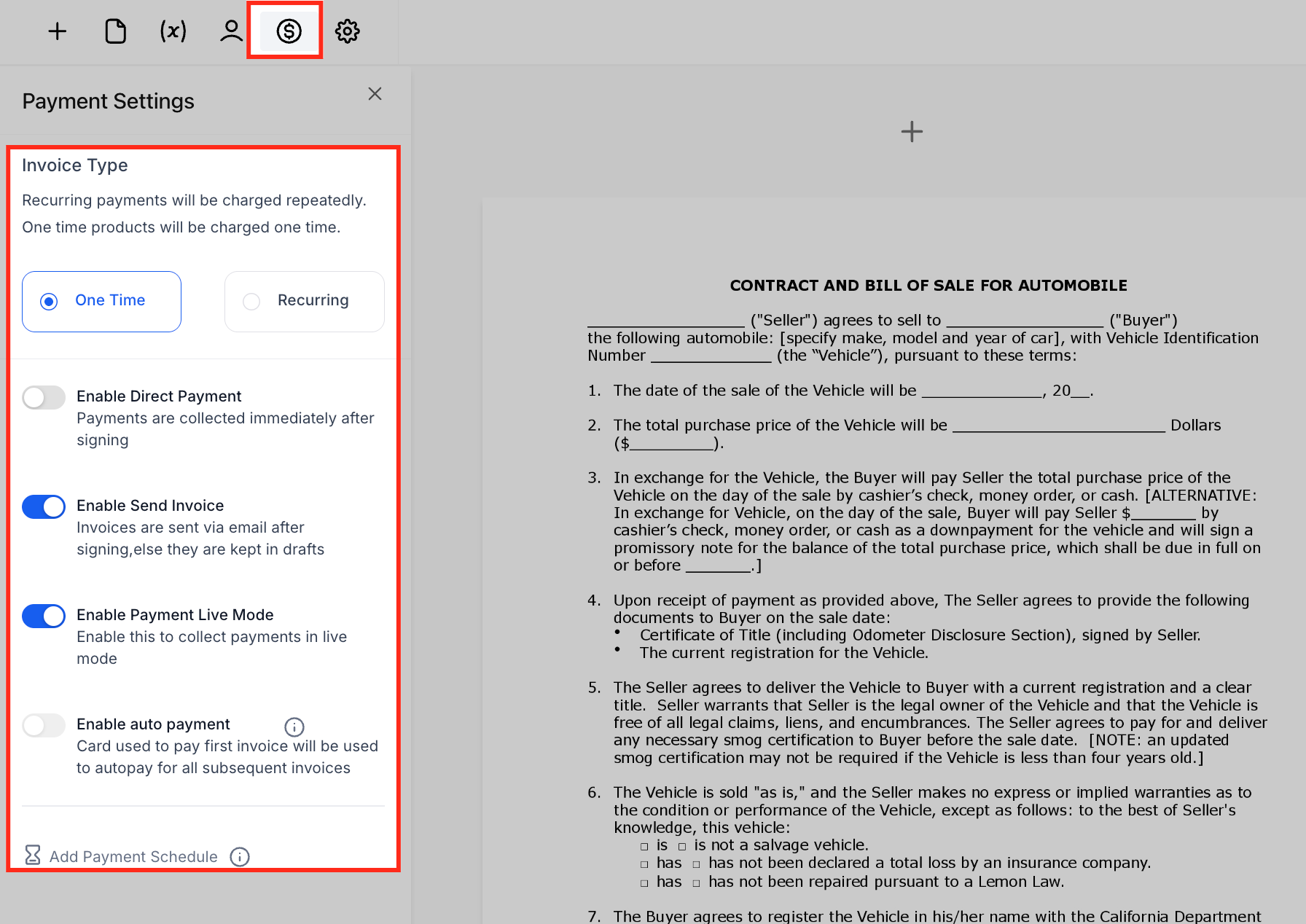
Payment Settings
Add payment options directly inside the contract.
Choose between One-Time or Recurring billing.
Enable direct payment upon signing, or send invoices automatically.
Supports live payment mode and autopay configurations.
Edit Email & Choose Template
Choosing a template and editing the email right before sending ensures the recipient sees the most accurate message. This reduces errors and speeds up client approvals.
What You Can Do
- Pick a Template: Use the Email Template dropdown to select the version that fits the context.
- Edit Before Sending: The Edit icon is always visible, making last-second changes easy.
Steps
- Click Send on the document to open the send modal.
- Select the EmailTemplate you want to use.
- Click Edit to adjust subject or email body if needed.
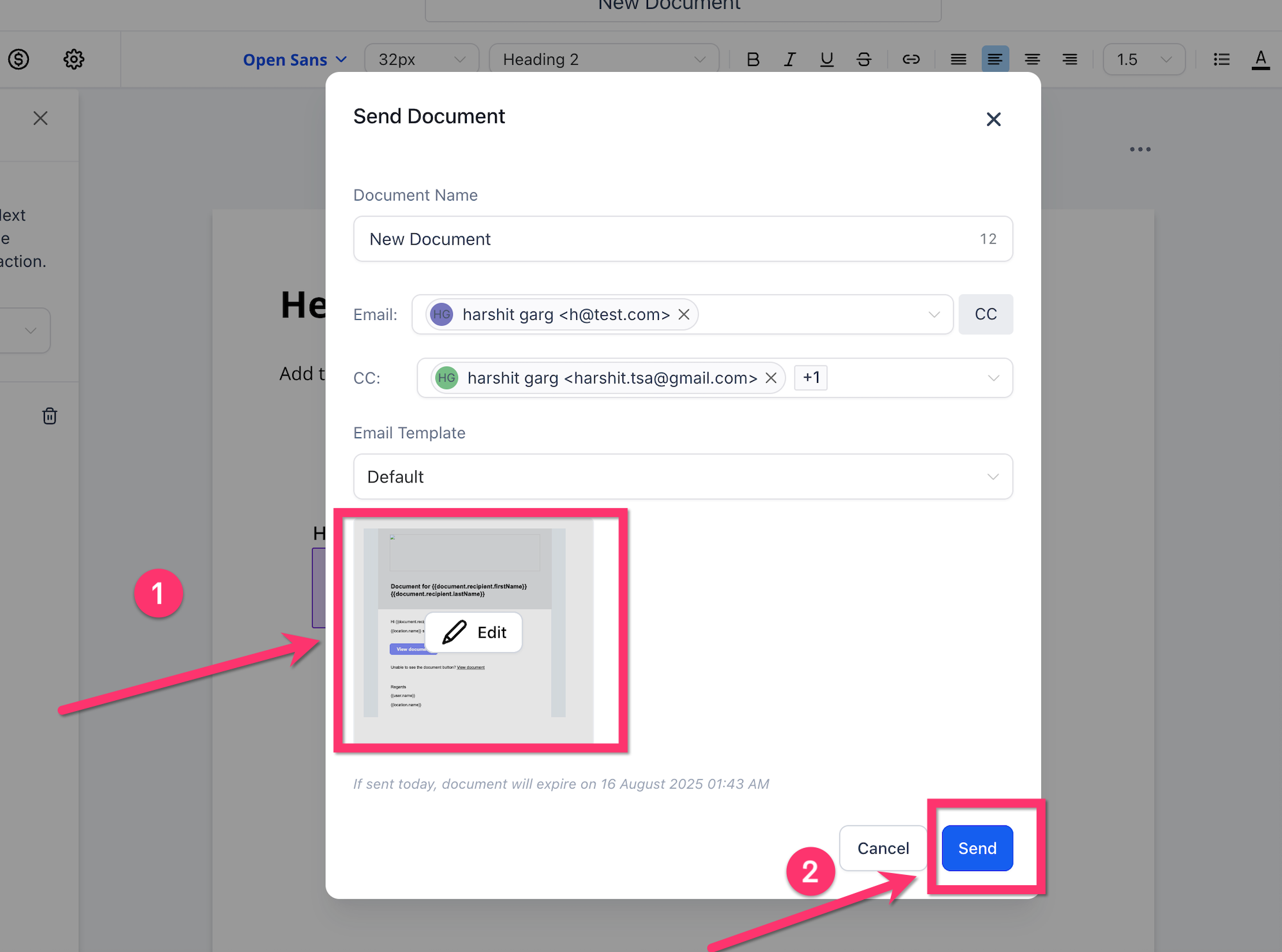
- Confirm the preview and send.
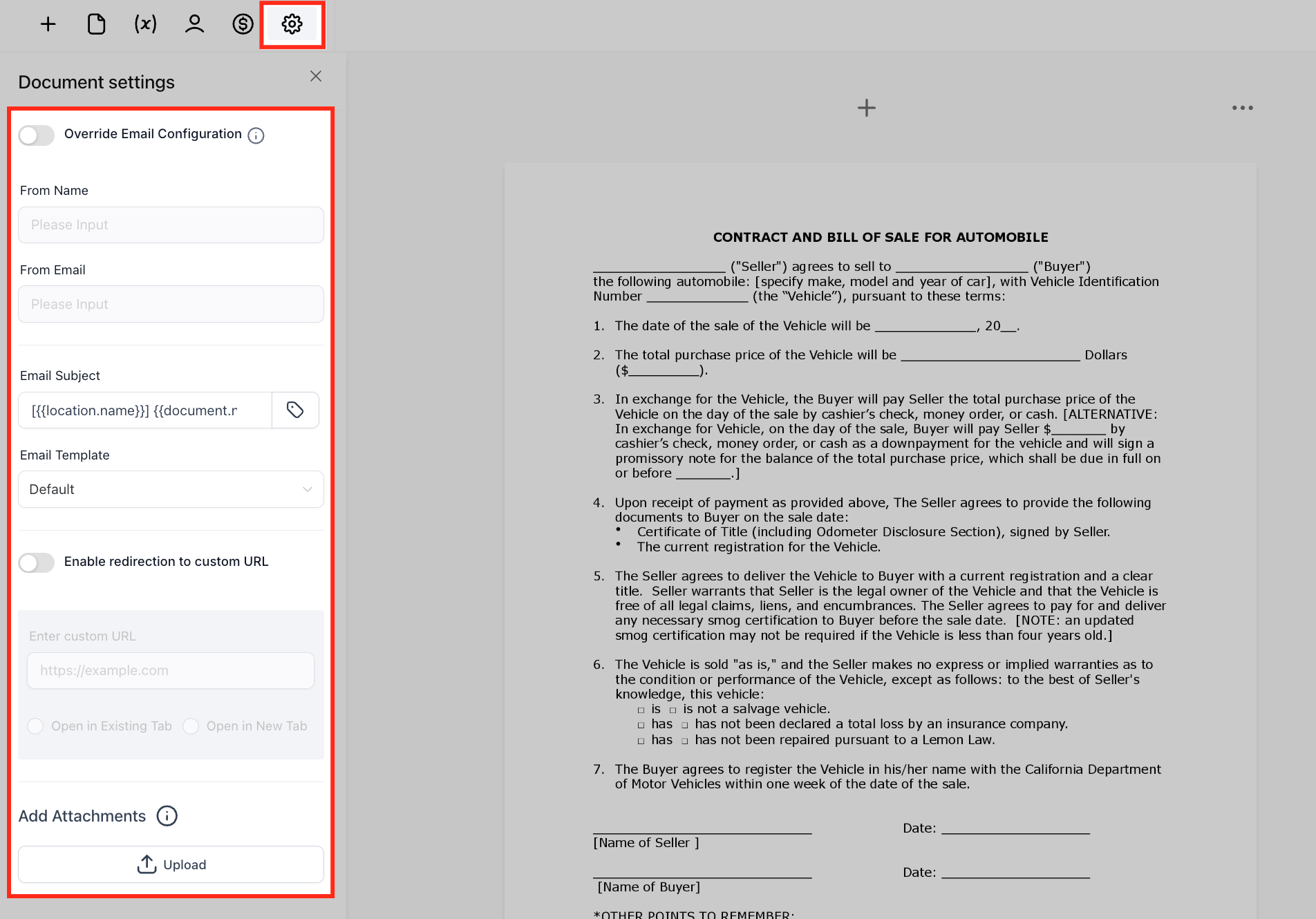
Document Settings
Control how the document is delivered.
Override the default email configuration (From Name, From Email, Subject, Template).
Redirect clients to a custom URL after signing.
Upload attachments to be included with the document email.
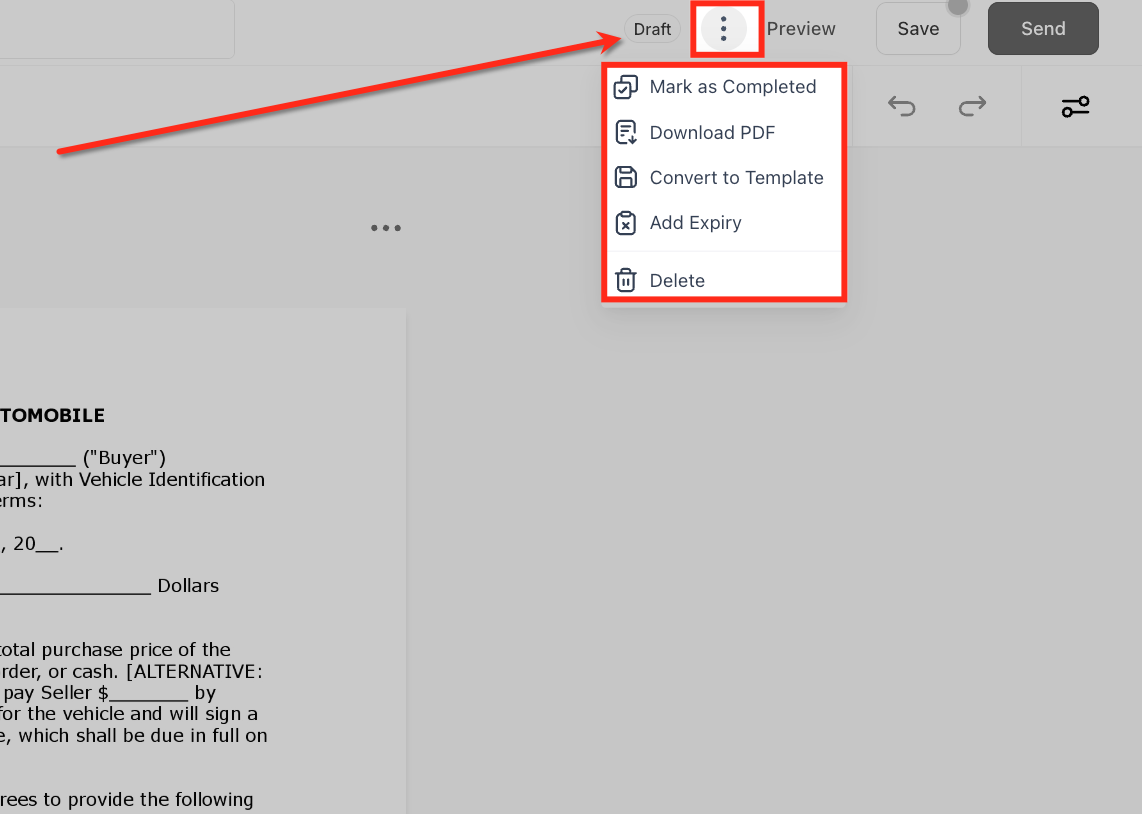
Action Menu Inside the Editor
Access the three-dot menu (⋮) for additional options: Mark as Completed, Download PDF, Convert to Template, Add Expiry, Delete.
Send Options
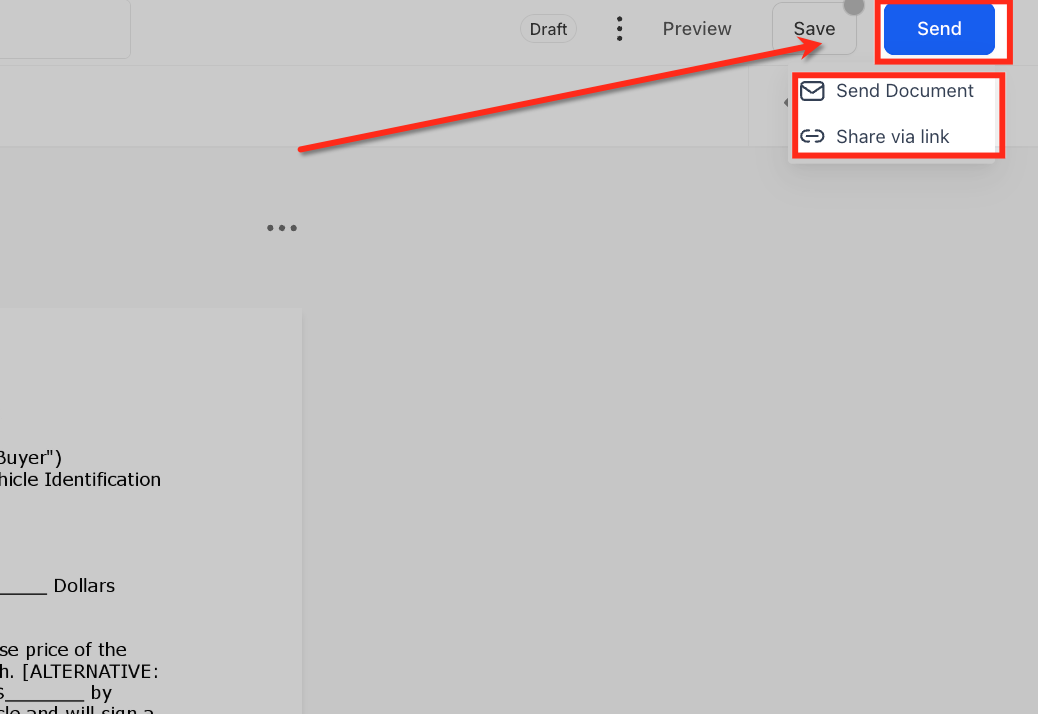
Once complete, click Send to deliver.
Choose between Send via Email or Share via Link.
Frequently Asked Questions
Q: What happens if a client partially signs but doesn’t complete the document?
If multiple signers are assigned and only some complete their fields, the document remains in Waiting for others. You can remind incomplete signers by resending from the dashboard. The document won’t move to Completed until every required signer finishes.
Q: How secure are e-signatures and payment details inside documents?
SourCherry applies SSL encryption to all documents and payment data. Each signature generates a certificate with IP address, email, and timestamp. Payment information is processed securely through your integrated payment provider and never stored in SourCherry.
Q: Can I create conditional content in documents (e.g., show different pricing tables depending on the client)?
Currently, conditional logic inside documents is not supported. Each document is static once created. If you need variations, create multiple templates or use workflows to send different templates based on conditions.
Q: What happens if I edit a template after sending a document?
Editing a template does not affect documents already sent. Any changes will only apply to future documents created from that template. This ensures legal integrity for already signed or pending agreements.
Q: Can I accept multiple payment methods in one document?
Yes, you can configure documents to accept multiple payment processors (e.g., Stripe, PayPal) if those gateways are connected to your account. Recipients can choose their preferred method at checkout.
Q: How do expiry dates work with documents?
You can add an expiry date from the document action menu. Once the date passes, the document automatically moves to Expired and can no longer be signed. This is useful for time-limited offers or proposals.
Q: Can workflows trigger based on specific template usage?
Yes, workflows can filter by both Document Status and Template Name. For example, you could send a reminder only when a specific “Service Agreement” template remains unsigned for more than 3 days.