
The funnel/website builder now includes an Image Slider element, enhancing the toolkit for users aiming to design dynamic and visually engaging websites and funnels. This feature simplifies the process of creating and integrating image sliders, offering an enriched user experience and heightened engagement on digital platforms.
TABLE OF CONTENTS
- What's New in the Slider Element
- Key Benefits of Slider Element
- How to Use the Slider Element
- Frequently Asked Questions
- Related Articles
What's New in the Slider Element
- Image Slider Element: Seamlessly incorporate interactive image sliders into web pages and funnels. This element offers a plethora of customization options, including carousel, animation, arrow, and pagination settings.
- Margin Padding Element: Adjust the spacing around elements with precision using the new Margin Padding element.
- Shadow Element: Add depth and dimension to your designs by introducing shadows to elements.
- Custom Class Element: Apply custom CSS classes to specific elements for advanced styling and design flexibility.
- Visibility Element: Control the visibility of elements based on conditions such as device type.
Key Benefits of Slider Element
- Elevated User Experience: Image sliders introduce interactivity and visual allure, captivating visitors and fostering engagement.
- Boosted Engagement: Dynamic image sliders are known to amplify user engagement and promote interaction.
- Streamlined Workflow: Directly craft and tailor image sliders in the builder, ensuring complete design and functionality control.
- Precise Layout Control: The Margin Padding element facilitates exact spacing adjustments for optimal content positioning.
- Diverse Design Options: The Shadow, Custom Class, and Visibility elements provide a rich palette of design and customization options.
How to Use the Slider Element
- In the builder, pinpoint the section or page where you wish to incorporate the image slider.
- Drag and drop the "Image Slider" element.
- Personalize the slider by tweaking transition effects, pagination styles, autoplay settings, and more.
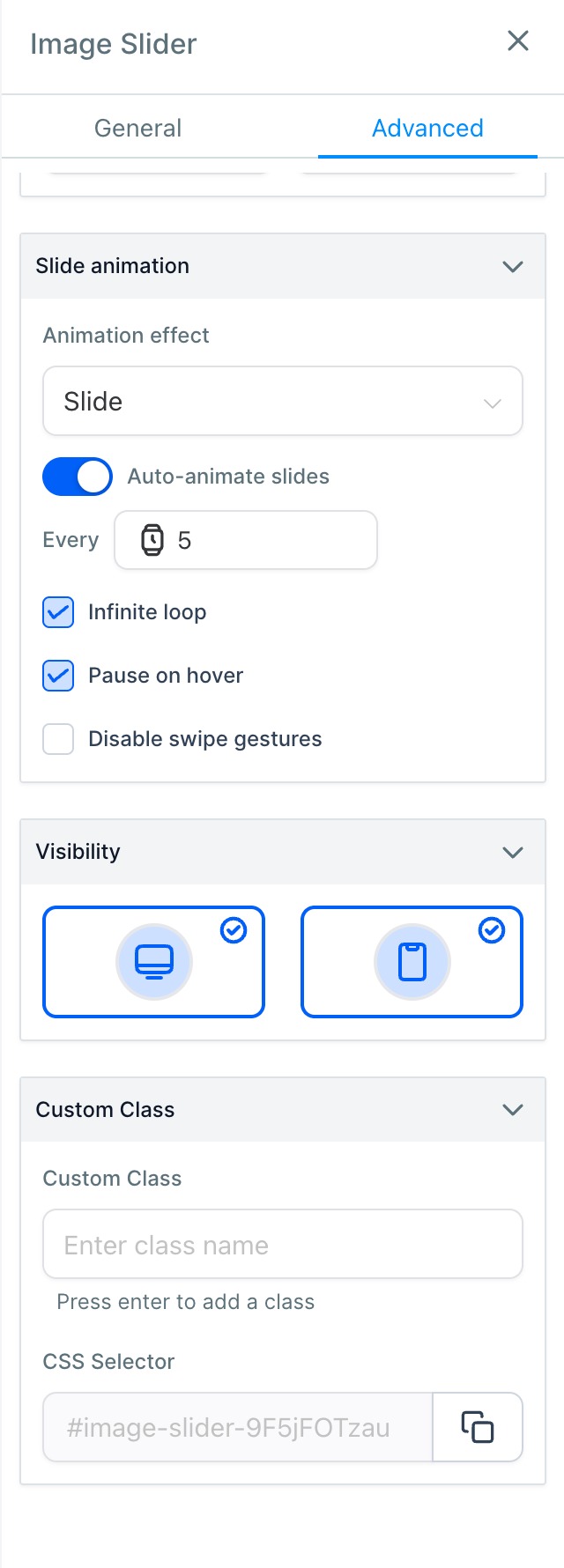
- Populate the slider with images from the Media Library. For best results, use images with a 16:9 aspect ratio such as 1600x900 px or 1920x1080 px. This ensures your sliders look sharp and consistent across all screen sizes.
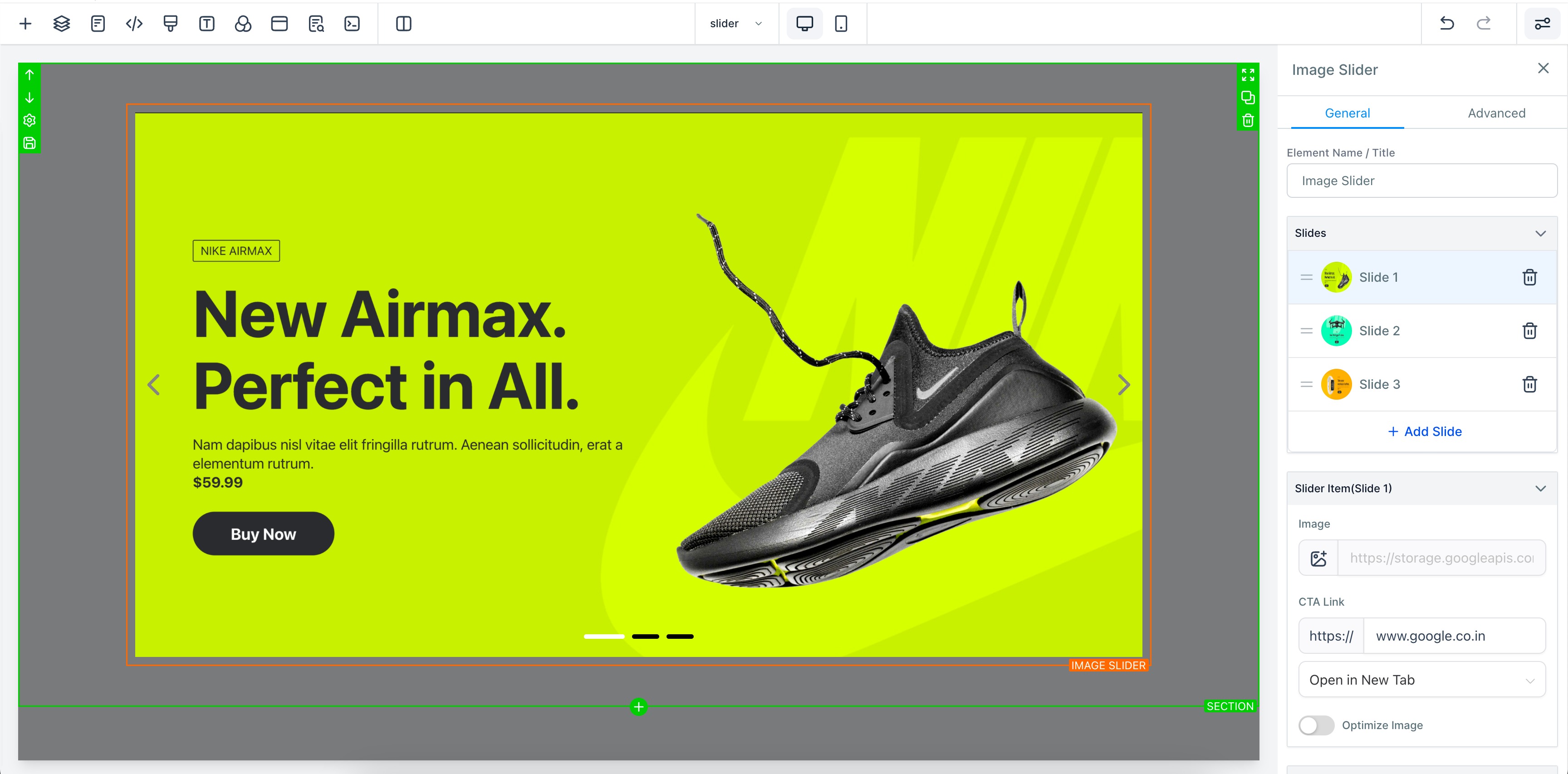
- Save your modifications, and the image slider will be showcased on your website or funnel.
Frequently Asked Questions
Q: What is the Image Slider element?
The Image Slider element allows users to embed interactive image sliders into their web pages and funnels, offering a range of customization options for a captivating visual experience.
Q: How can I add an image slider to my website or funnel?
Within the builder, navigate to the desired section or page, drag and drop the "Image Slider" element, customize as needed, add images, and save the changes.
Q: Are there any other new elements introduced alongside the Image Slider?
Yes, we've also introduced the Margin Padding, Shadow, Custom Class, and Visibility elements for enhanced design and customization.
Q: Can I control the visibility of elements based on specific conditions?
Absolutely! With the new Visibility element, you can dynamically show or hide elements based on factors like device type.
Q: How many slides can I add ?
You can add as many slides as you want. Standard practice is to add 3-5 slides.
Q: What happens If a user clicks on the image of the image slider ?
There is a url redirect option which you can set from the general options. You also have the option to open in new tab or current tab.
Q: Can I resize my images of image slider?
Yes, in general options you can resize your images of image sliders.
Q: Will this element work in mobile ?
Yes! This element is responsive and looks great on desktop or mobile devices.
You can have the button in the image itself. As clicking on the image will redirect to specific page which a button will do.