
Seamless customer communication plays a vital role in business success, and managing inbound calls efficiently can significantly improve customer experience. An Interactive Voice Response (IVR) system helps automate call handling by guiding callers through pre-recorded prompts and directing them to the right department or action without human intervention. In this guide, we’ll explore how to configure an IVR system in SourCherry using workflows, whether through a prebuilt IVR recipe or by creating one from scratch.
More Tutorials From the Community
TABLE OF CONTENTS
- What is the IVR System?
- Key Benefits of IVR
- Configuring IVR Using Workflows
- Method 1: Using the IVR Workflow Recipe (Faster Setup)
- Method 2: Creating an IVR Workflow from Scratch (Full Customization)
- Frequently Asked Questions
What is the IVR System?
An Interactive Voice Response (IVR) is an automated phone system that interacts with callers through pre-recorded messages, text-to-speech prompts, and keypad inputs. It allows businesses to guide callers to the right department, collect information, or provide self-service options without human intervention. In SourCherry, IVR is set up using workflows, enabling automated call routing and customer engagement.
To better understand how IVR works within workflows, refer to the table below, which outlines the key triggers, actions, and conditional logic used to build an IVR system.
| IVR Component | Function | Use case |
| Trigger - Start IVR | Activates the IVR system when a call is received on a designated number. | A customer calls the business number, and the IVR workflow begins. |
| Action - Say/Play Message | Plays a recorded or text-to-speech message to guide the caller. | “Welcome to XYZ Company! Press 1 for Sales, Press 2 for Support.” |
| Action - Gather Input | Collects user keypress responses for navigation within the IVR menu. | Caller presses 1 for Sales, 2 for Support. |
| Condition - Map Caller Input | Directs the caller to the appropriate action or team based on input. | If 1 is pressed → Route to Sales Team, if 2 → Route to Support. |
| Action - Connect Call | Transfers the caller to a selected agent, department, or external number. | After pressing 1, the call is forwarded to a sales rep. |
| Action - Record Voicemail | Allows callers to leave a voicemail if no one is available to take the call. | If agents are unavailable, the IVR prompts the caller to leave a message. |
| Condition - Call Status Check | Determines what happens based on call outcome (answered, missed, or disconnected). | If unanswered, play a message and offer a callback option. |
Key Benefits of IVR
- Enhanced Call Management: Automatically directs callers to the appropriate team, reducing wait times and improving customer experience.
- Improved Efficiency: Eliminates the need for manual call handling, freeing up staff for higher-value tasks.
- 24/7 Availability: Enables businesses to handle customer inquiries at any time, even outside business hours.
- Customizable Interactions: Supports text-to-speech messages, call routing, voicemail collection, and data gathering based on caller input.
- Seamless Workflow Integration: Works within SourCherry’s automation system to trigger actions like follow-ups, appointment scheduling, or lead categorization.
Configuring IVR Using Workflows
Setting up IVR in SourCherry can be done in two ways: using a workflow recipe for quick setup or creating one from scratch for full customization. Below, we explain both methods:
Method 1: Using the IVR Workflow Recipe (Faster Setup)
If you want a prebuilt IVR structure to save time, you can use the IVR Workflow Recipe, which includes predefined triggers, actions, and conditions.
Navigate to Automation from your SourCherry dashboard. Click Create Workflow, then click Select a Recipe option to quickly set up a preconfigured IVR system with minimal adjustments.
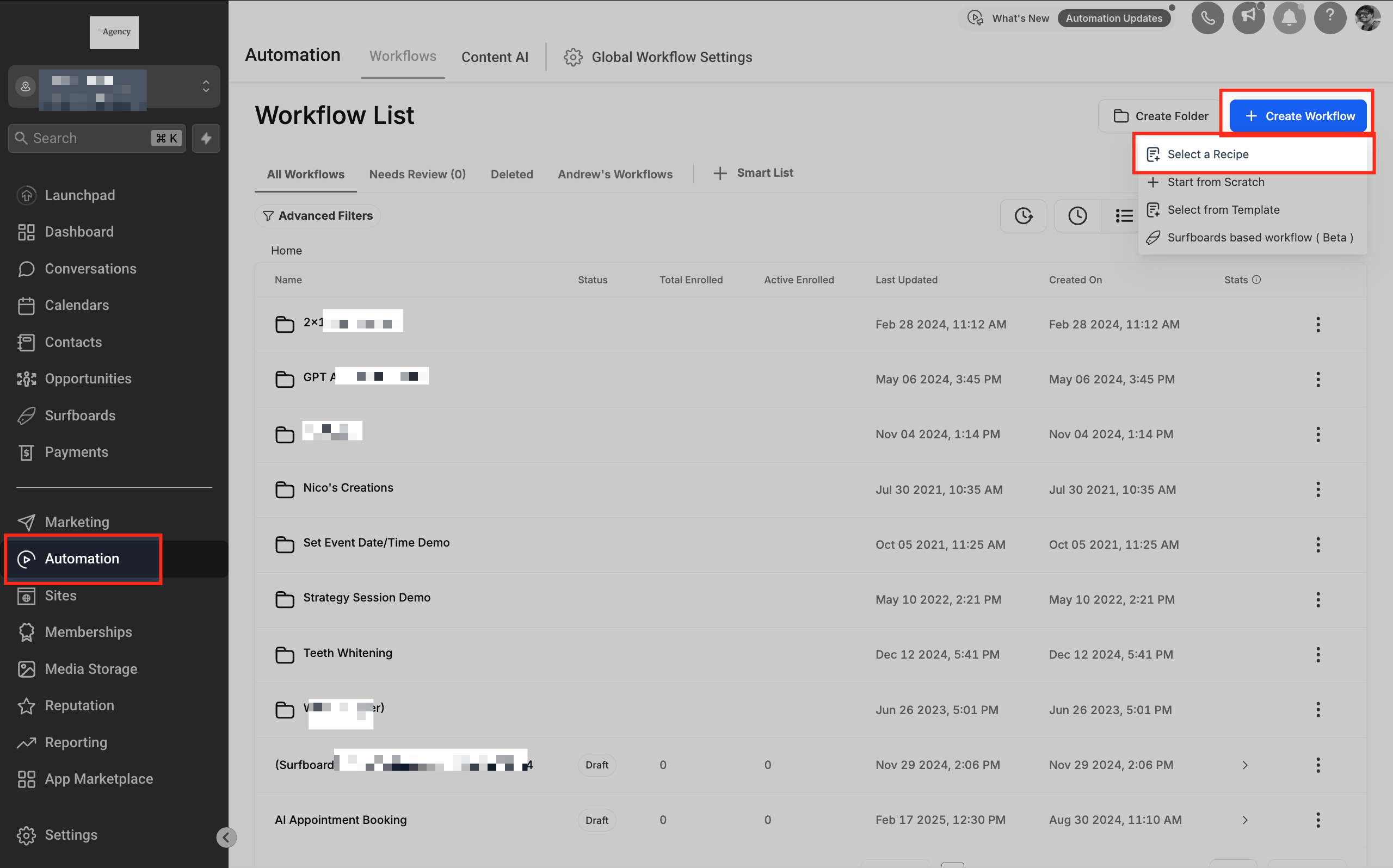
Selecting the IVR Workflow Recipe
Once inside the workflow creation section, use the recipe selection option to simplify setup. This recipe includes essential triggers, actions, and call routing logic, reducing the need for manual configuration. Select the IVR Workflow recipe and proceed to customize it based on your business needs.
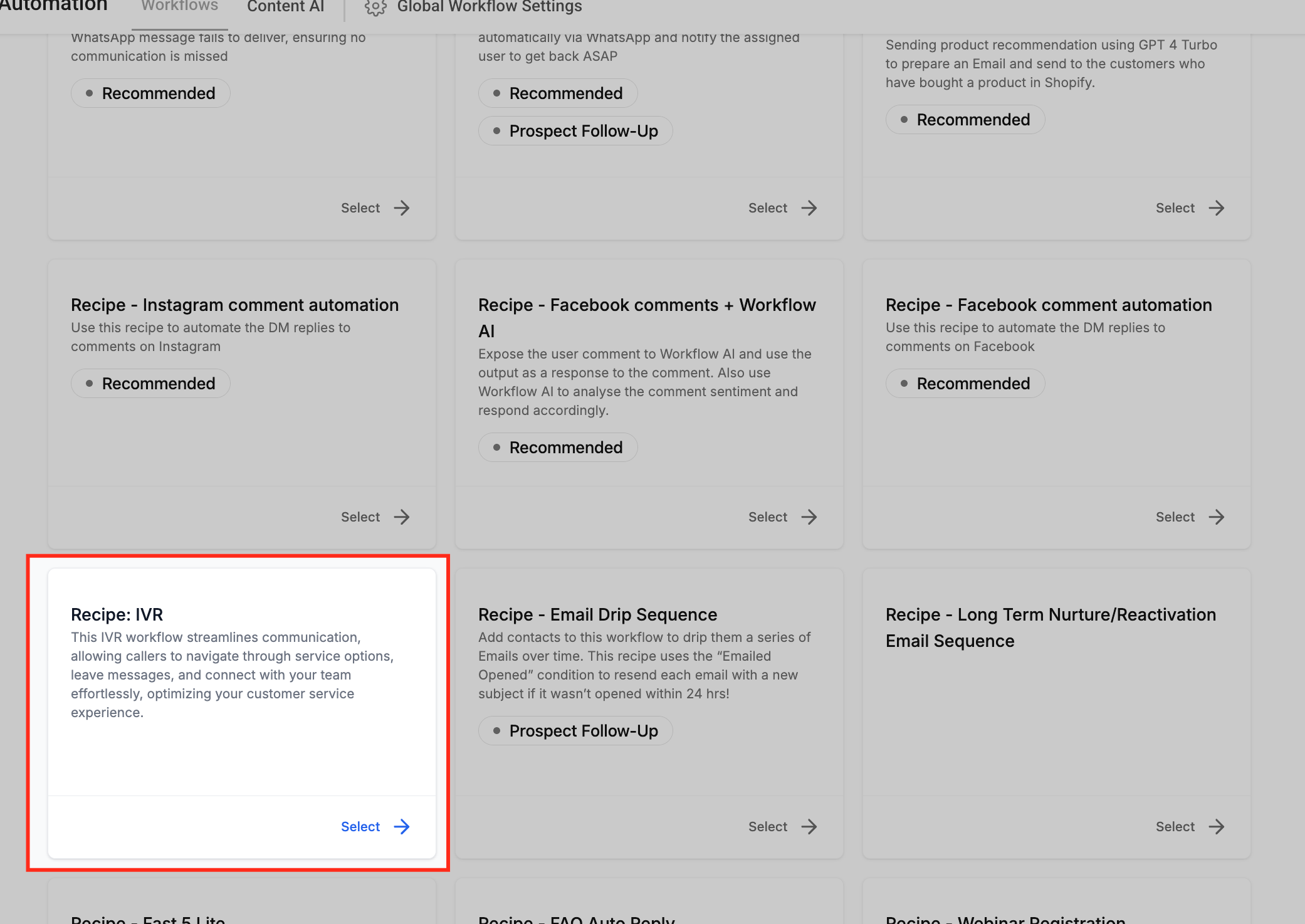
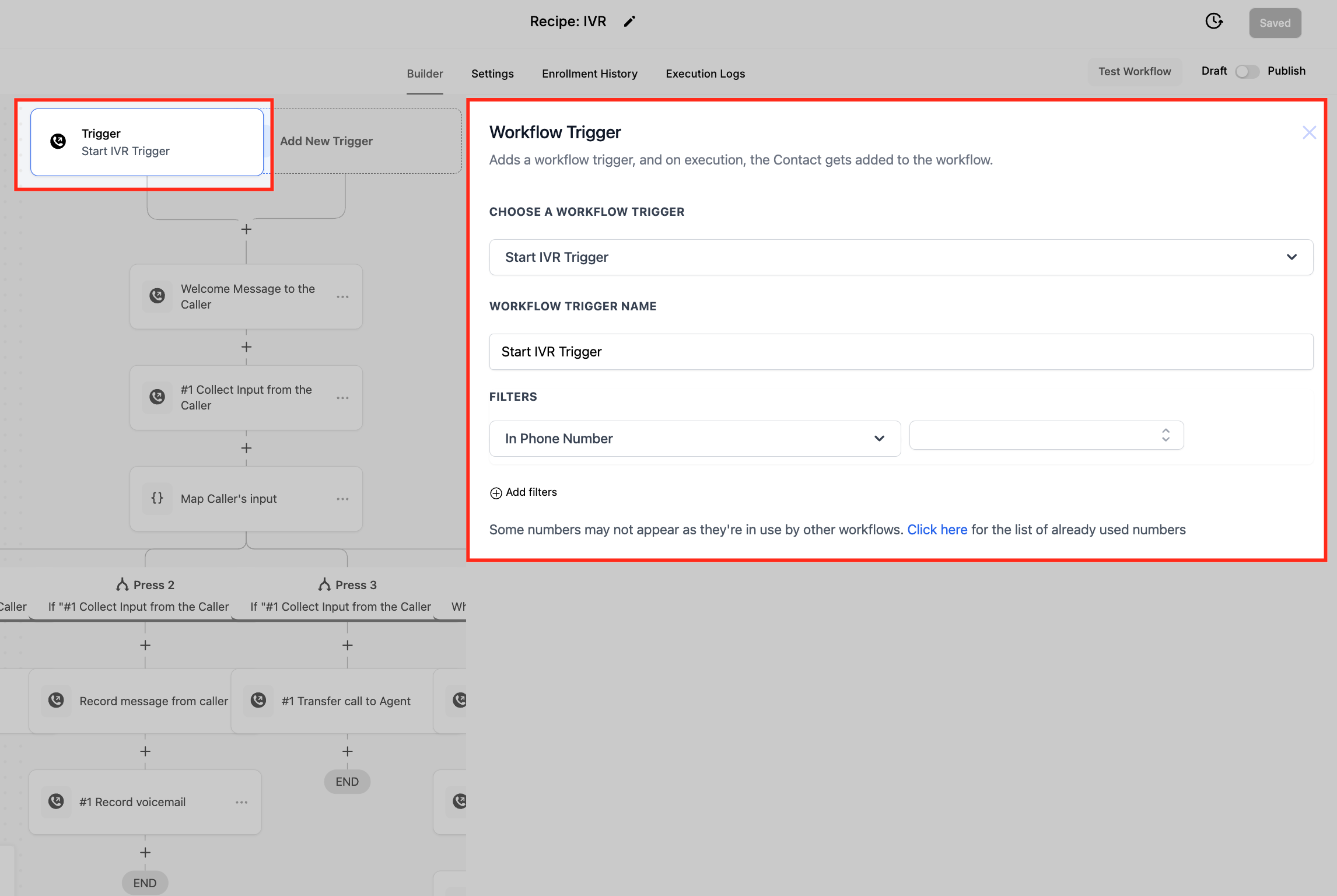
Customize the Trigger
Phone Number: In the workflow trigger settings, select the phone number that will be used for the IVR system. This ensures that incoming calls are properly routed to trigger the IVR workflow. If the number is not correctly mapped, the IVR system will not function. Subsequent IVR actions will rely on this configuration to guide callers through the automated process. When you click the dropdown, It shows all the available phone numbers of the users. you can choose one or more phone numbers.
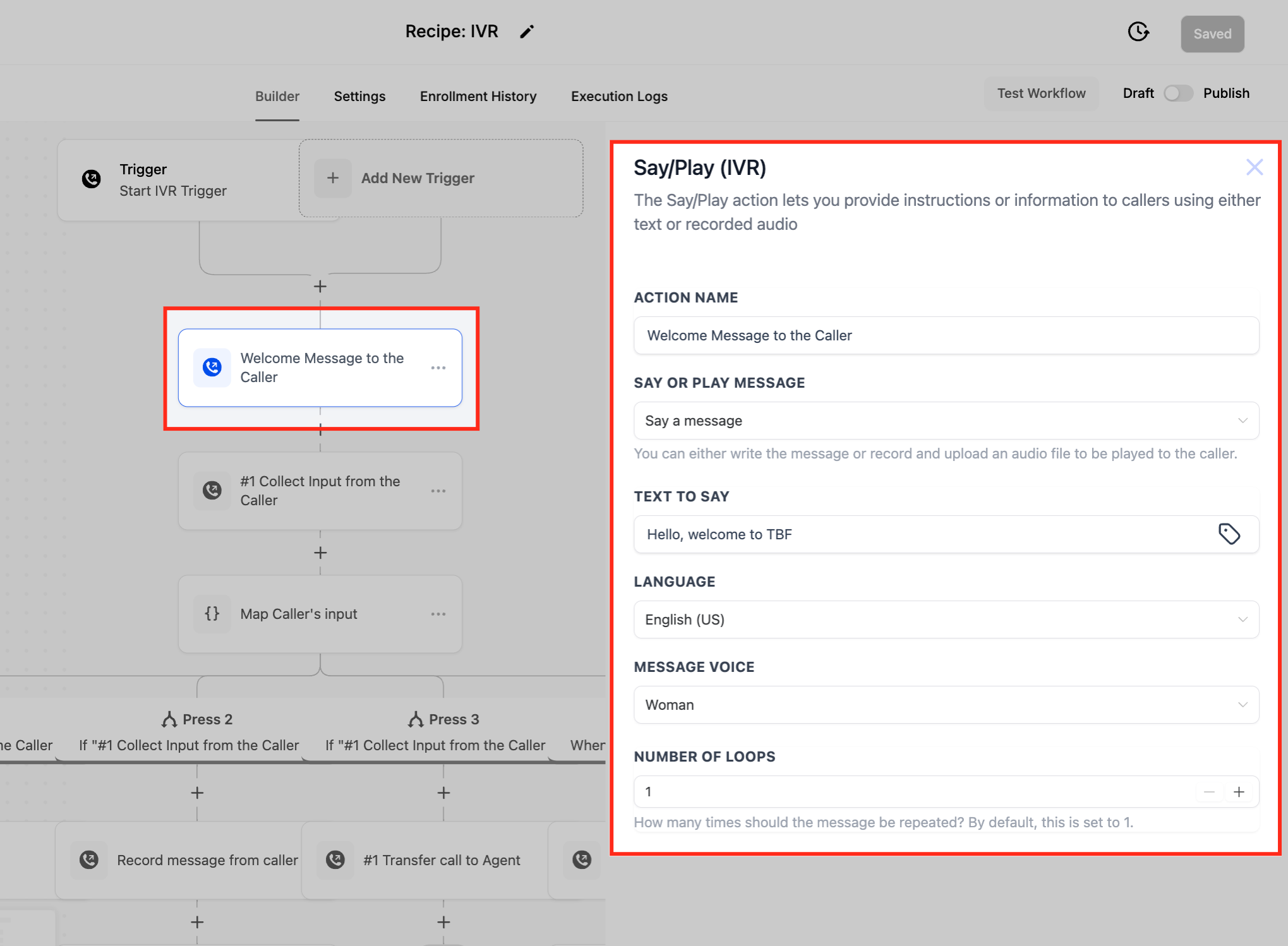
Say/Play Messages
Modify the text-to-speech or uploaded audio file in the workflow action settings to ensure the IVR delivers accurate and professional prompts to callers. This step allows you to customize greetings, menu options, and instructions for a seamless caller experience.
Call Routing Logic
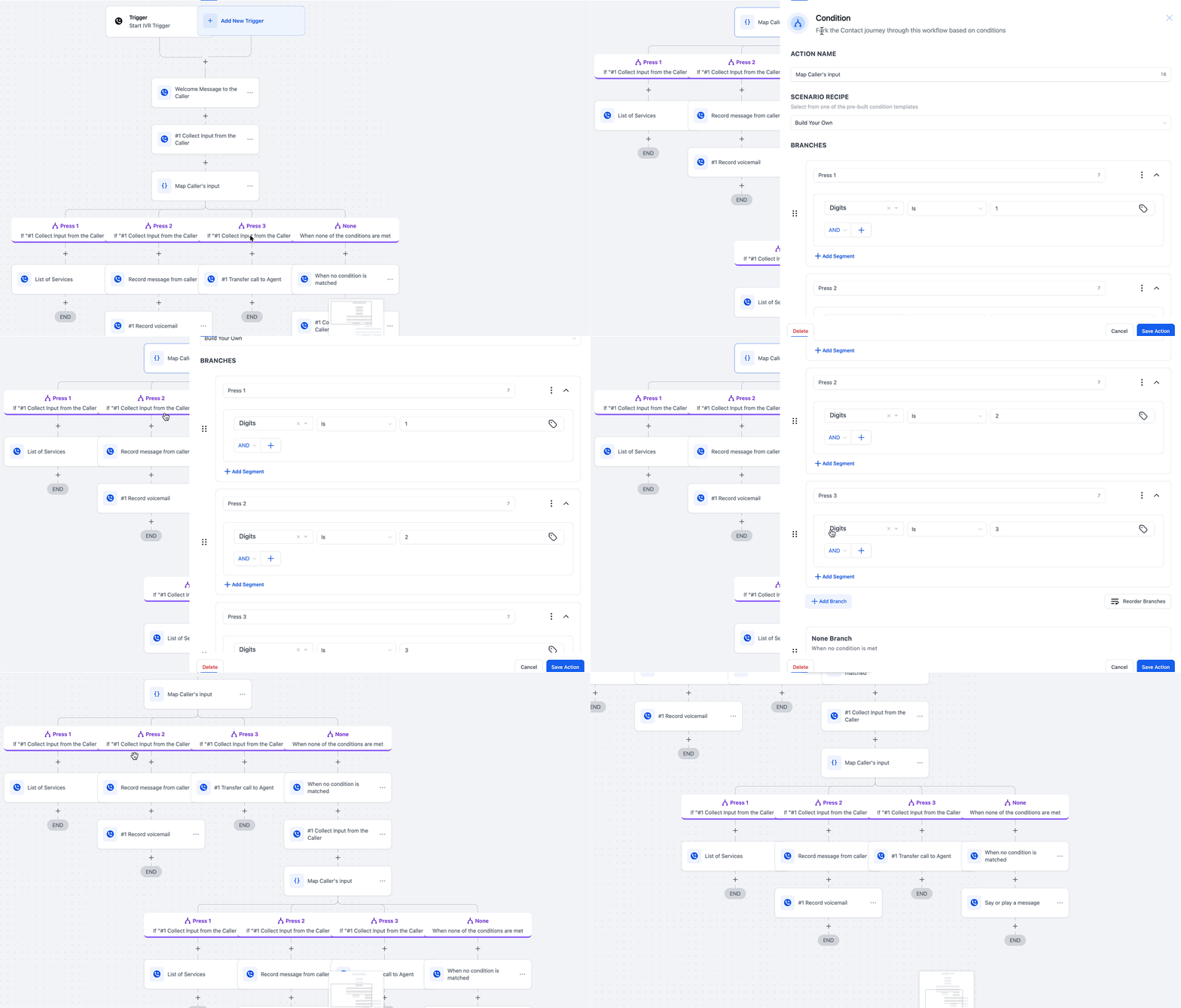
Modify the input conditions within the IVR workflow to ensure callers are directed to the correct department or individual. Based on the keypress selections made by the caller, you can define specific routing paths, such as transferring calls to customer support, sales, or voicemail. This setup ensures an efficient and seamless caller experience. When you are done with the set up, Save and Publish the workflow to activate the IVR.
Method 2: Creating an IVR Workflow from Scratch (Full Customization)
For businesses with specific call routing needs, building an IVR system from scratch allows complete control over workflow design.
Step 1: Access Workflow Builder
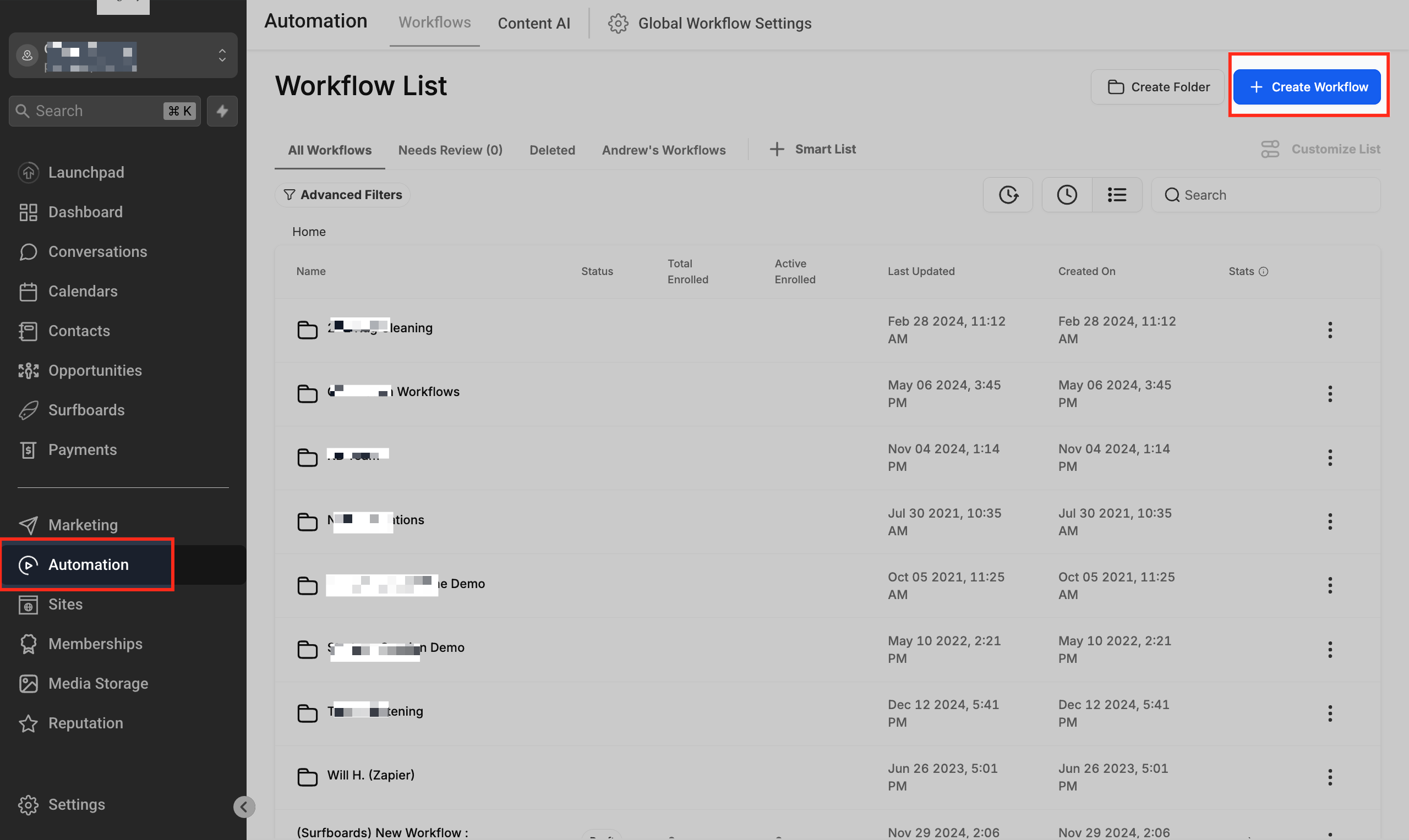
Go to Automation in your SourCherry account and click on "+ Create Workflow" then click “Start from scratch" This will open the workflow builder, where you can configure your IVR system either from scratch or by using a prebuilt IVR workflow recipe.
Step 2: Add the IVR Trigger
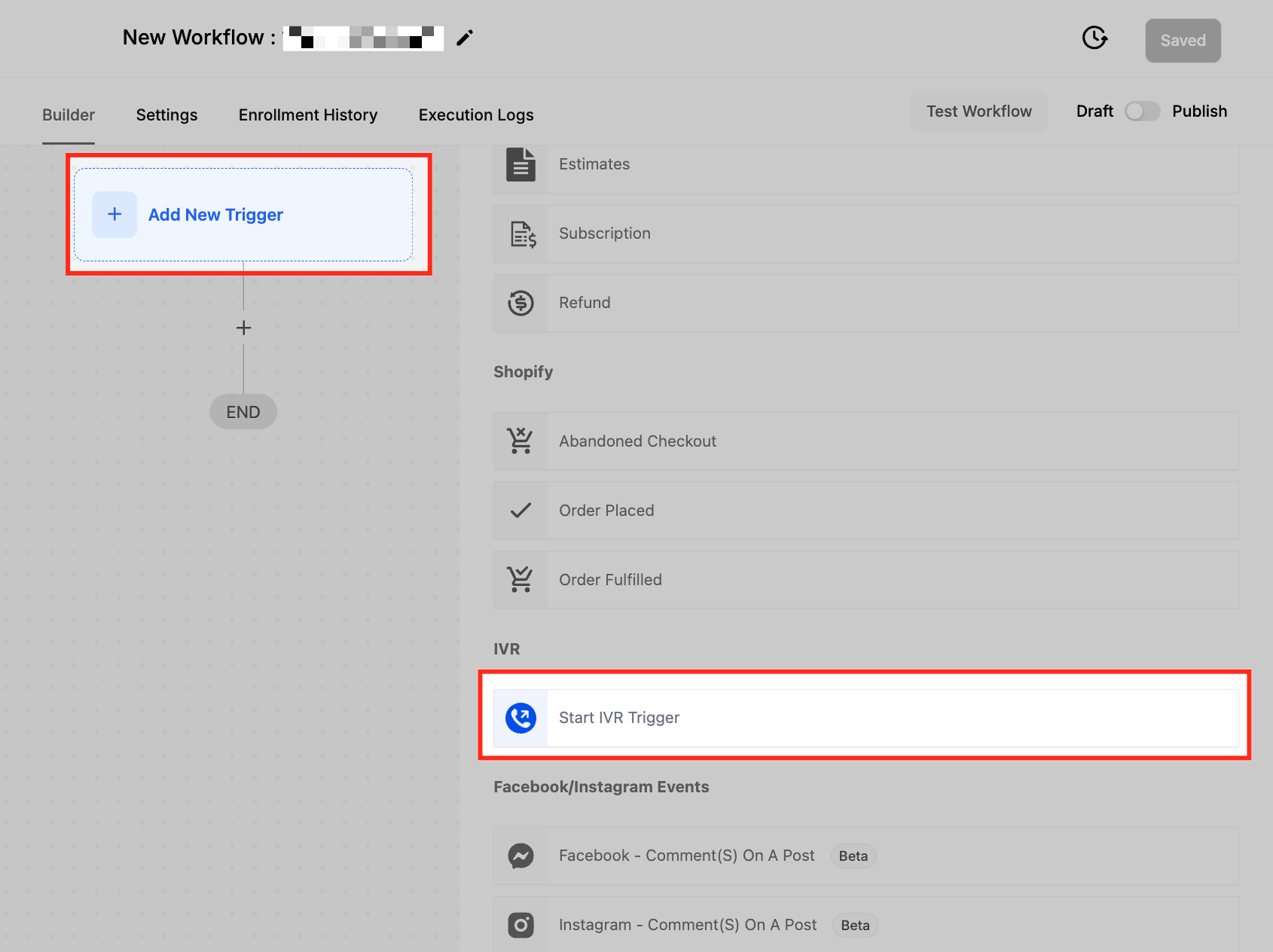
Click on ”+ Add New Trigger” in the workflow builder and search for “Start IVR” from the list of available triggers. Selecting this trigger will enable the IVR workflow to activate when a call is received on the assigned phone number. This is the first step in configuring an automated IVR system to handle incoming calls efficiently.
Step 3: Configuring Start IVR Workflow Trigger
Assigning a Phone Number
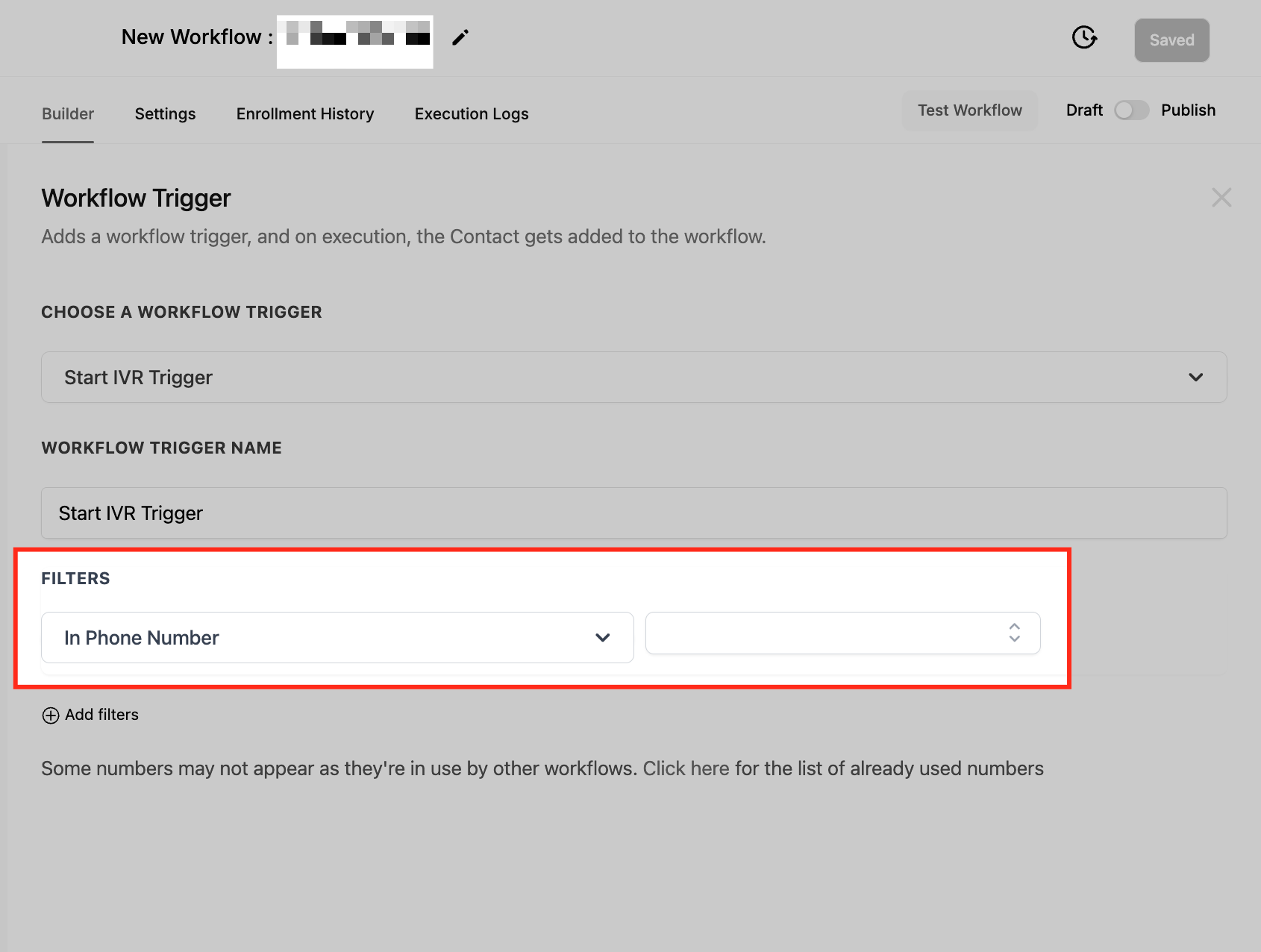
In the workflow trigger settings, select the phone number that will be used for the IVR system. Keep in mind that a phone number can only be assigned to one IVR workflow at a time. Once selected, click Save to confirm the configuration. This ensures that incoming calls to the assigned number will activate the IVR workflow.
Step 4: Configure IVR Actions
After adding the trigger, set up the actions to define how the IVR interacts with callers. Below are the available IVR workflow actions you can use for your workflow. In the next few steps, we will go through each IVR workflow action one by one.
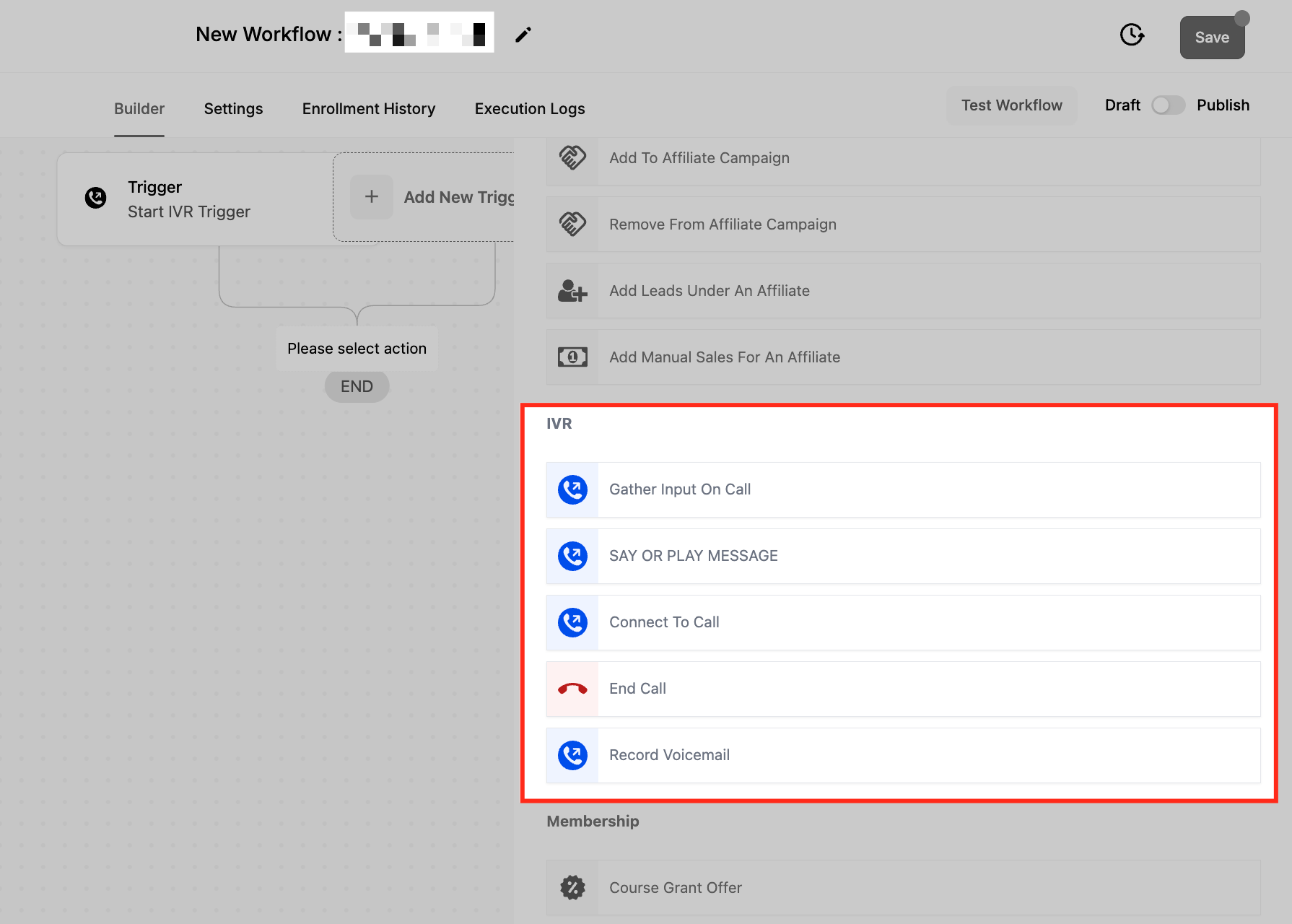
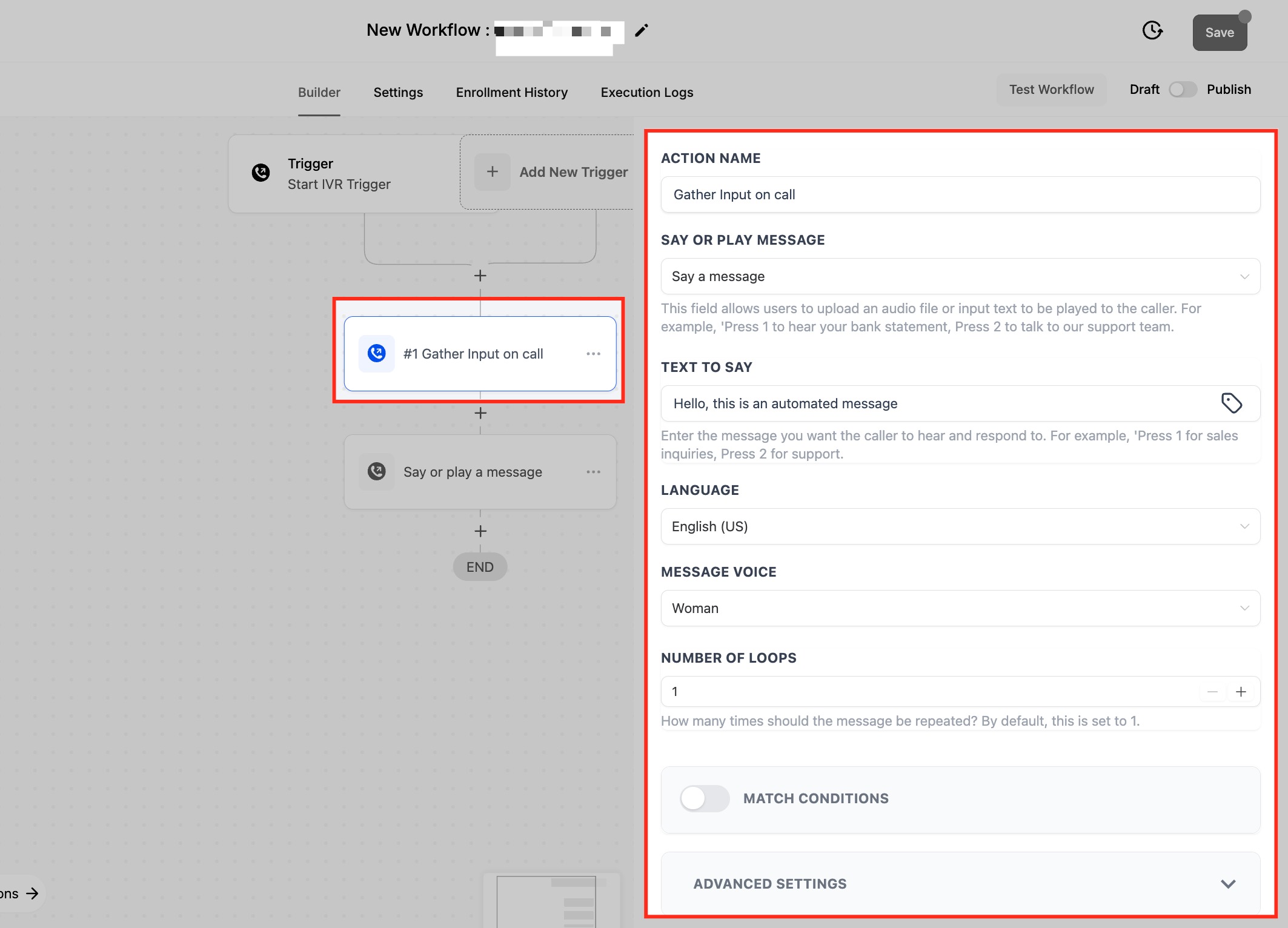
Gather Input on Call Workflow Action
The Gather Input on Call action allows businesses to collect caller responses through keypad inputs, enabling seamless navigation within the IVR system. This action is essential for directing callers to the appropriate department, retrieving account information, or processing customer requests efficiently.
When setting up this action, you can configure the following options:
- Say or Play Message:Choose how the IVR presents the message to callers:
- Say Message: Type a text message that will be converted to speech.
- Play Message: Upload a pre-recorded audio file for playback. Example, “Press 1 for account balance, Press 2 to speak with a representative.”
- Text to Say: Enter the specific message you want callers to hear before making a selection. This ensures clear instructions are given for the available options.
- Language & Message Voice: When using text-to-speech, the default language is US English. You can choose between a Male or Female voice to personalize the caller experience.
- Number of Loops: Determines how many times the message will be repeated before the system stops waiting for a response. This helps ensure callers have enough time to understand and react to the prompt.
Match Conditions
The “Match Conditions” Toggle is used to define how the system processes caller input and directs them to the appropriate workflow path based on keypress responses. When Match Conditions is enabled, it allows you to create multiple branches based on different keypress inputs from the caller. Each branch represents a possible response, guiding the caller through specific actions based on their selection.
Components of Match Conditions:
- Branch Name: A descriptive label for the keypress action.
Example: “Caller Pressed 1” or “Caller Pressed 2” - On Key Press: Defines the key that a caller must press to follow a particular branch.
Example: If the caller presses 1, they will be directed to one action; if they press 2, they will follow another action. - None Branch: Defines what happens if the caller does not press a valid key.
Example: If the caller presses an invalid key (not 1 or 2), they can be routed to a default action, such as hearing the menu again or being redirected to a human agent.
Advanced Settings for Input Collection
- Stop Gathering After (Seconds): Set the time limit for caller input, ranging from 5 to 30 seconds. If no input is received within this time frame, the system will proceed accordingly.
- Stop Gathering on Key Press: If enabled, input collection stops immediately after the caller presses a key. If disabled, the system will wait until either the time limit is reached or the expected number of keypresses is collected.
- Stop Gathering After (Digits): Specify how many digits the system should expect from the caller. Once this number is reached, the input is submitted automatically.
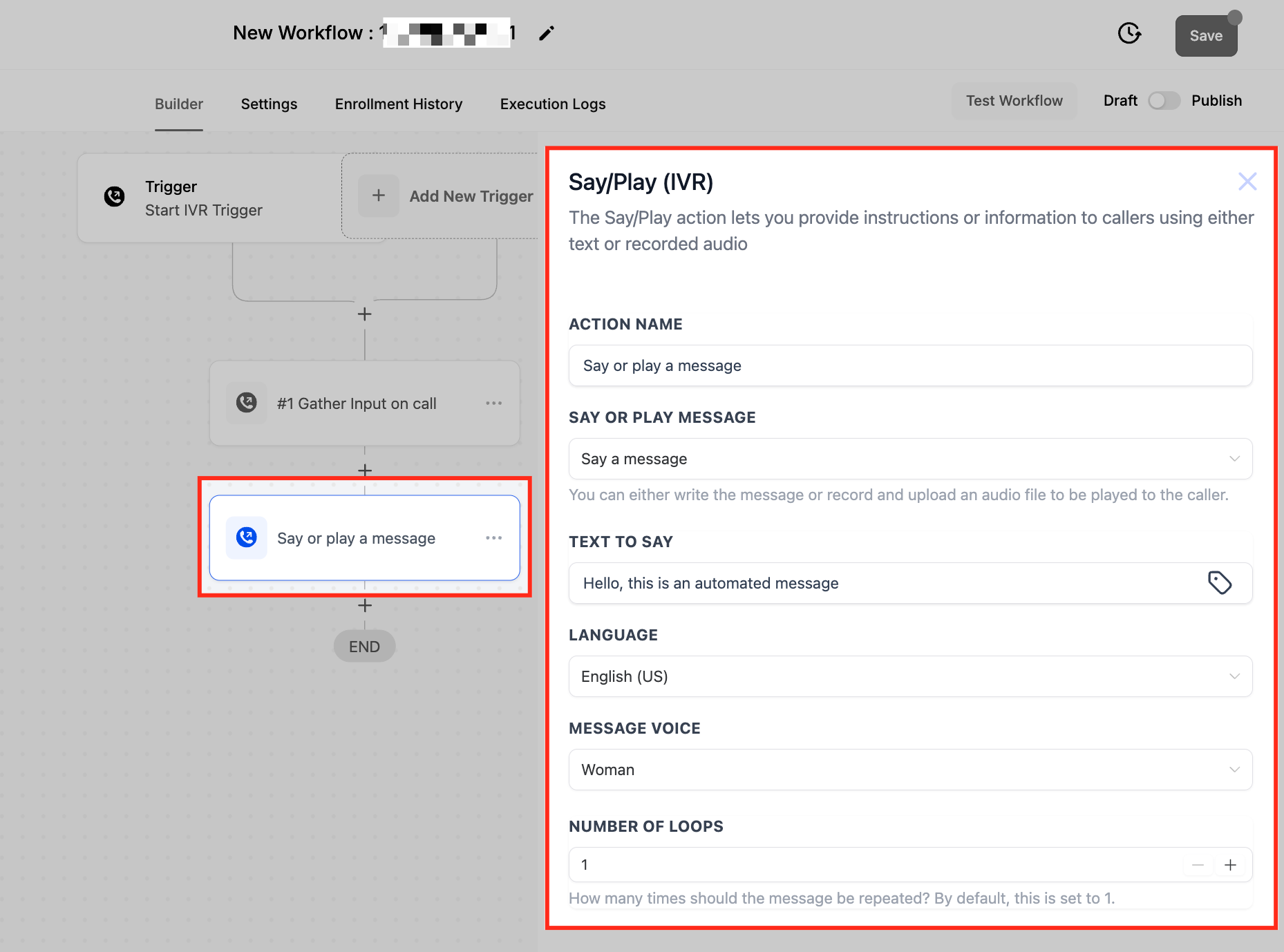
Say/Play Message Workflow Action
The Say/Play Message action allows businesses to provide instructions or important information to callers using either text-to-speech or a pre-recorded audio file. This action plays a crucial role in guiding callers through the IVR system by delivering automated messages before prompting them for input or directing them to the next step. This action ensures that callers receive clear instructions, whether through automated speech or recorded messages, improving the overall IVR experience.
When configuring this action, you can customize the following settings:
- Say or Play Message: Choose between two options:
- Say Message: Type a text message that will be converted into speech and played to the caller.
- Play Message: Upload a pre-recorded audio file that will be played instead of text-to-speech.
- Text or Audio File Input: Based on the selection above, you can either type the message directly into the provided text box or upload an audio file.
- Recommended Format: For optimal performance, .wav files are recommended, as .mp3 files may not always be compatible.
- Language Support: Currently, the default and only supported language for text-to-speech is US English.
- Message Voice: When using text-to-speech, you have the option to choose from male voice and female voice.
- Number of Loops: Set how many times the message should be repeated before proceeding to the next step. You can use the + and - buttons to adjust the repetition count, with the default being 1 loop.
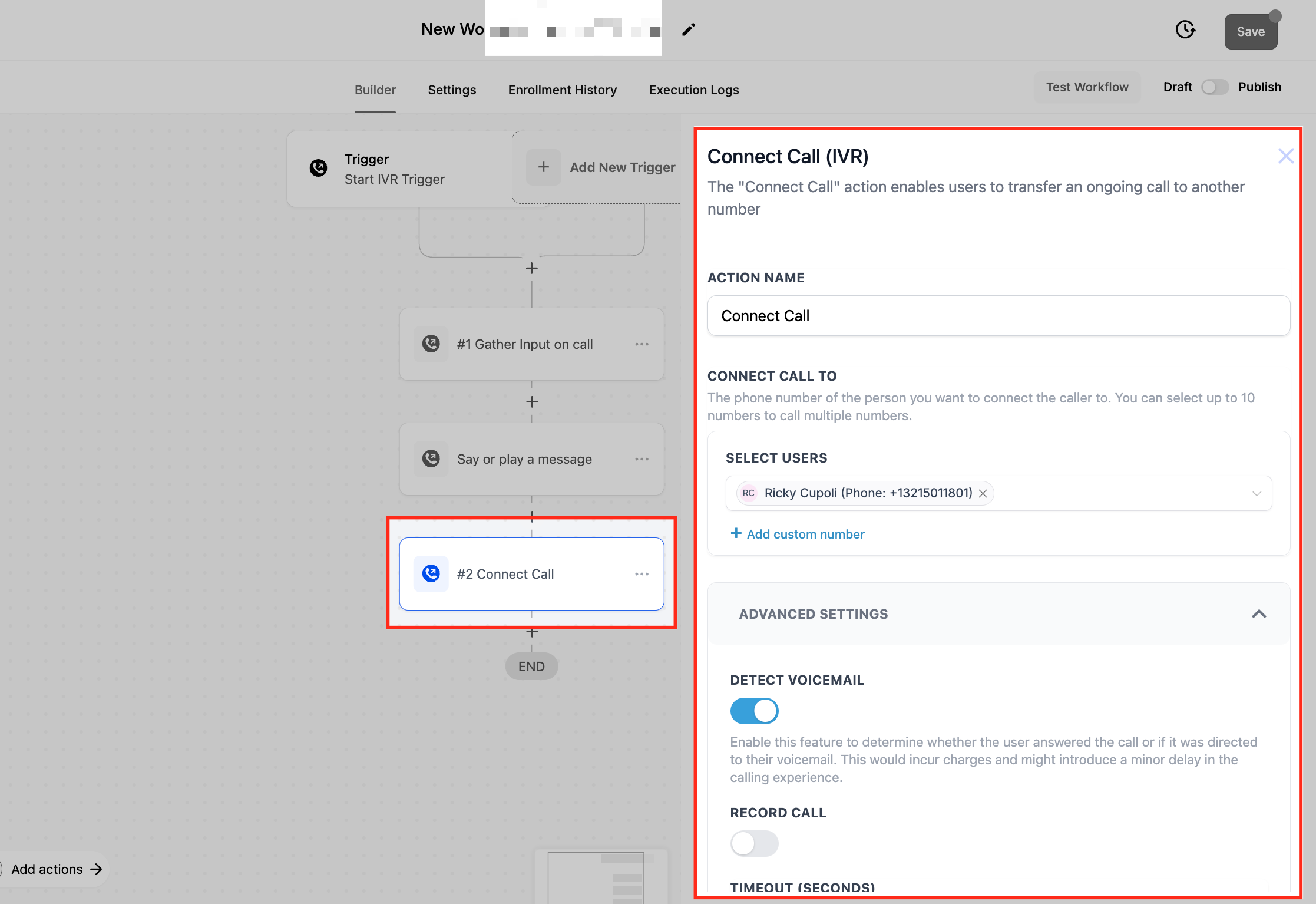
Connect Call (IVR) Workflow Action
The Connect Call action allows businesses to seamlessly transfer an ongoing IVR call to a selected user, department, or external phone number. This ensures that callers are quickly connected to the right person or team for further assistance.
When setting up this action, you can configure the following options:
- Connect Call To: Choose where to direct the call:
- Select Users: Pick from existing users within your system to receive the call.
- Add Custom Number: Input an external phone number if the call needs to be forwarded outside the organization.
- Multiple Numbers: You can add up to 10 numbers, allowing calls to ring on multiple lines for increased availability.
Advanced Call Settings
- Detect Voicemail: Enabling this feature determines whether the call was answered by a person or sent to voicemail. This helps prevent calls from being directed to voicemail boxes unnecessarily. Note: Enabling this may cause minor delays and could result in additional charges.
- Record Call: Enable this option to automatically record the connected call for quality assurance or compliance purposes.
- Timeout (Seconds): Set the maximum amount of time the system should wait for the recipient to answer the call before redirecting or ending it. The default is 10 seconds, but you can configure it between 1 and 600 seconds.
- Time Limit (Seconds): Specify how long the connected call can last. By default, there is no time limit, but you can set a cap of up to 24 hours to ensure calls do not run indefinitely.
End Call (IVR) Workflow Action
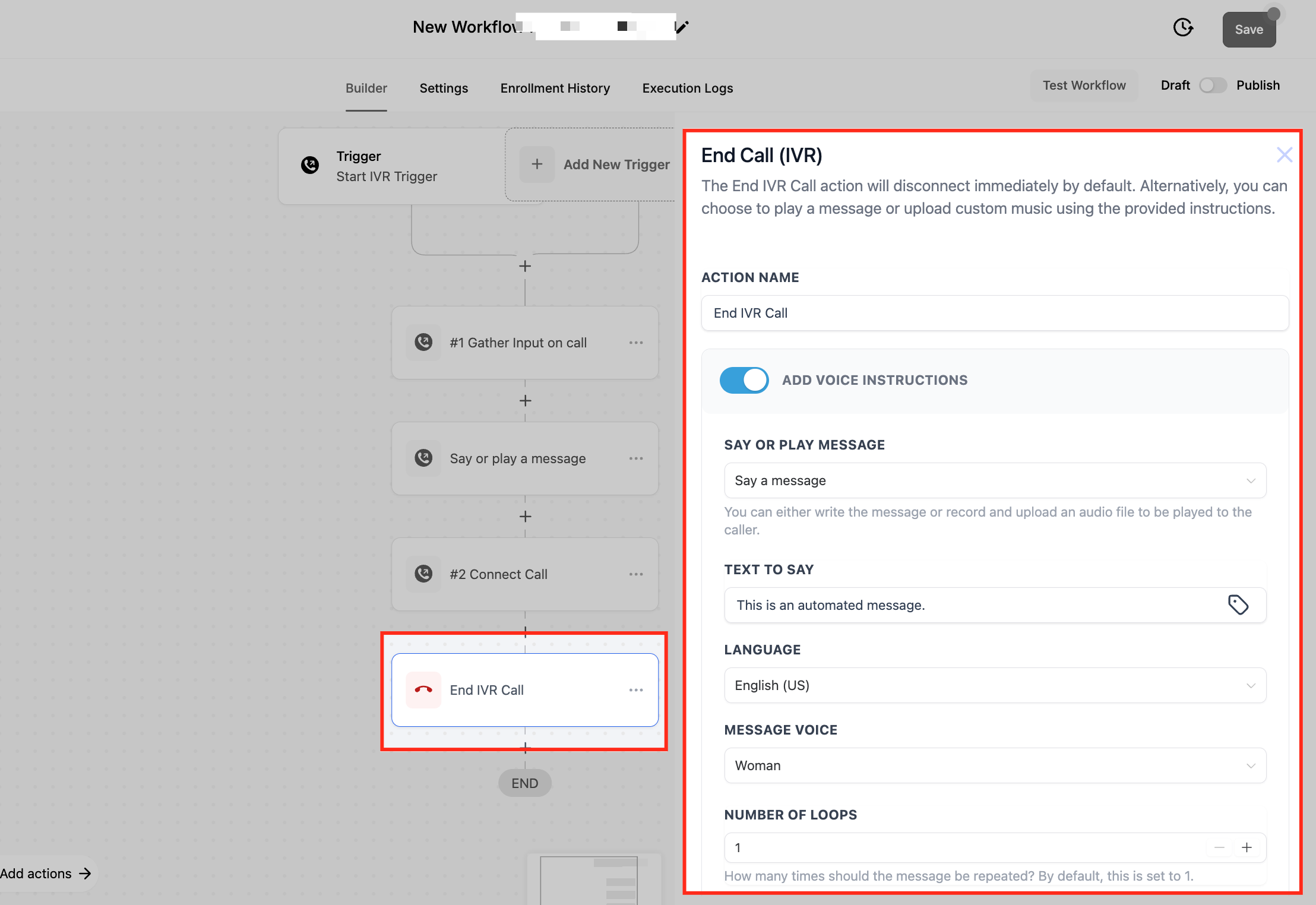
The End Call (IVR) action is used to disconnect an ongoing IVR call. By default, the call will end immediately, but businesses have the option to provide a final message or play a custom sound before disconnecting. This ensures a smooth experience for callers, whether it’s a closing statement or hold music before the call ends.
Configurable Options
- Add Voice Instructions: Allows you to play a message or sound before ending the call, giving callers a clear indication that the interaction is concluding.
- Say or Play Message: Choose between two options:
- Say a Message: Type a custom message that the system will convert into speech.
- Play a Message: Upload an audio file (recommended format: .wav) to be played before disconnection.
- Text to Say: If using text-to-speech, enter the message that will be spoken to the caller before the call ends.
- Language: The IVR system currently supports English (US) for text-to-speech conversion.
- Message Voice: Select the preferred voice for the text-to-speech feature. Available options: Man, Woman.
- Number of Loops: Set how many times the message should repeat before the call disconnects. The default is 1, but you can increase this based on your needs.
Record Voicemail (IVR) Workflow Action
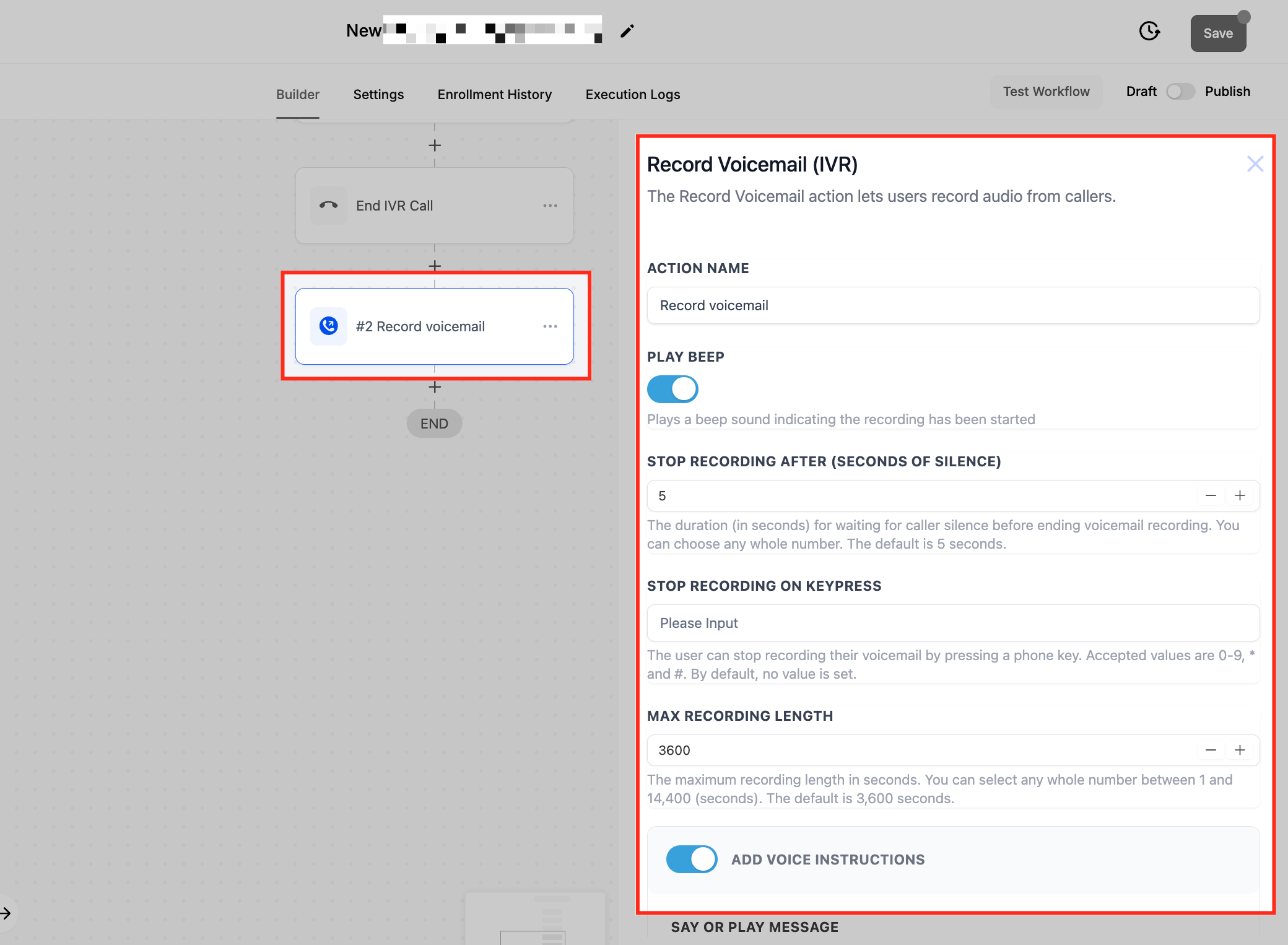
The Record Voicemail (IVR) action allows callers to leave voice messages when no one is available to answer. This feature is useful for businesses that want to capture important messages and ensure no customer inquiries are missed.
Configurable Options
- Play Beep: Enables a beep sound to inform callers that voicemail recording has started. This helps provide clarity and confirmation that their message is being recorded.
- Stop Recording After (Seconds of Silence): Defines the amount of silence (in seconds) before the system automatically stops recording. The default is 5 seconds, but this can be adjusted to any whole number based on preference.
- Stop Recording on Keypress: Allows callers to manually stop the voicemail recording by pressing a designated key. Accepted key values include 0-9, * and #. By default, no key is set, meaning the recording will stop only after the silence threshold is reached.
- Max Recording Length: Sets the maximum duration of the voicemail recording. The system allows a range between 1 and 14,400 seconds (4 hours), with the default set at 3,600 seconds (1 hour).
- Add Voice Instructions: Provides an option to play a message before the voicemail recording begins. This can be a text-to-speech message or a pre-recorded audio file, ensuring the caller understands the purpose of the voicemail.
Implementing Conditional Branching (IF/ELSE Logic) in IVR Workflows
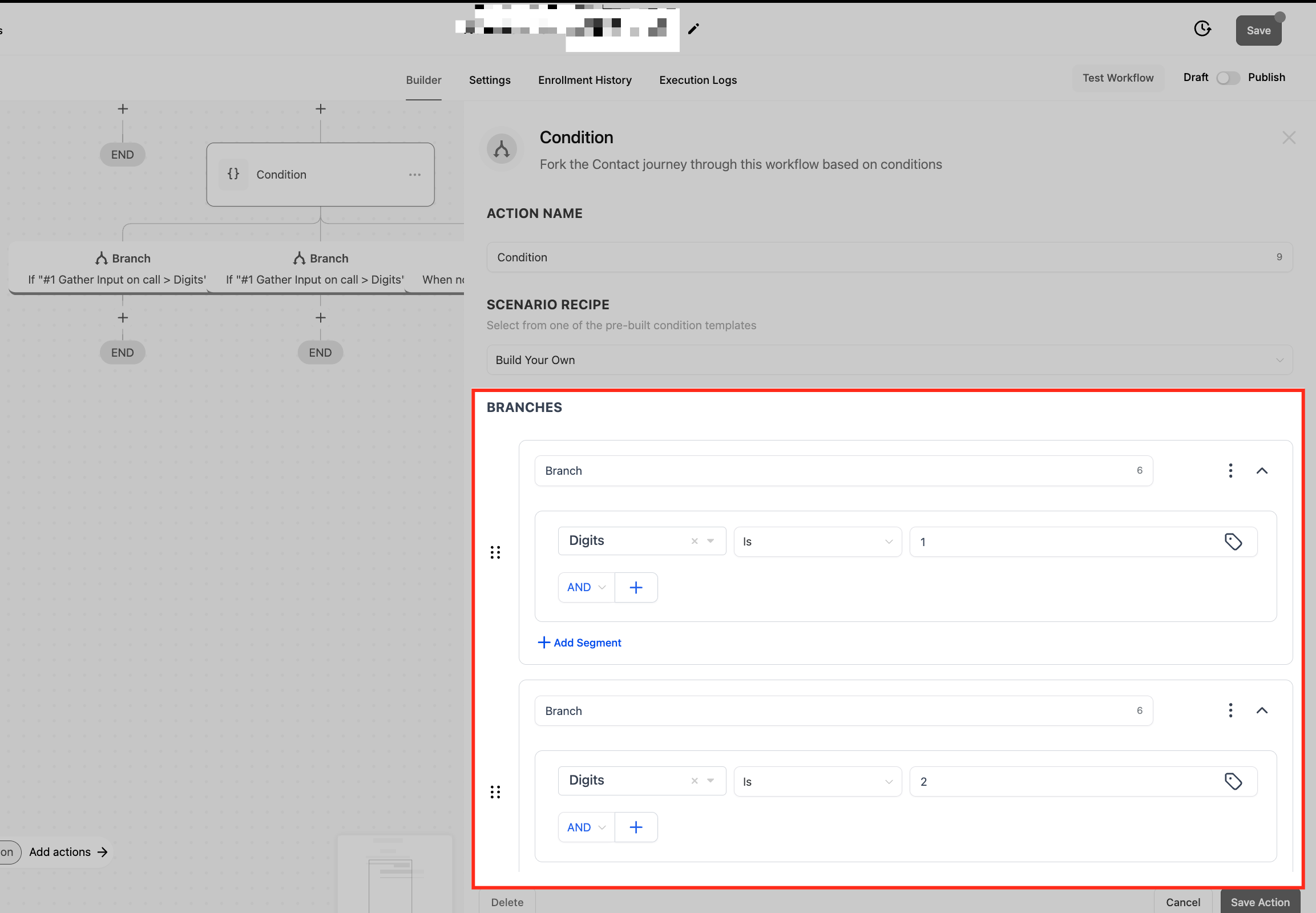
Conditional branching allows businesses to route calls dynamically based on user input, ensuring callers are directed to the appropriate department or action. This is achieved using IF/ELSE logic in the workflow, where different responses trigger different paths.
For example:
If a caller presses 1, the call is routed to Sales.
If a caller presses 2, the call is directed to Support.
If no input is received, the system can repeat the prompt or route to a default action.
Using Conditional Logic with IVR Gather
The IVR Gather action is responsible for collecting user input through keypress responses. Once a caller selects an option, the system processes that input and follows predefined logic to determine the next step.
Steps to Configure Conditional Logic in IVR Gather:
Add the IVR Gather Action: This prompts the caller to make a selection (e.g., “Press 1 for Service, Press 2 for Appointments”).
Set Up IF/Else Condition Logic: Using the “IF/Else Condition” action in the workflow, select IVR Gather as the condition source.
Define Key Press Responses
If Press 1, route the caller to a service details message.
If Press 2, route them to a live agent for booking.
Handle Unresponsive Calls: If no input is received, configure a fallback action such as repeating the prompt or sending the caller to voicemail.
Frequently Asked Questions
Q: What happens if a caller ends the call during an IVR workflow?
If the caller ends the call at any point in the workflow, the contact will still move to the next step, but all IVR-specific actions (such as call transfers or voicemail recordings) will be skipped. Other workflow actions, such as tagging the contact or sending follow-up messages, will continue executing as configured.
Q: Can I use multiple phone numbers with the same IVR workflow?
No, each phone number can only be assigned to one IVR workflow at a time.
Q: Can I connect IVR calls to external numbers?
Yes, the IVR Connect Call action allows calls to be transferred to users within the system or external numbers.
Q: What happens if a caller doesn’t respond in time?
You can configure a timeout setting in the IVR Gather action to either repeat the prompt or redirect the call to a fallback action (e.g., voicemail).
Q: Where Can I Find the IVR Call Recordings?
All voicemail recordings are stored and can be accessed in the Conversations tab within SourCherry. This allows businesses to review, download, and manage voicemail messages efficiently.
Q: Are we able to perform a blind or warm transfer within an IVR call?
No. Currently, when an IVR call is routed to the web app, blind and warm transfers are not supported.
Q: Are we able to perform a blind or warm transfer within an IVR call?
No. Currently, when an IVR call is routed to the web app, blind and warm transfers are not supported.