
Conditional Logic v2 helps you create smarter, more dynamic forms and surveys. It lets you show or hide fields, redirect users, display messages, disqualify leads, or jump to different slides — all based on how someone answers.
This guide explains how to use Conditional Logic, what’s new in version 2, and which fields are supported.
What Is Conditional Logic
Conditional Logic automates actions inside a form or survey based on user input.
You can define conditions like:
If the answer is “No,” show a message.
If the score is below 5, disqualify the lead.
If the date is within a range, redirect to another page.
In surveys, jump to a specific slide instead of showing all questions.
This creates a more personal and efficient experience for respondents.
TABLE OF CONTENTS
- What is Conditional Logic in Forms
- Key Benefits of Conditional Logic in Forms
- How to Set Up Conditional Logic in Forms
- Frequently Asked Questions
More Tutorials From the Community
What’s New in v2
Simplified 3-Step Builder: Select Field → Select State → Provide Value
“Between” Operator: For numeric, date, score, and monetary fields
Survey Branching (Jump To): Create slide-to-slide jumps
Expanded Field Support: Checkboxes, multi-dropdowns, TnC1, TnC2, file uploads, and signatures
New Show/Hide Targets: Payment, text, HTML, image, and TnC elements
Rule List Filtering (Surveys): Filter rules by field or slide
Cycle Protection: Prevents loops (Slide A → Slide B → Slide A)
Localized & Accessible: Translated UI with keyboard navigation
Available Actions
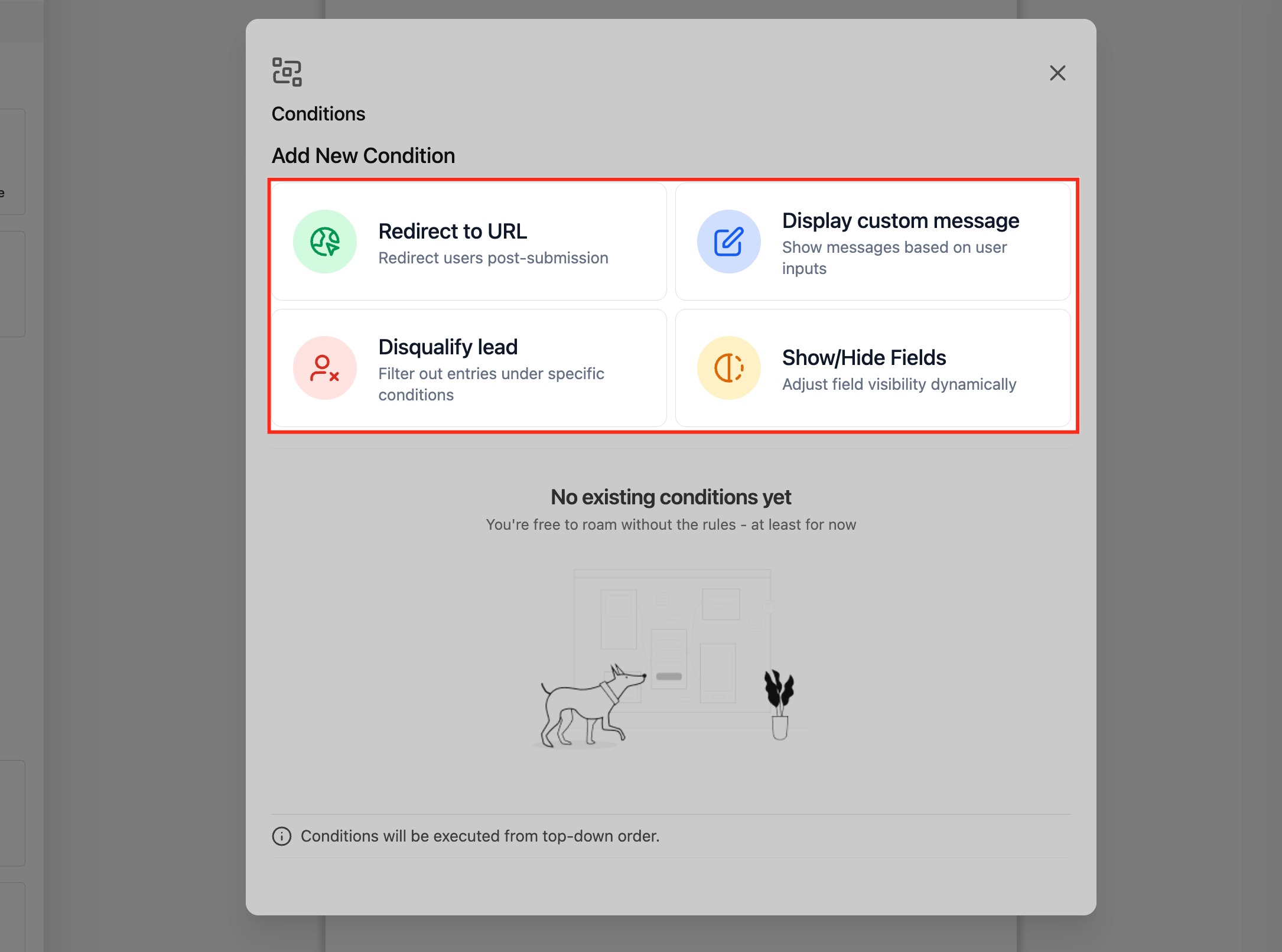
When you open Conditional Logic, you’ll see four action types you can create:
| Action | Description |
|---|---|
| Redirect to URL | Send users to a specific webpage after submission |
| Display Custom Message | Show a personalized message based on answers |
| Disqualify Lead | Automatically reject unqualified form submissions |
| Show/Hide Fields | Dynamically control which fields appear or hide |
All conditions are executed in top-down order.
Later matching rules override earlier ones when applicable.
Conditional Logic in Calendar Booking Forms
Conditional logic in forms also applies when a custom form is used inside a supported calendar booking flow. This gives you more control over qualification and the final confirmation experience.
In calendar bookings:
- Show/Hide logic updates fields dynamically as the user answers questions
- Disqualify lead logic is checked before the appointment is booked
- If a lead is disqualified, the system does not create the appointment
- If a lead is disqualified, the system does not collect payment
- Redirects and custom messages can be used as part of the booking outcome
If the calendar confirmation page is set to Use custom form rules, the system shows the form’s redirect or custom message after submission. If the form does not include either one, the booking uses the default confirmation page instead.
Note: Calendar support described here applies to supported booking flows that use custom forms. Services (v2) and Rentals are not included in this article yet.
How to Set Up Conditional Logic
You can add and manage rules directly inside the Form or Survey Builder.
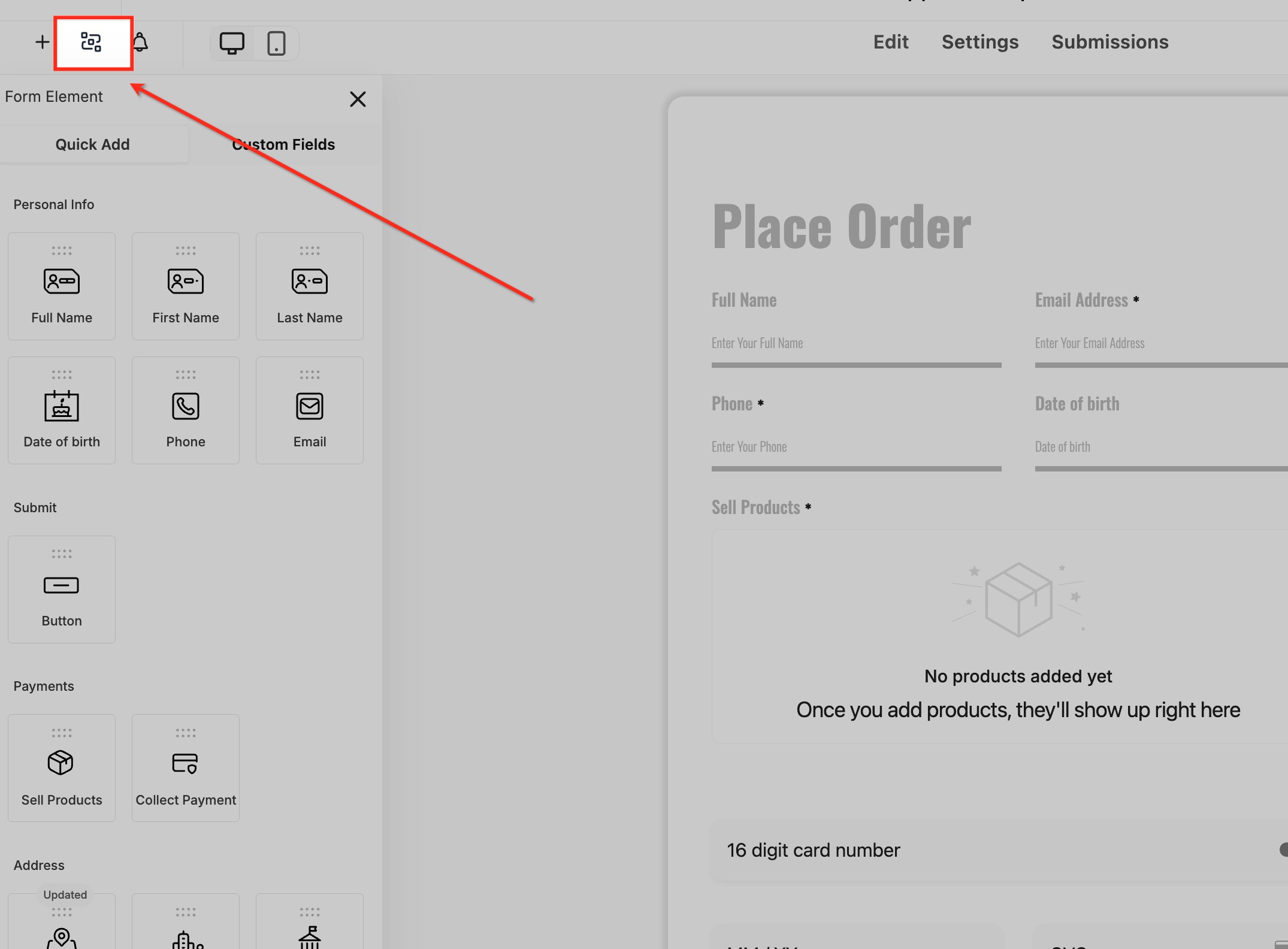
1. Open Conditional Logic
In the builder, click Conditional Logic in the top bar.
2. Add a New Condition
Click Add New Condition.
Choose an action (Redirect, Message, Disqualify, or Show/Hide).
The logic builder opens for that action.
3. Build the Rule
Follow the guided 3-step flow:
Select Field – Choose the form field or slide to base the rule on.
Select Field State – Pick the condition (e.g., is equal to, is empty).
Provide a Value – Enter the matching value (text, number, or date).
You can add additional conditions using AND or OR connectors.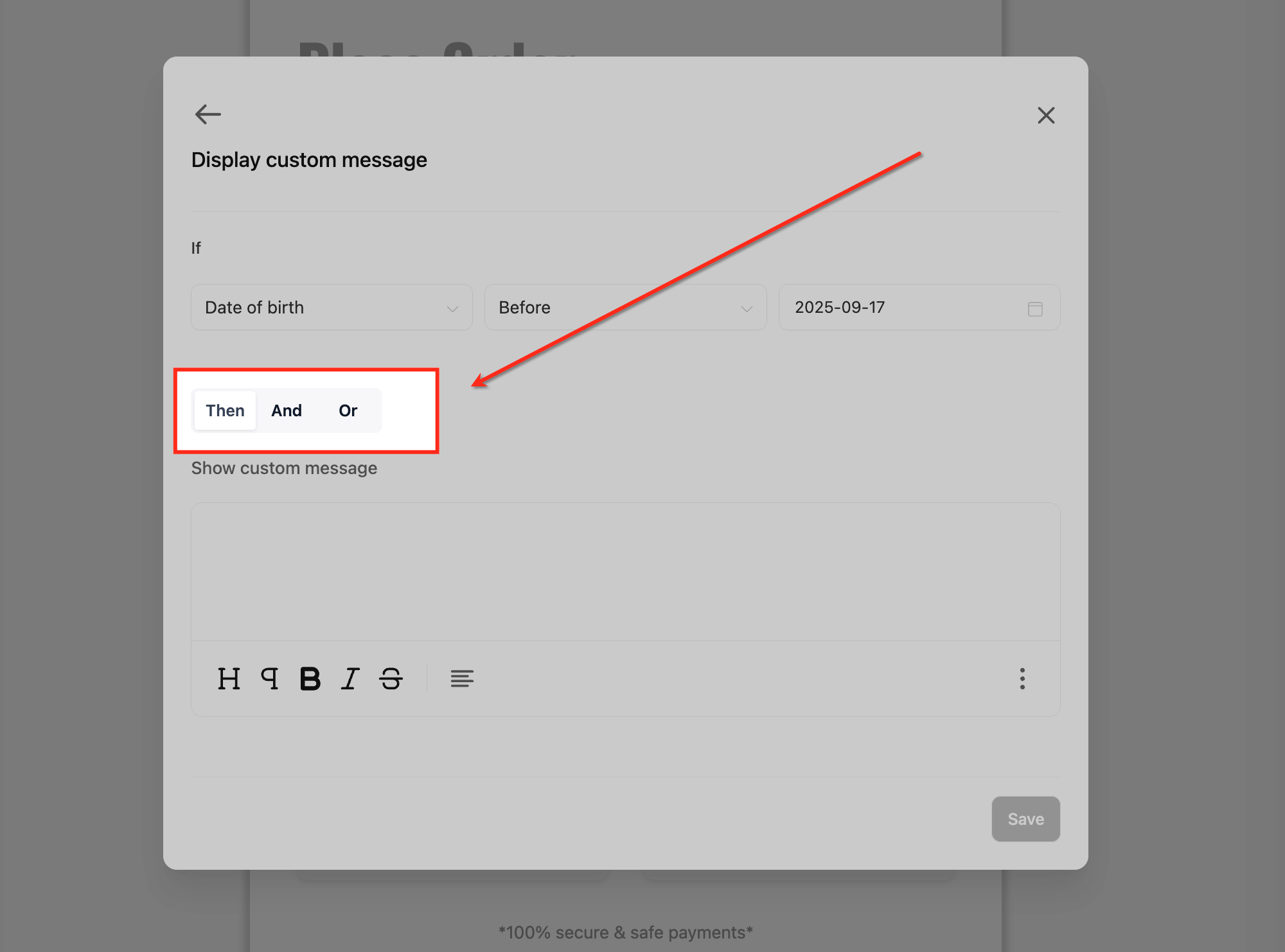
Some operators don’t require values, like “is empty” or “is checked.”
4. Choose the Action Result
Depending on the action type:
Redirect: Add a valid URL (e.g.,
https://example.com)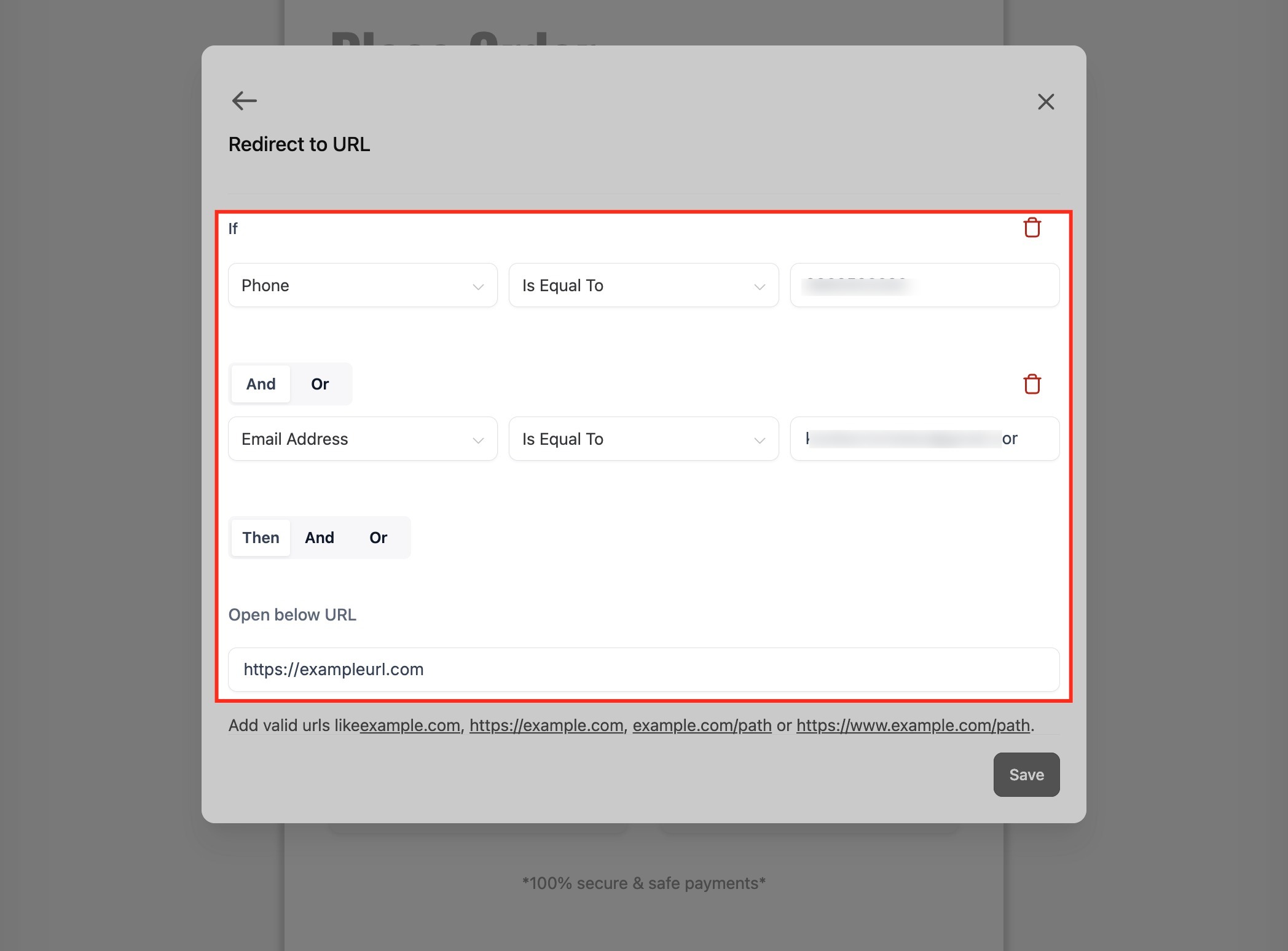
Display Message: Enter your message text
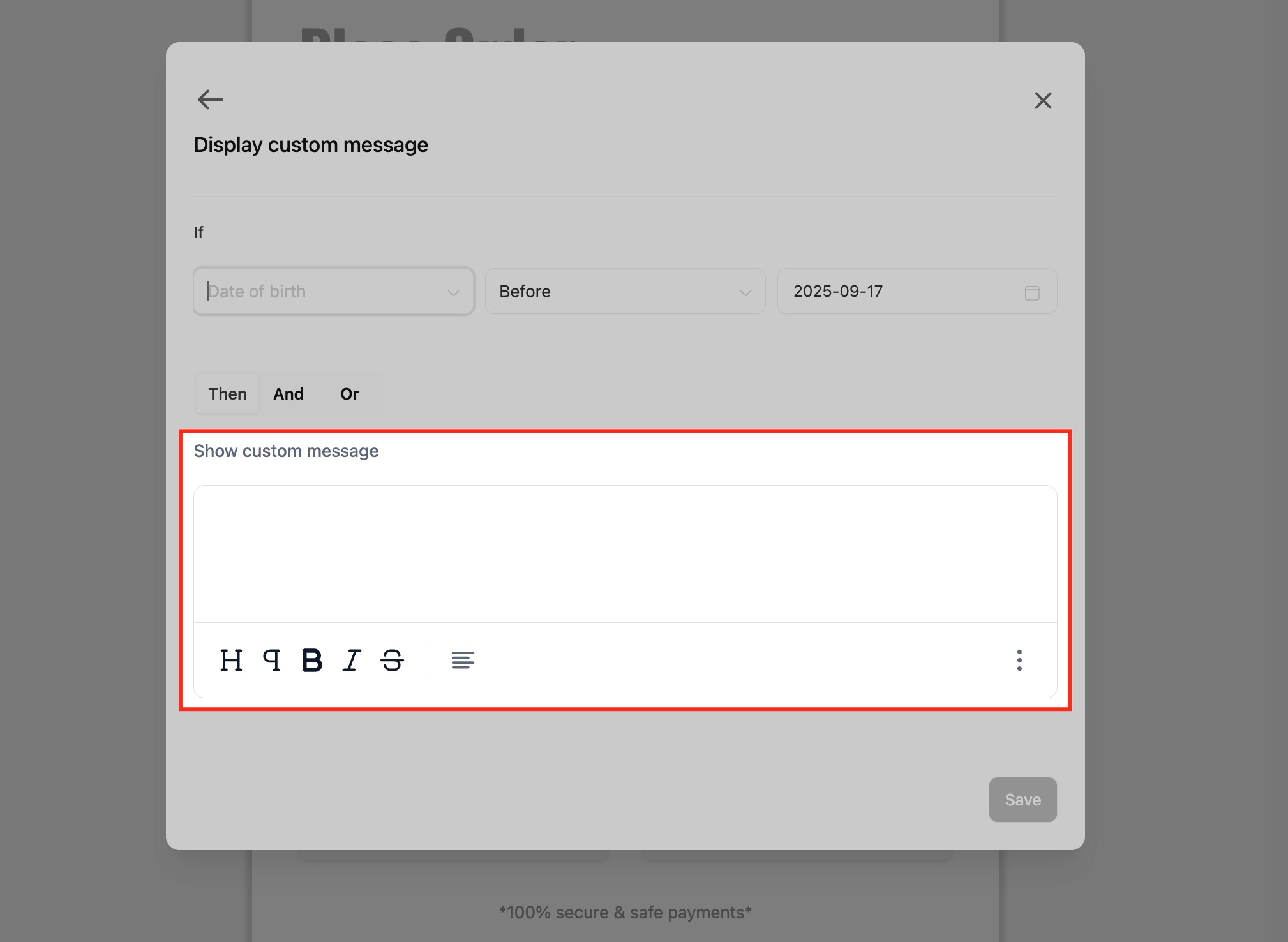
Show/Hide Fields: Pick which fields appear or hide
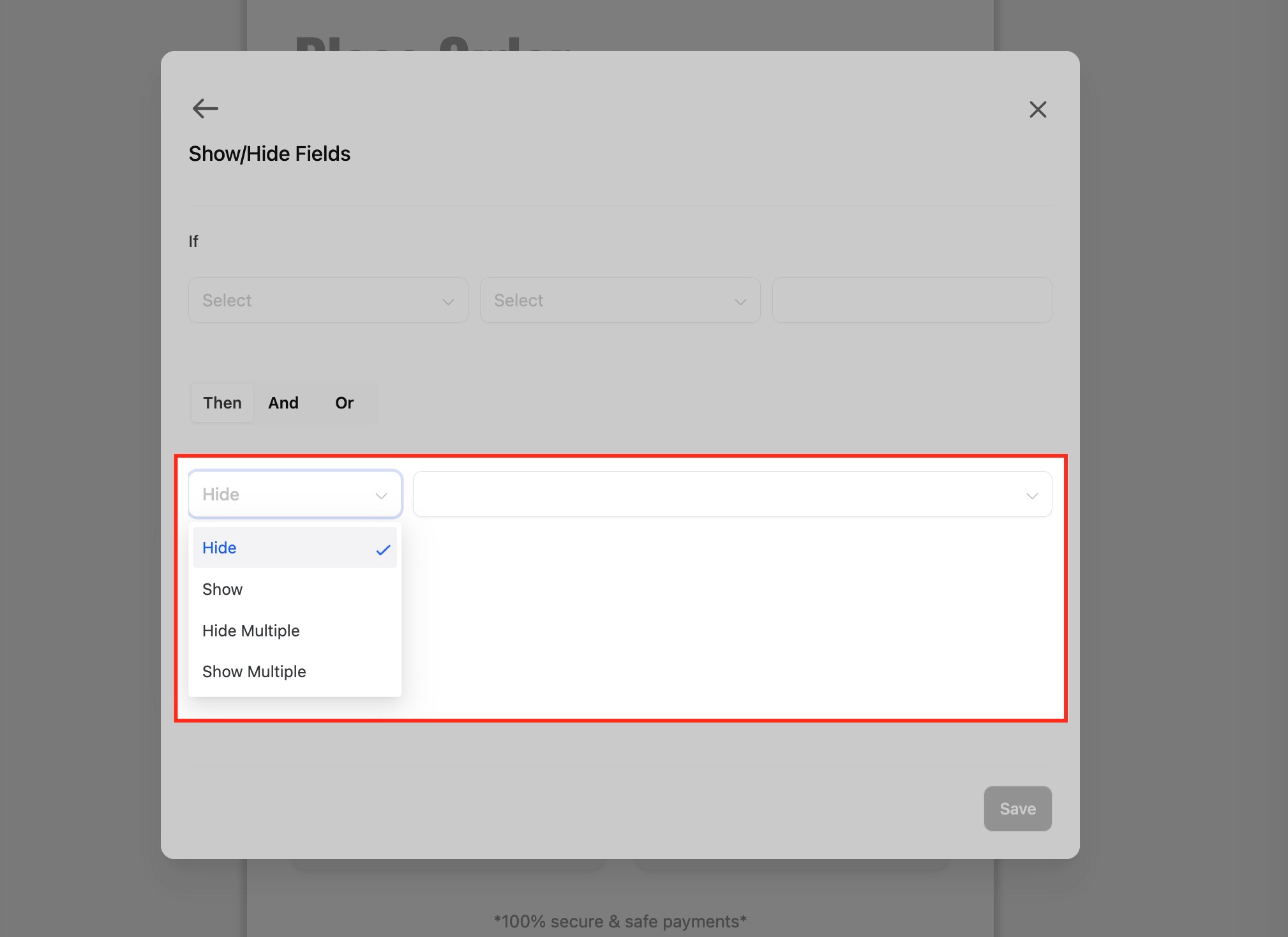
Disqualify Lead: The form stops submission when matched
Jump To (Surveys only): Choose the target slide or question
5. Save
The Save button activates only after all required inputs are valid.
The system checks for missing values and prevents loops automatically.
Rules run top-down, and later matches override earlier ones.
Supported Fields
Conditional Logic v2 supports more field types than before.
Personal Info
First Name
Last Name
Email
Phone
Form Fields
Single Line
Multi Line
Number
Monetary
Score
Date Picker
Dropdown (Single)
Dropdown (Multi)
Radio Select
Checkbox
Terms & Conditions (TnC1 / TnC2)
File Upload
Signature
Content & Payment Elements
Text
HTML
Image
Payment
Note: Calendar fields are not yet supported.
Supported Operators by Field Type
| Field Type | Operators |
|---|---|
| Text (single/multi line) | equal to, not equal to, contains, does not contain, starts with, ends with, is empty, is filled |
| Phone / Email | equal to, not equal to, contains, starts with, ends with, is empty, is filled |
| Number / Score / Monetary | equal to, not equal to, greater than, less than, between, is empty, is filled |
| Date | equal to, before, after, between, is empty, is filled |
| Dropdown (single) | is equal to, is not equal to, is empty, is filled |
| Multi Dropdown / Checkbox | is equal to {Option}, is not equal to {Option}, is empty, is filled |
| TnC1 / TnC2 | is checked, is not checked |
| File Upload / Signature | is empty, is filled |
Survey-Specific Features
Jump To Logic
IF Basis: Field or Slide
THEN Action: Jump to a slide or question
Evaluation: Happens when the user clicks “Next”
Conflict Handling: If multiple Jump To rules match, the first one runs
Protection: Prevents self-loops and slide-to-slide cycles automatically
Rule Filtering
In surveys, you can filter rules by:
Field: Show all rules related to a field
Slide: Show all rules that affect or belong to that slide
Behavior & Evaluation
Rules execute top-down in order.
For Redirect, Message, Disqualify, only the first matching rule runs.
For Show/Hide, later matches override earlier ones.
For multi-selects, “is equal to {Option}” checks if the option is selected.
Text logic ignores case and extra spaces.
Dates use the account’s timezone.
Tips
Use Between for number or date ranges (inclusive).
Try date presets like Today or This Week.
The “Radio Other” option appears only if enabled for that field.
Always preview the form or survey to verify rule behavior.
FAQs
1. Can I mix AND and OR in the same rule?
No. Each rule must use one type of connector — either AND or OR.
2. Can I have multiple rules in the same form?
Yes. Each rule works independently.
3. What happens if more than one condition matches?
For submission actions, the first match wins. For Show/Hide, later rules override earlier ones.
4. Can I create loops in Jump To logic?
No. The builder prevents loops and shows an error message if detected.