
Launch polished, on‑brand Forms and Surveys faster with Themes in SourCherry. Themes are ready‑made presets that apply a cohesive design in a single step. This article explains how to apply and customize themes for your forms and surveys.
TABLE OF CONTENTS
- What are Themes in Forms and Surveys?
- Key Benefits of Themes in Forms and Surveys
- How to Apply a Theme to a Form or Survey
- How to Customize a Theme
- Frequently Asked Questions
- Related Articles
What are Themes in Forms and Surveys?
Themes in the Form and Survey Builder bring extensive customization options, allowing you to choose from a variety of professionally crafted themes to match your brand's identity. With user-friendly controls and real-time previews, you can easily create visually stunning and responsive forms. These themes streamline the design process, saving you time and ensuring a consistent and professional look across multiple forms. Regular updates to the themes library keep your forms on the cutting edge of aesthetics.
Key Benefits of Themes in Forms and Surveys
- Consistency: Creates a cohesive look across the entire asset with one selection.
- Speed-to-Launch: Reduces setup time by starting from a polished preset.
- Responsive by Default: Automatically adapts to mobile, tablet, and desktop for a consistent experience.
- Real‑Time Previews: Validate changes instantly before publishing or embedding.
How to Apply a Theme to a Form or Survey
- Open your Form or Survey in the builder.
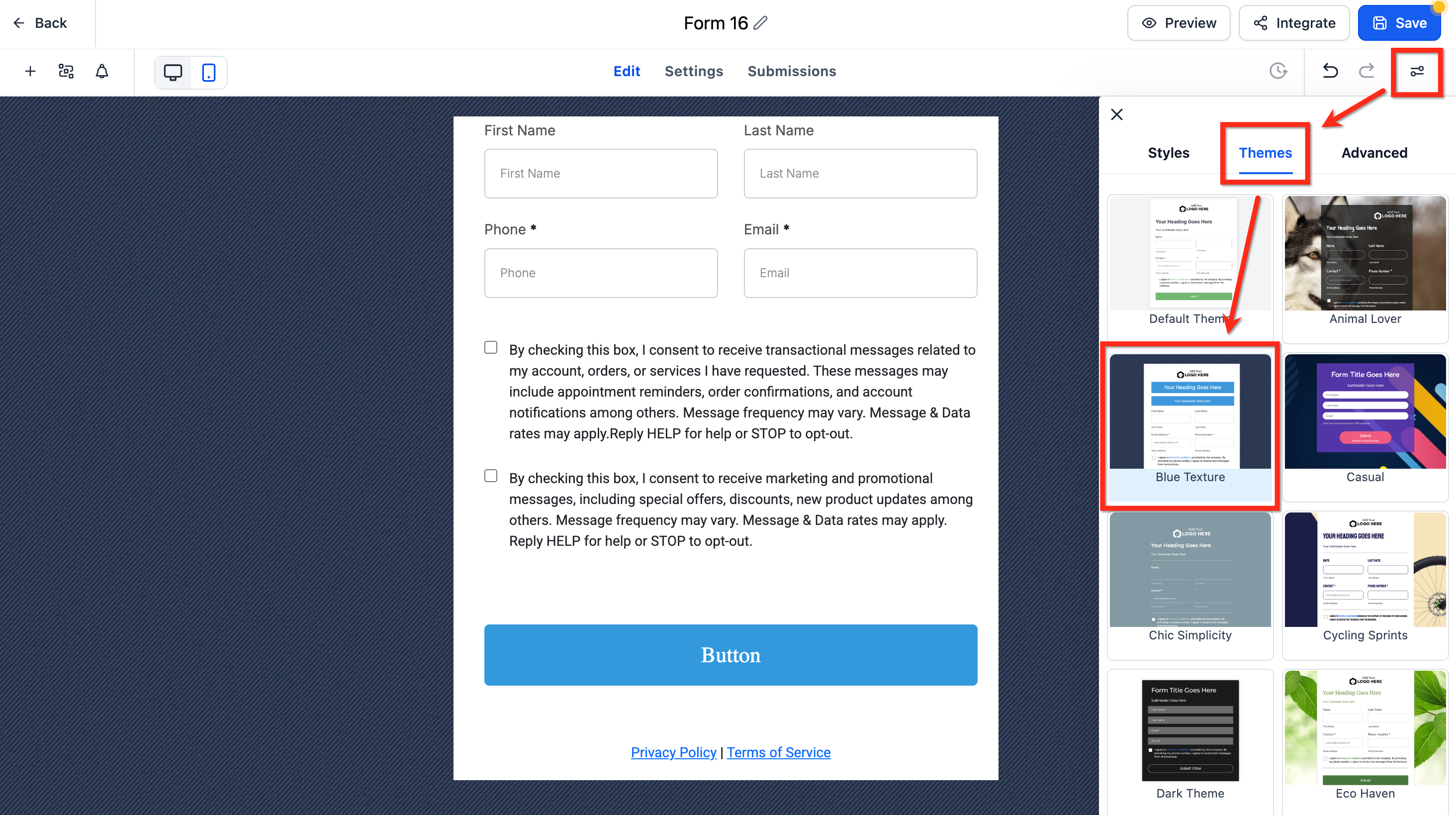
- Click Styles & Options (top‑right) to open the Right Sidebar.
- Select the Themes tab and choose your preferred Theme.
How to Customize a Theme
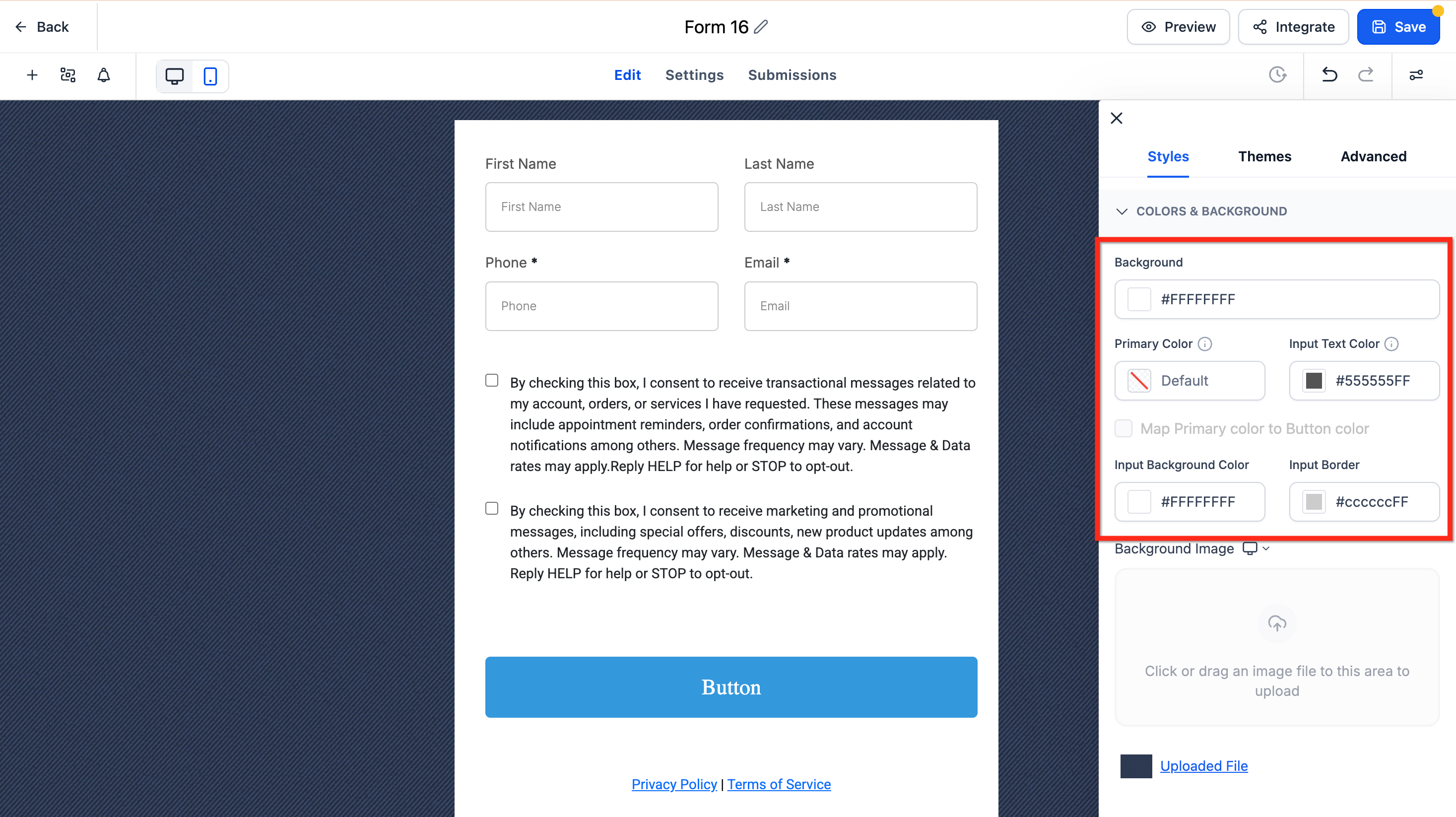
After selecting a Theme, refine brand colors and imagery in Styles & Options → Styles → Colors & Backgrounds.
Button Themes (Gallery & Live Preview)
Button Themes provide curated presets—Filled, Border, and Text Only—that apply best-practice color, typography, and spacing. Start with a theme for speed, then refine with the Button Styling Panel to maintain brand consistency.
Customize After Applying a Theme
Close the gallery to return to the Button Styling Panel.
Use Colors & Background, Typography, Layout & Alignment, Padding, Border & Corner Radius, and Shadow to refine the look.
Toggle Full Width if needed.
Branding & Color Tokens
Confirm how Primary Color maps to button fill, border, and text for your chosen theme (Needs Confirmation).
Adjust colors to meet accessibility contrast guidelines.
Consistency Across Assets (Conditional)
If button themes are reusable across Forms/Surveys, apply the same theme across assets to standardize CTAs.
If themes are per asset, repeat the apply/customize steps on each form or survey.
Revert or Try Another Theme
Open Select Themes to switch presets, or use Reset/Revert in the panel to undo changes.
Adjust Colors
- Use these settings to adjust the background, text input and input border colors to match your branding.
Change the Background Image
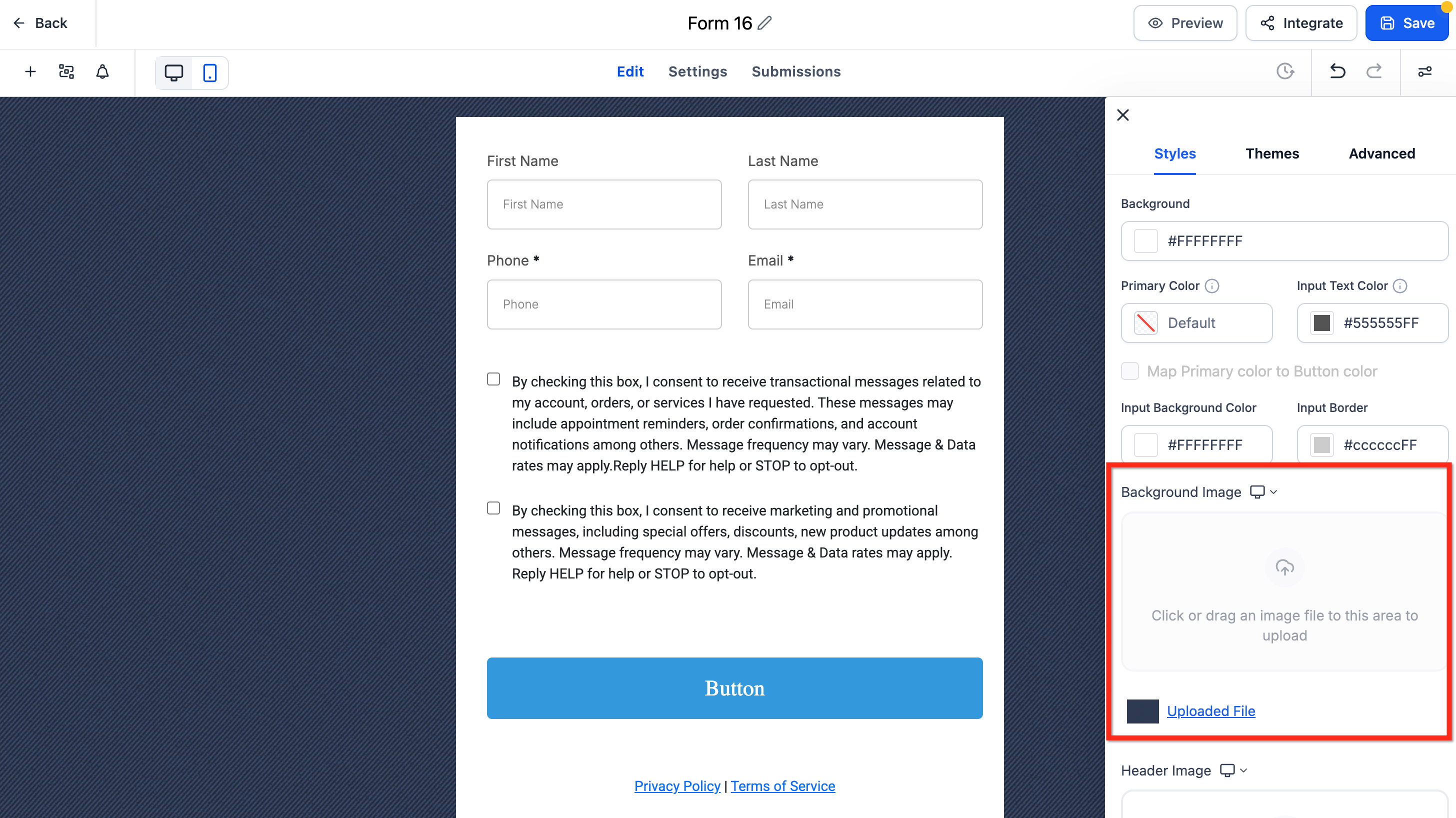
- If your selected Theme includes a default background image, remove it first. The upload control remains disabled until the default is deleted. Then click below Background Image to upload your file.
New default theme experience
The default theme for Forms, Surveys, and supported Quiz components now has a refreshed look and feel.
This update improves the out-of-the-box appearance with cleaner spacing, more polished inputs, rounded styling, and better visual consistency across supported elements.
You will also see clearer empty states and more consistent styling for labels, placeholders, images, footer colors, and chips.
Frequently Asked Questions
Q: Why is the "Upload New Background" button disabled?
Delete the Theme’s default background image first. The upload option becomes available once the existing image is removed.
Q: Can I reuse the same Theme across multiple assets?
Apply the Theme per asset. To keep multiple Forms/Surveys consistent, choose the same Theme and mirror your Styles settings.