
This article provides a comprehensive guide on how to utilize the Social Planner tool to share your review posts on various social media platforms.
By following the outlined steps, you will learn how to effectively promote positive feedback, enhance audience engagement, and strengthen your online presence.
Who is this for?
Whether you are a business owner or a marketing professional, this resource will equip you with the necessary skills to leverage reviews as a key component of your social media strategy.
Review Post automation in Social planner refers to allow users to publish the reviews coming from Google business profile or Facebook page to publish on social media profiles.
Discover the Power of Social Proof and Supercharge Your Success with Reviews!
- Builds Trust and Credibility: Immerse your audience in a world of trust! Positive reviews transform satisfied customers into your biggest advocates, establishing unwavering credibility for your business.
- Boosted Visibility, Maximum Impact: Rocket your content to the top! Social media algorithms crave engagement, and positive reviews are the fuel you need. Garner likes, comments, and shares to catapult your posts into the spotlight, magnifying your business's visibility.
- Social Proof Spectacle: Witness the magic of social proof! Each positive review is a shining beacon, signaling to potential customers that your products and services are not just exceptional but an absolute must-have. Let the reviews speak for themselves and watch your customer base soar!
How to automate review posts in the social media planner
- Connect your Social accounts from the 'Integrations' tab under 'Settings' menu.
- Select platforms to pull reviews from (Facebook or Google). Note: You’ll need Facebook Page or Google Business Profile integration for this.
- Check for the existing reviews received under 'Reputation' menu -> Reviews tab.
- Create a review automation by navigating to 'Social planner' -> 'New post' CTA -> 'Post Reviews'.
Navigation flow:
- Go to Marketing > Social Planner
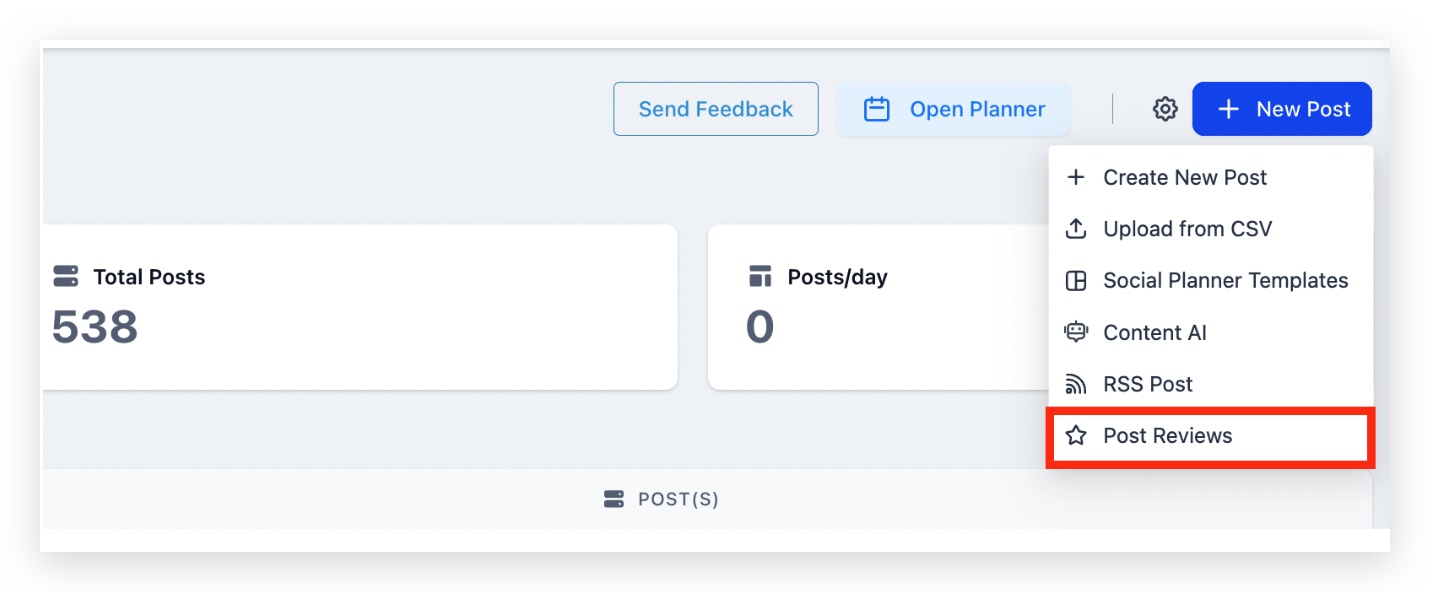
- Click on 'Post reviews' .
- Select the source social accounts to fetch the reviews from and select the star ratings range of the reviews to be fetched.
- Select the social accounts you want to push out the reviews ON.
- Choose the maximum number of posts you want to push out.
- Select 'When should we send?' to be scheduled for posting as per your requirement.
- Select Every day/week/month depending on the frequency you want the review to go out on the platform.
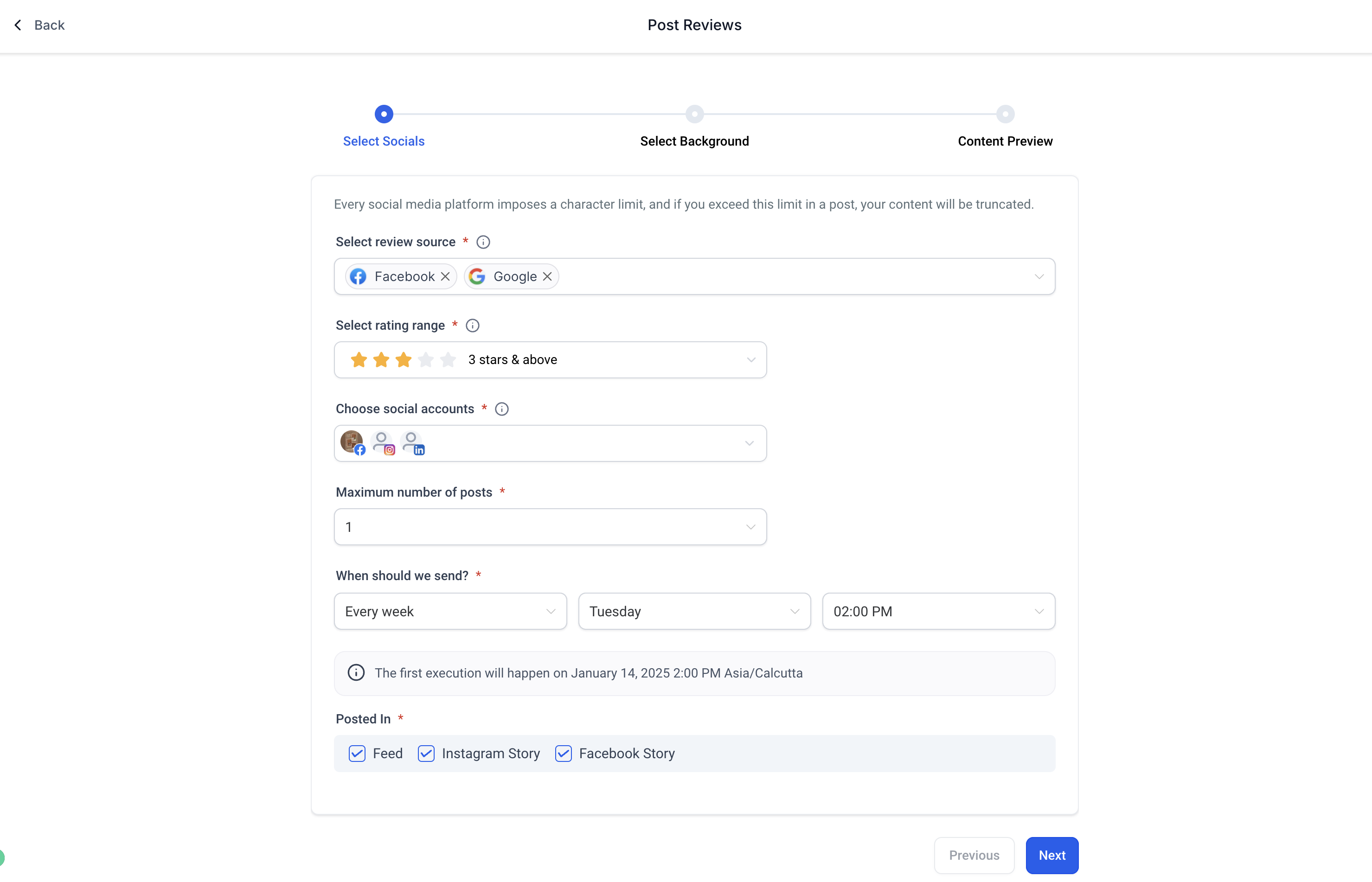
- Select Every day/week/month depending on the frequency you want the review to go out on the platform.
- Pick or upload multiple background images (supports JPEG/PNG, 1:1 ratio, 5MB max).
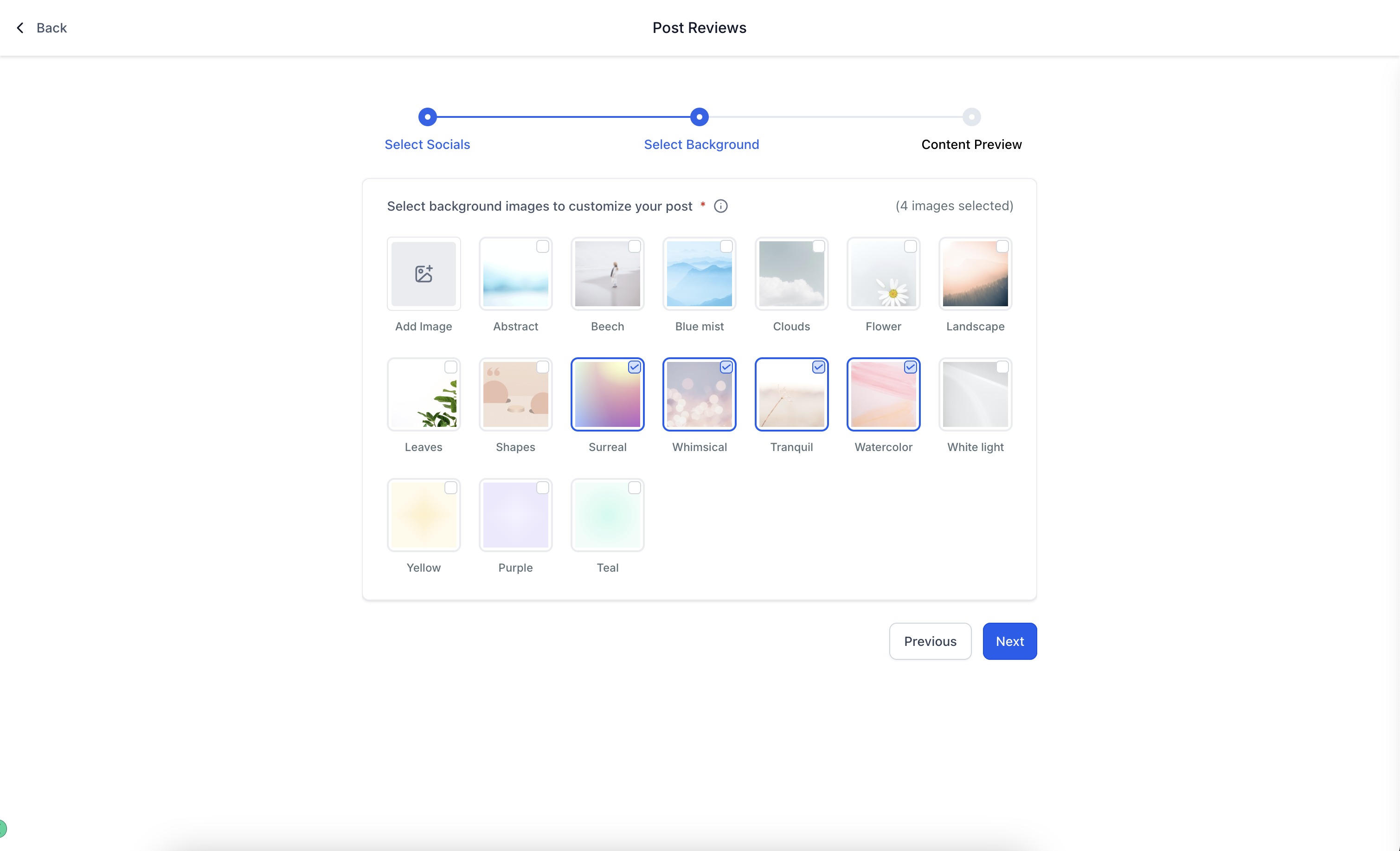
- Select the new content personalisation options such as font family, size and colour options as per your brand voice.
- Add a custom caption, or use the review content as the caption
- Choose how to display the customer’s name (Full name, first name, or initials)
- Customize font family font color, background color, star colour and opacity
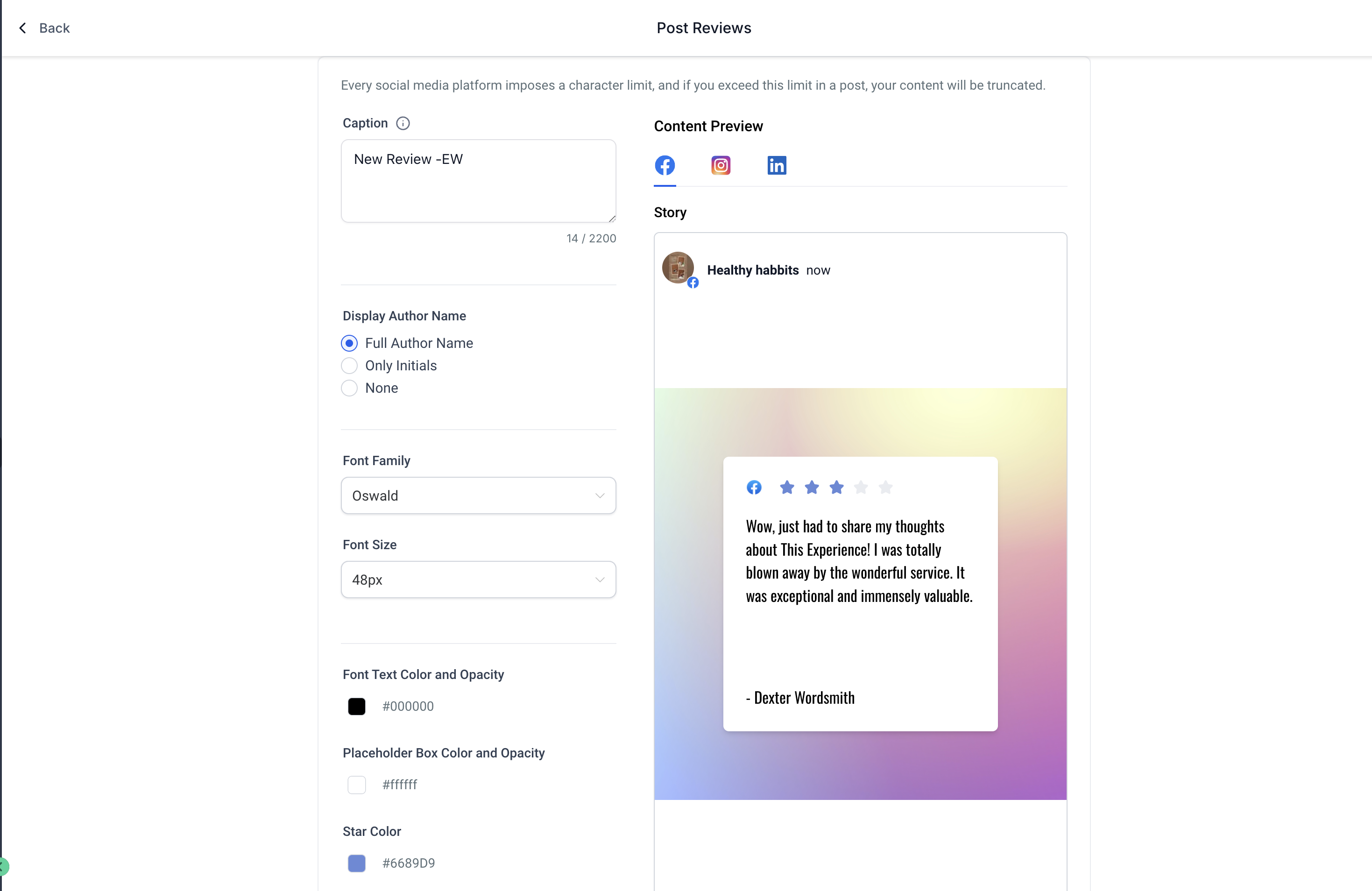
- Voila, your reviews are good to go out!
- Check the review post automation under 'Content' -> Review tab.
- Pause, edit, delete at any time you wish to make changes to the planned schedule.
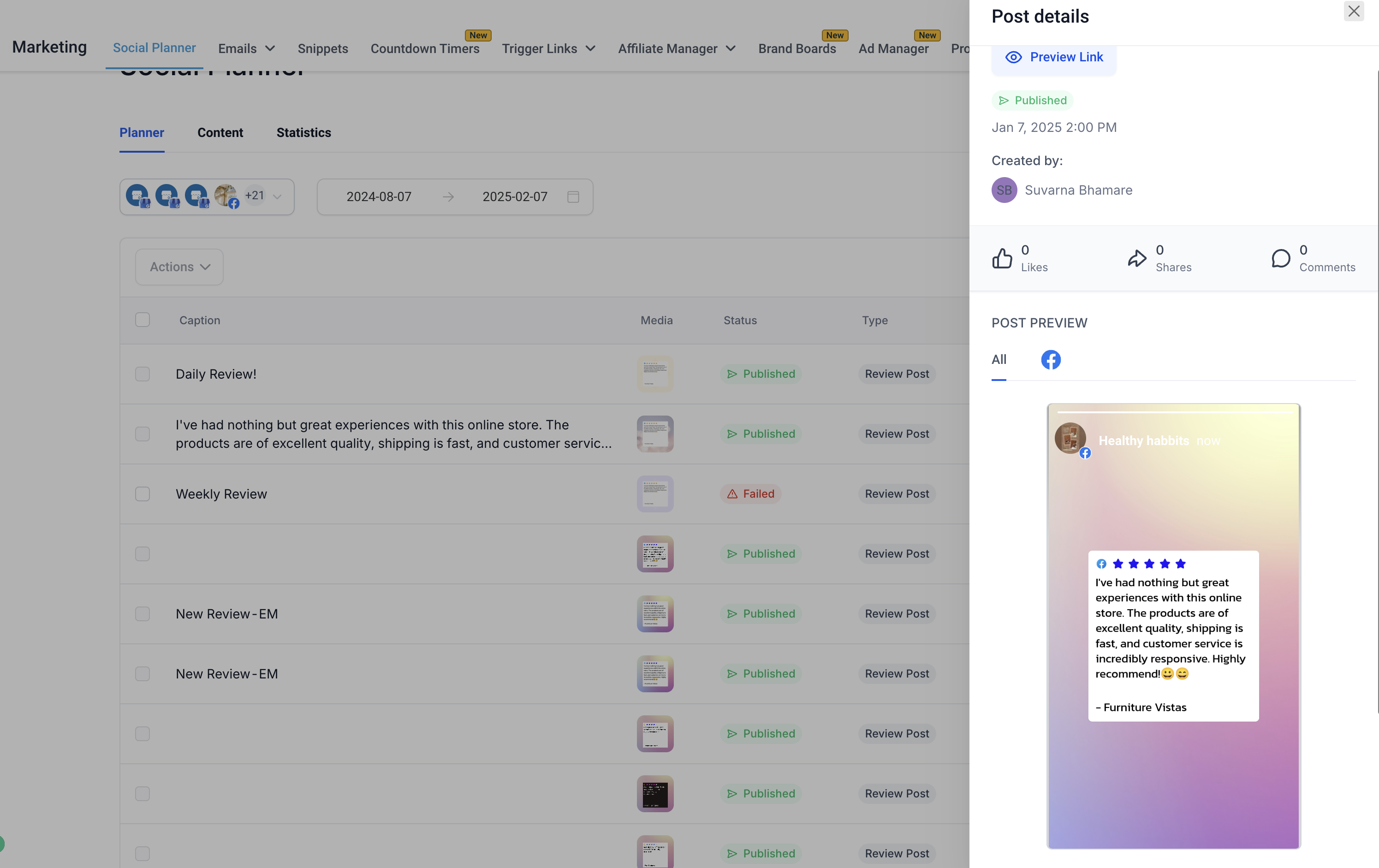
- Examples of Review Posting -
Example 1 - If you have connected your GMB Page, imagine that you received new review on 1st January 2024 6PM and inside Social Planner, if you have set that you would like to post 5 social posts per day at 8:37 AM. The new review will get published next day 2nd January 2024 at 8:37 AM. If you have received more than 5 reviews, it will select based on star and post only 5 social posts on selected socials.
Example 2 - If the client sets the review automation frequency to ‘Every week’ with a post count of 3, starting on October 22, 2024, at 11 AM, it means that 3 reviews will be posted weekly (every 7th day from the creation date).
From above example, on October 29, 2024, 3 reviews will be published at 11 AM, provided that 3 reviews are available between the creation and execution times.
The maximum post count does not mean posting three times in a single week. It means posting 3 reviews on the same day. This is why only one scheduled review card is displayed on the calendar.
The same logic applies to all frequency types, whether the frequency is set to daily, weekly, or monthly.
- Pause, edit, delete at any time you wish to make changes to the planned schedule.
Important Notes:
- We fetch and publish Google reviews that were posted after the date you created the review automation. Reviews added before the automation setup date will not be considered.
- We only publish reviews that include written text. Reviews that contain only a star rating (without any written content) will be skipped automatically.
- If no eligible new reviews are found at the time of execution, the post will be skipped. The system may automatically attempt to publish on the next scheduled date if the automation is set to repeat.
- The time you choose while scheduling review posts follows your local timezone settings. However, internal systems may display times in UTC or server time (e.g., Los Angeles time) this does not affect the actual publishing time.
- To connect your Facebook page(s), navigate to Reputation > Settings > Integration and add your Facebook page URL.