
We are excited to introduce a new level of customization and control within the client portal through our latest feature: App Permissions. This update allows users to tailor their app permissions according to their specific needs and preferences, including the ability to choose their default page upon logging in.
TABLE OF CONTENTS
- How to Customise App Permissions
- Accessing App Permissions
- Enabling/Disabling Apps
- Setting Your Default Page
- Auto Define Permissions (Visibility Rules)
- What “eligible content” means (examples)
- FAQ
How to Customise App Permissions
Accessing App Permissions
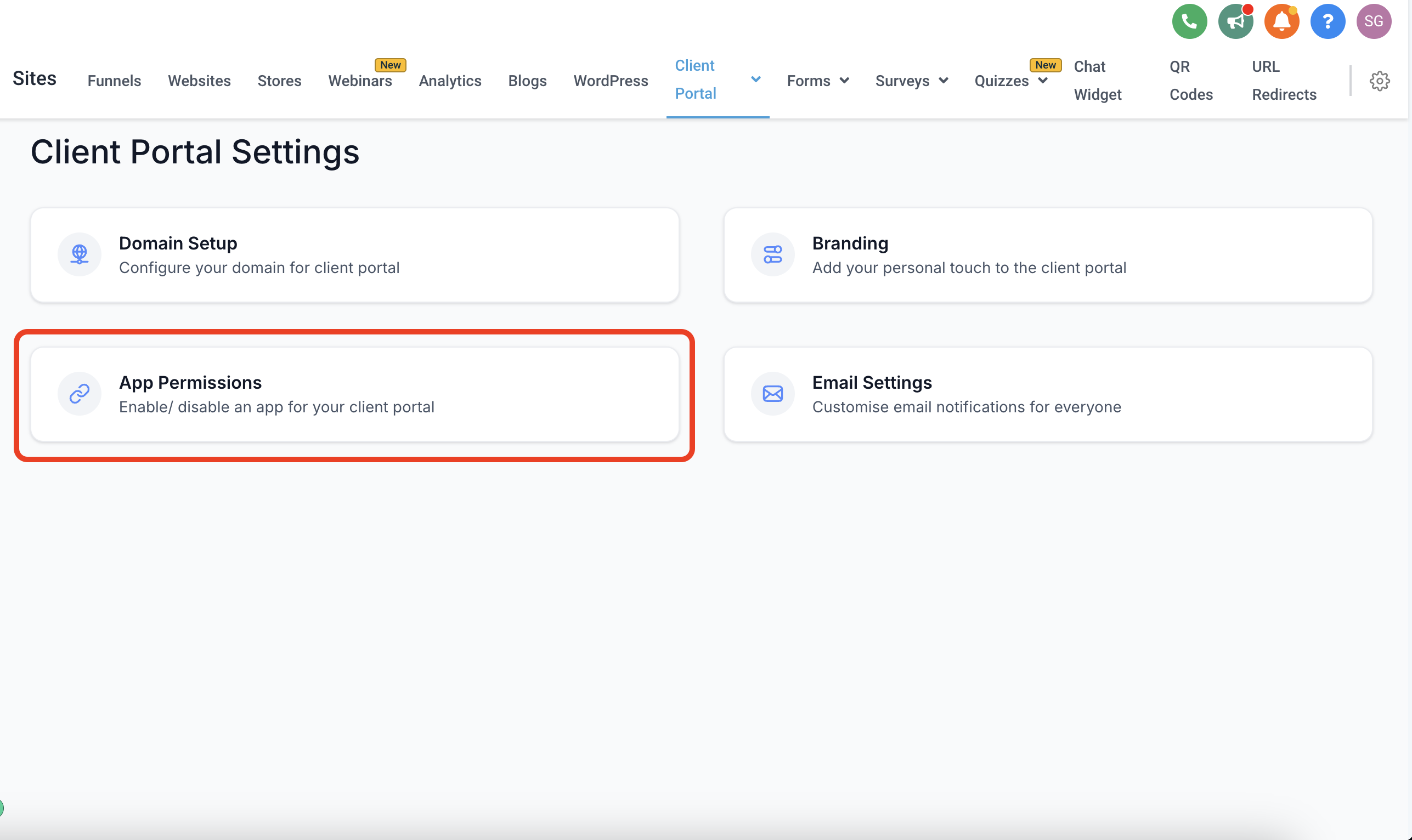
- Navigate to Client Portal Settings: Log into your client portal and locate the settings menu. Here, you will find a new option titled "App Permissions."
- Select "App Permissions": Click on this option to view and modify your app permissions.
Enabling/Disabling Apps
- Review Available Apps: Within the App Permissions section, you'll see a list of all available apps and features associated with your portal.
- Toggle Permissions: Use the toggle switch next to each app to enable or disable it. Disabling an app will remove its functionality and visibility from your client portal interface.
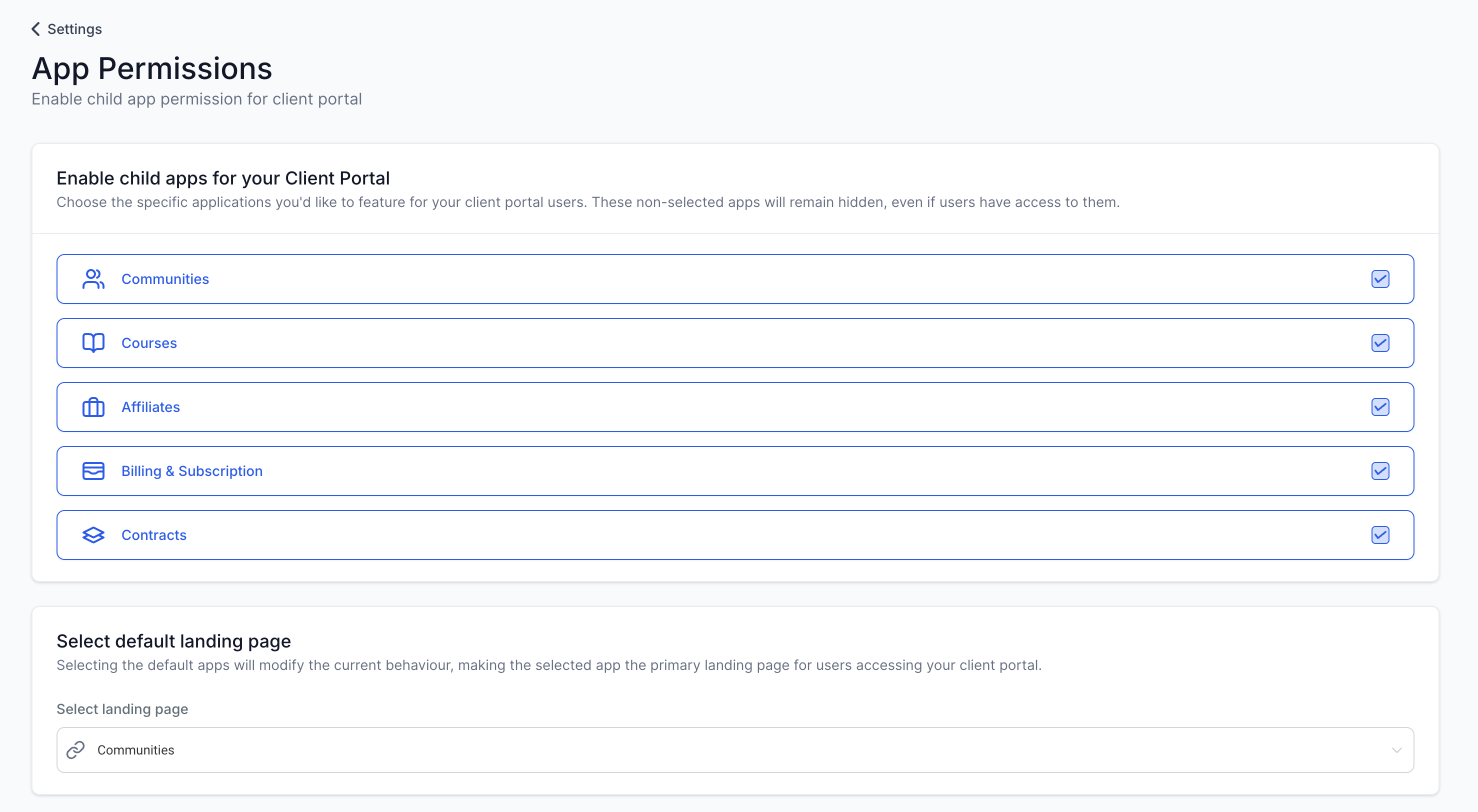
- Find the Default Page Option: Within the same App Permissions area, look for the option to select your default page.
- Choose Your Preferred Page: From the dropdown menu, select the page you wish your users to see immediately upon logging into the client portal.
Auto Define Permissions (Visibility Rules)
Client Portal apps follow two visibility checks for each contact:
The app must be enabled in App Permissions by the Client Portal owner.
The contact must have something active or relevant inside that app. If there’s nothing to view, the app stays hidden to keep the portal clean.
Visibility updates automatically—when you grant access or new content becomes available, the app appears for the contact; if you disable the app in App Permissions, it stays hidden for everyone.
What “eligible content” means (examples)
A contact may only see an app when they have relevant content such as:
Courses: The contact can see Courses after they have a course to access (for example, after their first course purchase/access is granted).
Invoices / Estimates / Contracts: The contact can see these apps when there’s something available to review (for example, an invoice to check).
Affiliates: The contact can see the app when there’s relevant affiliate access/activity for them.
FAQ
Q: Can I change my default page later? A: Absolutely. You can revisit the App Permissions settings at any time to adjust your default page or make other modifications to your app permissions.
Q: What happens if I disable a feature I frequently use by accident? A: If you disable a feature accidentally, you can easily re-enable it by going back to the App Permissions settings and toggling the feature back on.