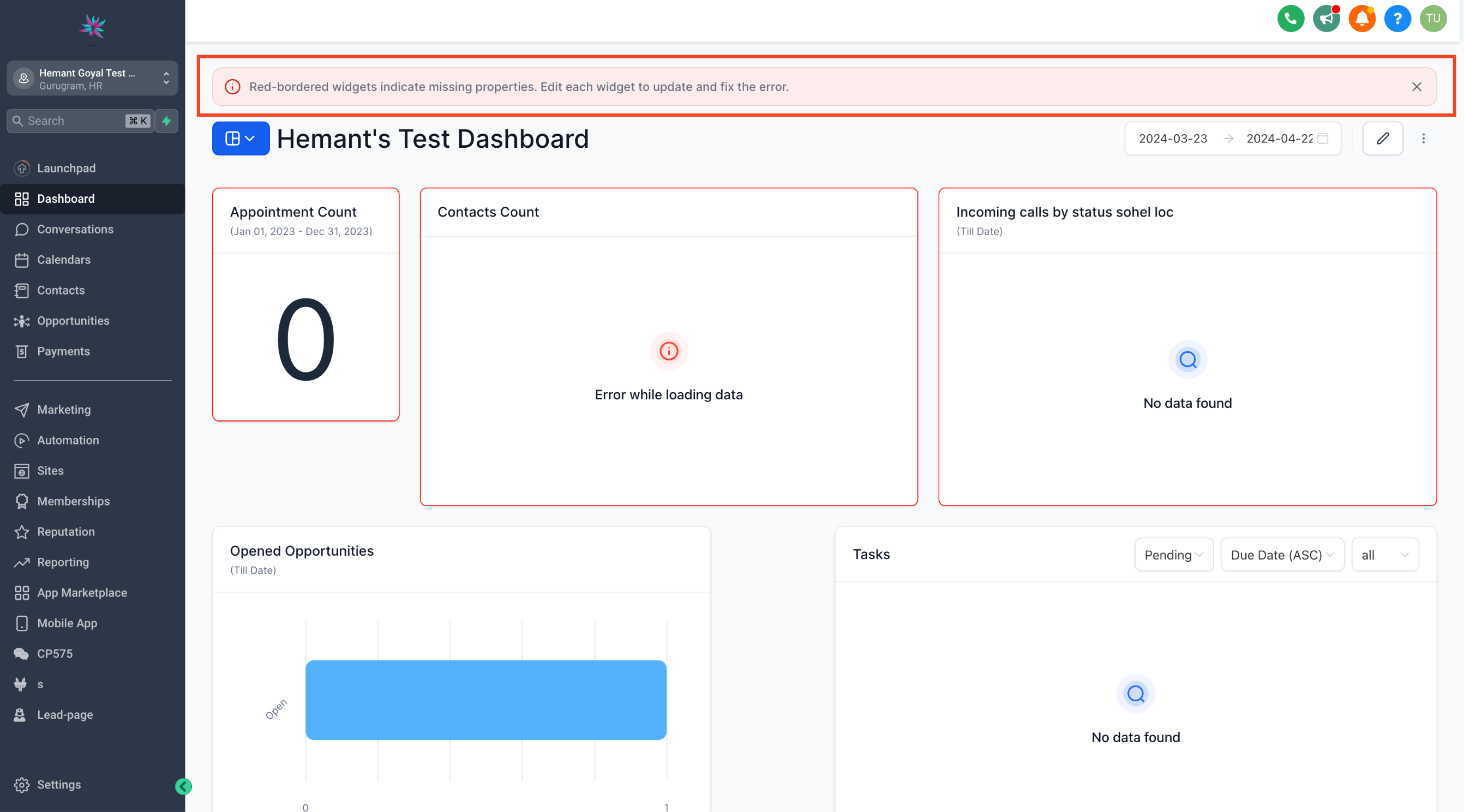
Now agency users can save time during onboarding and provide their locations with pre-configured dashboards as they begin. This enhancement allows agencies to create snapshots of their dashboard setup in one account and easily load it into other existing or new locations, applying all configurations seamlessly.
TABLE OF CONTENTS
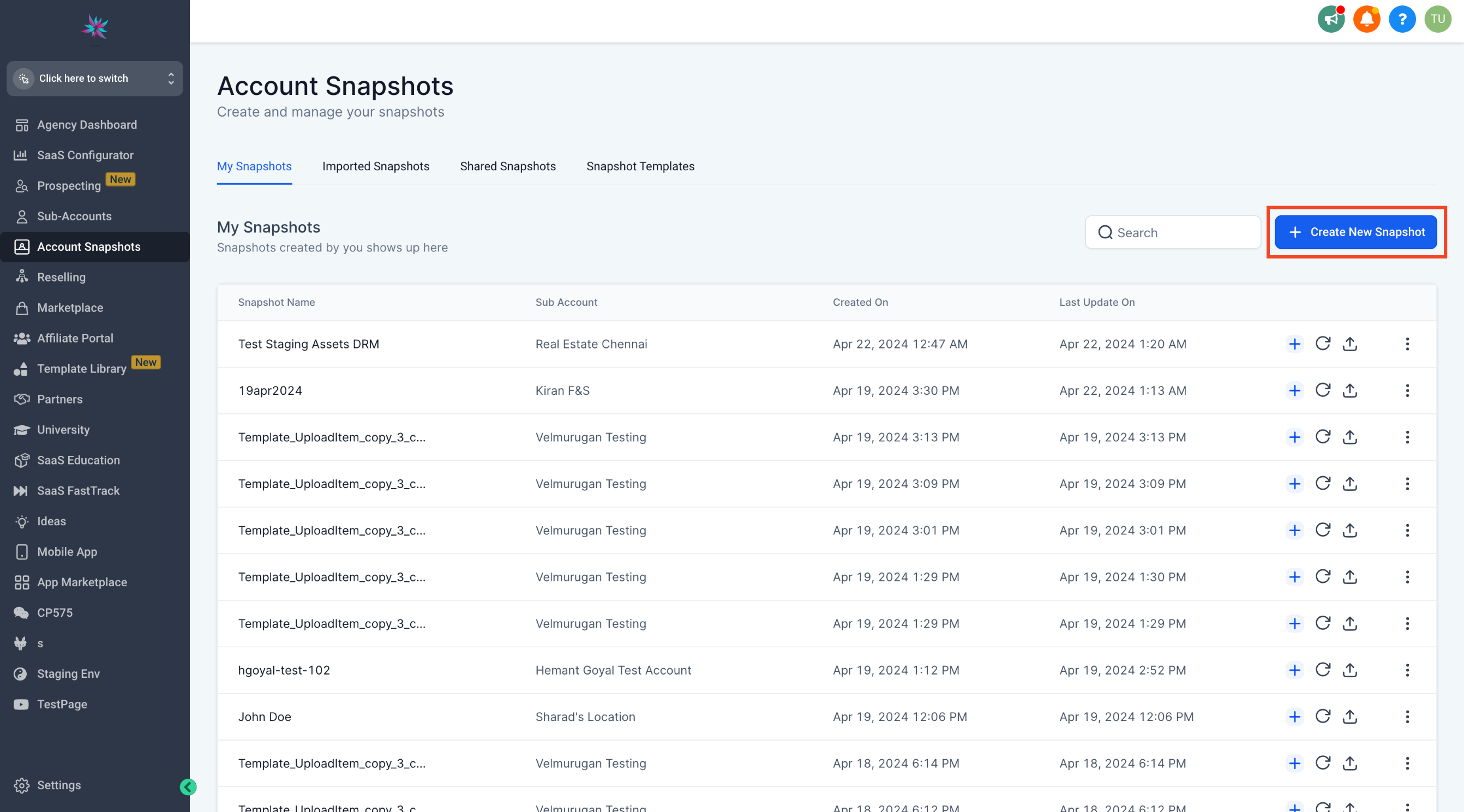
Step 1: Navigate to Account Snapshots
- Head over to Agency View and navigate to the Account Snapshots page.
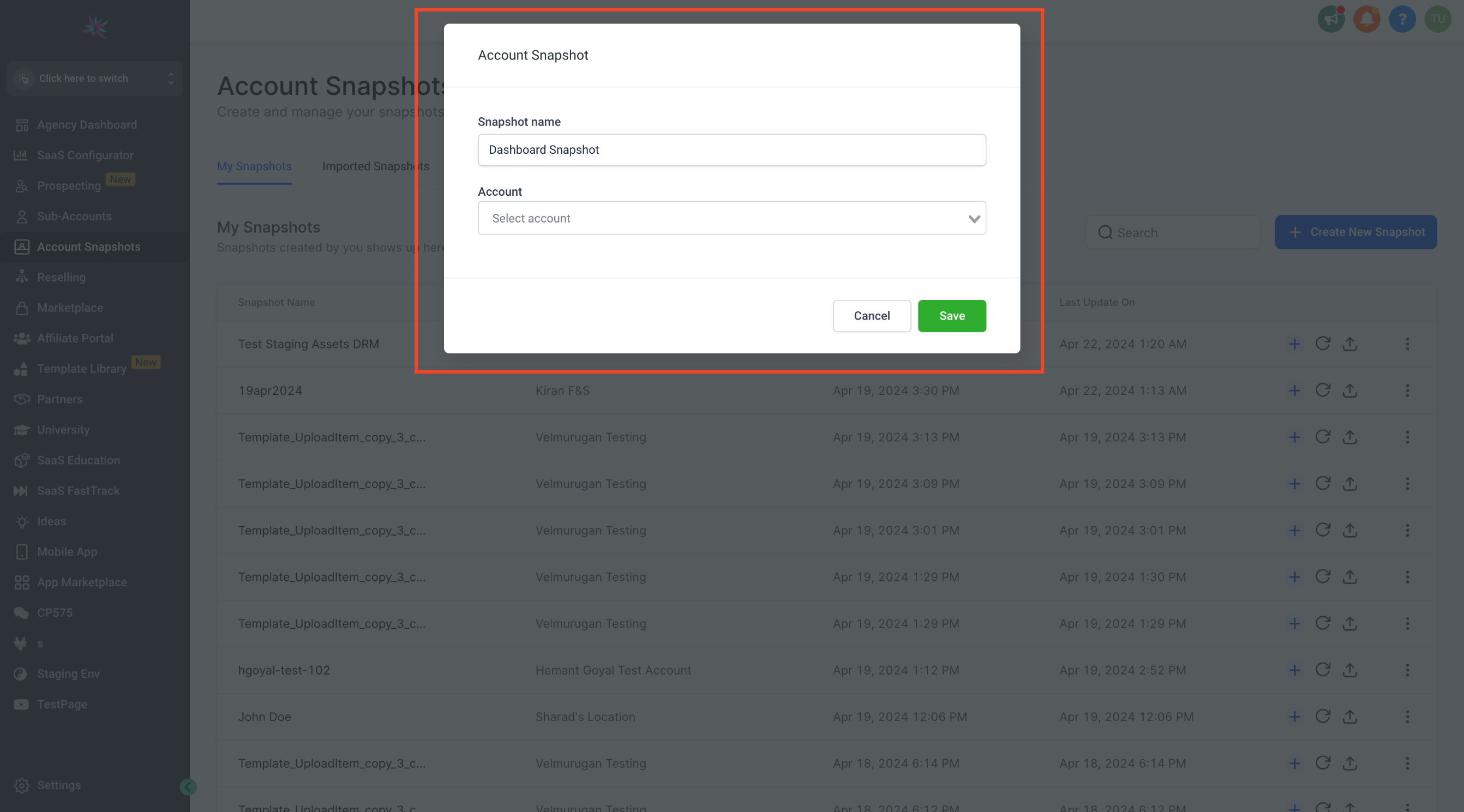
Step 2: Create New Snapshot
- Click on "Create New Snapshot" and give it a name. Choose the source account where your desired setup is located.
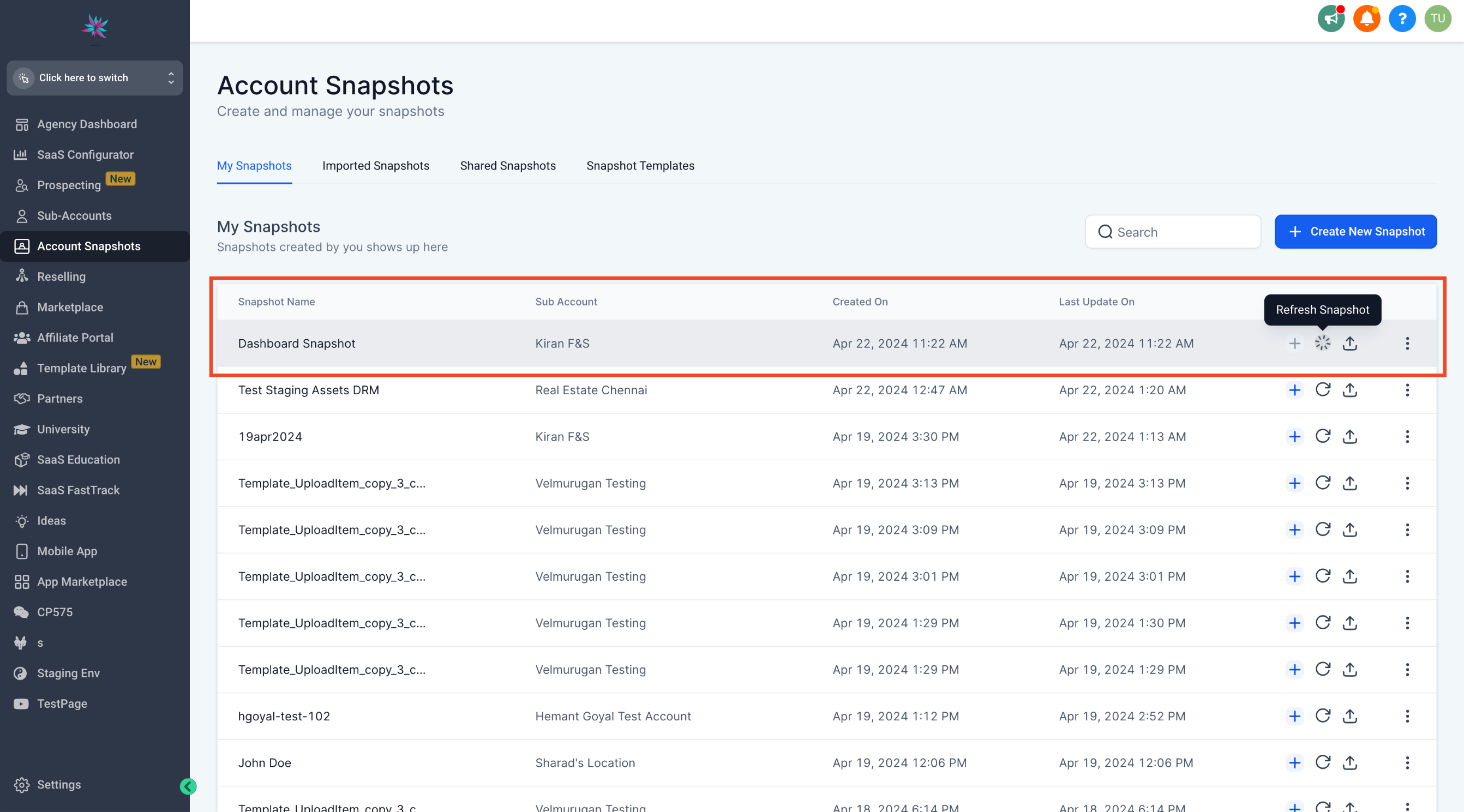
Step 3: Save Snapshot
- Once saved, you'll see your snapshot added to the list.
Step 4: Choose Target Location
- Now, you can either create a new account to load this snapshot into or choose an existing Sub account from the list.
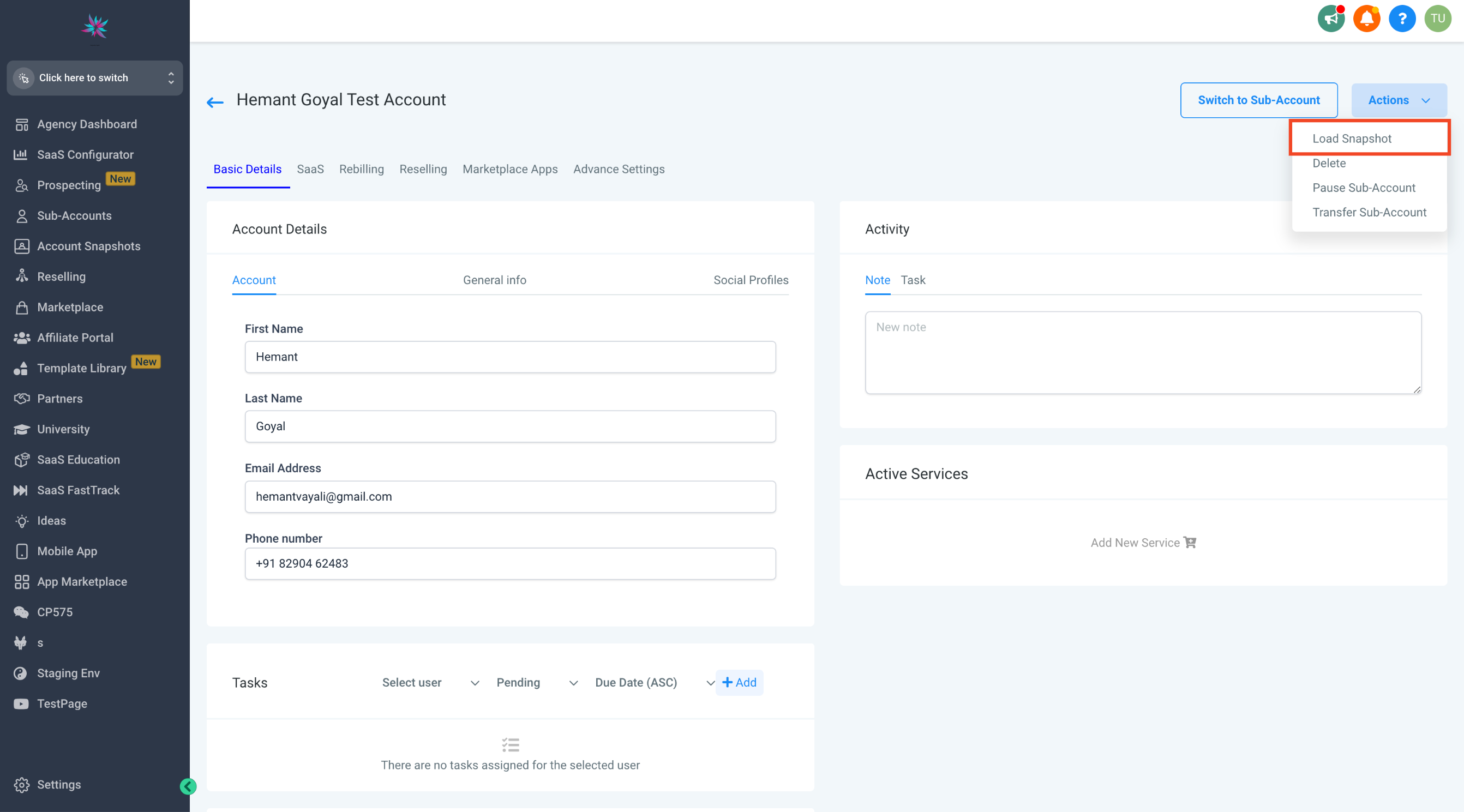
Step 5: Load Snapshot
- Click on "Actions" and then "Load Snapshot". Search for the snapshot you want to load.
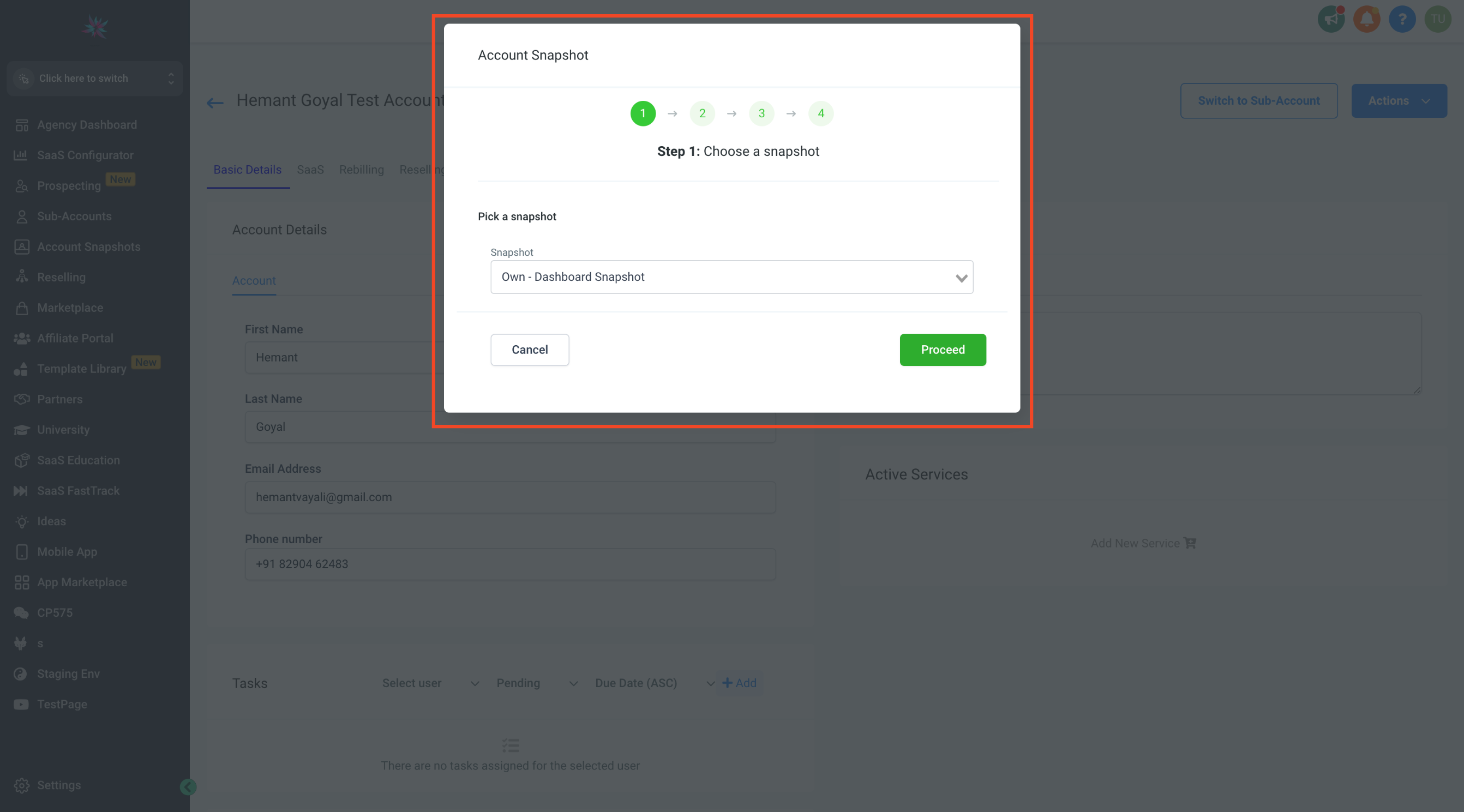
Step 6: Select Dashboards
- In the asset list, locate the dashboard category and choose all the dashboards you want to load.
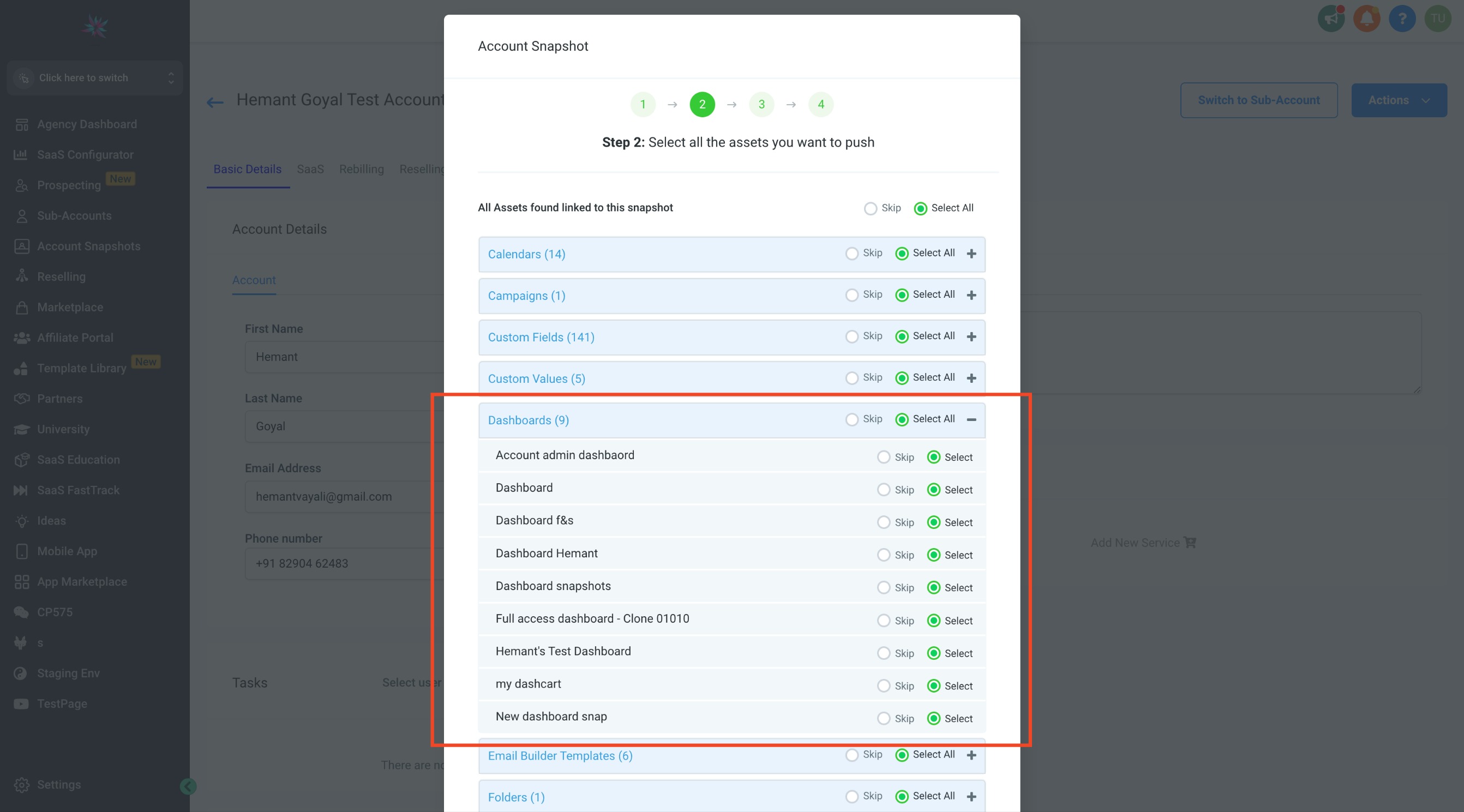
Private Dashboards Exclusion: Private dashboards are not included in the snapshot asset list. Ensure that the required dashboards are not private to include them in the snapshots.
Default Dashboards: Select your default dashboard from the list to make sure the default dashboard is also loaded to the target location
Step 7: Confirm and Proceed
- Confirm your selection and proceed with the loading process.
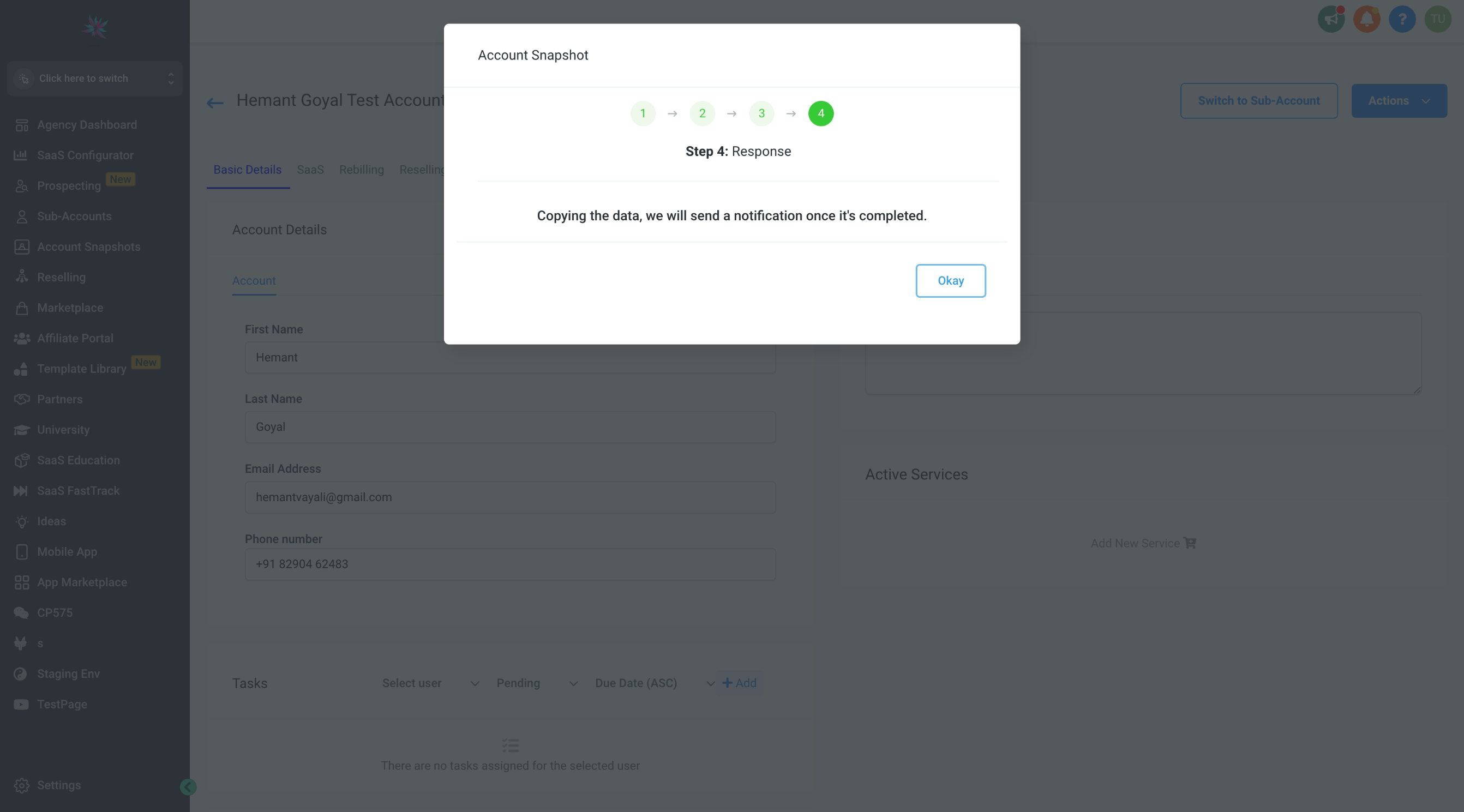
- You will be notified once the snapshot is successfully loaded.
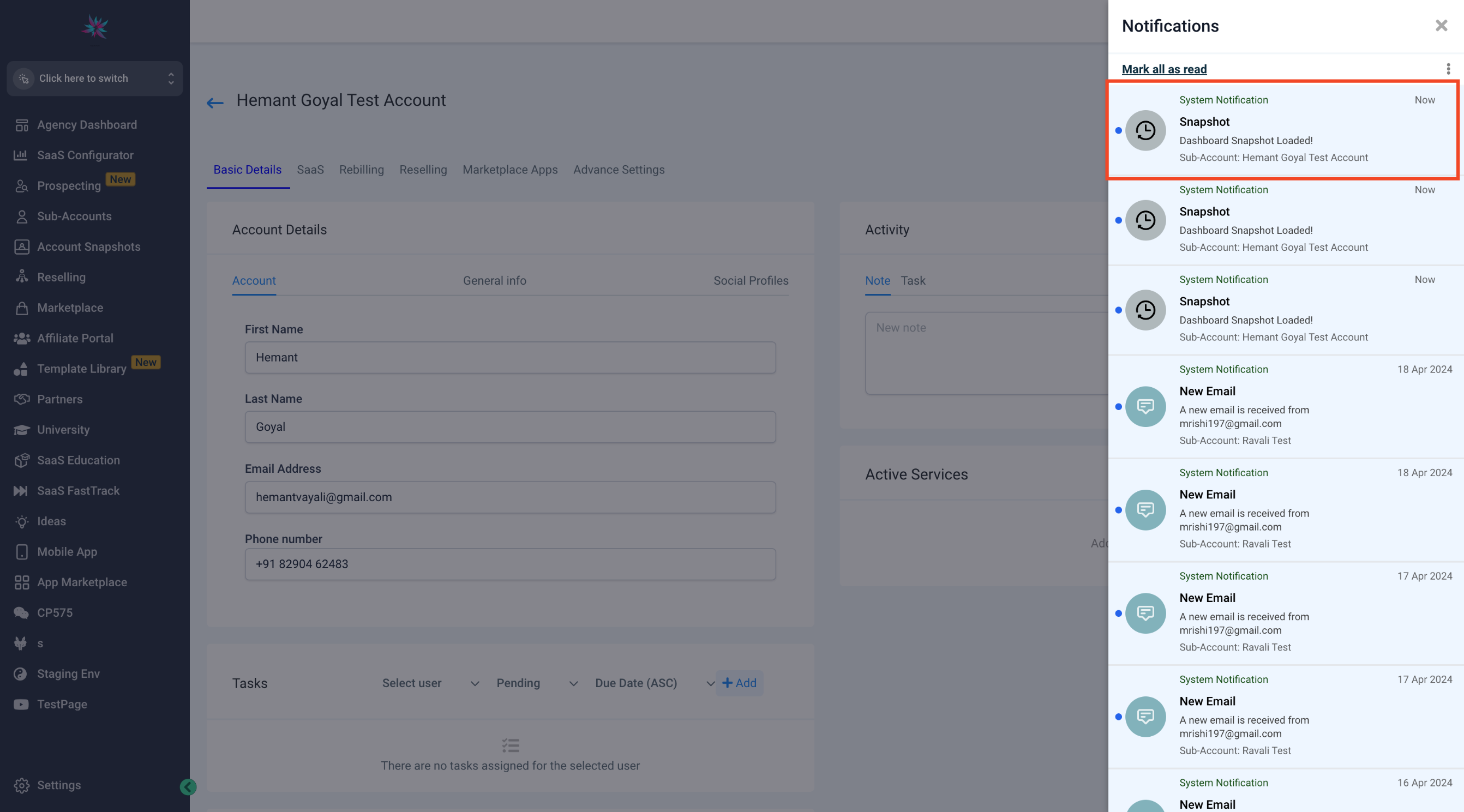
Step 8: View Loaded Dashboards
- Head over to the target location, and you'll find the dashboards loaded in the dashboard list.
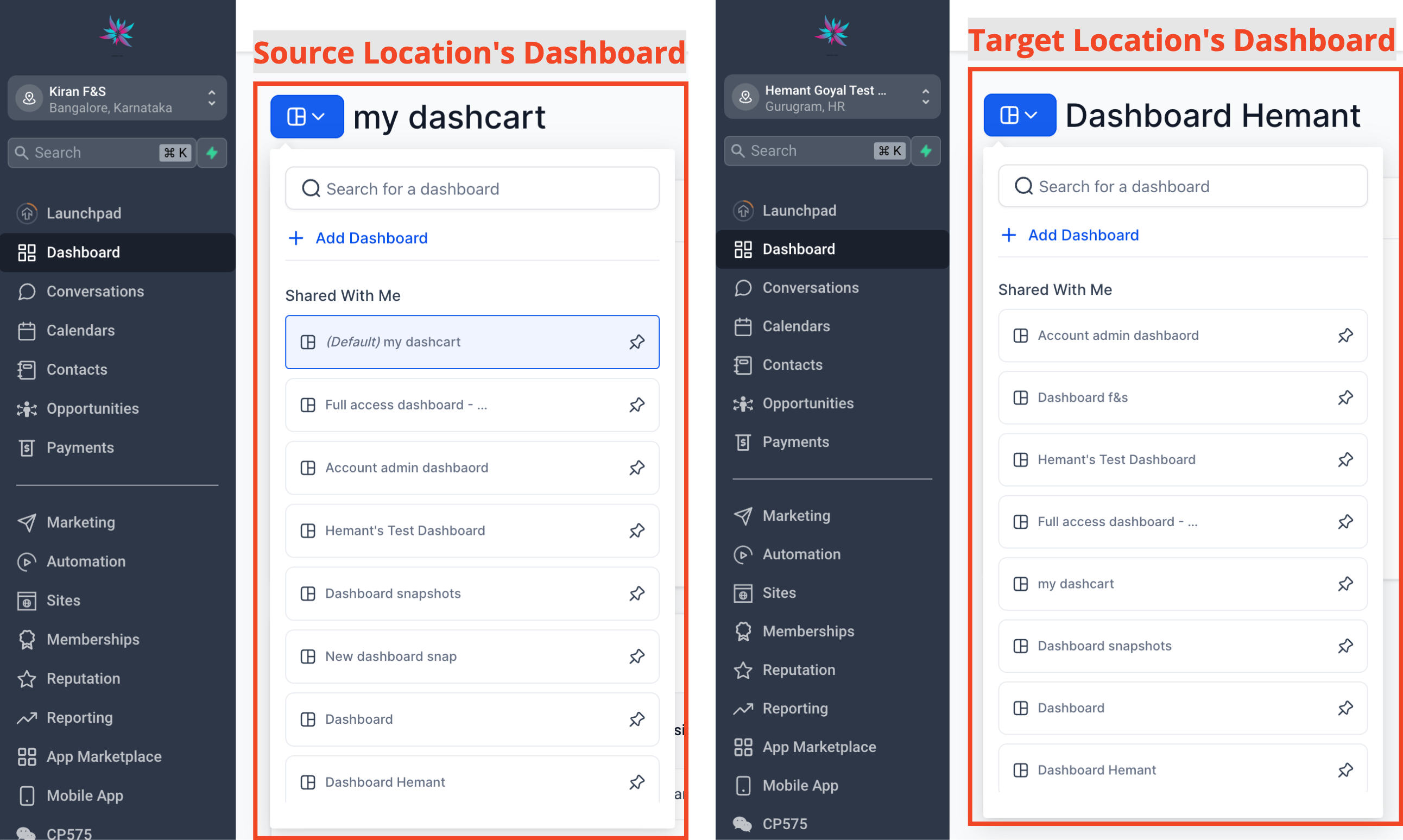
Important Notes:
Include Linked Assets: Dashboards are loaded with all widgets, conditions, filters, and custom widgets. However, make sure to include other assets linked to dashboard widgets (e.g., custom values and pipelines). Failure to do so may result in an error message on specific dashboards, indicating missing properties. Edit each highlighted widget to correct the properties and save to remove the error.