In this article, we discuss how you, as an agency admin, can granularly manage your users' permissions across various modules.
If you are here looking for sub-account's user roles and permission management, click here.
TABLE OF CONTENTS
- Getting started with user permissions
- Restrict access to specific sub-accounts
- Assign Permissions
- Steps to Stop a User From Opening New Sub-accounts
- Copy Permissions
- Adding Clients to a Sub-Account with Limited Access
- User Management API support
Getting started with user permissions
To manage users' permissions for an agency,
- Navigate to Settings > Team.
- Click on the edit icon for the user whose permissions you want to edit.
- Click on 'Roles & Permissions' in the left menu.

Assigning user type and role
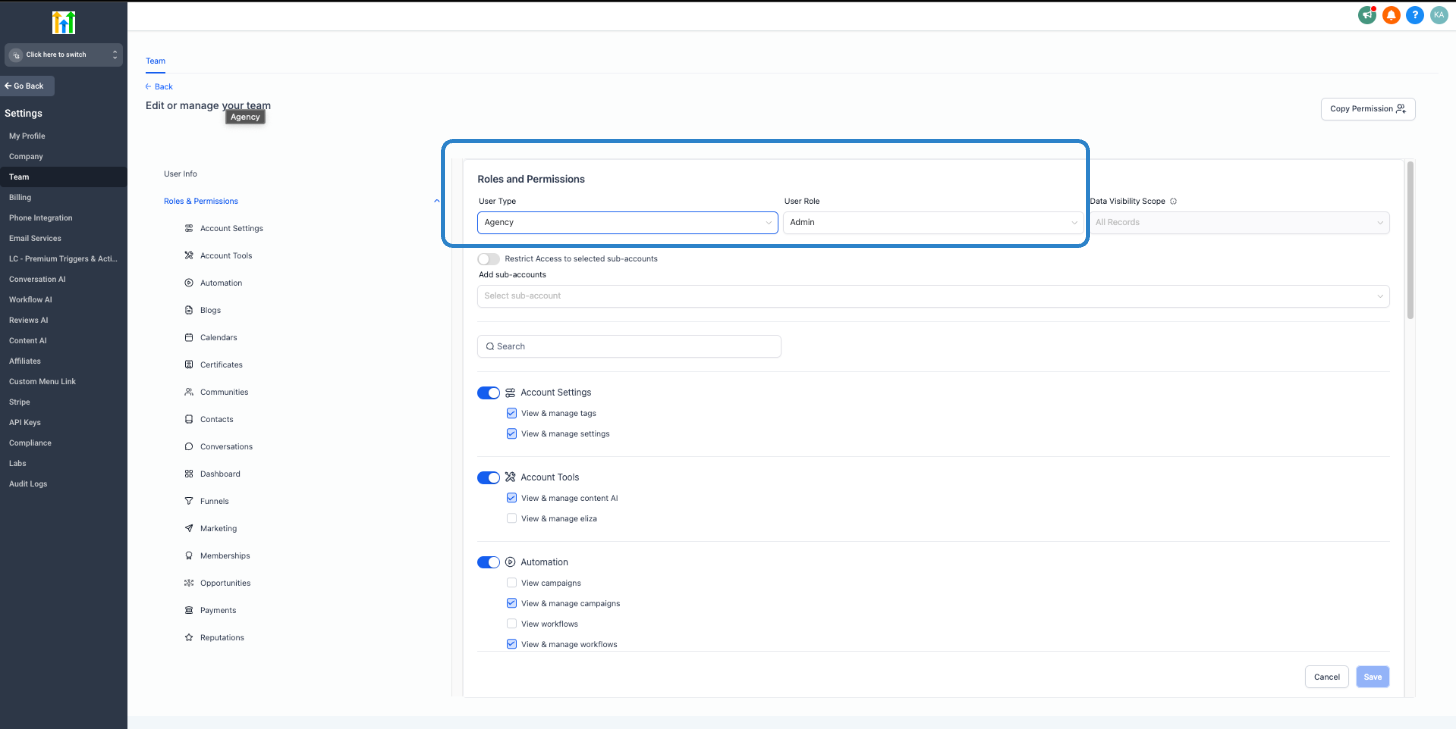
- User Type: Select whether you wish to create the user for the agency or a specific sub-account.
- Role: Select whether the user is an admin or a user.
Restrict access to specific sub-accounts
Agency admins can assign agency admins to specific sub-accounts and restrict them from accessing other sub-accounts to which they are not assigned.
For example, Alex, who is an agency admin, can access only assigned sub-accounts '78th Avenue' and 'A Mailbox NYC', without compromising his access level. However, he will not be able to access 'Baker's Inn' which he is not assigned to.

Assign Permissions
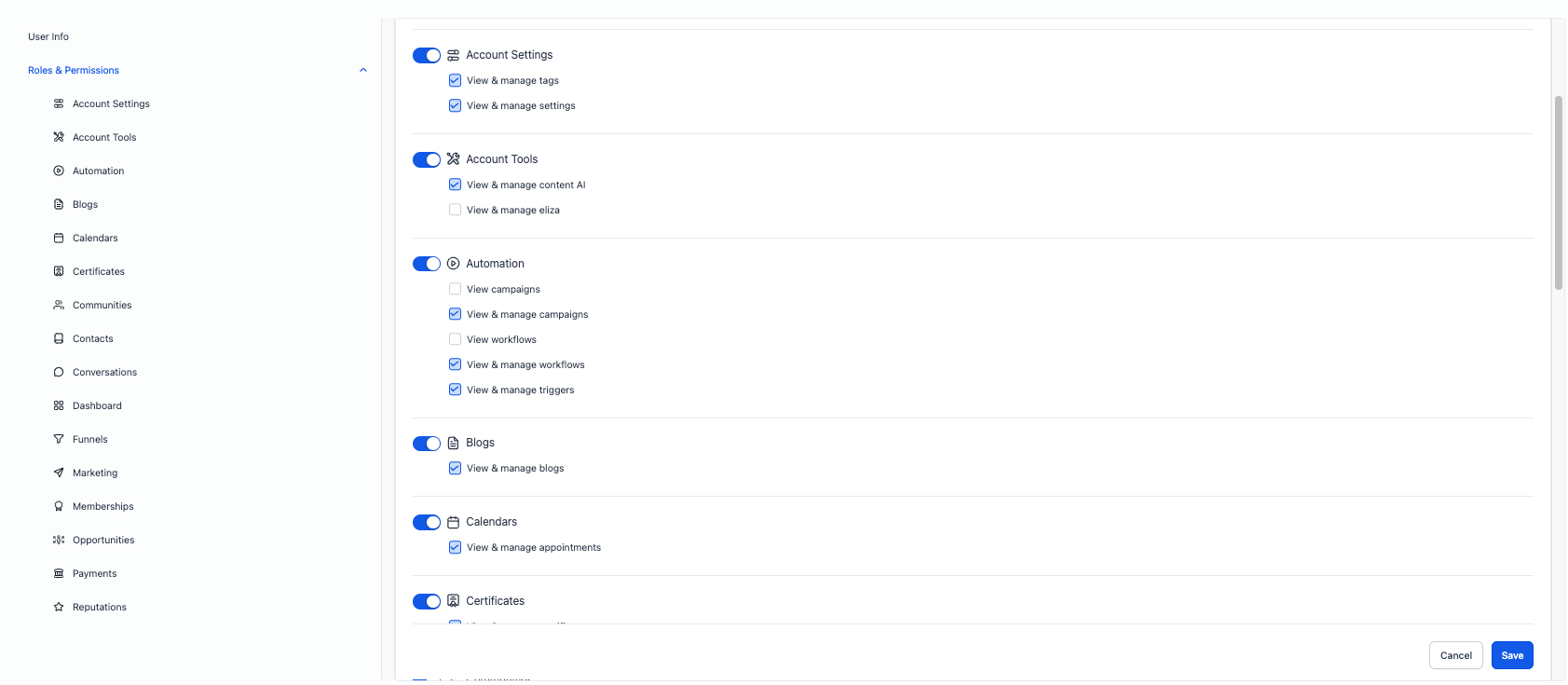
Agency admins can apply granular permissions to their users. You may control the permissions at two levels:
- Module: Toggle the module off to completely restrict access to the module.
- Granular: Using checboxes, you can set the permissions at a granular level.
The new permissions structure is backward compatible with the old set of permission structures and their functionalities.
What does that each permission mean,
- AI Agents: Build/manage Voice/Chat AI agents, training, call logs, summaries.
- Account Settings: Edit the sub-account’s business info, time zone, domains, branding, and other local settings.
- Account Tools: Utilities such as imports/exports, URL redirects, or other housekeeping tools available in the account.
- Automation: Create and edit Workflows/Triggers; start/stop automations; view logs.
- Blogs: Create posts, categories, authors; manage blog settings.
- Calendars: Create calendars, assign users, set availability, round-robin rules, and appointment types.
- Certificates: Create and issue course completion certificates for Memberships.
- Communities: Manage groups, posts, members, and moderation tools.
- Contacts: Create/edit/delete contacts; bulk actions; import/export.
- Conversations: Access the inbox (SMS, email, calls, social DMs); send/receive messages and call.
- Forms: Build, edit, and publish forms; manage submissions.
- Funnels: Build funnel/website pages, popups, and settings; publish/unpublish.
- Gokollab: Access GoKollab assets/workflows for creative collaboration and approvals.
- Integrations: Connect/manage sub-account integrations (Google, Facebook, Ads, Email, Phone, etc.).
- Launchpad: Use onboarding checklists/quick-start tools.
- Marketing: Send email/SMS campaigns, Social Planner, templates, and scheduling.
- Medias: Manage the media library (images, videos, files).
- Memberships: Courses, lessons, offers, bundles, access levels, and learners.
- Opportunities: Pipelines, stages, deals; create pipeline, update values and statuses.
- Orders: View and manage order records tied to checkouts and products.
- Payments: View payments, refunds, invoices, receipts in the account.
- Payment Settings: Connect/manage payment gateways (e.g., Stripe, Authorize.net) at the sub-account level; taxes, receipts, dunning.
- Products: Create/manage products, prices, and variants for selling.
- QR Codes: Create and manage QR codes that link to pages/forms.
- Quizzes: Create/manage quizzes for courses or lead capture.
- Dashboard: View analytics and performance widgets.
- Reputations: Request/manage reviews, reply to reviews, connect listings, manage Reviews AI agents.
- Subscriptions: Create/manage recurring plans, subscriber status, cancellations.
- Sub-Account Transfers: Allows agency users to initiate or manage eligible sub-account transfer actions between agencies. This permission should be assigned carefully, as transfers may affect account ownership, access, billing, and related settings.
- Surveys: Build, edit, and publish surveys; manage responses.
- Taxes: Configure tax rates/rules for sales in the account.
- Transactions: Ledger of charges/refunds/payouts across the account.
- WordPress: Connect and manage the WordPress plugin/site sync.
Sub-Account Settings (Granular Permissions)
As agencies grow, you may want to delegate sub-account administration without granting full access to sensitive settings. Sub-Account Settings permissions let you control who can view, edit, or manage key areas across sub-accounts.
Where these permissions apply
- Sub-Accounts List Page: Control who can view and manage sub-accounts.
- Manage Client Page (Basic Details): Limit access to client-level configuration.
- Sub-Account Billing: Restrict billing and financial actions at the sub-account level.
- Sub-Account Company Settings: Restrict access to high-impact company configuration settings.
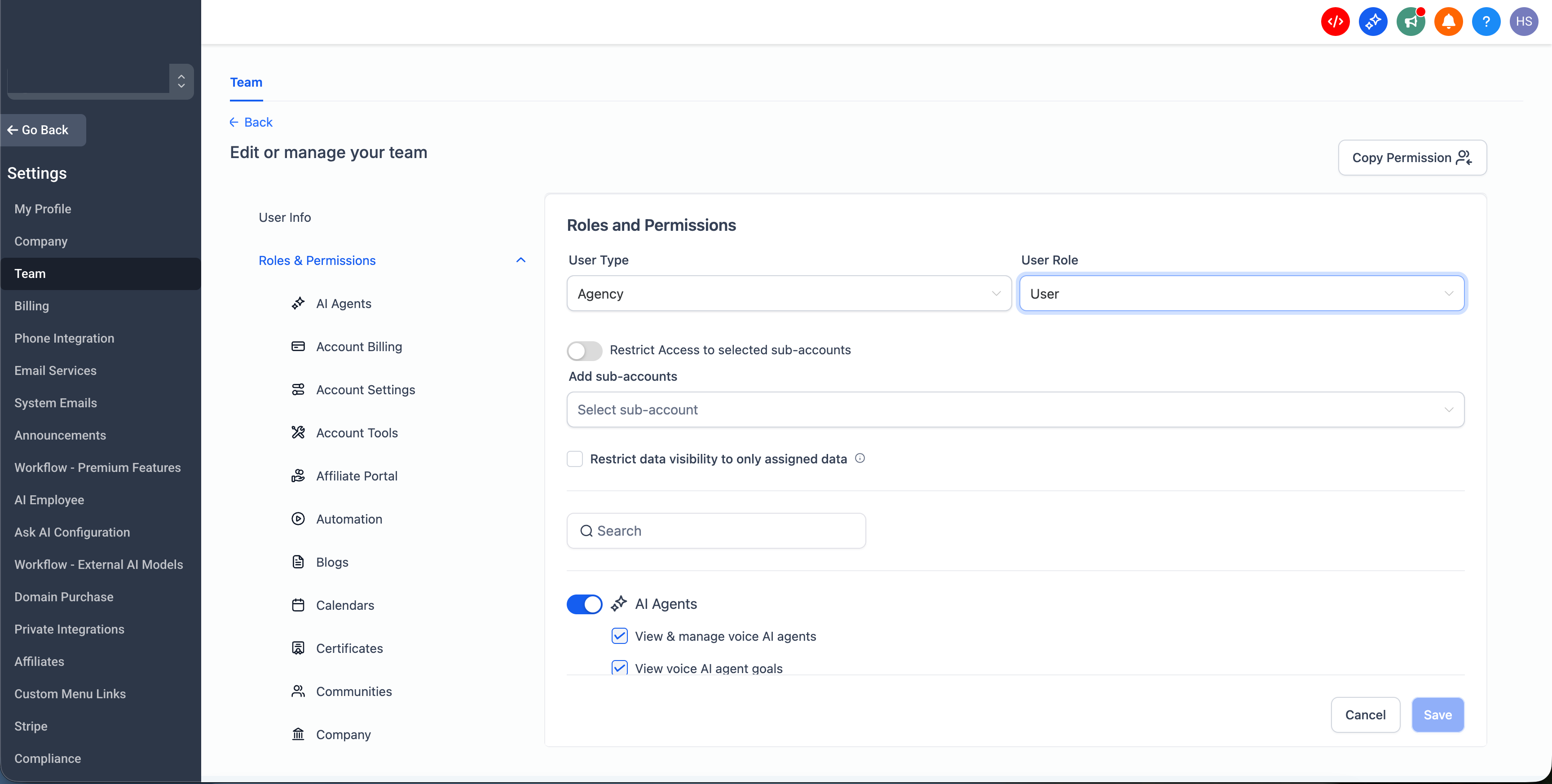
When a user tries to access a restricted area or perform a restricted action, SourCherry displays contextual messaging explaining that the action is not allowed for their permission level.
Steps to Stop a User From Opening New Sub-accounts
Creating brand-new sub-accounts is not controlled by the list above. It’s an Agency-level permission.
- Go to Agency view → Settings → Team
- Open the user → Roles & Permissions
- Find Sub-Accounts (Agency module)
- Uncheck “Create Sub-Accounts” (and “Delete” if needed)
- Tggle Sub-Accounts = Off to hide it completely
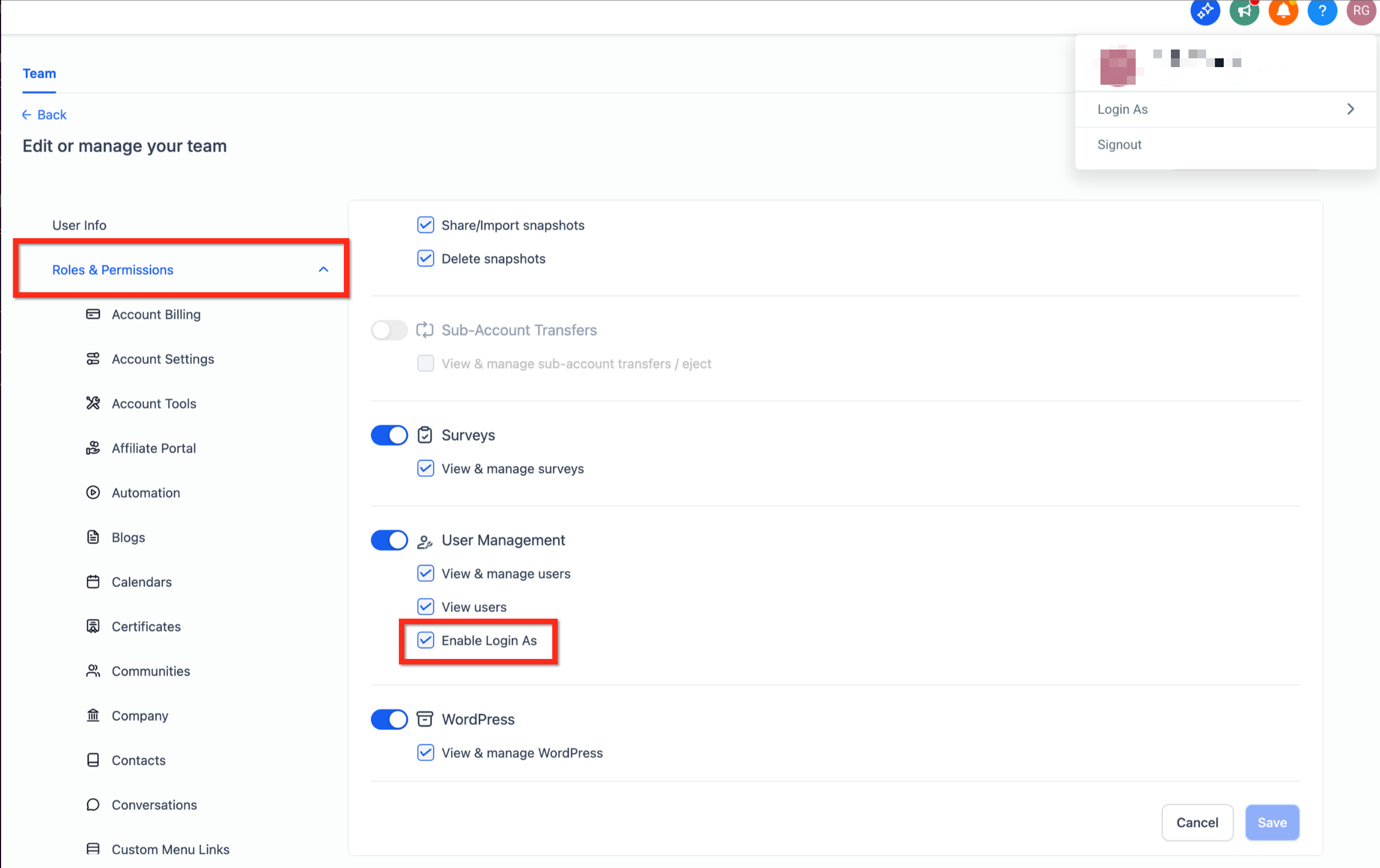
User Management → Login As
Enable Login As controls whether an agency admin can impersonate another user via Login As.
- Default: Enabled.
- Effect when disabled: The Login As option is hidden for that admin.
Where: Agency Settings › Team › Edit user › Roles & Permissions › User Management.
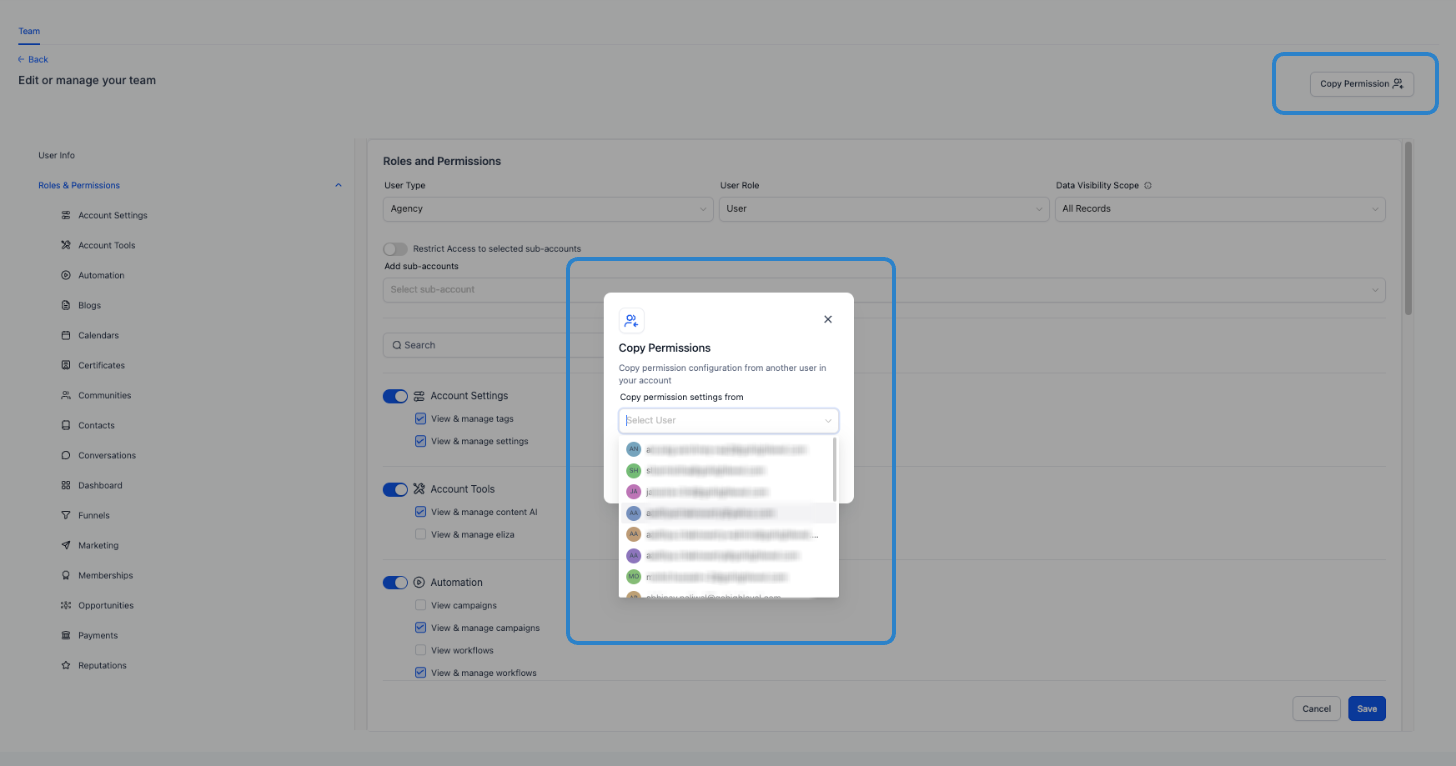
Copy Permissions
Agency admins can copy a user’s granular permissions to another user. For example, when Bob joins the sales team, the admin can clone Alex’s permissions to Bob.
Adding Clients to a Sub-Account with Limited Access
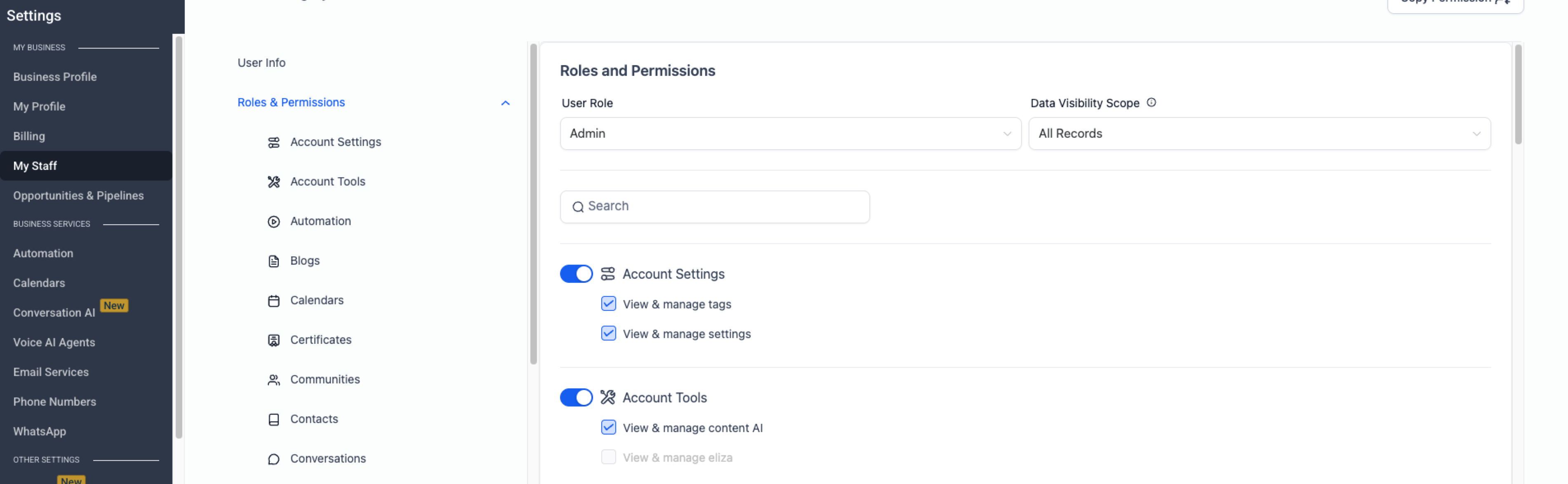
Clients should not be added as agency-level users. Instead, they should be added directly within the sub-account associated with their business, where you can assign specific permissions and roles tailored to their needs. Adding clients at the agency level will give them unnecessary visibility across all sub-accounts—something you likely want to avoid.
Follow these steps to add a client to a sub-account and control their permissions:
- Go to the sub-account associated with the client.
- Navigate to Settings > My Staff.
- Click the blue button labeled + Add Employee in the upper right corner and enter the client’s user details.
- Enter your client’s name + email and set their Role (usually User; use Admin only if they truly need full control).
- Set permissions based on what they should be able to edit (you can toggle modules on/off and adjust individual permissions).
- Enable the Only Assigned Data toggle if you want the client to see only the records (contacts, calendars, opportunities) assigned to them.
- Click Save to finalize their access level.
- Dashboard → Export data: Allows the user to export dashboard widget data for reporting.
User Management API support
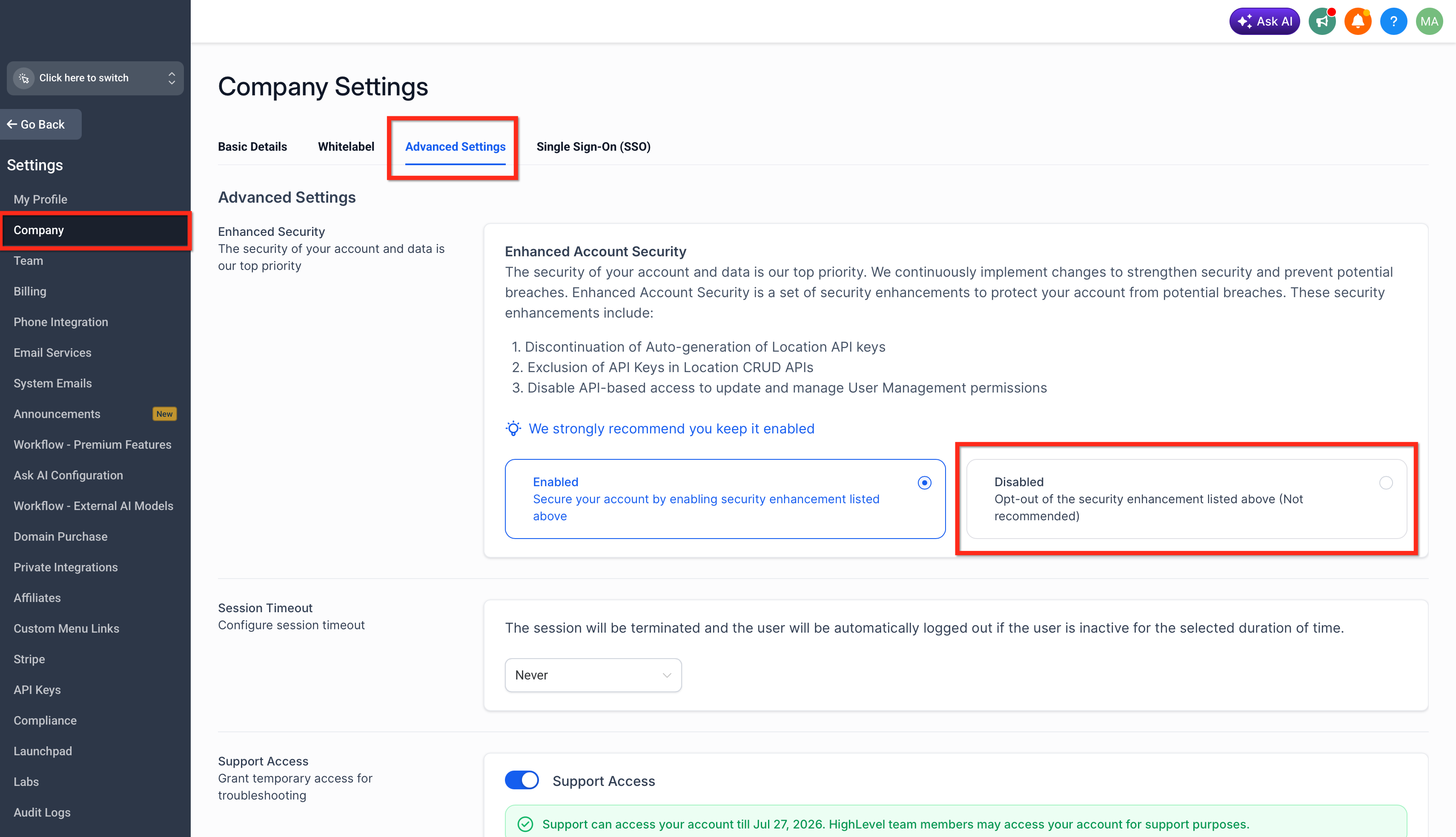
The User Management permissions supports API-based updates when Enhanced Security is disabled. Use this option when your agency manages users through API-first workflows or high-volume operational processes.
Supported User Management permission levels:
View & Manage Users: Allows users to view, create, and edit users.
View Users: Allows users to view users only.
To enable API-based user-management updates, from Agency level go to Settings > Company > Advanced Settings and disable Enhanced Security.