
Adding a domain to a WordPress site is necessary to make the website accessible to the public through that Domain. A domain serves as the website's address, and visitors can use it to access the site. The article provides step-by-step instructions for adding a primary domain and additional domains to a WordPress site.
TABLE OF CONTENTS
- What is Adding a Domain to WordPress Sites in SourCherry?
- Key Benefits of Adding a Domain to WordPress Sites
- Prerequisites
- How to Add a Domain for a WordPress Site in SourCherry
- How to Add a Sub-Domain for a WordPress Site
- Comprehensive Domain/Sub-Domain Dashboard
- Frequently Asked Questions
- Related Articles
What is Adding a Domain to WordPress Sites in SourCherry?
WordPress Domain Management connects your purchased domain (e.g., example.com) to your SourCherry WordPress site. The system verifies DNS records and issues SSL so your visitors can access a secure, branded website. Understanding how the primary domain, subdomains, and DNS verification work ensures a reliable, secure connection for your site.
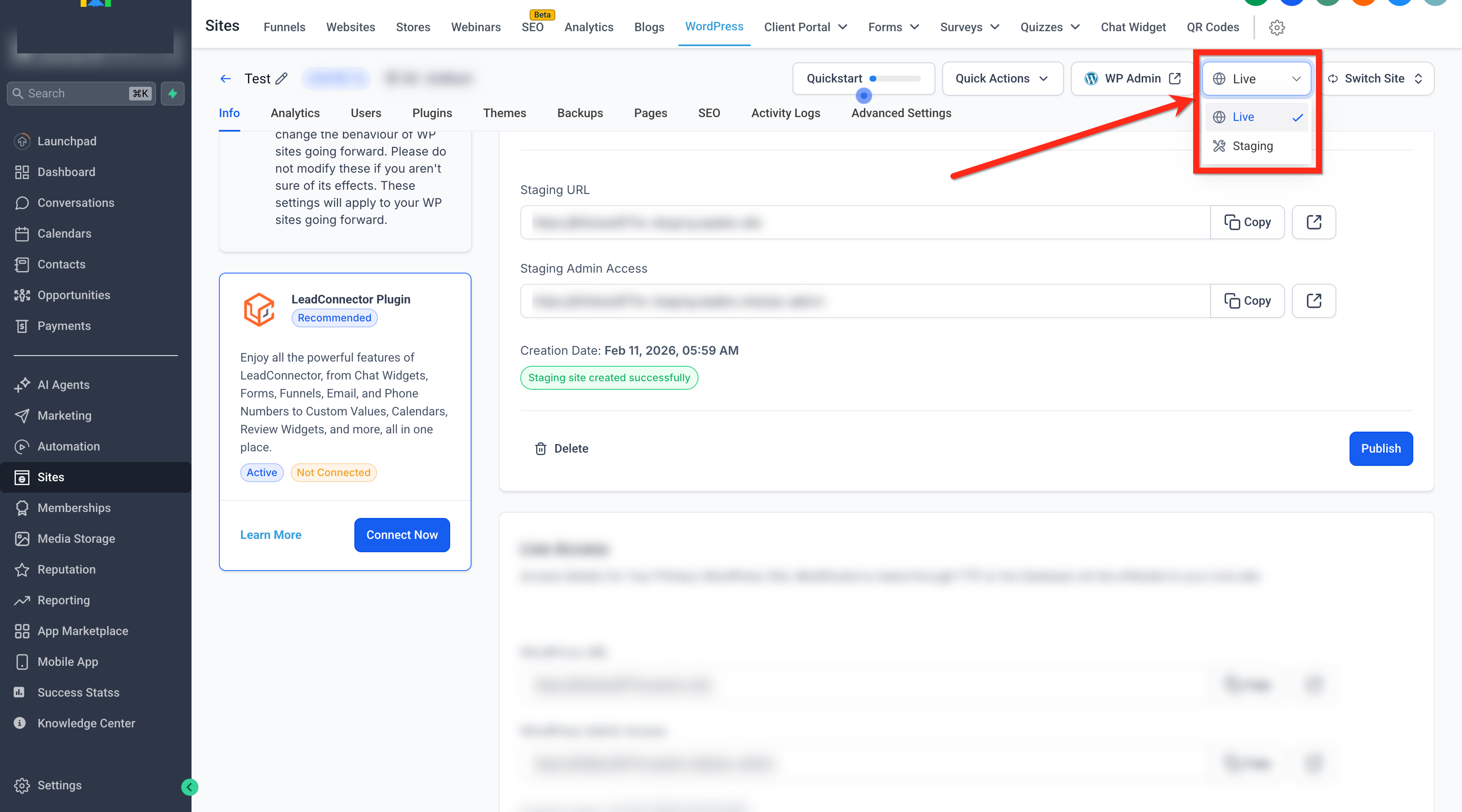
Note: Domain Management is available in the Live environment only.

If you are in Staging, the domains area is disabled and shows: “This feature is only available in the live environment. Please switch to access it.”

Use the environment selector in the top-right header action bar to switch to Live.
Key Benefits of Adding a Domain to WordPress Sites
- Primary domain & SSL issuance: automatic SSL is issued after DNS verification for the primary domain, enabling secure HTTPS access.
- Multiple domains supported: connect additional domains or subdomains to route traffic as needed (within product limits).
- Subdomain flexibility: map subdomains (e.g., blog.example.com) without the extra SSL TXT validation step used for primary domains.
- Domain Connect option: authenticate with supported registrars to auto-configure DNS without manual record edits.
- Clear status indicators: view DNS/SSL status at a glance to quickly resolve issues and go live with confidence.
Prerequisites
- Verifying these items up front prevents setup errors, speeds up SSL issuance, and reduces downtime during go-live.
- You’re working in the Live environment (use the environment selector in the top-right header to switch from Staging).
- Your WordPress site is already provisioned in the correct Sub-Account.
- You have access to your domain’s DNS settings at your registrar or DNS host (e.g., Cloudflare, GoDaddy, IONOS).
- If your DNS Provider is Cloudflare, please turn off Proxy Settings
How to Add a Domain for a WordPress Site in SourCherry
- Log into your sub‑account.
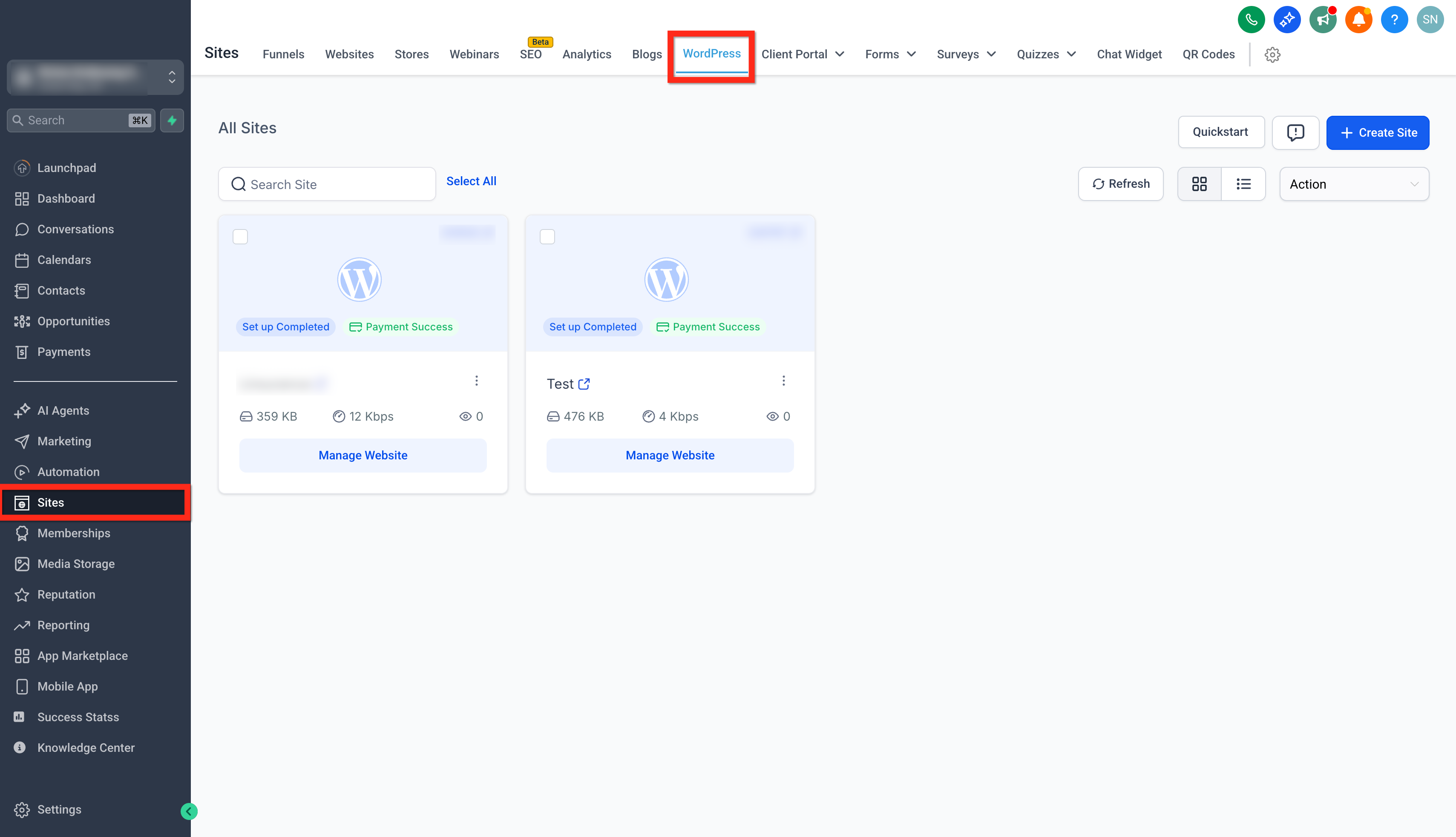
- Go to Sites > WordPress.
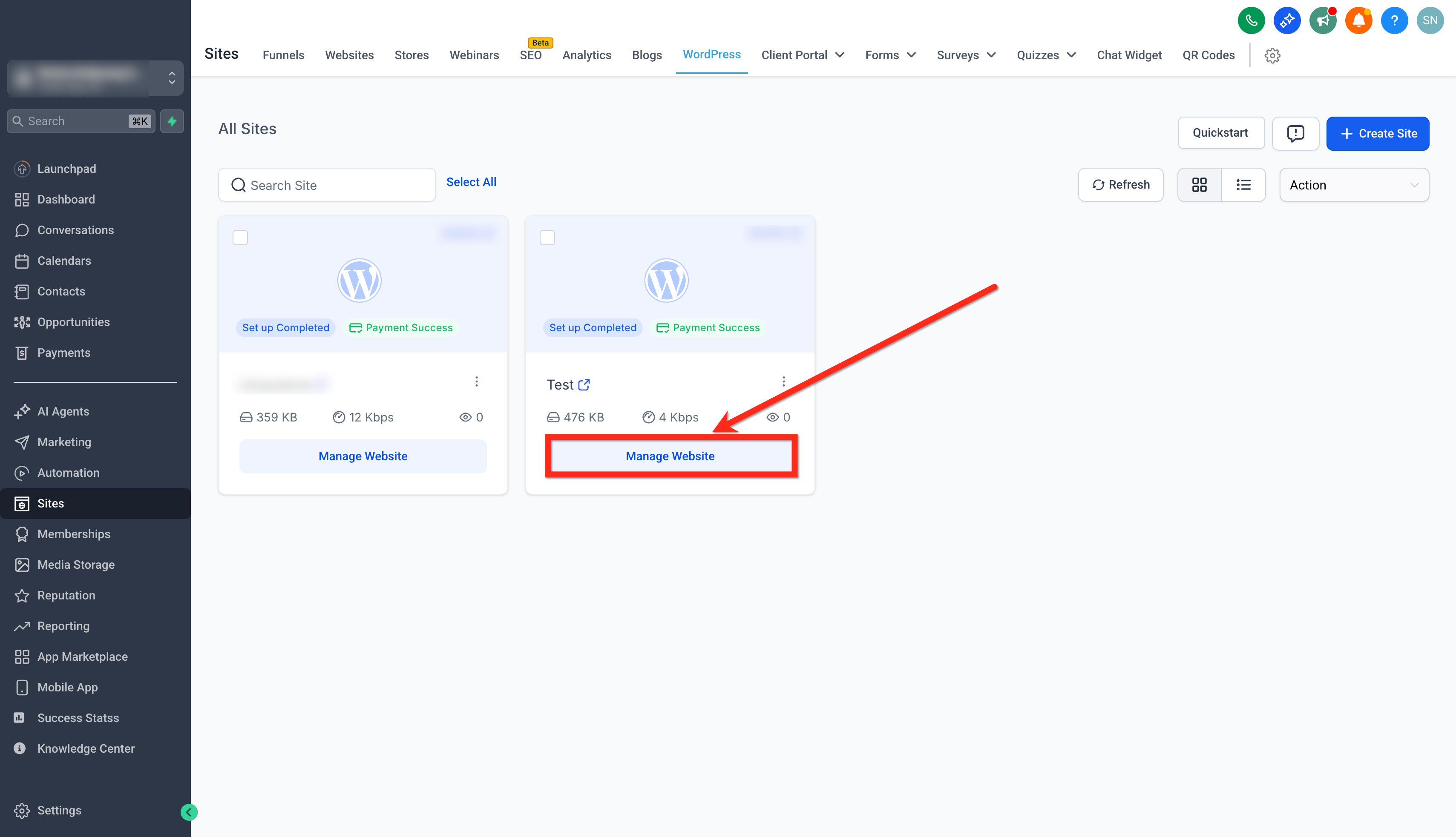
- Click on the Manage Website button for the site you want to add the domain for.
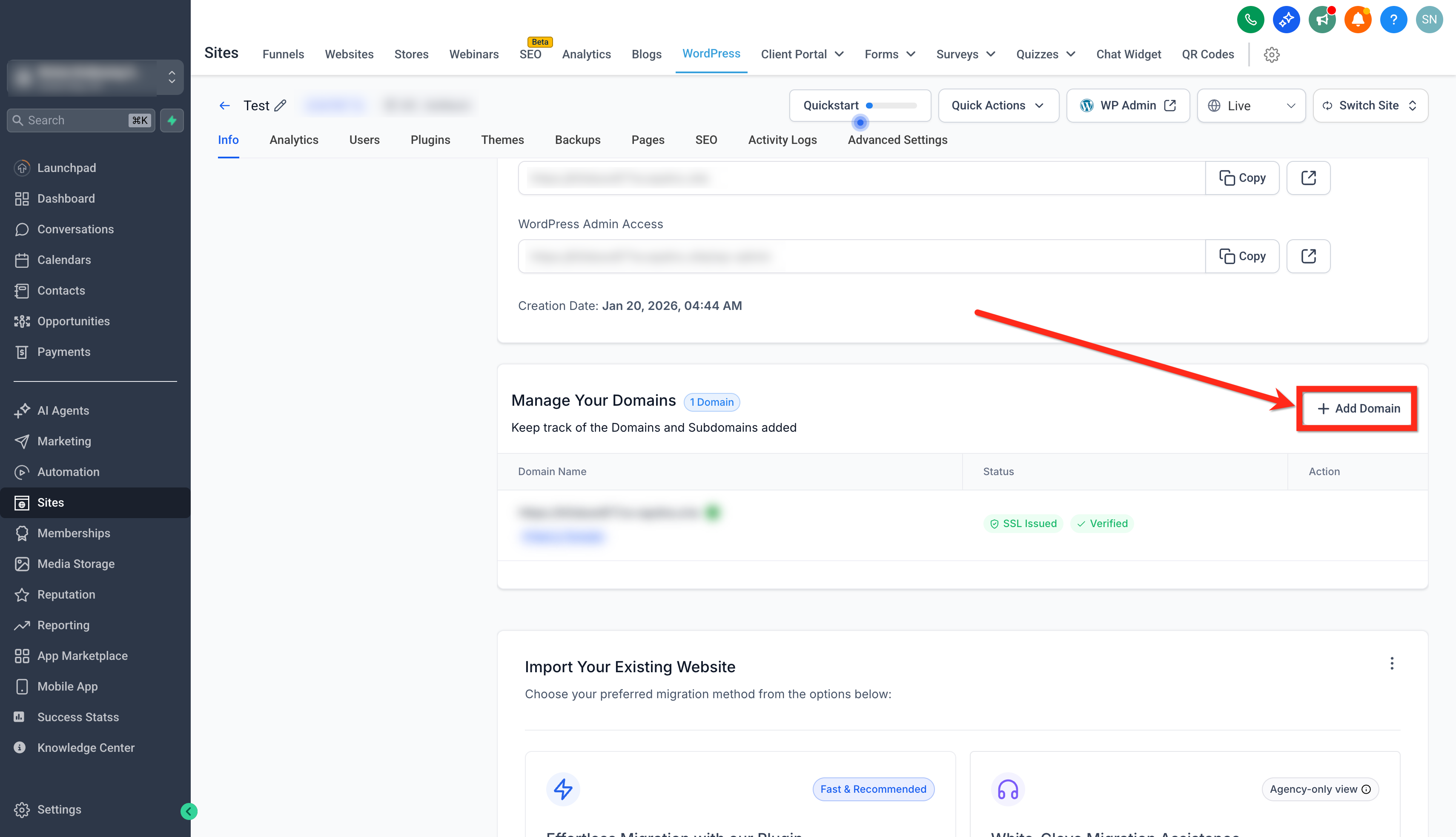
- Navigate to the Manage Your Domain section in your site management dashboard and click on + Add Domain.
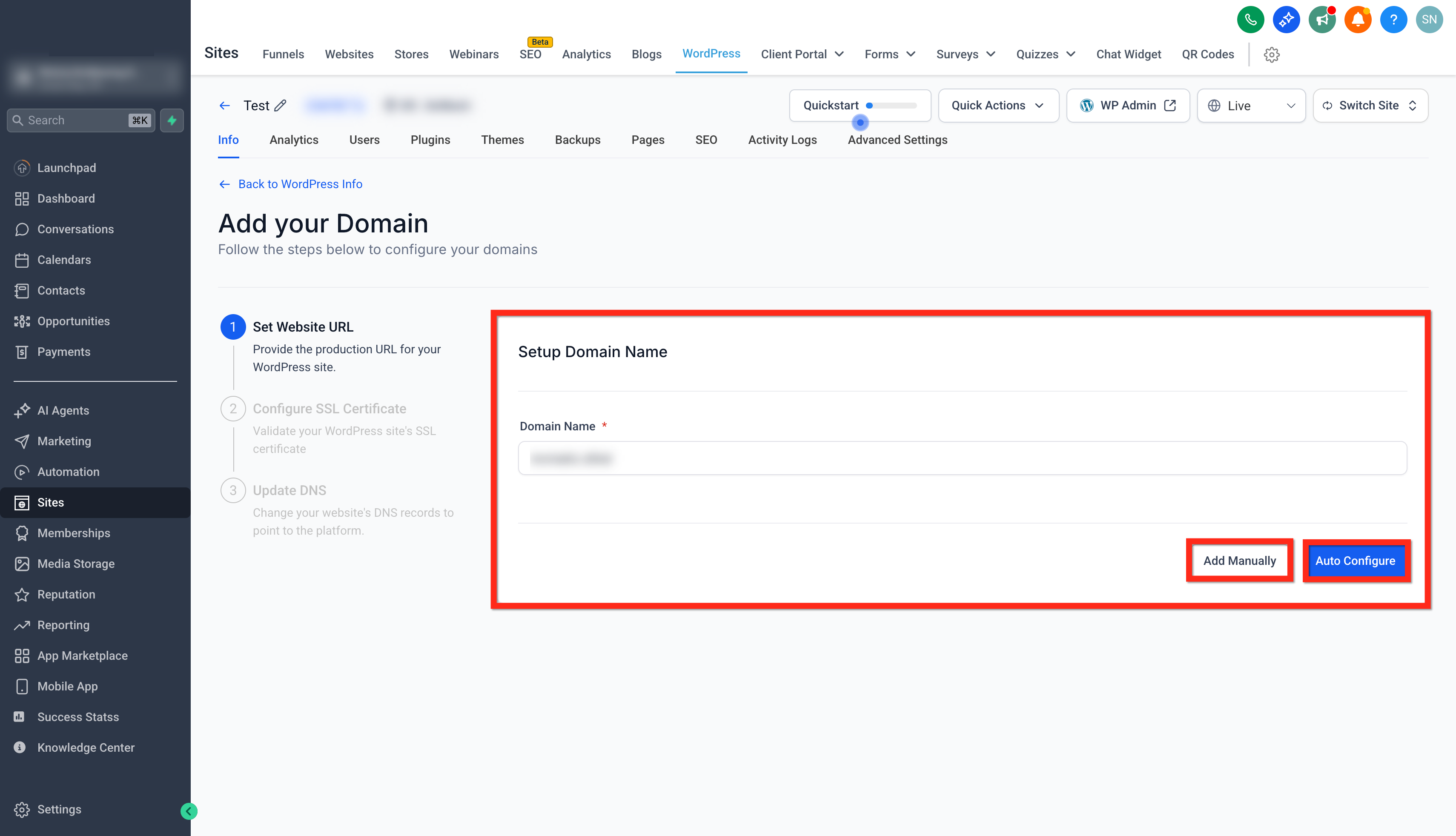
- Setup your Domain Name: Enter your desired domain name.
- Select Auto Configure or Add Manually. (Our system will automatically verify if the domain is already associated with another location or agency.)
- If the domain is available, proceed to the next step.
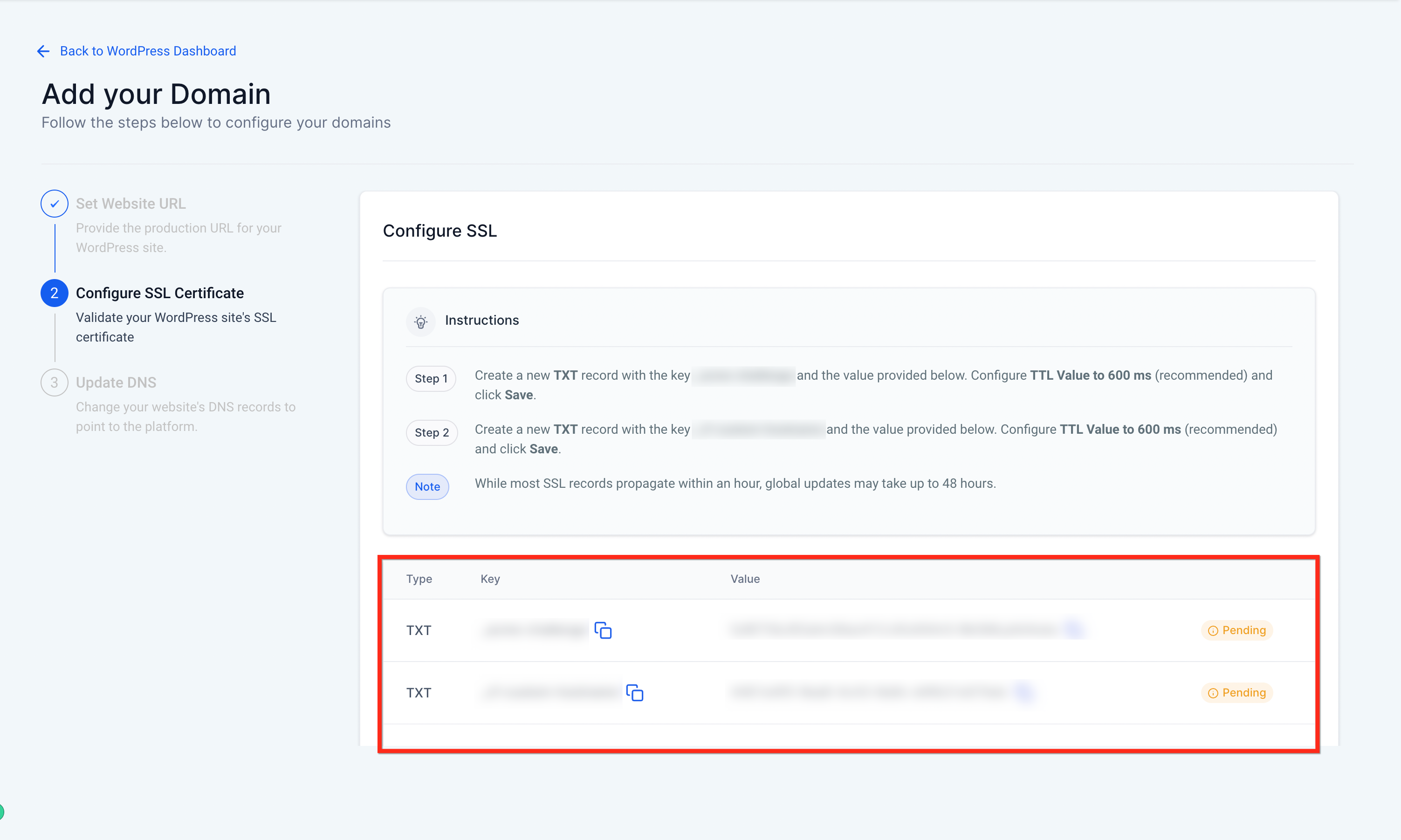
- After your domain is verified, you will need to configure your SSL certificate.
- Add the provided TXT records to your DNS provider like GoDaddy, Hostinger, Namecheap etc.
- While most SSL Records propagate within an hour, global updates take up to 48 hours. Configure your TTL Value to 600 ms or the lowest value possible for optimal ssl record propagation.
- Once the TXT records are successfully added and verified, you can move on to the final step.
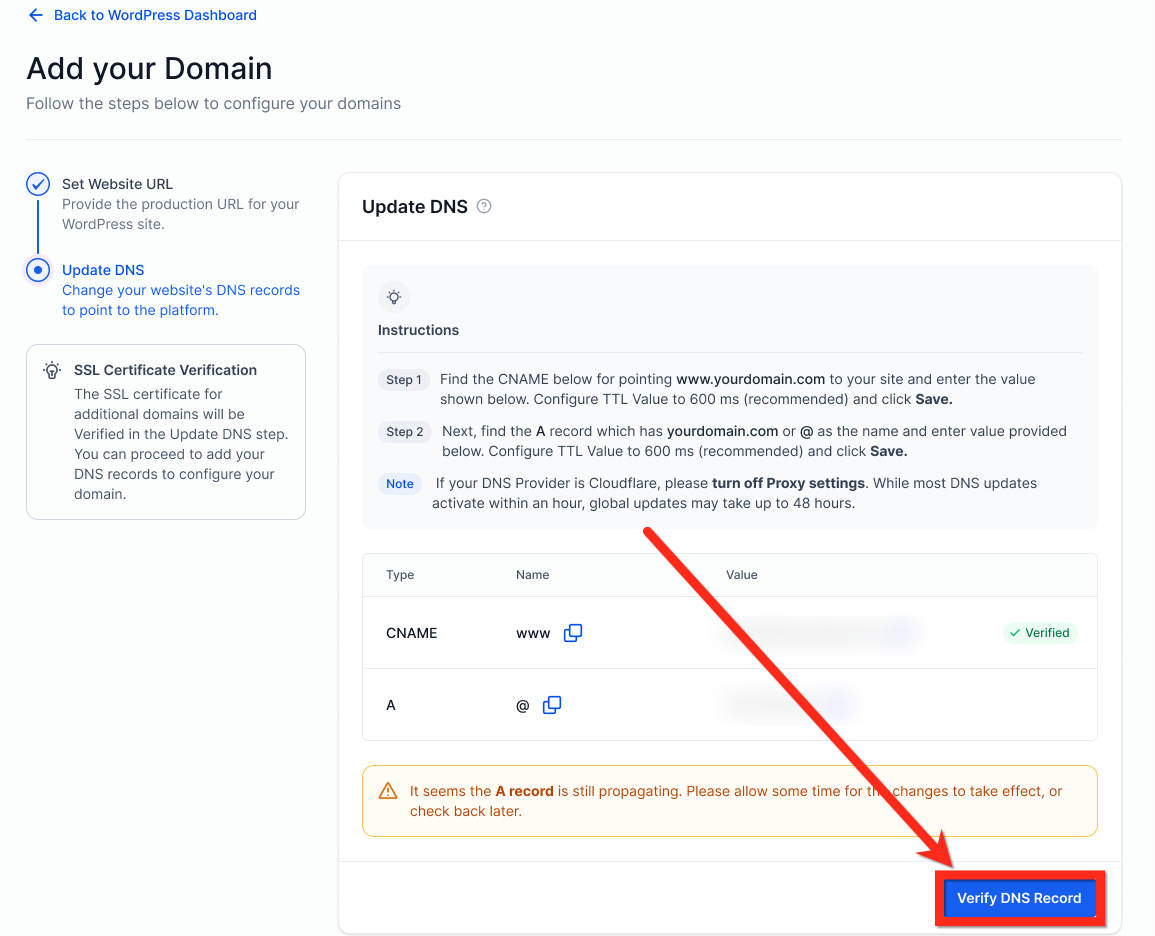
- Add the provided CNAME and A records to your DNS provider.
- Once the records are successfully added click on 'Verify DNS Records' button.
How to Add a Sub-Domain for a WordPress Site
Adding sub-domain is similar to adding your Domain. The SSL certificate for additional domains will be Verified in the Update DNS step and hence adding the TXT records is not required.
- Navigate to the Manage Your Domain section in your site management dashboard and click on + Add Domain.
- Setup your Domain Name: Enter your desired domain name.
- Select Auto Configure or Add Manually. (Our system will automatically verify if the domain is already associated with another location or agency.)
- Our system will automatically verify if the domain is already associated with another location or agency. If the domain is available, proceed to the final step of updating DNS records.
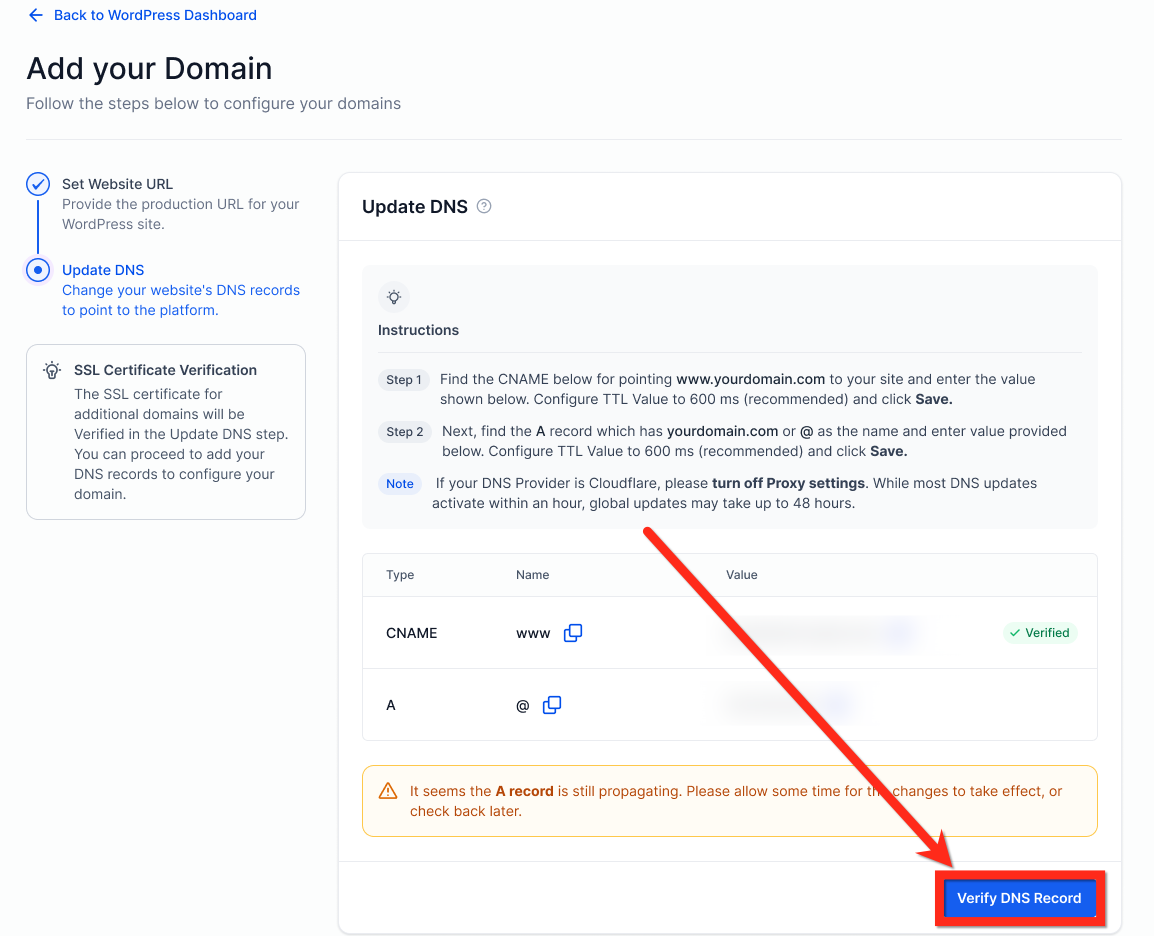
- Add the provided CNAME and A records to your DNS provider.
- Once the records are successfully added click on 'Verify DNS Records' button.
Comprehensive Domain/Sub-Domain Dashboard
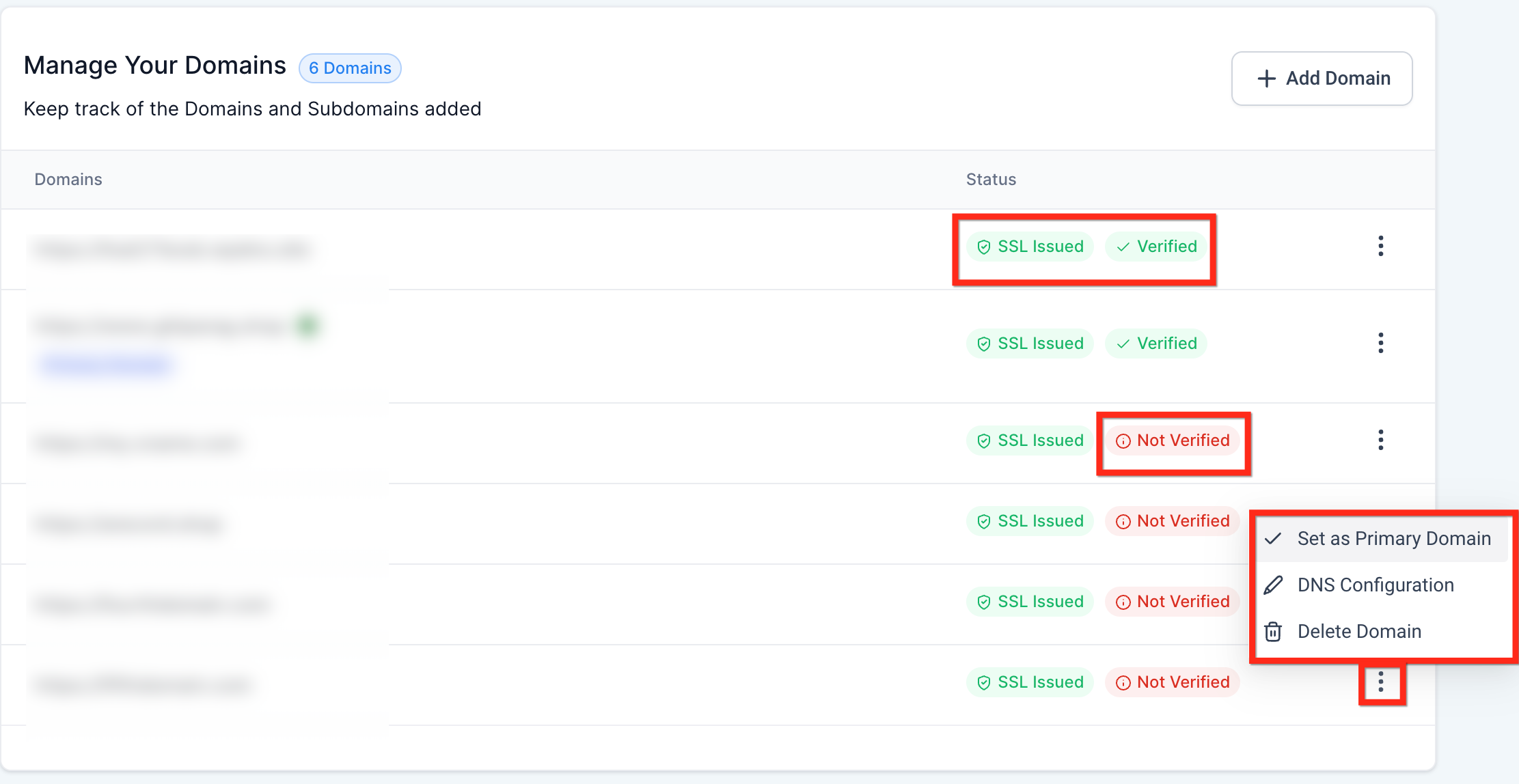
Our new dashboard offers a comprehensive overview of domain management.
- SSL Issuance Status: Monitor the status of your SSL certificate issuance to ensure it is properly configured using the 'SSL issued/ SSL Not Issued' tags.
- DNS Record Verification: Check the verification status of your DNS records to confirm they are correctly set up using the 'Verified/ Not Verified' tags.
- Domain Management: You can add up to 5 domains or sub-domains. Designate one as your primary domain for better organisation.
- Easy Prefix Adjustment: Easily switch between www and non-www prefixes with a simple adjustment in the dashboard using the 'Change prefix to WWW/ Remove WWW Prefix' option.
Frequently Asked Questions
Q: Why does a primary domain require an SSL TXT record but subdomains don’t?
The SSL TXT validation step confirms control of the apex domain for certificate issuance. Subdomains follow after the primary domain’s ownership is validated.
Q: How long does DNS propagation take?
It varies by provider. Many changes appear within minutes, but some can take longer. If you set a TTL around 600 seconds, re-check within 10–30 minutes.
Q: My domain is already connected to another SourCherry location—what do I do?
Ask the current owner to remove the domain from that location, or contact support for assistance if ownership is unclear.
Q: Do I need both A and CNAME records?
Add exactly the records shown in the UI for your site. Some setups require both; others may use only one type. Values are unique to your install.