
TABLE OF CONTENTS
- Overview
- Configuring the Widget Order
- How Does This Work?
- How Do Payments Work?
- Calendar Widget Order (Possible Scenarios)
- FAQs
Overview
The Calendar Widget Reorder feature allows users to customize the order of steps in the calendar widget: the Date & Time Selector, the Form, and Payments (if enabled). Users can choose whether they want the Date & Time Selector or the Form to appear first, based on which the Payment step would be determined.
This feature is designed for businesses that want to collect lead information regardless of whether an appointment is booked.
Configuring the Widget Order
Note: This feature is available only for the NEO Widget.
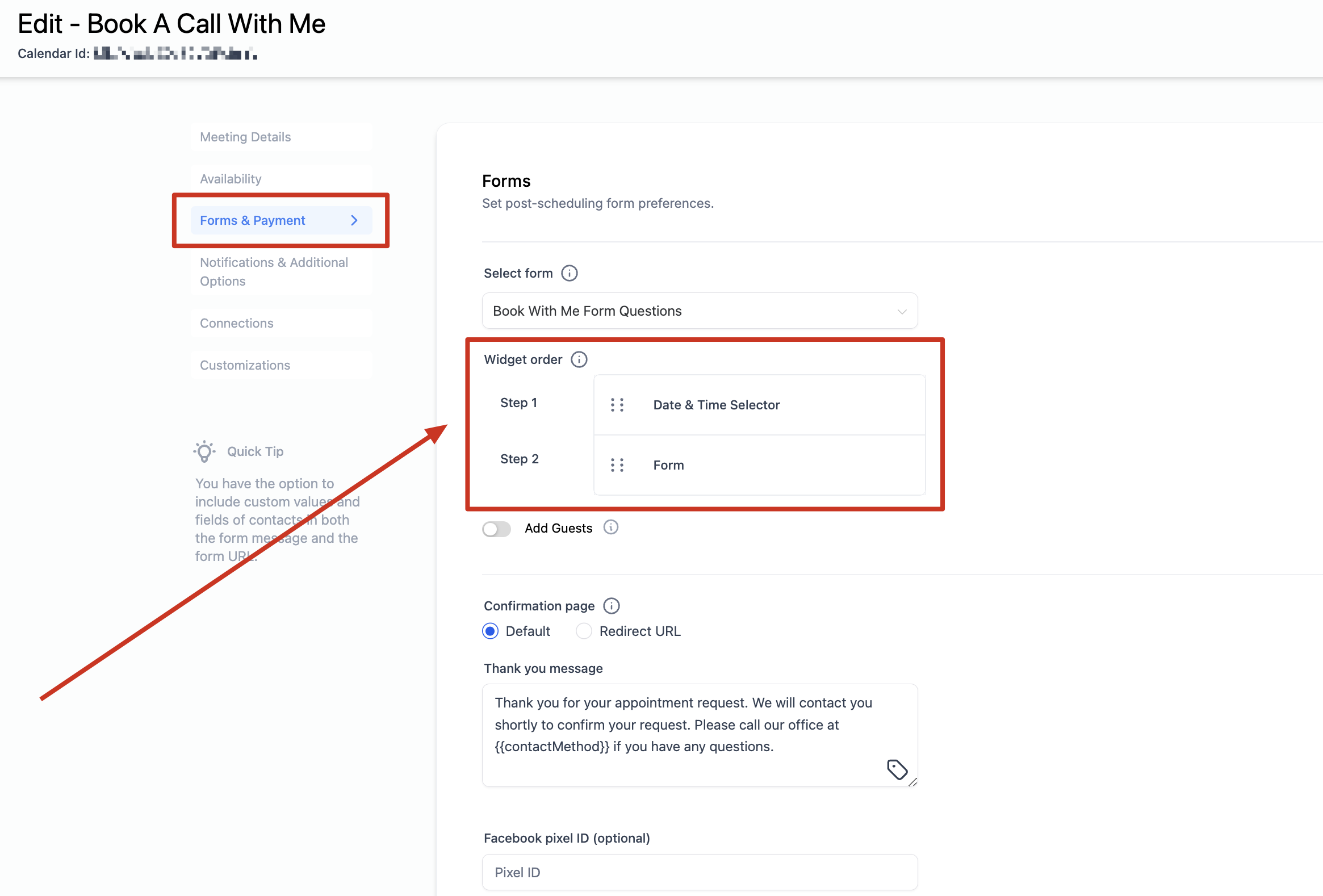
- Navigate to Calendar Settings and select your calendar.
- Go to Forms & Payments.
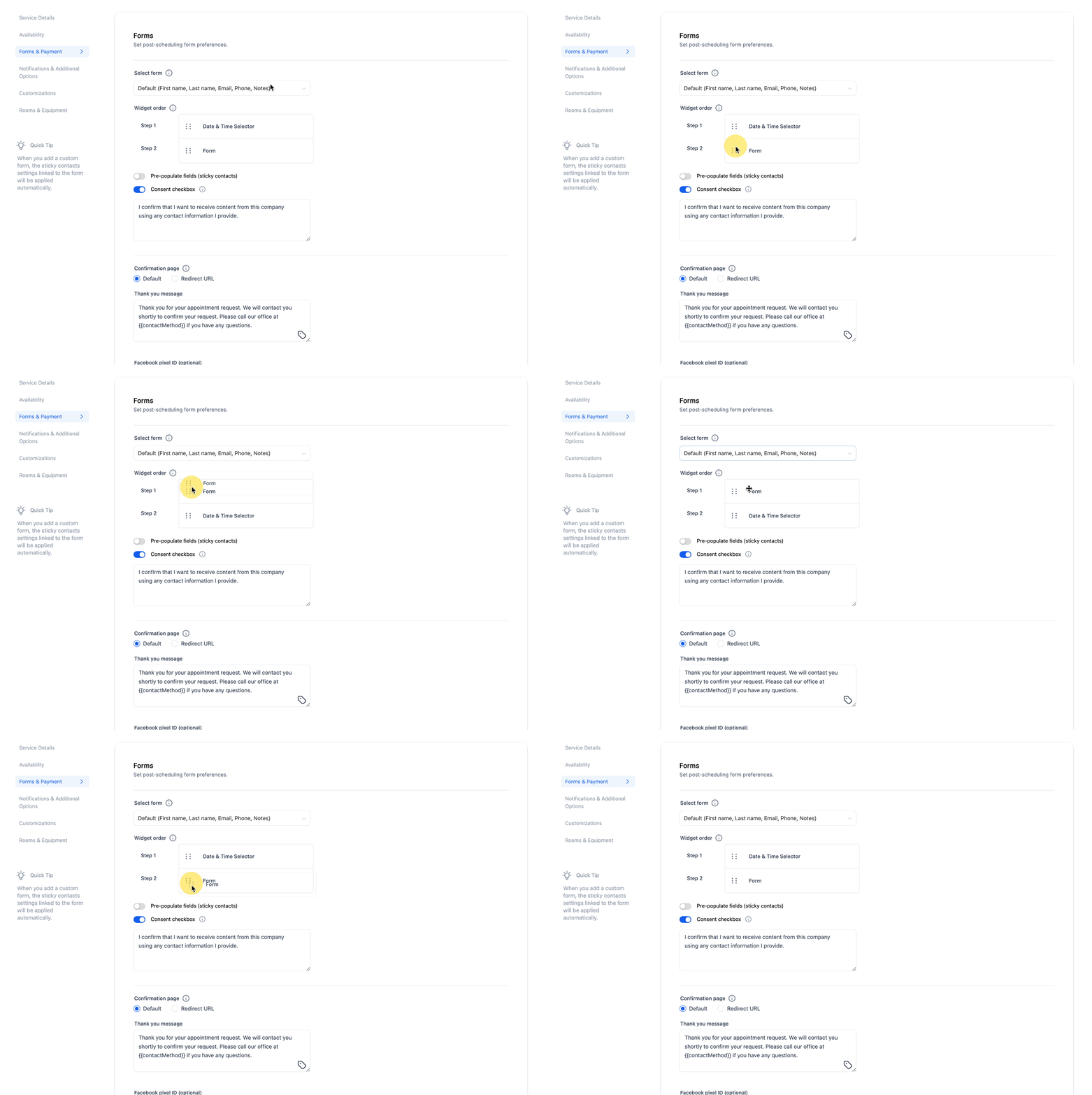
- Drag and reorder the Date & Time Selector and Form to your desired sequence.
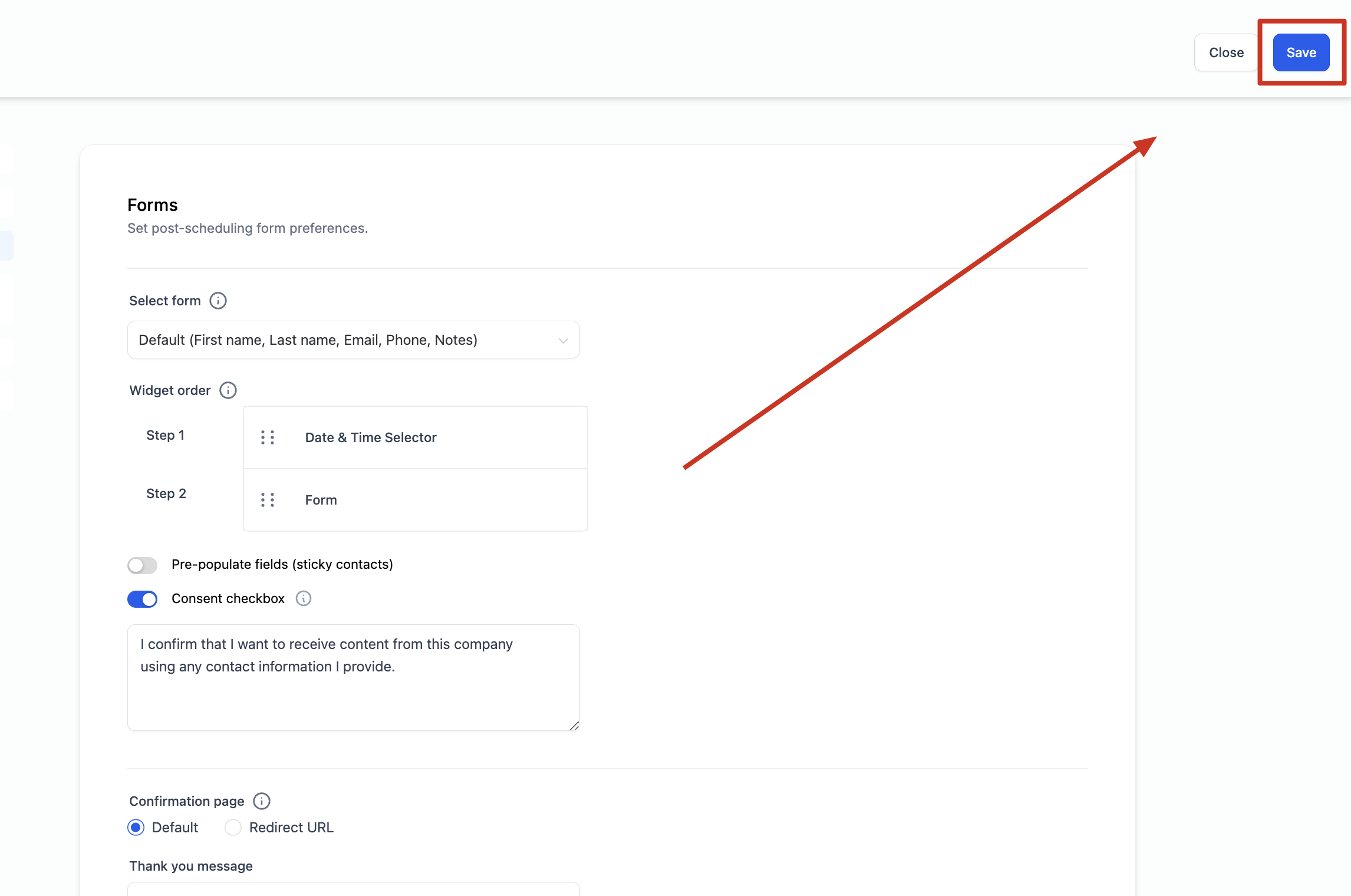
- Click Save to apply your changes.
How Does This Work?
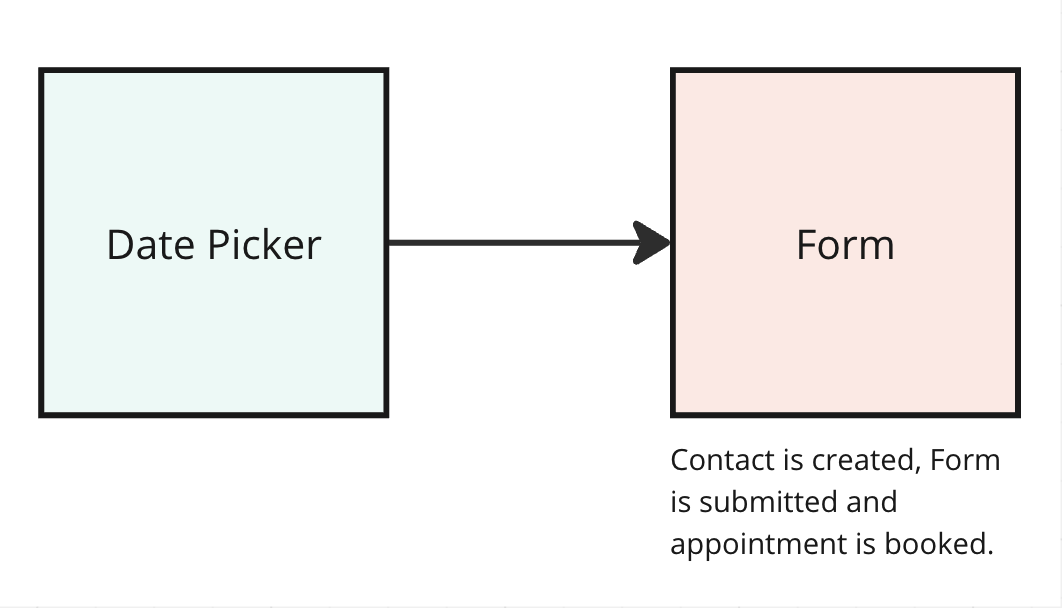
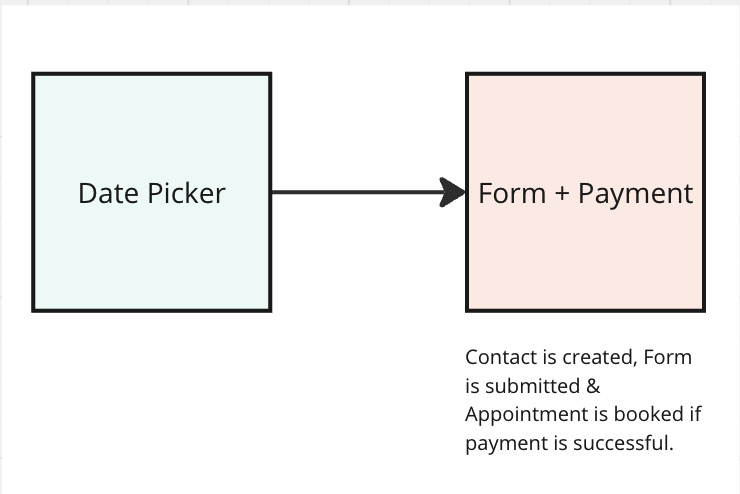
If the Date Picker is First and the Form is Second:
Process: The user chooses the date, fills out the form, and schedules the meeting.
- Outcome: The appointment is booked, a contact is created in the system and the form is submitted.
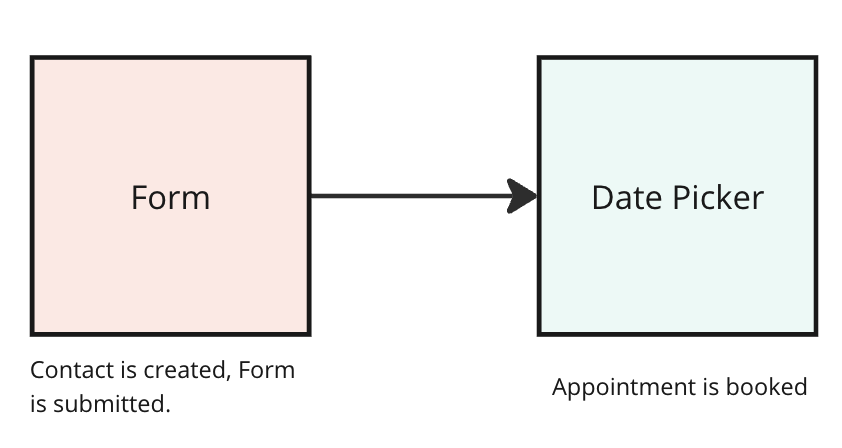
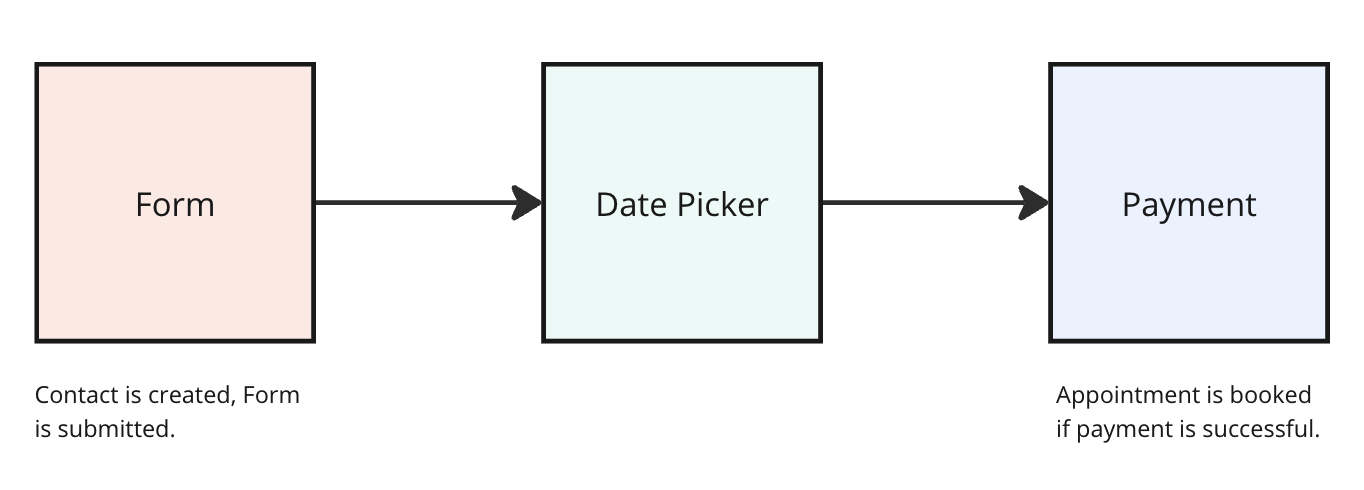
If the Form is First and the Date Picker is Second:
Process: The user fills out the form first.
- Outcome: A contact is created in the system immediately after the form is submitted. If the user then successfully books an appointment in the second step, the appointment is created in the system.
How Do Payments Work?
If payments have been enabled, then the appointment creation depends on the payment status.
Payment Process:
- Duration: The user has 10 minutes to complete the payment.
- Outcome:
- If the payment is successful within 10 minutes, the appointment is booked.
- If the payment is not completed within 10 minutes, the appointment is not booked, and the selected slot is reopened for others to book.
Calendar Widget Order (Possible Scenarios)
1. Date Picker First with Payment disabled
2. Date Picker First with Payment enabled
3. Form First with Payment disabled
4. Form First with Payment enabled
FAQs
Q. What happens when someone clicks back and submits the form again?
A: If the form is resubmitted within the same session, multiple form submissions will appear. However, the details from the latest submission will be updated in the contact.
Q: What happens to my form submission workflows?
A: If form is first, then these are triggered as soon as the form is submitted. If form is second, then these would be triggered only if the appointment is booked successfully.
Q: What happens to my appointment workflows?
A: If payment is disabled, the workflows are triggered as soon as the appointment is booked. However, if payment is enabled, these workflows are triggered only after the payment is successfully completed. (The appointment is booked only when the payment status is successful)
Q: I can't see the slot on the booking widget, and I don't have an appointment scheduled for the same time. Why is this happening?
A: This can occur if someone has chosen a slot on the widget but hasn't completed the payment yet. In such cases, the slot is held for 10 minutes. If the payment is completed within this time, the appointment is booked, and it appears in the calendar view. If the session expires without payment, the slot is released and becomes available again on the widget for others to book.