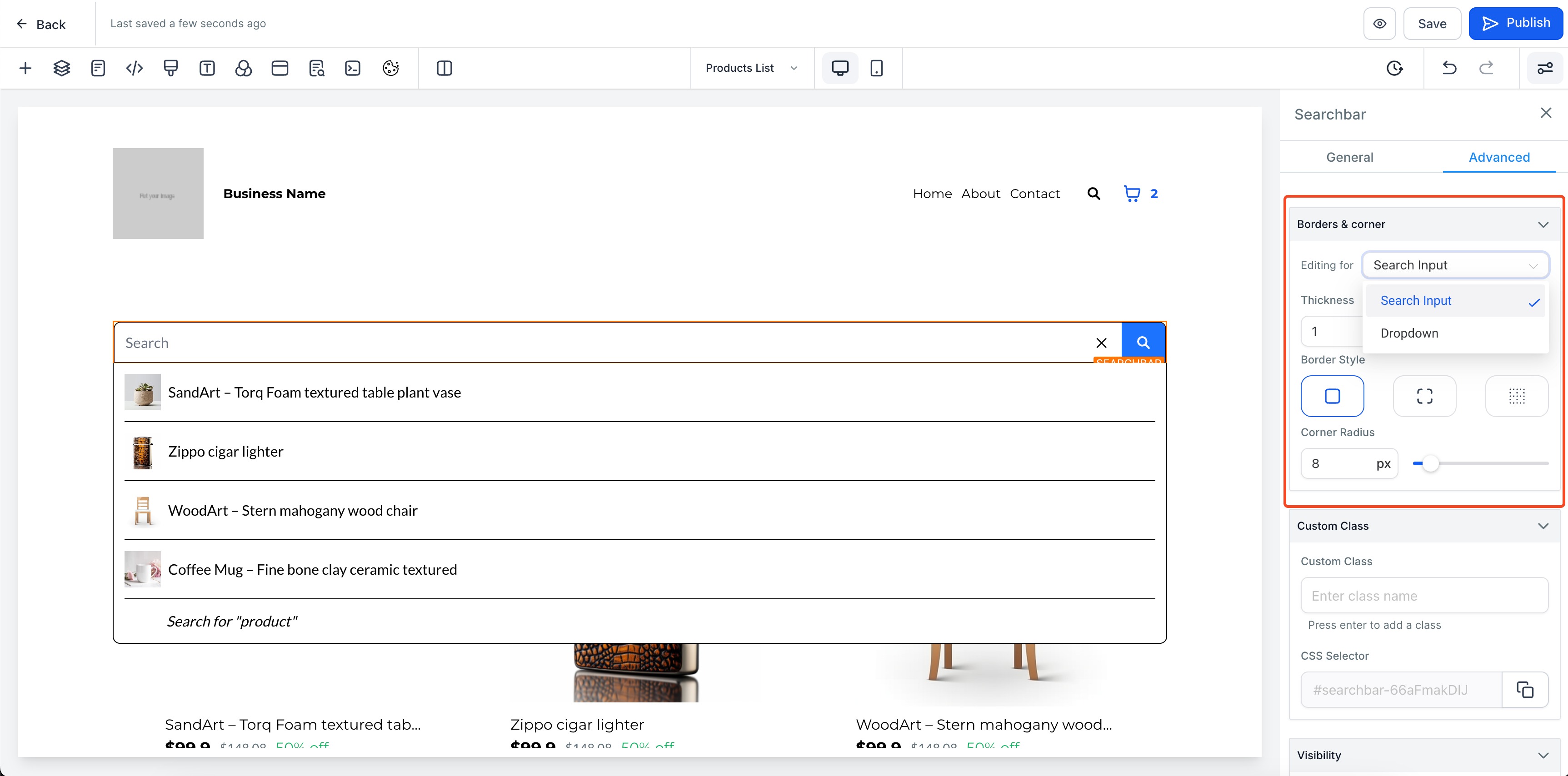
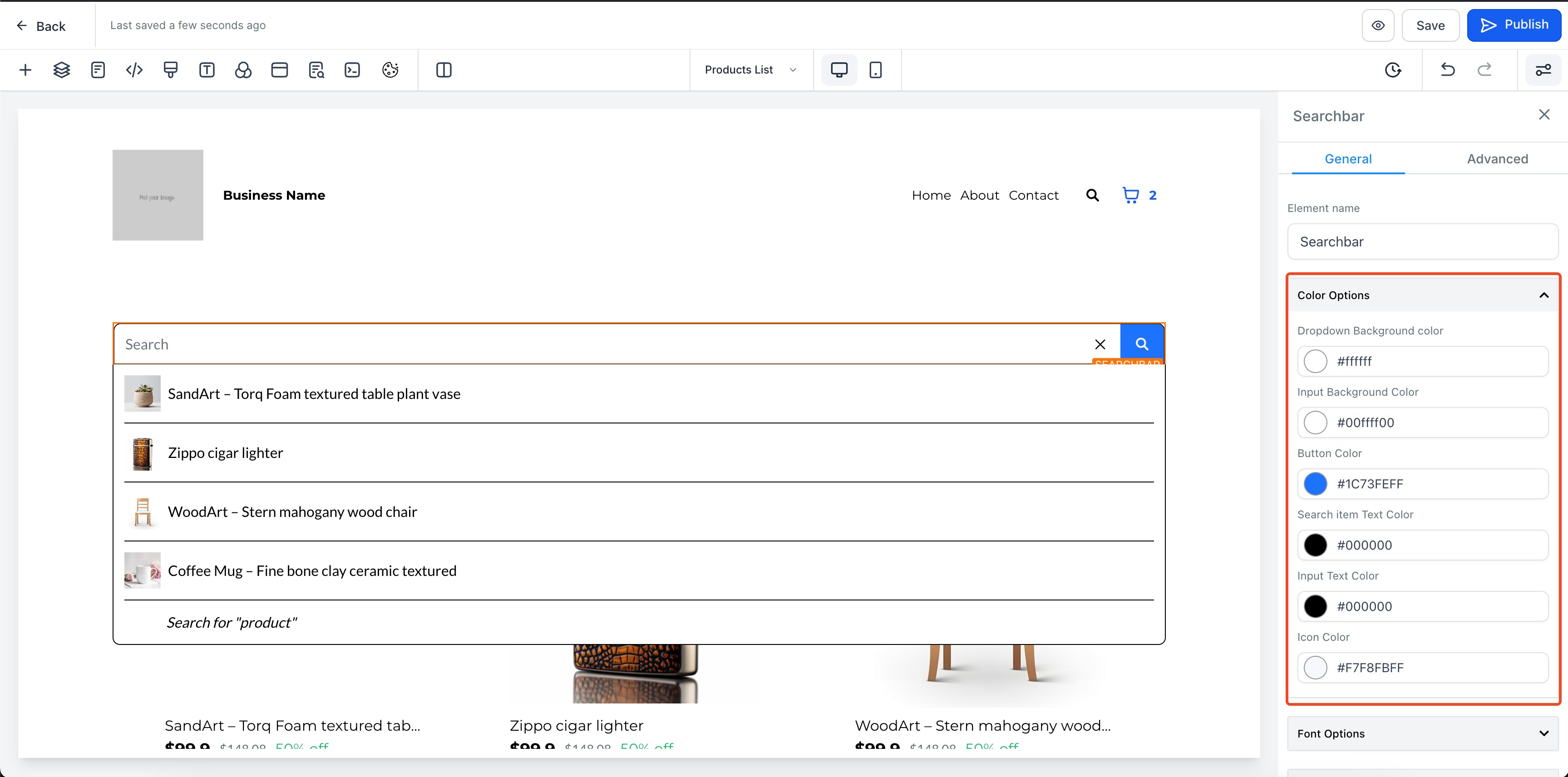
As a user on the Ecommerce store, browsing through the list of products was a difficult task. Many products were left unexplored and also led to complex user experience on the website. To tackle this we are bringing a brand new element for our Ecommerce stores - Search bar! Store owners can now add the Search bar element in 2 ways: Navigation menu, and as a dedicated element in the website.
How to use?
- Navigate to the page builder of your store, and add the Search bar Element. This would be under the Store section in the "Add elements."
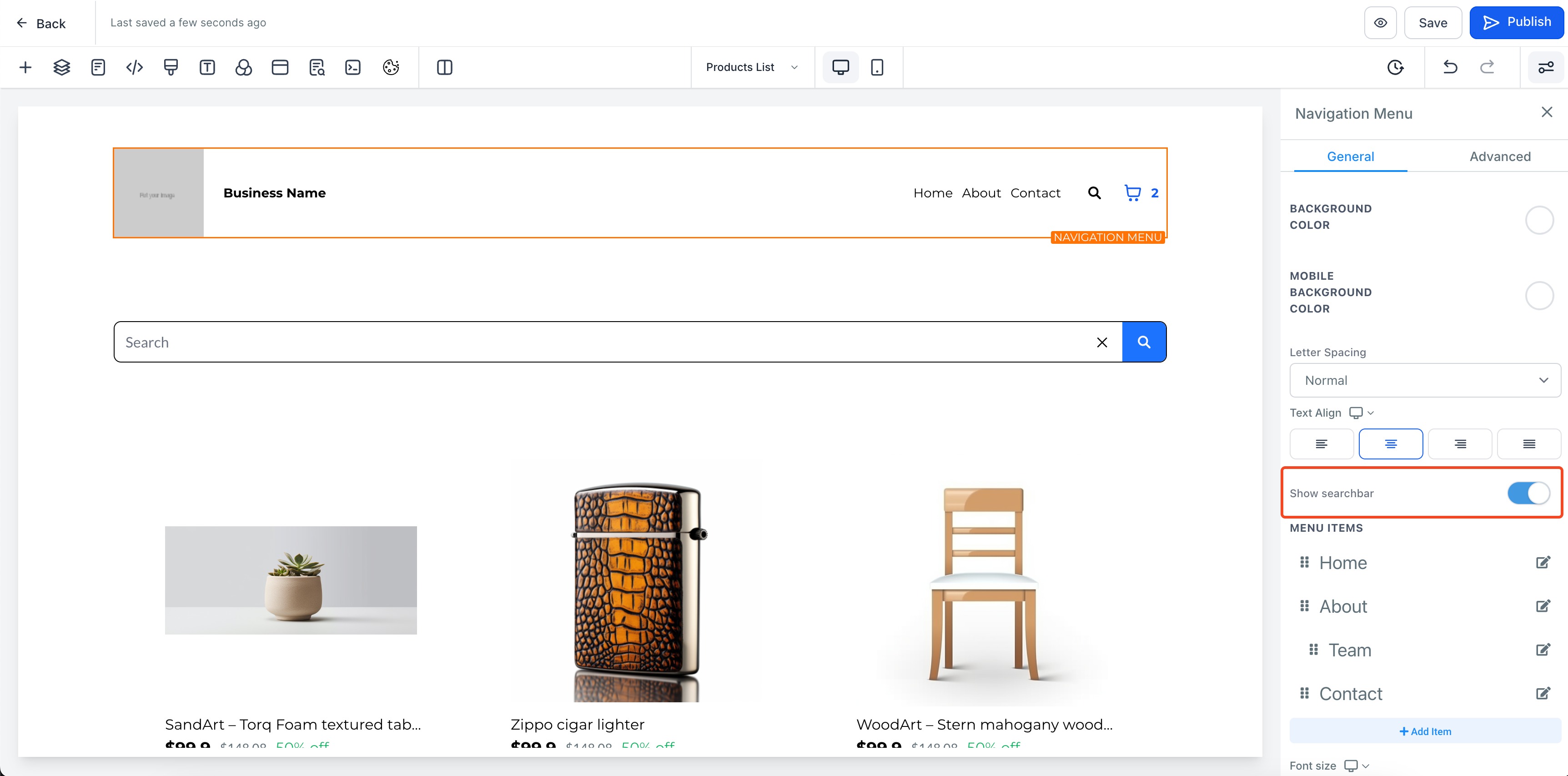
- If you would like to enable the Search bar in your navigation menu, you can use the "Show Search bar" toggle present in the navigation menu settings.
- Configure properties for the Search bar. Some of the properties that can be configured are:
- Search button color
- Search input box text and background color
- Search dropdown text and background color
- Border color for input field and dropdown
- Font size and weights.
- Click on save/Publish to view your changes in your site!
Note:
- Only websites will stores can add this element into any page (Store, non-store).
- Navigation menu customization for searchbar is limited. All customization options are available only in the standalone element.
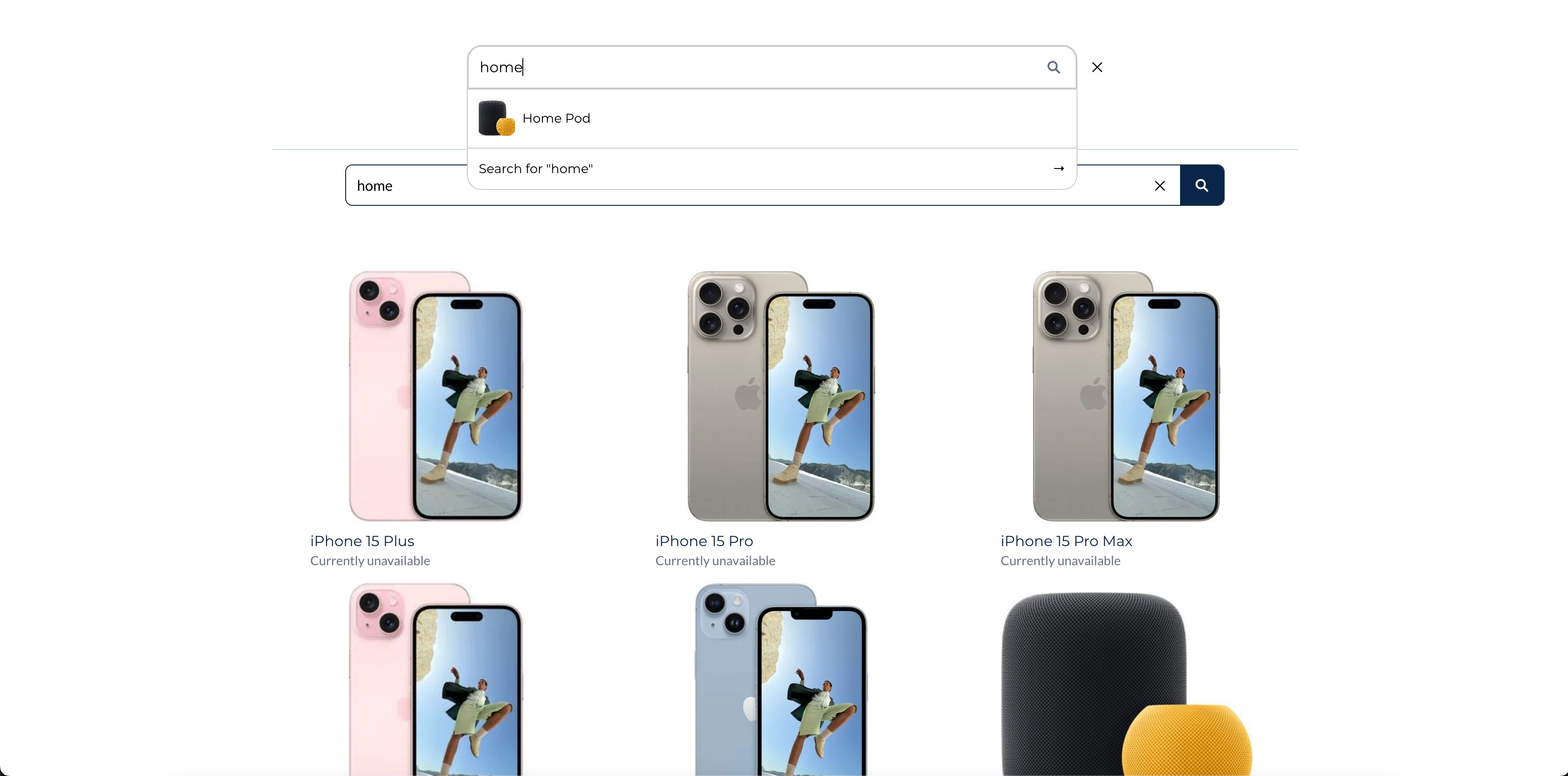
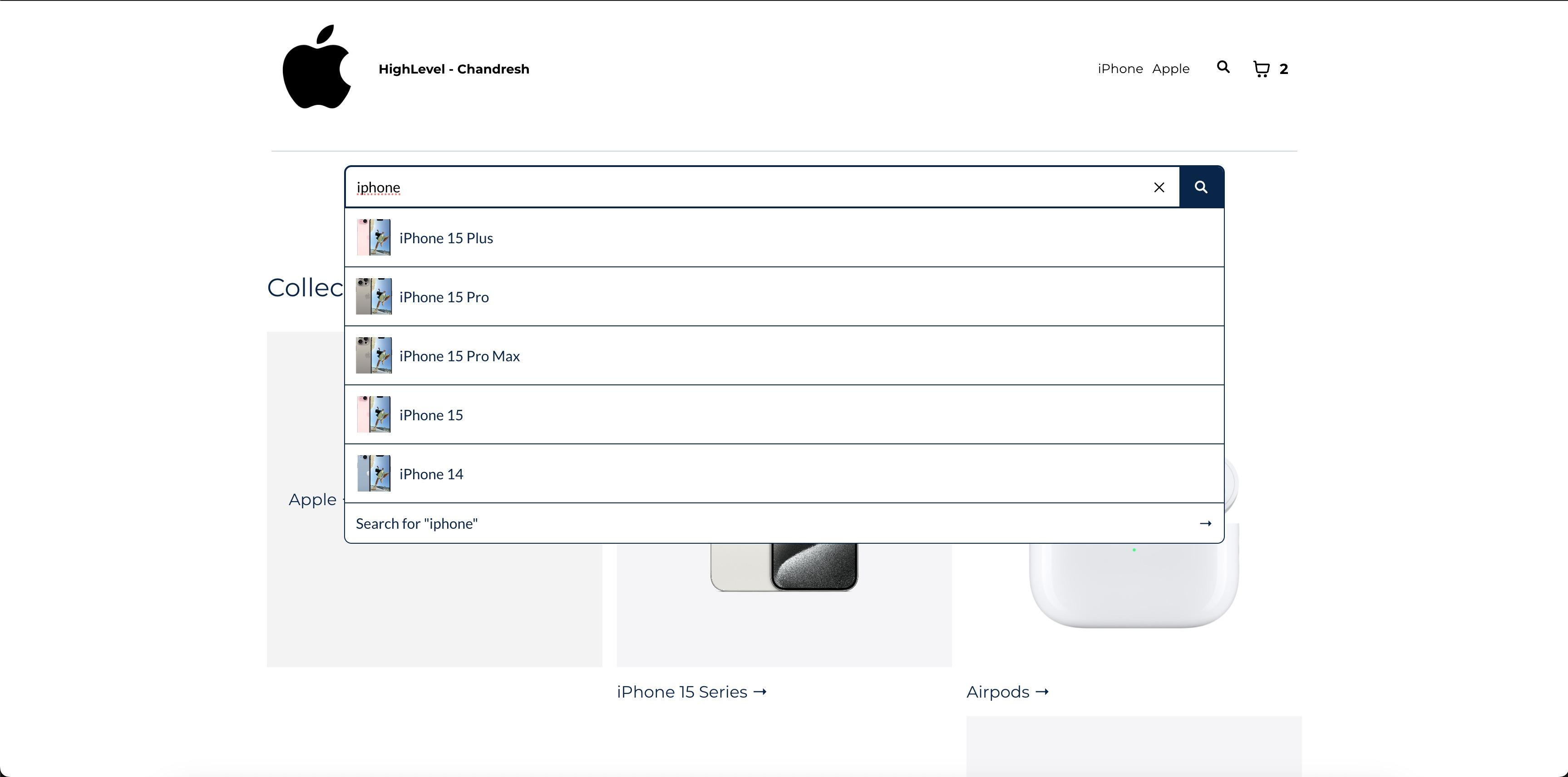
- The search suggestions (Dropdown) will have search results searching from the title/name of the product.
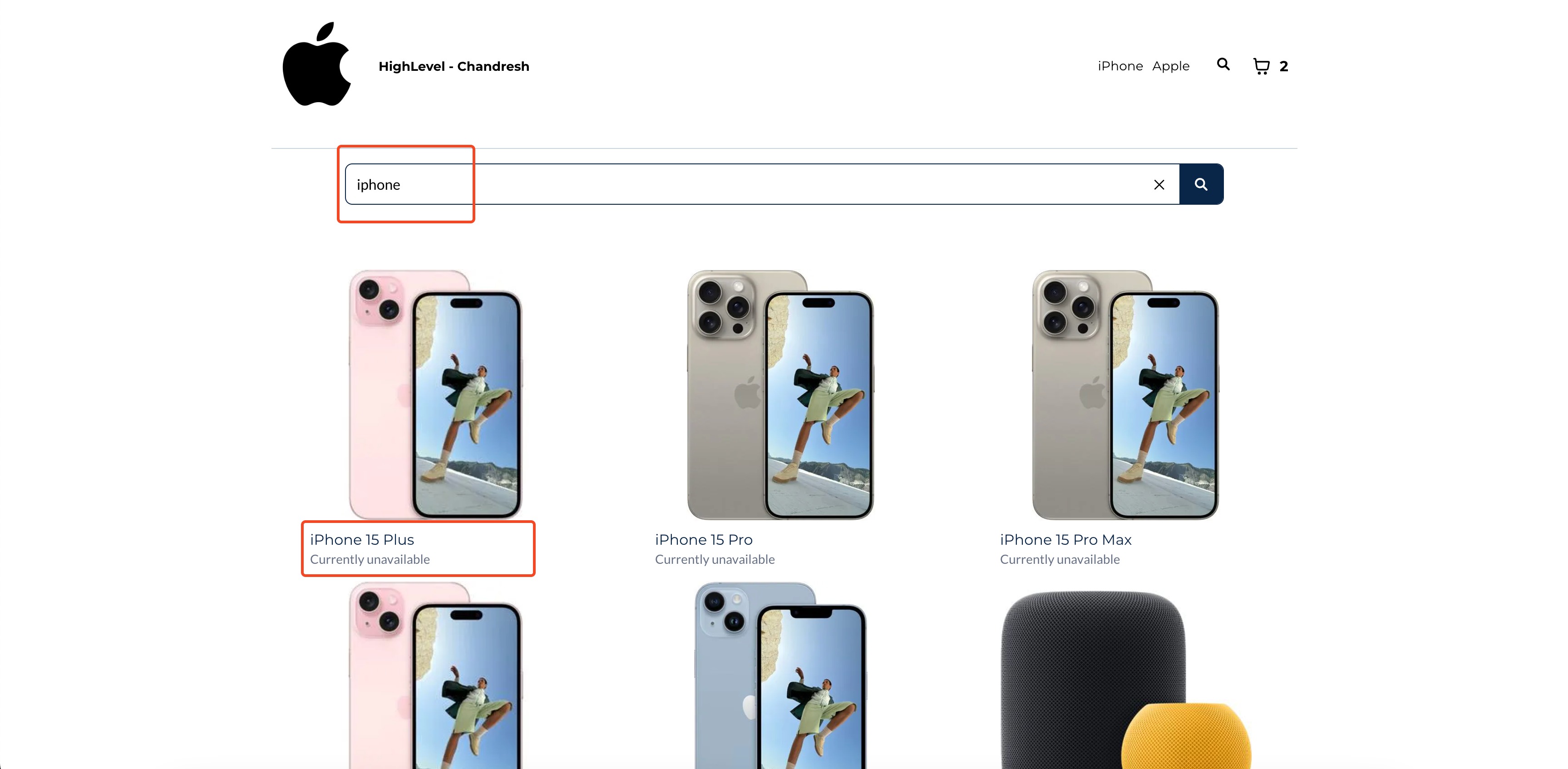
- Upon clicking on search, the user is navigated to the product list page, showing search results, which would search based on title as well as description.