
About:
Store owners can now streamline their order fulfillment process by generating shipping labels and packing slips for any Ecommerce store order. This new feature allows you to print labels for entire orders or for specific items during fulfillment.
The generated labels and slips will include:
- Order ID
- Order Date
- Store Name
- Shipping Address & Billing Address
- Itemized List of Products with:
- Variant Name
- Product Image
- Quantities
- Sender's Address (Store Address)
How to use this?
- Store owners can access the print shipping labels or packing slips feature at: Payments > Orders > Select any Store order > "Print Shipping Label".
- Shipping labels can be generated from three places:
- Order details page: Click the "Print Shipping Label" button to download a PDF with all unfulfilled and fulfilled orders on separate pages.
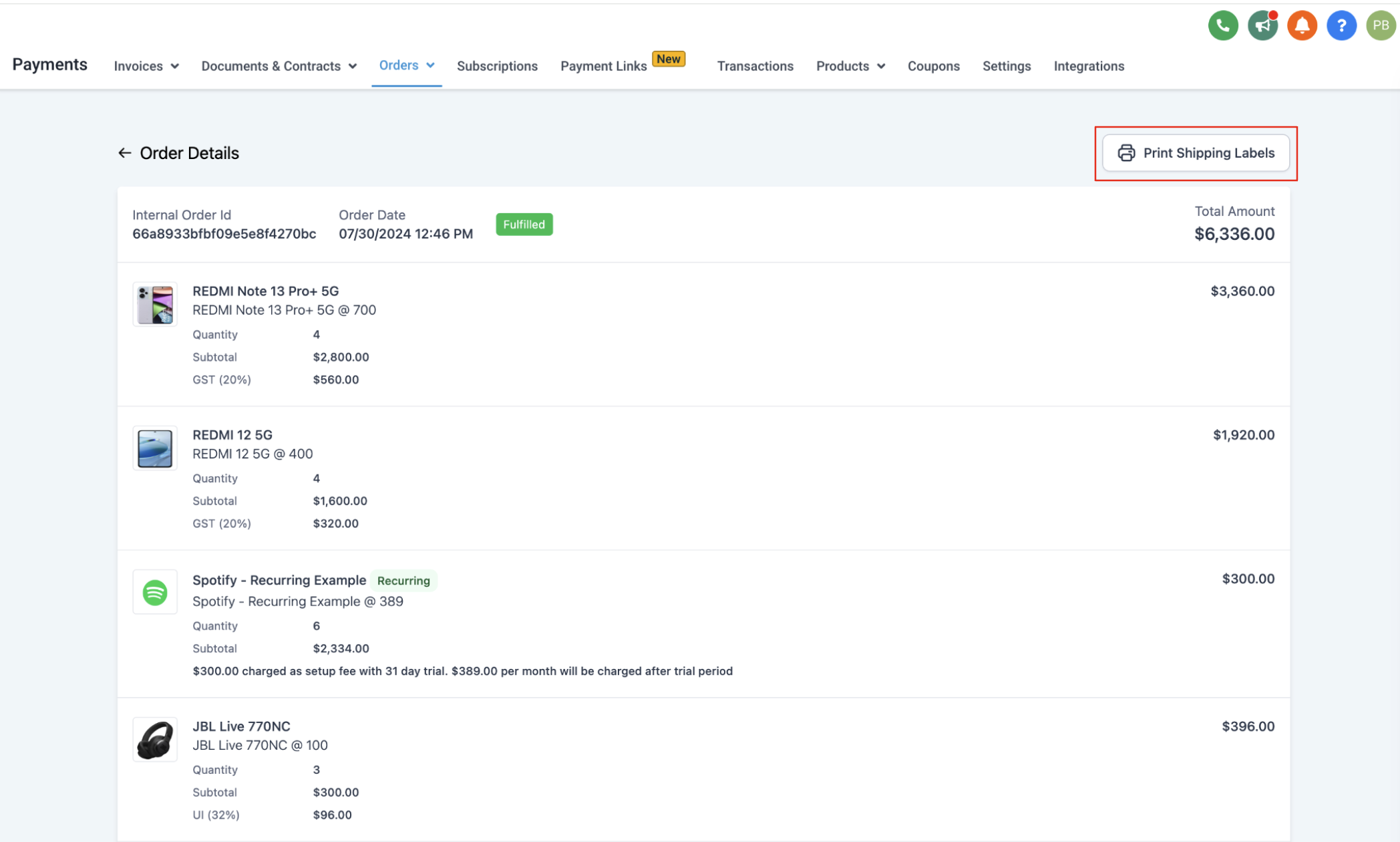
- Fulfilment of order: During fulfilment, selected items and quantities will be listed, and clicking the "Print Shipping Label" button will generate the shipping label for those items.

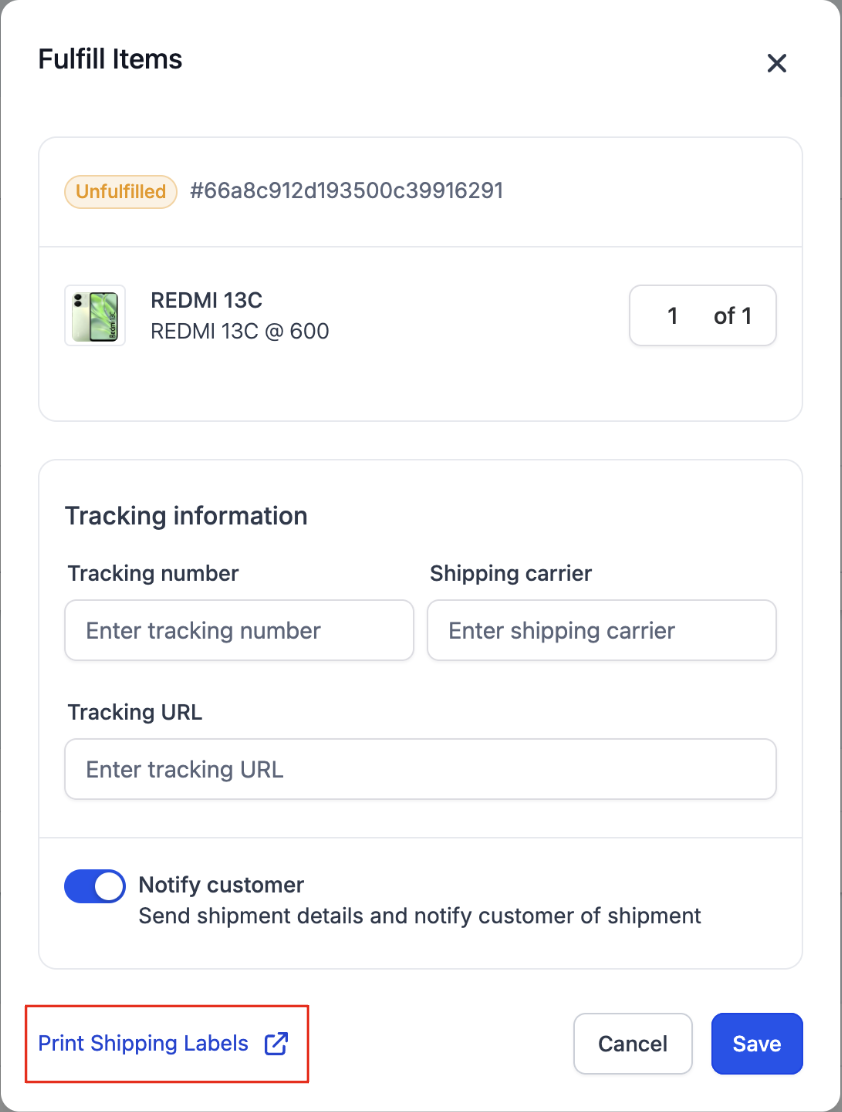
- Partially fulfilled orders: Clicking on 3 dots aside the partially fulfilled order shows the option to download packing slips or Shipping label for that specific order.
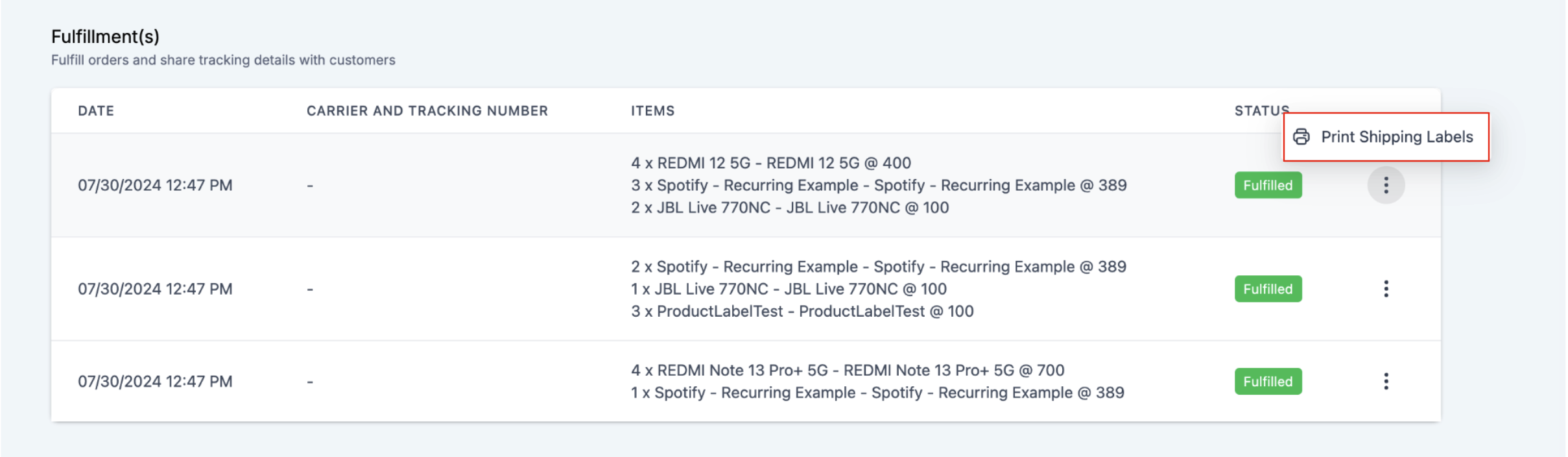
- Order details page: Click the "Print Shipping Label" button to download a PDF with all unfulfilled and fulfilled orders on separate pages.
Notes:
- Shipping labels/Packing slips can only be generated for Ecommerce store orders.
- For orders with multiple partial fulfillments, each fulfillment will list the items on a separate page when generating shipping labels.
- Currently, the billing and shipping addresses are the same on shipping labels. This will be editable once the billing address field is released on the checkout page.