
Introducing better template management feature in our Template Library for Agency admins.
Problem Statement: Previously, admins navigated through multiple subaccounts to import required templates, which was time-consuming.
?
What we did:
- Direct Create:Templates can now be imported/ created directly from the Admin screen.
- Streamlined Process:Choose sub-accounts, preview templates, and rename them seamlessly.
⭐
Benefits:
- Efficiency:Saves time by consolidating template management into one screen.
- Simplified Workflow:Eliminates complexity across screens and sub-accounts.
?
How It Works:
- - Navigate to Template Library - Admin.
- - Click "Create" at the top right.
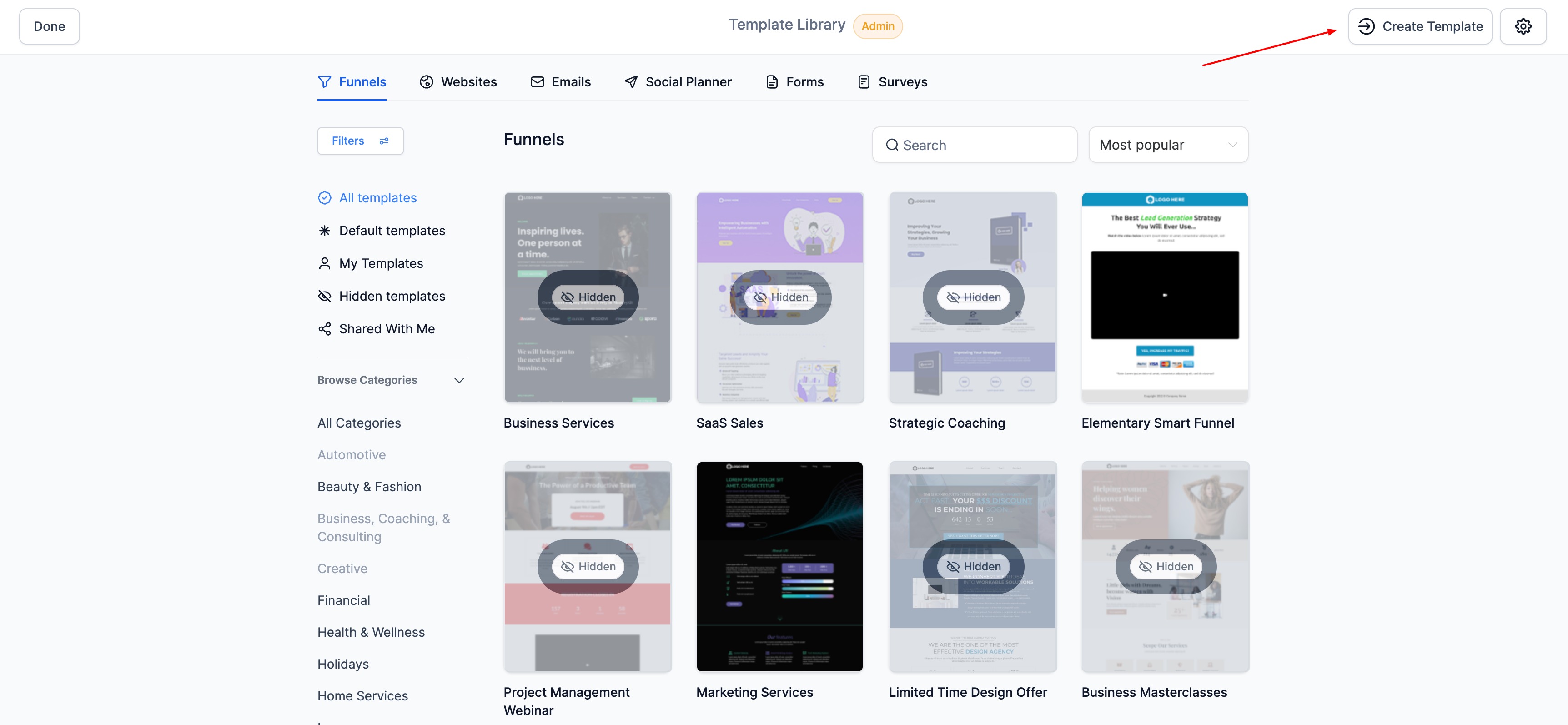
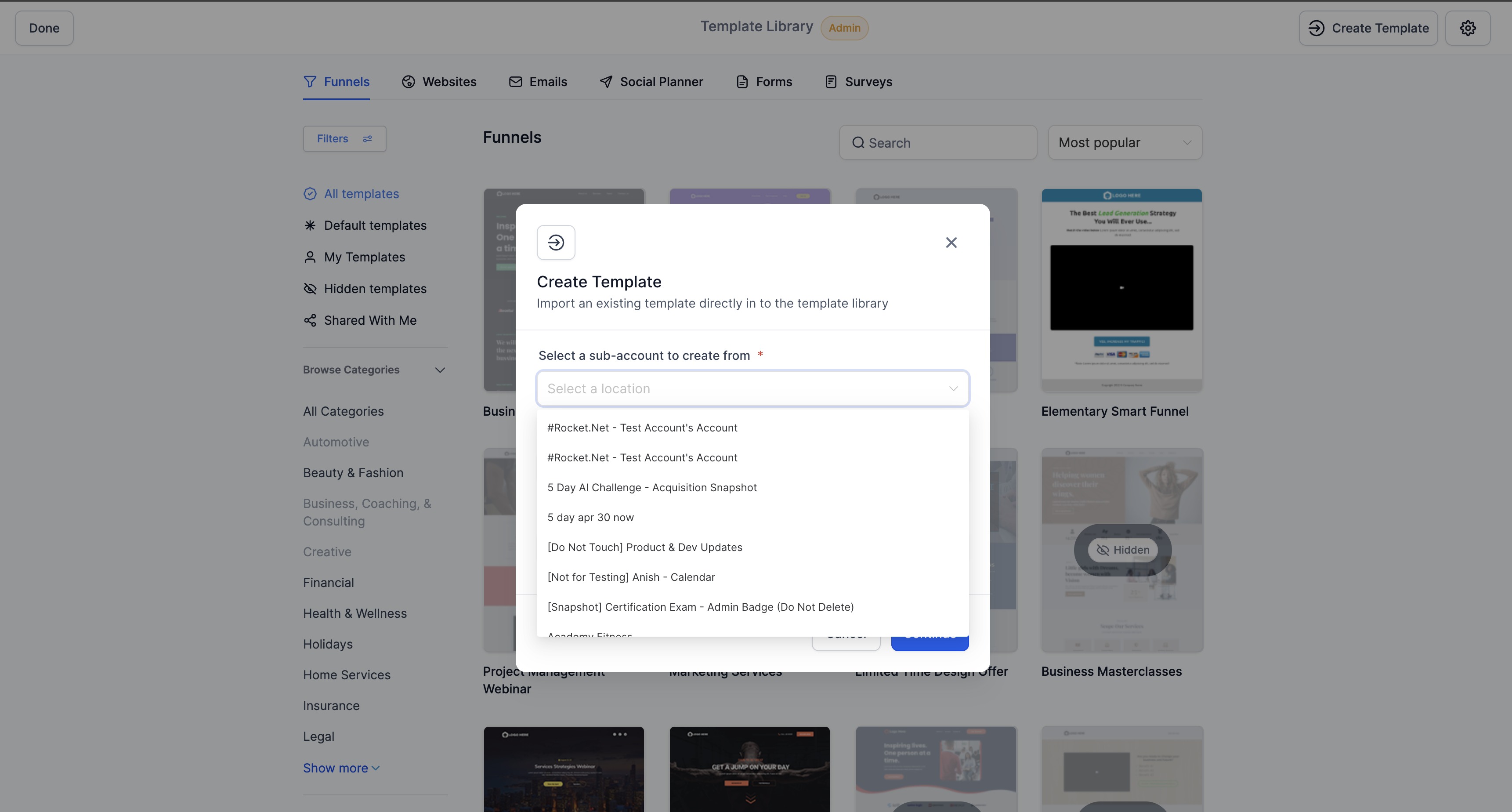
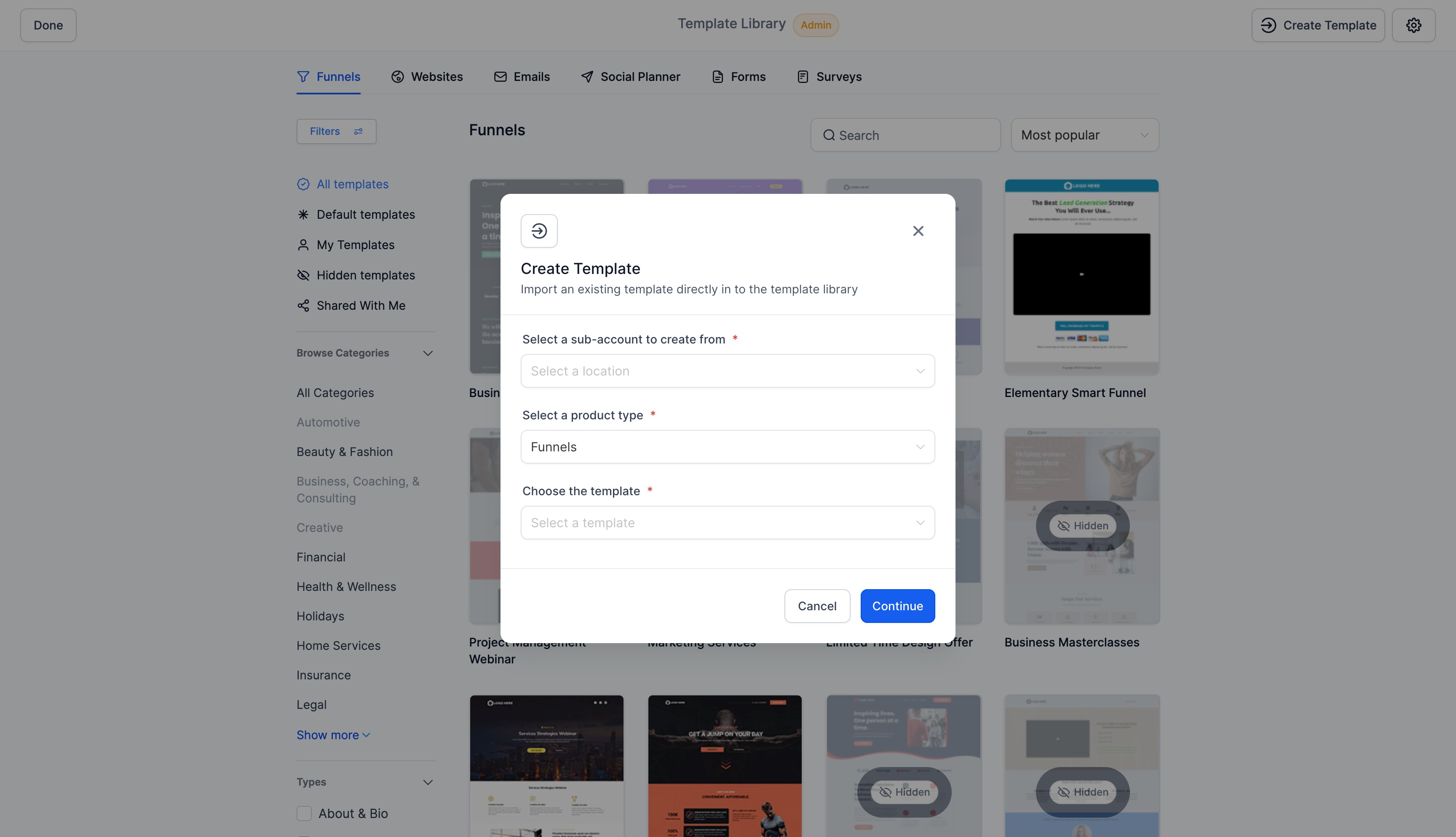
- - Choose the sub-account, product, and template name.
- - Click "Continue" to preview the template thumbnail. Click on the thumbnail to see the entire preview in a different screen
- - Rename the template if needed.
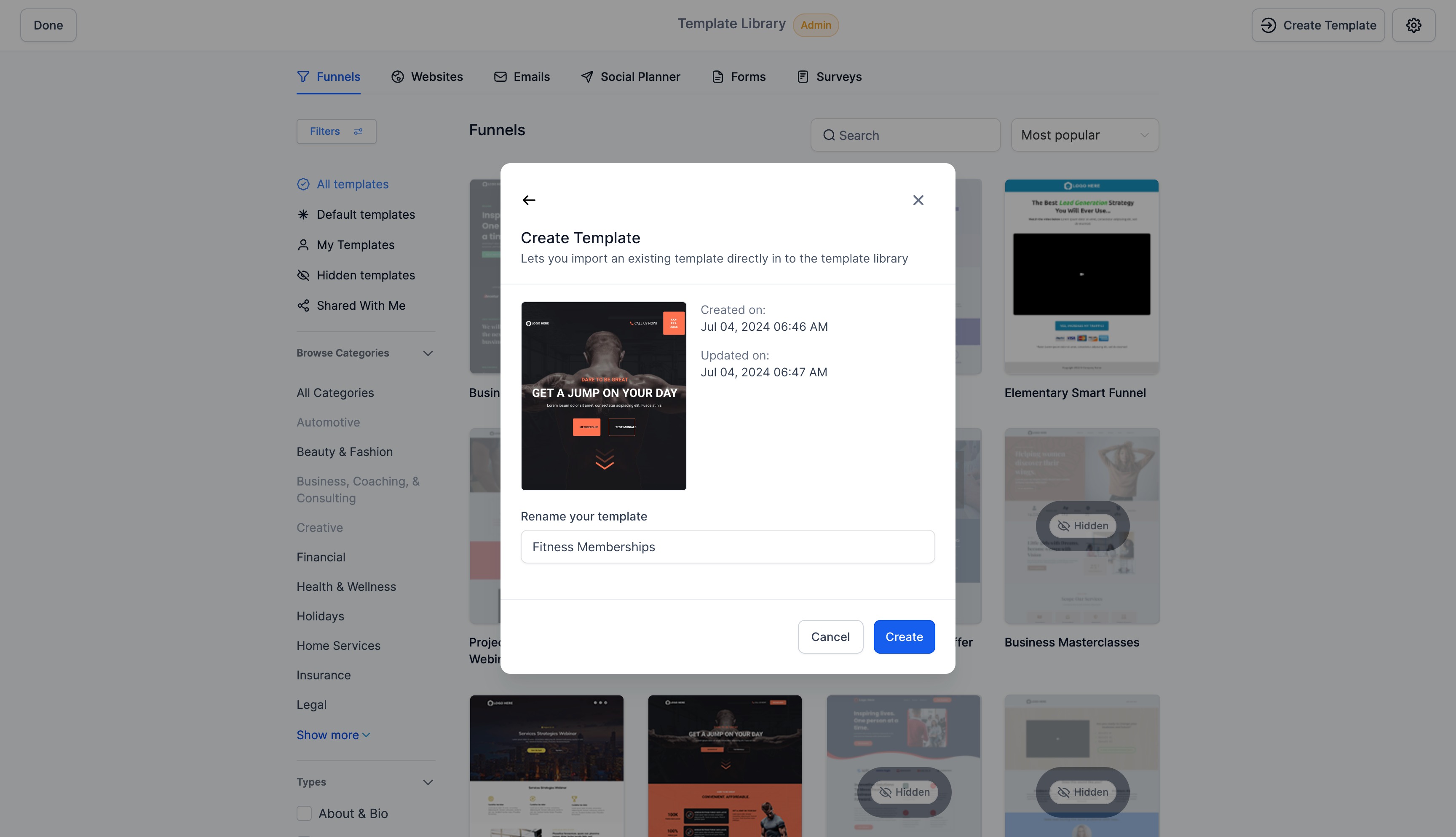
- - Click "Create" to finalize.
- - Update details like description and categories.
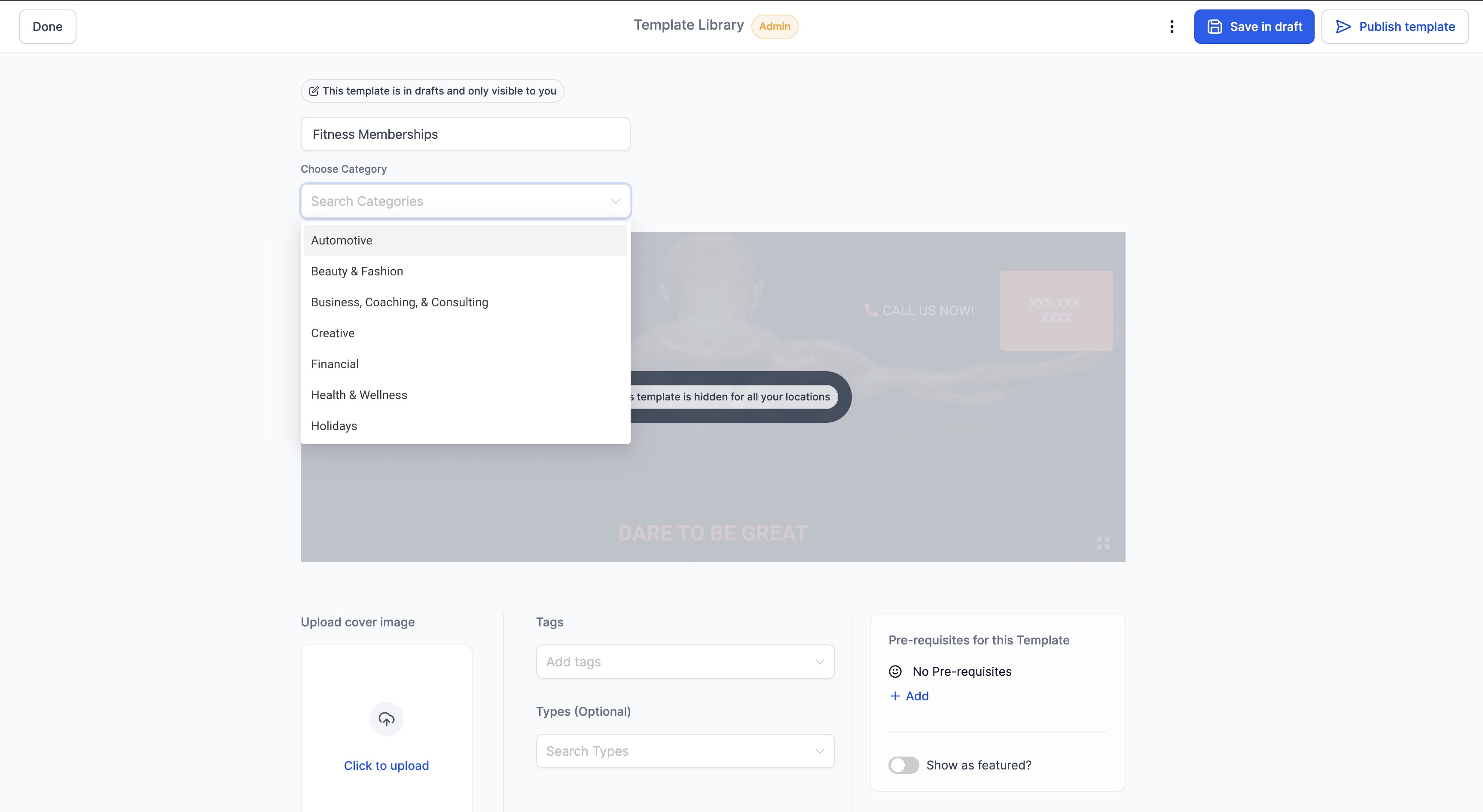
- - Choose to Publish or Save as draft.