
We're thrilled to unveil a brand-new feature in Chat Widget - You can now customise the chat widget according to your test with the placement, look and feel and bring more customizations.
How Does It Work?
- Navigate to Sites > Go to Chat Widget
- Click on New to Create Chat Widget
- Select the option between the SMS/Email Widget, Live Chat or WhatApp Chat
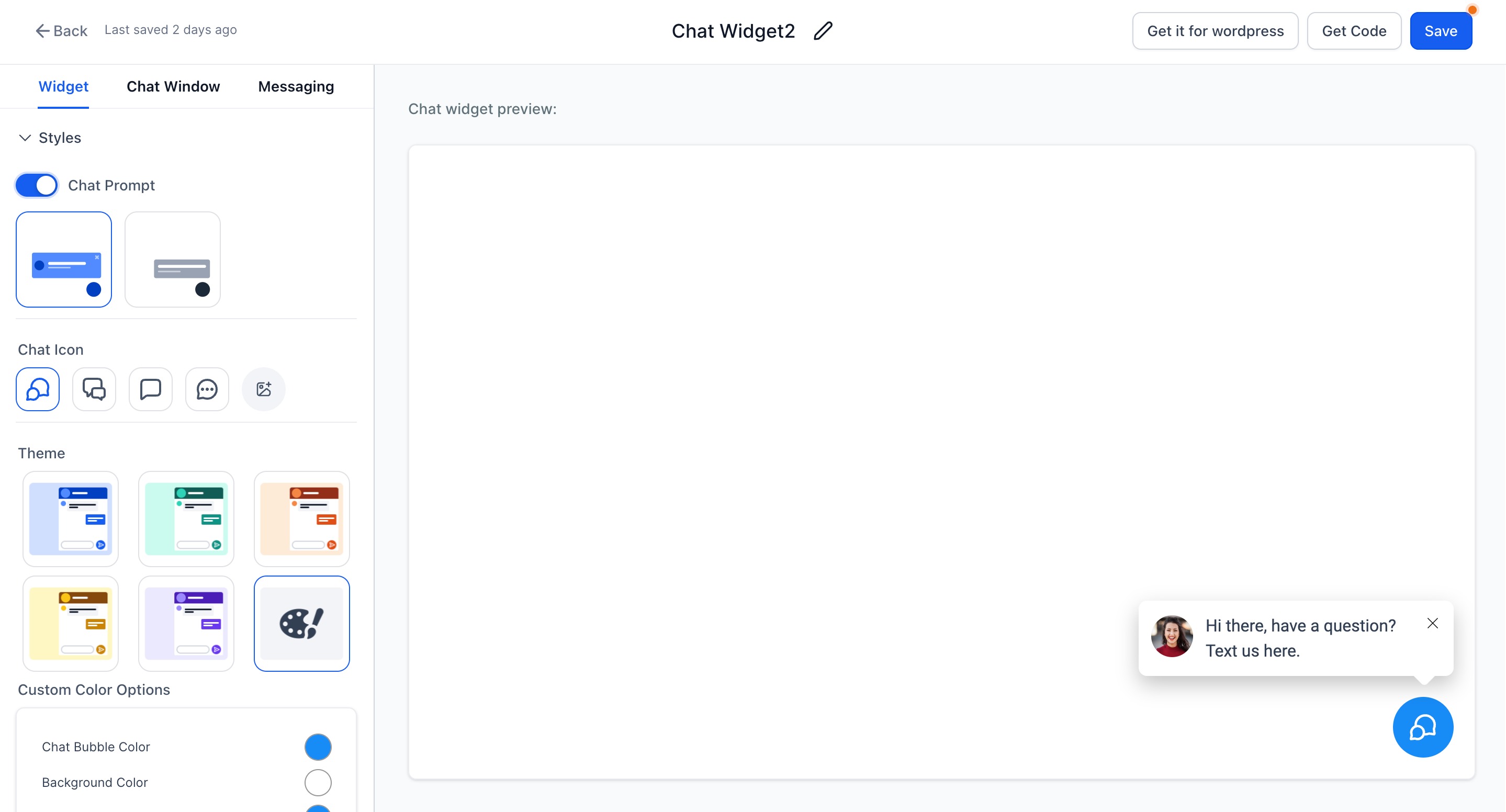
- Once that is done, you will be able to go to Widget to customise the look and feel with options of different style and themes. There options to select the avatar images, select the placements and size of the widget.
- Chat Launcher: Add a chat launcher with or without a prompt message to encourage visitor engagement.
- Chat Icon Selection: Choose the chat icon that best matches your brand and website experience.
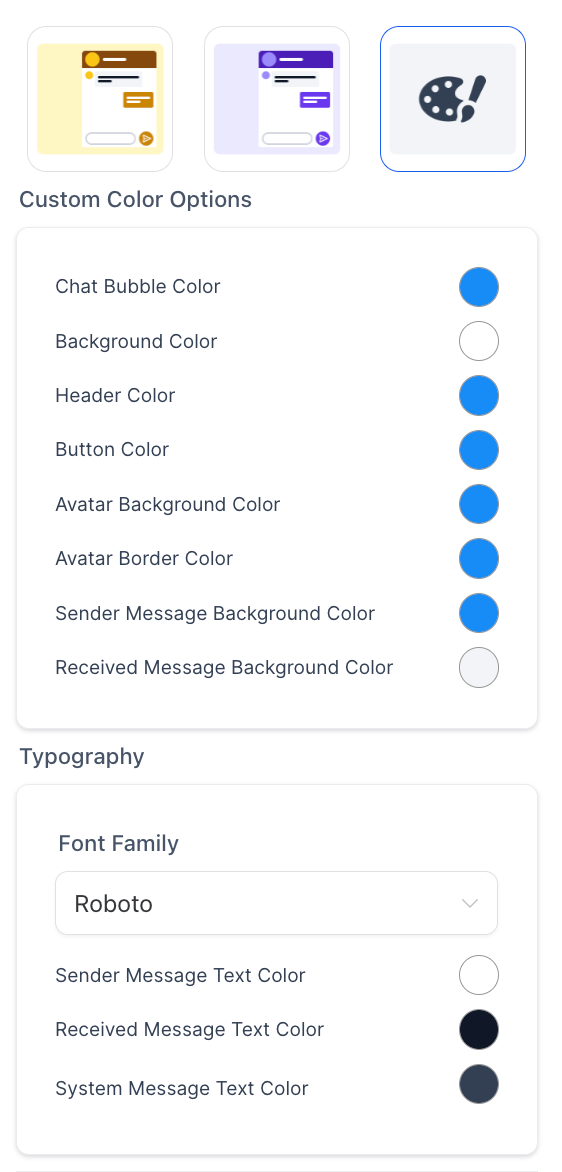
- Theme Customization: Select a predefined theme or fully customize the widget colors and styling to align with your brand identity.
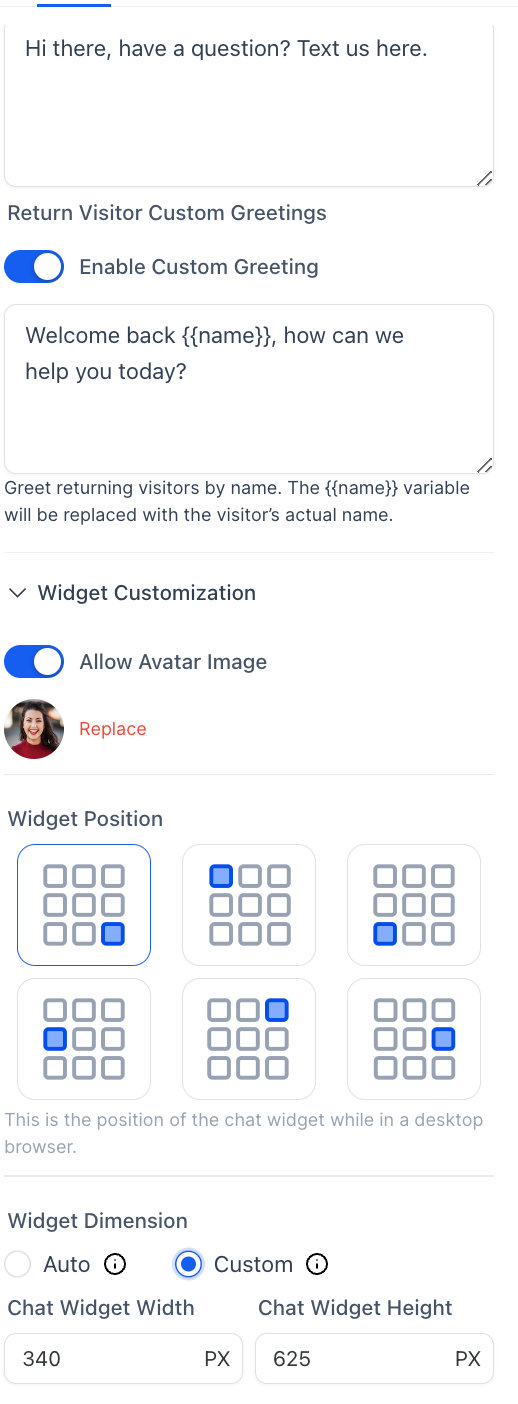
- First-Time & Returning Visitor Messages: Configure personalized messages for first-time visitors and returning users to create a more engaging chat experience.
- Avatar Images: Add avatar images for agents or support teams to create a more professional and humanized interaction.
- Widget Placement: Select where the widget appears on your website, such as the bottom left or bottom right corner.
- Widget Dimensions: Keep the widget dimensions set to auto or customize the width and height based on your website layout preferences.
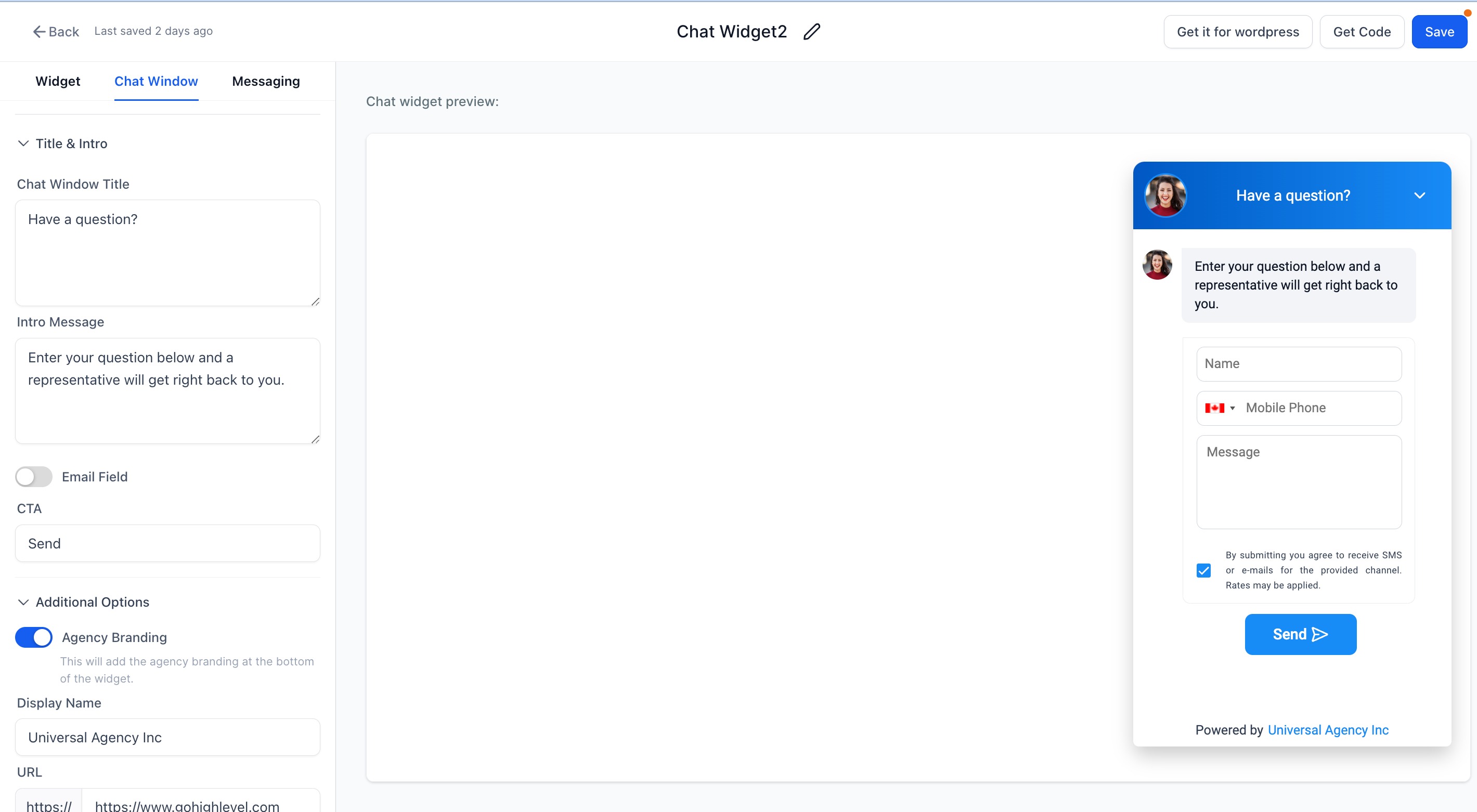
- Next is Chat Window, all the message which are static visible to visitors are configured here. For each type, the chat widget adds extra fields. In Chat window, they are asking for branding and compliance parts.
- Add Chat Window title, Intro message, allow user to enable email and change CTA button
- Allow users to add their own branding and legal consent for HIPAA
- Load on user interaction (performance): Use this option to delay loading the chat widget until a visitor interacts with your site.
Enabled Disabled Loads after visitor interaction (scroll, click, or touch) or automatically after ~8 secondsif no interaction occurs. Loads immediately (existing behavior).
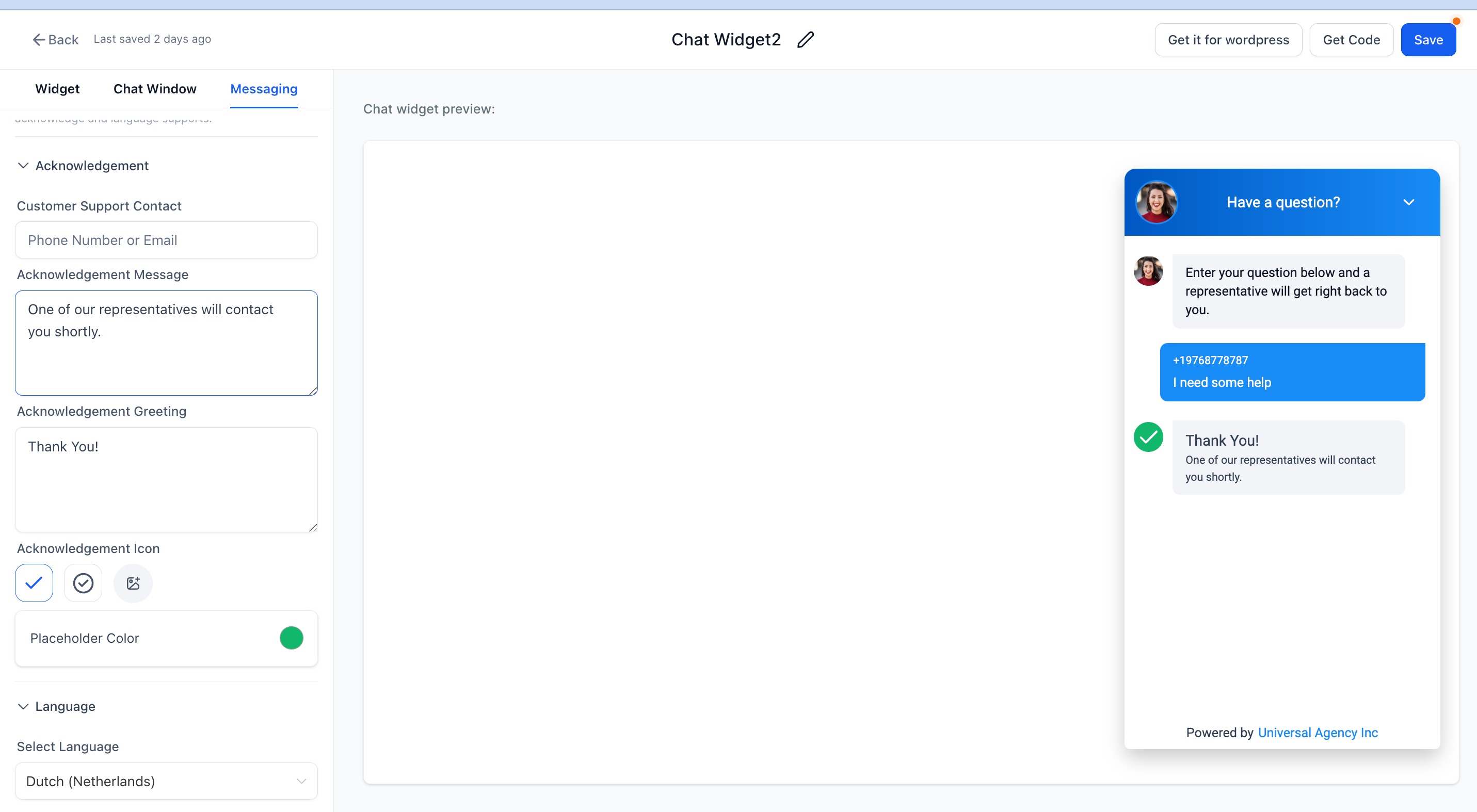
- The last option is messaging which allow customisation of acknowledgement and language settings.
- Adding support contact details, acknowledgement message and greetings
- User can select the language for the chat widget
Few Notes
- If you were already using the chat widget, it will show in the Widget option of theme with light blue color
- Wordpress plugin will work for default widget, allowing user to select the widget will be part of upcoming releases.