Countdown timers in emails are dynamic elements that create urgency by counting down to a specific deadline. They help convey the sense of exclusivity and prompt users to act quickly.
TABLE OF CONTENTS
- Why Use a Countdown Timer?
- How Do Countdown Timers Work in Emails?
- How to Use a Countdown Timer in Emails?
Why Use a Countdown Timer?
- Enhances Aesthetics: Adds a visually appealing and engaging element to your emails.
- Creates Urgency: Encourages users to make decisions faster and not delay their actions.
How Do Countdown Timers Work in Emails?
Countdown timers in emails are typically implemented as GIFs. Here’s how they function:
Dynamic Updates: The timer updates based on the time when a user opens the email. It checks the current state and continues to count down from that point for up to 60 seconds.
Example: If your timer is set to end at midnight on December 25th and a user opens the email on December 24th, the timer will show "24 hours left." It will then count down to "23 hours 59 minutes left" and stop updating as long as the email is open. If the email is opened again after closing, the timer refreshes the timer to take the latest time stamp and counts down to next 60 seconds.
Why This Approach? This method balances the email size and ensures that users often close the email before the timer finishes counting down.
Anomaly with Apple Mail
Apple Mail caches GIFs, which affects how countdown timers are updated. Unlike other email clients where the timer updates each time the email is opened, Apple Mail may display the same GIF repeatedly without refreshing it.
Result: As a result, if a user opens the same email multiple times in Apple Mail, the countdown timer may appear to stop ticking after the first open. This occurs because Apple Mail caches the GIF, so subsequent openings do not update the countdown.
How to Use a Countdown Timer in Emails
Create a Countdown Timer: Go to "Marketing" > "Countdown Timer" and set up your timer.
Open Email Template: Navigate to "Email Marketing" and open or create a campaign template.
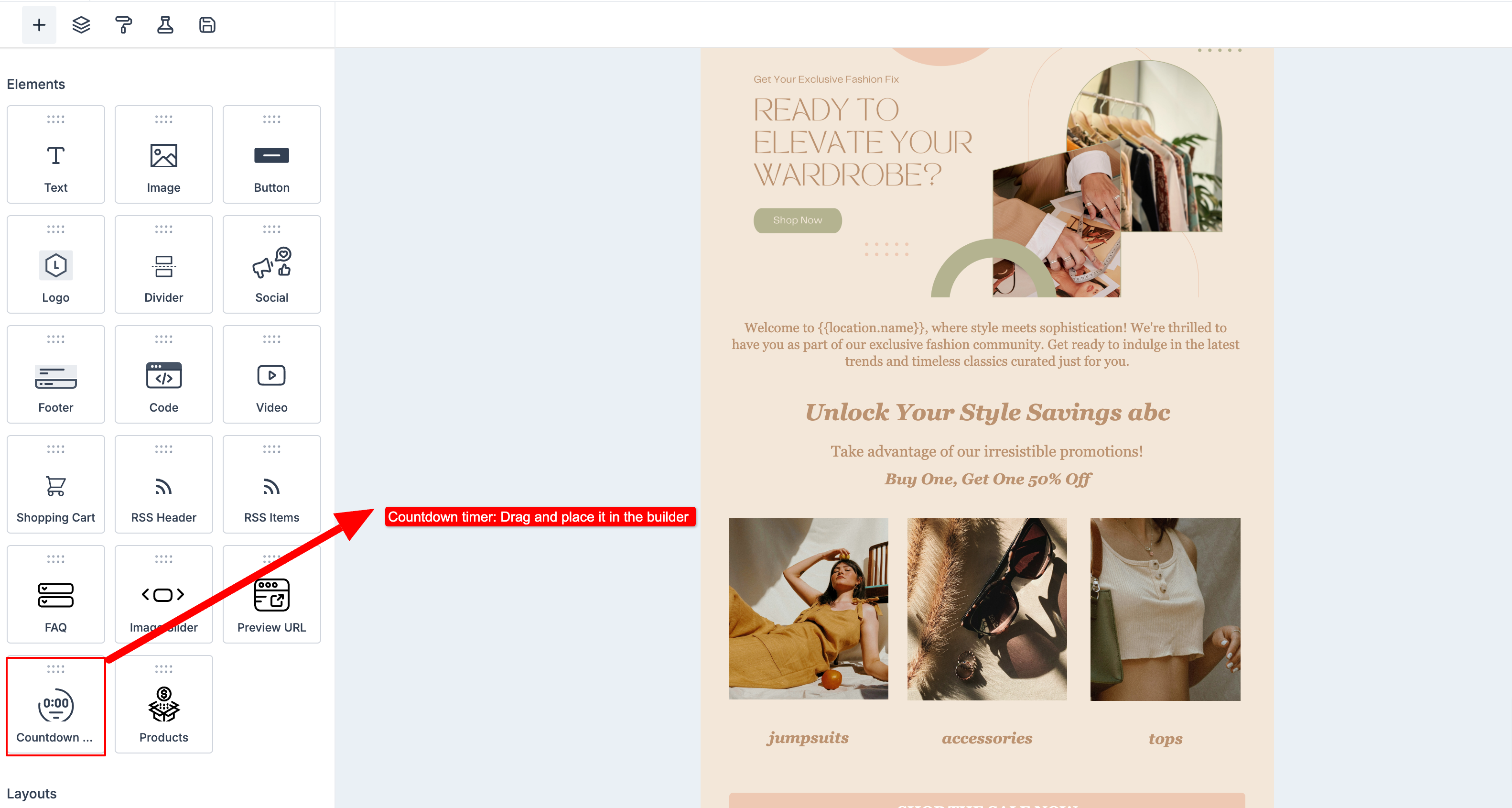
Add Timer to Email: Insert the countdown timer element into your email.
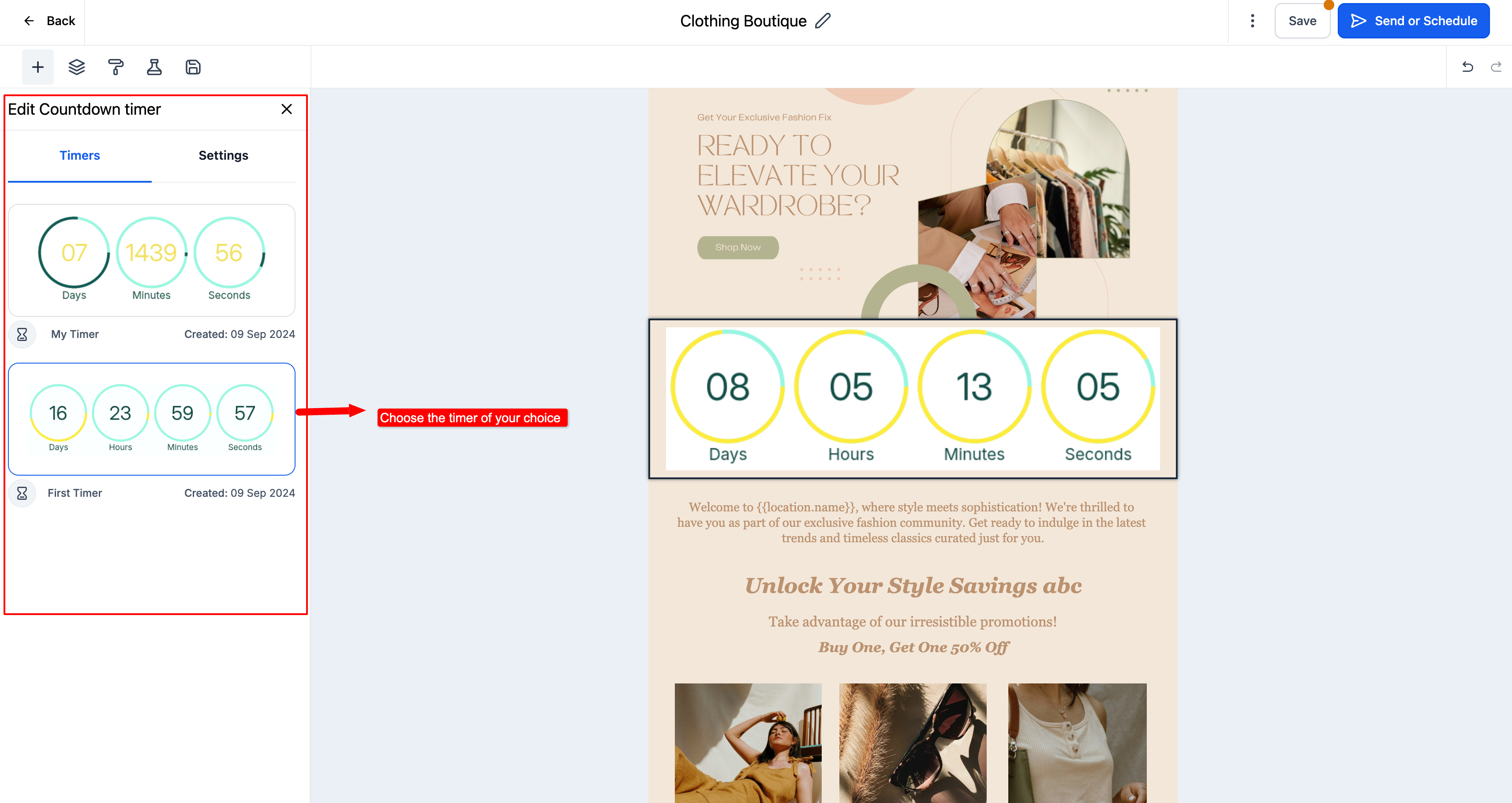
Select Your Timer: Choose the desired timer by viewing its design and details.
Adjust Timer Settings: Click on settings to align the timer within your email.
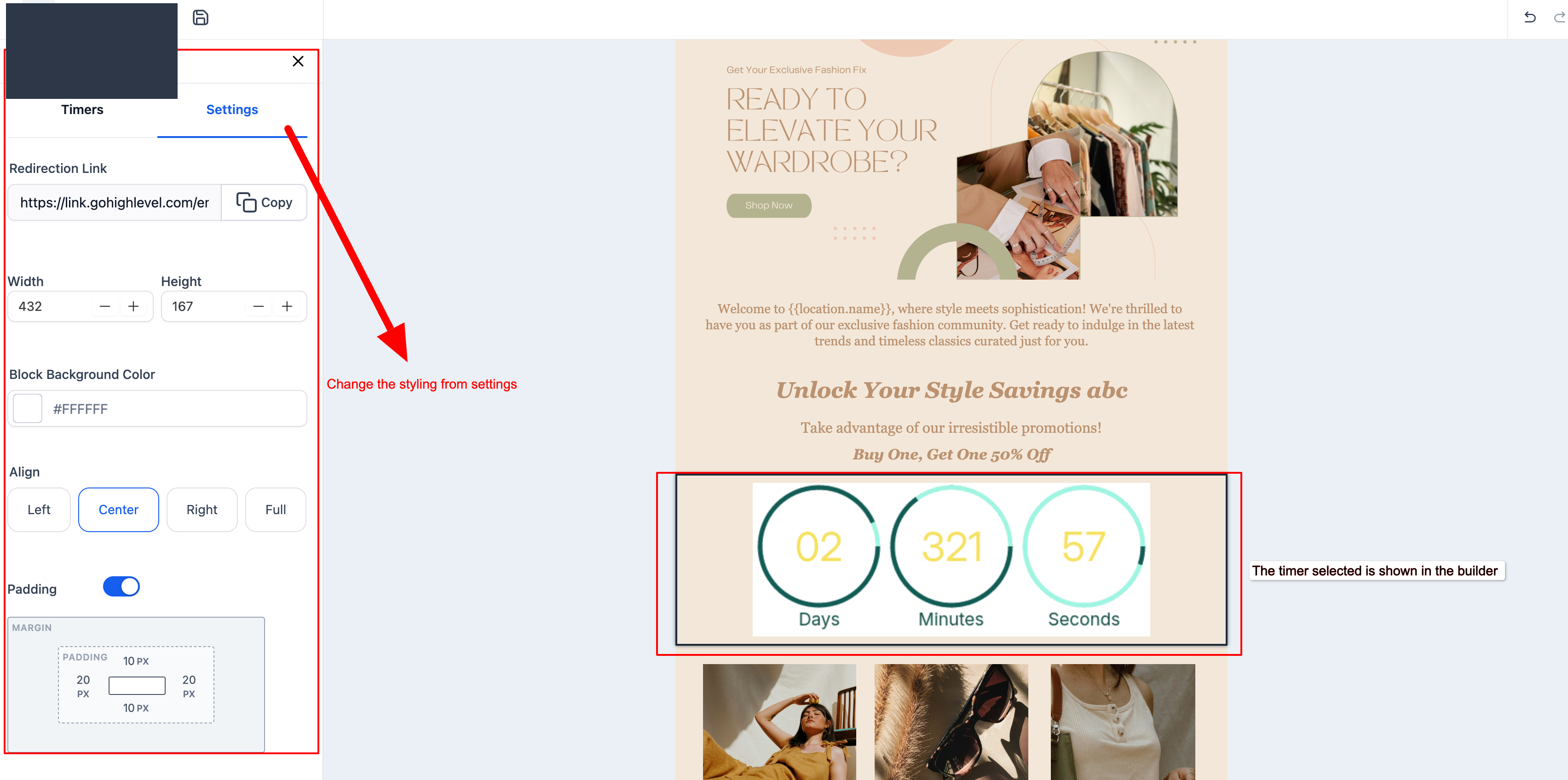
Customize Appearance: Set the background color and adjust padding as needed.
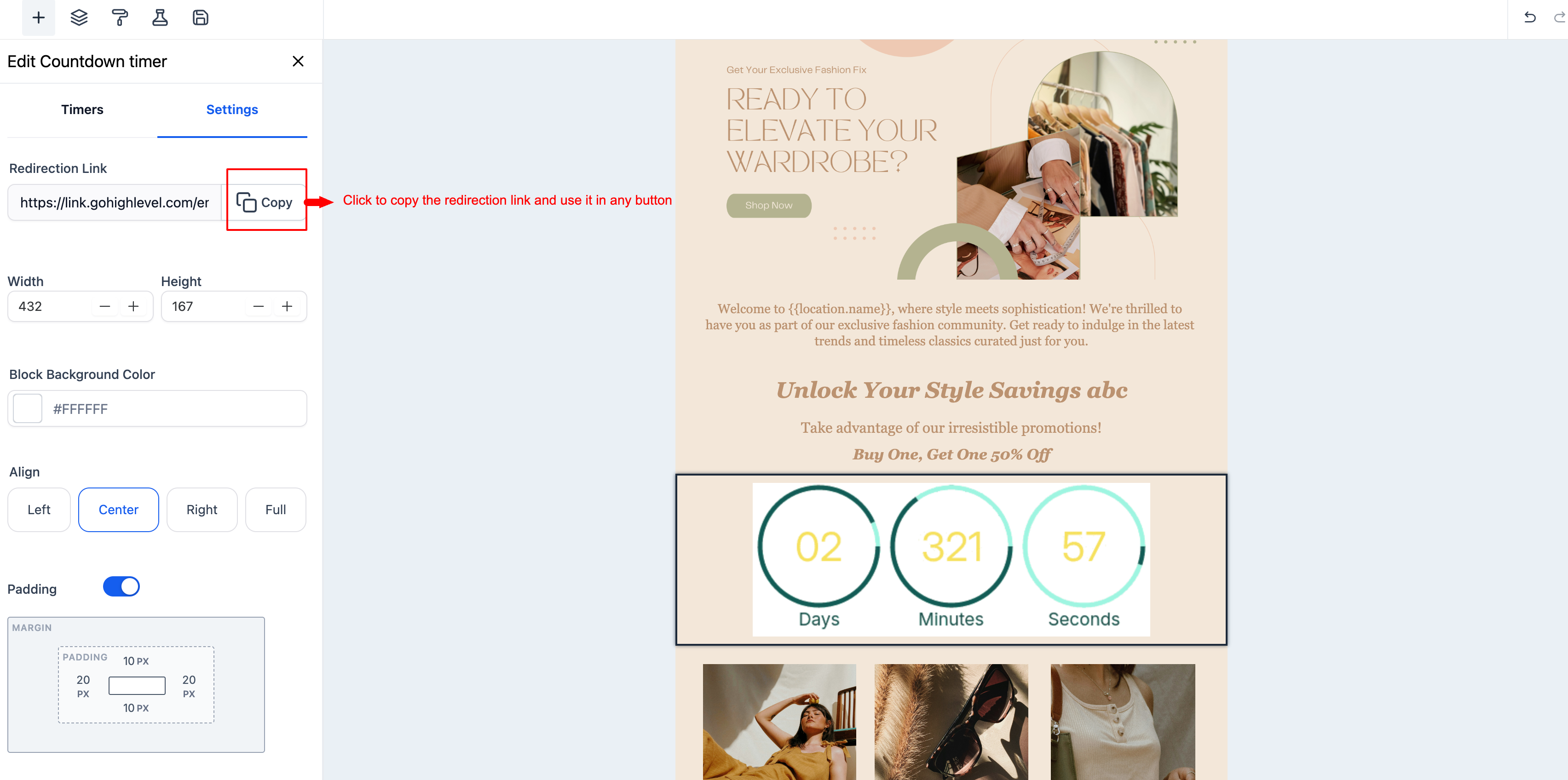
Configure Redirection: Copy the redirection link and use it for your email buttons or calls-to-action.