
This article will show you how to create a Brand Board in SourCherry! A Brand Board helps you store and organize your company's logos, color palette, and fonts so you can apply consistent branding across emails, funnels, websites, and more. You can create a Brand Board from scratch, choose a template, or generate one from a website URL for a faster setup experience.
TABLE OF CONTENTS
What is a Brand Board?
A Brand Board in SourCherry is a centralized space where you can define and manage your brand's visual identity. Each Brand Board contains a Design Kit, which includes your logos, brand colors, and typography choices. Once set up, these assets can be easily applied across various parts of your account for a cohesive brand look.
Key Benefits of Brand Boards
- Brand Consistency: A brand board keeps all your visual elements in one place, so you use the same logo, colors, and fonts everywhere. This helps make sure that your brand looks the same whether it’s on your website, in your emails, or on social media.
- Time Efficiency: Instead of hunting for your logo files or trying to remember your brand’s color codes, a brand board lets you access everything quickly. This makes creating new materials faster and simpler.
- Easy Management: Managing your brand’s visual elements is a breeze with a brand board. You can quickly find and use your logos, colors, and fonts, making sure everything stays consistent and on-brand.
Brand Board Creation Options
SourCherry gives you multiple ways to create a Brand Board depending on how much of your branding is already defined. You can build everything manually, start from a preset style, or use a website URL to pull in brand elements automatically and speed up setup.
You can create a Brand Board in the following ways:
- Start from blank and add your own logos, colors, and fonts manually
- Choose a preset template as a starting point
- Enter a website or landing page URL to generate a Brand Board automatically from your existing brand presence
How to Create a Brand Board
Creating your own brand board is simple. Just follow these steps:
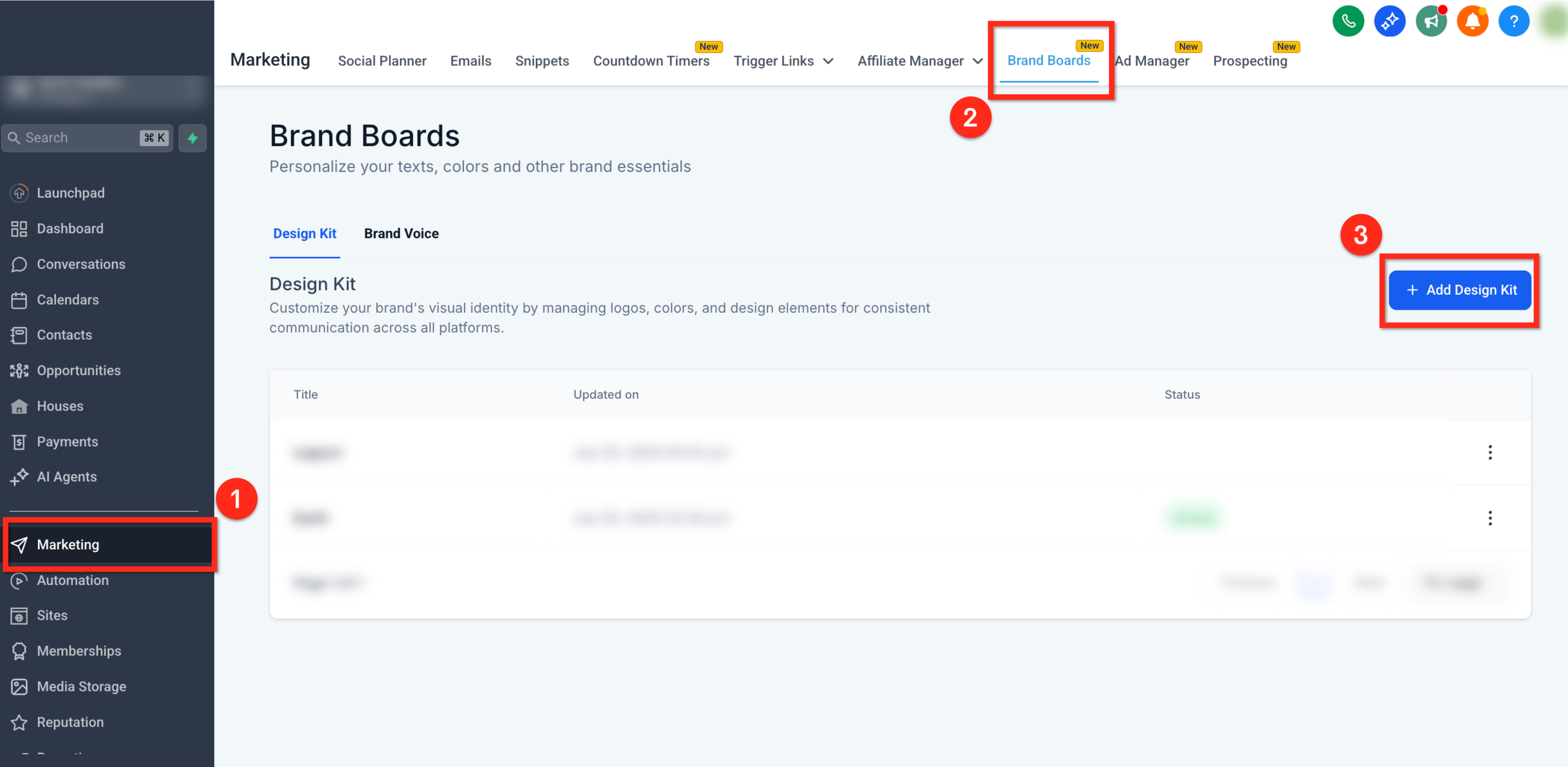
Step 1: Create a new design kit
In the left-hand menu, go to Marketing
In the top navigation bar, click Brand Boards
Click the blue + Add a Design Kit button
Step 2: Start from scratch, a URL or choose a template or start
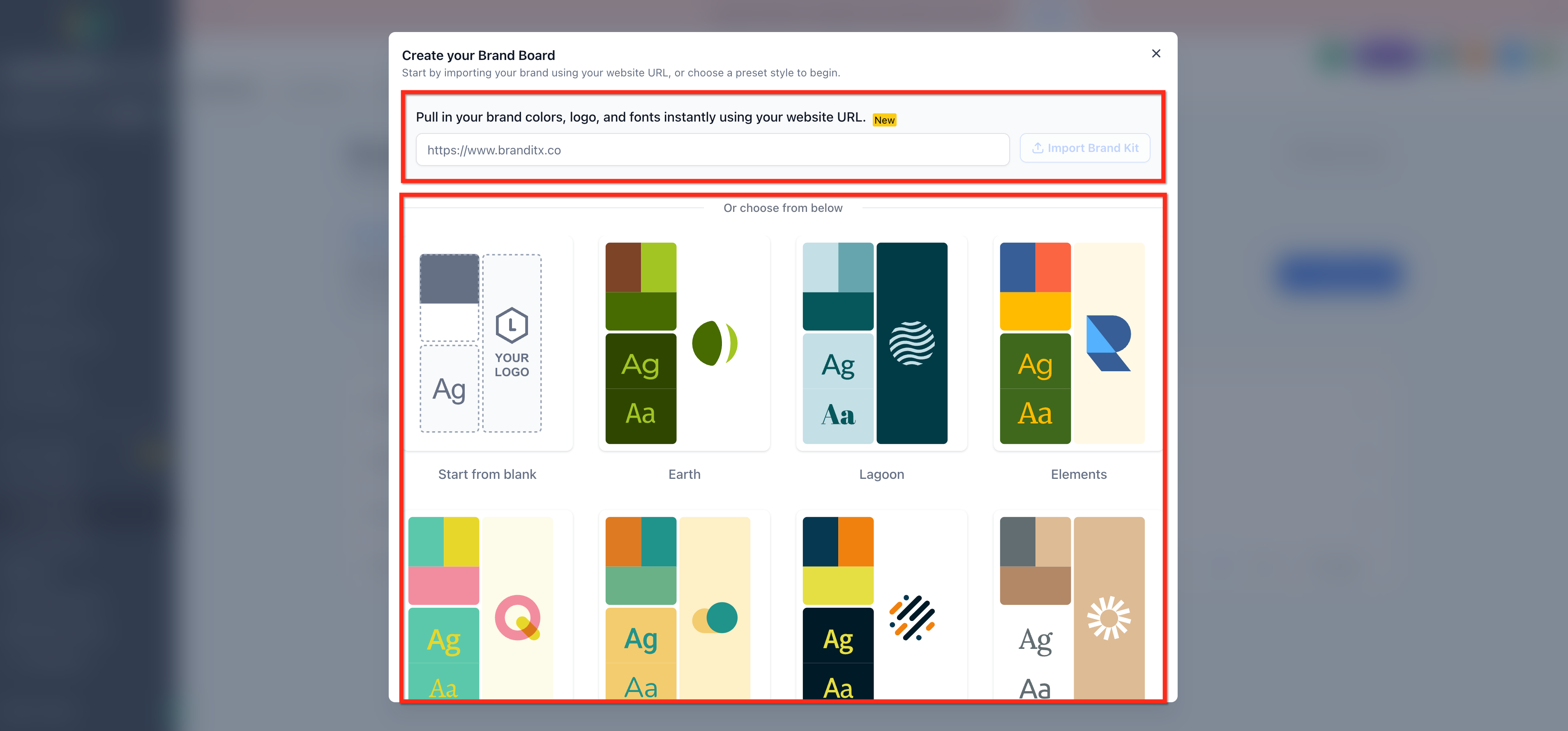
Choose one of the following:
- Start from Blank
f - Select a Template
- Website URL import
- Start from Blank
If using website URL import, paste your website or landing page URL and click Import Brand Kit.
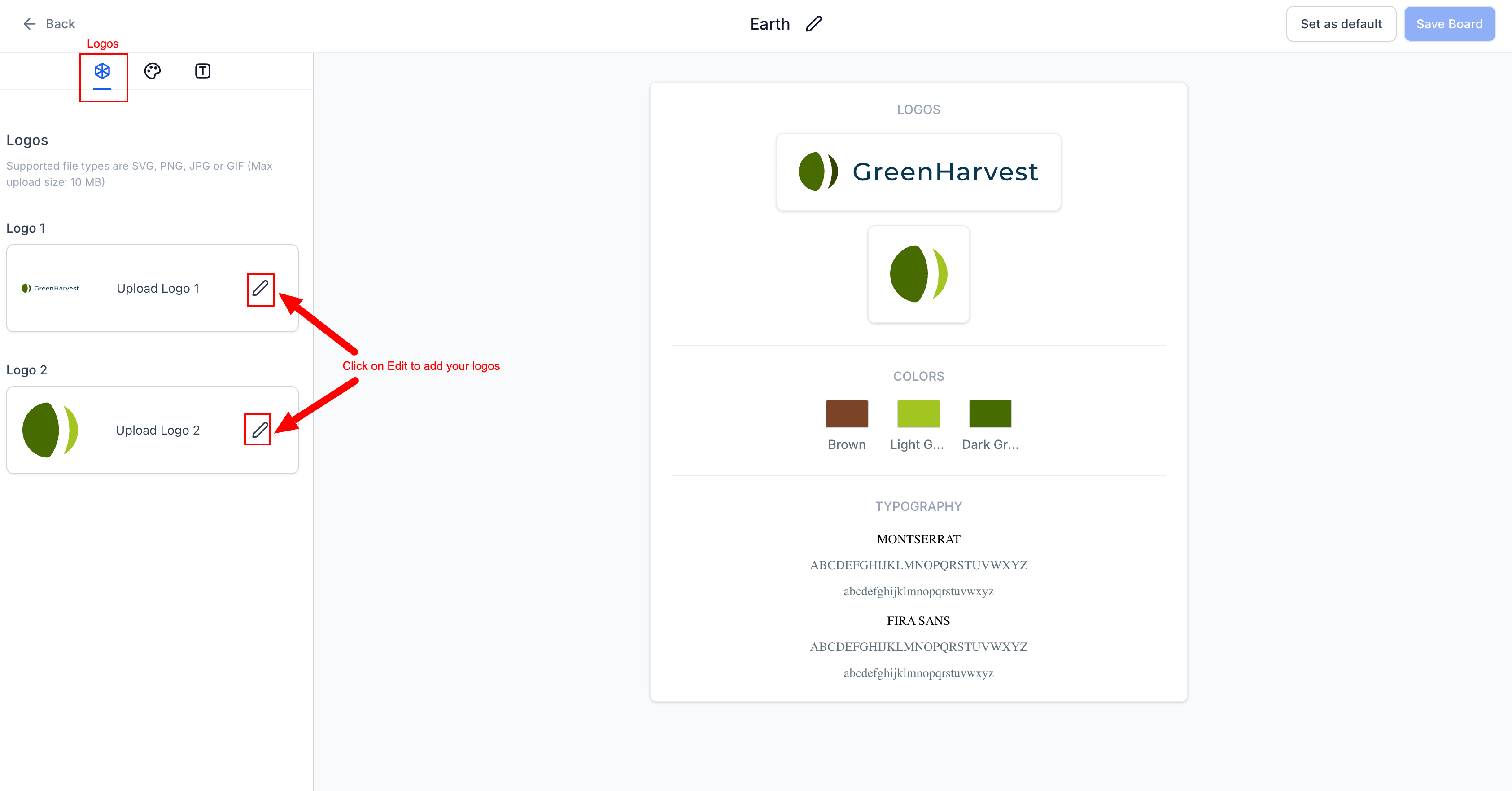
Step 3: Add your logo
- Click the Logos tab
- Upload both your primary and secondary logos
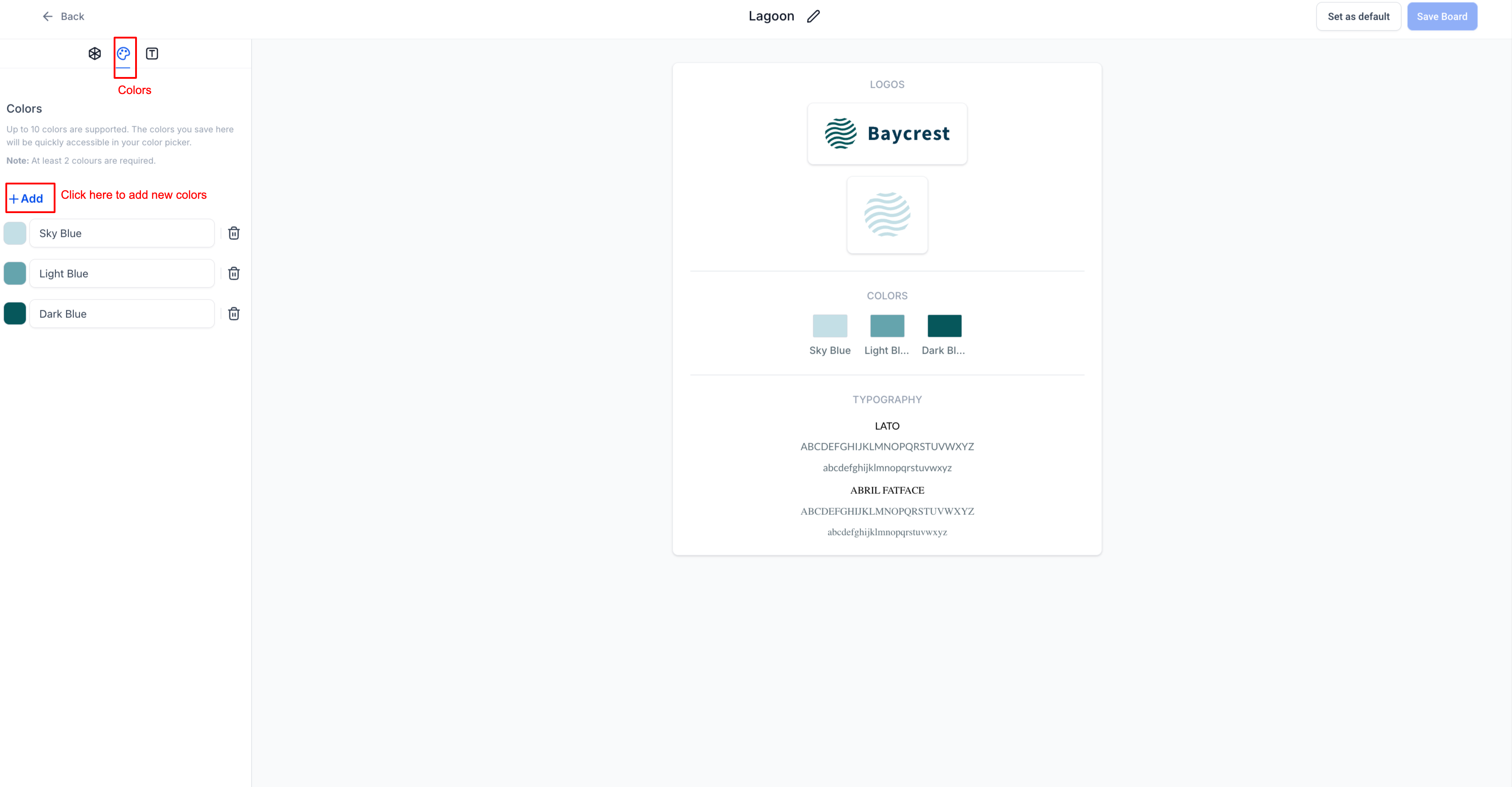
Step 4: Add your brand colors
Click the Colors tab
- Add your brand colors using the HEX or RGB color picker
- Rename the colors for easy reference
- You must include at least 2 colors and can add up to 10
Step 5: Set up your fonts
Click the Typography tab.
Add fonts using the dropdown fields.
You can add between 1 to 5 fonts.
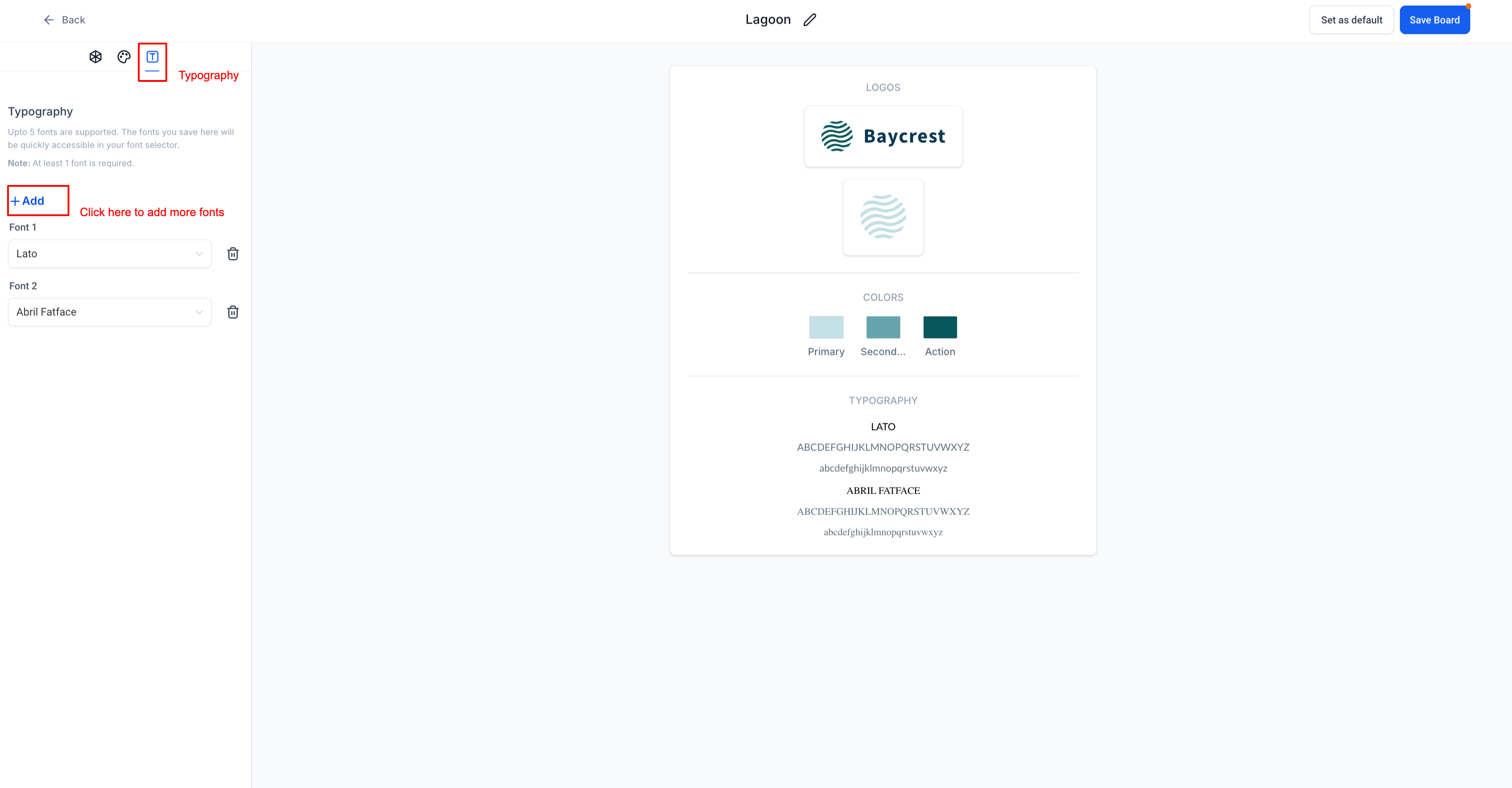
And that’s it! With your brand board ready, you’ll have all your branding elements neatly organized and easy to use. This makes maintaining your brand’s look and feel effortless. View related articles to learn more on how to use brand boards in emails, websites and funnels.
Developer API
If you need to create or manage Brand Boards from an external tool, you can use the Brand Boards public API in the Developer Portal.
- Brand Boards API overview: https://marketplace.SourCherry.com/docs/ghl/brand-boards/brand-boards-api/
- Endpoints list (create, get, update, delete): https://marketplace.SourCherry.com/docs/ghl/brand-boards/brand-boards/
Frequently Asked Questions
Q: Will changing the colors in the brand board retrospectively change colors in existing emails or funnels?