
Keep your brand consistent everywhere you build in SourCherry. This article explains how to edit a Design Kit (within Brand Boards), including how to update colors, logos, and fonts so your branding always stays up to date!
TABLE OF CONTENTS
What is a Design Kit
A Design Kit is the saved set of brand assets (colors, logos, and fonts) stored inside a Brand Board in SourCherry. Editors and pickers across Websites, Funnels, and Email read from the default Brand Board’s Design Kit so you can work faster and stay on-brand without recreating styles every time.
However, there may come a time when you need to update your Brand Board to reflect changes in your brand’s visual elements. Editing the Design Kit lets you refresh colors, swap logos, or adjust typography so future pages and emails use the latest brand assets, while existing content remains unchanged.
When Do You Need to Edit Your Design Kit?
- Brand Logo Changes: Your business might evolve, leading to a redesign of your logo. Updating your brand board ensures that the new logo is consistently used across all platforms.
- New Color or Font: Introducing a new color palette or font can be part of a rebranding effort or simply an update to refresh your look. Editing your brand board ensures these changes are accurately reflected in all your marketing materials.
- Consistency in Brand Elements: Even minor changes in fonts or colors need to be updated in your brand board to maintain visual consistency and reinforce brand recognition.
How to Edit Your Design Kit
Step 1: Navigate to Brand Boards
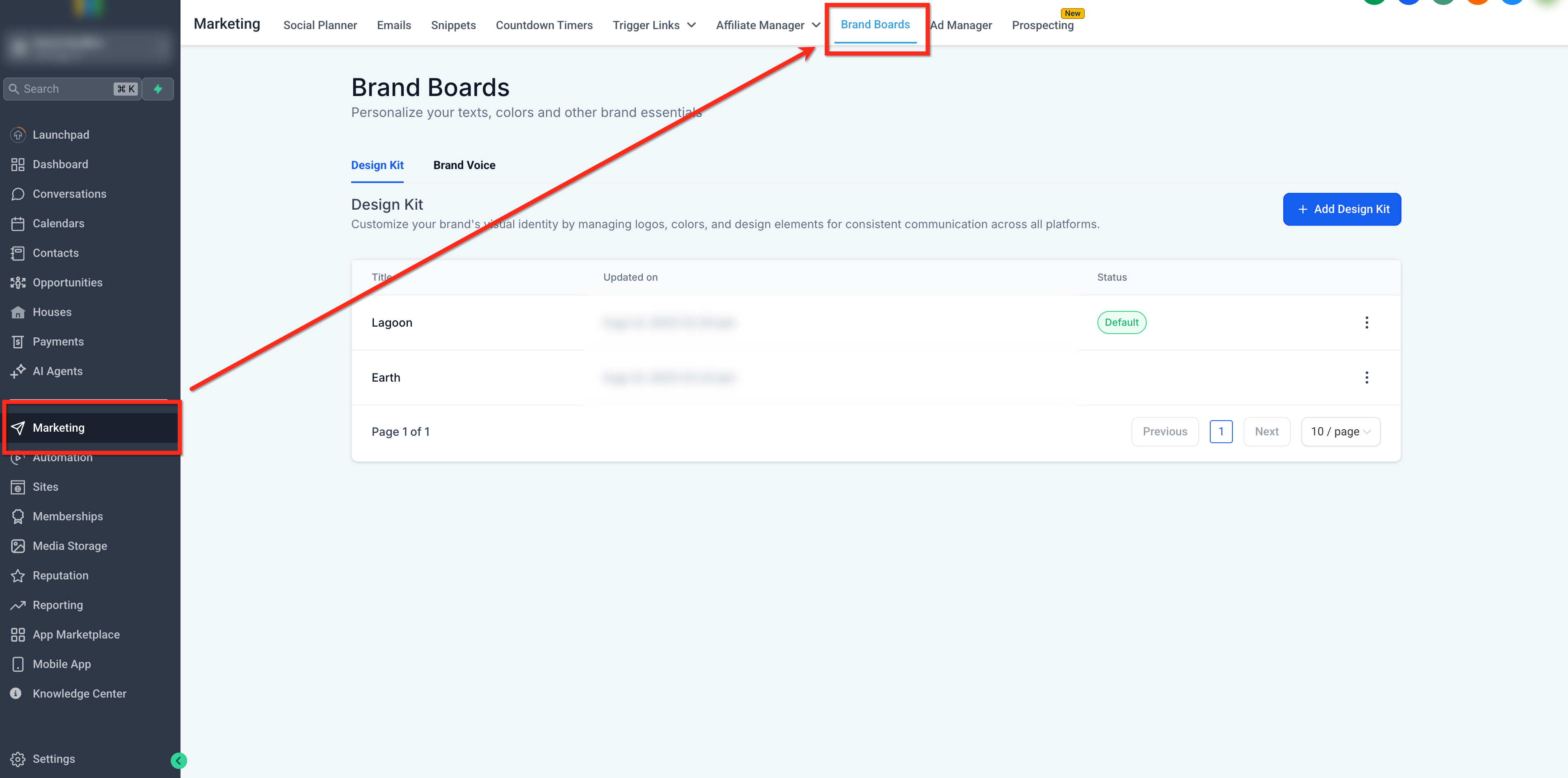
Go to Marketing → Brand Boards (or Settings → Brand Boards)
Step 2: Open the Brand Board
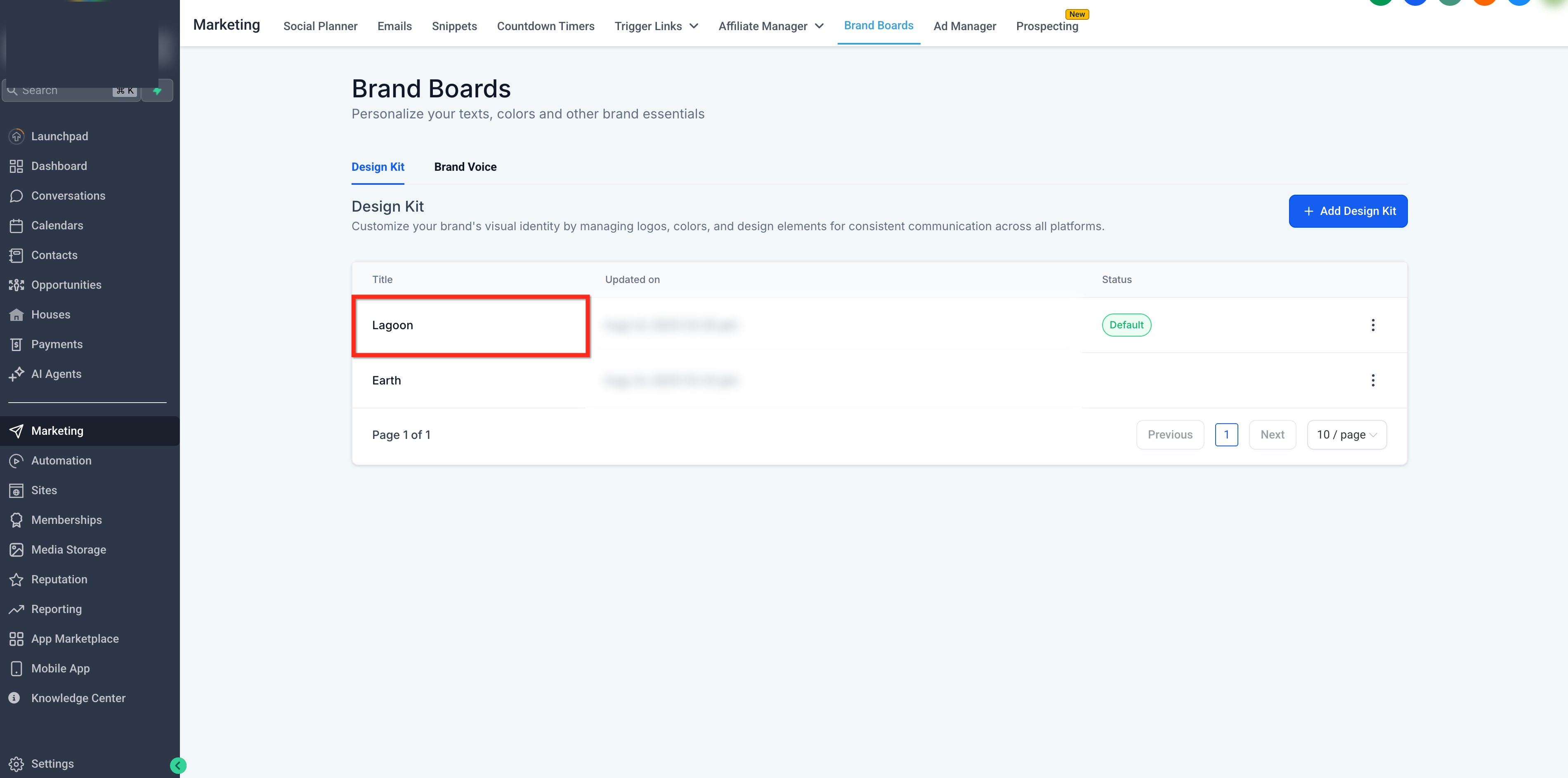
Click on the Brand Board that you would like to edit
Step 3: Update Logos
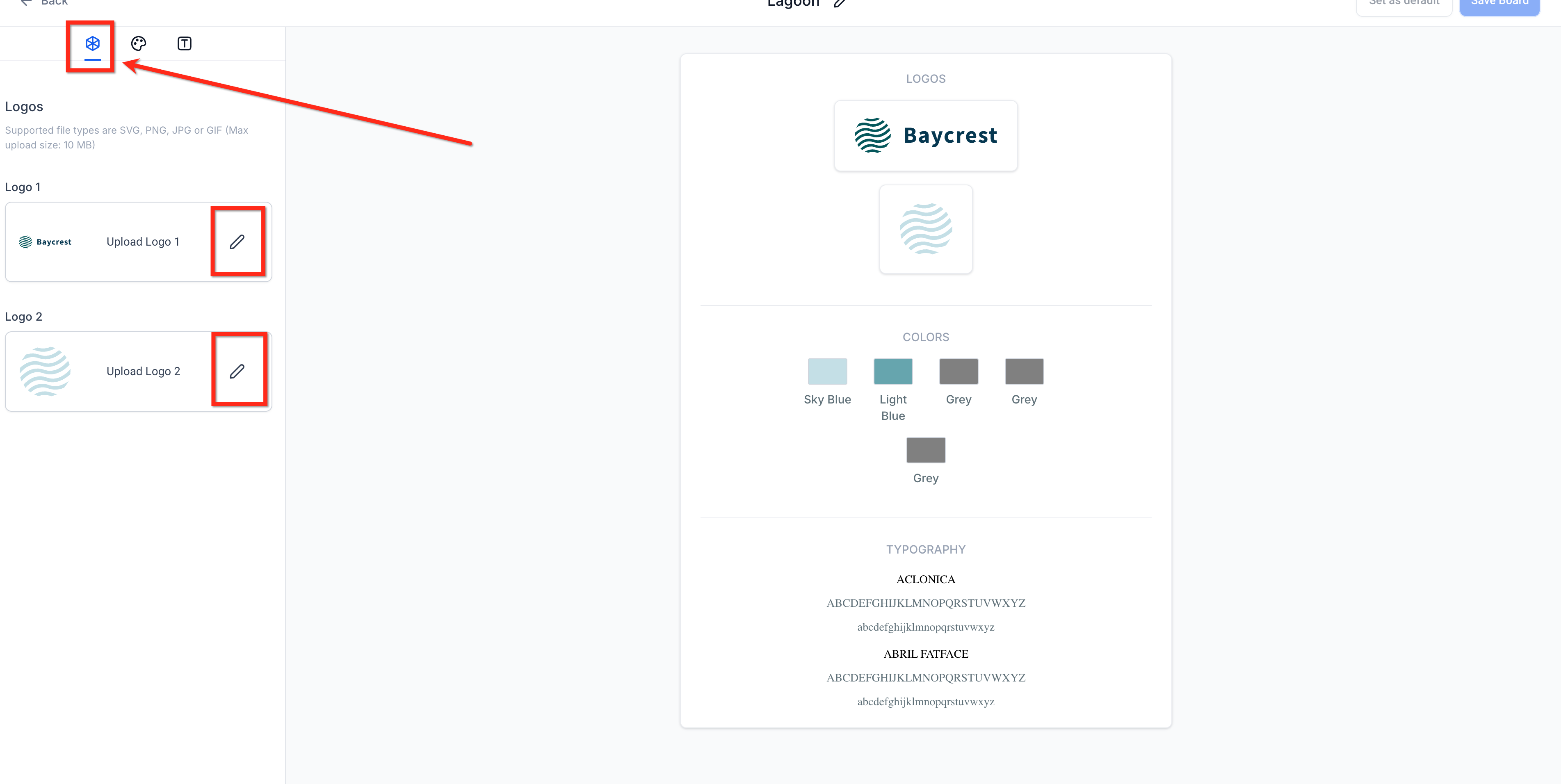
Click the Logos tab at the top left of the editor
Click the Edit (pencil) icon next to Logo 1 or Logo 2 to replace or upload a logo
Note: Please note that to delete the previous logos from the media library, the deletion needs to be done from the media library itself.
Step 4: Update Colors
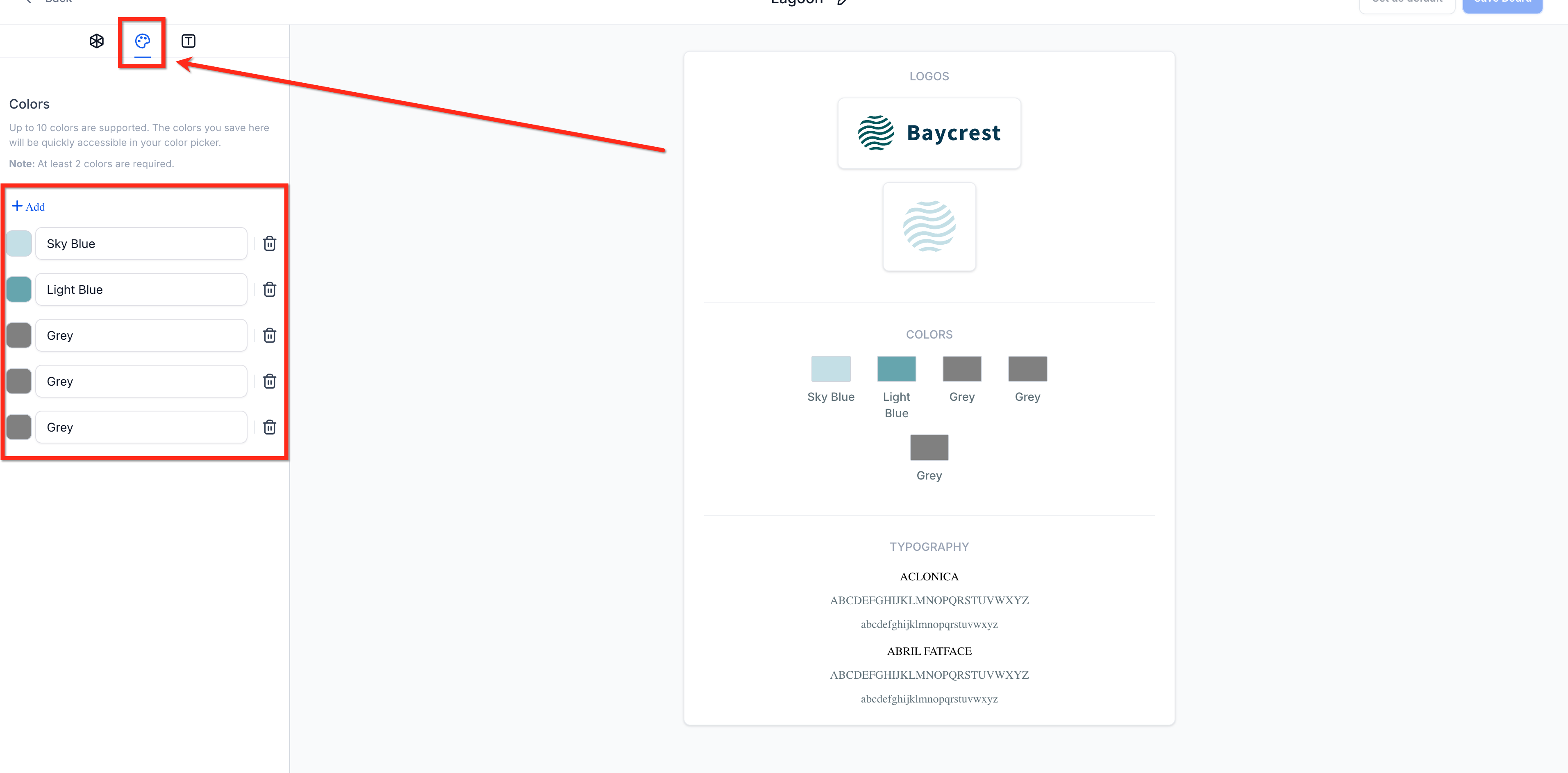
Click the Colors tab at the top-left of the editor
To add a new color, click + Add
To change a color, click on the color square to the left of the color name, then select the new color
Rename a color by clicking its name field
Delete a color by clicking the trash icon
Step 5: Update Fonts
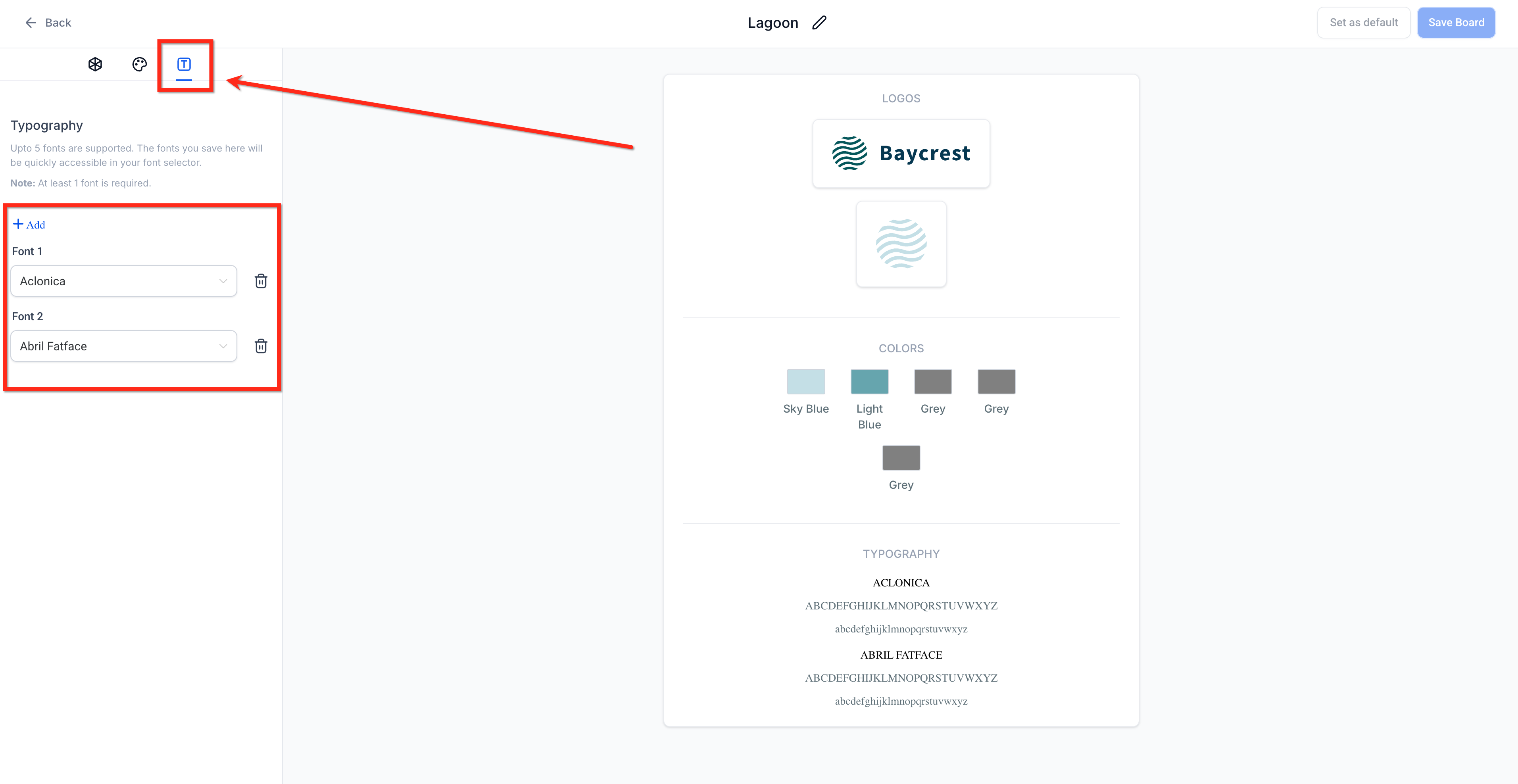
- Click the Typography tab at the top-left of the editor
Click + Add to add fonts (up to 5). At least 1 font is required
Use the drop down to change the chosen font
Remove a font by clicking the trash icon
Step 6: Save Changes
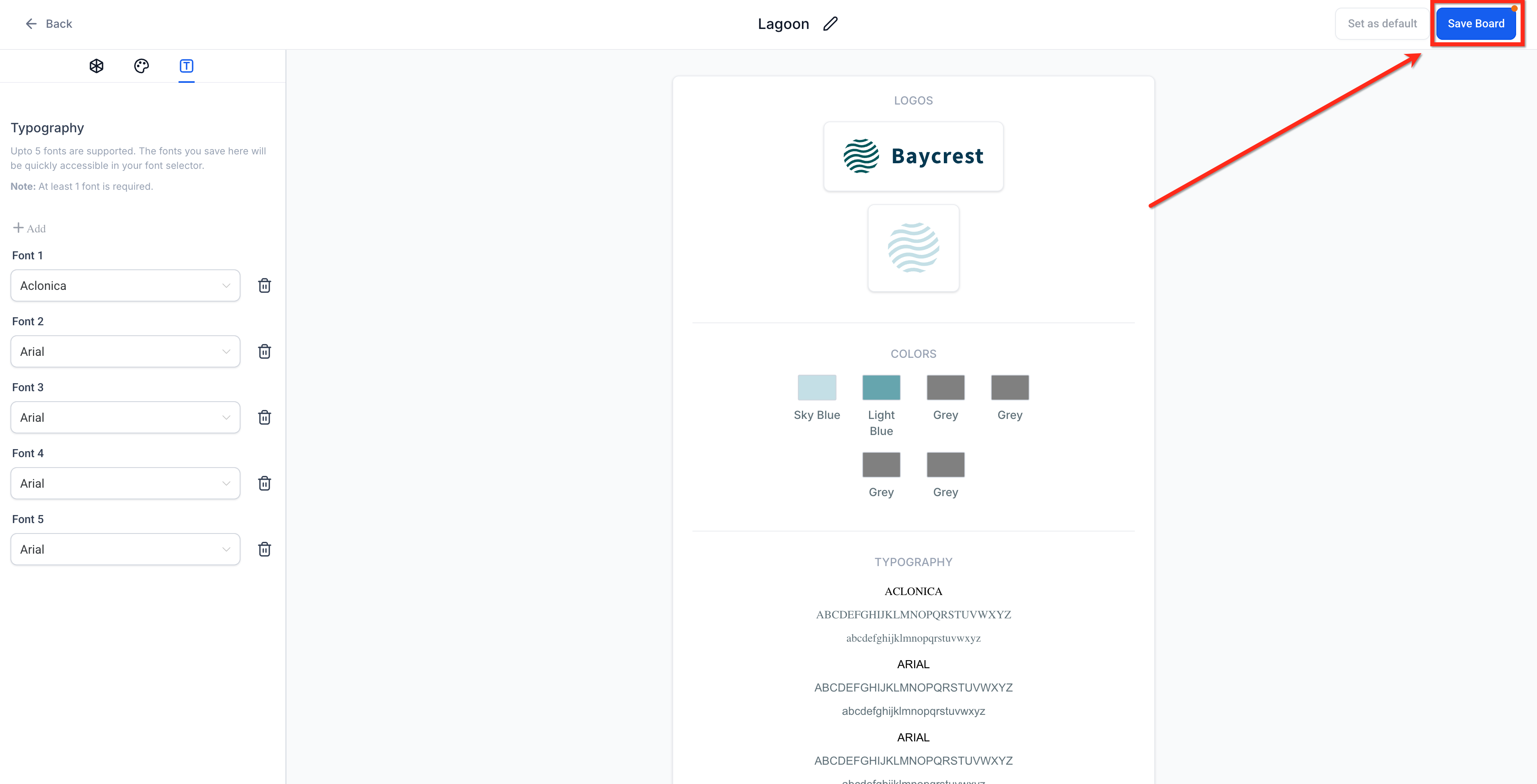
After making your adjustments, be sure to save the changes by clicking the blue Save Board button in the upper right corner.
Frequently Asked Questions
Q: Do Design Kit edits update existing pages or emails automatically?
No. Edits affect what you see in pickers for future edits. Existing assets don’t change automatically.
Q: Why don’t my colors appear in the page or email color picker?
Only the default Brand Board populates pickers. Set the correct board as default and check that your colors are saved. Click here to learn how to set a default brand board.
Q: Which color formats can I enter?
HEX and RGB are supported for brand colors. Click on the "HEX" or "RGBA" label in the bottom left corner of the color picker to switch between the two.
Q: Will updating my Brand Board change my Payment Links?
If your Payment Links use Brand Board theming, color updates can be reflected across links.
Q: How do I switch which board is shown in my builders?
Set the desired board as Default. The default board controls which Design Kit assets appear in pickers