What's New?
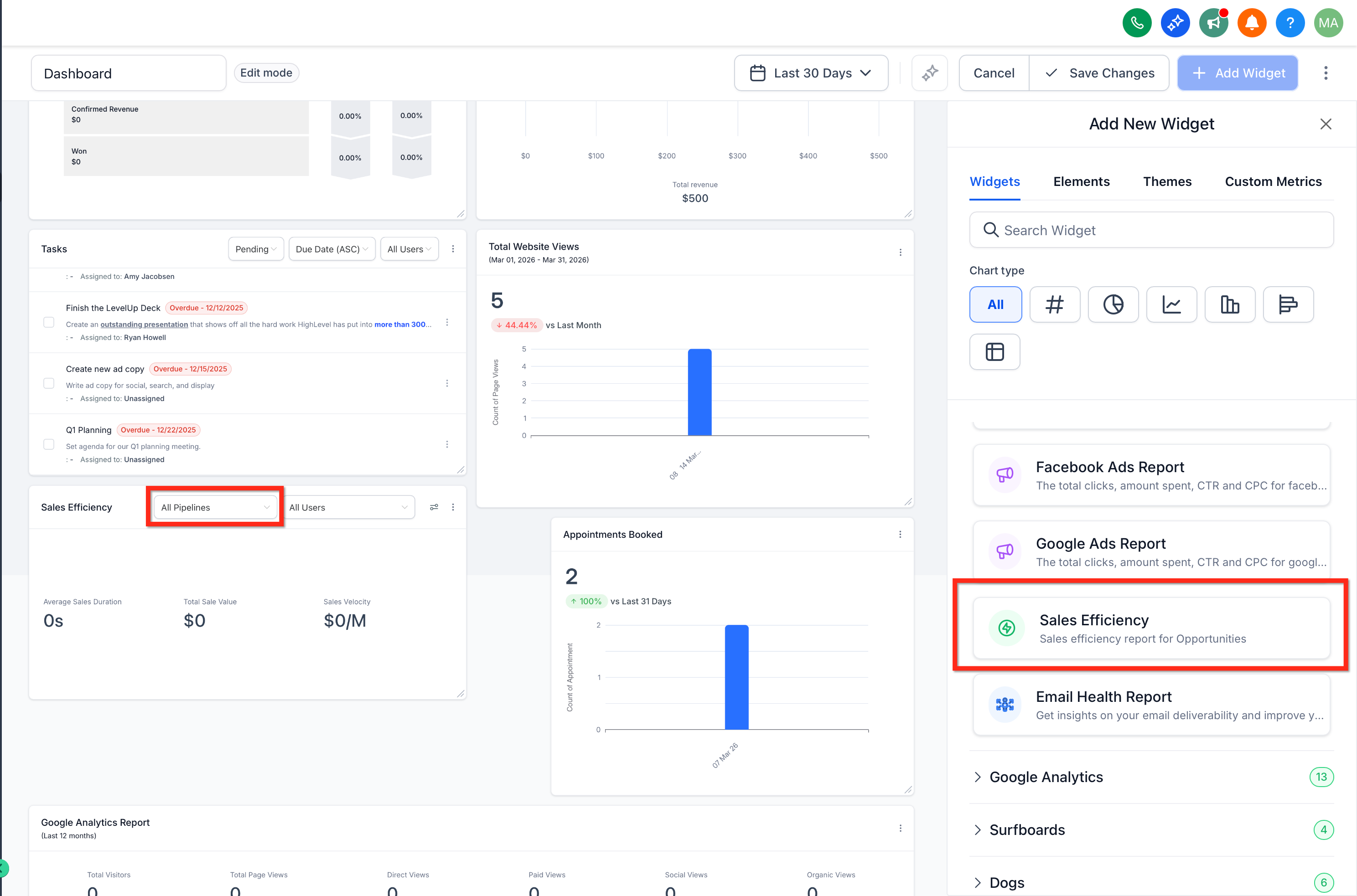
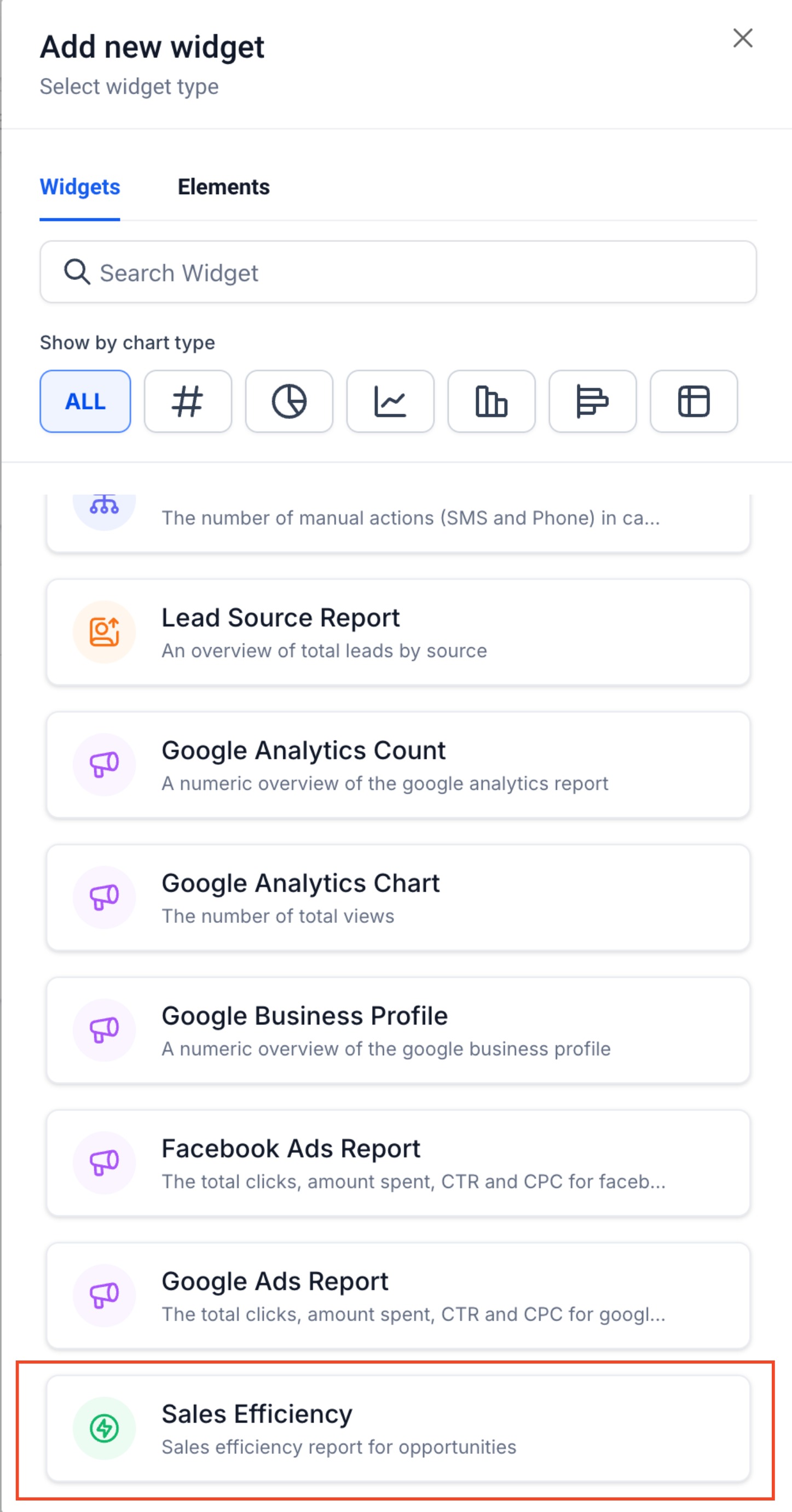
We are thrilled to introduce a powerful new widget designed to enhance your sales efficiency, now available under general widgets on your dashboard. Here’s what you can look forward to:
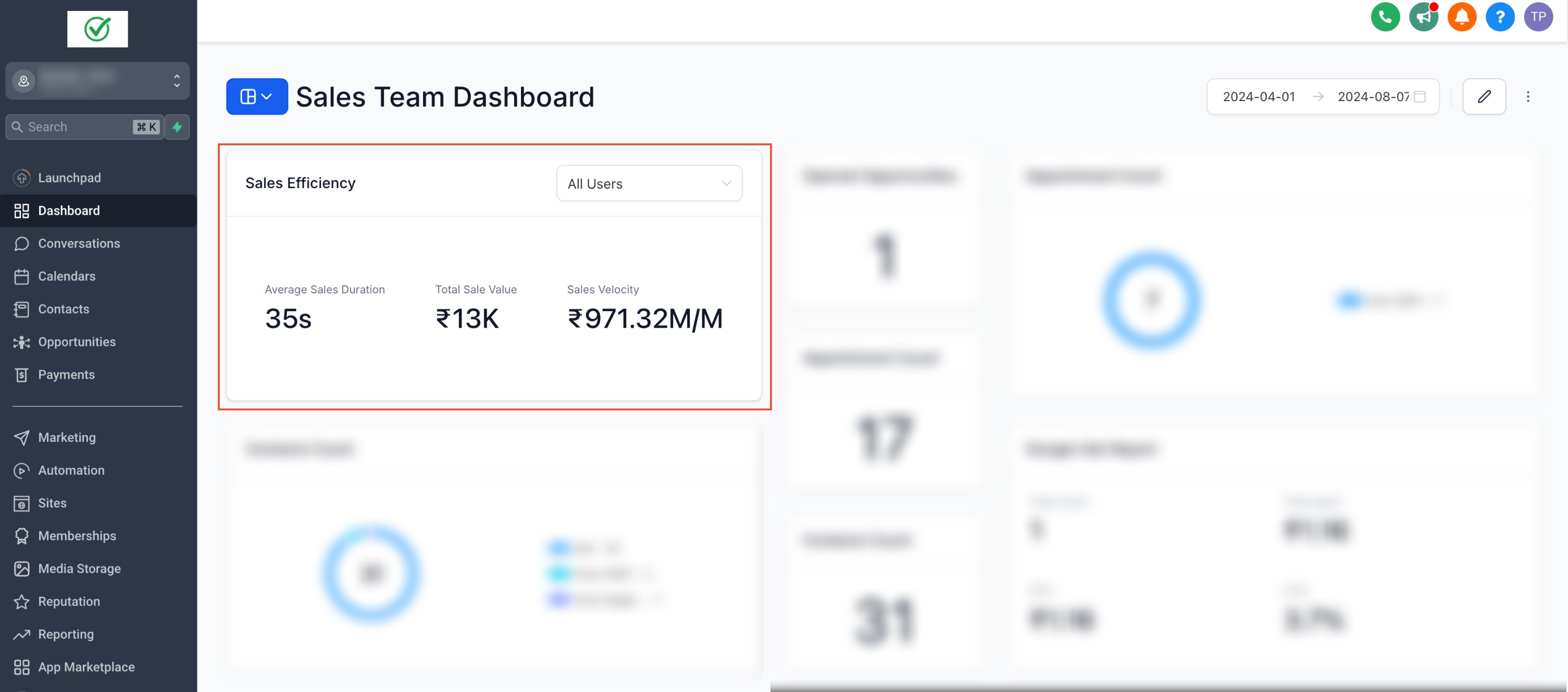
- Average Sales Duration: Monitor the average time taken for all opportunities to close, helping you identify areas for improvement.
- Total Sales Value: Keep track of the total value of your sales to measure overall performance.
- Sales Velocity: Measure the speed of your sales processes to ensure efficiency and quick conversions.
These metrics are filterable by users, providing more granular insights into individual performance and allowing for better tracking and optimization of your sales processes.
To learn about the custom widgets, Click Here!
Filter by pipeline
By default, Sales Efficiency shows aggregated metrics across all pipelines. To focus on one workflow or sales process, use the Pipeline dropdown in the widget.
1. Go to your sub-account dashboard.
2. Locate the Sales Efficiency widget.
3. Click the Pipeline dropdown inside the widget.
4. Select the pipeline you want to view.