
TABLE OF CONTENTS
- What is Custom URL for Unassigned Calendars?
- Key Benefits of Custom URL for Unassigned Calendars
- Unassigned vs. Assigned vs. Group Calendars
- Where Your Custom URL Appears
- API Domain & Branded Links (How the URL Looks Publicly)
- Governance & Naming Best Practices
- Change Management & Redirect Expectations
- Permissions & Availability
- How To Setup Custom URL for Unassigned Calendars
- Verify & Share Your Booking Link
- Troubleshooting
- Frequently Asked Questions
- Related Articles
What is Custom URL for Unassigned Calendars?
A custom calendar URL lets you choose a human‑readable slug for an Unassigned Calendar’s public booking link. This makes links easier to share and brand, and helps teams keep consistent naming across multiple calendars and locations. Unassigned Calendars route bookings to a pool rather than a specific user, so a clear, memorable URL improves conversion and reduces confusion for leads.
Key Benefits of Custom URL for Unassigned Calendars
Understanding the value of a custom URL helps you plan naming conventions before launch, reduce broken links later, and keep a consistent brand experience across websites, funnels, and widgets.
Brand consistency: Create readable, on‑brand slugs (e.g.,
/demo-call) that look professional on shareable links and when embedded.Memorability: Short slugs are easier to recall and type, which can improve booking completion rates.
Organization: Use naming conventions to keep multiple calendars clear across products, locations, or teams.
Clarity for routing: Because Unassigned Calendars distribute appointments to a pool, a descriptive slug helps set expectations for prospects.
Operational control: Reserve slugs early to avoid conflicts and reduce rework across funnels and automations.
Unassigned vs. Assigned vs. Group Calendars
You can choose the right calendar type to make sure the booking link matches your staffing model. Use these distinctions to decide when a custom URL should live at the individual calendar level versus a Group link.
Unassigned Calendar: Routes bookings to a pool (round‑robin or similar). You can give the calendar its own custom URL.
Assigned (User) Calendar: Routes bookings directly to one specific user. Custom URL options may differ depending on calendar type.
Group Calendar: Surfaces multiple calendars under one Group booking link. The Group link is separate from each calendar’s individual link and may be shared instead of individual slugs.
Tip: If you plan to share a Group booking page, keep individual calendar slugs simple and consistent—they may still appear in embeds or direct links.
Where Your Custom URL Appears
Knowing where the slug surfaces helps you test the right places and communicate changes to your team before publishing.
Standalone booking link: The link you copy from the calendar’s settings.
Website or funnel embeds: The booking widget embedded in a SourCherry website/funnel or external site.
Buttons, emails, and SMS: Any CTA that links directly to the calendar.
(If used) Group pages: You may still share a Group link; the individual slug remains available for direct sharing and testing.
API Domain & Branded Links (How the URL Looks Publicly)
Your visible booking link is a combination of the domain used for system‑generated links (API Domain) and the custom slug you set on the calendar. Configure branding first to avoid changing links later.
Configure your API Domain to ensure system links (including calendar links) display under your branded domain.
Your custom slug is appended to the calendar path under that domain.
If you set or change the API Domain later, plan to re‑test your calendar links and update shared CTAs.
Best practice: Finalize your API Domain before distributing calendar links to customers.
Governance & Naming Best Practices
A little planning prevents collisions and broken links. Use this guidance to create a library of slugs your team can scale with.
Keep slugs short, lowercase, and hyphenated (e.g.,
demo-call,consultation).Avoid special characters, spaces, and very long strings.
Use prefixes for multi‑location or product lines (e.g.,
nyc-demo,plus-plan-onboarding).Maintain a simple spreadsheet or doc to track reserved slugs across calendars and locations.
Test in an incognito window to confirm the public link loads as expected.
Change Management & Redirect Expectations
Editing a slug after you’ve shared it can break links in emails, funnels, ads, and SMS. Plan updates carefully and verify all live placements.
Changing the custom URL typically creates a new public link; previously shared links may no longer work.
Before renaming, audit where the link is used (websites, funnels, automations, emails, SMS, ads) and update all placements.
After edits, test the new link in a private window and have a teammate confirm.
Permissions & Availability
Ensuring the right access avoids setup delays. Confirm who may edit calendars and whether your workspace uses branded links.
Users must have permission to view and edit Calendars in the sub‑account.
If your organization uses a branded API Domain, make sure it’s configured by an admin before sharing links.
How To Setup Custom URL for Unassigned Calendars
Follow these steps to create or edit the custom slug on an Unassigned Calendar. Complete the steps in order and verify availability before saving.
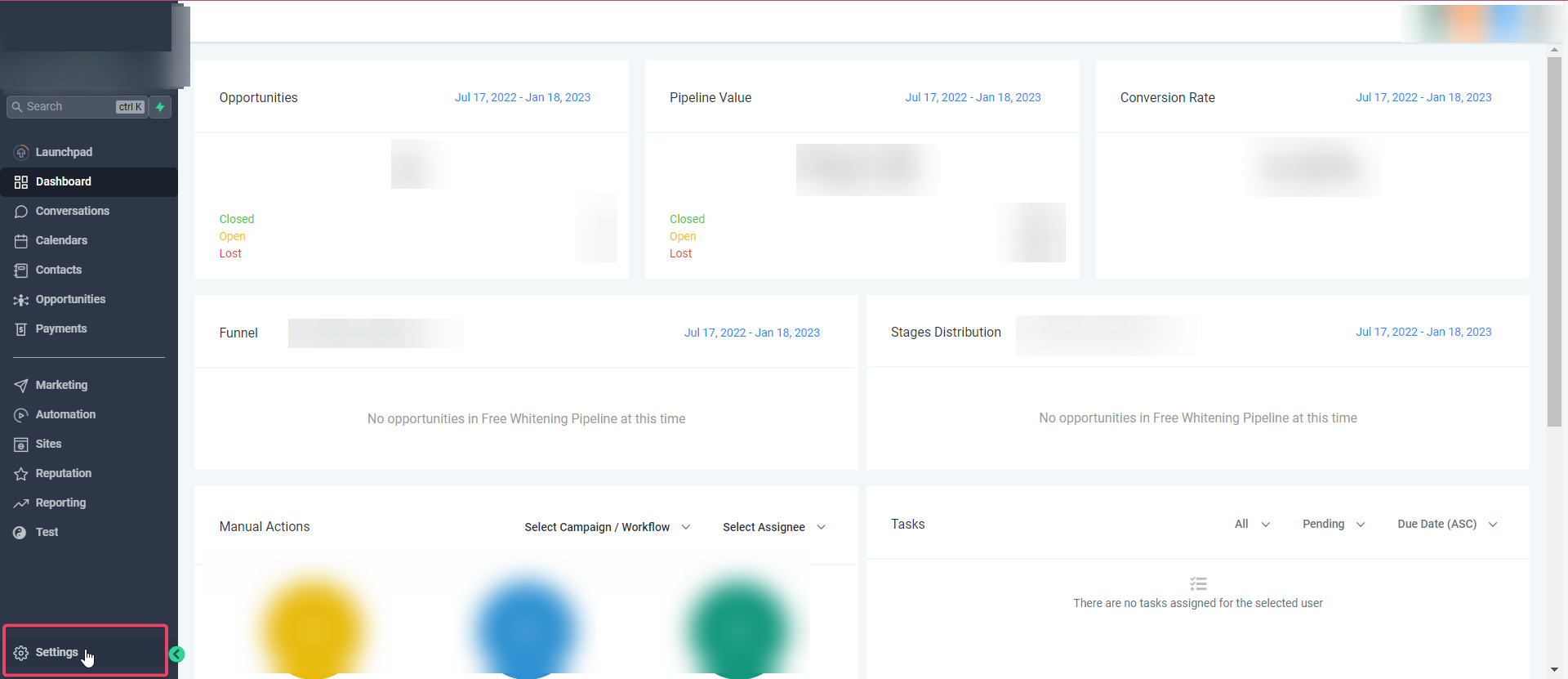
Go to Settings → Calendars in your sub‑account.
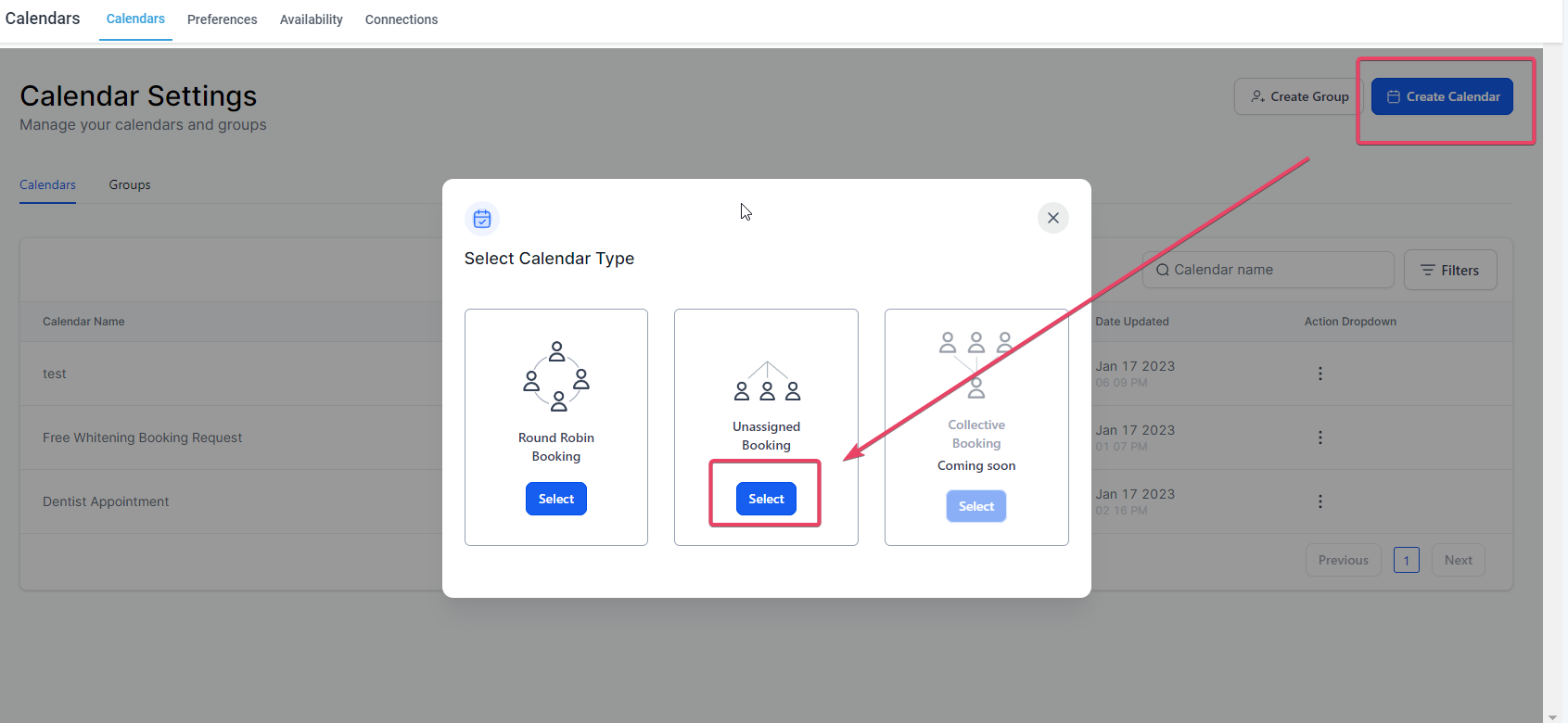
Click Create Calendar (or open an existing Unassigned Calendar to edit).
Select Unassigned Booking as the calendar type.
In Team & Event Setup, locate the Custom URL field.
Then click on Create Calendar> In the Calendar Type, select Unassigned Booking
In Team & Event Setup, you will see the text box in front of the Calendar URL
Click on the textbox and type in the custom calendar URL you would want for the calendar link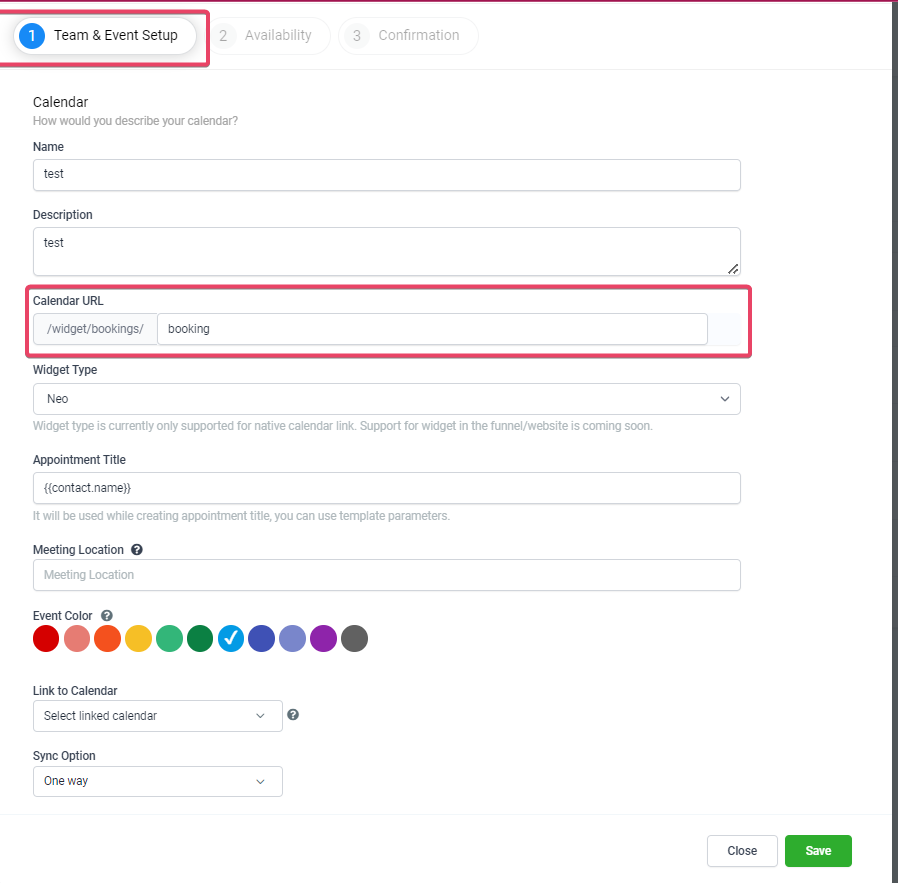
Once you have typed in the custom URL, the system will run an availability check on the custom calendar url.URL
You can then see either a “check” indicating that it’s available for you and can save. In a few cases, you might see a “cross” which means that the custom calendar url is not available in that case you can tweak/modify your custom calendar URL to ensure it’s unique and you get it.URL
 Then proceed to save the calendar and the Calendar URL would be saved as you configured it.
Verify & Share Your Booking Link
A quick validation step protects your team from sharing incorrect or broken links and ensures your branding appears as intended.
Open the copied link in incognito/private mode.
Confirm the link displays under your branded API Domain (if configured).
Test a dummy booking to ensure the page loads and routing is correct.
Update links across websites/funnels, emails/SMS, ads, and chatbots as needed.
Troubleshooting
Use these pointers to resolve common issues without escalating to admins.
“URL not available”: Choose a different slug or apply a naming convention (e.g., add location or product prefix).
Validation fails: Remove spaces/special characters; use lowercase letters and hyphens.
Link not opening under branded domain: Confirm API Domain is configured and propagated; re‑copy the link after configuration.
Users can’t edit: Verify the user’s permission to manage Calendars in the sub‑account.
Frequently Asked Questions
Q: Is the custom URL unique across my entire agency or just this sub‑account?
A: Treat slugs as unique at the scope where the calendar lives. If a slug shows as unavailable, select another variant.
Q: What characters can I use in the slug?
A: Use lowercase letters and hyphens. Avoid spaces, special characters, or very long strings for best results.
Q: Can I reuse the same slug on different calendars?
A: If a slug is already in use where you’re creating the calendar, you’ll see an unavailable indicator. Use a distinct variant (e.g., add -team or a location prefix).
Q: What happens if I change the slug later?
A: Previously shared links may stop working. Update all placements (emails, SMS, funnels, websites, ads) and test the new link in a private window.
Q: Does the custom URL automatically use my branded domain?
A: If your API Domain is configured, calendar links will reflect it. Configure branding before distributing links for a consistent experience.
Q: How does this work with Group Calendars?
A: Group Calendars have their own Group booking link. You can still use an individual Unassigned Calendar’s link, but many teams share the Group link publicly.
Q: Where do I find the link to share?
A: Open the calendar, click Copy Link, and test it in an incognito window before sharing.
Q: Can I embed the calendar with the custom URL on my website?
A: Yes. Use the calendar embed widget on a SourCherry website/funnel or paste the link into external sites that support embeds.