
Managing a large inventory can be a time-consuming task, but SourCherry makes it easy to import multiple products at once using a simple CSV file. Whether you’re transferring products from Shopify or adding items from another source, this guide will walk you through the process of bulk importing products to SourCherry.
TABLE OF CONTENTS
- How to Bulk Import Products
- Important Notes & Tips
- Troubleshooting Common Issues
- Frequently Asked Questions
Prerequisites to Bulk Importing Products
Before you begin, make sure you have the following:
- Access to the Payments > Products page in SourCherry.
- A properly formatted CSV file containing your product details.
- Downloaded sample CSV file from SourCherry for reference.
How to Bulk Import Products
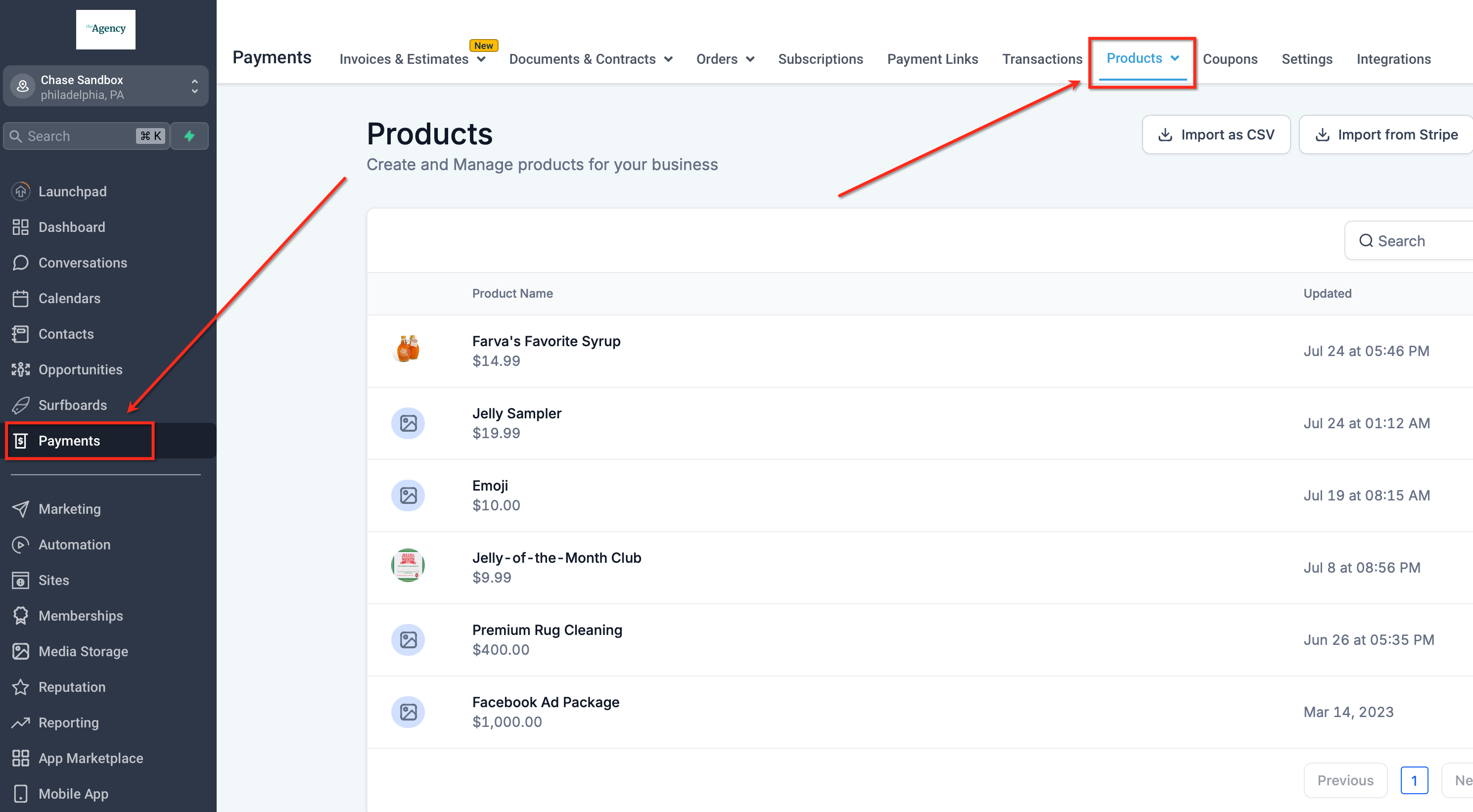
Step 1: Access the Products Page
- Log in to your SourCherry account.
- Navigate to Payments > Products from the main dashboard.
Step 2: Download the Sample CSV
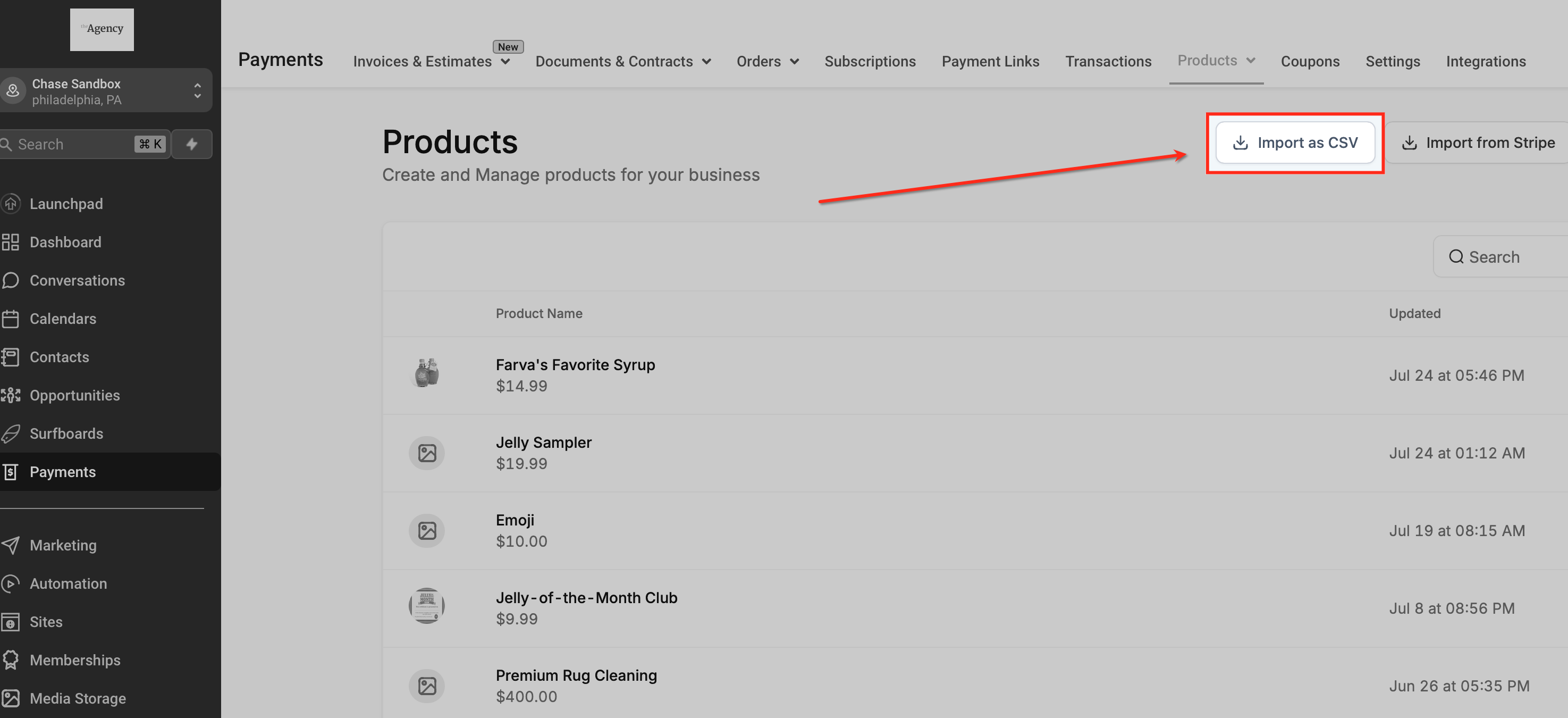
- On the Products page, click ‘Import as CSV’.
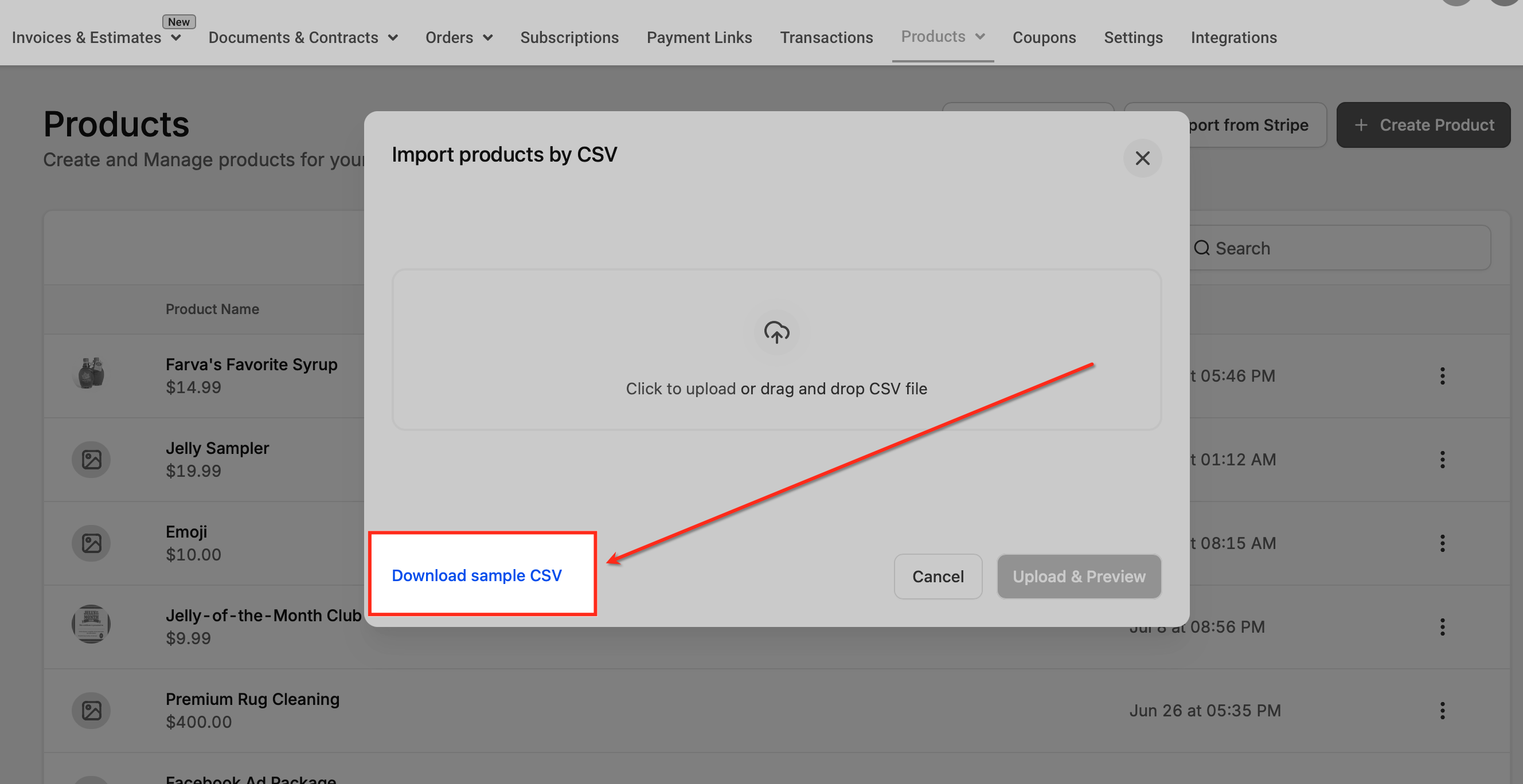
- A pop-up will appear. At the bottom, you’ll find an option to download a sample CSV file.
- Download this file to understand the required format and fields.
Step 3: Prepare Your CSV File
- Open the sample CSV file using Excel, Google Sheets, or any preferred spreadsheet tool.
- Fill out the necessary fields for each product. Required fields may include:
- Product Name
- Price
- SKU
- Description
- Category
- Ensure each field matches the format in the sample file to avoid errors during import.
- Save your completed file as a .csv.
Quick Tip: Double-check your data for duplicate SKUs or special characters that could cause issues.Some fields in the sample file (like weight, inventory, or image source) may not be applicable if you’re importing services. That’s okay — simply leave those fields blank, but do not delete the column headers. All column headers must remain intact to avoid formatting errors.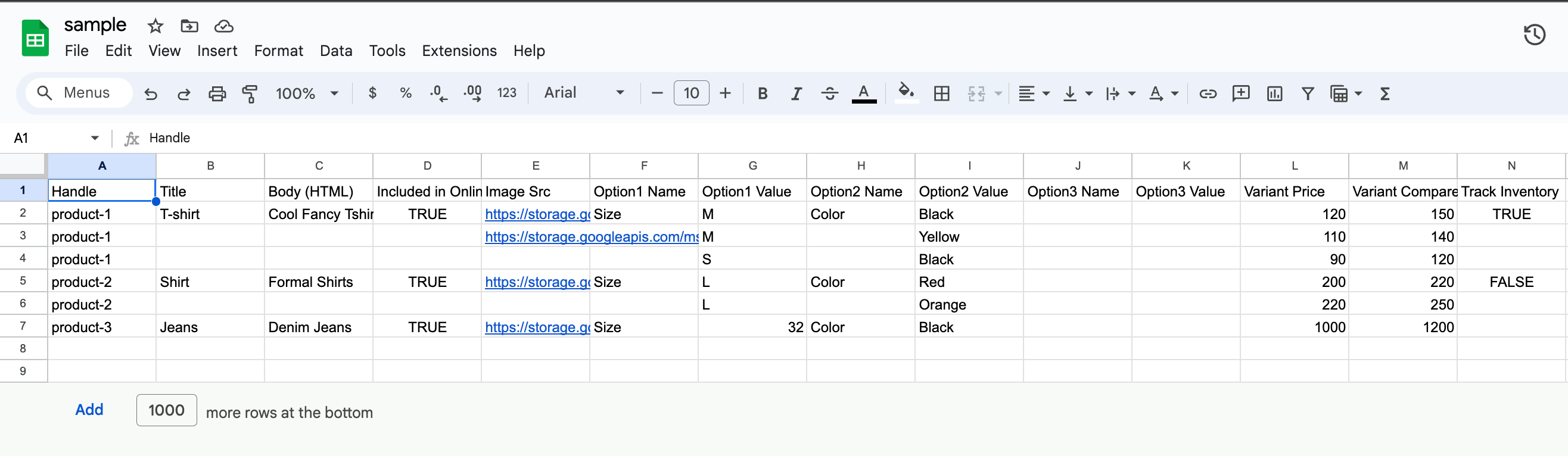
Step 4: Upload the CSV File
- Go back to the Payments > Products page.
- Click on the ‘Import as CSV’ button.
- Select your prepared CSV file from your device.
- A preview of your file’s content will be displayed.
Step 5: Preview & Confirm
- Review the preview to ensure all product details are accurate.
- If there are any issues, you can correct them directly in your CSV file and re-upload.
- Confirm everything looks good.
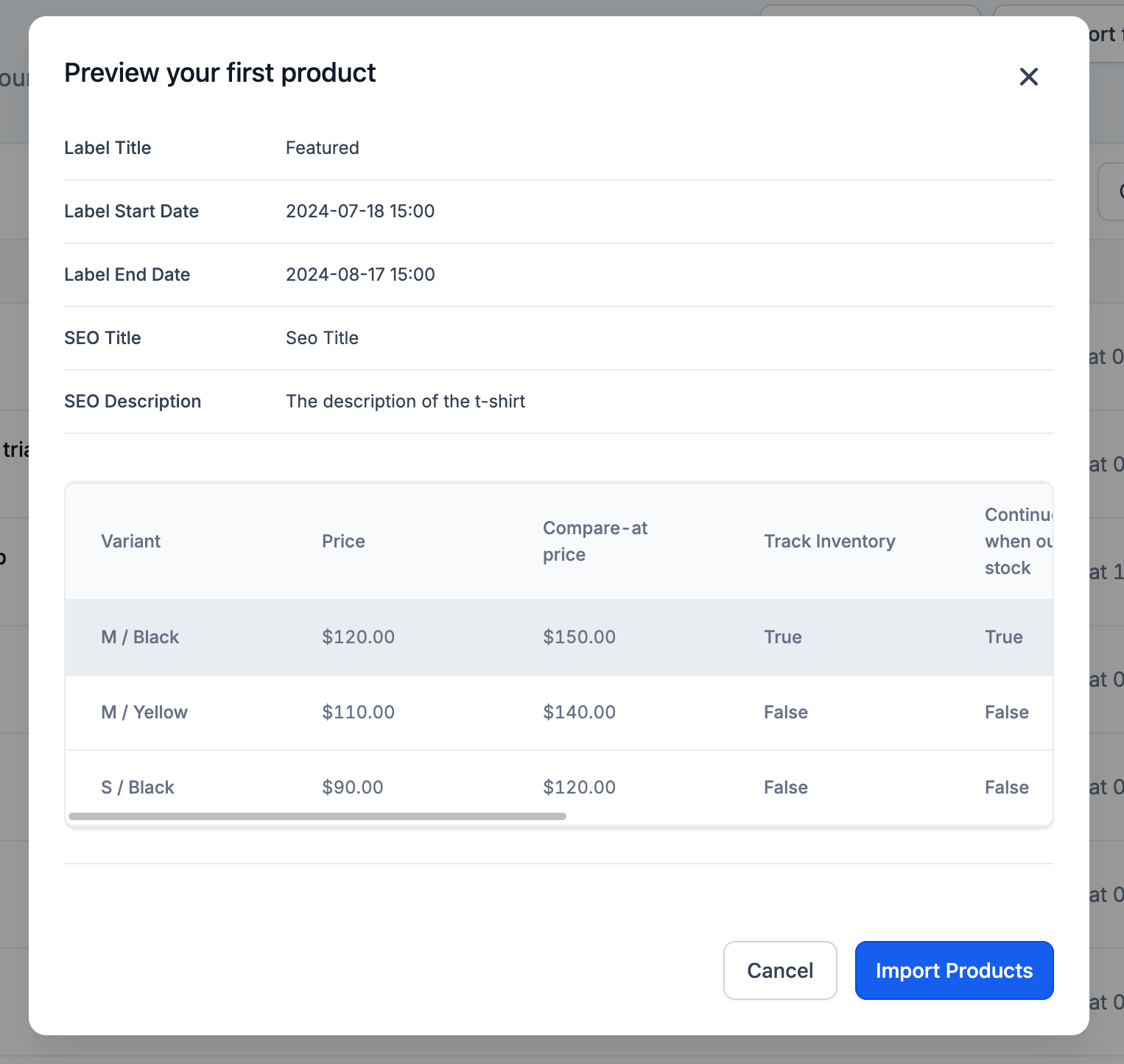
Step 6: Import Products
- Click ‘Import Products’ to finish the process.
- Once the import is successful, your products will be available in SourCherry, ready for use.
Important Notes & Tips
- Errors: If there are issues in your CSV file, an error message will display with details on what needs to be fixed. Correct the errors in your file and re-upload it.
- Updating Existing Products: You can use the same process to update product details. Ensure the SKUs match for seamless updates.
- Limitations: SourCherry may have a maximum file size for CSV uploads. Check your file size before uploading.
Troubleshooting Common Issues
Here are some common problems users might encounter during bulk import:
- File Format Errors: Make sure the file is saved as .csv and that each field matches the sample format.
- Missing Required Fields: Double-check that all mandatory fields (e.g., Product Name, SKU, Price) are completed.
- Special Characters: Remove any special characters that might cause issues during import.
Remember: If you experience any issues that you cannot solve, reach out to the SourCherry support team for further assistance!Frequently Asked Questions
Q: Can I update existing products using a CSV import?
No, CSV import cannot update existing products
Q: What happens if there are errors in my CSV file during the import process?
Error messages would be displayed on the screen that have to be resolved and file needs to be uploaded again
Q: Is there a limit to how many products I can import in a single CSV file?
10MB
Q: I’m importing services, not physical products. What should I do about fields like weight or inventory that don’t apply to me?
If you’re importing non-physical products (like services), you can leave the irrelevant fields (e.g., weight, dimensions, image source, inventory) blank, but you must still include those column headers in your CSV file.
Removing columns entirely or changing the header names will result in errors such as “Column 1 is not correct.” Always follow the exact column structure from the sample CSV, even if some values are left empty.
Q:Will importing a CSV file overwrite my existing product data in SourCherry?
No, products cannot be updated using this functionality, so overwriting is not possible.