
With this feature, users can now fully customize the fields displayed on the Opportunity Cards in the pipeline view. This allows users to tailor the card view to show the most relevant information at a glance, improving workflow efficiency and enhancing visibility into important opportunity details.
TABLE OF CONTENTS
- Feature 1 - Customizing the Opportunity Card
- Feature 2 - Customizing for Multiple Pipelines
- Feature 3 - Layout Options
- Feature 4 - Collapse, Expand, and Resize Stages (Columns)
Feature 1 - Customizing the Opportunity Card
1. Accessing the Opportunity Card Customization:
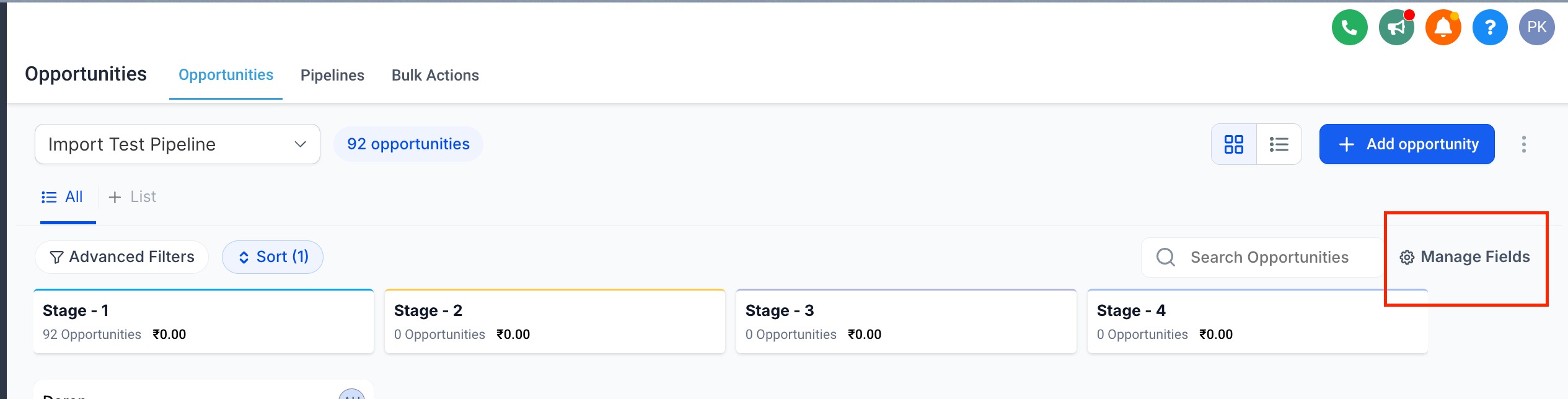
- Navigate to Opportunities section.
- Click the Manage Fields option (found in the top-right corner of the opportunity board).
2. Selecting Fields to Display:
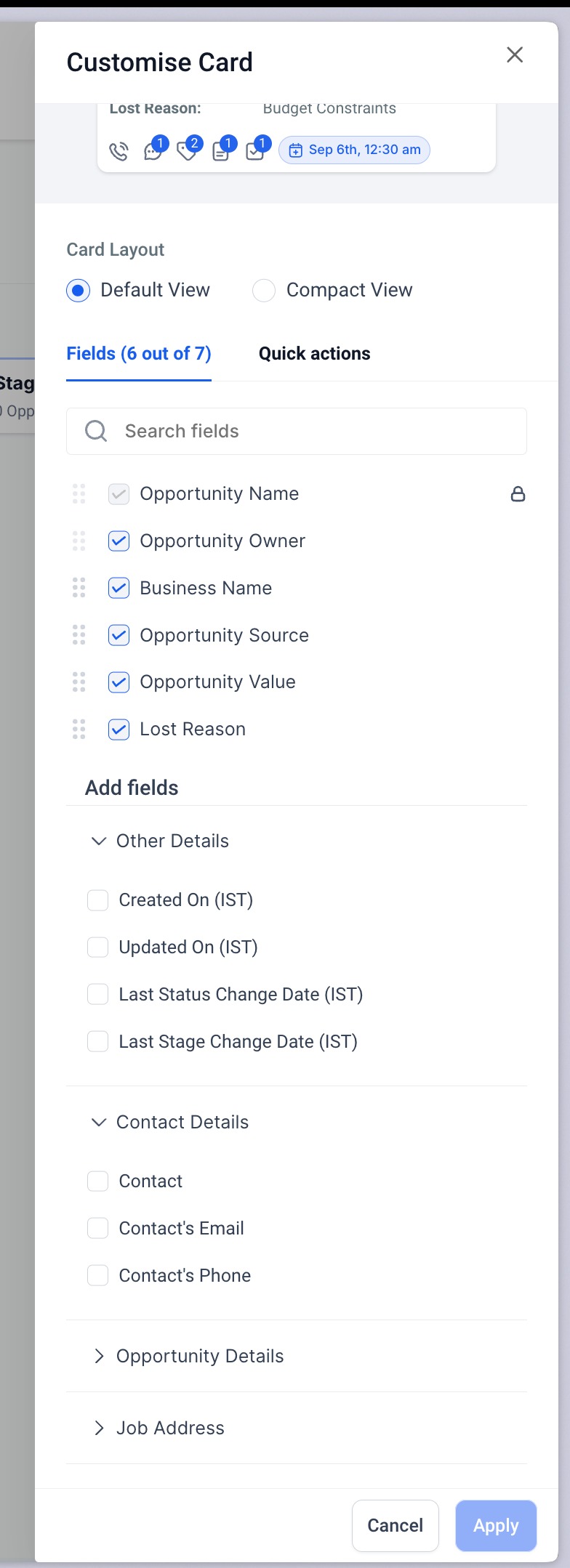
You can choose up to 7 fields to display on your Opportunity Cards. These fields include:
| Subsection | What it includes |
|---|---|
| Opportunity Standard Fields: | Opportunity Name; Opportunity Status; Lost Reason; Opportunity Value; Opportunity Owner; Opportunity Source. |
| Opportunity Custom Fields: | Any custom fields created for Opportunities (for example, custom dropdowns, checkboxes, dates, text fields) that you choose to display on the card. |
| Primary Contact's Information: | Contact Name; Contact Phone Number; Contact Email Address; Contact Business Name; Next Task Due Date; Days Till Next Task Due Date; Days Till Next Appointment Date; Engagement Score. |
| Opportunity Activity: | Created On; Updated On; Last Stage Change Date; Last Status Change Date; Days Since Last Stage Change Date; Days Since Last Status Change Date; Days Since Last Updated. |
Note: The fields and folders you see when customizing Opportunity cards come from your Custom Fields. If folders like General Info or Additional Info are missing, it means they haven't been set up yet. Click here to learn how to make Custom FieldsEngagement Score will be visible only for opportunities created or updated post 19th March 2025.
3. Customizing Counters at the Bottom of the Card:
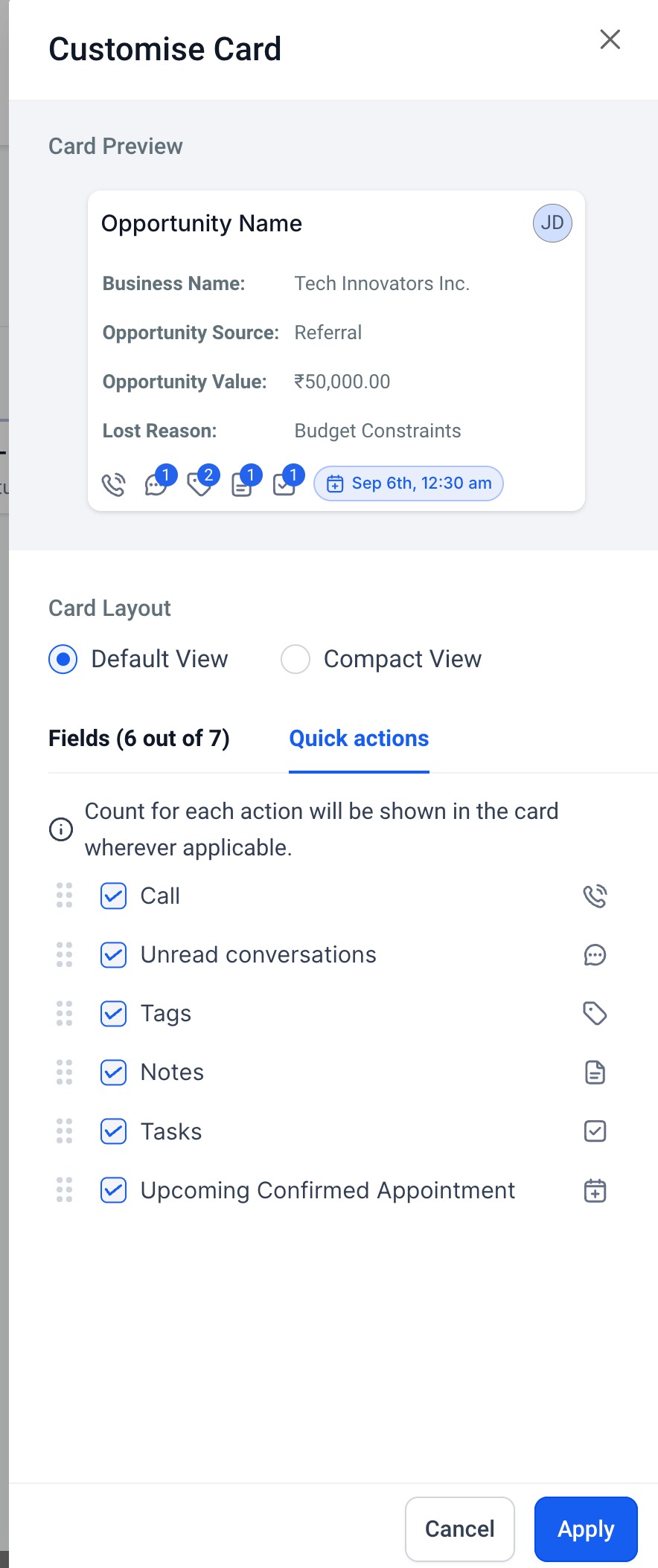
You can also customize the counters and icons at the bottom of the Opportunity Card by moving to the "Quick Actions" tab. The available options include:
- Conversations Icon (with unread messages count)
- Task Icon (with task count)
- Note Icon (with note count)
- Tags Icon (with tag count)
- Call Icon
- Appointment Icon (with next appointment date)
When you export opportunities from the customized view, the export will include all fields of the opportunity, not just the ones visible on the card
Feature 2 - Customizing for Multiple Pipelines
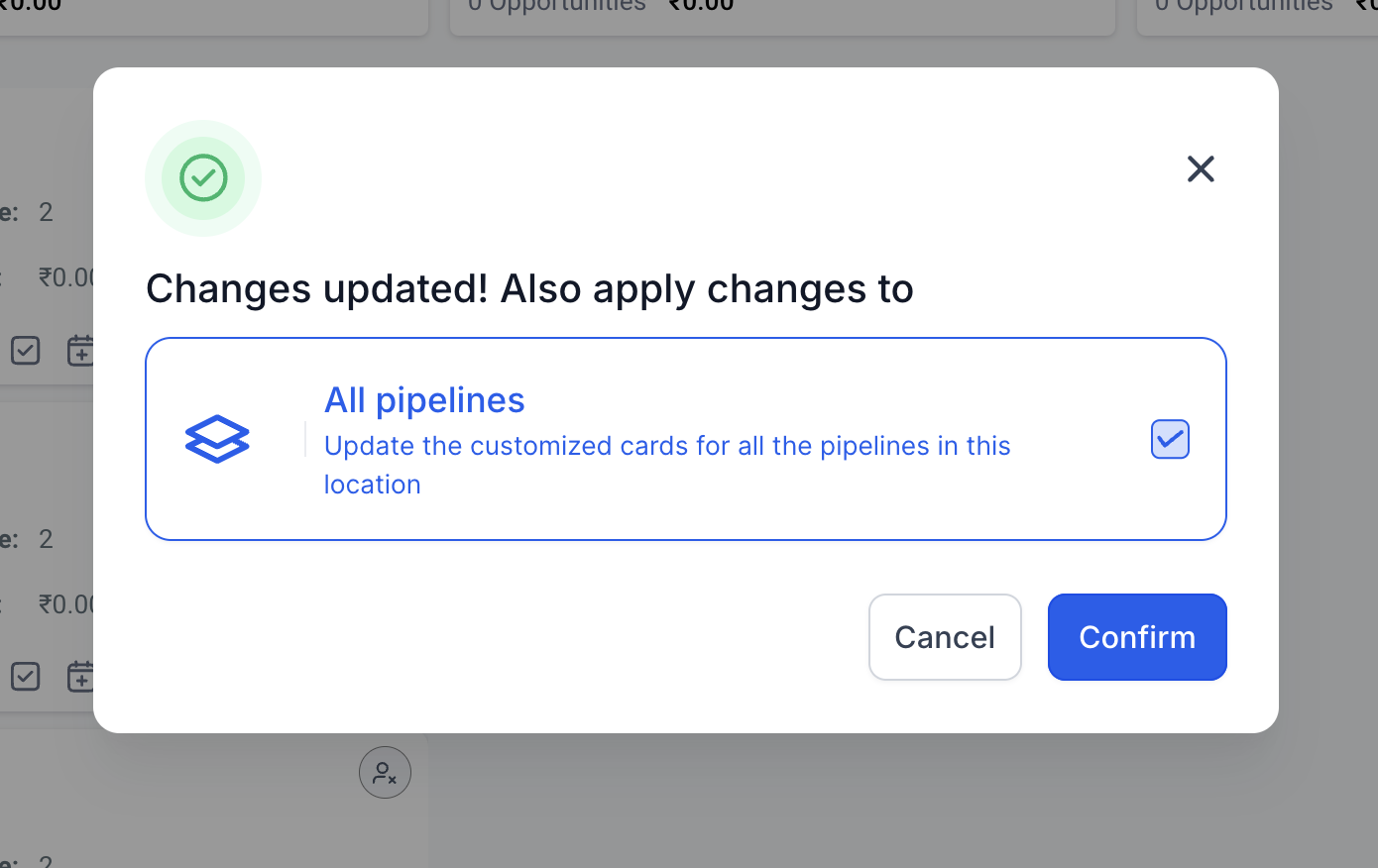
- Customizations are applied per pipeline by default. However, if there are multiple pipelines in your location, you have an additional option to apply the changes to all pipelines.
- Customizations are user-specific, meaning the changes will only apply to the user making the modifications, allowing personalized views.
Customizations you make are sticky to the current view, meaning they will persist until you choose to modify them again. However, the customizations only persist for the user on their current local storage and will not be reflected if you launch the same in a different browser or for a different user.
Feature 3 - Layout Options
- Default View:
Displays the selected fields with both field labels and values.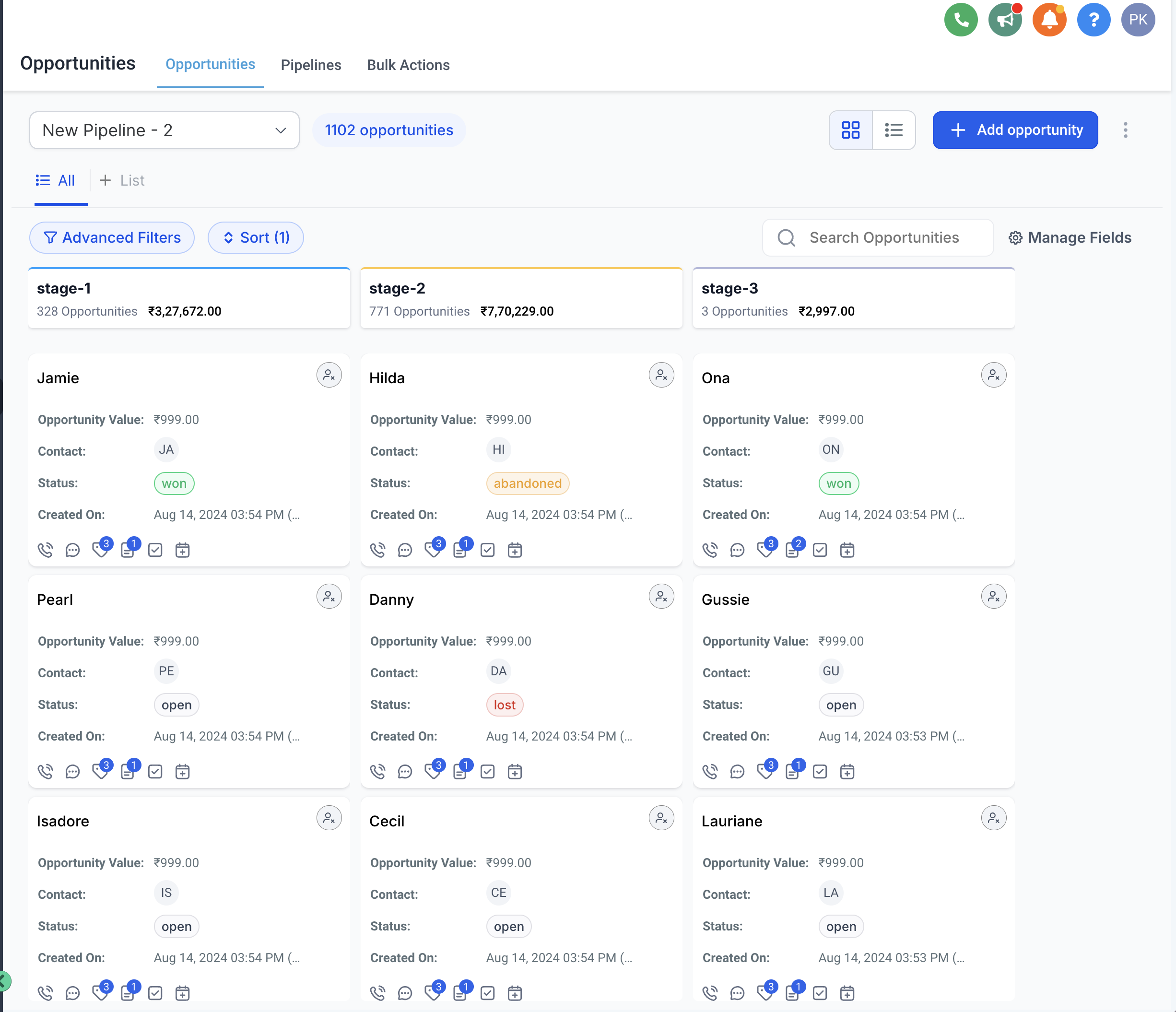
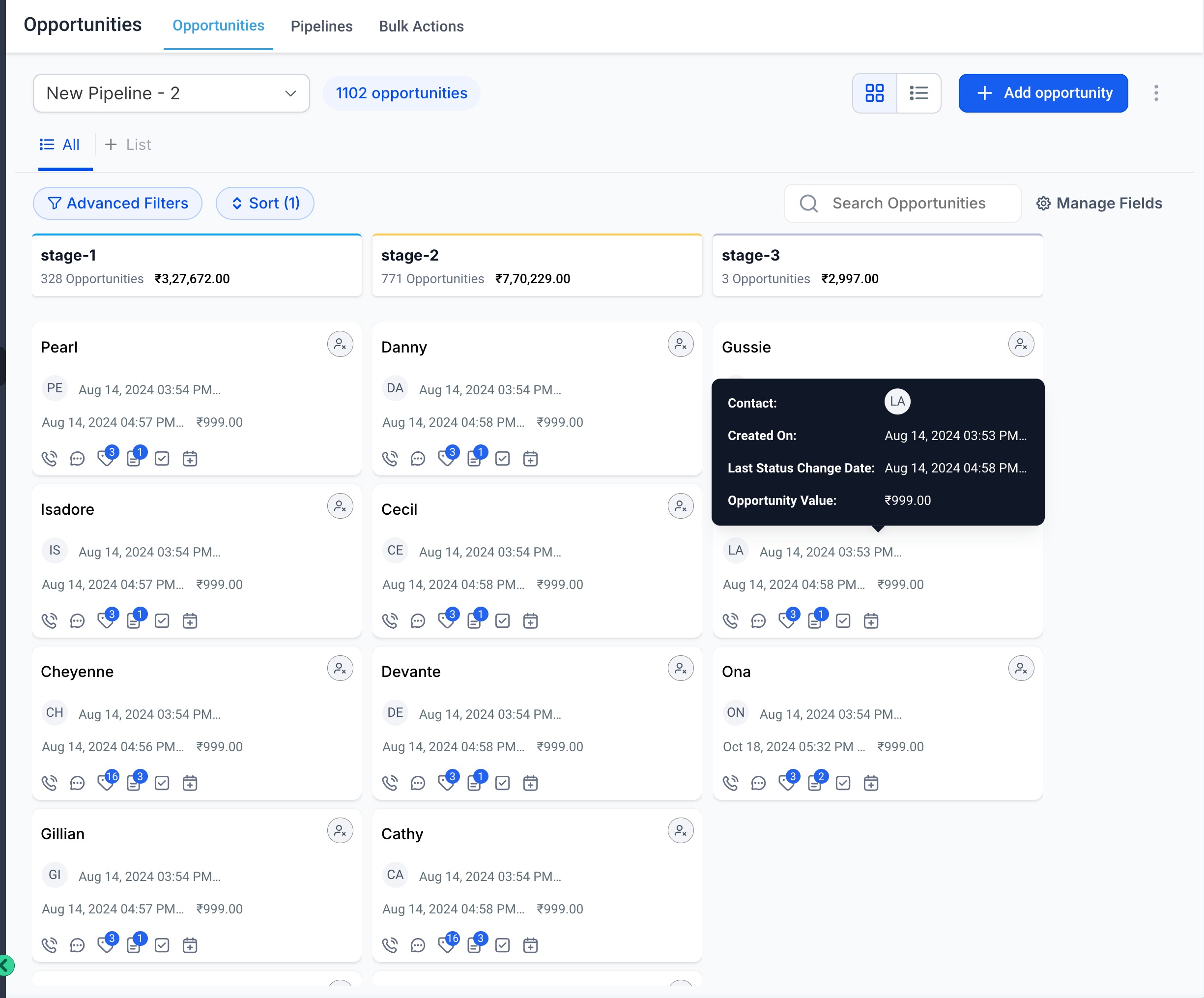
- Compact View:
- Displays only the values of the selected fields.
- Hovering over a field reveals the label and additional details.
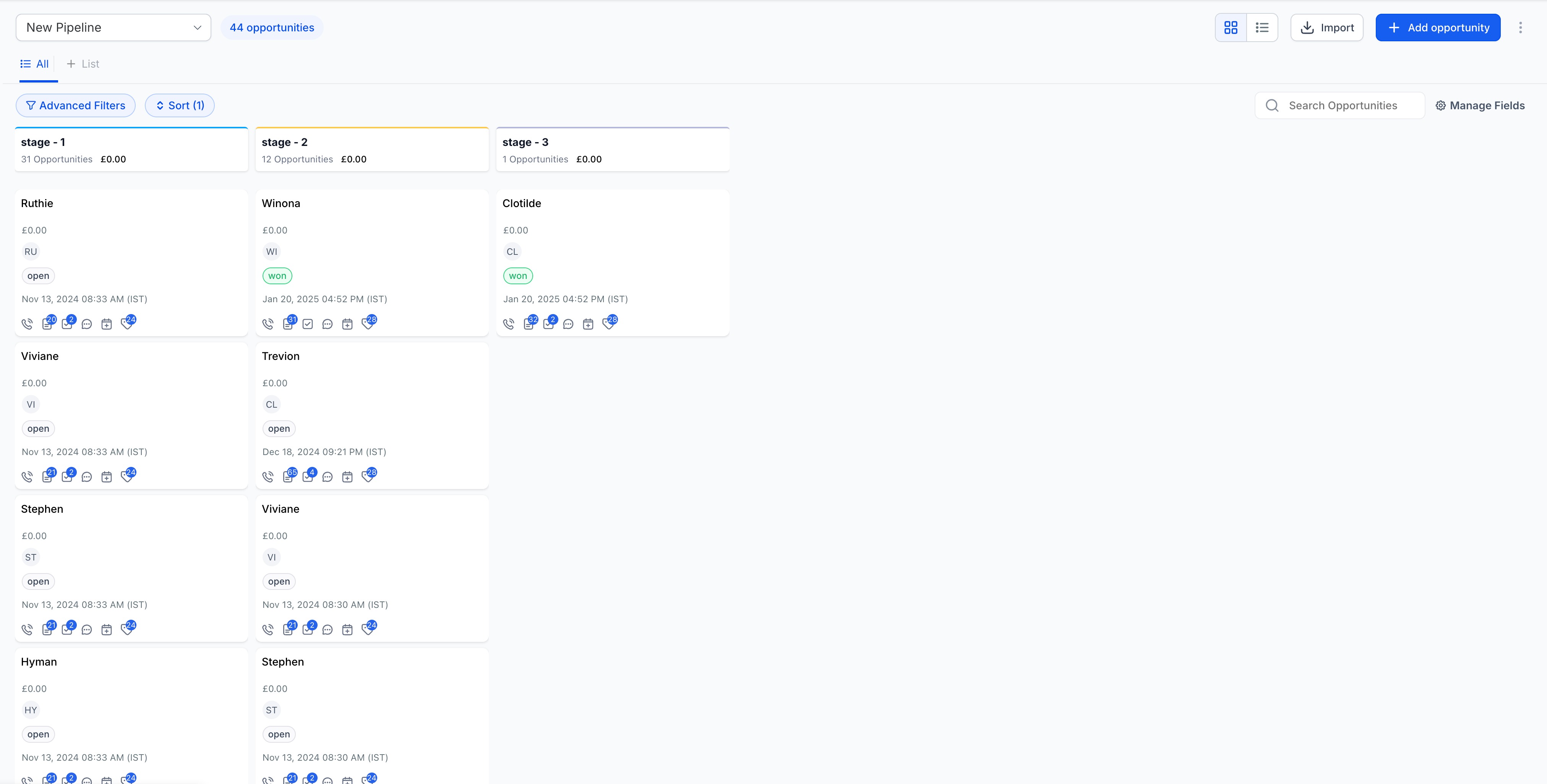
Unlabeled View:
- Each line of the card is dedicated to one field
Displays only the values of the selected fields.
Feature 4 - Collapse, Expand, and Resize Stages (Columns)
You can collapse, expand, and resize pipeline stages in the Opportunities board (Kanban) view to reduce clutter and focus on active work.
How to collapse or expand a stage
1. Go to Opportunities.
2. Make sure you are in the Kanban view.
3. Click a Stage Header ( > or < ) to collapse or expand that stage.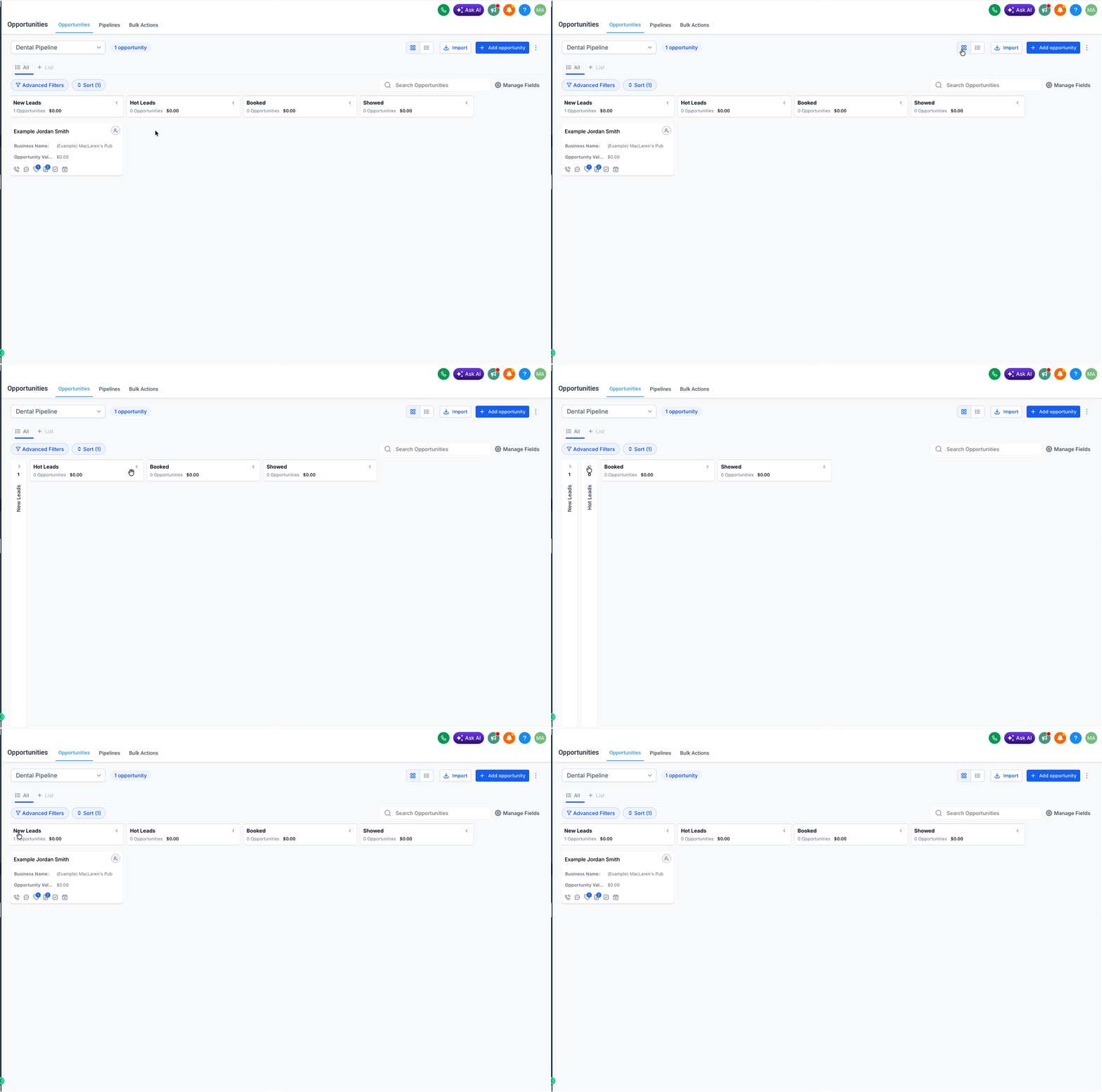
How to resize a stage
1. Hover near the right edge of a stage column.
2. Drag the edge to adjust the column width.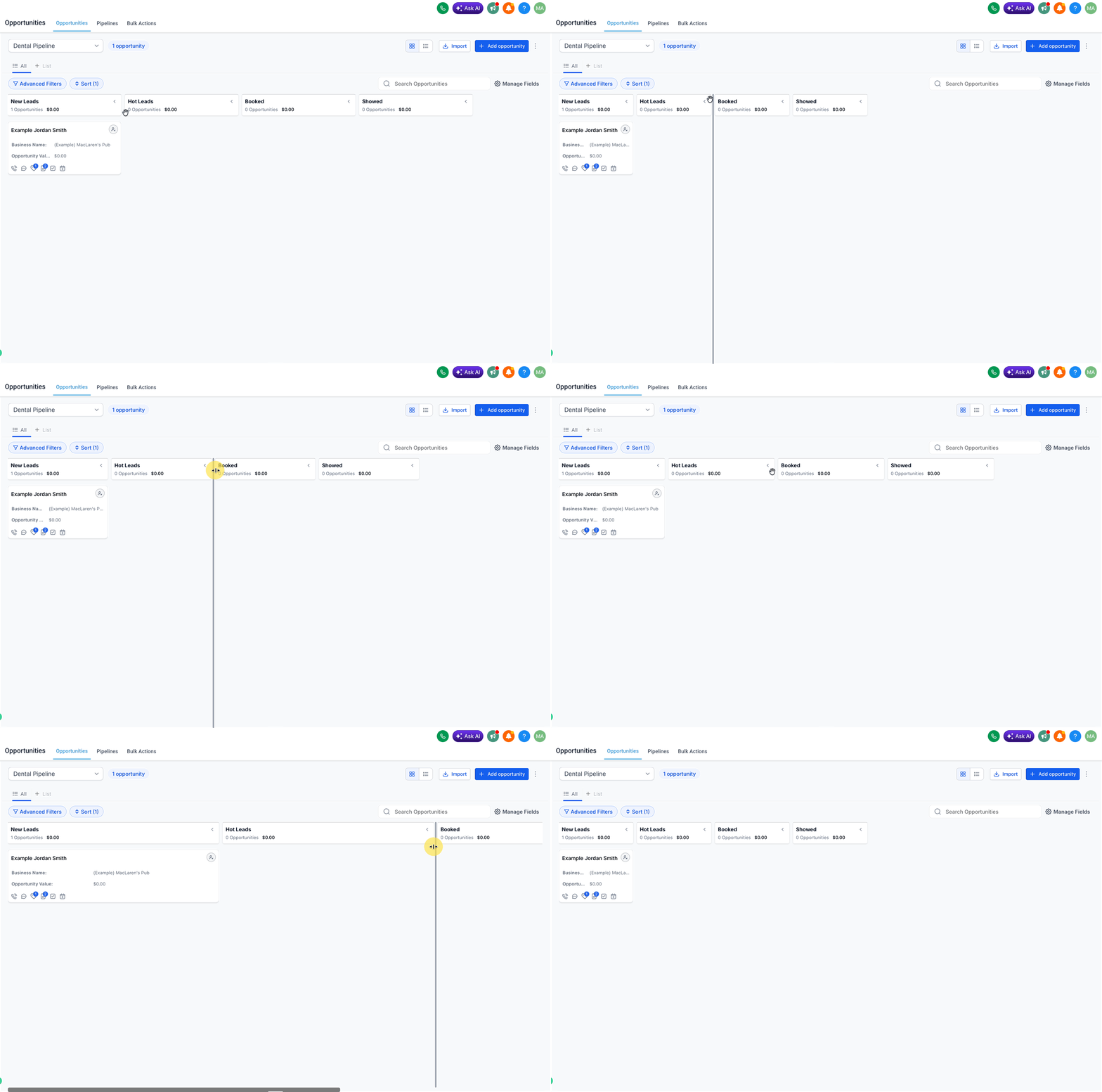
Save behavior (layout persistence)
- Your stage layout is user-specific and does not affect other users.
- Your preferences are saved in local storage, so they persist for you in the same browser.
- If you open SourCherry in a different browser or device, your saved layout may not carry over.
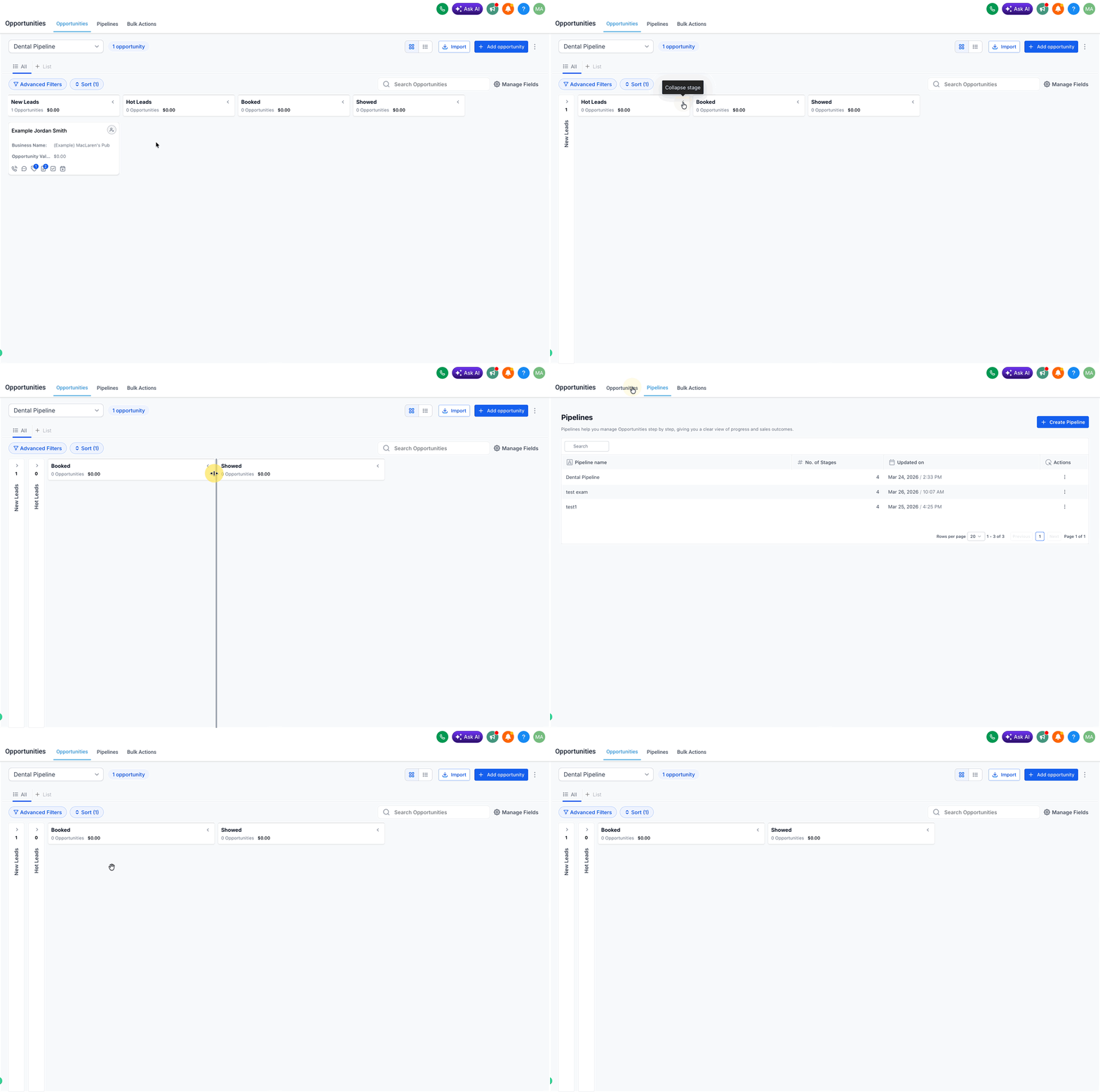
Tips:
- Collapse inactive or low-priority stages to keep your pipeline easier to scan.
- Widen active stages to review and prioritize opportunities faster.