
Important: All plans ($97, $297 and $497) Sub Accounts now have access to multiple dashboards and fully customizable reports
When using the custom report builder, keep in mind how timezones affect the data:

Report Builder Date Range: The data shown in the builder uses the timezone set in your browser.
Email Preview: The scheduled email preview uses the sub-account's timezone.
Google and Facebook Ads Data: For third-party integrations like Google Ads and Facebook Ads, the data is based on the timezone configured in those ad accounts, not the sub-account timezone.
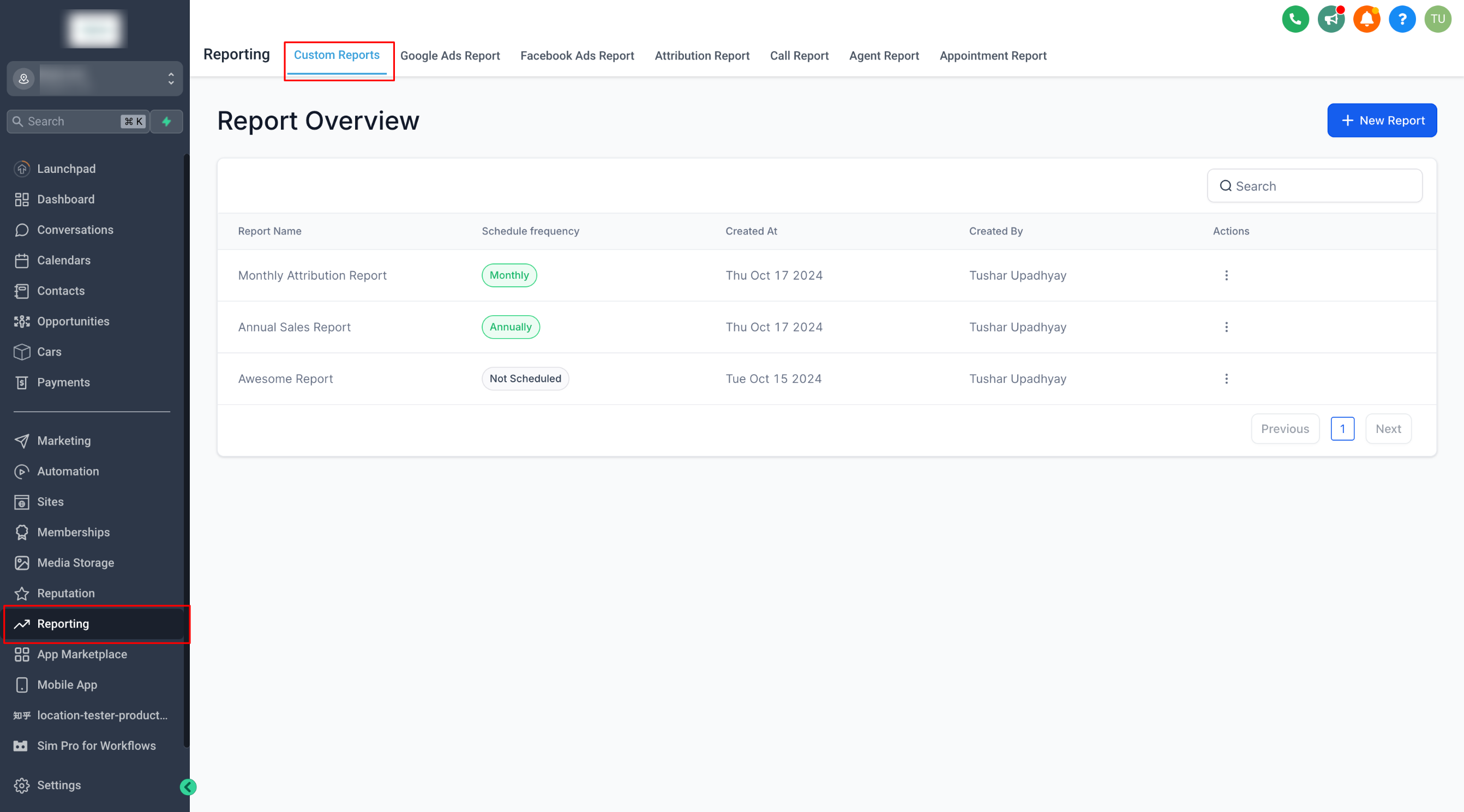
Step 1: Access Custom Reports
Navigate to the "Reporting" section and click on Custom Reports.
Select New Report to start building your report.
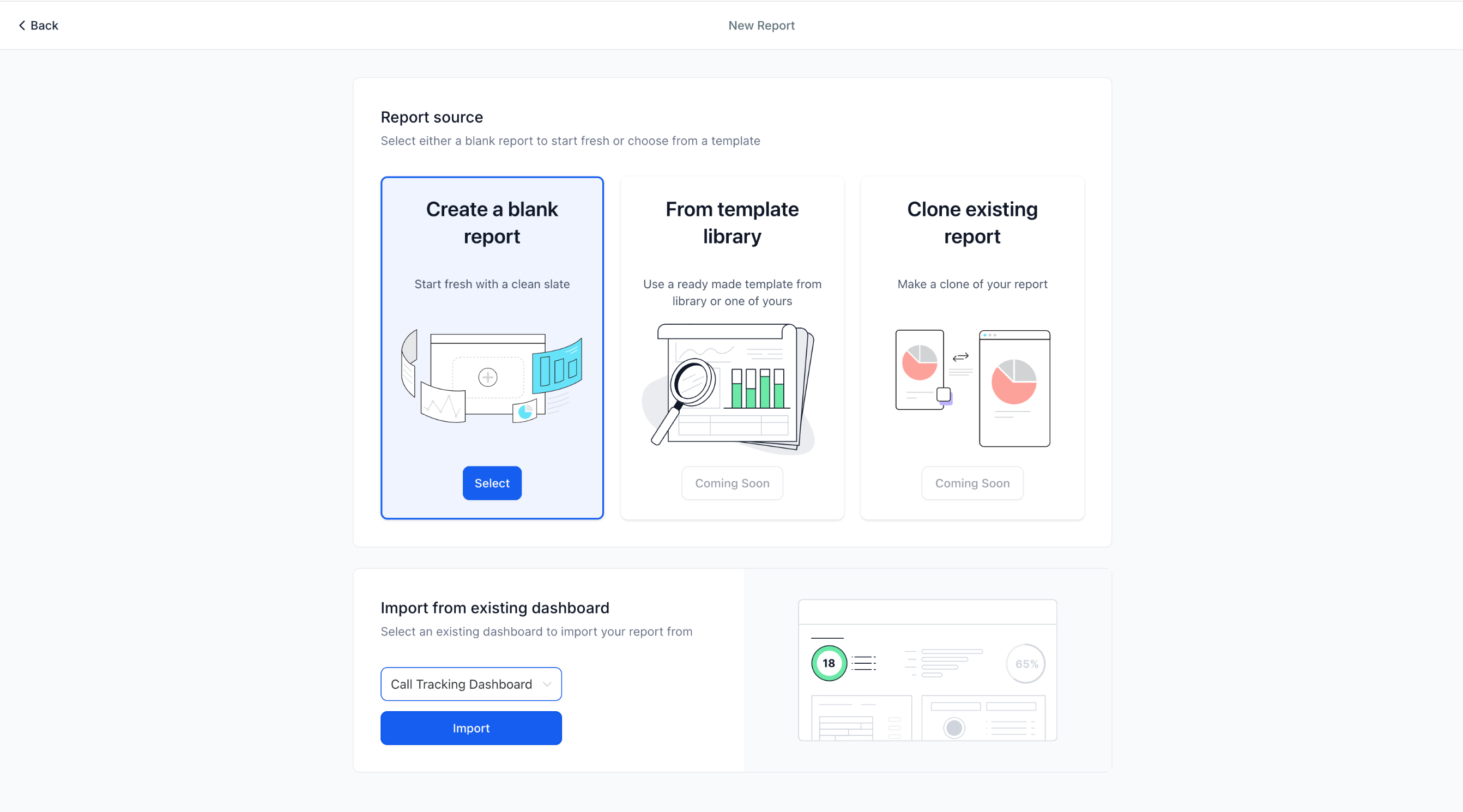
Step 2: Start from Scratch or Use an Existing Dashboard
- You can either create a report from scratch or convert an existing dashboard into a report.
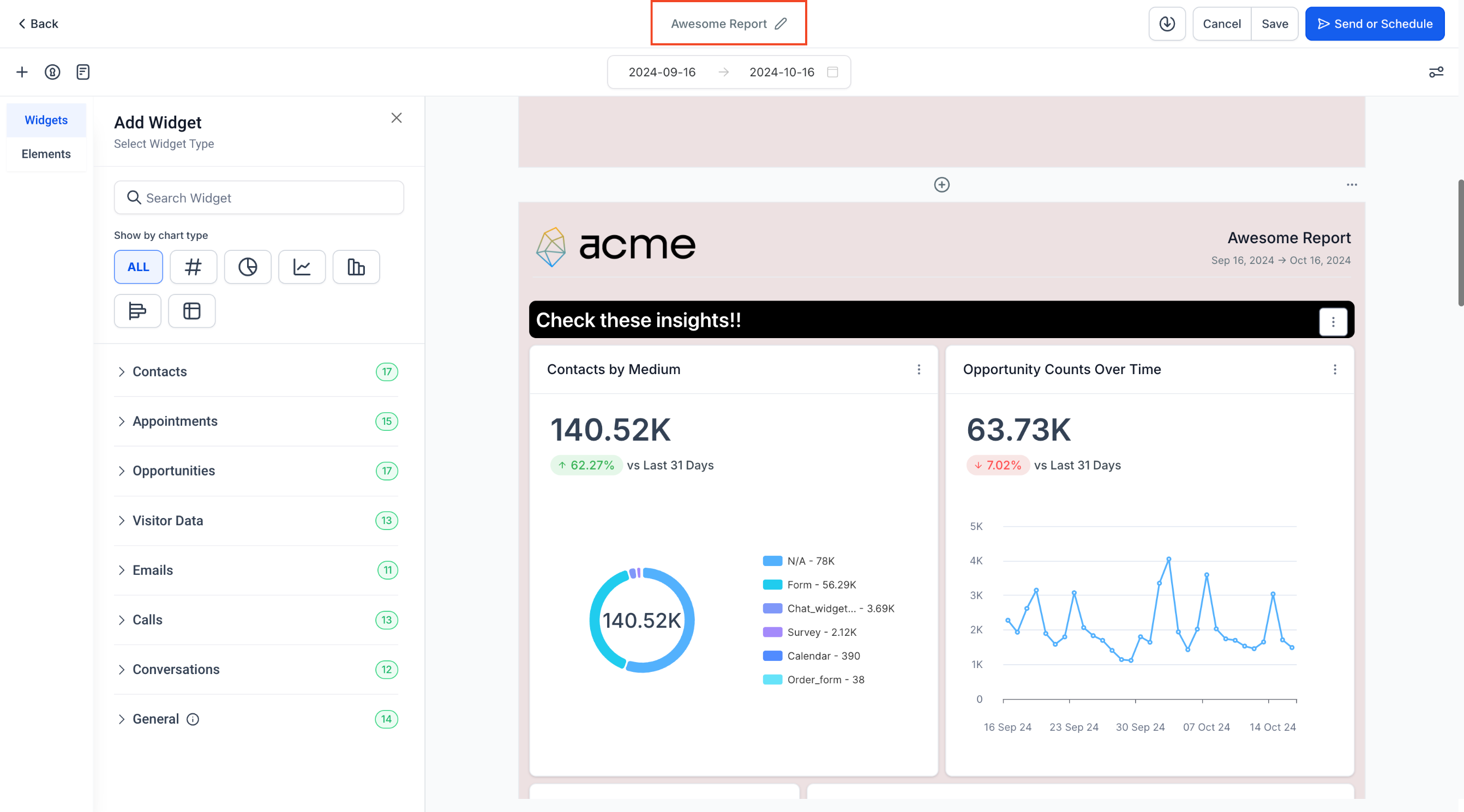
Step 3: Using the Report Builder
If starting from scratch, you'll be taken to the Report Builder.
At the top, you can rename your report to reflect its purpose.
Step 4: Customize the Cover Page
- The first page of your report is the cover page, which you can customize or remove through the Page Properties menu on the right.
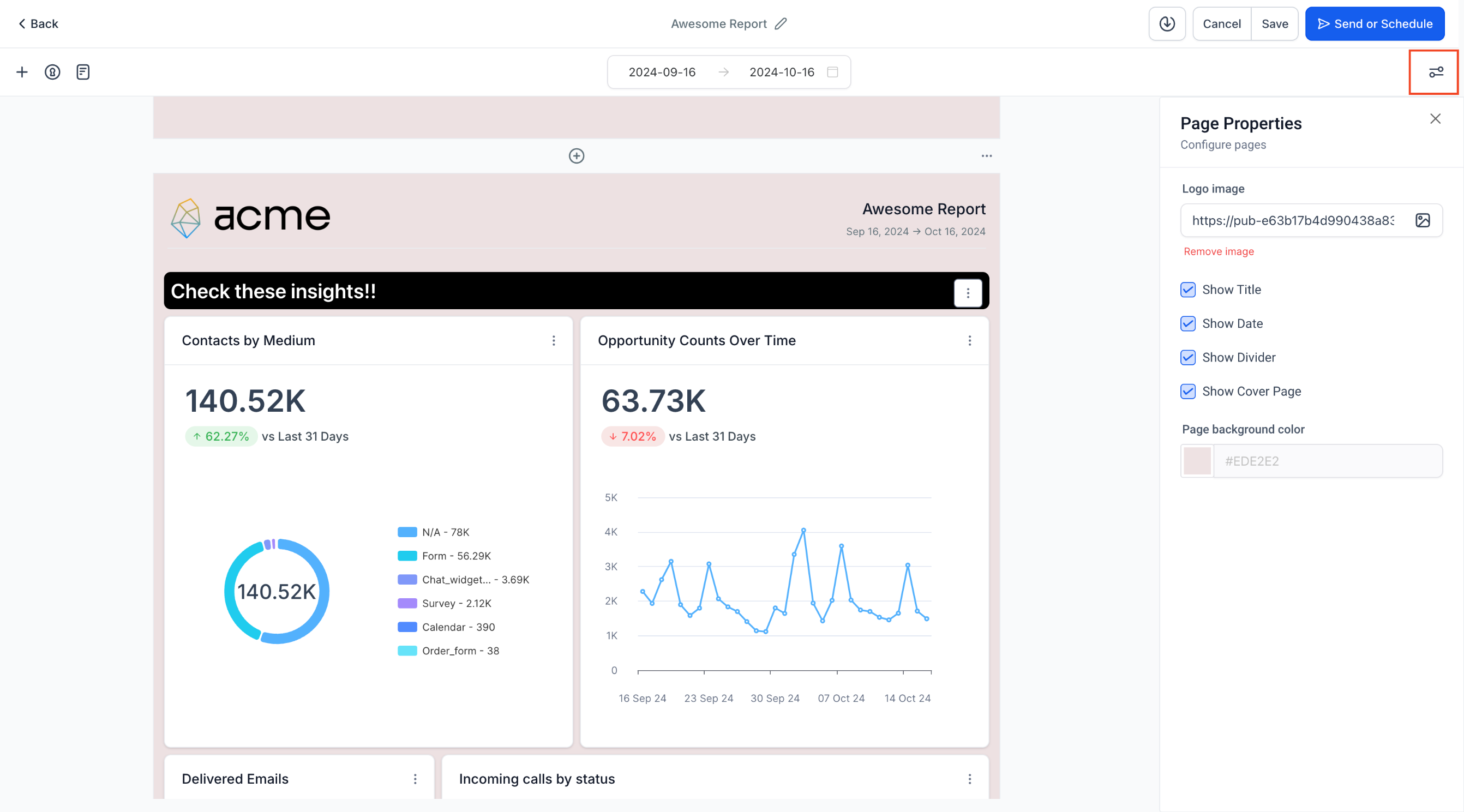
- Page Properties Options:
- Upload your company logo.
- Configure headers for each page.
- Adjust the background color of the report pages.
Step 5: Adding Widgets, Sections and Themes
Once your cover page is set, click the + icon on the left to begin adding widgets.
From the widget sidebar, upload or customize the widgets you want to include in the report.
Use the Elements Menu to add titles and organize your report into sections for easy readability.
Switch to the Themes section to configure one of the predefined themes or add your own custom theme to the report
Step 6: Managing Pages
To add a new page, click on the + icon at the top or bottom of an existing page.
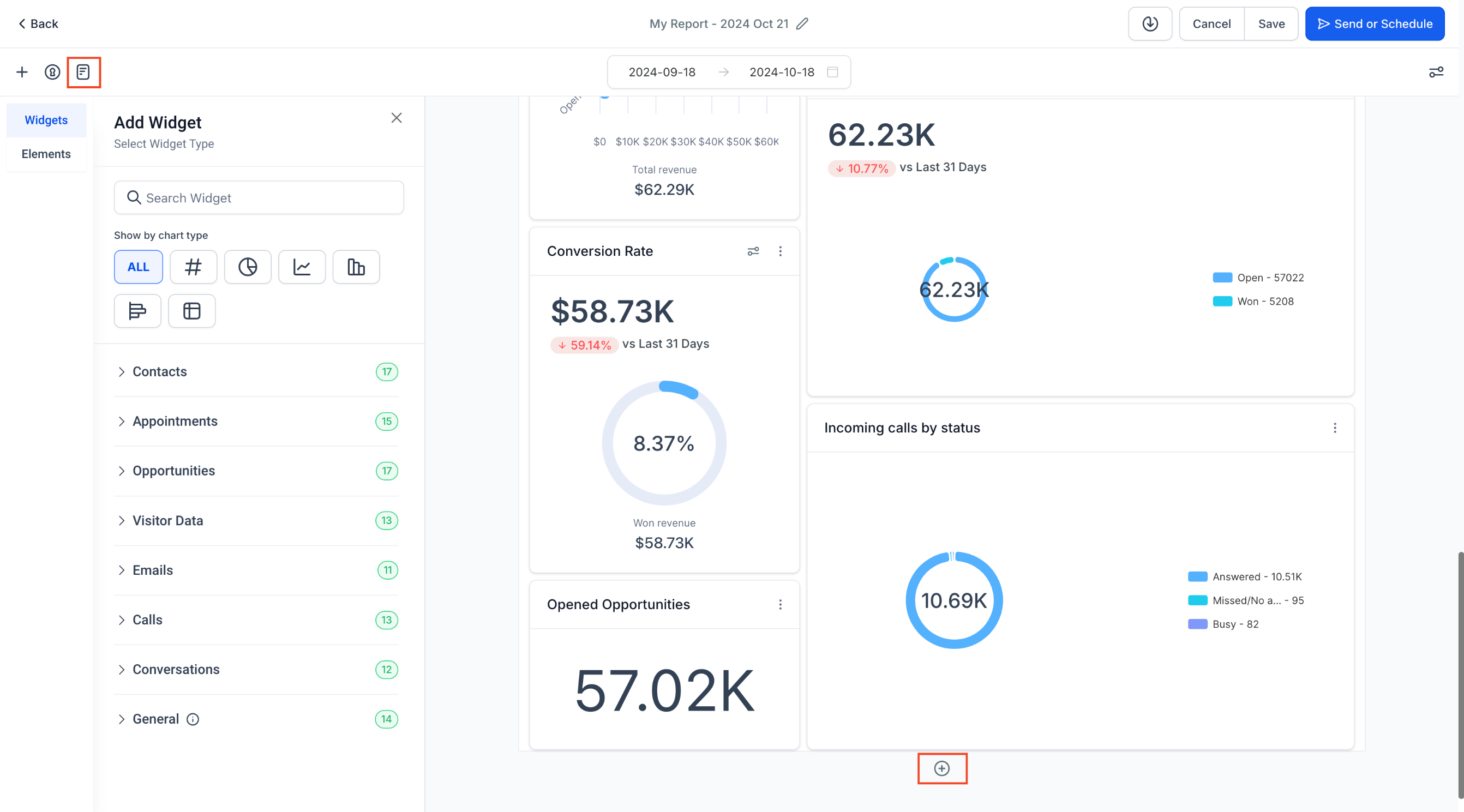
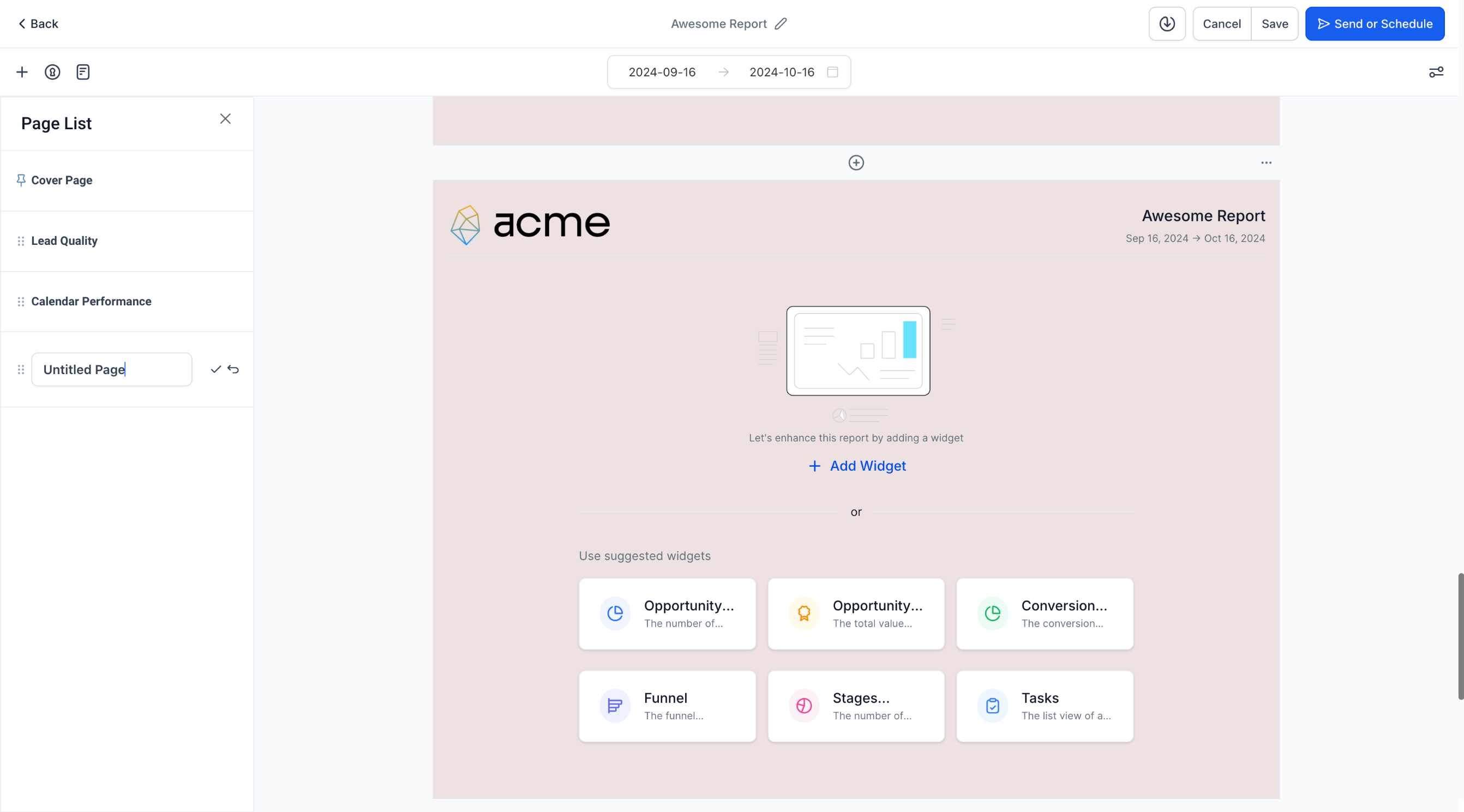
To see a list of all pages, click the Page Icon.
Drag and drop pages to reorder them and rename them as needed for better organization.
Step 7: Download Your Report
- When you're done, you can download a PDF version of your report by clicking the Download button at the top.
Note: PDF export and preview link from email behave differently.

- Preview link: Images and iframes are included and visible to recipients.
- PDF download: Images and iframes are excluded due to security restrictions.

For best results when embedding images, use JPEG or PNG formats — other
formats may not render correctly depending on browser and encoding.
Step 8: Save, Send, or Schedule Your Report
- After creating your report, click on Save and then choose Send or Schedule.
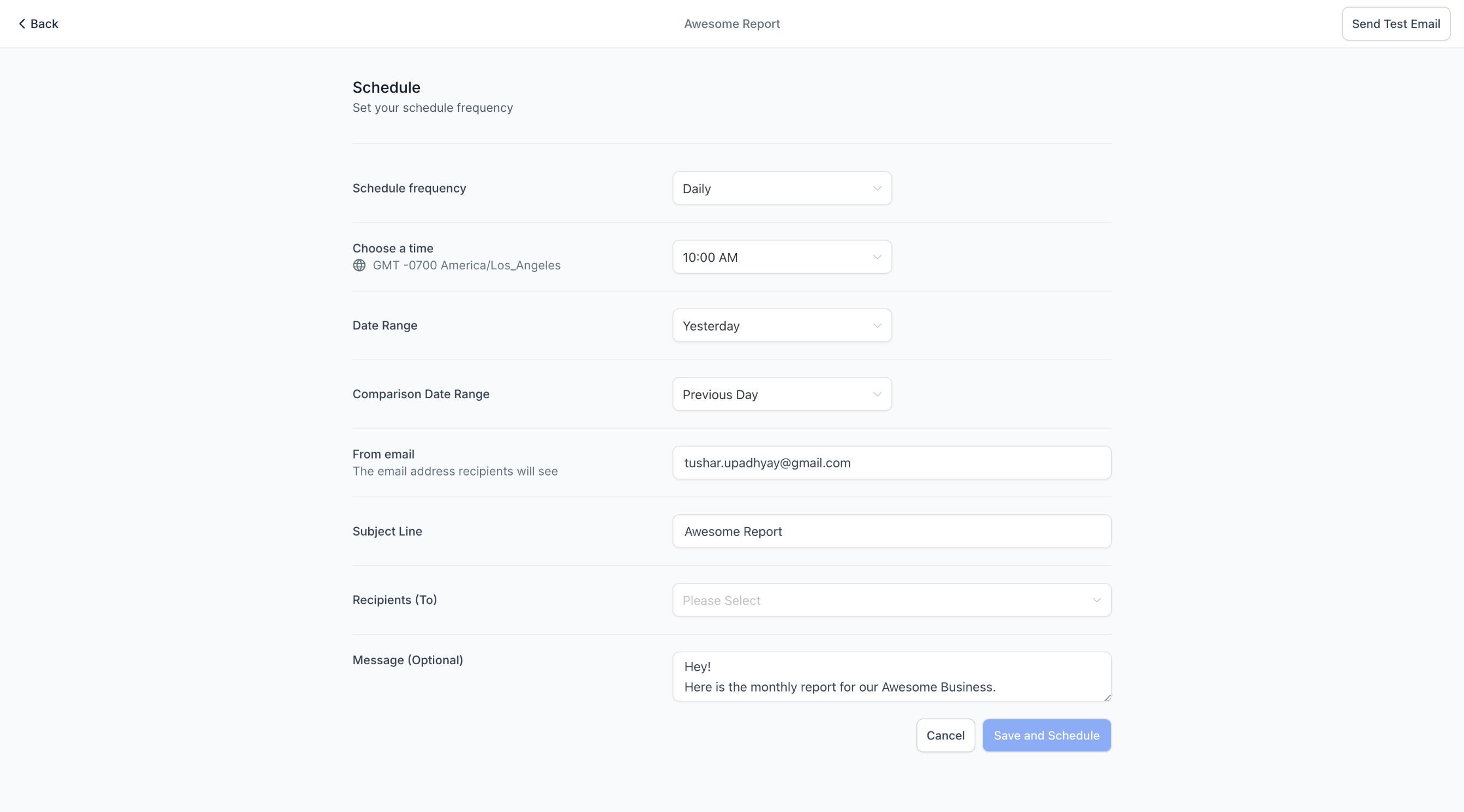
Step 9: Configure Your Report’s Schedule and Delivery
Frequency: Set how often the report should be sent (daily, weekly, etc.).
Time: Select the exact time for the report to be delivered.
Date Range: Choose the data period to be included in the report.
Toggle "Widget-Level Date Settings": If enabled, widgets with custom date ranges and comparisons will retain those settings in the emailed report.
Comparison Trends: Toggle the "Compare With" option to add trends and comparison data.
Sender Email: Customize the email address the report will be sent from.
Subject: Add a subject line for the report email.
Recipients: Enter the recipients' email addresses.
Optional Email Body: Add a custom message if needed.
Saved values, comparison behavior, and email snapshots
Custom reports follow the same persistence logic as dashboards.
- Report-level date ranges and saved filter values persist after you save the report.
- When the report creator clicks Save, saved dropdown values update for users who access that report.
- You can set a report-level comparison date range for general widgets.
- If a widget has its own comparison date range, the widget-level setting overrides the report-level comparison.
Email sharing uses a snapshot of the report values at the time the email is generated.
- Sent emails keep the values that were active when the email was created.
- Later changes to the report do not update emails that were already sent.
Note: Widget-level date settings can still differ from the report-level date range.
Step 10: Send a Test Email
- Before finalizing, you can send a test email to check how your report will appear to recipients.
Step 11: Final Step – Save and Schedule
- Once everything looks good, click Save and Schedule to have your report automatically sent based on your configured schedule.
FAQ
Q: Can I send scheduled reports to people who don't have a SourCherry account?
Yes. In the Schedule setup, add any valid email address under Recipients — they'll receive the report directly in their inbox with no SourCherry login required. Note: Use Custom Reports (not the Dashboard share link) for this; Dashboard links require authentication.