
This article explains how to integrate Google Drive with SourCherry’s Media Storage. With this integration, you can seamlessly sync files, manage media efficiently, and centralize your file storage. Learn how to set up the integration and use it to streamline your workflow.
TABLE OF CONTENTS
- What is the Google Drive Integration?
- Benefits of Integrating Google Drive
- How to Integrate Google Drive to Media Library
- Notes and Limitations
- Frequently Asked Questions
What is the Google Drive Integration?
The Google Drive integration allows you to connect your Google Drive account with SourCherry’s Media Storage. This enables you to sync and access files from Google Drive directly within SourCherry. The integration supports features such as file organization, previewing, and folder management, helping you manage your media files more efficiently.
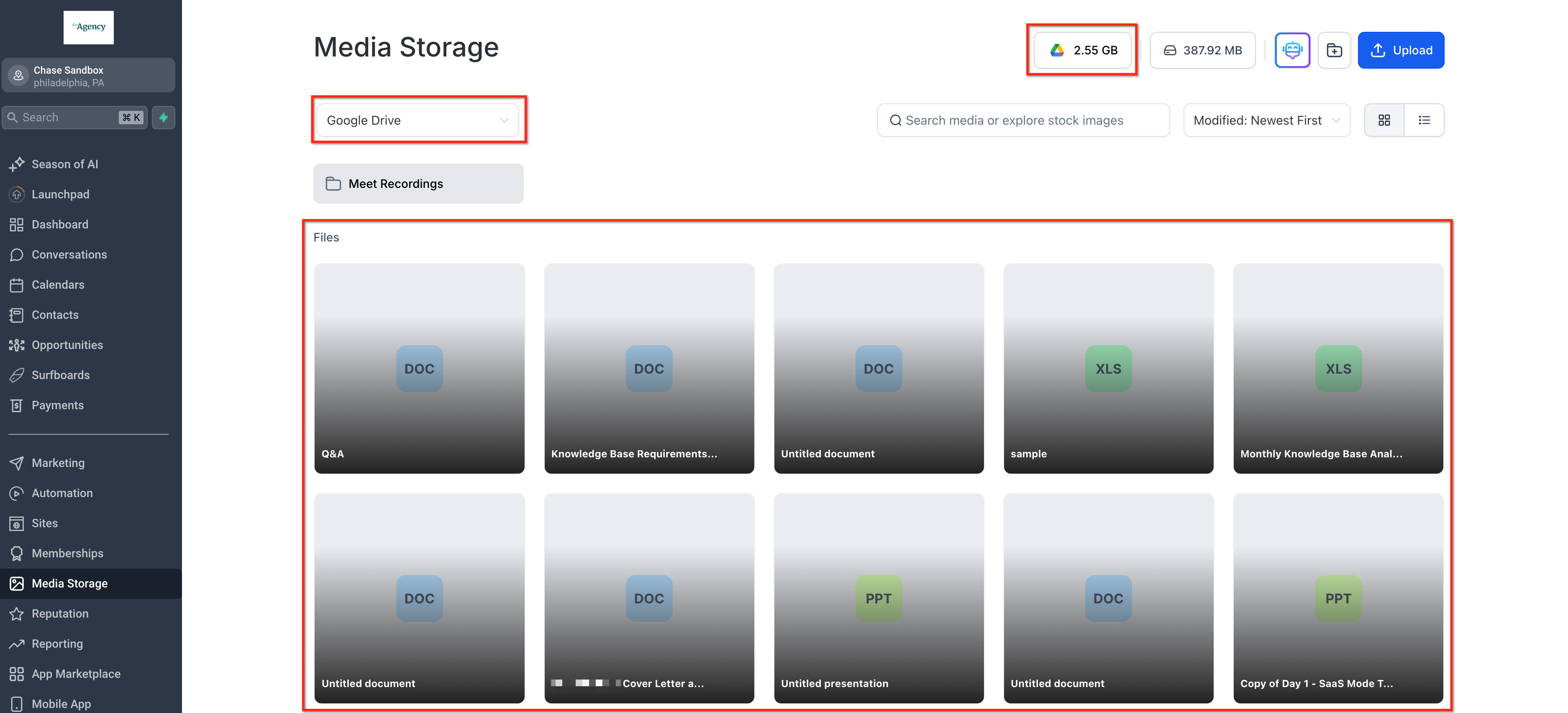
Key Benefits of Integrating Google Drive
- Centralized File Management: Access and manage all your media files, including CRM documents, funnel assets, and Google Drive files, from one platform.
- Enhanced Productivity: Changes made to files in Google Drive automatically sync to SourCherry, eliminating the need for manual uploads or repetitive tasks.
- Unified Storage: Organize files into folders, preview media, and manage your files seamlessly across both platforms.
- Increased Flexibility: Access and manage your files from your CRM or Google Drive with ease.
Notes and Limitations
- Two-Way Sync: Any changes to files in Google Drive, such as uploads or deletions, will reflect in SourCherry.
- Rename and Delete Restrictions: You cannot rename or delete files in Google Drive directly from SourCherry. These actions are disabled to protect your Google Drive data.
- Folder Creation: You can create folders and upload files in both the root directory and subfolders.
How to Integrate Google Drive to Media Library
Step 1: Connect Your Google Drive
- Navigate to the Media Storage section in SourCherry.
- Click on Connect Google Drive in the top-right corner of the Media Library.
- Follow the on-screen prompts to log in to your Google Drive account.
- Grant access to SourCherry when prompted.
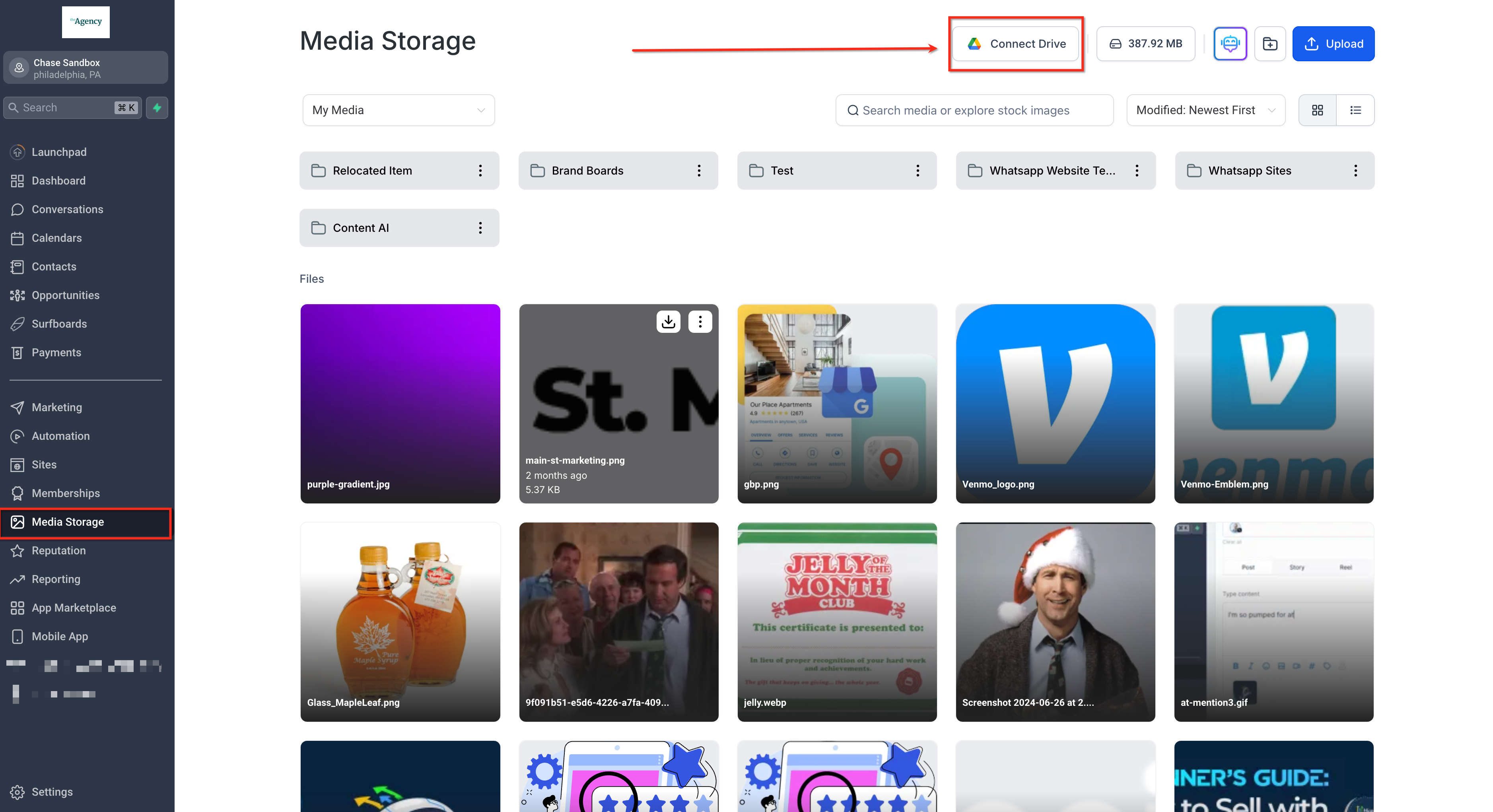
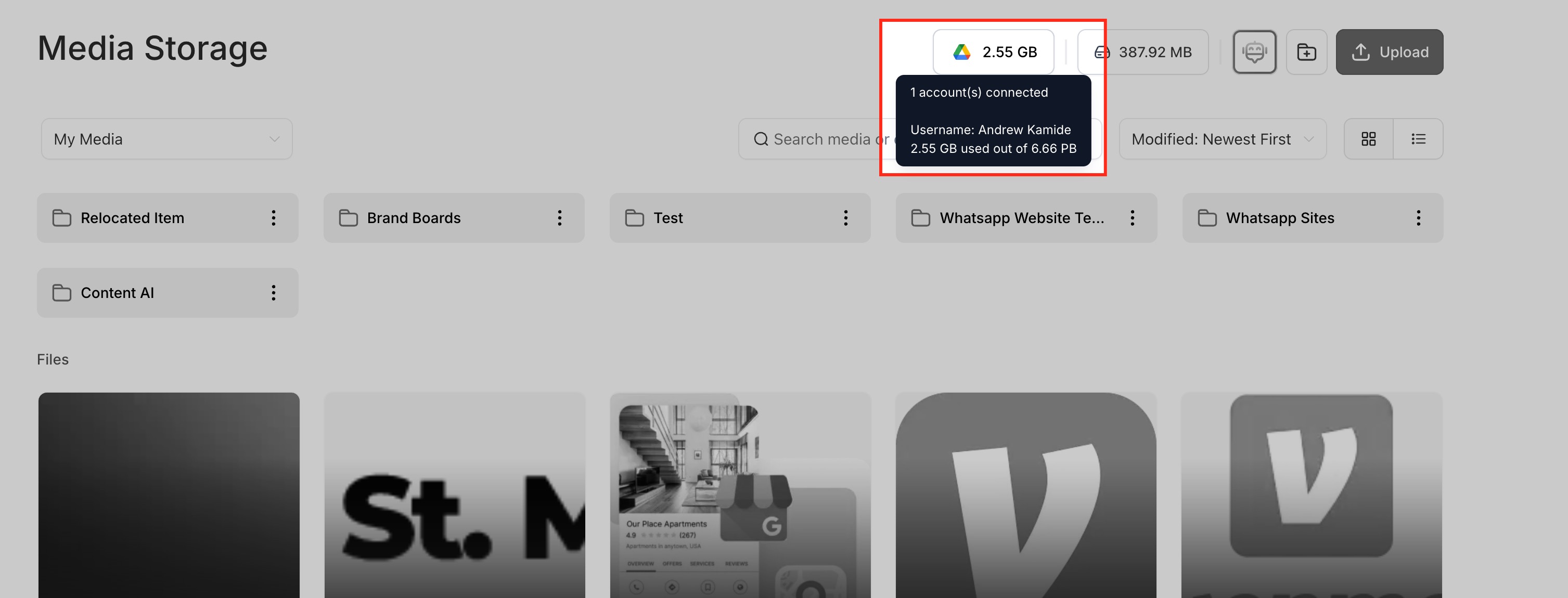
PLEASE NOTE: Once you have successfully connected your Google Drive account, you will see a number appear where the integration button used to be showing how much space you are currently occupying in your Google Drive account.
Step 2: Access Google Drive Files
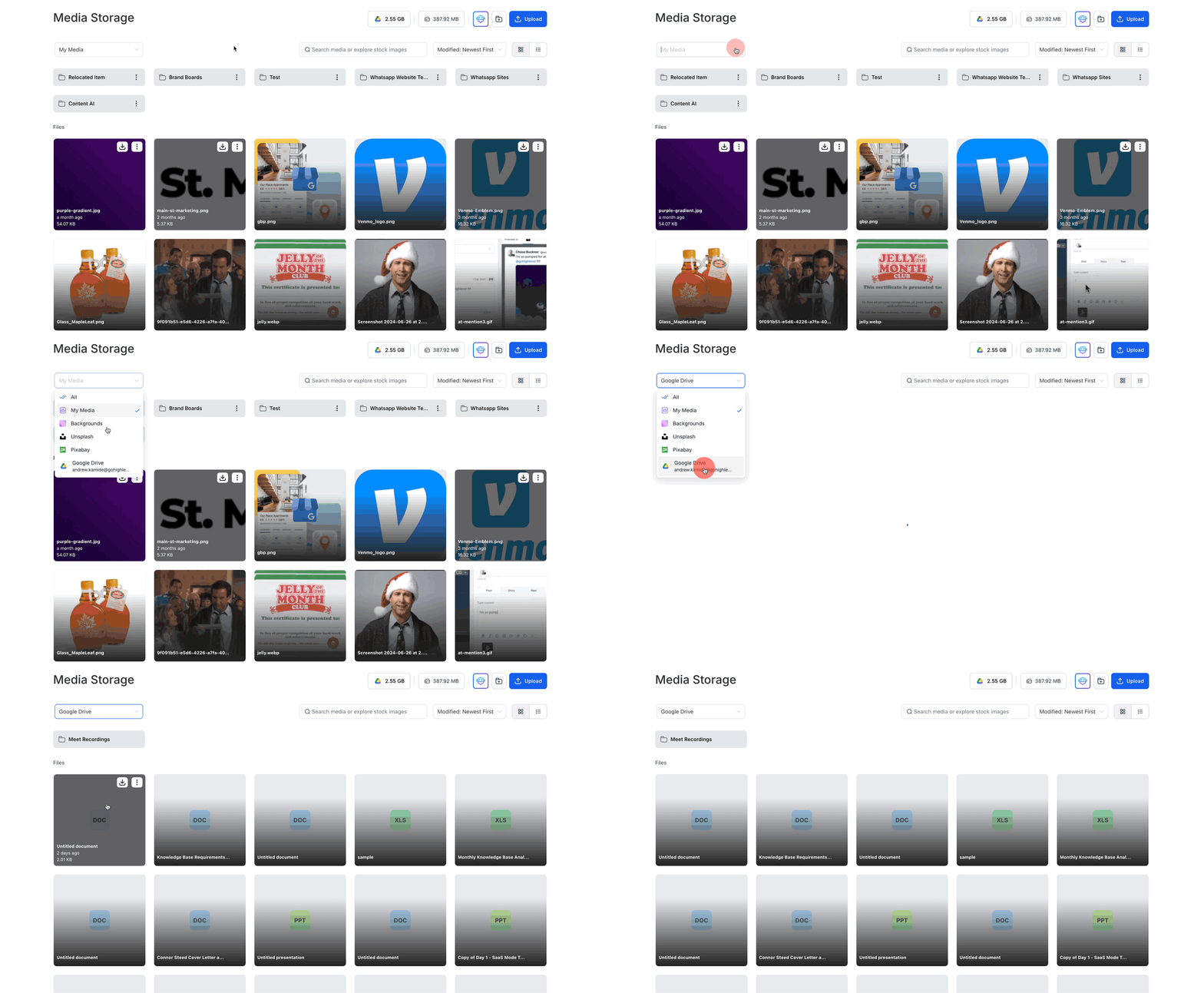
- Once connected, click on the Google Drive icon or select Google Drive from the dropdown menu in the Media Storage.
- You will see your Google Drive files and folders displayed alongside SourCherry’s native media files.
Frequently Asked Questions
Q: Can I rename or delete Google Drive files from SourCherry?
No, renaming or deleting Google Drive files from SourCherry is disabled to protect the integrity of your files.
Q: How often does the sync occur?
The sync happens in real-time. Any changes made in Google Drive will be instantly reflected in SourCherry’s Media Storage.
Q: Can I organize Google Drive files within SourCherry?
Yes, you can drag and drop files, create folders, and organize your Google Drive files within SourCherry’s Media Storage.
Q: Are files stored in SourCherry or Google Drive?
Files remain stored in Google Drive, but SourCherry provides an interface to access and manage them seamlessly.
Q: Can I delete or change the Google Drive integrated within Media Storage?
To delete the Google Drive currently integrated into your media storage, you must remove the connection to the Google account. To do this, go to Settings > Integrations. Under Google, select Manage > Disconnect Account. You can then integrate a new Drive into your media storage.