
The Quiz Submission Trigger enables automated actions whenever a quiz is completed. Whether you want to send personalized feedback, segment users based on scores, or assign tasks to your team, this trigger ensures seamless workflow automation.
TABLE OF CONTENTS
- What is the Quiz Submitted Trigger?
- Key Benefits of Quiz Submitted Trigger
- Filters Options
- Use Case Examples
- How To Setup Quiz Submitted Trigger
- Frequently Asked Questions
- Related Articles
What is the Quiz Submitted Trigger?
The Quiz Submitted trigger is a workflow entry condition that activates whenever a contact finishes and submits a published quiz in SourCherry. This feature helps businesses, educators, and marketers streamline engagement, automate responses, and optimize quiz-based interactions. By adding this trigger you can automatically enroll contacts into any workflow the instant their quiz data is recorded, enabling real‑time engagement and tailored journeys.
Key Benefits of Quiz Submitted Trigger
The Quiz Submitted trigger equips you to react quickly and at scale whenever someone completes a quiz.
- Real‑Time Engagement: Respond the second a participant submits their quiz, boosting open rates and conversion
- Advanced Filters: Configure conditions such as quiz name, specific scores, or custom fields to target specific audiences
- Custom Actions: Automate personalized follow-ups, like sending emails, SMS notifications, or assigning tasks based on quiz outcomes
- Operational Efficiency: Remove manual exports and spreadsheet work—scores flow directly into your automations
- Scalable Workflows: Combine with conditional steps, wait times and IF/ELSE logic to build complex nurture sequences effortlessly
Filters Options
Filters tell SourCherry when the trigger should fire, giving you fine‑grained control over which quiz submissions activate a workflow. Advanced filters let you configure precise conditions, such as quiz name, overall or category score thresholds, or custom fields, so you can target specific audiences and decide exactly when the trigger activates.
Below is a breakdown of each available filter type:
- Quiz Name: Select a specific quiz, use Any to include all quizzes or use Is Not to rule out specific quizzes
- Overall Score: Create rules such as is greater than 80 or between 50 and 70 to segment by total score
- Category Score: Target learners who excelled (or struggled) in a particular section
- Custom Field: Reference custom score fields you created when designing your quiz
Filter Quiz Scores Using a Range
Quiz score filters help you route contacts based on performance. Using a score range makes it easier to group contacts into the right follow-up path without creating multiple overlapping conditions.
When configuring quiz score conditions, use the Between operator to match scores that fall within a selected range.
How it works:
- Enter the lower score in the first field
- Enter the higher score in the second field
- Both the starting and ending scores are included in the range
- The system prevents invalid ranges where the minimum score is greater than the maximum score
Example:
Trigger a nurture workflow when a quiz score is between 30 and 60.
Use Case Examples
- Personalized Feedback for Learners: Automatically send feedback emails to students based on their quiz scores, helping them improve their learning experience.
- Lead Scoring and Segmentation: Segment quiz takers into different categories based on scores and update CRM records accordingly for targeted marketing campaigns.
- Course or Product Recommendations: Suggest relevant courses or products to users based on their quiz performance, increasing engagement and conversions.
- Automated Follow-Ups for Sales Teams: Assign high-scoring quiz takers to the sales team for personalized outreach and follow-ups.
- Event Participation Tracking: Trigger an action to send event certificates or rewards based on quiz completion and score thresholds.
How To Setup Quiz Submitted Trigger
The trigger activates upon quiz completion and allows for:
- Conditional Filtering: Apply conditions such as quiz name, score thresholds, or category-based scores
- Automated Actions: Send emails, SMS messages, assign tasks, or initiate other workflow steps
- Seamless Integration: Connect with CRM, marketing automation, or lead management tools
Follow the steps below to set up a Quiz Submitted Workflow Trigger.
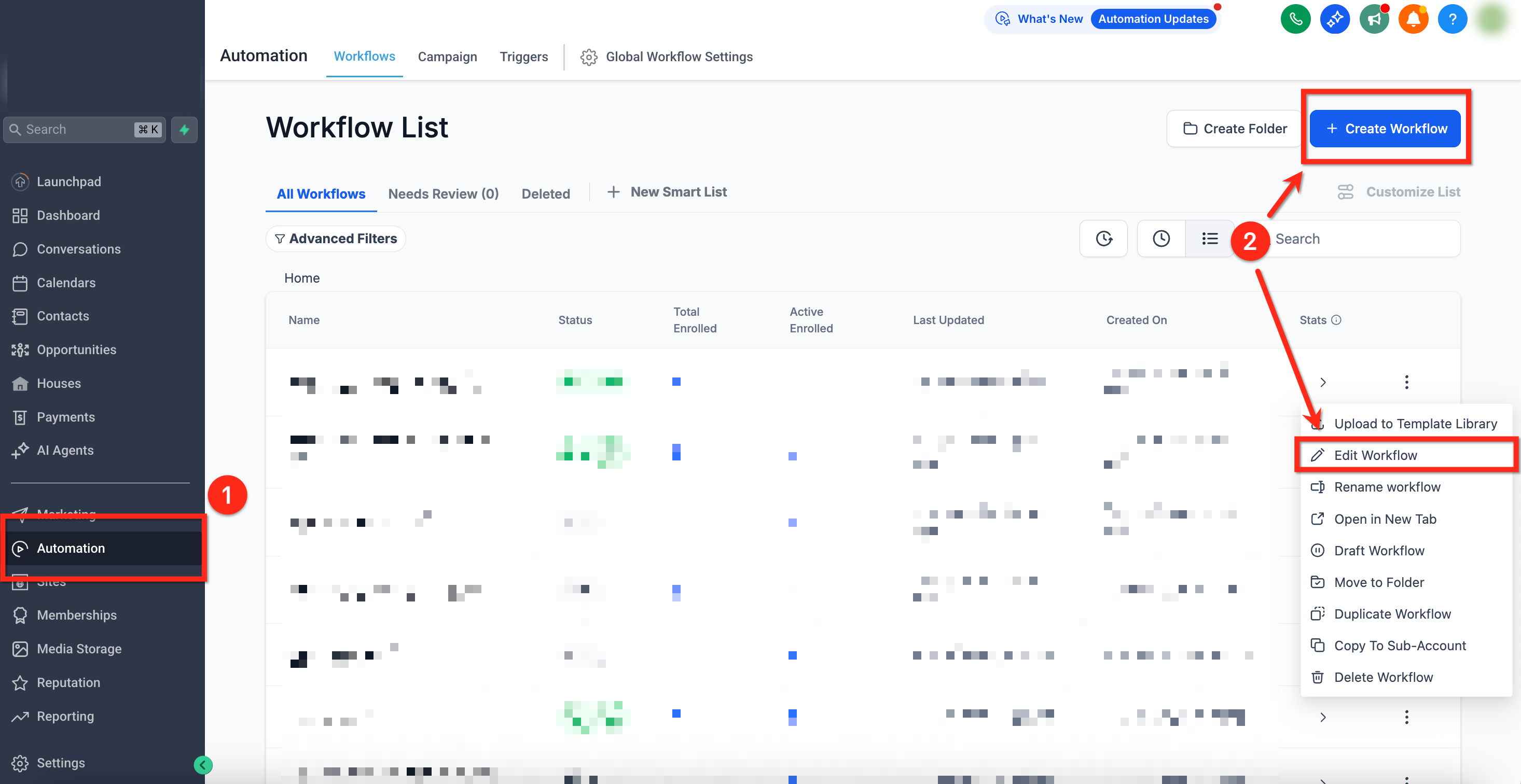
Step 1: Access Workflow Settings
- Go to Automation using the left-hand navigation bar
- Click on Create Workflow or edit an existing one by clicking the 3 dots icon next to workflow's name then selecting Edit Workflow
Step 2: Add the Quiz Submission Trigger
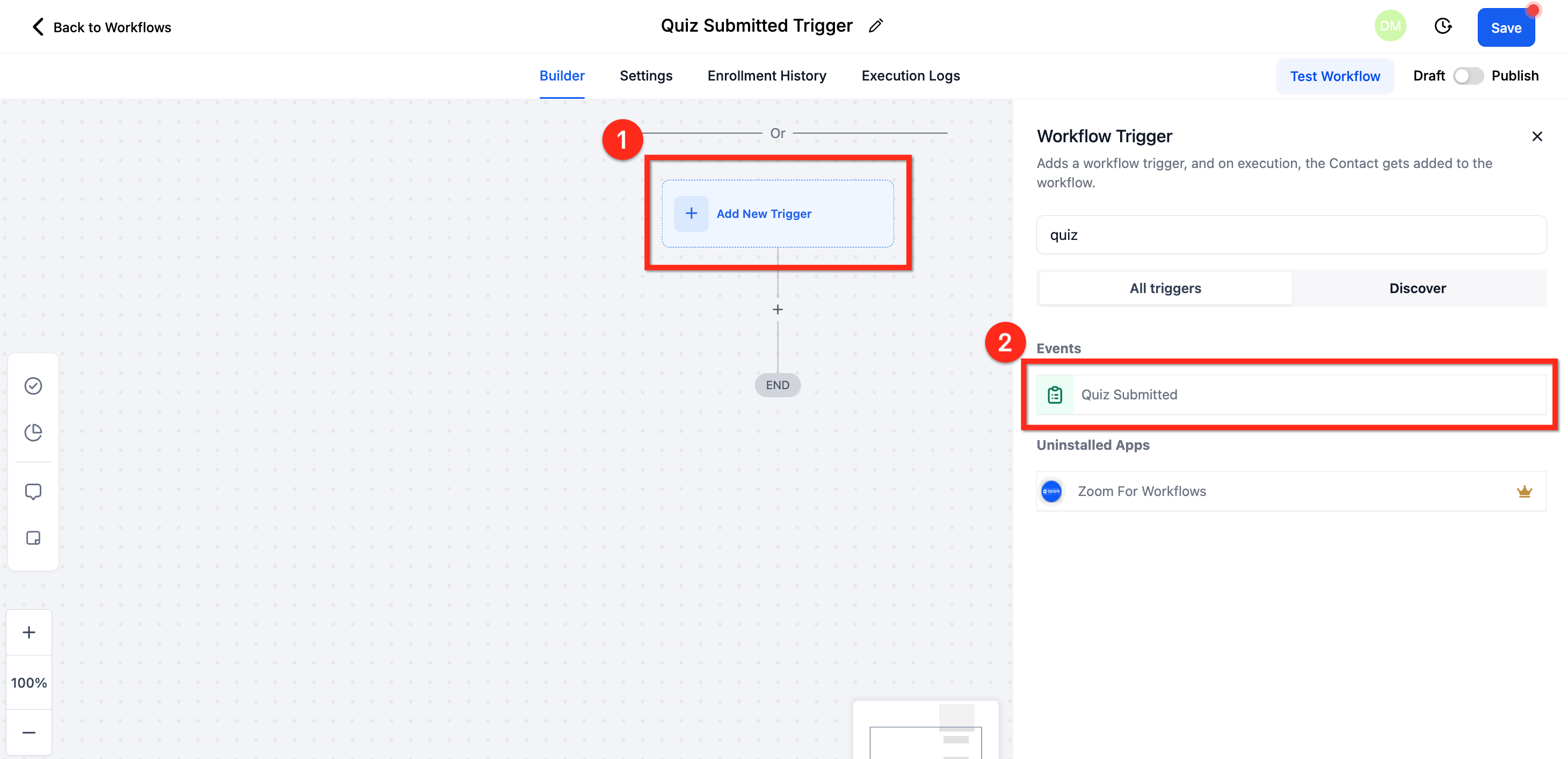
- In the workflow editor, click on Add Trigger
- Select Quiz Submitted from the list of available triggers
Step 3: Define Conditions
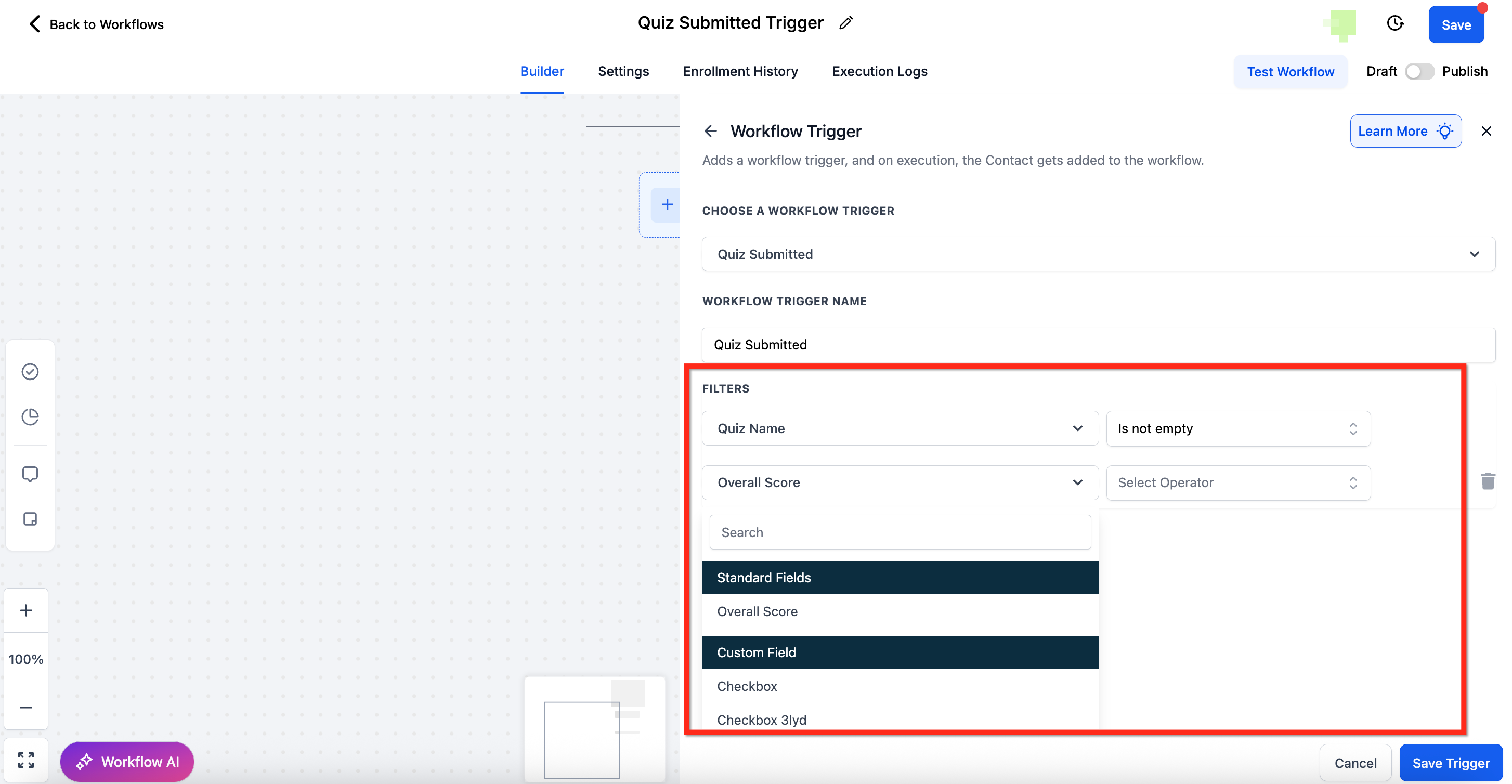
Specify filters to determine when the trigger should activate, such as:
- Quiz Name: Select the specific quiz
- Score Thresholds: Set minimum or maximum score conditions
- Category-Based Scores: Apply logic to responses within quiz sections
Step 4: Configure Actions
Once the trigger conditions are set, define the automated actions:
- Send an Email: Deliver personalized emails based on scores
- Send an SMS: Notify users immediately after submission
- Assign a Task: Create a follow-up task for the team
- Update CRM Data: Log quiz results into your CRM system
Step 5: Save and Activate
- Click Save to store the workflow
- Publish the workflow to start automating actions based on quiz submissions
Frequently Asked Questions
Q: Does this trigger work for all quizzes?
Yes, the trigger can be applied to any quiz created within the platform.
Q: Can I integrate this with third-party tools?
Yes, you can connect the quiz submission trigger with external tools like CRM systems, email marketing platforms, and automation tools via integrations.
Q: Can I use multiple actions in one workflow?
Yes, you can configure multiple actions (e.g., sending emails, updating CRM data, and notifying teams) within a single workflow based on quiz results.
Q: Can I add a quiz into a website page or funnel step?
Yes! Go to the quiz you would like to add, click the Embed button and copy the embed code. Then navigate to the website page or funnel step and add a custom code element. Copy the embed code into this element and preview the page to see the quiz added.