
Overview
Managing customer payment methods efficiently is essential for streamlining transactions and ensuring a seamless customer experience. This document provides an overview of two key features designed to simplify payment management: adding cards on file and managing cards on file. These features enable businesses to securely fetch cards on file (just the last 3/4 digits and expiry date of the cards are fetched from the provider and shown on the UI), view, and manage customer payment information.
Where to find?
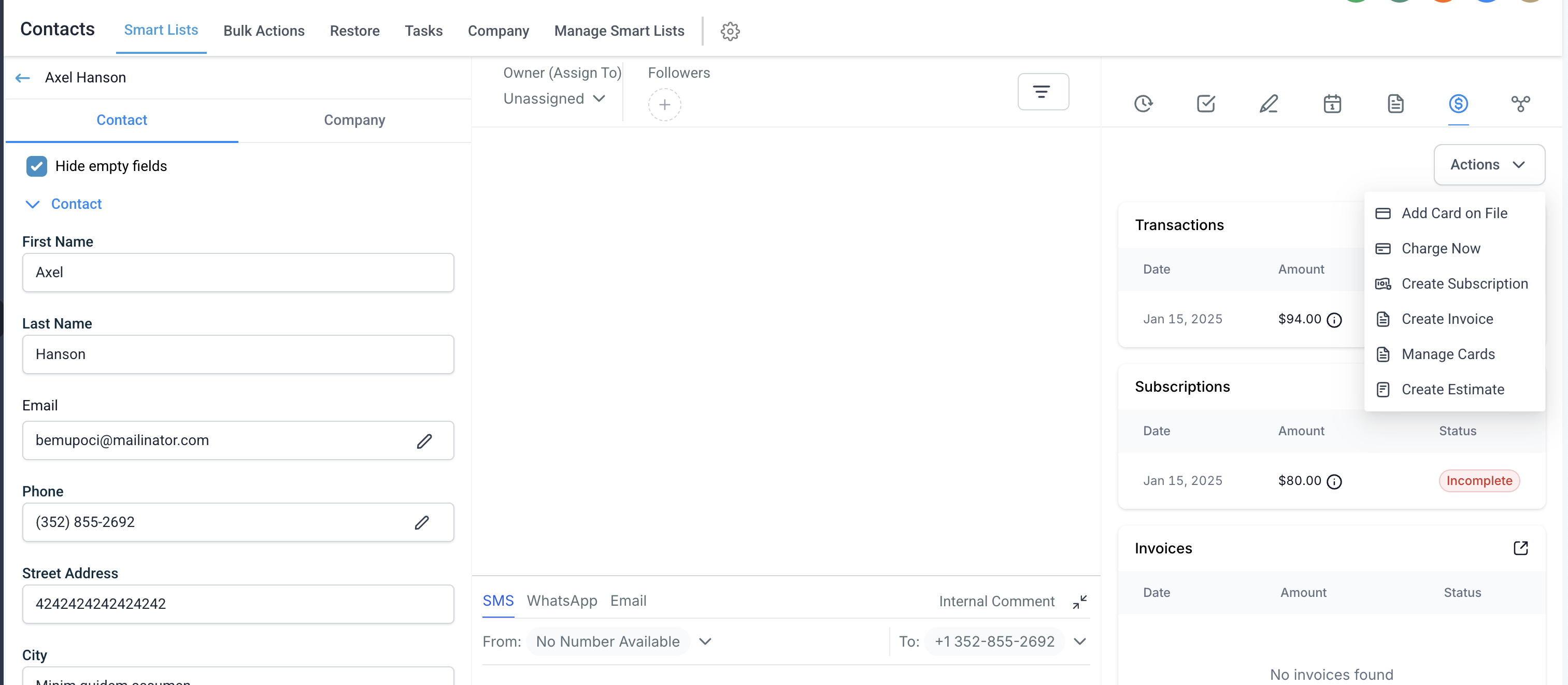
Contacts > Contact Details > '$' icon (denotes Payments) > Actions
How to add a card on file?
Click the 'Add Card on File' button under 'Actions'
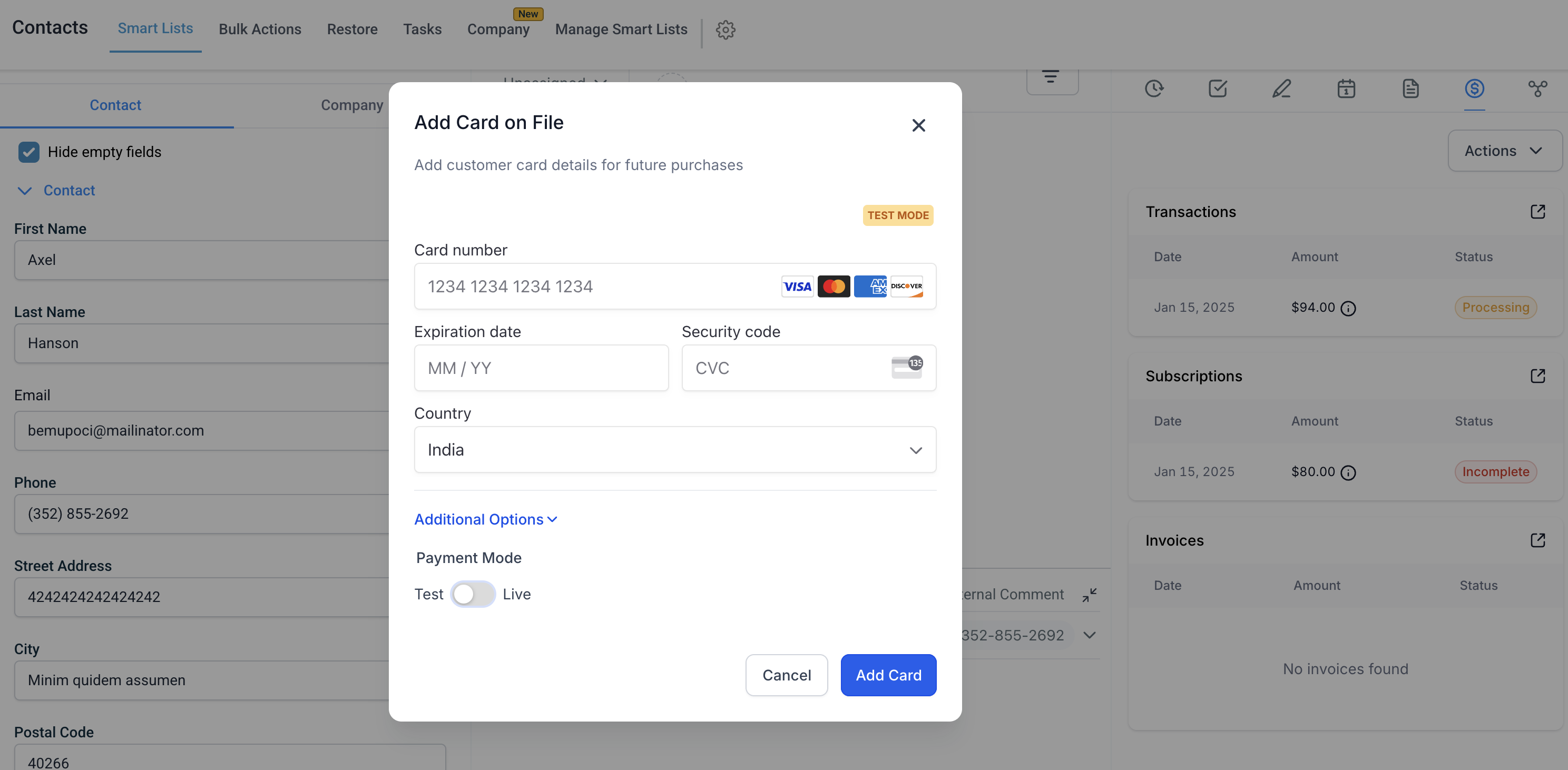
Enter the card number, expiration date, and CVV along with the Country
Verify the information and click 'Add Card'
It can be done for cards in both live and test mode
How to view cards on file?
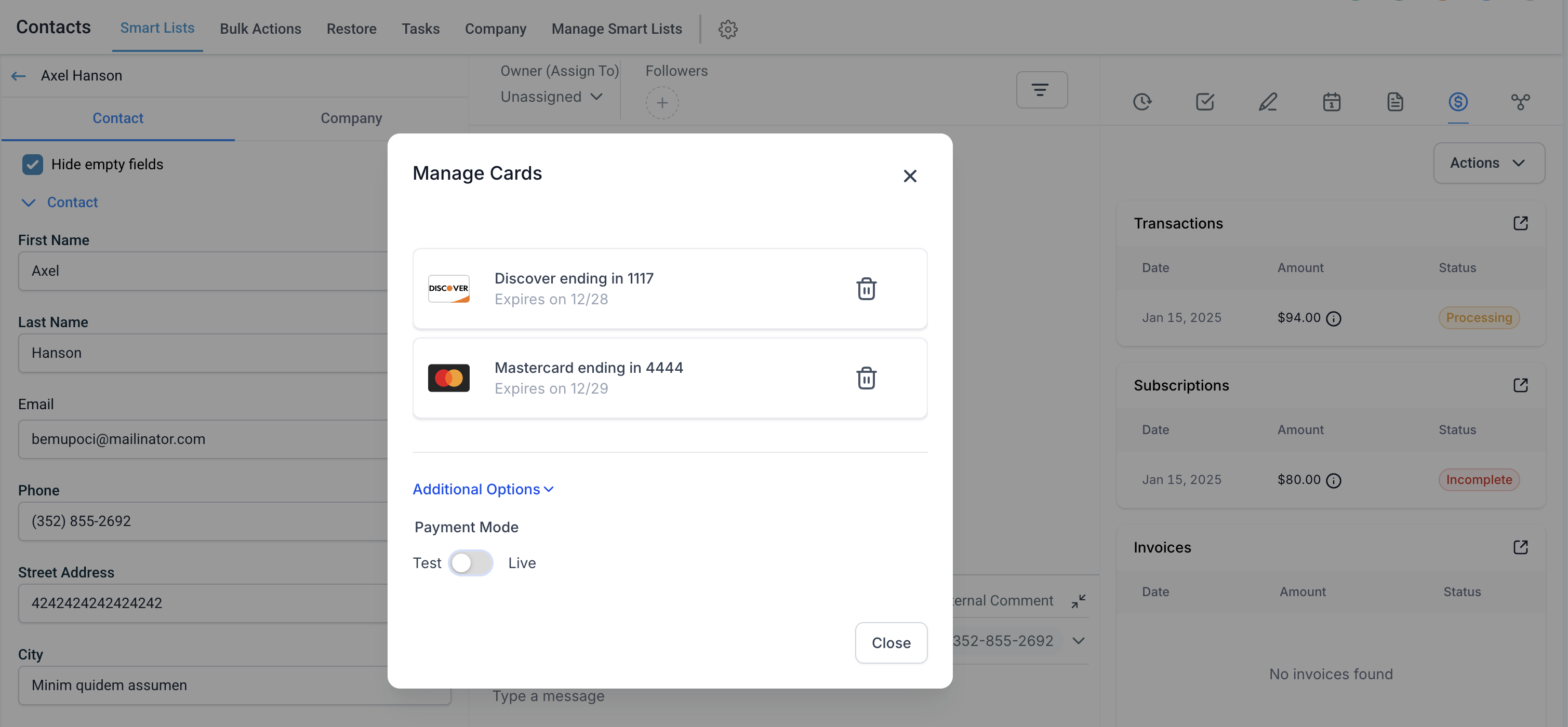
Click the 'Manage Cards' button under 'Actions'
All cards would be fetched from respective providers and their last 3/4 digits along with expiry date would be visible as a list. Note - Cards are not stored and cannot be stored as per compliance, hence the card details are always freshly fetched, from the payment provider, every time the user lands on this modal for any customer
Each card entry includes the last four digits, expiration date, and any associated label
Both test and live mode cards would be visible in respective lists
How to delete cards on file?
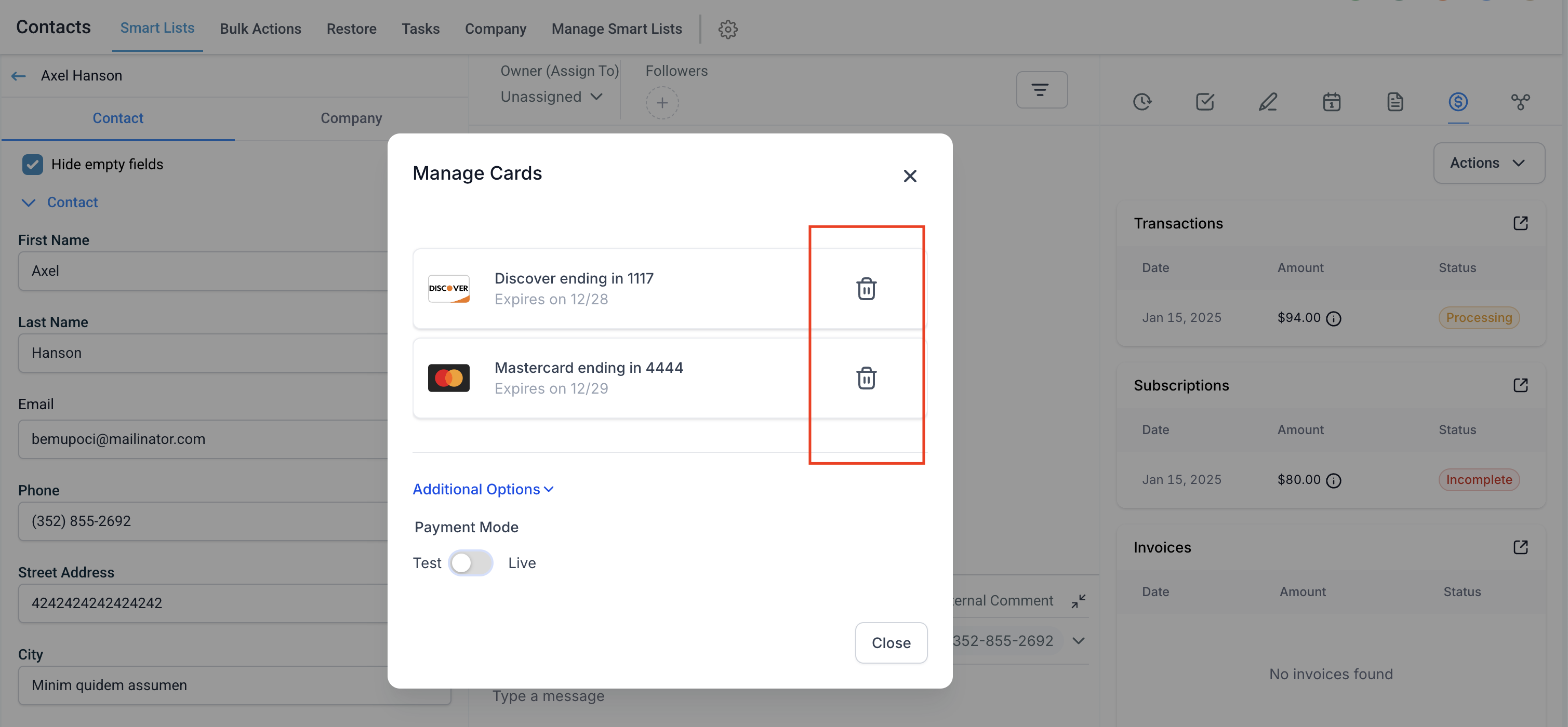
Identify the card you wish to remove
Click the Delete button next to the card
Confirm the deletion in the pop-up prompt
Both test and live mode cards can be deleted from respective lists
In case a card is in for an active subscription within SourCherry, the prompt would call this out before confirming the deletion. Even with the prompt if the card is deleted, the subscriptions associated with such a card will have no associated payment method for auto deduction.
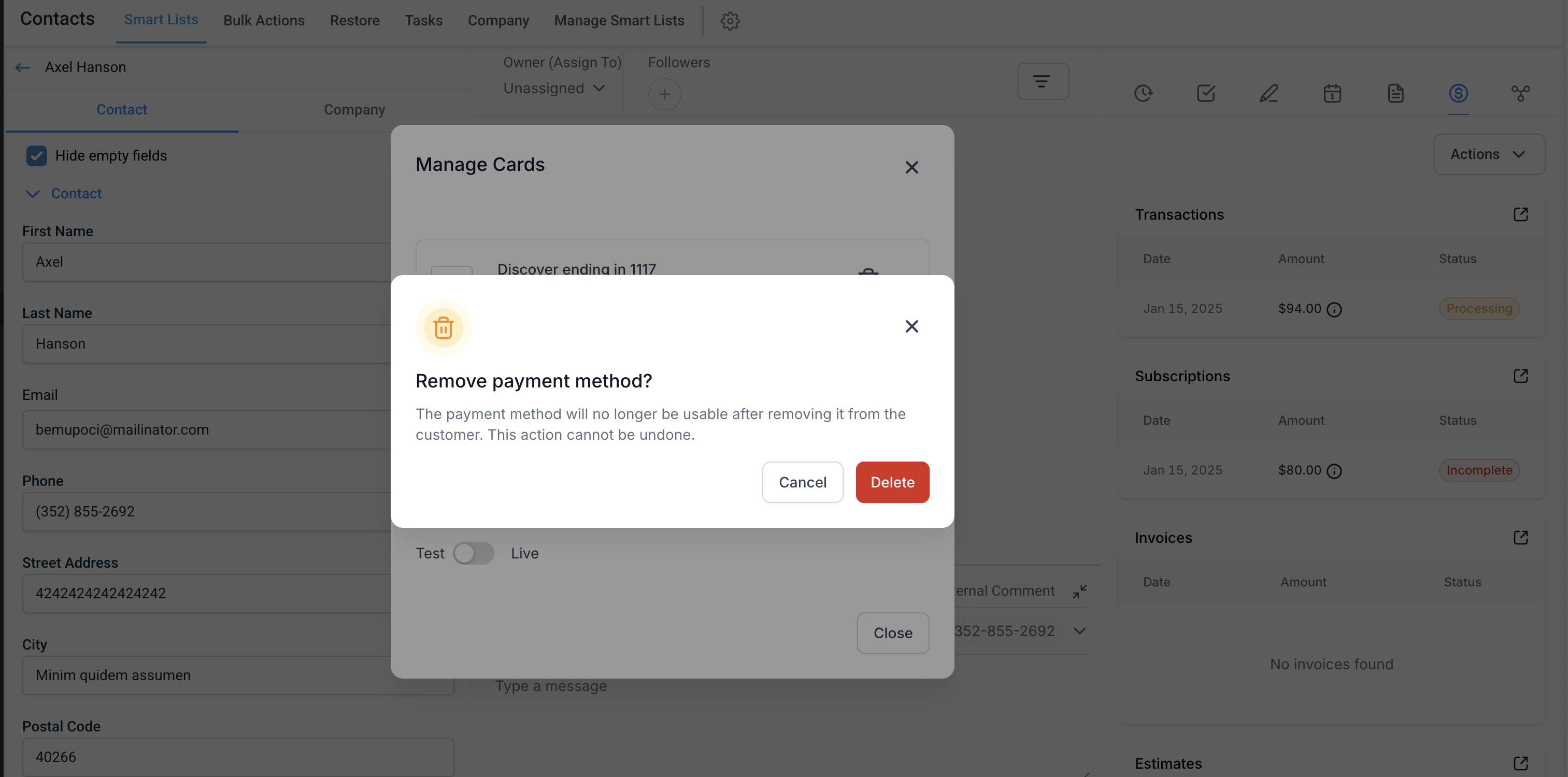
Note: As per compliance, we do not store any card data on our end. We securely fetch card details (last 3/4 digits and expiry date along with provider - Visa/MasterCard, etc.) every time the business lands on this modal for any customer. This is fetched directly from the payment provider and the delete action is executed with the help of the payment provider.
Manage Cards on File in the Mobile App
Managing cards on file in the SourCherry mobile app makes it easier to save payment methods directly from a contact record and reuse them for future payment activity. This helps speed up repeat purchases, keeps customer billing details organized, and supports a smoother payment experience from the mobile app.
You can now save, view, and remove a customer's card on file directly from the contact's payment area in the SourCherry mobile app.
Add a card on file in the mobile app
Saving a card from the contact record gives your team a faster way to support repeat purchases and follow-up charges without asking the customer to re-enter their payment details each time.
1. Open the SourCherry mobile app.
2. Go to Contacts.
3. Select the contact you want to update.
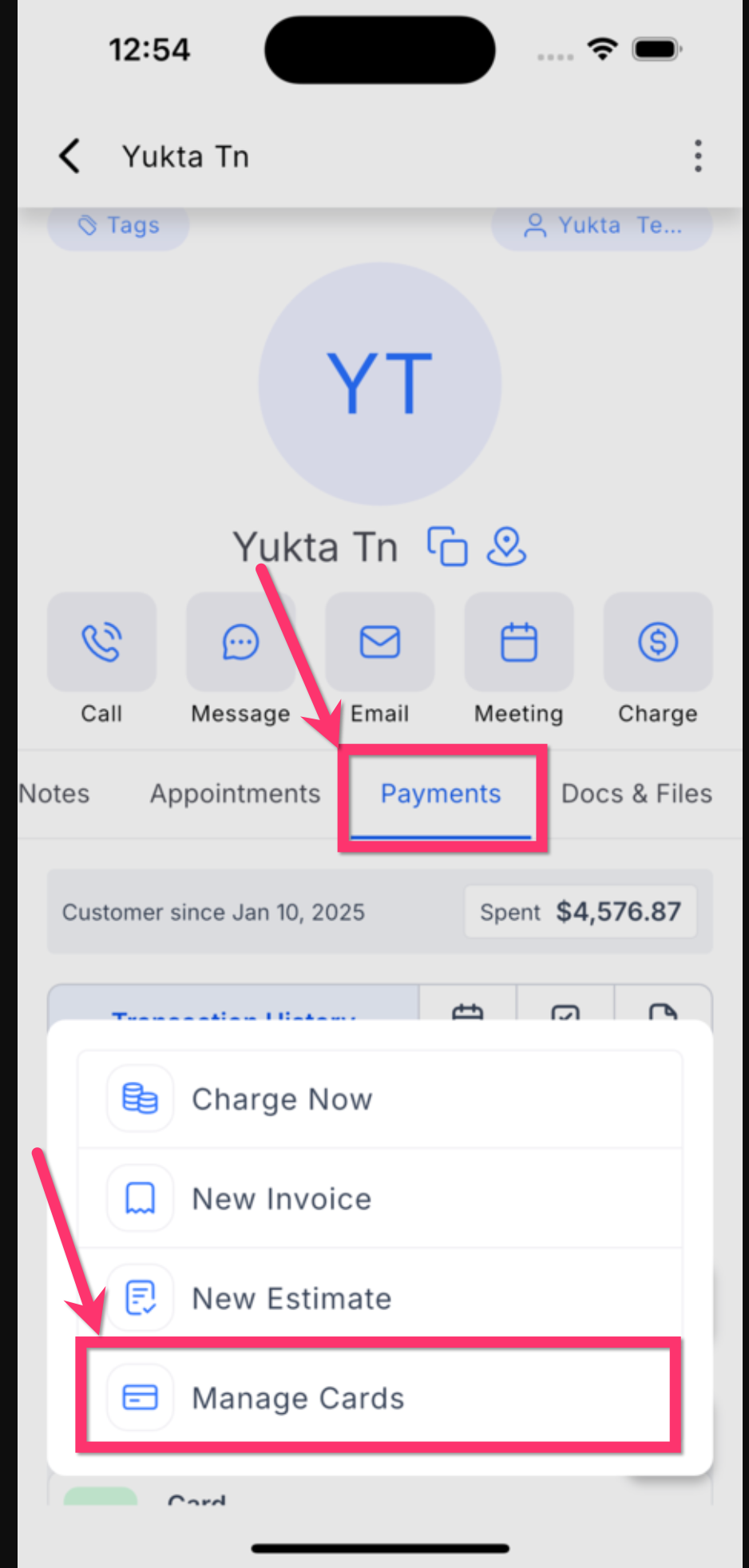
4. Open the Payments tab.
5. Tap Manage Cards.
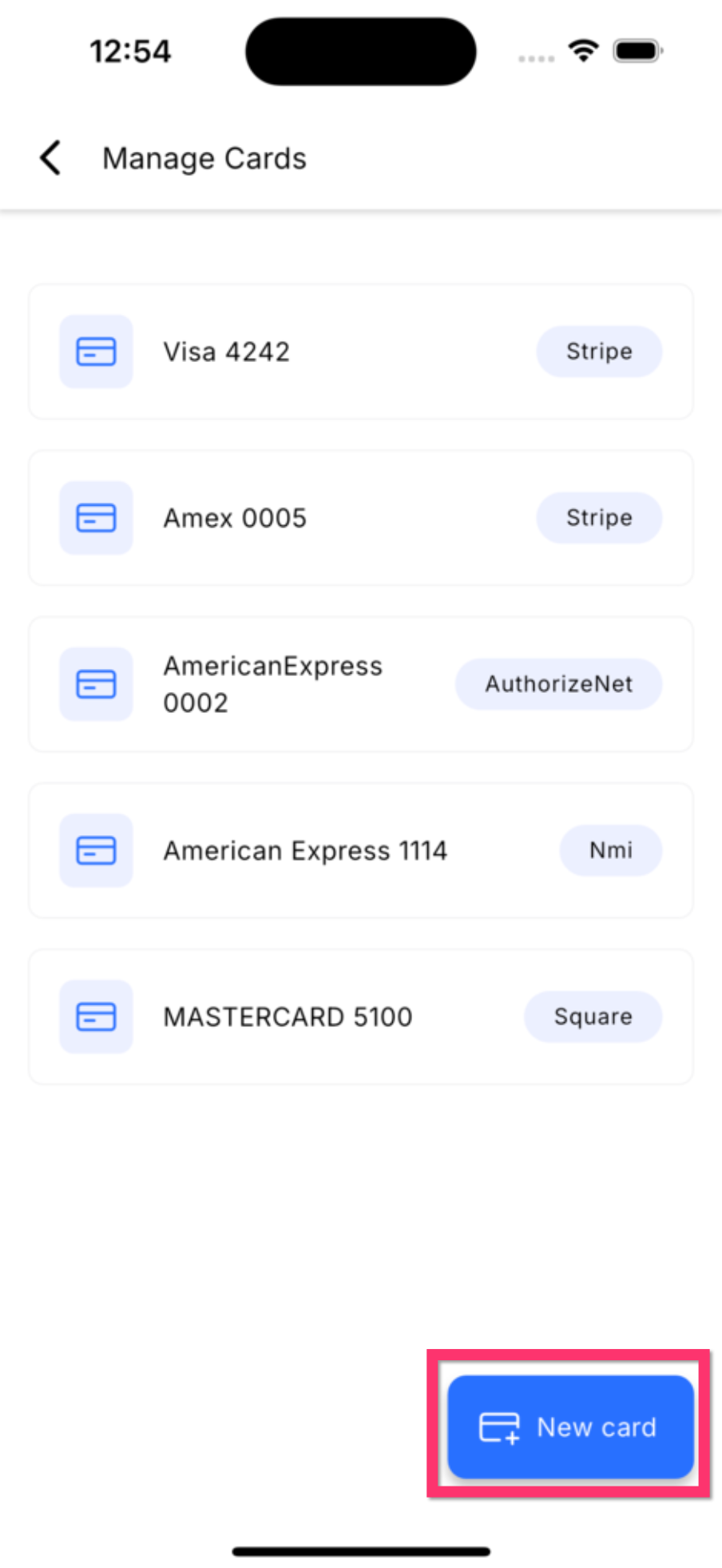
6. Tap New card.
7. Enter the customer's card details.
8. Save the card.
Use a saved card for future payments
Saved cards on file can help reduce checkout friction for returning customers. Once a card is stored for a contact, it becomes available during supported payment flows tied to that contact.
Saved cards may appear as available payment methods when you create payment-related records for the contact, such as:
- Transactions
- Invoices
- Estimates
- In-person charges
Remove a saved card in the mobile app
Removing old or unused cards helps keep customer payment methods accurate and easier to manage.
1. Open Manage Cards for the contact.
2. Locate the saved card you want to remove.
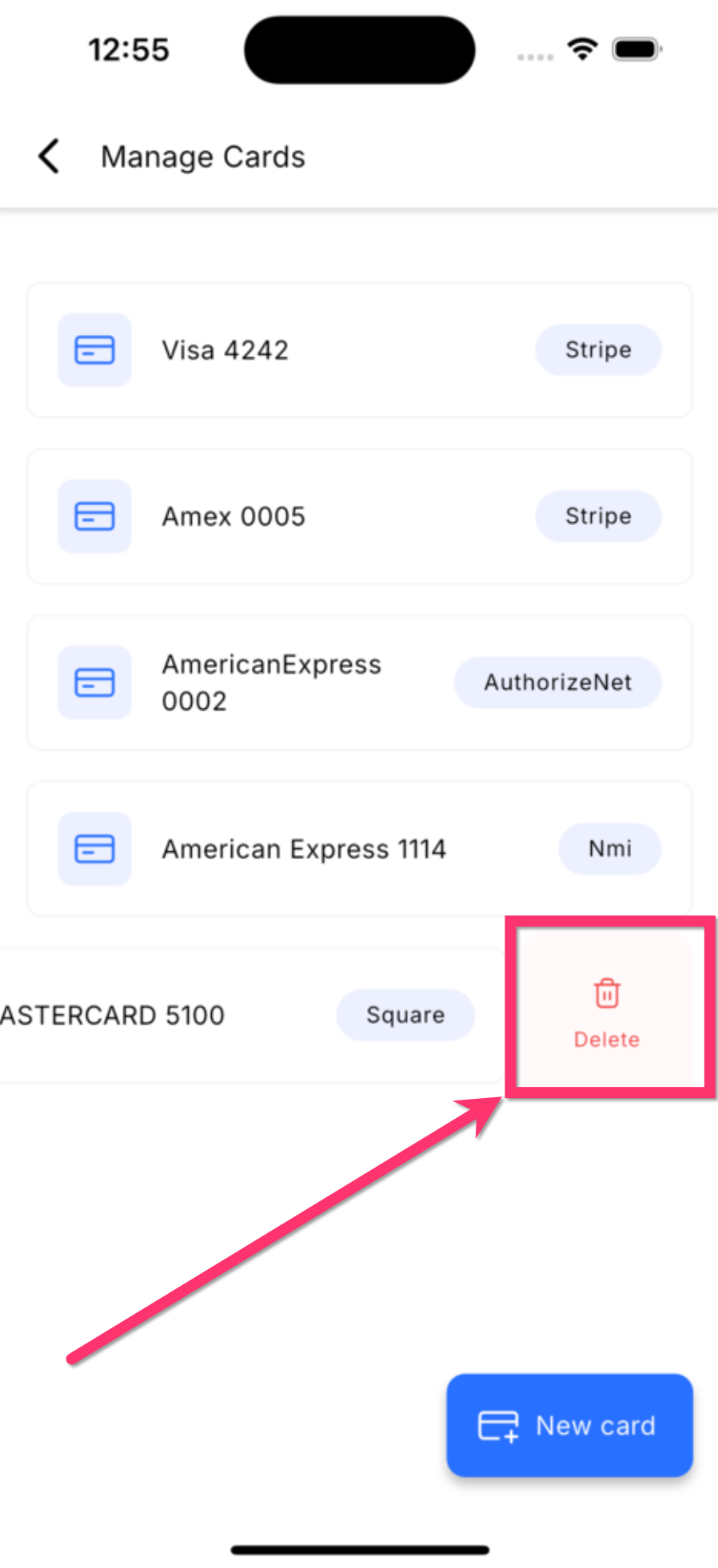
3. Swipe left on the card.
4. Tap Delete or Remove, based on the final confirmed UI label.
5. Confirm the action.
Key benefits of managing cards on file in the mobile app
Managing cards on file from the mobile app helps teams work faster and gives customers a smoother payment experience.
- Faster repeat payments: Save time by reusing stored cards for returning customers.
- Better contact-level organization: Keep payment methods connected to the correct contact record.
- Improved mobile workflow: Manage payment methods without leaving the mobile app.
- Smoother customer experience: Reduce the need for customers to share card details again for future charges.