
Overview
You can now redirect customers to a specific web page after they’ve signed your Document or completed a payment on an invoice generated via the Document. This helps create a seamless, branded experience—whether that’s showing them a thank-you page, leading them to a scheduling link, or upselling additional services.
1. Enable Global Custom URL Redirection
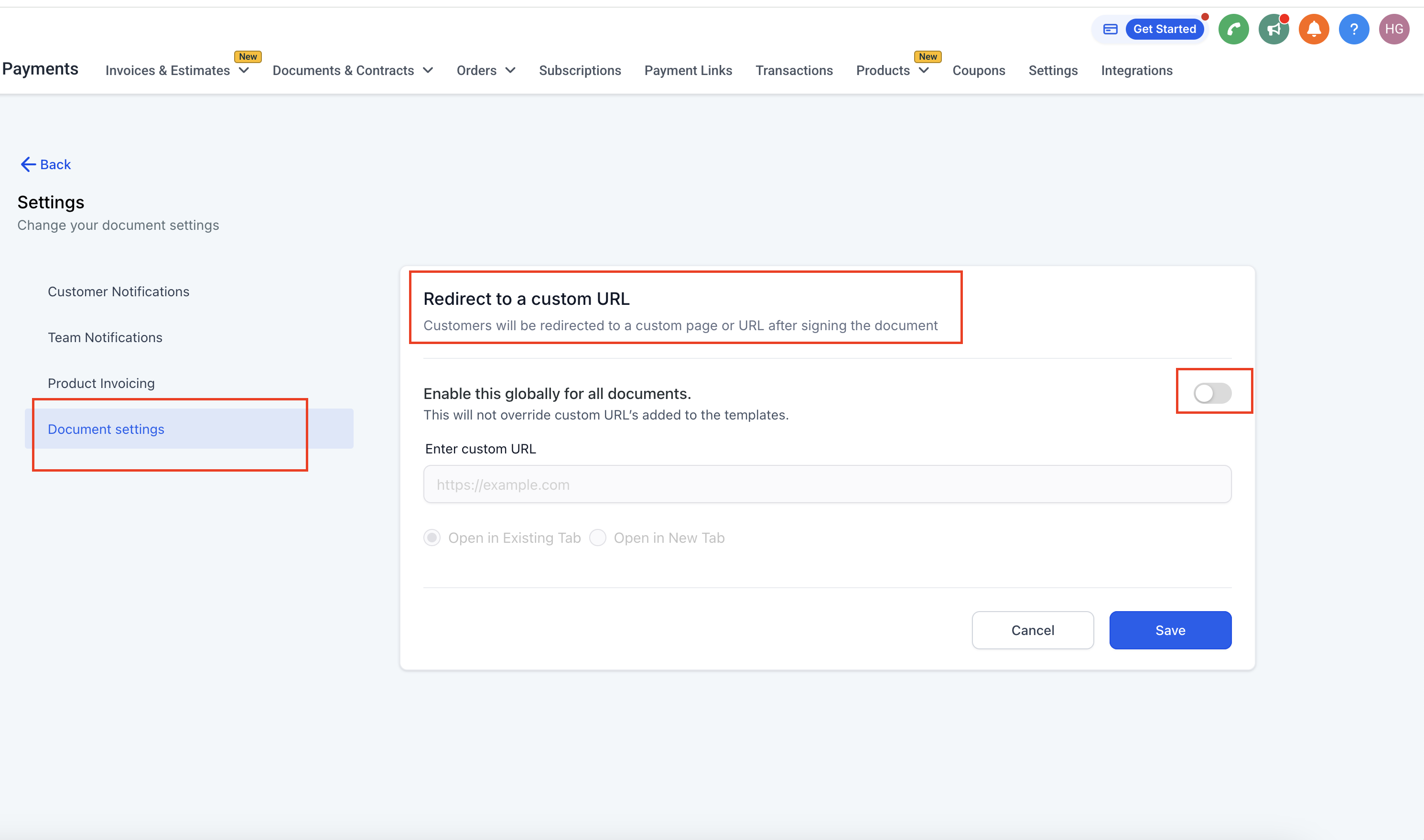
- Navigate to Documents & Contracts
- In the left menu, go to Payments → Documents & Contracts.
- Open Settings
- Click the Settings button at the top-right (gear icon).
- Select Document Settings from the sidebar.
- Toggle on “Redirect to a Custom URL”
- Flip the switch to enable it globally for all Documents.
- Enter the URL (e.g.,
https://example.com). - Choose Open in Existing Tab or Open in New Tab.
- Save Your Changes
- Click Save to confirm.
Note: Global settings will not override a custom URL added directly to a specific Document or Template.
2. Set Up a Custom URL Per Document
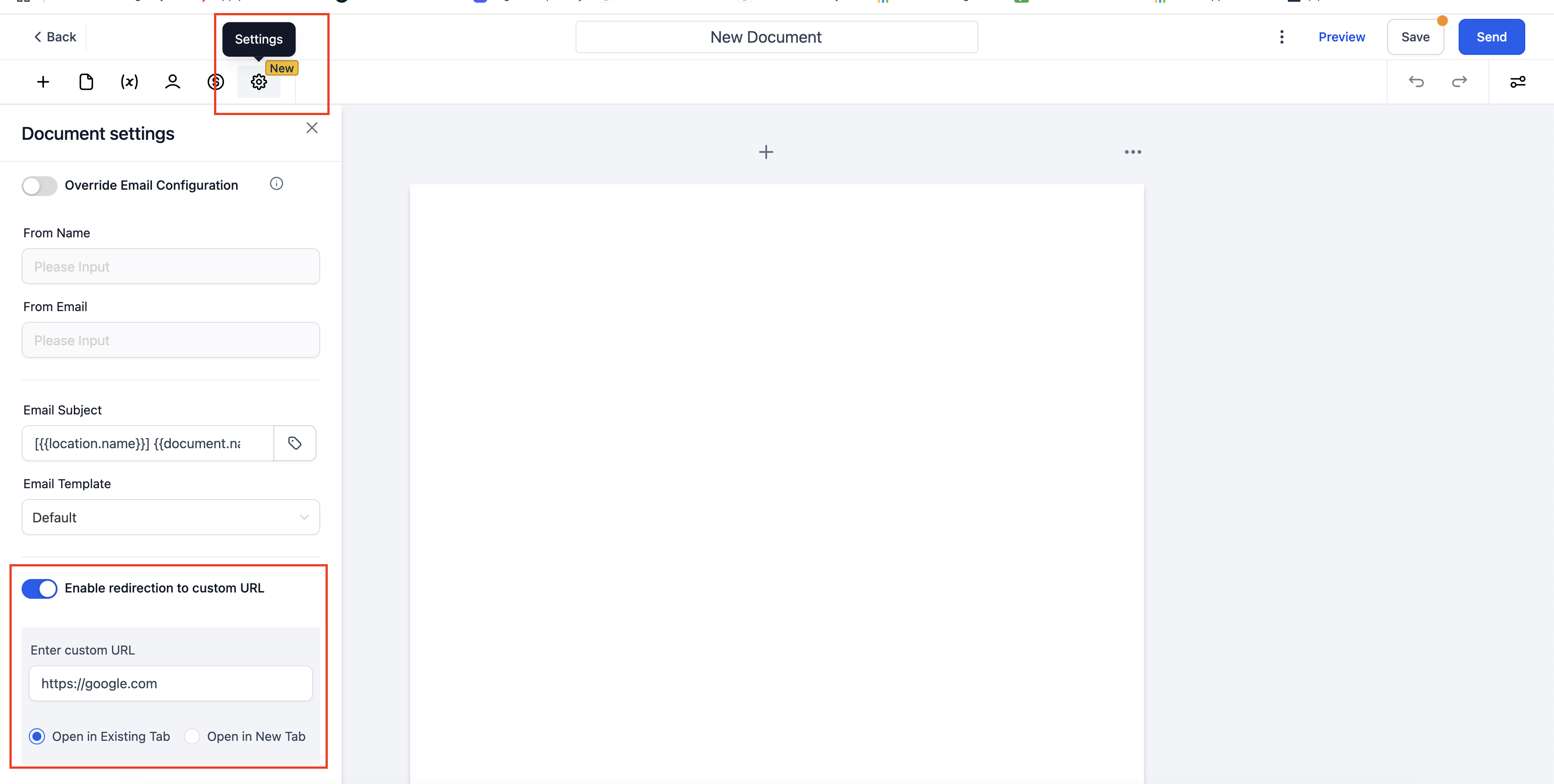
- Create or Edit a Document
- From Documents & Contracts, open any existing Document or click + New to create one.
- Document Settings
- At the top, click Settings → Document Settings.
- Enable Redirect & Enter URL
- Toggle on Enable redirection to custom URL.
- Enter the desired URL.
- Select if it should open in the same tab or a new tab.
- Save Your Document
- Click Save or Send as needed.
3. Redirection After Payment
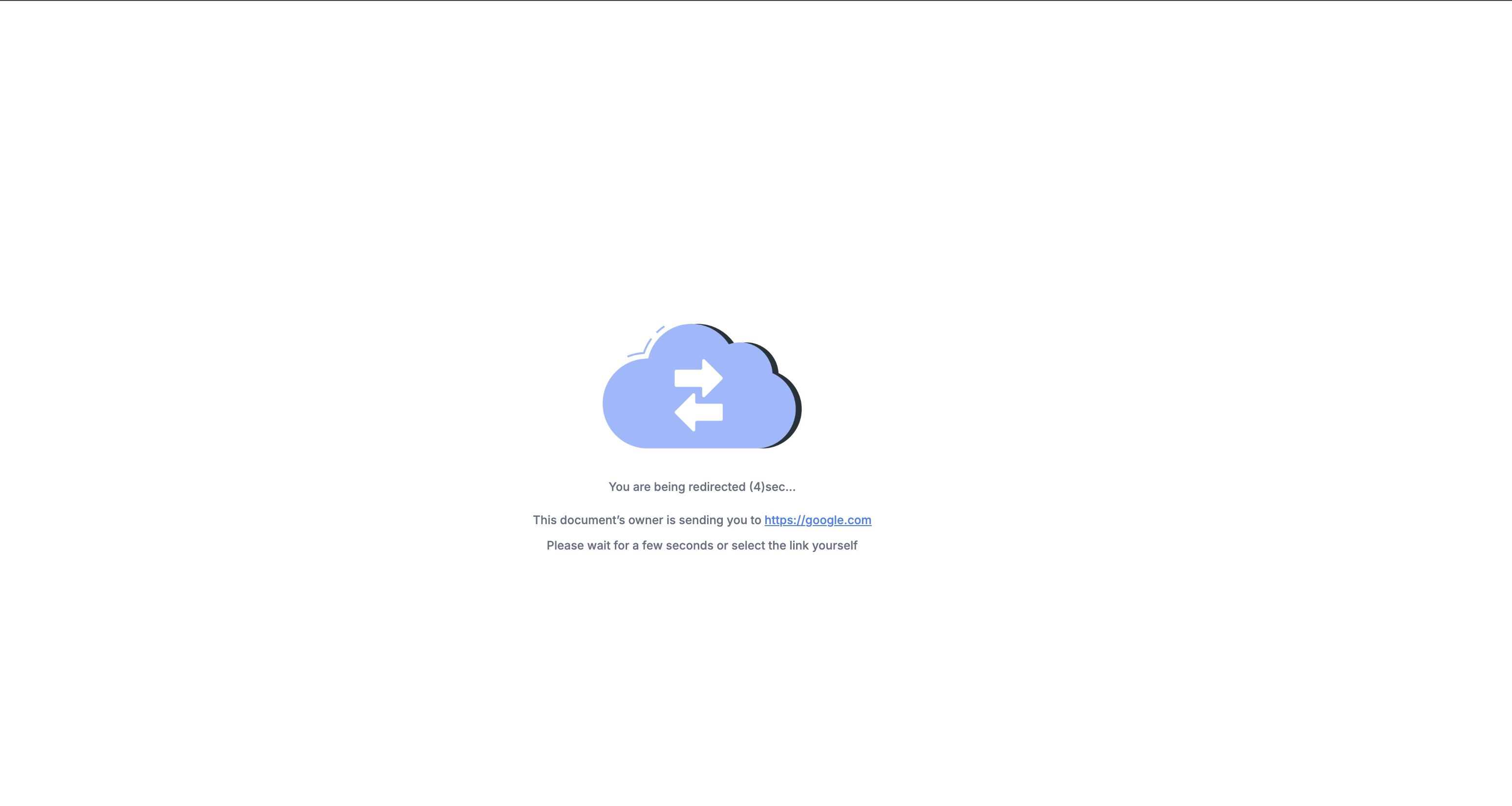
If you’ve enabled a Payment option within your Document, the same redirect settings apply once payment is made:
- Global Setting: If enabled, your customers are automatically redirected after their payment is processed.
- Document-Level Setting: If you’ve enabled and specified a URL here, it takes priority for that specific Document.
4. Troubleshooting & Tips
- Test Before Sending: Use the Preview option in Documents to confirm that the redirect works as expected.
- Override Logic: Document-specific redirects will override global redirects. Turn off or remove the Document-level setting if you want to rely solely on the global redirect.
5. Common Use Cases
- Thank-You Pages: Direct new signers/payers to a personalized thank-you or confirmation page.
- Onboarding: Prompt customers to complete onboarding steps immediately after signing.
- Upsells: Show complementary offers or scheduling pages to drive further engagement.
- Reviews: Get reviews from your users after they've signed a completion agreement.