
Learn how to configure SMS Compliance Settings in SourCherry so every initial SMS includes clear sender identification and opt‑out instructions, and so these compliance elements are automatically re‑inserted on a regular cadence. This guide translates the UI walkthrough into precise, numbered steps—ideal for both new and experienced users.
TABLE OF CONTENTS
- What is SMS Compliance Settings?
- Key Benefits of SMS Compliance Settings
- How To Configure SMS Compliance Settings
- Tips, Guidelines & Rules
- Frequently Asked Questions
- Related Articles
What is SMS Compliance Settings?
SMS Compliance Settings ensure that outbound SMS messages meet carrier and policy expectations by automatically appending opt‑out language (e.g., “Reply STOP to unsubscribe”) and sender identification (e.g., “Thanks, Alex at Main Street Dental”) when those elements are missing. Enabling these controls protects deliverability, reduces filtering risk, and supports a consistent, compliant experience.
Key Benefits of SMS Compliance Settings
Understanding the value makes adoption easy. These benefits map directly to carrier guidelines and practical day‑to‑day messaging needs.
Compliance-by-default: Automatically appends sender ID and opt‑out language to the first message when missing.
Reduced carrier filtering: Adds the elements carriers expect, lowering the chance of messages being blocked.
Brand clarity: Sender identification helps recipients recognize who is texting them, improving trust and reply rates.
Automated cadence: Every‑X‑days control re‑inserts sender ID + opt‑out on a schedule (e.g., every 30 days) to maintain ongoing compliance.
De‑duplication: Prevents duplicate opt‑out text when you already include it in your message template.
How To Configure SMS Compliance Settings
Follow these steps to configure opt‑out language, sender identification, and the recurring cadence so your messages stay compliant and deliver reliably.
Login to your sub‑account.
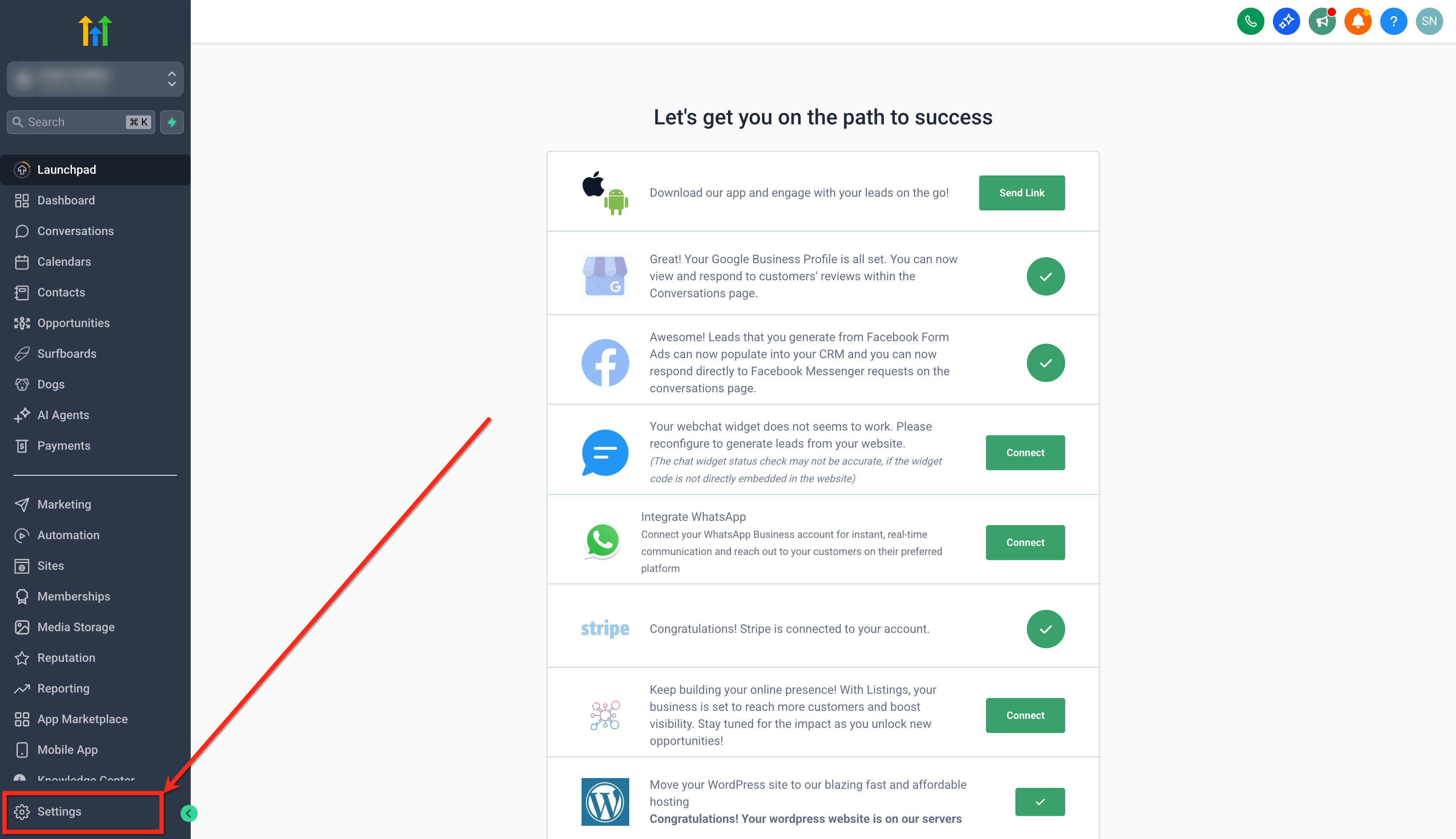
From the left menu, click on the Settings button.
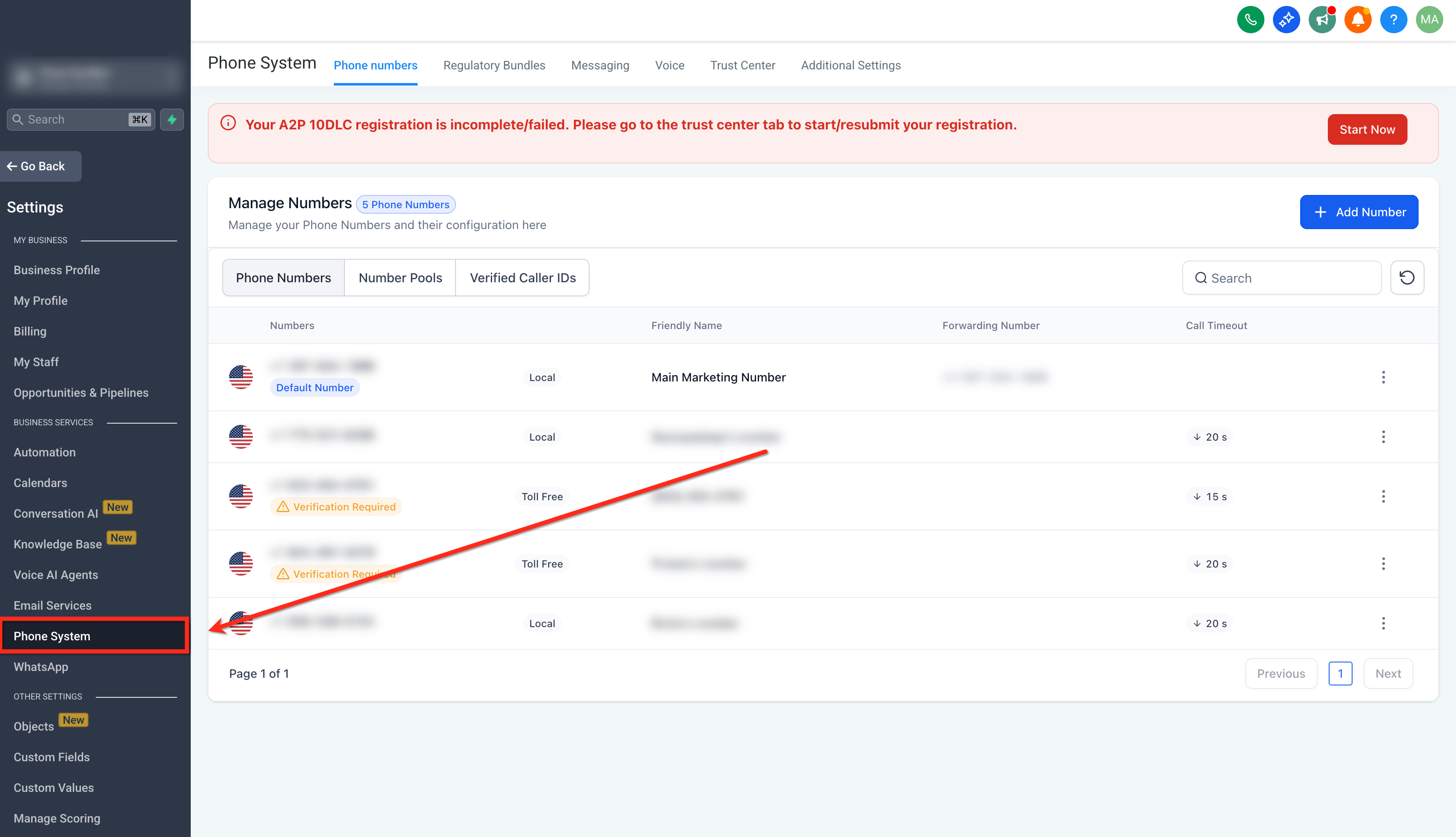
Click on the Phone Numbers tab.
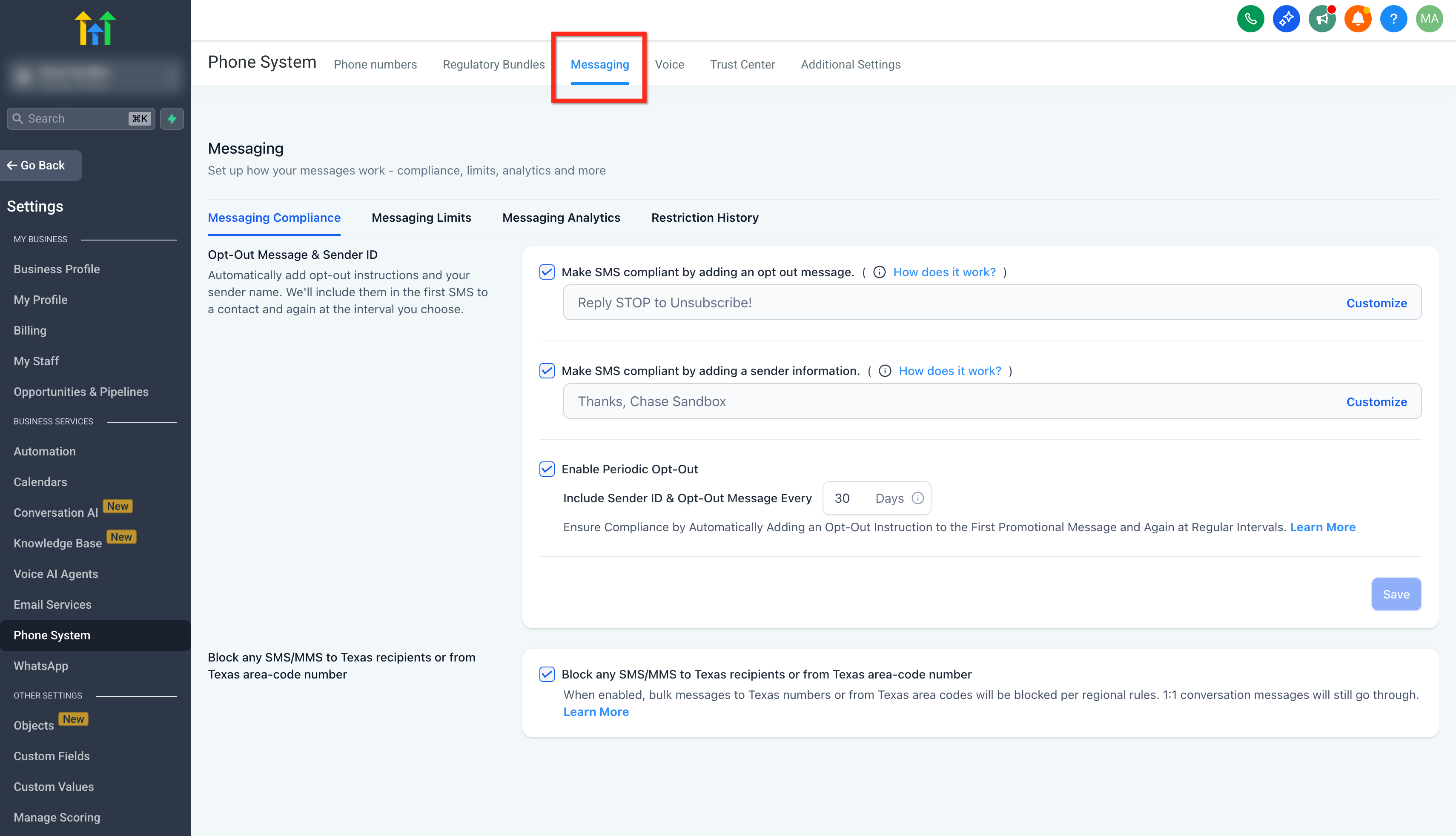
Click on Messaging from the top menu-bar.
Toggle Make SMS compliant by adding an opt‑out message to ON.
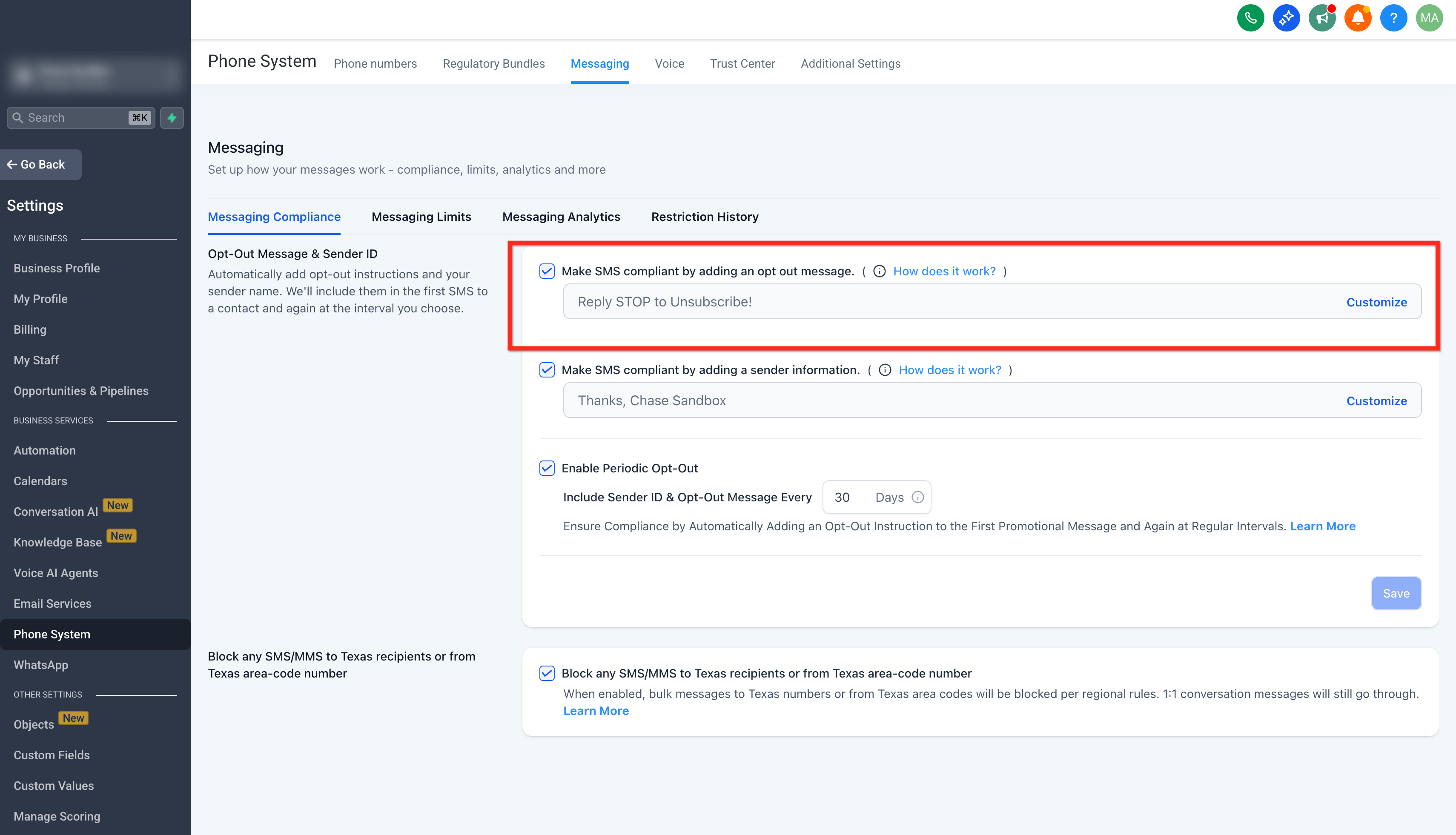
Click on the Customize button to edit the opt-out text.
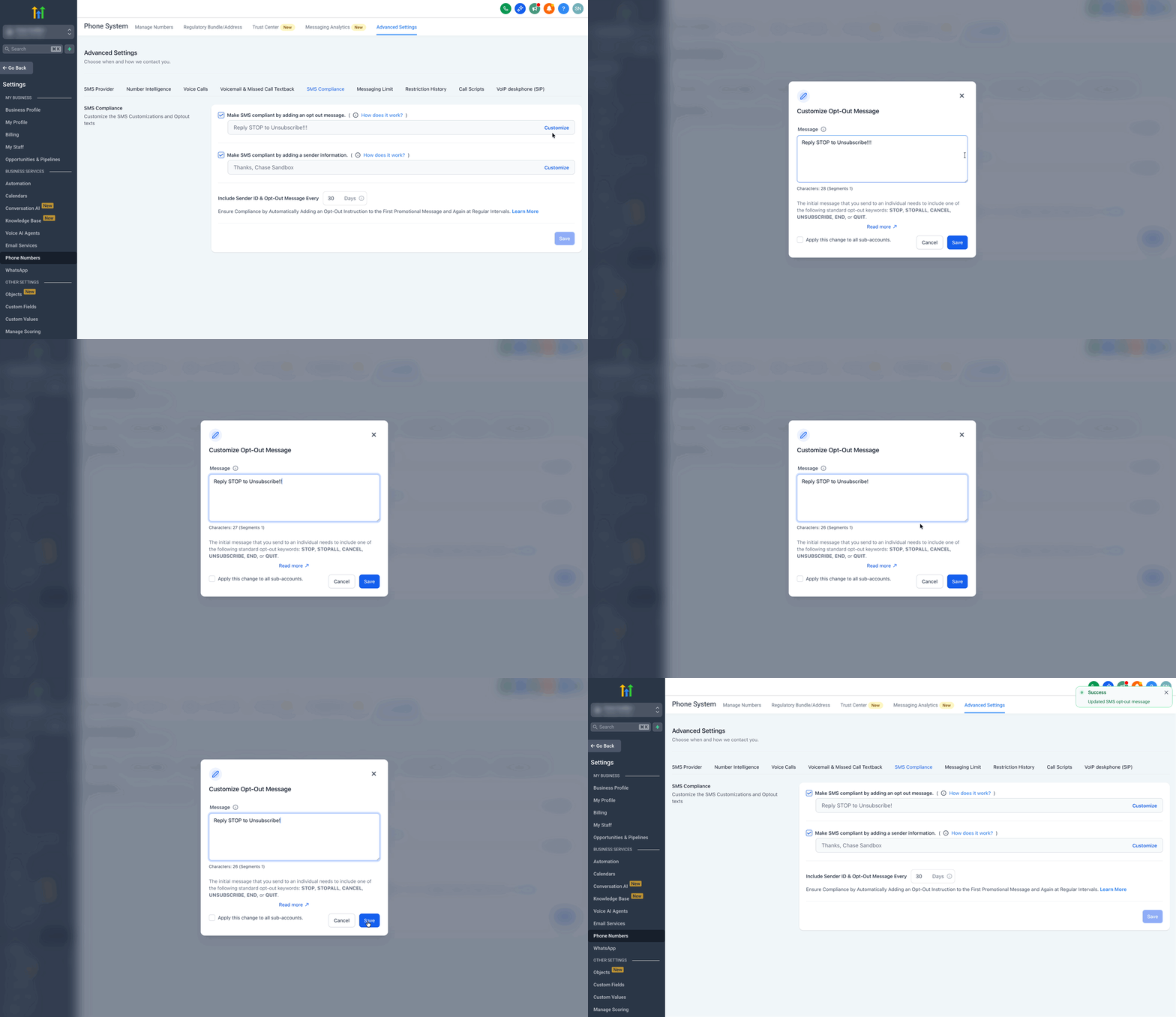
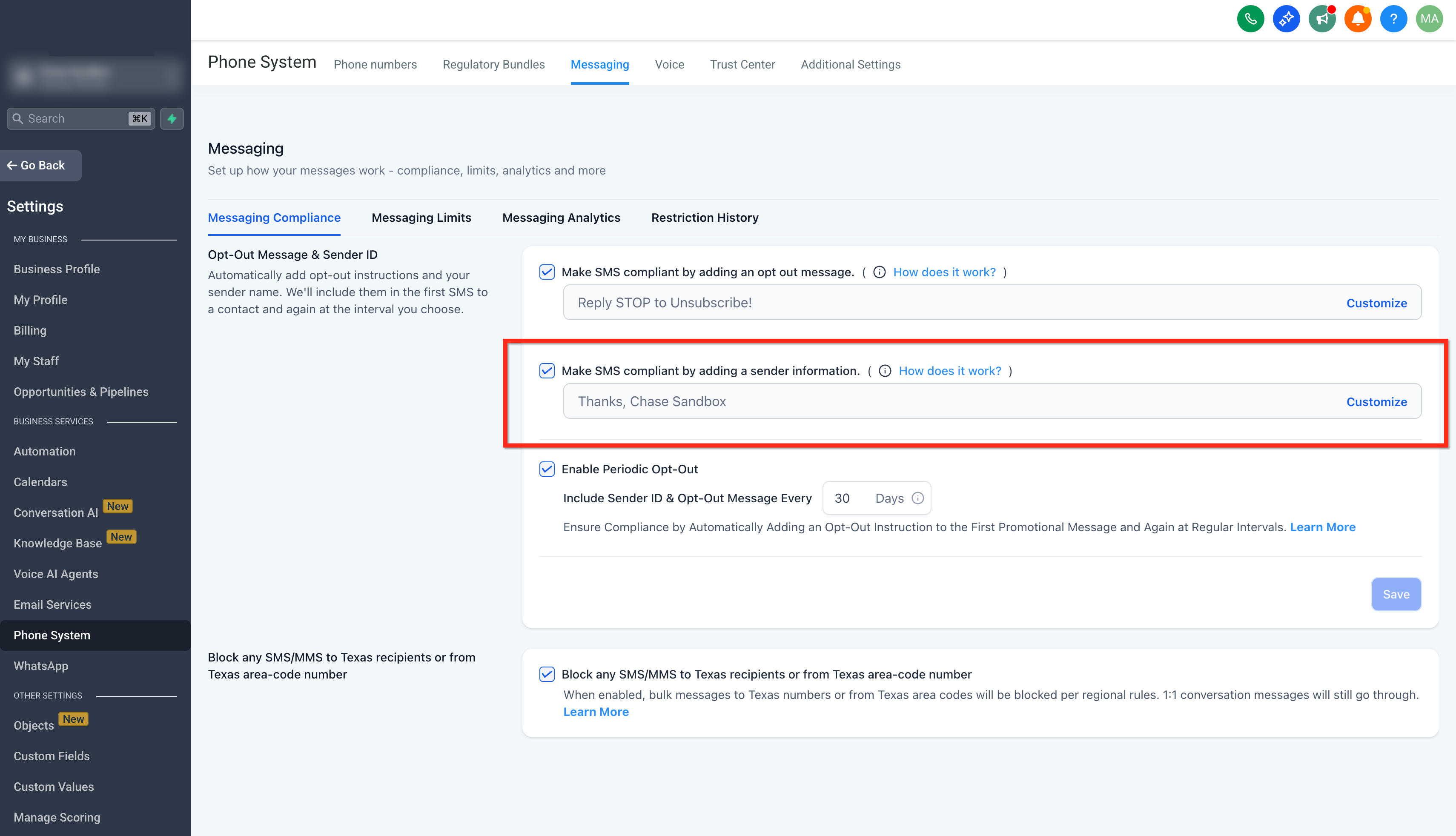
Toggle Make SMS compliant by adding sender information to ON.
- Toggle Enable periodic opt-out & sender info to ON. This controls whether the system re-inserts sender info and opt-out language in ongoing conversations on a recurring schedule.
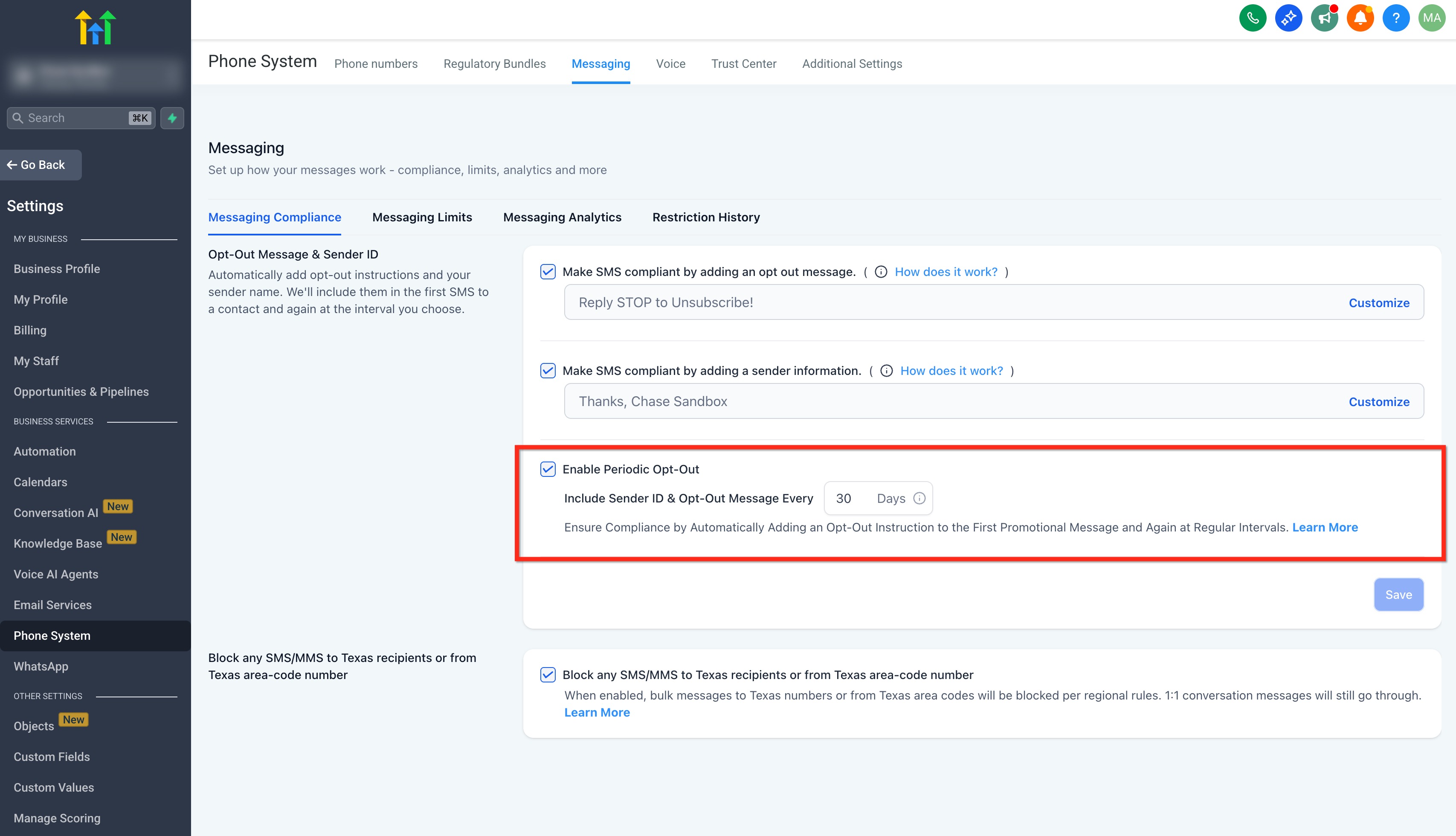
- In Include sender ID and opt-out message every [1–60] days, enter a value between 1 and 60. On or after the interval, the next outbound message to a contact gets the compliance lines re-inserted if missing.
- Click on the Customize button to edit the sender information.
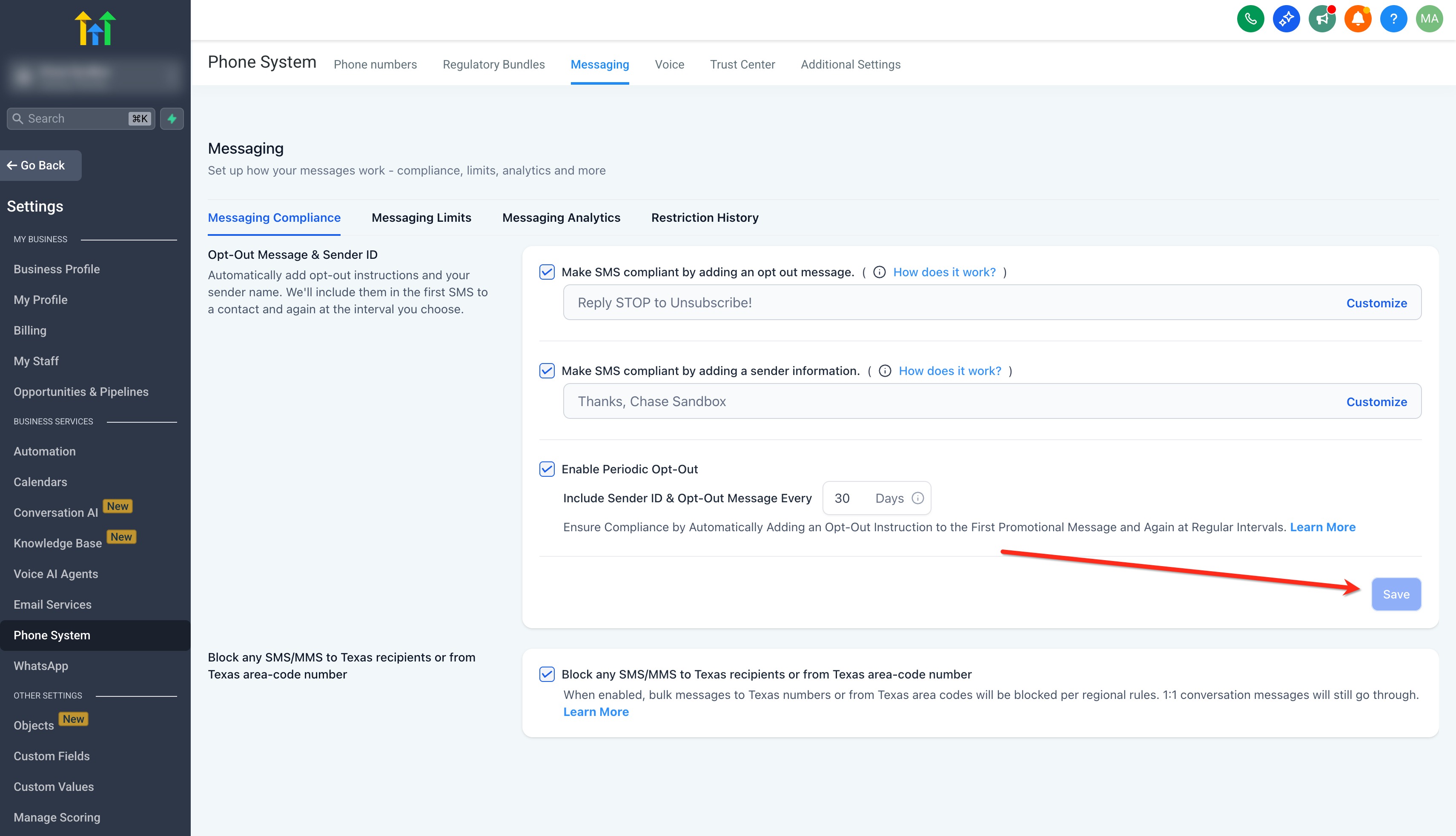
- Click Save.
Tips, Guidelines & Rules
- The first message in any SMS conversation (including Missed Call Text Back and review requests) will always include both of the following. Example: “Reply STOP to unsubscribe.”
- The Opt Out message will only be added if it is not already included in the message.
- Agencies in Trial Mode cannot disable these checkboxes.
- Locations/sub-accounts created within the last 15 days cannot disable these checkboxes.
- Account Users and Admins cannot disable these checkboxes.
Strong, simple wording improves deliverability and avoids content that may be flagged by carriers.*
Sender ID examples: “Thanks, Jamie at Oak & Co.” or “—Team Acme Fitness.”
Avoid spammy formatting, excessive emojis, URL shorteners, and vague brand references.
Defaults & Behavior
New sub-accounts: Enabled by default.
Existing sub-accounts: Disabled by default.
First outbound message: Sender info and opt-out language are always included on the first outbound message in a conversation, even if periodic insertion is disabled.
Smart detection (opt-out suppression)
The system suppresses re-insertion only when it detects a full opt-out phrase in your message (for example, an unsubscribe instruction), not when it sees a single keyword in normal context.
Single words like “stop” inside regular sentences do not prevent sender info/opt-out insertion.
Examples of phrases that should suppress insertion (if already present):“Reply STOP to unsubscribe.”
“Text STOP to opt out.”
“Reply STOP to end.”
Non-suppression example: “If this time doesn’t work, stop by tomorrow.”
Frequently Asked Questions
Q: Can I disable sender ID or opt‑out language?
If you’re in trial mode, managing a location less than 15 days old, or have restricted user permissions, you may not be able to disable these options. SourCherry recommends keeping them enabled to maintain compliance.
Q: What happens if my message already has opt‑out language?
A: SourCherry won’t add duplicate opt‑out text; it only appends the required line if it’s missing.
Q: How do I customize the opt‑out or sender text?
A: Edit the text fields next to each control (or click Customize, if shown) in the SMS Compliance tab. Use clear, concise wording (e.g., “Reply STOP to unsubscribe.”).
Q: What words are carrier compliant for out-out message?
STOP, STOPALL, CANCEL, UNSUBSCRIBE, END, or QUIT.