
TABLE OF CONTENTS
- Key Benefits of the Optional End Time Feature
- Example Use Cases
- How to Use the Optional End Time for Dynamic Timers
- Important Considerations
- Frequently Asked Questions
The latest update to the Dynamic Timer feature allows users to set a timer that ends after a specific duration from when an email is opened or sent. Previously, end times were restricted by the timer’s duration, but now users have greater flexibility in configuring countdown timers.
Key Benefits of the Optional End Time Feature
This enhancement provides more control over countdown timers, improving the user experience and campaign effectiveness.
Greater Flexibility – The timer now ends after the chosen duration, rather than being tied to a specific time.
Improved Customization – Marketers can create personalized countdown timers based on recipient engagement.
Enhanced Campaign Performance – Encourages timely user action by creating urgency based on email interactions.
Example Use Cases
Limited-Time Offers – A 2-hour discount activated from an abandoned cart email.
Birthday Promotions – A 24-hour special offer triggered when the recipient opens their birthday email.
Flash Sales – A countdown that starts only when the email is read, ensuring a dynamic and engaging experience.
How to Use the Optional End Time for Dynamic Timers
Follow these steps to configure a Dynamic Timer with an optional end time:
Navigate to the Countdown Timer feature.
Click on Create a New Timer.
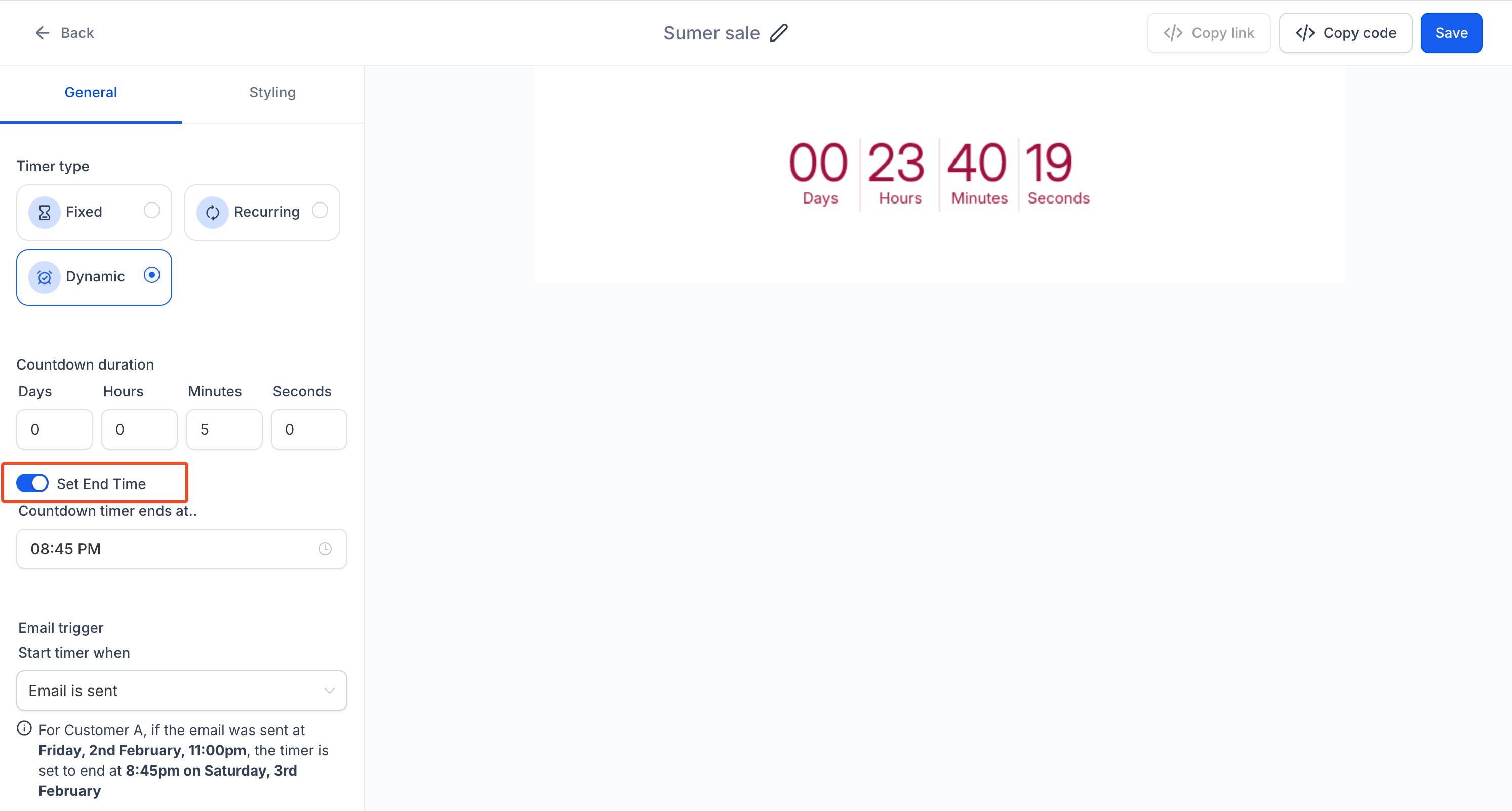
Select the Dynamic timer option.
Set the Duration for the timer.
Disable the Set End Time option to allow the timer to end after the chosen duration from when the email is opened or sent.
Save the settings and integrate the timer into your email campaign.
Important Considerations
One-Time Use Per Contact – A Dynamic Timer is triggered only once per contact. If you need to reuse it for the same contact in different email templates, it is recommended to clone the timer before reusing it.
Frequently Asked Questions
Q: Can I set multiple dynamic timers in one email?
A: Yes, but each timer will function independently based on when the email is opened or sent.
Q: What happens if a user opens the email multiple times?
A: The timer starts counting down from the first open instance. Subsequent opens will show the remaining time.
Q: Can I reuse a Dynamic Timer in different campaigns?
A: No, Dynamic Timers are one-time use per contact. You should clone the timer before using it in another campaign.
Q: Does this feature work with automated sequences?
A: Yes, Dynamic Timers work seamlessly within automated email workflows and sequences.