Overview
Users can now clone certificate templates from one location to another, making it easier to replicate and reuse designs. This feature allows cloning for up to three locations at a time while ensuring all associated elements are transferred seamlessly.
Key Highlights:
✔ Clone certificate templates across multiple locations (up to 3 at a time).
✔ Automatically migrates all media files and images associated with the template.
✔ Retains all template configurations and version history.
✔ Option to clone within the same location as well.
How to Clone a Certificate Template
Navigate to:
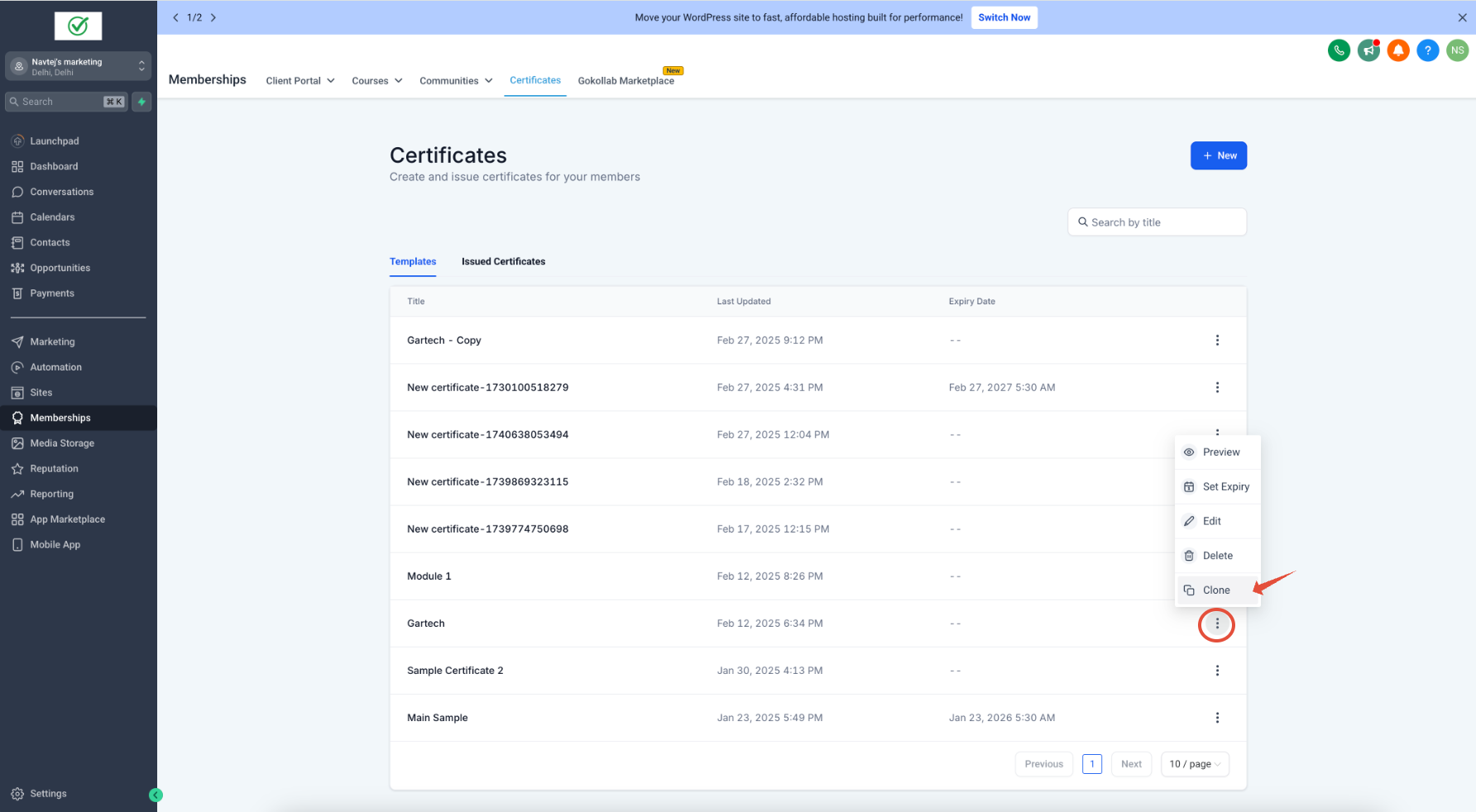
- Go to Memberships > Certificates.
Initiate Cloning:
- Click on the three-dots (⋮) next to the template you want to clone.
- Select Clone from the menu.
Configure Cloning Settings:
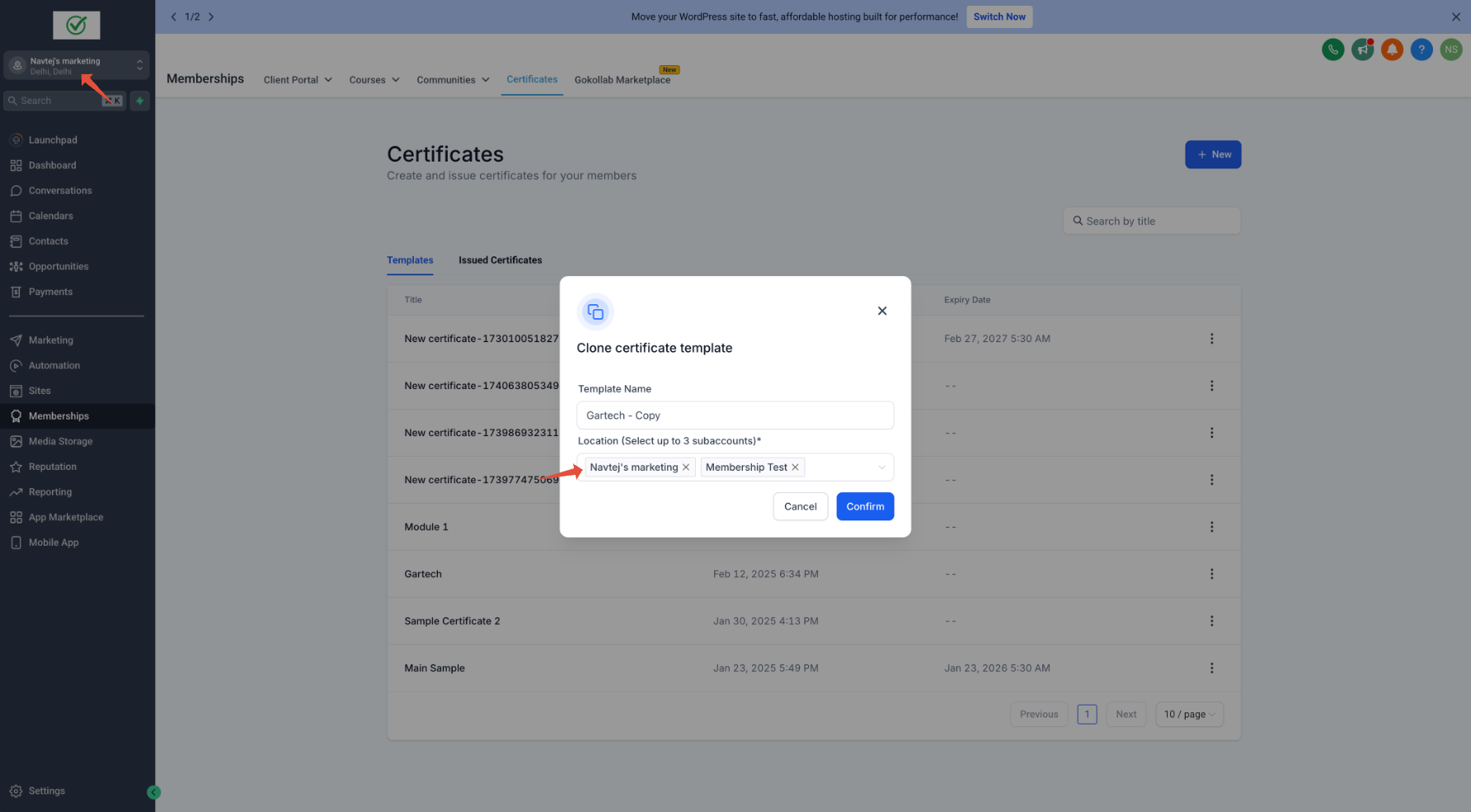
- Edit the Template Name (if needed).
- Select the locations where you want to clone the template (up to 3 locations).
Complete the Process:
- Confirm your selection, and the system will replicate the template along with all media files, configurations, and version history.
Note:
You can also clone a certificate template within the same location if needed.