
This guide will walk you through everything you need to know about SEO, its features and benefits.
TABLE OF CONTENTS
- What is the SEO feature in SourCherry?
- Key Features of SEO
- Understanding the Billing Structure
- SEO Feature Quotas
- Step-by-Step Guide to Getting Started
- Frequently Asked Questions
- Related Articles
What is the SEO feature in SourCherry?
The SEO is an integrated Search Engine Optimization solution powered by Search Atlas. This tool allowing businesses and agencies to optimize websites without needing third-party tools. It provides powerful features for keyword research, website auditing, backlink analysis, content optimization, and SEO reporting.
With its automation and white-label capabilities, agencies can seamlessly offer SEO services to their clients while keeping branding consistent.
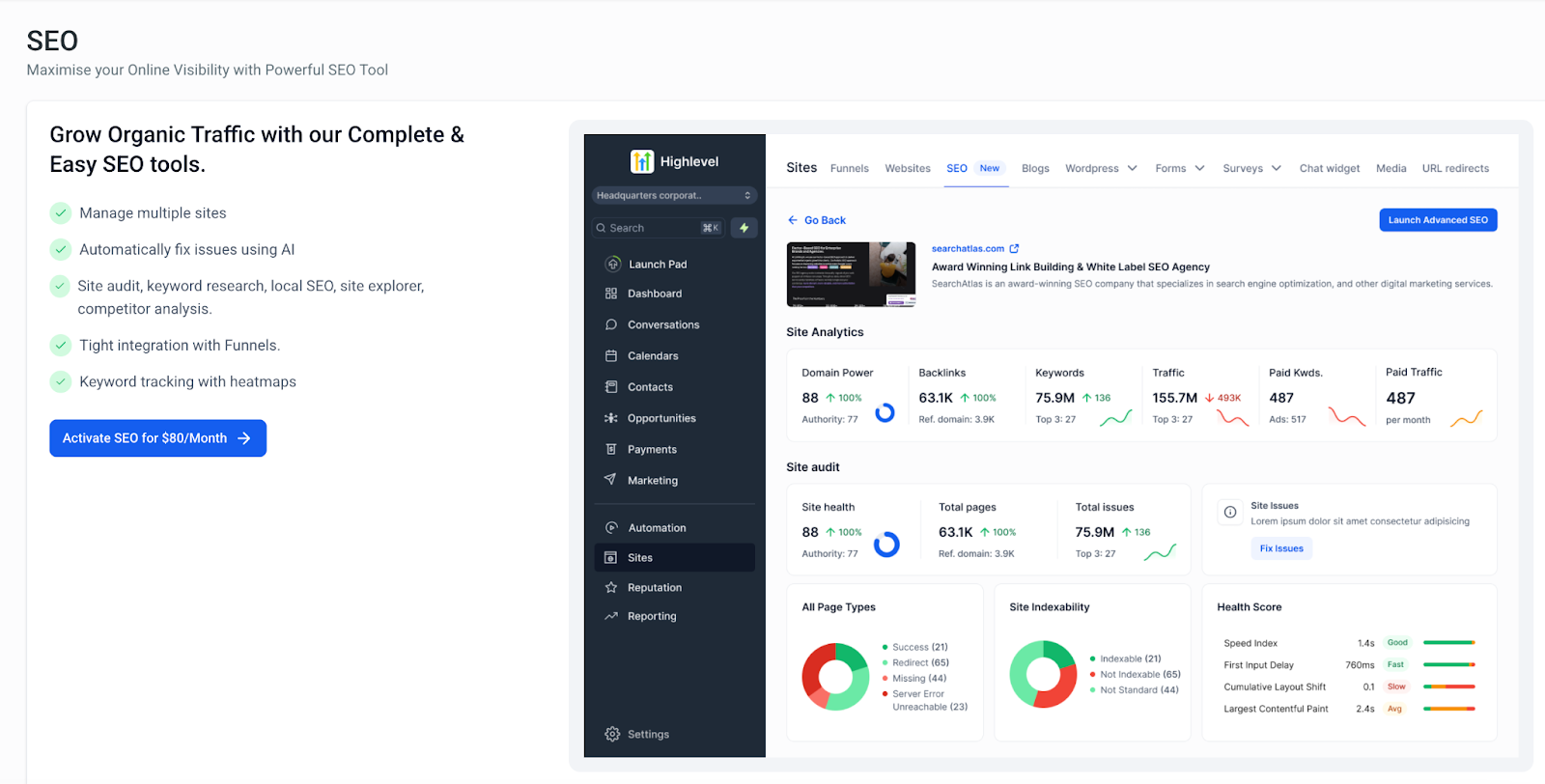
Key Features of SEO
SEO provides a comprehensive suite of tools for optimizing websites, tracking rankings, conducting audits, and managing SEO campaigns efficiently. Below is a detailed breakdown of all key capabilities:
Manage Multiple Sites
Optimize and track SEO performance across multiple websites from a single dashboard.
- Centralized management allows agencies to handle multiple client websites efficiently.
- Assign custom SEO strategies to different sites while keeping data organized.
Automatically Fix Issues Using AI
- AI-powered recommendations to resolve common SEO errors instantly.
- Automated fixes for:
- Issues in Meta description
- Issue in Title Tags
- Missing image alt text tags
- Issues in keywords
On-Page Audit
- Conduct detailed on-page SEO audits to identify errors affecting rankings.
- Analyze and optimize key on-page elements, such as:
- Title tags & meta descriptions
- Header structure (H1, H2, etc.)
- Image optimization & alt tags
- Internal linking structure
- Generate a prioritized list of issues with AI-driven recommendations for fixes.
Keyword Research & Tracking
- Discover high-performing keywords for your niche with advanced research tools.
- Analyze keyword difficulty, search volume, and ranking potential.
- Track keyword rankings over time with real-time updates.
- Use heat maps to visualize keyword performance trends.
Website Audit & Optimization
- Perform full-site audits to identify issues affecting search visibility.
- Automated detection and resolution of:
- Duplicate content
- Broken links & 404 errors
- Schema markup errors
- Page load speed issues
- Local SEO tools to optimize geo-targeted search results.
- Site Explorer for in-depth domain and competitor analysis.
Keyword Rank Tracker
- Track keyword rankings for up to 1,000 keywords.
- Monitor fluctuations in rankings across search engines.
- Identify growth opportunities and areas needing improvement.
- Multi-site keyword tracking for agencies managing multiple clients.
Backlink Analysis & Monitoring
- Analyze your website’s backlinks to assess their quality and impact on rankings.
- Identify and disavow toxic backlinks to prevent search penalties.
- Monitor new and lost backlinks with automated tracking.
- Competitive backlink analysis to refine your link-building strategy.
Content Genius – AI-Powered Content Optimization
- NLP content analysis: AI reviews your content for keyword usage, semantic relevance, headings, meta data, internal links, and user intent.
- Instant fix suggestions: Highlights missing headings, weak internal links, or incomplete metadata. Applying fixes uses credits; viewing doesn’t.
- Internal link guidance: Recommends strategic internal links to boost authority and engagement.
- Infinite scroll interface: Browse all AI recommendations in one continuous view with filters and sorting for quick triage.
- Accurate issue tracking: Counts for flagged pages and fixes now stay consistent across all views.
- Credit management: Applying fixes consumes AI quota (e.g., 3 credits per article in Premium plans).
- Optimized for scale: Continuous scrolling supports bulk reviews; close the details drawer and use filters for smoother performance.
Content Planner
- Organize and structure your content strategy efficiently.
- Plan up to 15 topic clusters for targeted content creation.
- AI-powered recommendations for pillar pages and supporting content.
- Ensure content alignment with search intent and SEO best practices.
SEO Reporting & Analytics
- Generate in-depth, data-driven SEO reports with actionable insights.
- Track key SEO performance metrics, including:
- Keyword rankings
- Organic traffic trends
- Engagement metrics
- Multi-site reporting for agencies managing multiple clients.
- White-label reporting to provide professional SEO insights to clients under your brand.
Tight Integration with Funnels and Websites
- Optimize funnel pages to improve organic traffic and conversions.
- AI-driven SEO recommendations for high-converting sales pages.
- Ensure seamless integration between SEO strategies and lead generation funnels.
Understanding the Billing Structure
SEO follows a flexible billing model:
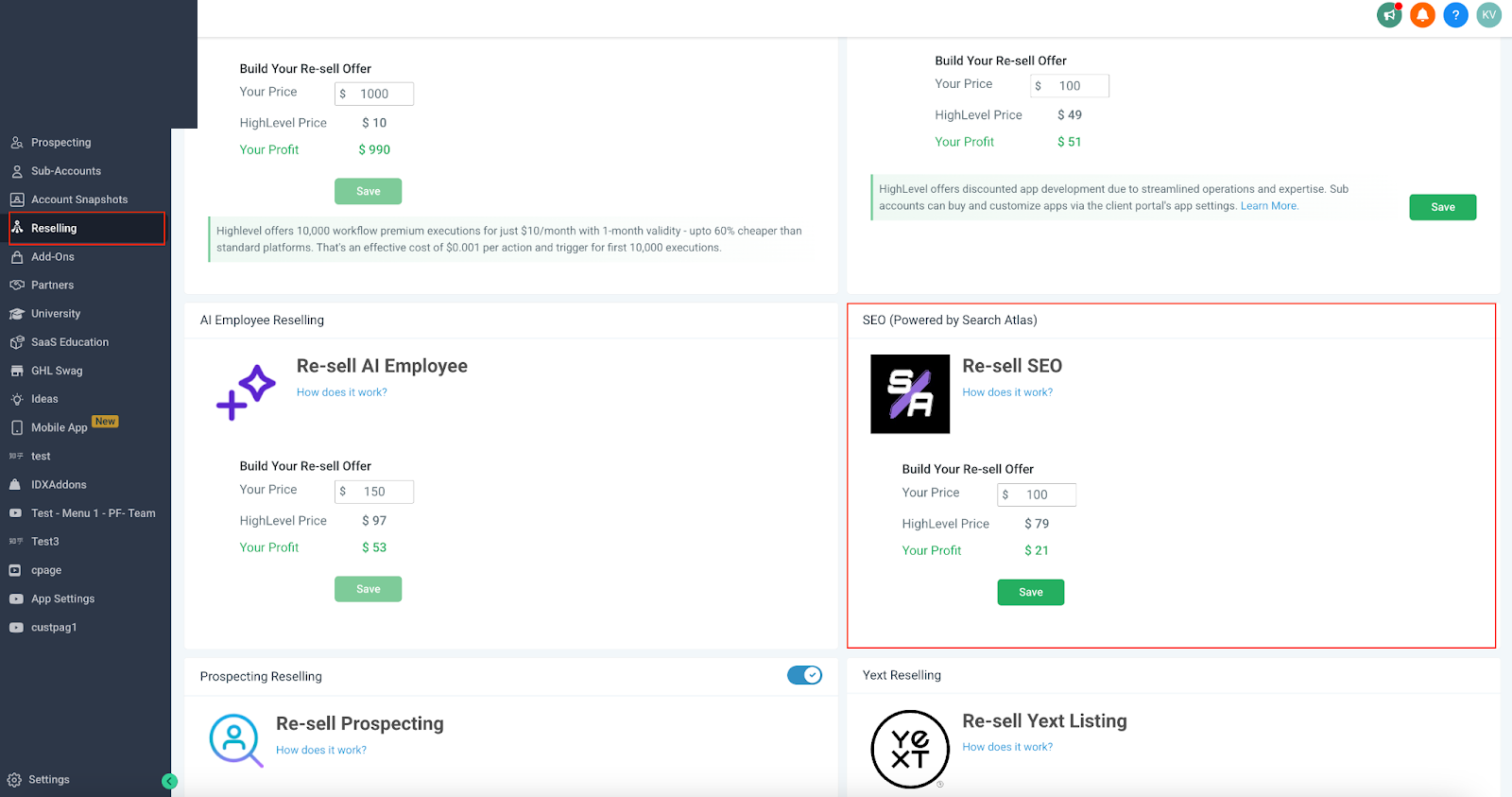
Charge for Agencies:
- A monthly fee of $79 per sub-account enabled.
Reselling Model (For Agencies)
- Your clients pay your agency directly.
- You manage payments via Stripe or another gateway.
- We charge you per sub-account using the SEO features.
To review your SEO expenses:
- Go to Agency Settings → Billing → SEO Subscription.
- Click ShowSub-Accounts to view charges for each client.
SEO Feature Quotas
While SEO offers powerful tools for optimizing your website, there are certain usage limits for each feature. Understanding these limitations can help you plan your SEO strategy effectively.
Quota visibility and exhaustion indicators
- Premium AI quota for article generation is shown in the Quota Info/Quota Usage area so you can track available usage.
- When a quota is exhausted, only the exhausted quota is highlighted in red. Other quotas in the same row remain normal so you can clearly see what is still available.
Step-by-Step Guide to Getting Started
Note: The SEO module appears in a sub-account only after the agency enables SEO Reselling for that sub-account.
- To get started, log in to your sub-account account and navigate to Sites > SEO.
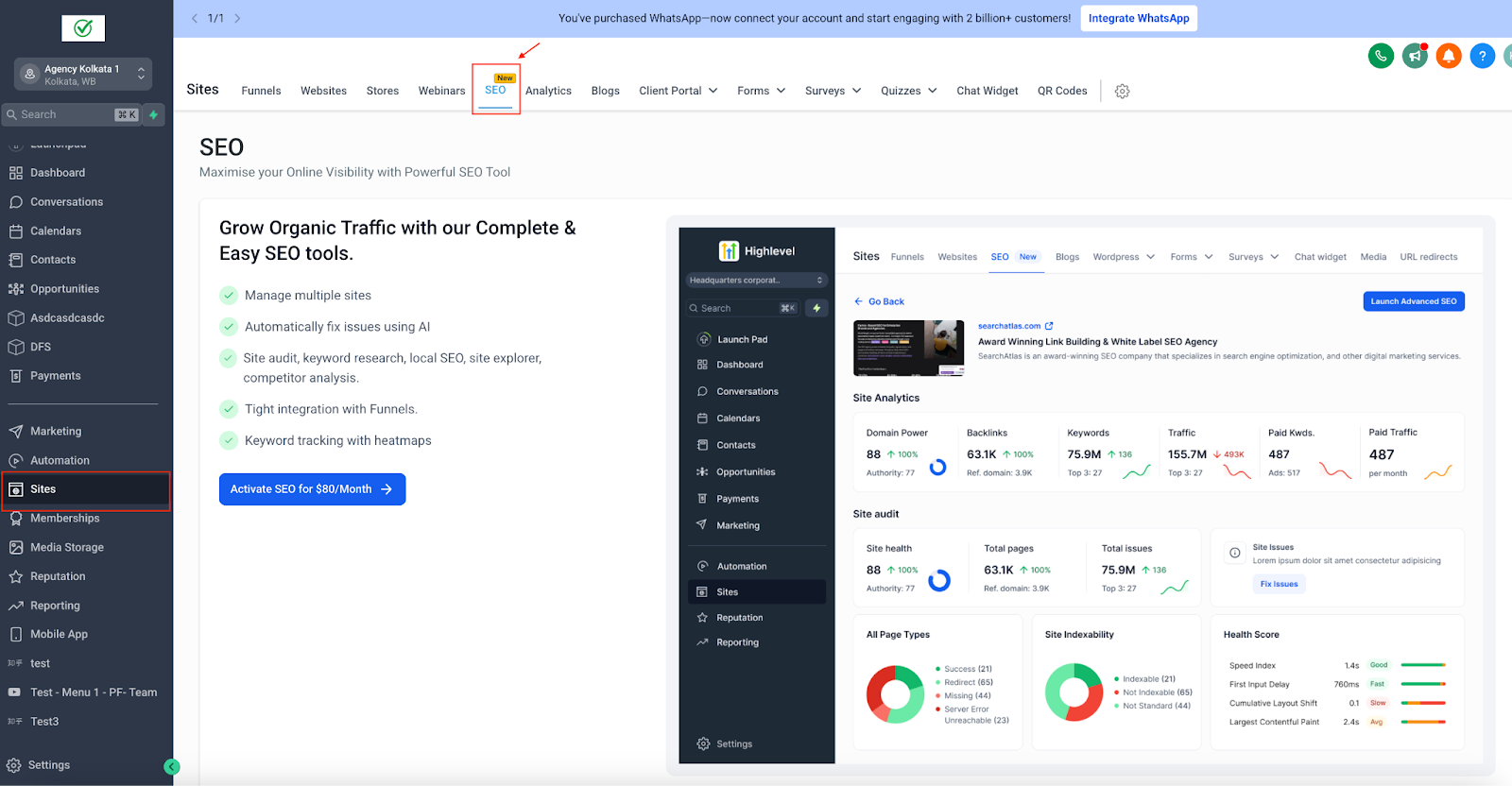
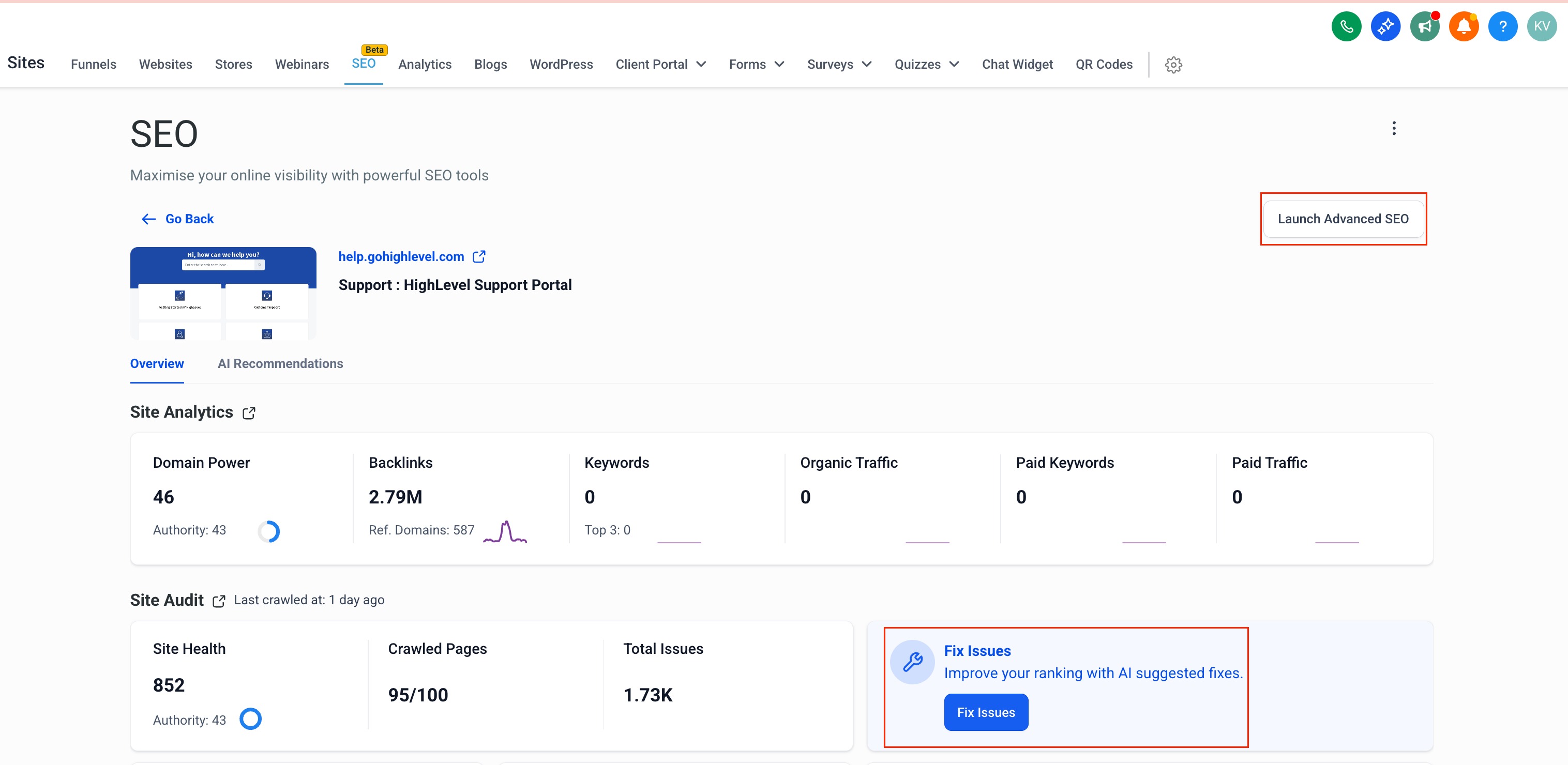
- Main SEO Dashboard Tabs, you’ll notice three primary tabs in the SEO section: Site Projects, Local SEO, and Settings.
- Site Projects: For monitoring websites (domains) – shows overall site metrics, health, backlinks, traffic, etc.
- Local SEO: For tracking Google Maps rankings of local businesses – uses interactive heatmaps for local keyword positions.
- Settings: For checking your quota usage.
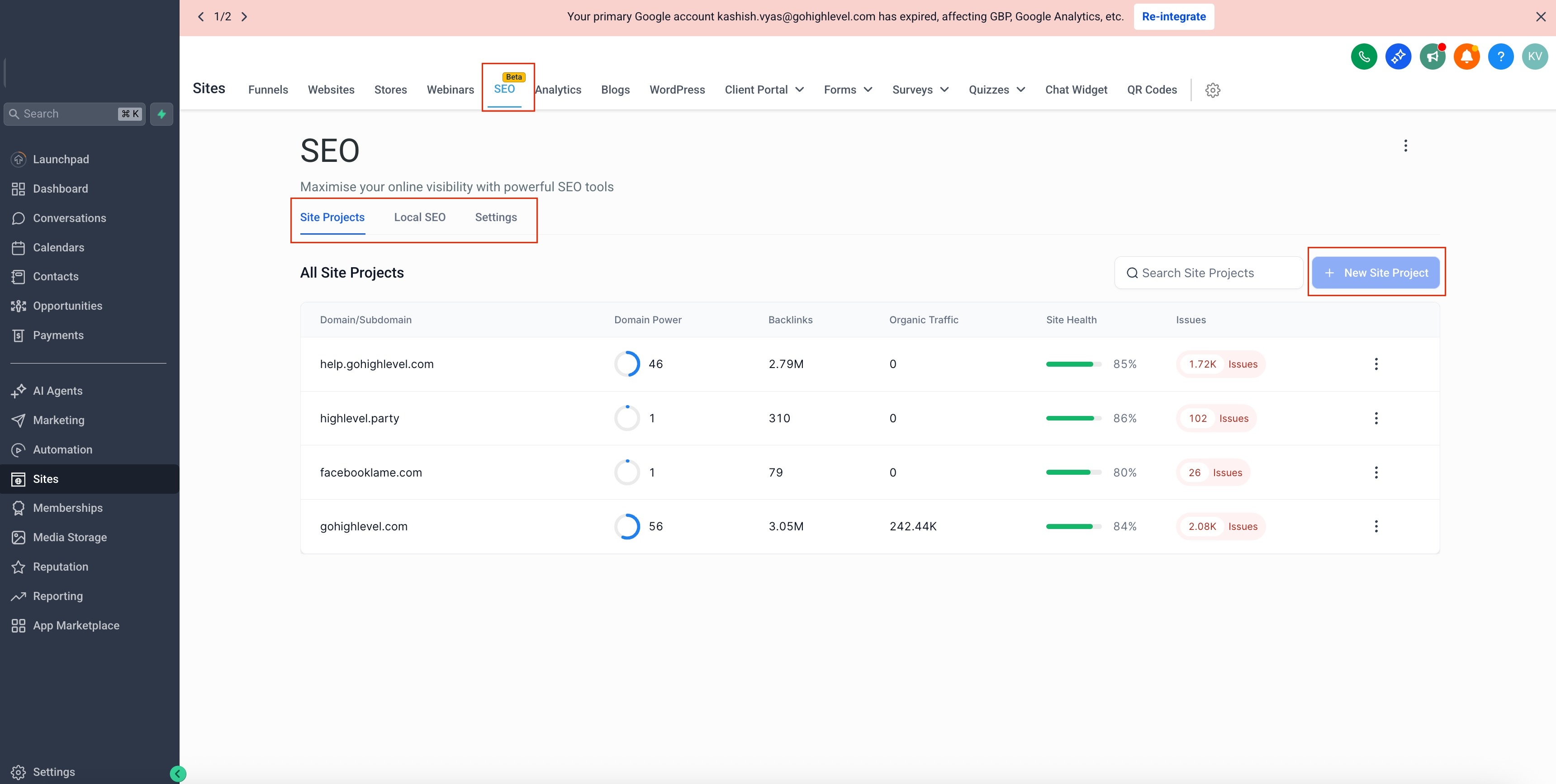
- Site Projects: For monitoring websites (domains) – shows overall site metrics, health, backlinks, traffic, etc.
- Launch Advanced SEO: Within the SEO dashboard, you will see a button labeled “Launch Advanced SEO”. Clicking this opens the full suite of SEO tools in a new window with an expanded toolkit for in-depth analysis, content creation, and reports.
Frequently Asked Questions
Q: Why don’t I see the SEO tab under Sites?
The SEO tab only appears after the agency enables SEO Reselling for that specific sub-account.
Q: Can I manage multiple sites?
Yes, track and optimize multiple websites from one dashboard with site-specific strategies.
Q: What can AI fix automatically?
Meta descriptions, title tags, missing image alt text, and keyword issues (with AI recommendations and instant fixes).
Q: What is the limit of the Rank Tracker?
Track up to 1,000 keywords, across search engines and multiple sites.