
This feature in quizzes allows you to assign scores to answers and categorize them. This helps in generating useful quiz results, such as assessments, recommendations, or segmentation based on responses and now display personalized result messages based on scoring ranges. This is perfect for assessments, personality quizzes, onboarding surveys, and more.
TABLE OF CONTENTS
How to Add Scores in Quizzes
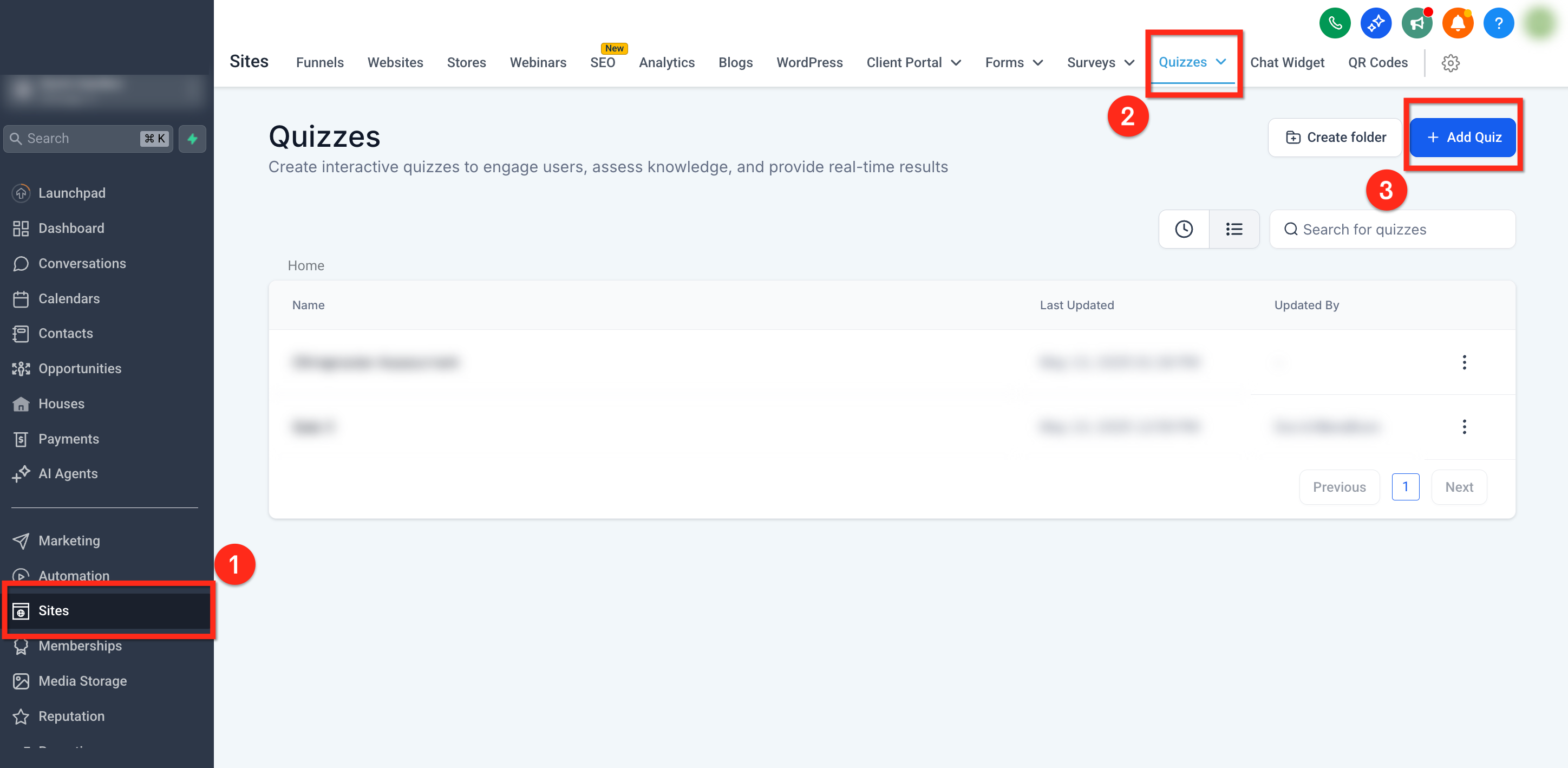
Step 1: Create or Edit a Quiz
Log into your account.
Navigate to Sites > Quizzes.
Select an existing quiz or click + New Quiz to create a new one.
Step 2: Add Questions to the Quiz
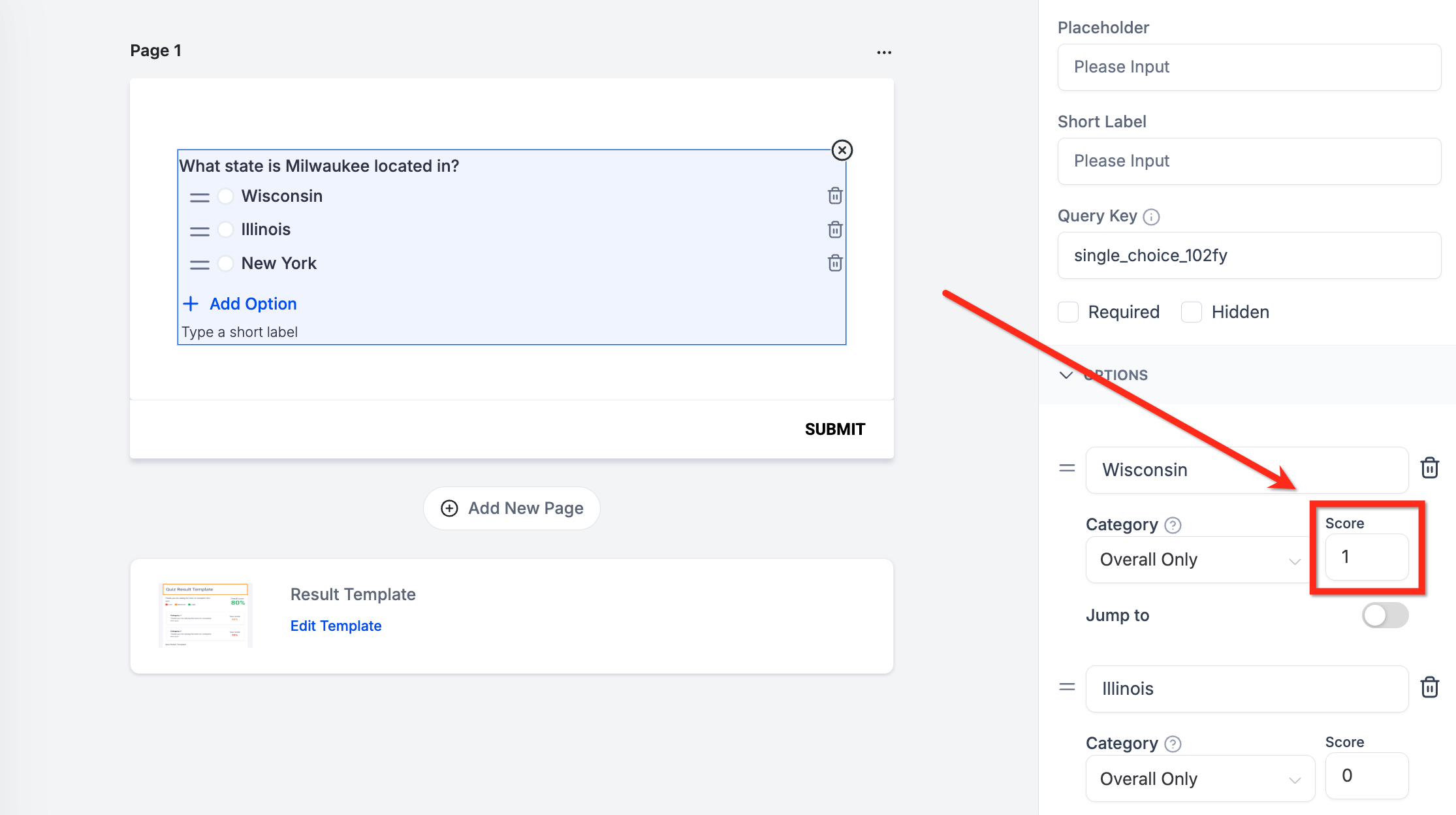
Click Add Question and choose a question type (Single Choice, Multiple Choice, Dropdown, etc.).
Enter the question and possible answer choices.
For each answer choice, assign a score value based on how much weight it carries.
Step 3: Assign Scores to Categories
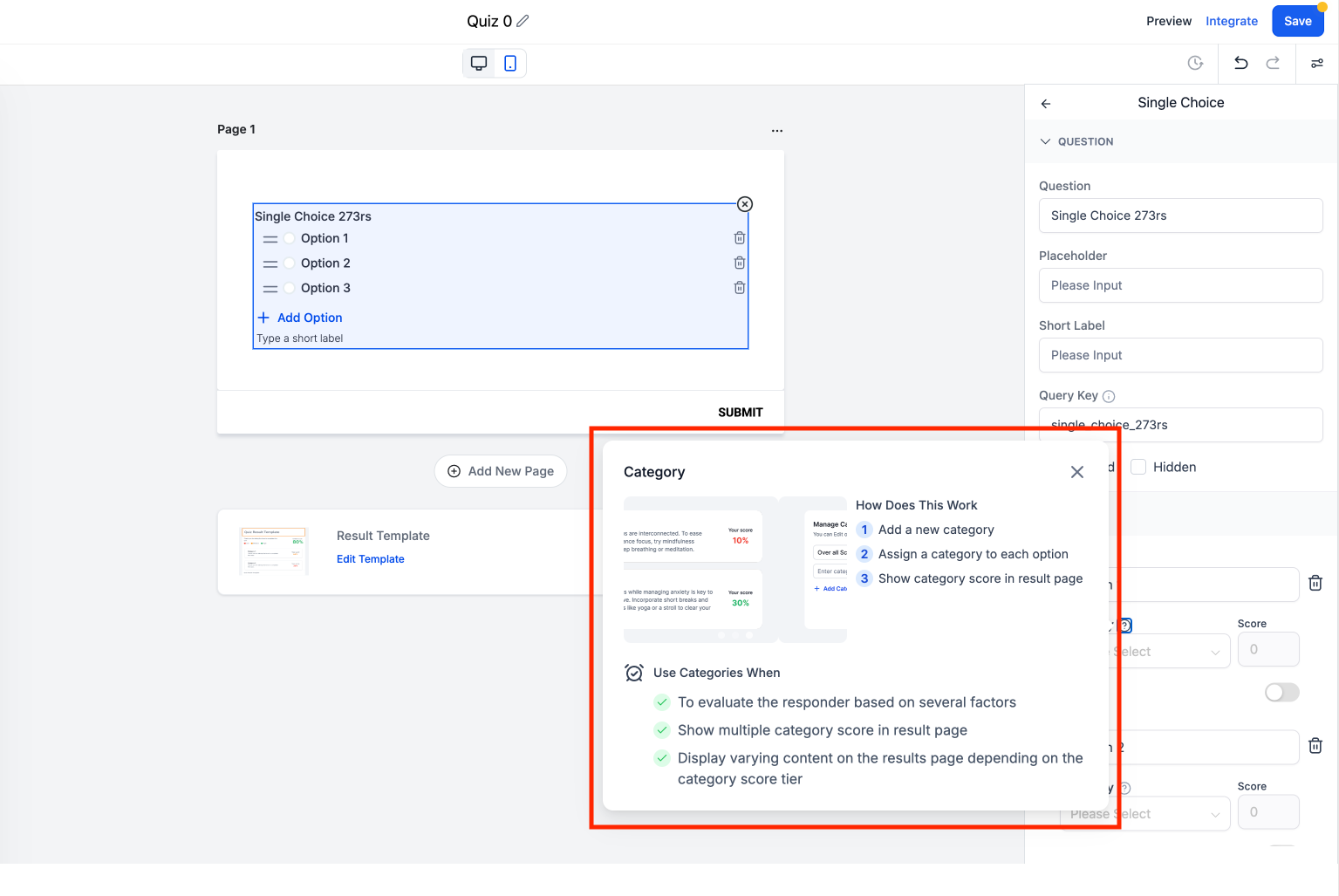
Create score categories (e.g., Category A, Category B, etc.).
Note: When you create or edit a category, the in-product category popover explains how categories work—from setup, to assigning options, to showing category scores on the result page. Refer to it as a quick guide while you build.
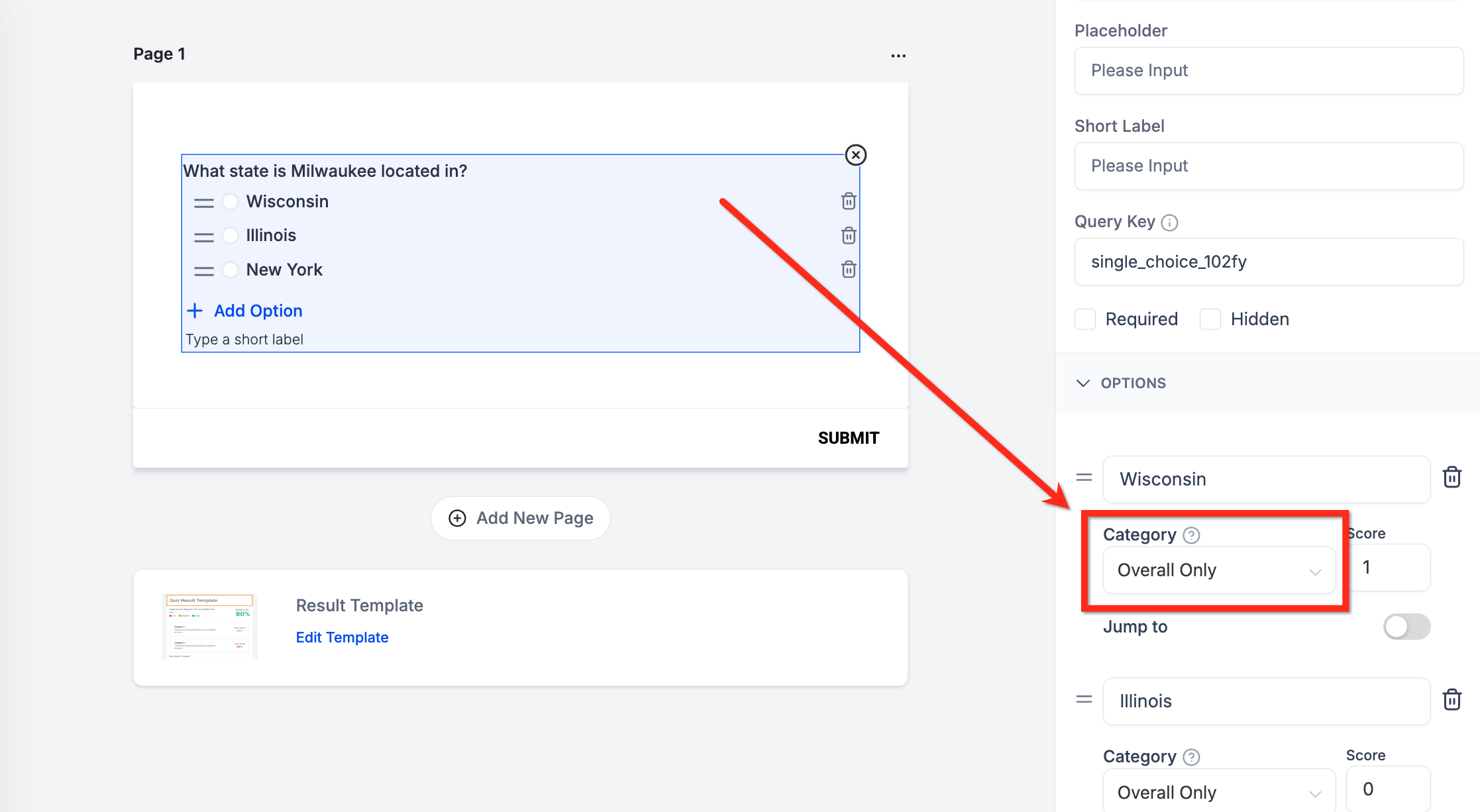
Assign scores to each answer:
For Single Choice/Dropdown questions, assign a fixed score per answer.
For Multiple Choice/Multi Dropdown, assign a score per option that adds up if multiple choices are selected.
Assign each answer’s score to the relevant category.
Step 4: Save and Preview
Click Save Quiz once you’ve set up all questions and scoring.
Use the Preview option to test the quiz and check if scores are calculated correctly.
How Quiz Scoring Works
Step 1: Set the Maximum Score for Each Question
Every question has a maximum score, which depends on its type:
Single Choice/Dropdown: Only one answer can be selected, so the max score is fixed.
Multiple Choice/Multi Dropdown: Multiple answers can be selected, so the max score is higher. The max score is fixed and it is the sum of all the options in the dropdown/multiple choice.
Example:
A Single Choice question might have a max score of 10.
A Multiple Choice question might allow up to 50 points.
Step 2: Assign Scores to Answers
When a quiz-taker selects an answer, it contributes to:
Overall Score Only: Counts toward the total quiz score but not any specific category.
Category-Specific Score: Counts toward both a specific category and the overall score.
Multiple Categories: Affects more than one category at the same time.
Example:
If a quiz has Category A, B, and C, and an answer is assigned to Category A, the score counts toward Category A and the Overall Score.
Step 3: Calculating the Final Score
Once all answers are selected, the final score is calculated using this formula:
Final Score = (Selected Score / Max Score) * 100
This is done separately for Overall Only and for each category.
Example Calculation
In this example:
The quiz-taker scored 69.23% overall.
For Category A, they scored 20 out of 50, resulting in 40%.
Key Takeaways About "Overall Only"
"Overall Only" is a Consolidated Score
If an answer is assigned only to "Overall Only," it doesn’t count towards any category.
If an answer is assigned to both a category and "Overall Only," it is counted in both.
Categories Are Independent but Contribute to the Overall Score
Each category's score is calculated separately, but the Overall Score is the sum of all category scores.
Formula Breakdown
The Final Score Formula is calculated as:
Maximum Selected Score for X / Maximum possible score in each categoryThis applies across Overall, Category A, Category B, etc. to derive the percentage scores.
Add Dynamic Result Messages by Score Ranges
You can display different messages depending on a quiz taker’s score percentage.
Steps
Go to the Result Page in the quiz builder.
Define your score ranges (for example, Low: 0–40%, Medium: 41–70%, High: 71–100%).
Add a custom message for each range.
Optionally, add a CTA (subscribe, book a call, redirect to funnel, etc.).
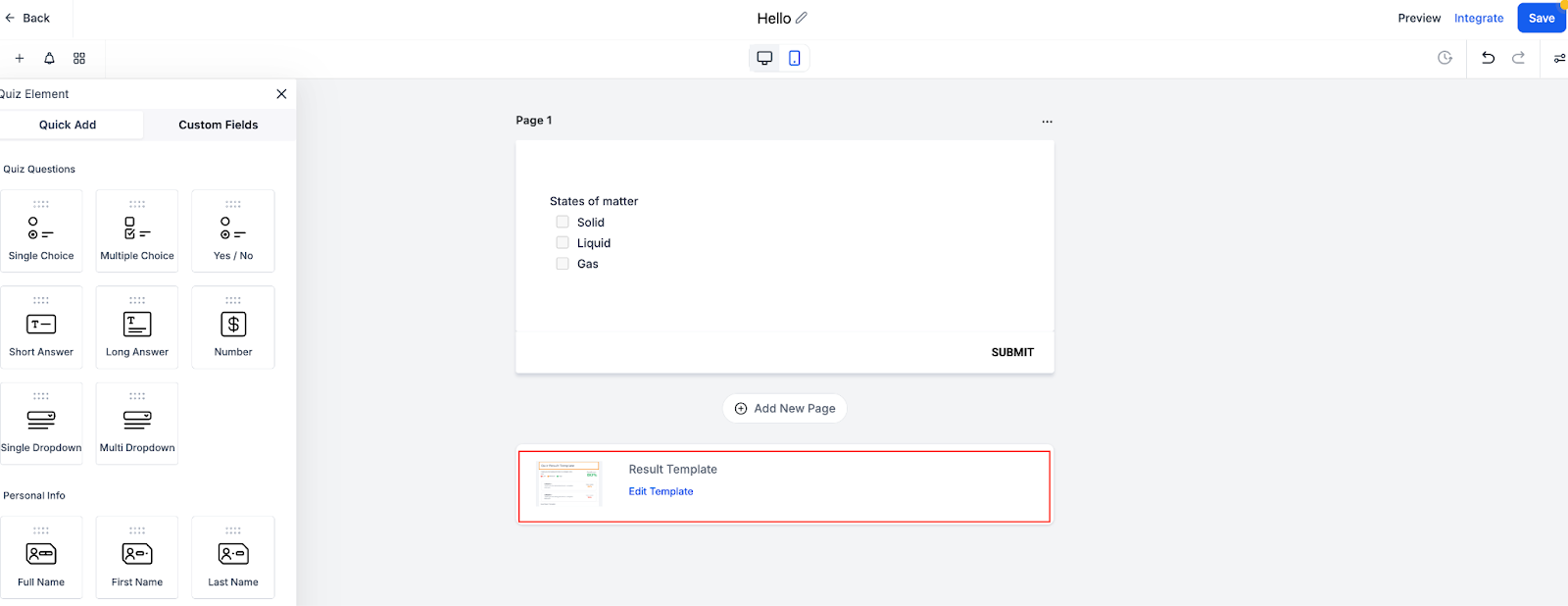
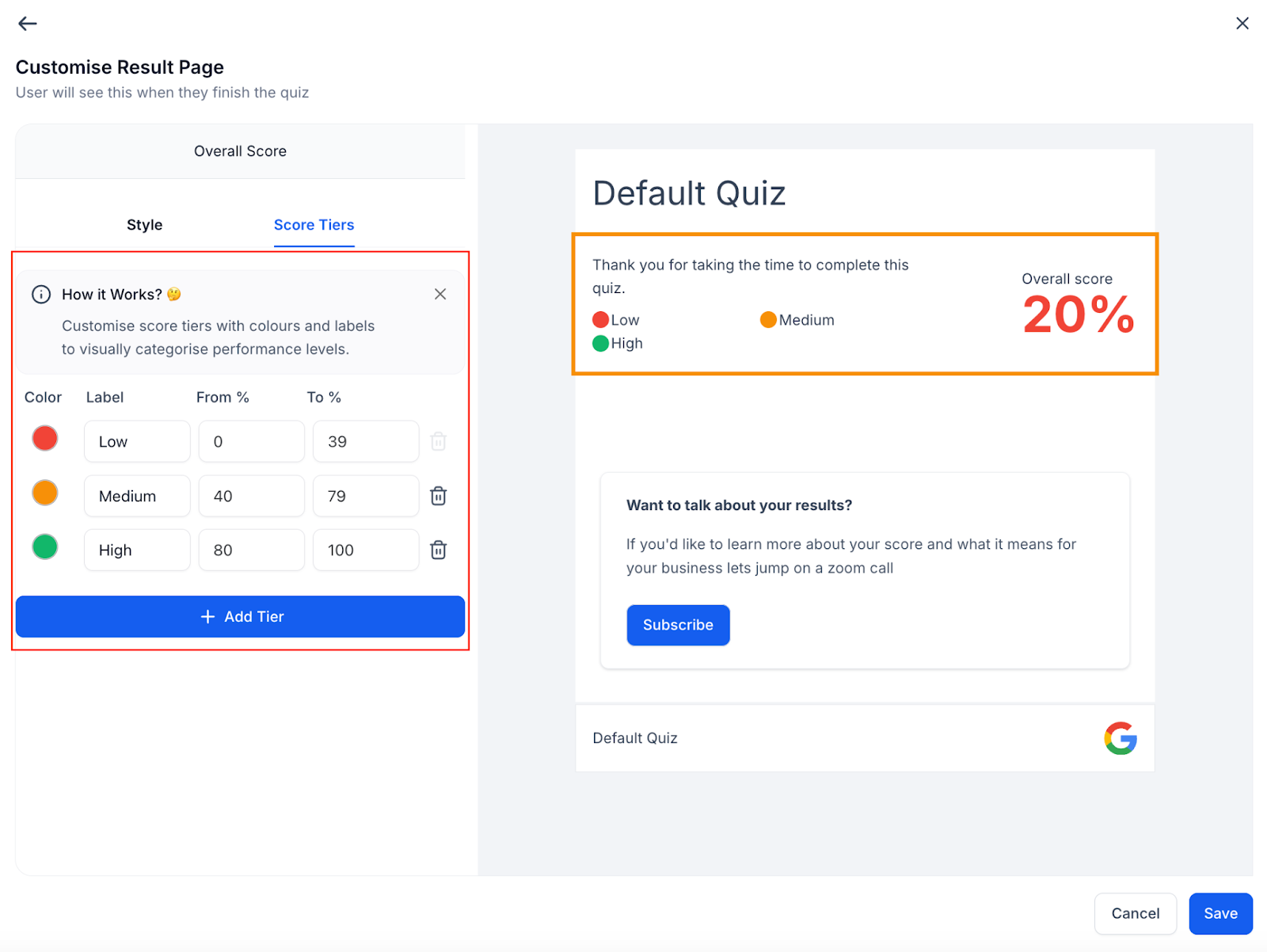
Examples
Low: “There’s room for improvement. Let’s explore how we can help.”
Medium: “You’re on the right track. Here’s how to optimize further.”
High: “Awesome job! You nailed this. Let’s talk about next steps.”
Best Practices
Double-check category assignments if totals don’t add up.
Remember: Overall Only answers do not affect categories.
Always preview to confirm scoring accuracy.
Build the Result Page from Scratch
You can add or remove sections and fully customize them.
Sections Available
Header
Overall Score
Category Score
Individual Category
Call to Action
Footer
Header
The top section of the result page.
What you can do:
Show or hide the business name.
Swap layout between default and reverse.
Upload a logo and set its size.
Edit the quiz title (font, size, color, alignment).
Adjust spacing (margin/padding).
Set a background color.
Example: Add your logo and a custom quiz title, “Leadership Scorecard.”
Overall Score
Summarizes total quiz performance.
What you can do:
Turn on Dynamic Content to show different messages for Low/Medium/High.
Rename the section title (for example, “Your Final Score”).
Show or hide the numeric score and tier legend.
Choose format (percentage, Actual Score or Out of 10).
Choose score position (left, right).
Add tailored text, images, or links for each tier.
Adjust spacing and background color.
Example: “You scored 68% — you’re on the right track! Let’s take the next step.”
Category Score
Breaks down performance across multiple categories.
What you can do:
Rename the section header (for example, “Your Skills Breakdown”).
Optionally enable Dynamic Content for per-category messaging.
Show or hide percentages.
Add explanatory text under each category.
Style with spacing and background color.
- Choose how each category score displays : percentage, actual score, or out-of-10—so you can match the style of your overall result.
Example: “Marketing 80%, Sales 60%, Leadership 40%” with feedback under each.
Individual Category
Highlights a single category - either the highest or lowest scoring one.
Settings available:
Display Category → Select Highest Score or Lowest Score.
Dynamic Tags → Insert variables such as:
{{quiz_tags.highest_category_name}}
{{quiz_tags.highest_category_score}}
Content Editor → Add explanatory text, format fonts, and include inline links.
Media Options → Toggle between image or video.
If video: paste a video link and choose placement (top, bottom, left, right, fixed).
Note: Images and videos in templates cannot be replaced, only toggled on/off and positioned.
CTA Button → Add button text, link, and style (color, alignment).
Spacing & Background → Adjust margins, padding, and background color.
Example: “Your score shows you are Marketing Strategy with a score of 80%” with a right-aligned video and a CTA button labeled “Subscribe.”
Call to Action
Encourages quiz takers to take the next step.
What you can do:
Add context text above the button.
Customize button label (for example, “Book a Call” or “Download Report”).
Link button to funnels, booking calendars, or external resources.
Style the button (color, text color, alignment).
Adjust spacing and background color.
- Use dynamic content options to show different CTAs or supporting text for specific score tiers (for example, stronger offers for high scores).
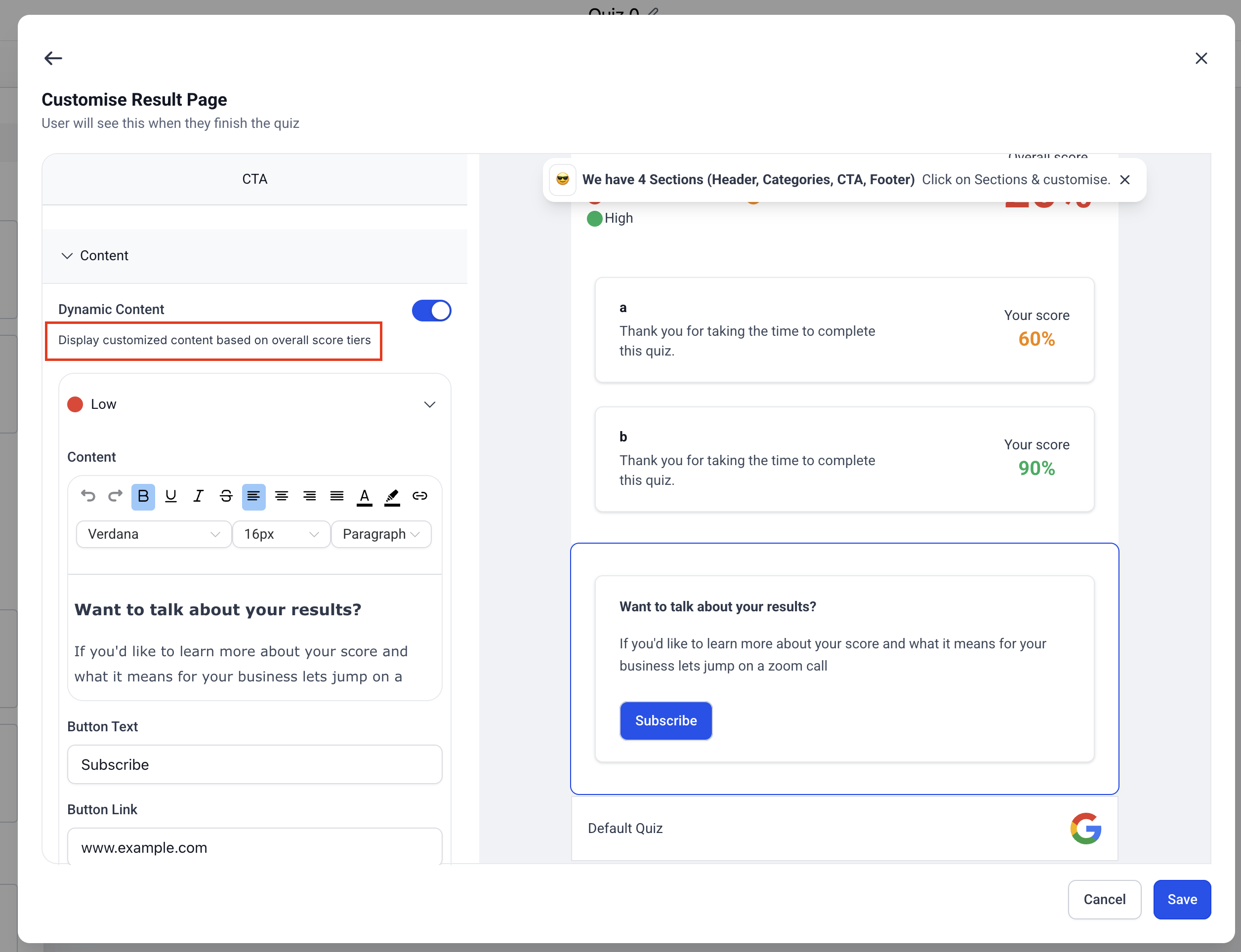
Example: “Want to talk about your results? Book a 15-min call” with a branded button.
Footer
Closes out the result page.
What you can do:
Add footer text (for example, disclaimer or copyright).
Upload a small logo.
Insert links (privacy policy, terms, social).
Style with spacing and background color.
Example: “© 2025 XYZ Co. | Privacy Policy” with a light gray background.
Best Practices
- Keep results simple by hiding sections you don’t need.
- Match CTAs with outcomes so users take the right next step.
- Preview often to confirm layout and content on both desktop and mobile.
- Double-check scoring and category assignments if totals don’t add up.
- Test edge scores (for example, 40%, 70%) to confirm they map to the correct tiers.