
The New Theme Customizer is a powerful new feature that enables users to personalize the appearance of their course sites with ease. From logos and search bars to hero sections and course sidebars, users have full control over key design elements to create a visually appealing and branded learning experience.
With intuitive visibility toggles, color and text overrides, custom content blocks, and template-saving options, users can effortlessly design course sites that align with their brand identity—without needing coding expertise. Real-time previews ensure that changes are instantly reflected, while system and custom templates offer flexibility for quick deployment.
This document provides a detailed breakdown of each feature and customization option available.
TABLE OF CONTENTS
- How to Use the New Theme Customizer
- Key Features and Customization Options
- Additional Customization Options
How to Use the New Theme Customizer
1. Navigate to the "Customize" option in your Course Outline.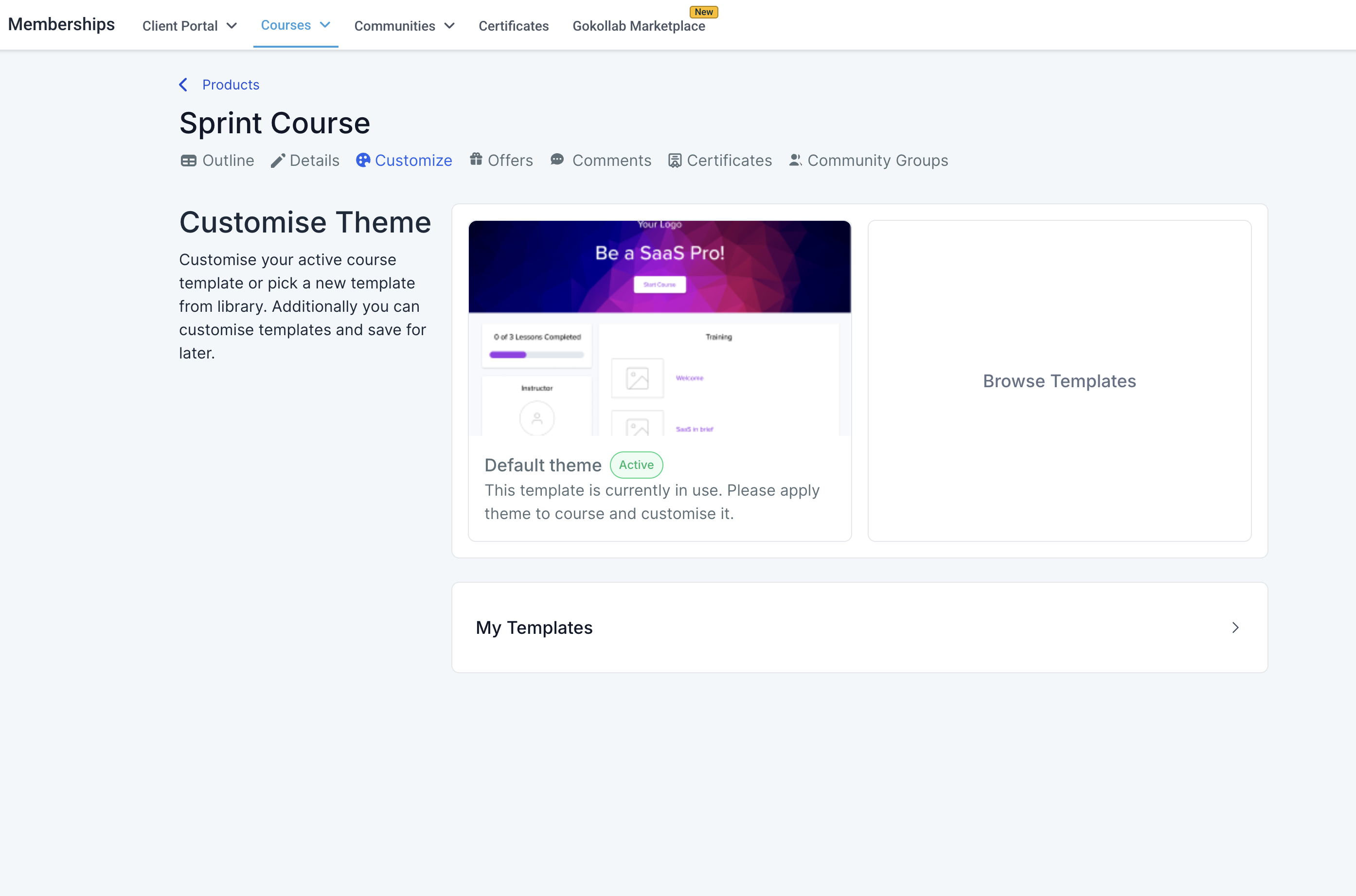
2. Click on "Browse System Templates".
3. Select "Neo Classic" Theme to utilize the New Customizer.
Note: When you apply Neo Classic from Browse Templates, the theme displays as Neo Classic Theme to help you distinguish it from your saved templates.
Save as Template
Use Save as Template to save your current customized theme for reuse.
1. In the theme editor, click Save as Template.
2. Enter a template name in the naming modal.
3. Click Save.
4. After saving, you are redirected to the newly created template.
My Templates (Empty State)
If you do not have any saved templates yet, My Templates shows an improved empty state with clearer guidance.
Loading state for activated theme name
When you activate a theme, the activated theme name can show a shimmer loading effect while the change applies.
Template editor CTA and tooltip updates
- The primary CTA is now Activate Template.
- Button labels and tooltips are updated to be more descriptive.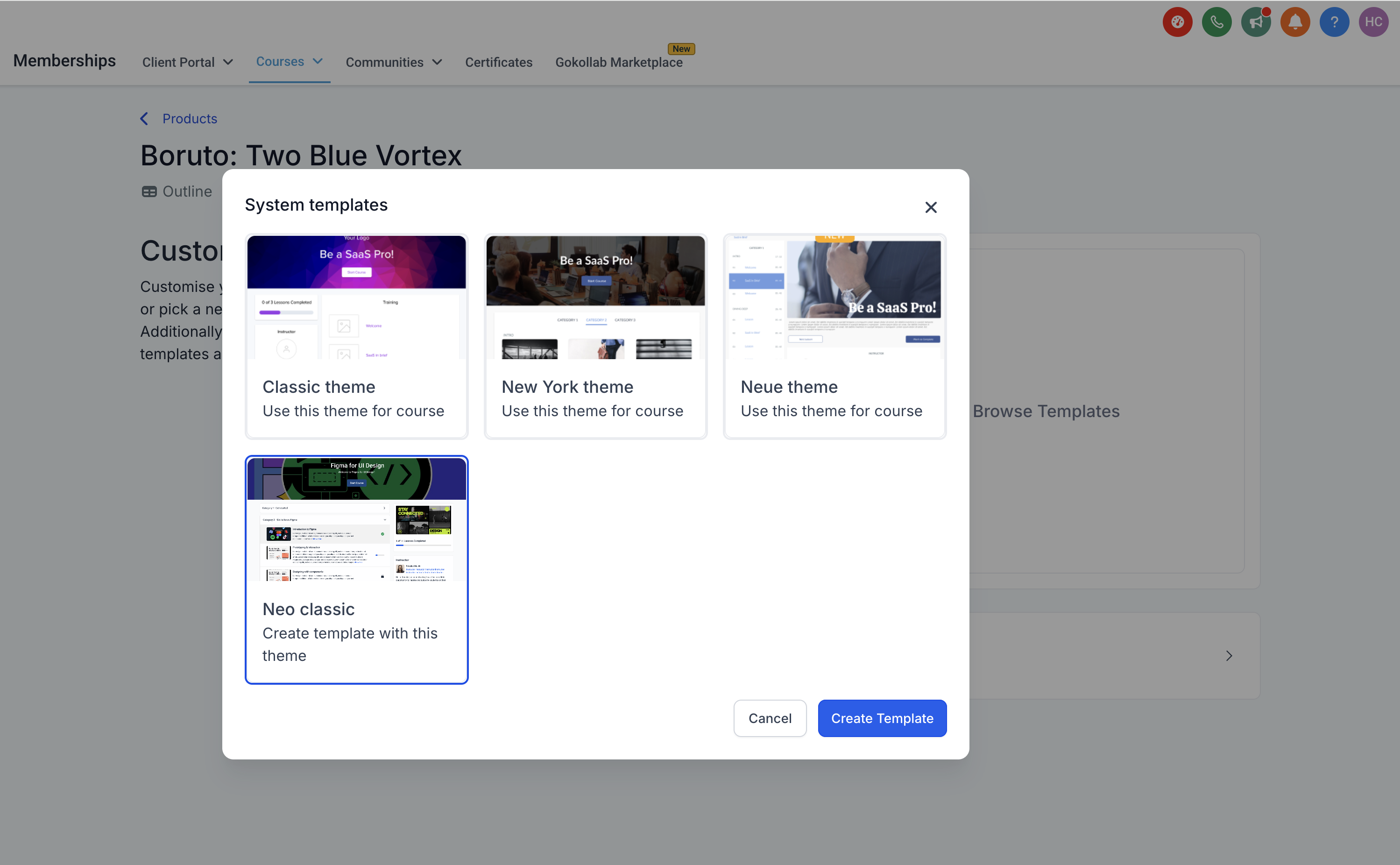
4. You can do modifications as per the available customization options and then save this for future use.
5. If you choose to Save it, you can later find this under "My Templates" option on the main "Customize" Screen.
Key Features and Customization Options
1. Logo (Mandatory)
- Visibility: Show/Hide option
- Category Types: Text, Image
- Logo Action: Set action for clicking the logo to redirect users to:
- Site Home
- Product Home
- Site Home
- Height Options: Small, Medium
- Placement: Typically in the top-left or center of the header
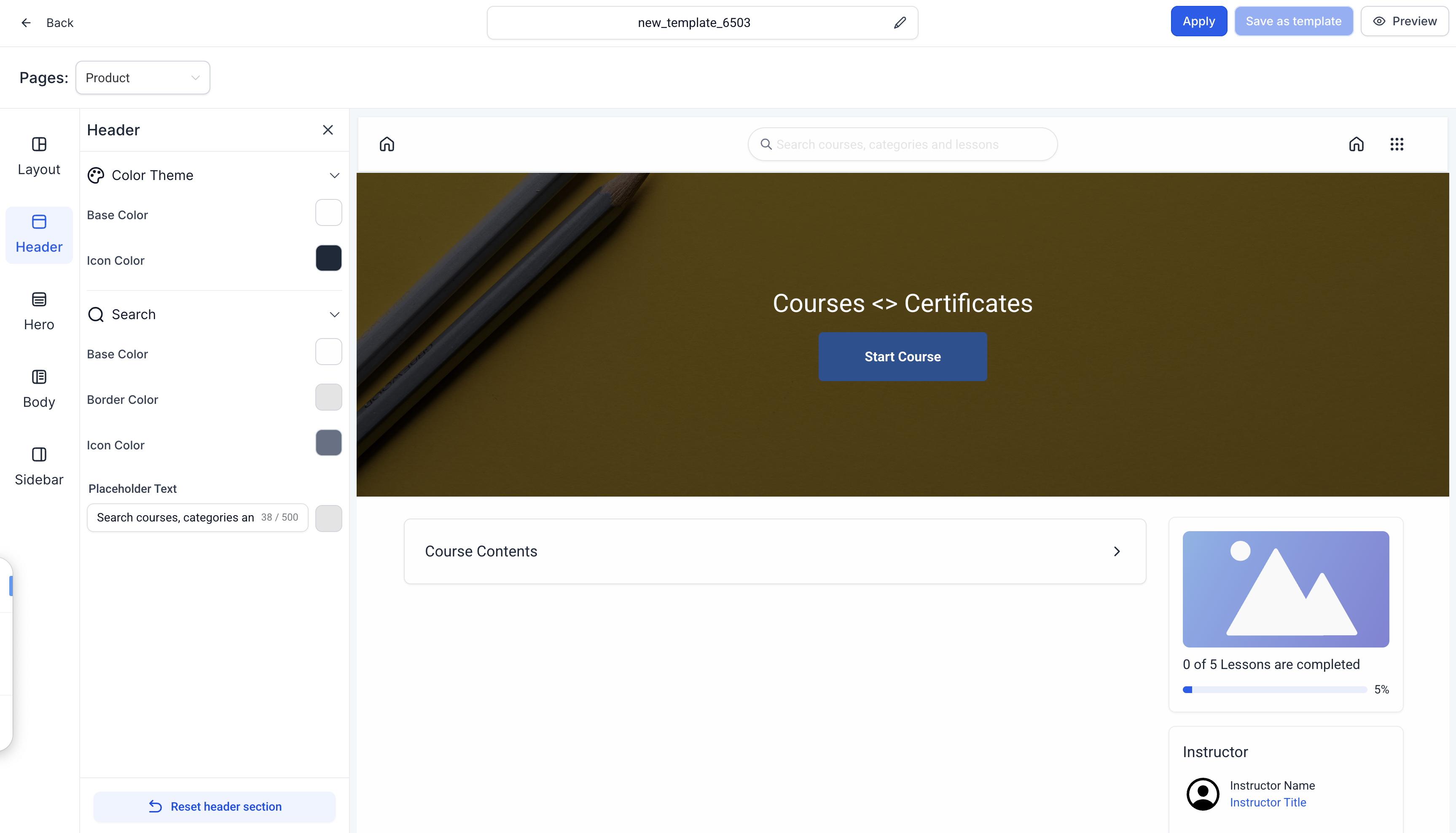
2. Search Bar (Mandatory)
- Visibility: Show/Hide option
- Search Helper Text: Add instructional text inside the search bar to guide users
- Appearance Properties:
- Background Colour Override
- Text Colour Override
- Background Colour Override
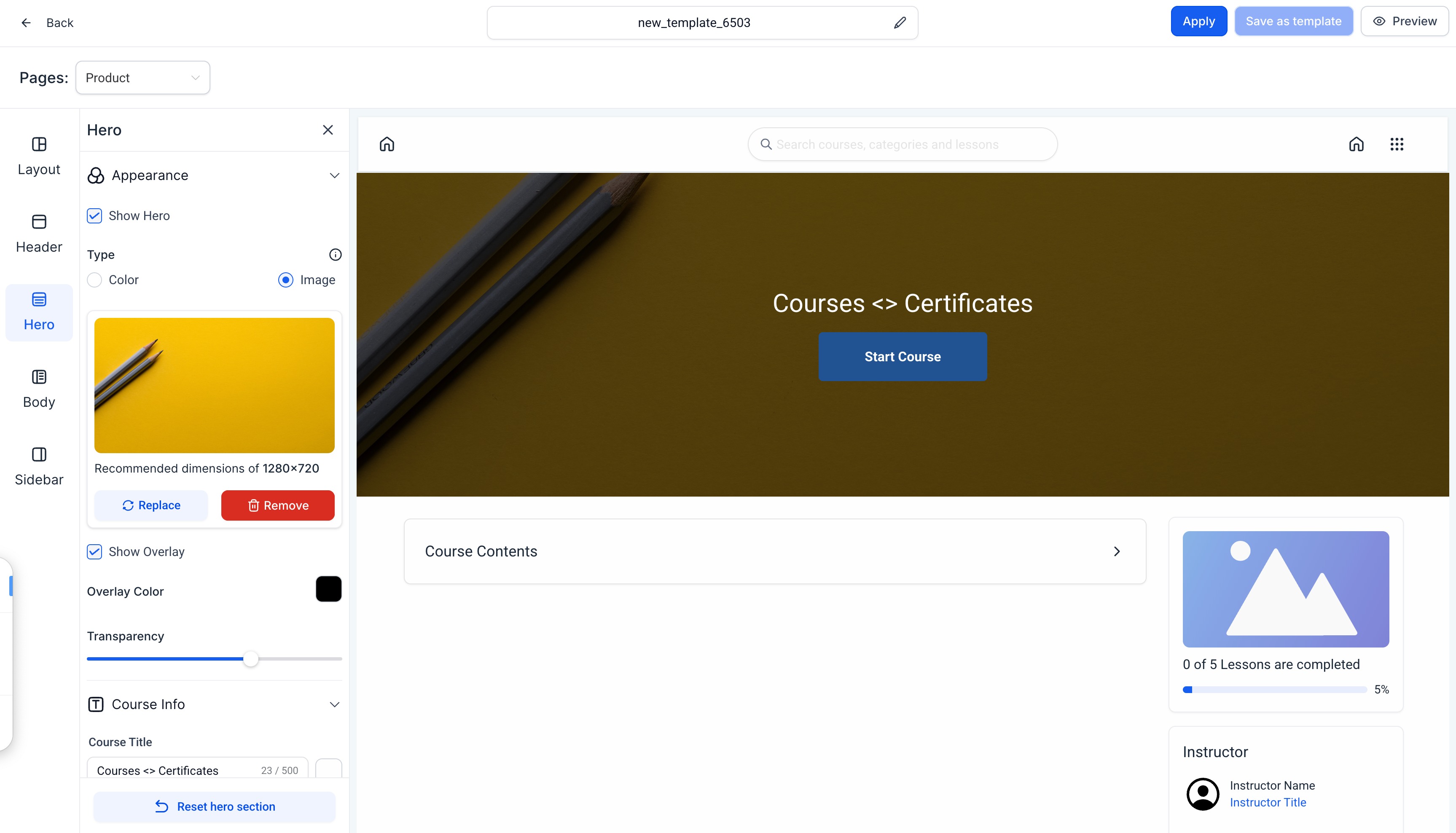
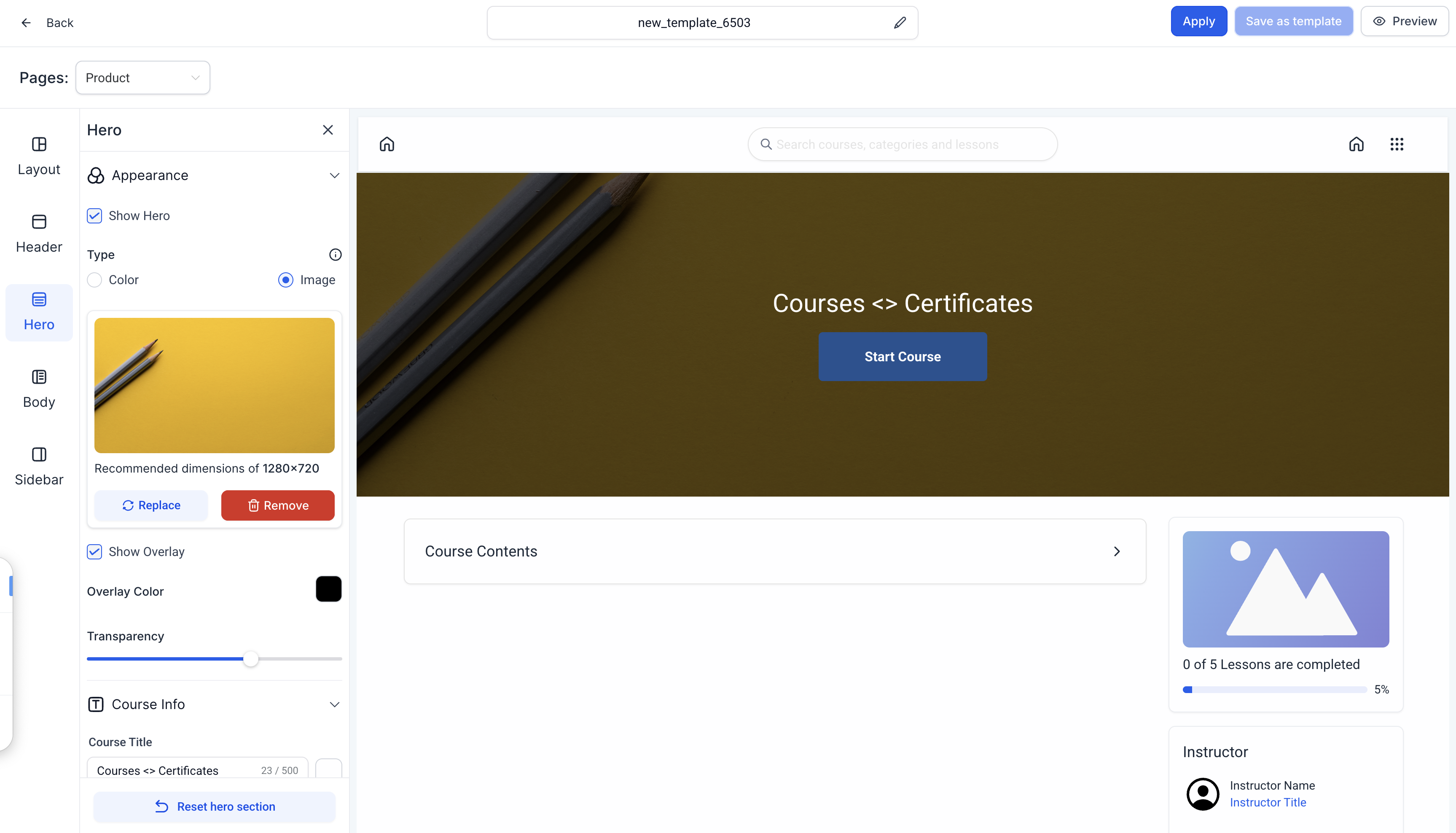
3. Hero Section (Mandatory)
Customize the hero section of your Course page to change the appearance of the top-most section of your page.
- Visibility: Show/Hide option
- Appearance Types:
- Image background
- Colour Picker for solid backgrounds
- Image background
- Overlay Options:
- No Overlay (Checkbox)
- Overlay Colour and Opacity customization
- No Overlay (Checkbox)
- Course Info Customization:
- Title: Text, Colour Override, Bold/Italics, Alignment (Left, Center, Right)
- Description: Text, Colour Override, Bold/Italics, Alignment
- Title: Text, Colour Override, Bold/Italics, Alignment (Left, Center, Right)
- Spacing Options:
- Full Height
- Medium
- Small
- Full Height
- Start Button Customization:
- Text: Colour Override, Content
- Button: Colour Override, Alignment
- Text: Colour Override, Content
4. Welcome Body (Add Section)
Users can add multiple content blocks to the welcome body, including images, text, videos, and CTAs.
- Image Block:
- Upload an image
- Set an image action (URL link on click)
- Upload an image
- Text Block:
- Text Alignment (Left, Center, Right)
- Colour Override, Bold, Italic
- Text Alignment (Left, Center, Right)
- Video Block:
- Upload a video directly to be displayed
- Upload a video directly to be displayed
- Custom Block:
- Text: Alignment, Colour Override, Bold, Italic
- Image: Upload an image, add an action URL
- CTA Button: Customize button colour, text colour, content, and destination link.Guide learners with strategic CTAs for maximum engagement.
- Video: Upload a video
- Text: Alignment, Colour Override, Bold, Italic
5. Course Syllabus (Mandatory)
The Course Syllabus is the outline of your Course Modules and Lessons.
- Visibility: Show/Hide option
- Syllabus Type Selection:
- Categories: Organize courses by category
- Posts: Display syllabus as a list of course posts
- Categories: Organize courses by category
- Customizable Text Fields:
- Categories Label
- "Coming Soon" Text
- "Show More" Text
- Categories Label
6. Course Sidebar
- Progress Bar:
- Show/Hide
- Colour Override
- Custom Text Override (with an info icon displaying description)
- Show/Hide
- Instructor Section:
- Show/Hide
- Headshot Display: Show/Hide, Upload Image
- Instructor Info: Heading, Name, Title, Bio
- Show/Hide
- Cross-Sell Section:
Promote another Offer directly from your Course Product to encourage your existing customers to purchase. Customize the appearance of your Offer within the Cross Sell block in your Sidebar- Select an Offer
- Set a CTA Text to encourage sign-ups
- Select an Offer
- Custom Blocks:
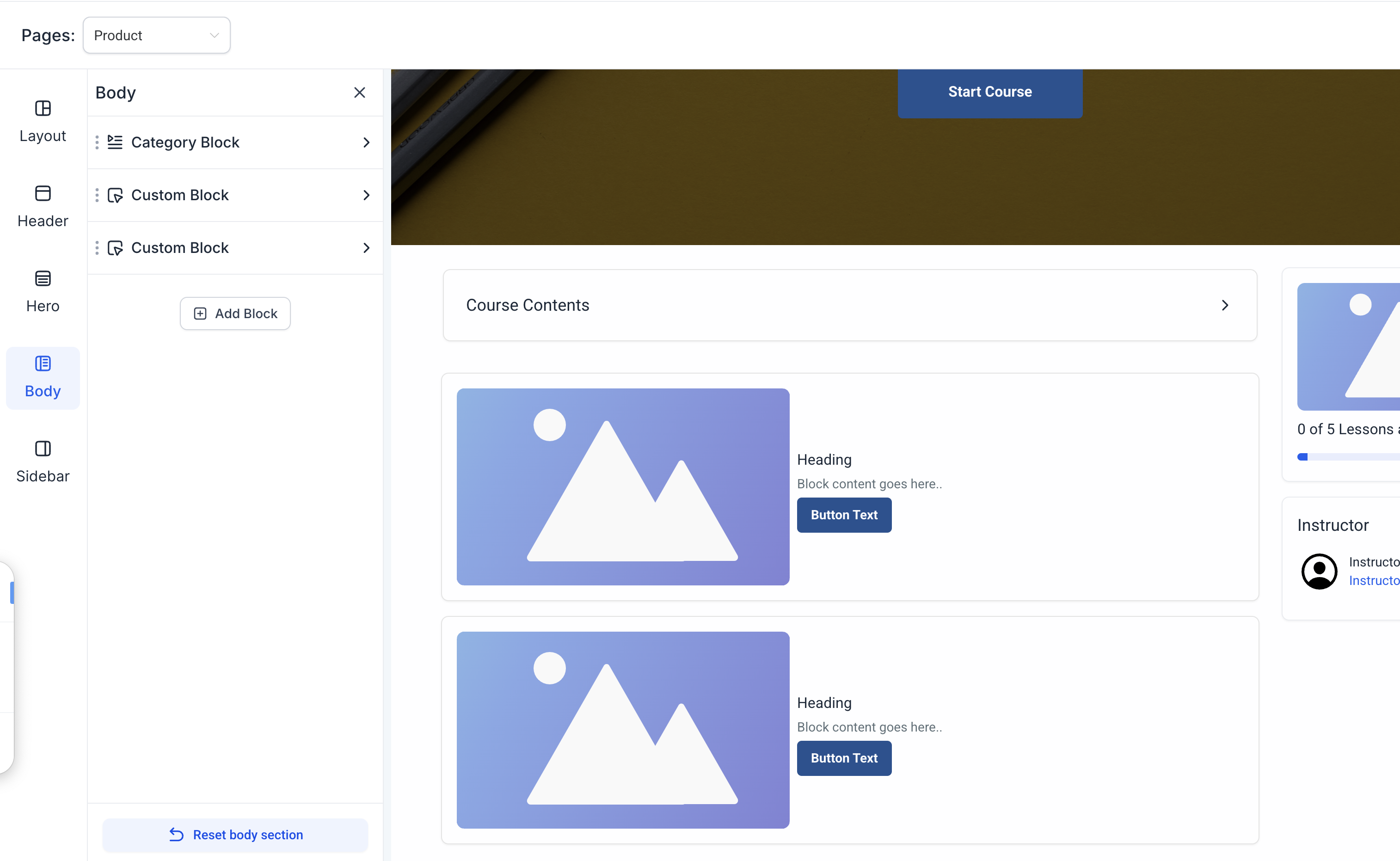
Add a custom block onto your Sidebar to build in another Offer, display a promotion, communicate an announcement, and more! The custom block is yours to design. With the custom block you can choose to include- Text: Customize content, colour, style, and alignment
- Image Block: Upload an image and assign an action URL
- CTA Button: Customize content and destination link
- Text: Customize content, colour, style, and alignment
Additional Customization Options
Lesson Page Customization
- Breadcrumb Navigation: can be displayed to act as a trail leading back to the Course homepage.
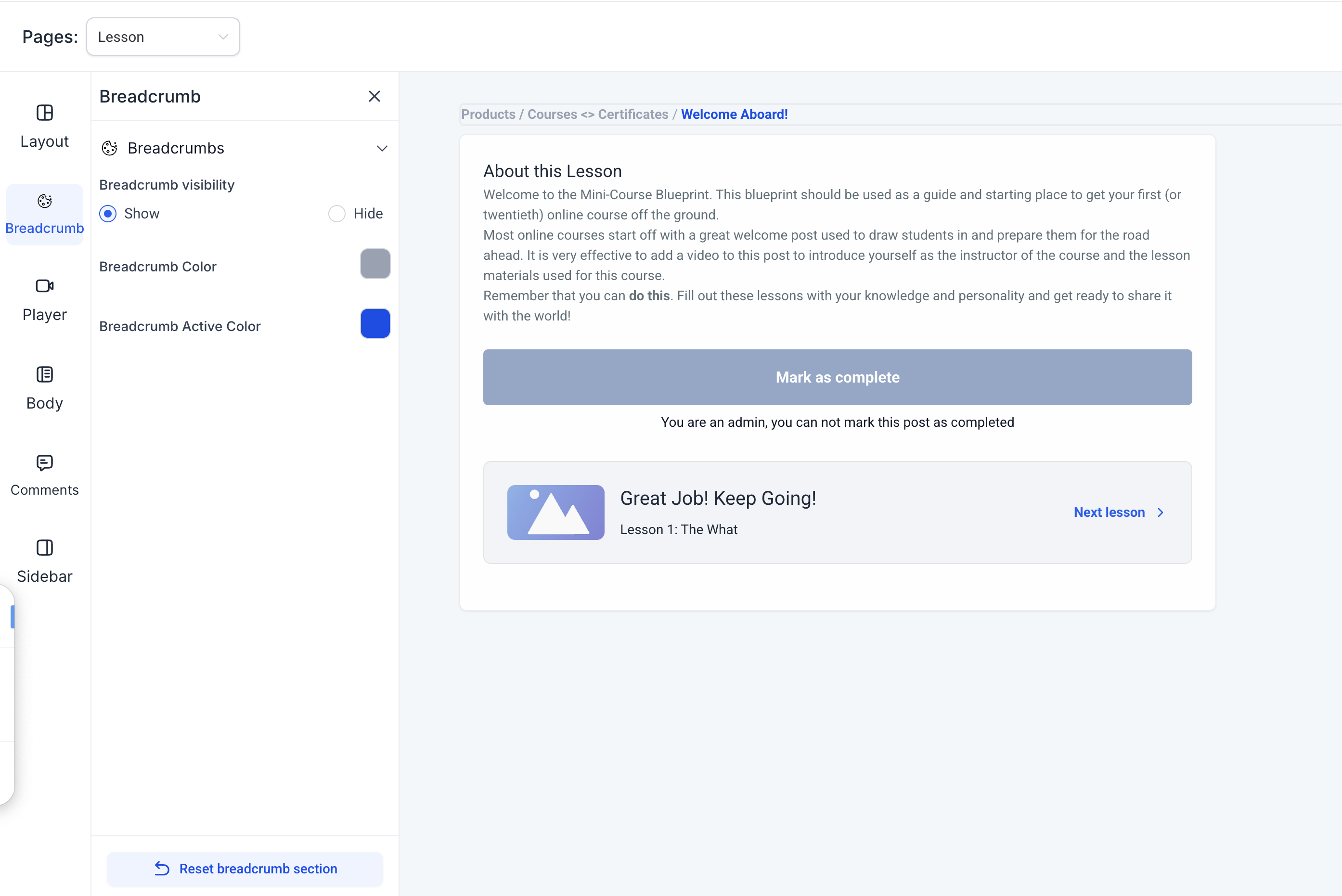
- Show/Hide
- Show/Hide
- Lesson Player Settings:
- Background Colour Override
- Auto Advance (On/Off)
- Background Colour Override
- Lesson Body: allows you to configure the appearance of your Lesson Body to adjust the text alignment, the Mark as Complete button, etc
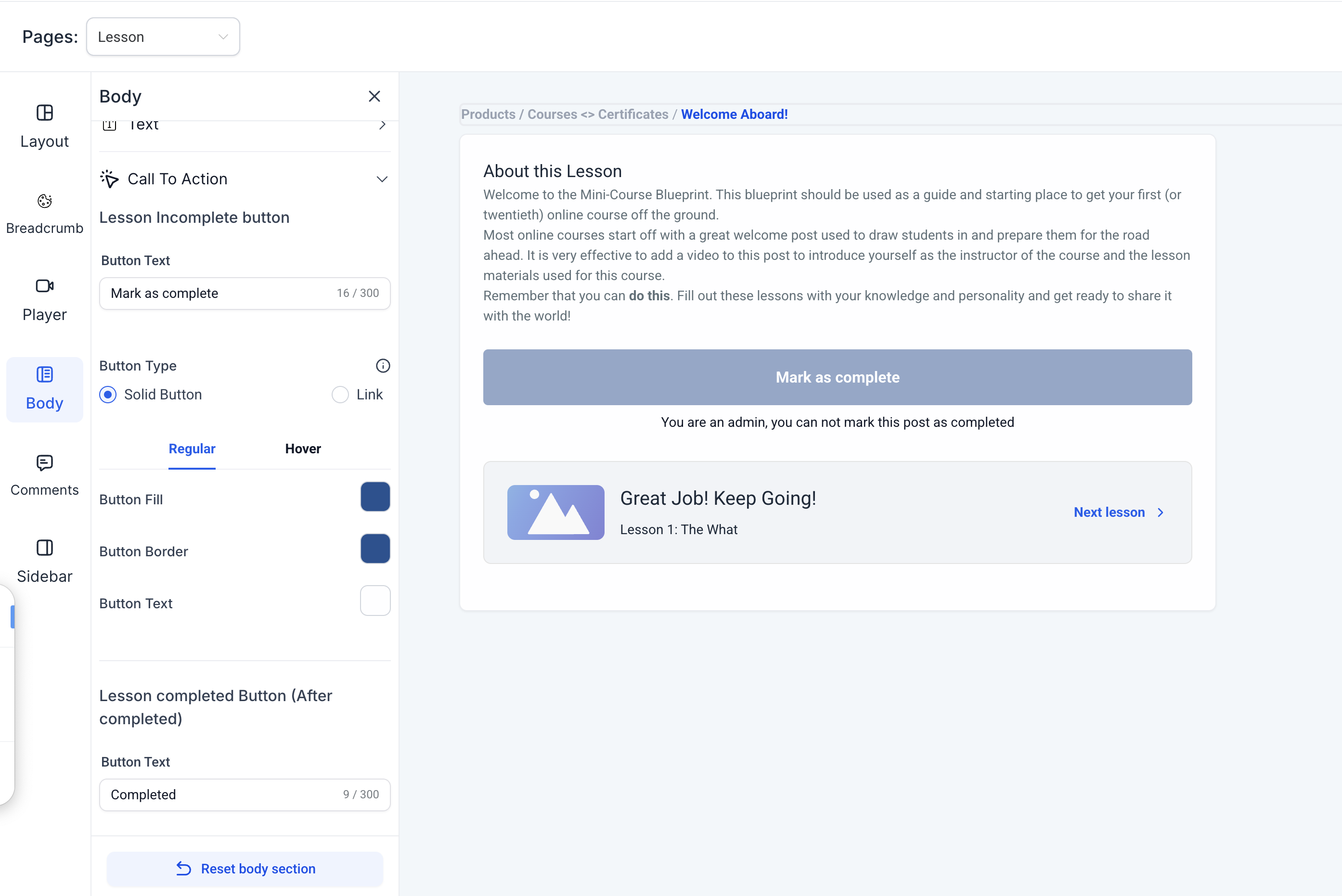
- Text Alignment: Left, Right, Center
- Text Colour Override
- Text Alignment: Left, Right, Center
Category Page Customization
- Categories Sidebar:
- Progress Bar: Show/Hide, Colour Override
- Text Override (with "i" icon for tooltips)
- Progress Bar: Show/Hide, Colour Override