This guide walks you through the latest improvements to the Custom Webhook action, focusing on enhanced security measures and streamlined credential management.
TABLE OF CONTENTS
Overview
The Custom Webhook action now supports masked secret keys for Basic auth, Bearer token, and API key authentication methods. This update helps prevent the accidental exposure of sensitive information and provides an easier way to manage and store credentials.
Key Improvements
Masked Secret Keys
Secure Storage: All secret keys are securely stored and masked in the interface.
Supported Auth Methods: Basic auth, Bearer token, or API key.
Reduced Exposure: Keys are never displayed in plain text, minimizing the risk of leaks.
User-Friendly Credential Management
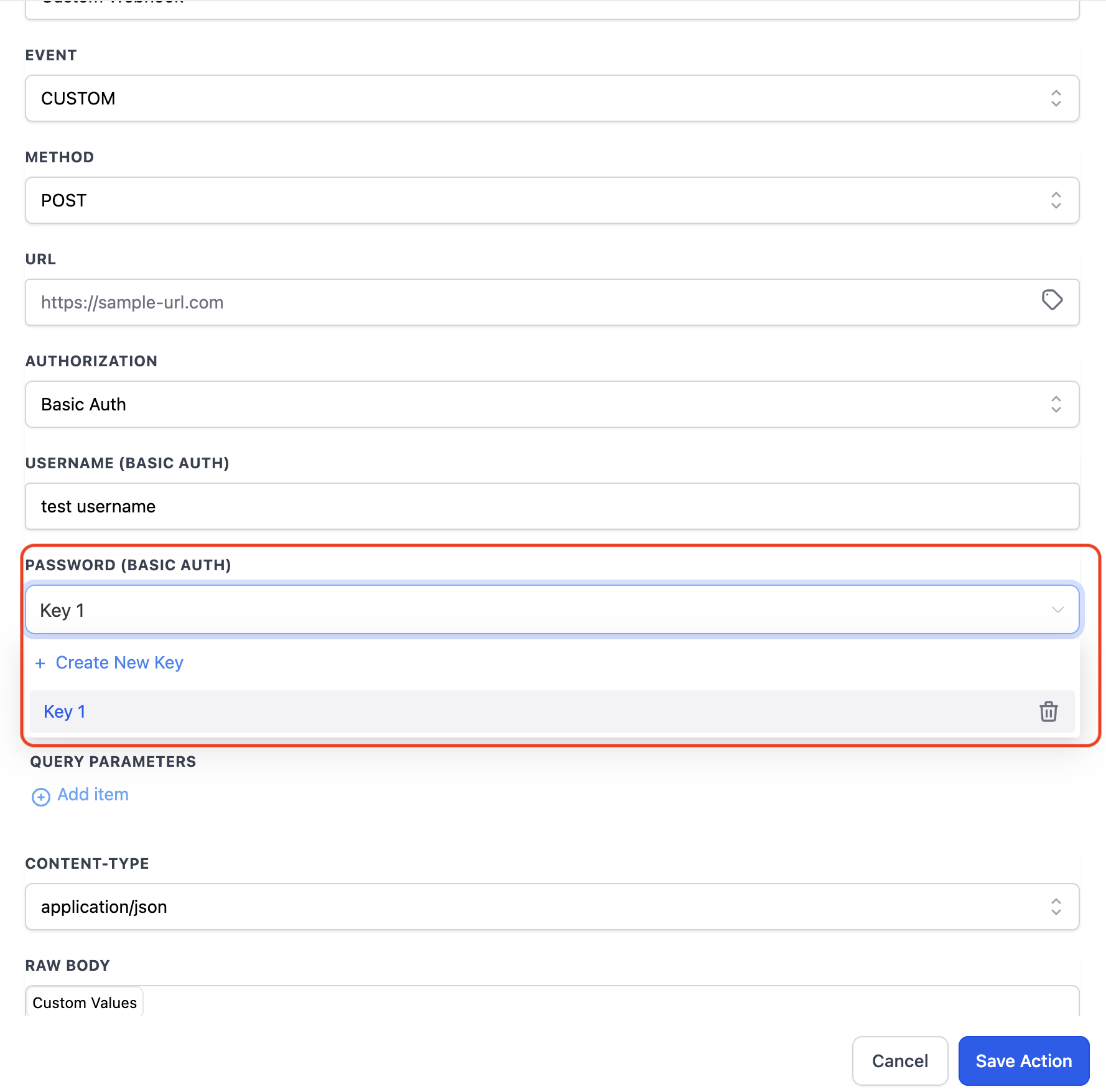
Key Management: Select from existing keys or create a new key from a dropdown menu.
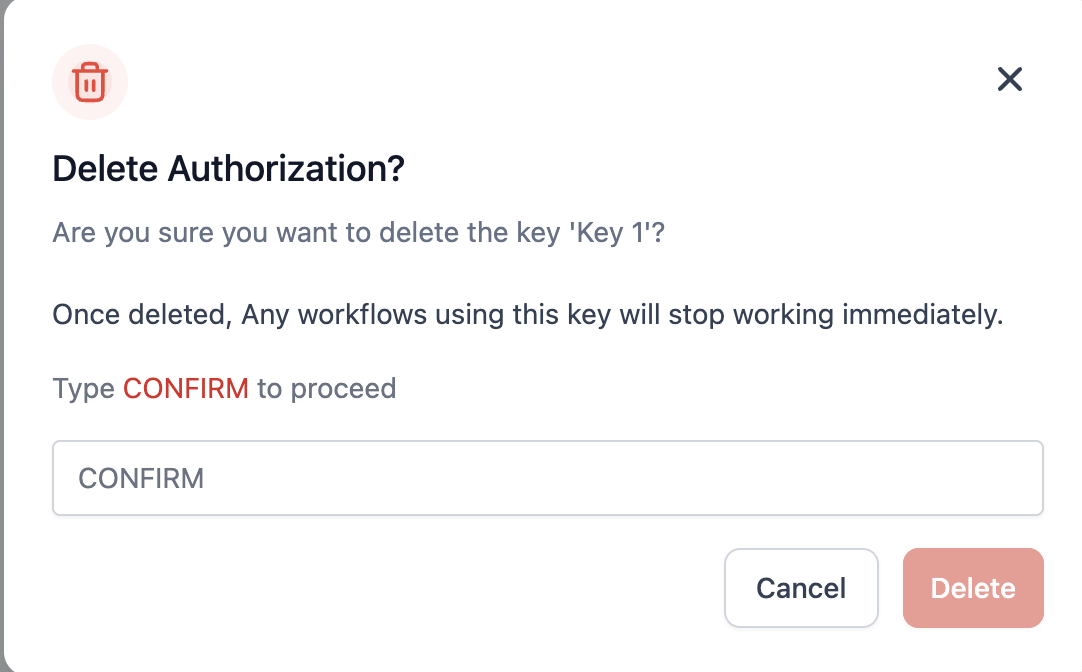
Restricted Removal: Only agency admins or the creator of the key can delete it.
Location-Level Security: Keys are accessible only within the location where they were created.
Why These Updates Matter
Enhanced Security
Secret keys are masked to drastically lower the chances of accidental leaks.
Keys are identified by name instead of their actual value, reducing risk.
Better Access Control
Sensitive credentials are editable only by users that have created and admins at the location level.
Getting Started
Follow these steps to add and configure a new Custom Webhook action in your Automations builder.
Add a Custom Webhook Action
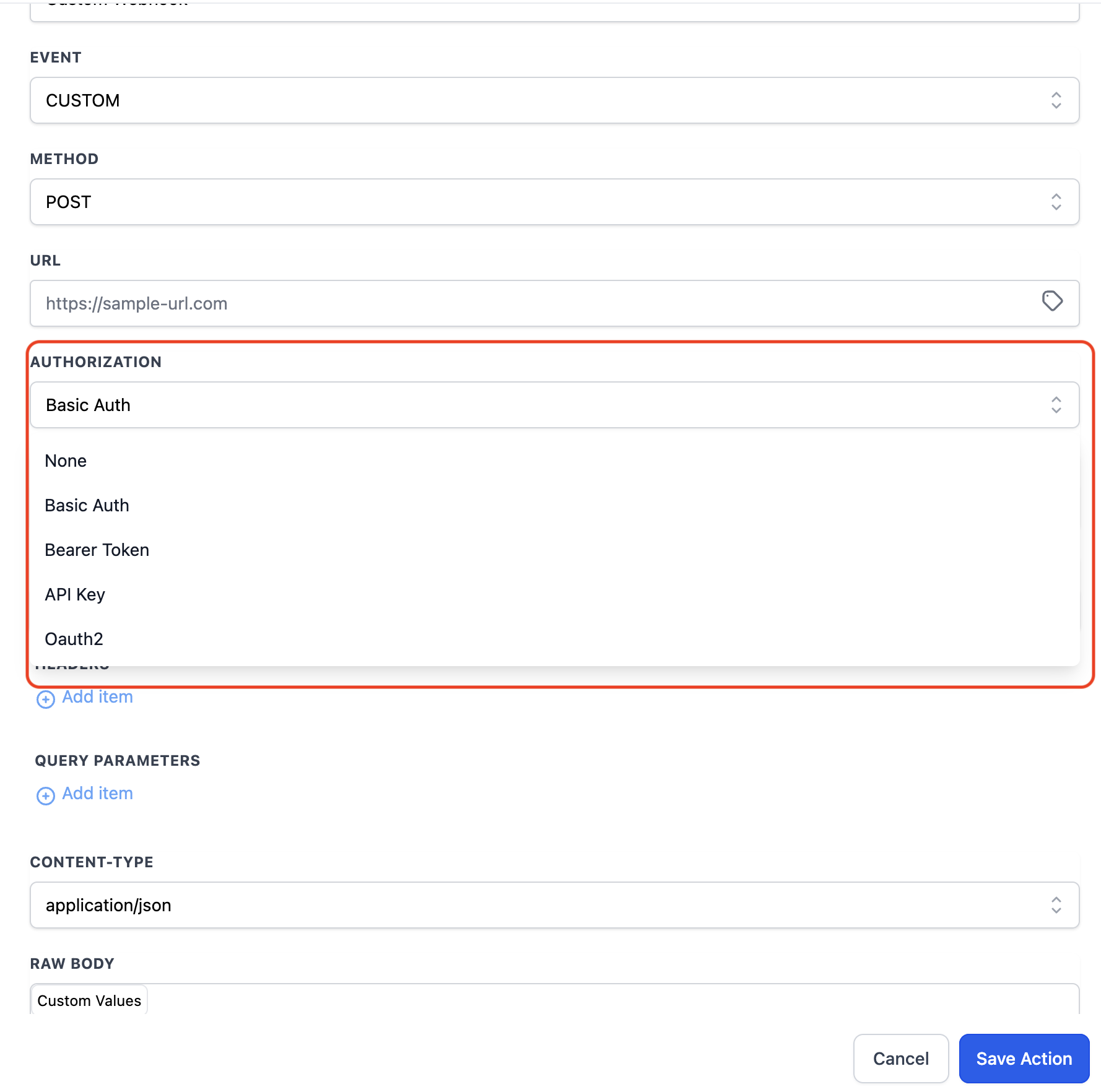
In your Automations builder, select Custom Webhook as the action step.
Select Authentication Type
Choose one of the following methods: Basic auth, Bearer token, or API key.
Configure Credentials
Choose Create New Key.
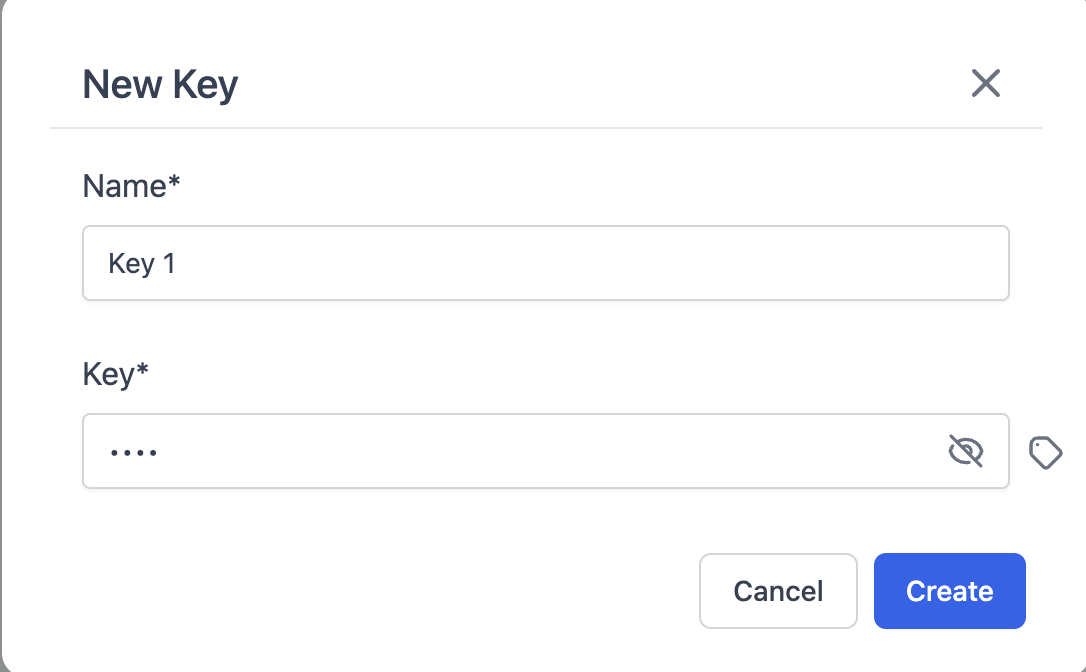
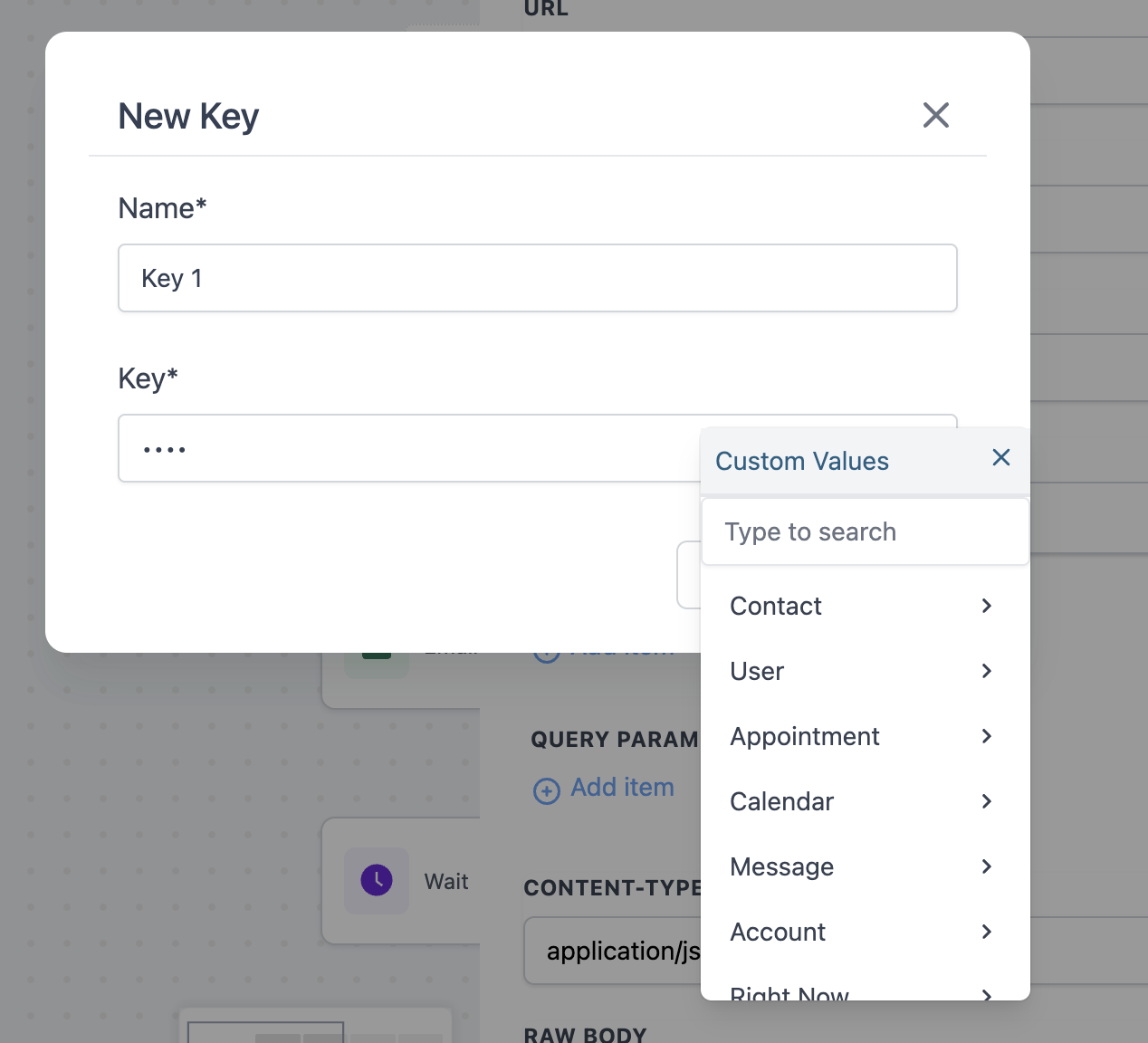
Enter a key name (for identification) and the key value (the actual credential).
Once saved, the key will be masked, so it won’t appear in plain text.
Monitor & Manage
Use the dropdown menu to select or delete keys as needed.
Important Notes
Deletion Permissions: Only agency admins or the key’s creator can delete it.
Existing Keys: Once you update to a new key, old key will be automatically removed.