
Bulk Actions on the Product Page let you update many products or variants at once, cutting down repetitive edits and improving inventory accuracy. This article covers bulk edits on the Products page including visibility, pricing, collections, delete, available quantity and inventory status.
TABLE OF CONTENTS
What are Bulk Actions on the Product Page?
The Bulk Actions feature allows store owners to efficiently manage large sets of products from a single interface. You can now select multiple products and apply key updates across store visibility, pricing, collections, and more in a only few clicks! This is ideal for large catalogs or frequent price/stock updates.
Key Benefits of Bulk Actions
Save Time: Apply one change to hundreds of items in a few clicks.
Consistency: Ensure pricing or inventory policies are uniform across variants and products.
Error Reduction: Preview and validation reduce mistakes compared to manual edits.
Scalability: Filters and pagination help you manage large catalogs confidently.
Operational Accuracy: Keep stock levels and selling rules aligned with real-world inventory.
Available Bulk Actions
| Action | Description |
|---|---|
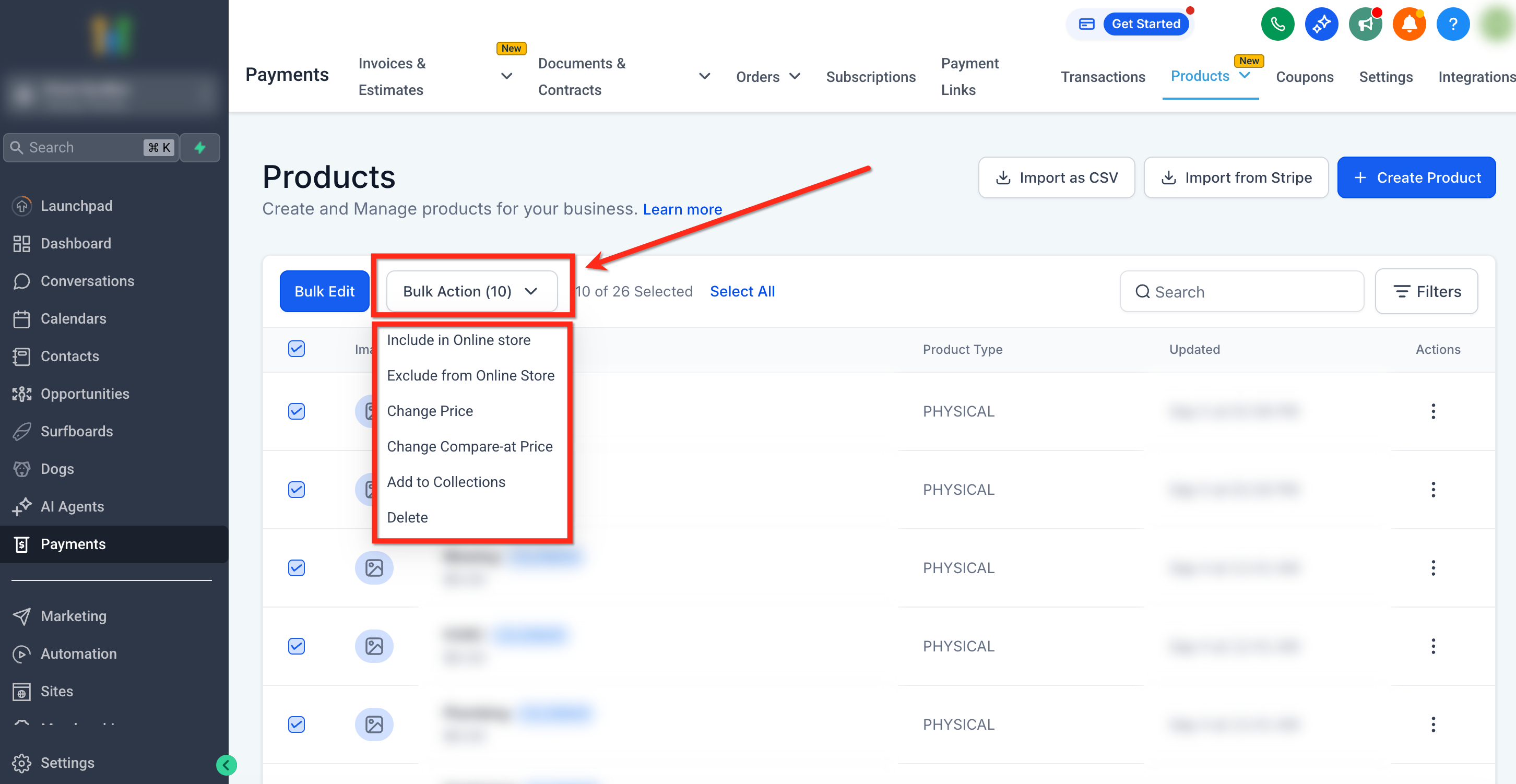
| Include in Online Store | Include selected products from appearing in the online store. |
| Exclude in Online Store | Exclude selected products from appearing in the online store. |
| Change Price | Increase, decrease, or set new prices across products using fixed values or percentages. |
| Change Compare-at Price | Same pricing options as above, applied to the 'Compare-at Price' field. |
| Add to Collections | Add products to one or more collections, or create new collections on the fly. |
| Delete | Remove selected products in bulk, with a safety confirmation modal. |
⚠️ Caution: Price updates affect all variants of the selected product.How to Access Bulk Actions
Step 1: Go to Products
Navigate to Payments > Products inside your Ecommerce Store.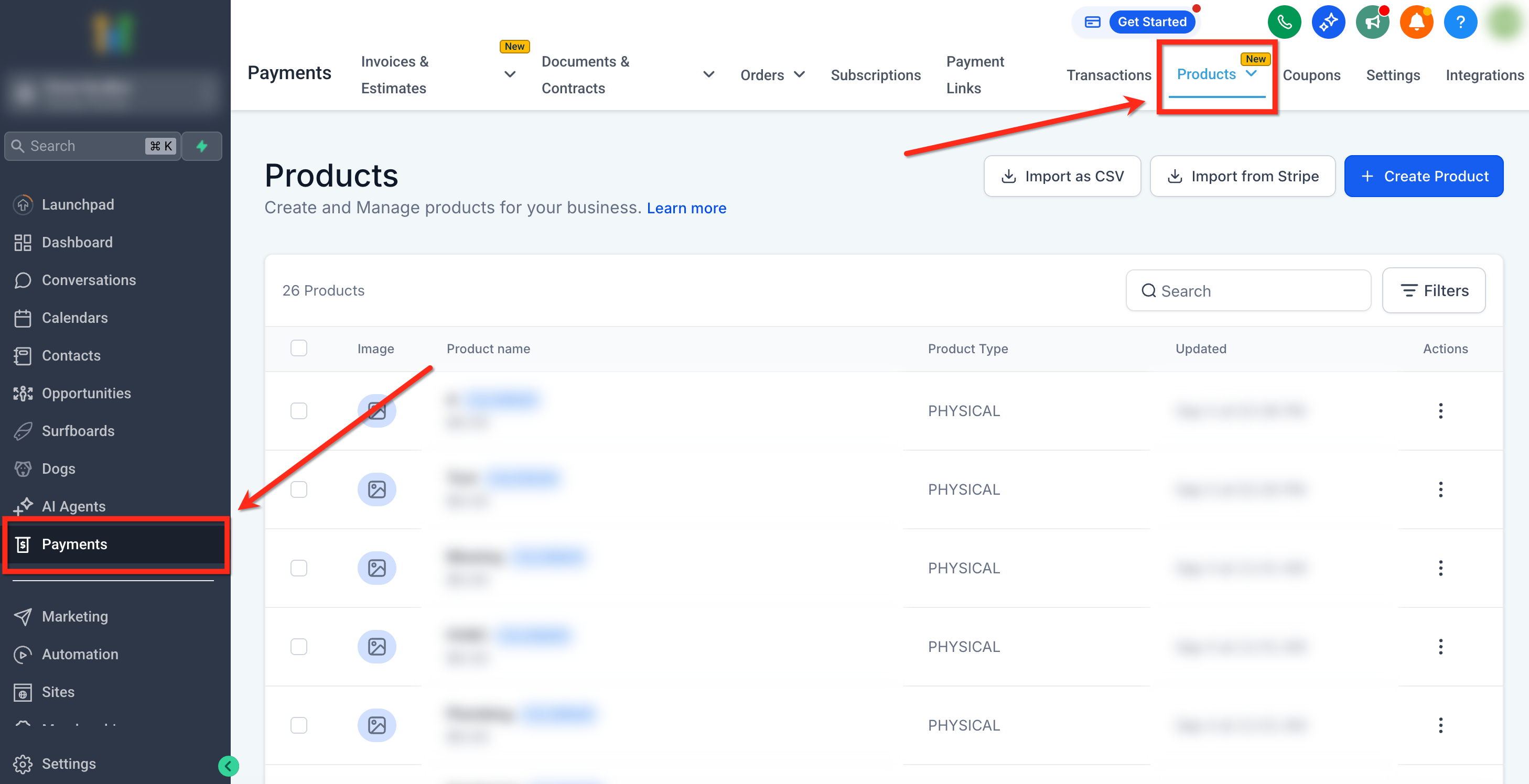
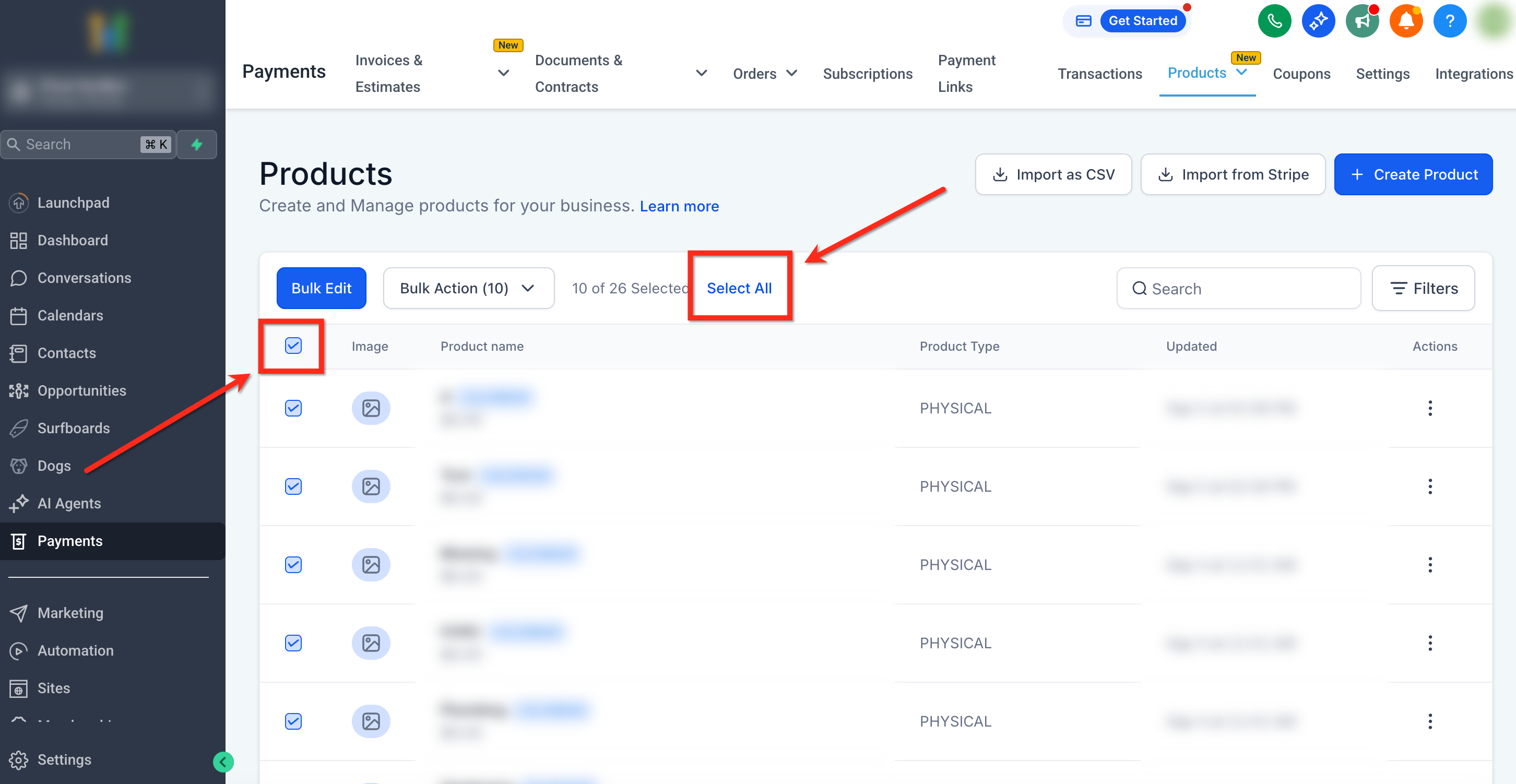
Step 2: Select Products
- Use the checkbox on each row to select individual products, or click the top checkbox to select all on the current page.
- To select all products in the sub-account, use the “Select All” prompt that appears after selecting all on one page.
Step 3: Select Bulk Action
Open the Bulk Actions dropdown to apply your desired change.
Filtering Products for Bulk Actions
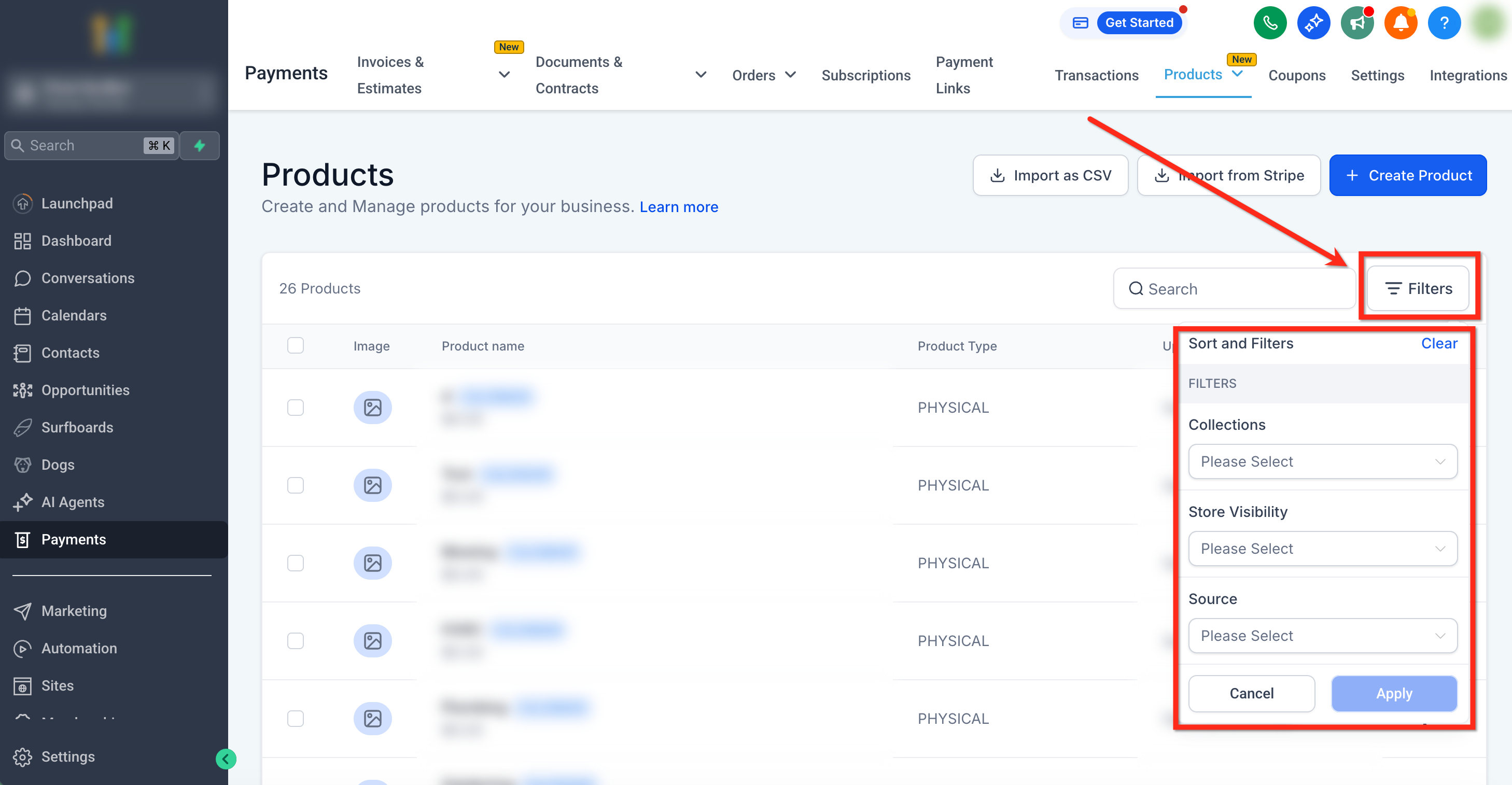
Use the filtering panel to narrow down product selection before applying bulk actions. You can combine filters with Select All for more targeted bulk operations. Using filters to isolate a group before performing actions can reduce the risk of editing the wrong products.
Available filters include:
Store Visibility: Included / Hidden
Collections: By name
Source: All Products, Woocommerce
To apply a filter, click the Filters button in the upper right corner then choose your filters from the drop down.
Edge Cases & Important Notes
Behavior & Limitations:
Negative Value Protection: Price changes that would lead to a negative value will be skipped for those products. Others will still update.
One Action at a Time: You must wait for the current bulk operation to complete before starting a new one.
Global Store Visibility: Visibility changes apply across all connected stores. To exclude a specific store, use the Sites section instead (Sites > Stores > Select a Store > Products).
Value Required for Price Updates: ‘Increase’ or ‘Decrease’ actions require an existing value for Price or Compare-at Price. Products without a base value remain unaffected.
Deletion Confirmation for Large Sets: Deleting more than 50 products requires typing “Delete” in the confirmation prompt. Deleted products cannot be recovered.
Bulk Delete and Restricted Products: Bulk delete does not fail if restricted products are selected. SourCherry automatically skips restricted products, and only eligible products are deleted. Restricted products include:
- Calendar-created products
- Memberships/Communities-created products
- SaaS products with active or past_due subscriptions
For details, see How Product Deletion Works
- Calendar-created products
Bulk Performance Warning: Changes on over 300 products may take a few moments to reflect.
Selection Behaviour:
| Action | What Happens |
|---|---|
| Click top checkbox | Selects all products on the current page. |
| Navigate away and return | Selection is retained (for current page selection only). |
| Use “Select All” for entire list | If you navigate away, the selection will not be retained. |
Frequently Asked Questions
Q: Can I apply bulk actions to digital and physical products together?
Yes, the action applies regardless of delivery type.
Q: Will bulk updates affect variants?
Yes. All pricing-related changes will reflect at the variant level as well.
Q: Can I undo a bulk delete?
No. Deleted products are permanently removed. Use with caution.