
SourCherry now integrates with Jobber to keep client data aligned between operations and marketing. This article explains what the integration does, who it’s for, and how to set it up—covering two‑way client/contact sync, bulk deployment for agencies, historic imports, and the included snapshot. Learn how to roll it out quickly and avoid duplicate data entry.
TABLE OF CONTENTS
- What is the Jobber Integration with SourCherry?
- Key Benefits of the Jobber Integration
- How To Set Up the Jobber Integration
- Frequently Asked Questions
- Related Articles
What is the Jobber Integration with SourCherry?
The Jobber integration connects field‑service operations in Jobber with sales and marketing in SourCherry. Client and contact information stays synchronized across both platforms, so teams can run day‑to‑day jobs in Jobber while automating communications and pipelines in SourCherry—without re‑typing data or risking mismatched records.
Key Benefits of the Jobber Integration
- Two‑way Client Sync: Keep names, emails, phones, addresses, and more consistent across systems.
- Reliable Matching: Linkage by Jobber client ID prevents duplicate records when emails/phones change.
- Historic + Live Sync: Import past client data from a chosen date, then continue syncing new clients automatically.
- Snapshot Included: Start with prebuilt workflows and message templates to launch faster.
- Marketing+Ops Alignment: Run jobs in Jobber while leveraging SourCherry for funnels, CRM, and automation.
- Reduced Manual Work: Eliminate repetitive data entry and lower error rates.
- Consistent Reporting: Unified client data improves attribution and campaign targeting.
How To Set Up the Jobber Integration
Proper setup ensures your data syncs accurately and your team can start using the included snapshot and workflows immediately. Follow the steps below for the agency and each sub‑account.
Note: The app can only be viewed and installed by Agency Admins. The app is not visible/available to sub-accounts until the agency has install the app.Step 1: Agency‑Level Installation & Bulk Deploy
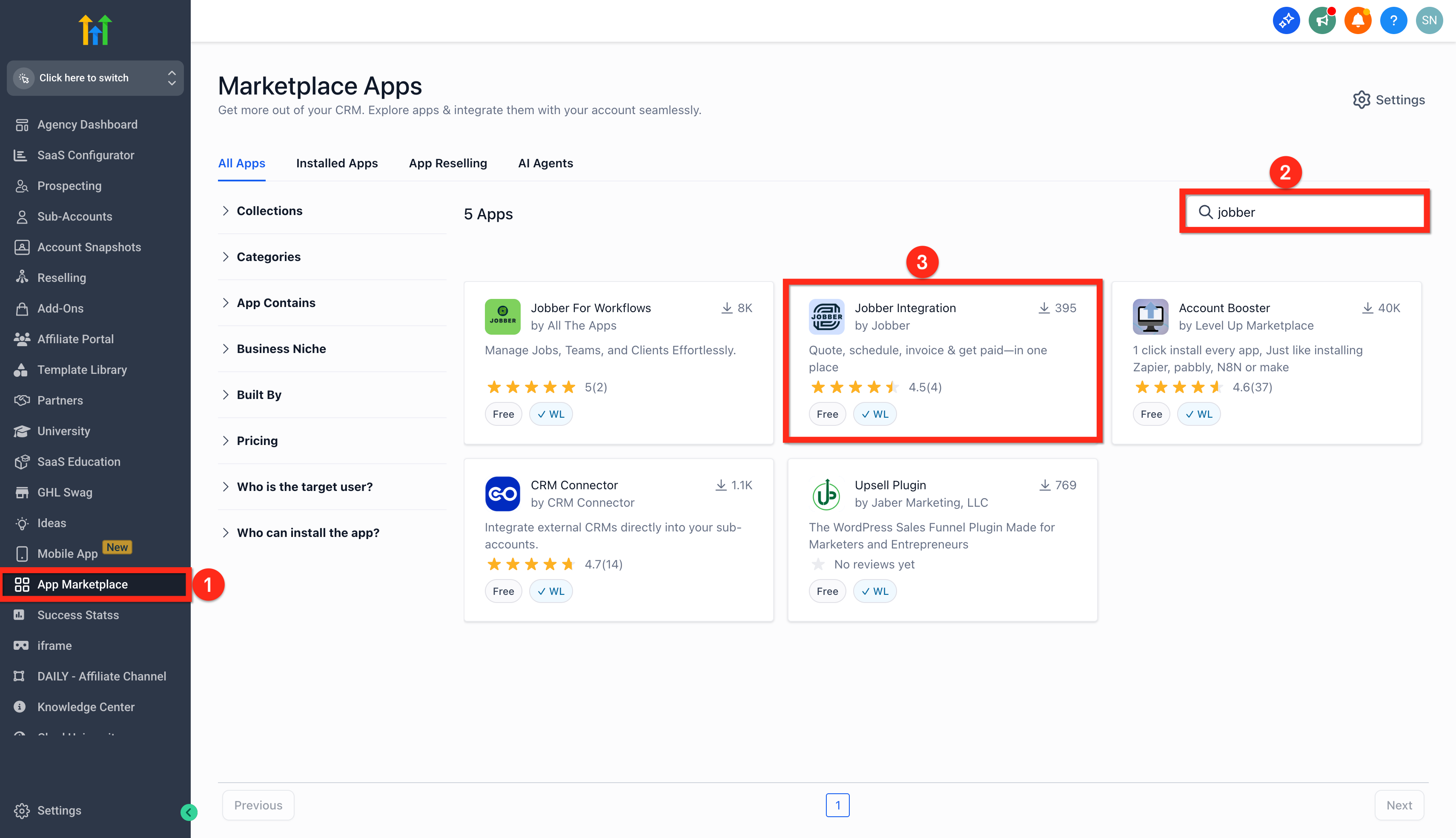
In SourCherry (Agency view), open App Marketplace.
Search for Jobber.
Click on the Jobber Integration app.
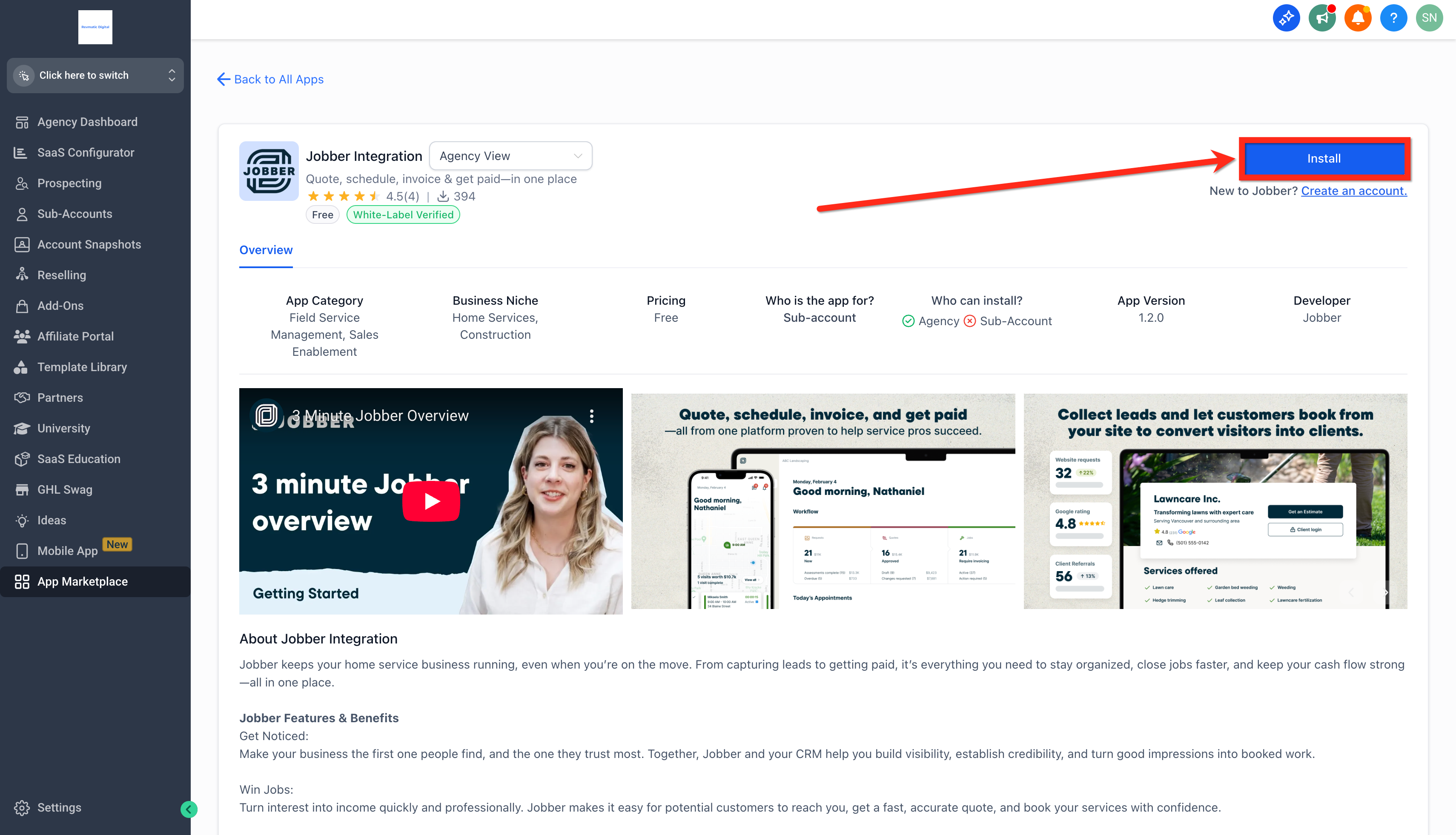
Click Install.
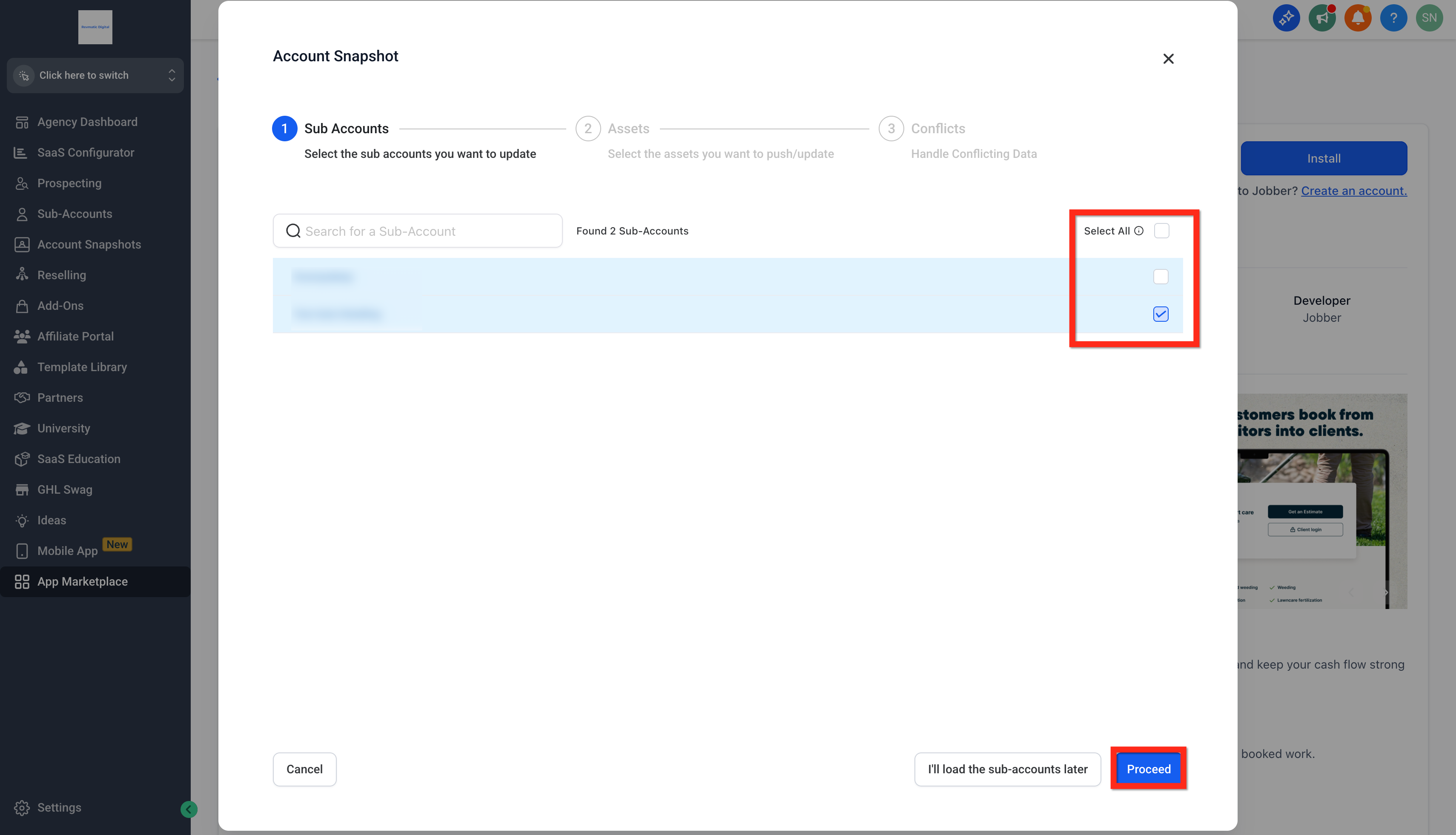
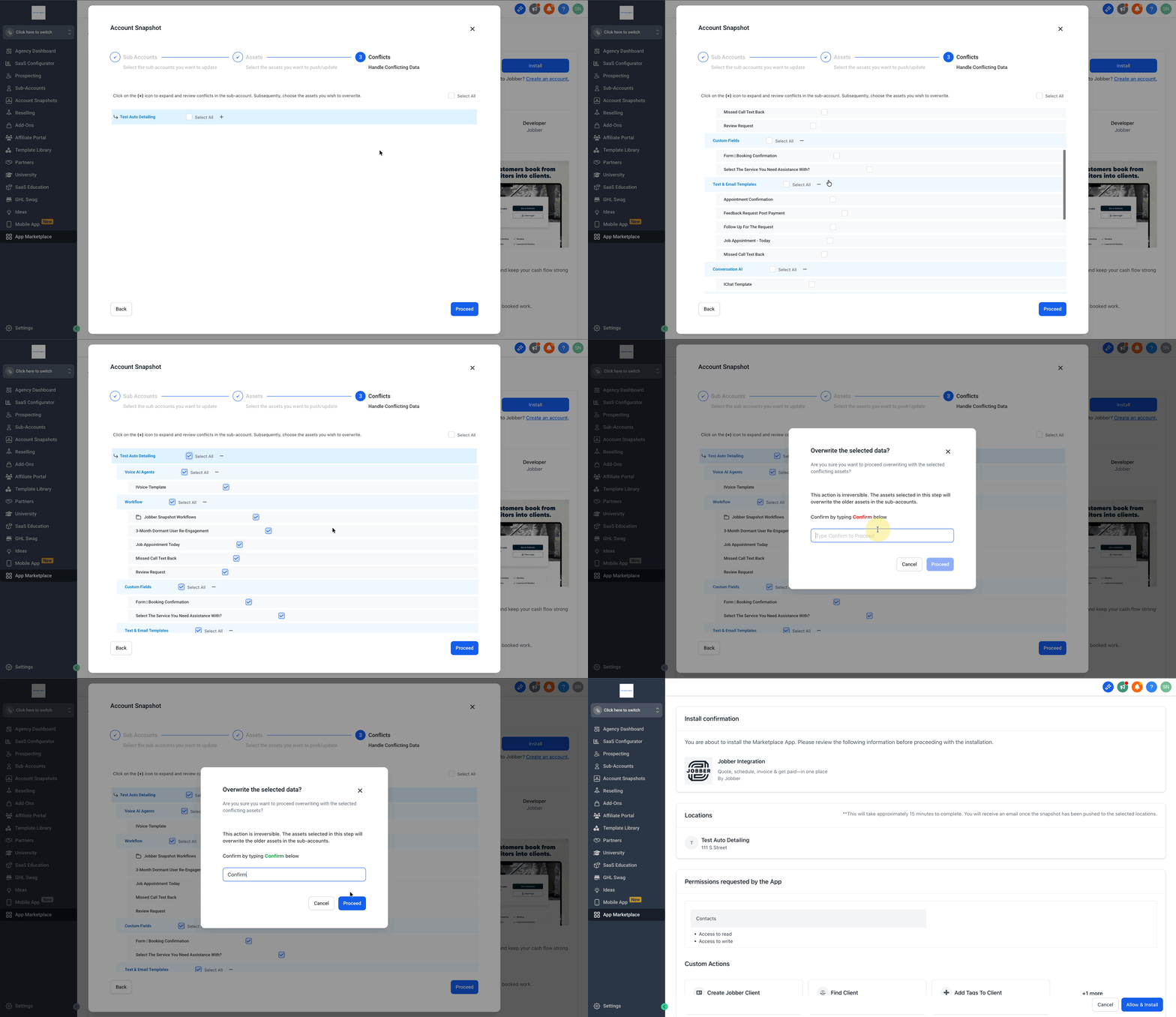
Select the sub‑accounts to deploy.
Click on Proceed.
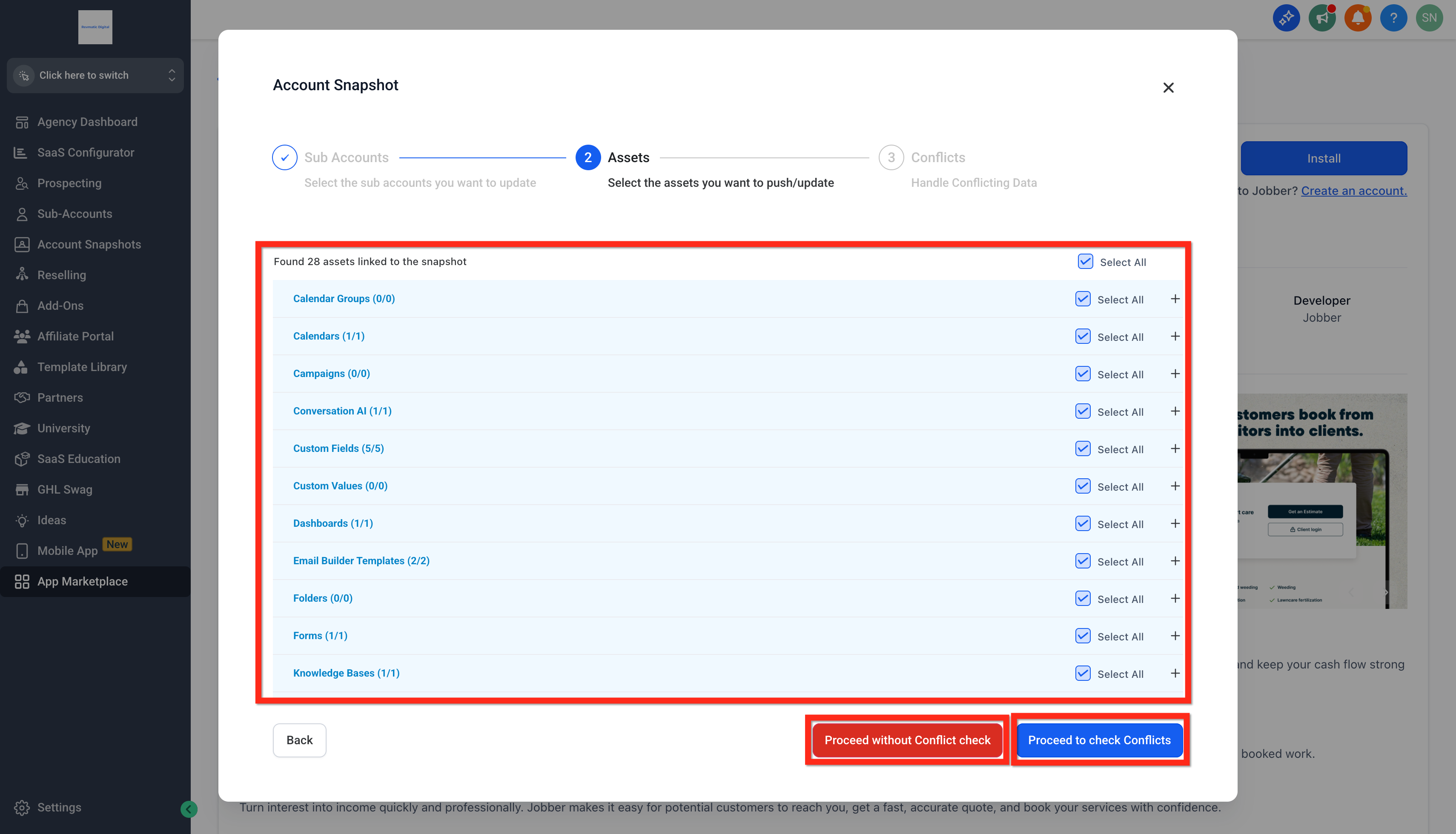
Select the Assets you want to push/update from the snapshot.
Either Proceed without conflict check with current data in the sub-account(s).
Or Proceed to check conflicts.
If you Proceed to check conflicts, click on the + icon to expand and review conflicts in the sub-account. Subsequently, choose the assets you wish to overwrite.
Click on Proceed.
Type Confirm in the box and click on Proceed.
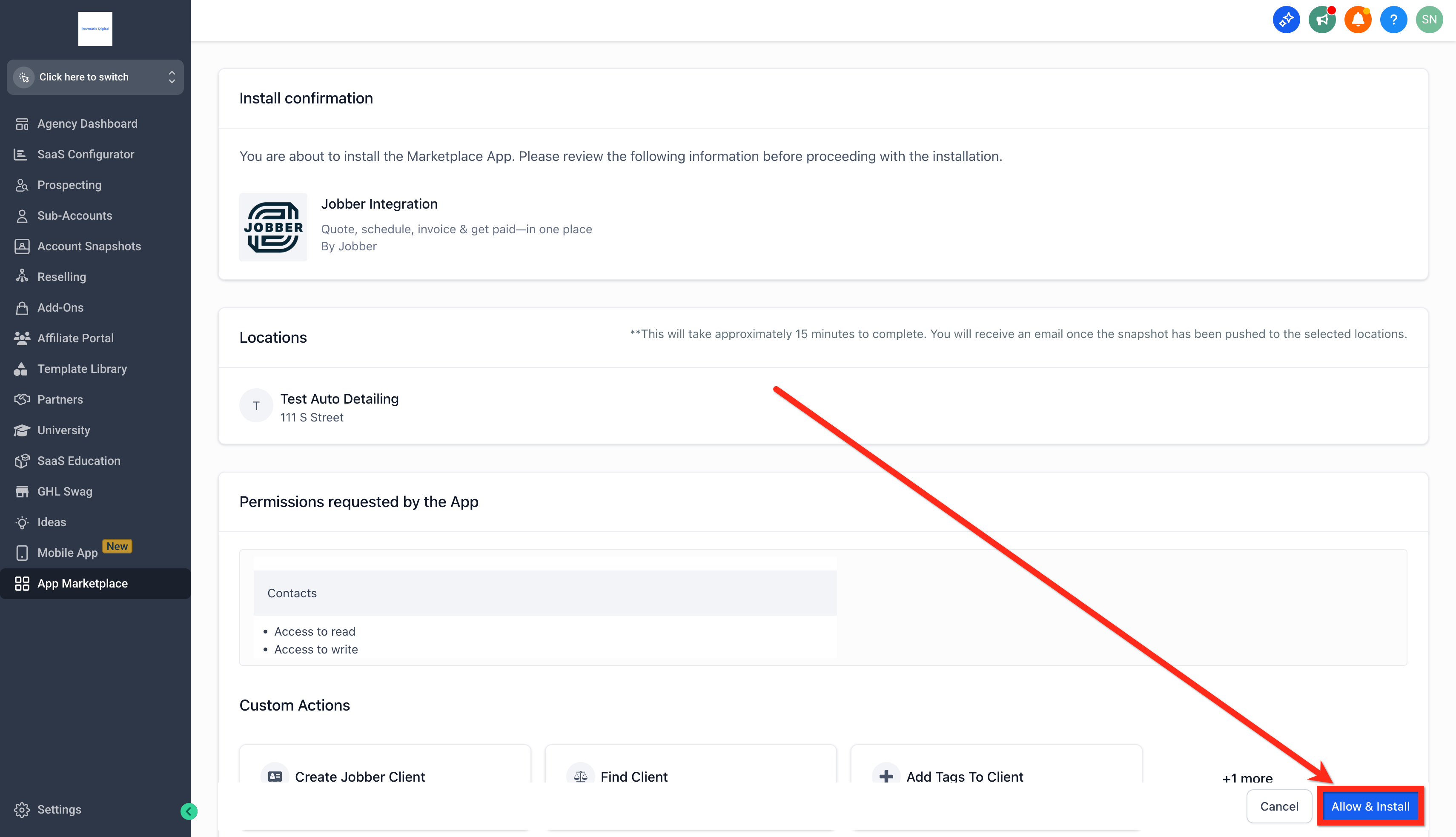
Click Allow & Install.
Step 2: Sub‑Account Connection
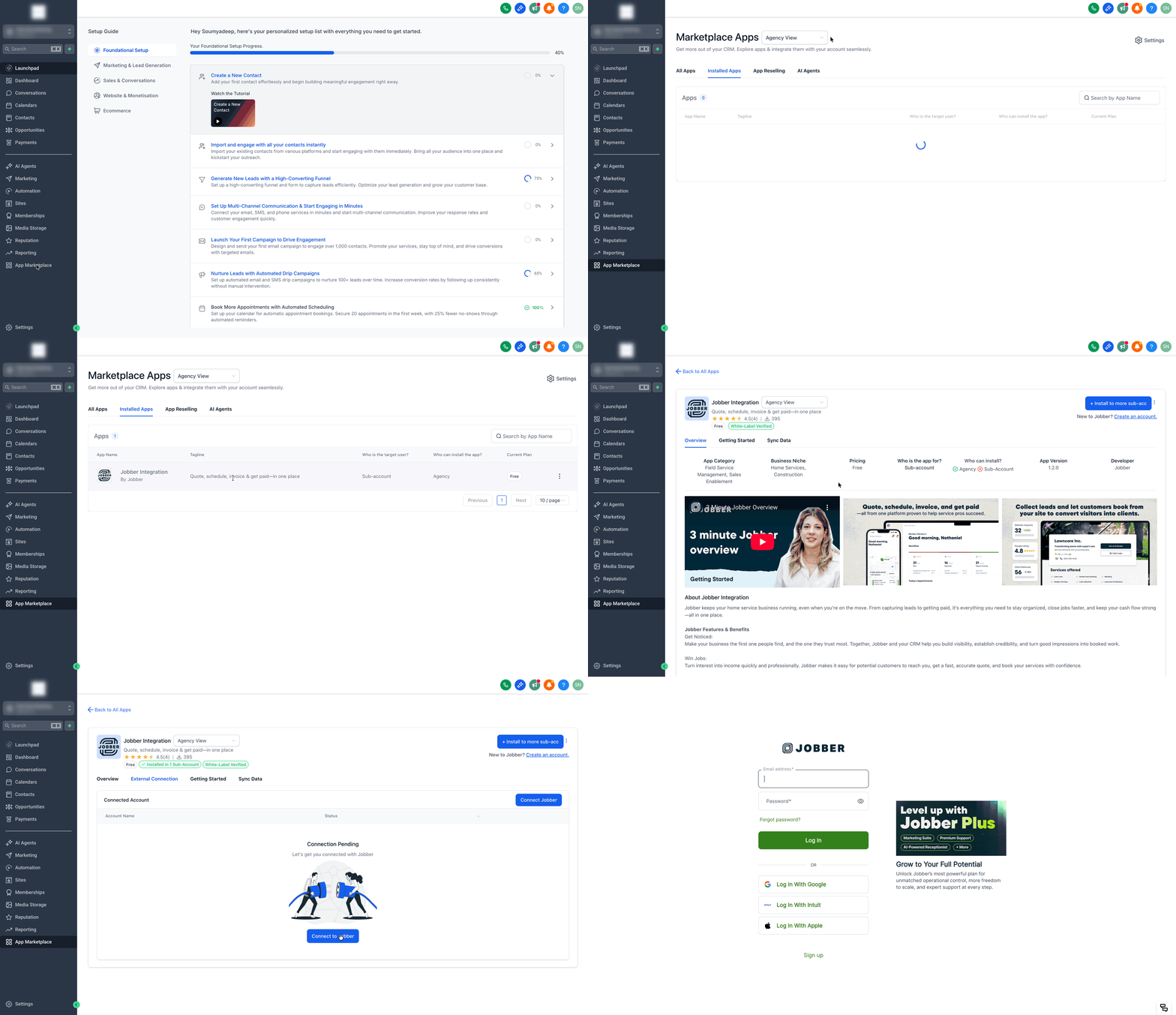
Switch to the sub‑account.
Click on App Marketplace → Installed Apps → Jobber.
Click Connect and complete the authorization flow.
Frequently Asked Questions
Q: Can I connect more than one sub-account to a single Jobber account?
No, Jobber only supports one active connection. This means that you can only connect one SourCherry sub-account to a unique Jobber account.
Q: How long does it take for the initial contacts<>clients sync between SourCherry and Jobber?
Jobber allows syncing about 2500 records for every 5 minutes. So based on the start date you're selecting in "Sync Data" tab in your Jobber app, the system will take the necessary time to sync all the clients data inside SourCherry.
Q: What all fields are synced between SourCherry and Jobber?
First Name, Last Name, Email, Phone Number, Address, Lead Source, Jobber Client URL, Jobber Created Date, Tags.
Q: What details are not synced between SourCherry and Jobber?
Custom Fields on Jobber, Notes, Attachments.
Q: How does SourCherry match clients with Contacts?
SourCherry maintains the Jobber client's unique ID. This allows to maintain the sync even if you update the email or phone number
Q: Can I pause or stop the 2-way sync?
No, we currently don't have that option. To stop the sync without disrupting your workflows build in Jobber, you must disconnect the app from Jobber by navigating to Jobber App Marketplace > Connected Apps > SourCherry App and click the Disconnect button.
Q: Once I've initiated the sync, can I go back and change the start date for syncing my historic client data?
No, syncing historic data from Jobber is allowed only once while initiating the Jobber data-sync. Once we've synced the historic data, you cannot modify the timelines and reinitiate the sync from a different start date.
Q: Can I view logs of clients data that was synced?
The sync-logs are currently not available.