
Track every change with confidence. This article explains how to use the new Audit Logs feature available in Funnels, Websites, Webinars, and Stores. It provides visibility into user activity for greater transparency and accountability.
TABLE OF CONTENTS
- What is Audit Logging?
- Key Benefits of Audit Logging
- How to Access Audit Logs
- Audit Log Coverage by Module
- Tracked Actions and Event Types
- Filtering and Navigation Tips
- Data Retention Policy
- Frequently Asked Questions
What is Audit Logging?
Audit Logging captures a history of user actions within your SourCherry assets. This gives you a full trail of changes—who did what, when, and where—making it easier to troubleshoot, improve workflows, and maintain compliance.
Key Benefits of Audit Logging
Audit logs help teams stay accountable, resolve issues faster, and manage digital assets more effectively by offering a clear historical record of changes.
Get full transparency into edits and deletions
Improve team accountability by tracking who made changes
Troubleshoot errors by reviewing specific action history
Ensure compliance for regulated industries
Isolate issues using filters by module or action type
Retain logs securely for 60 days
How to Access Audit Logs
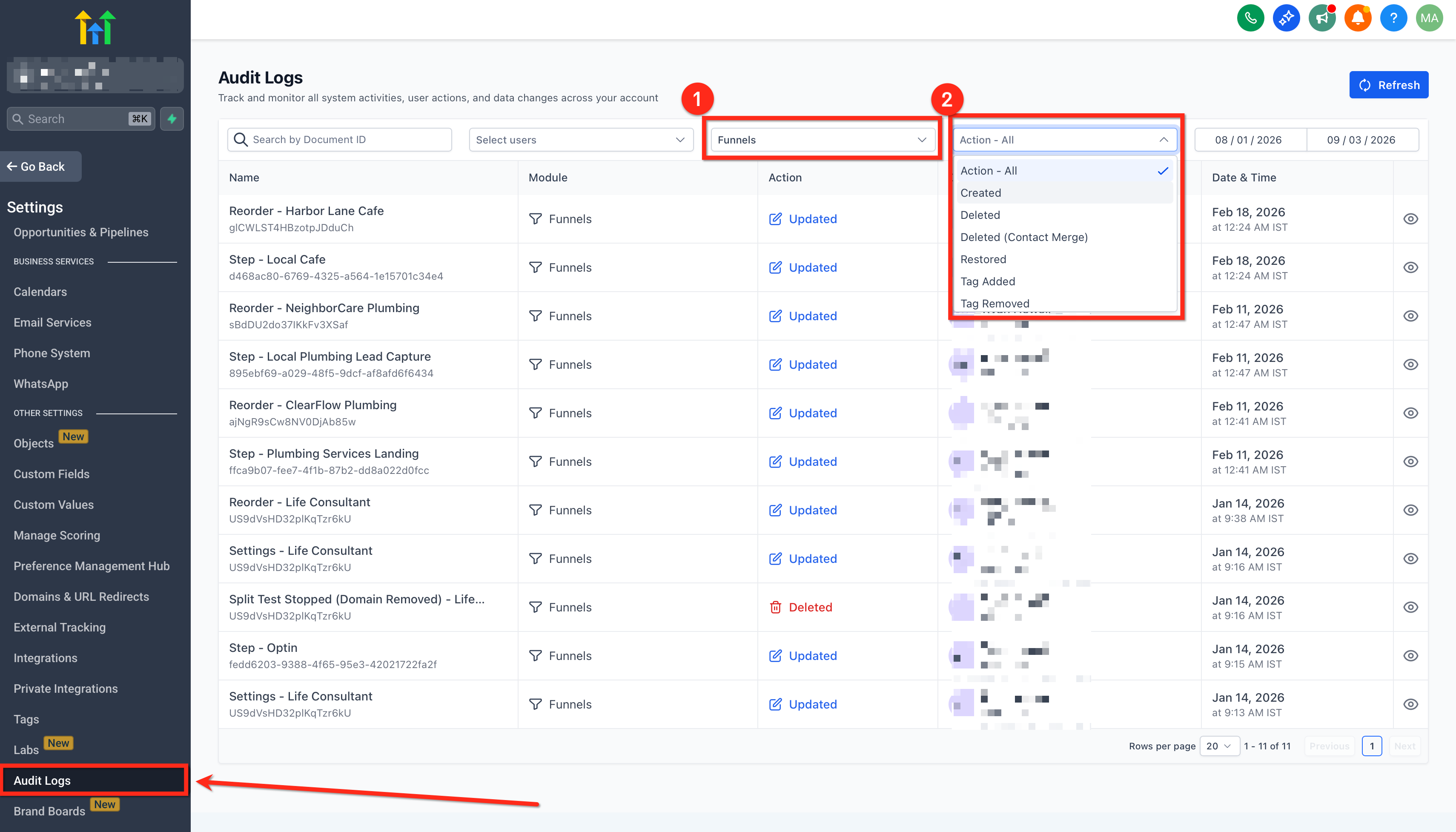
Audit Logs are located in the Settings area of your account and are organized by module. Each module has its own audit trail and filtering system, allowing you to track actions independently across Funnels, Websites, Webinars, and Stores.
To access Audit Logs:
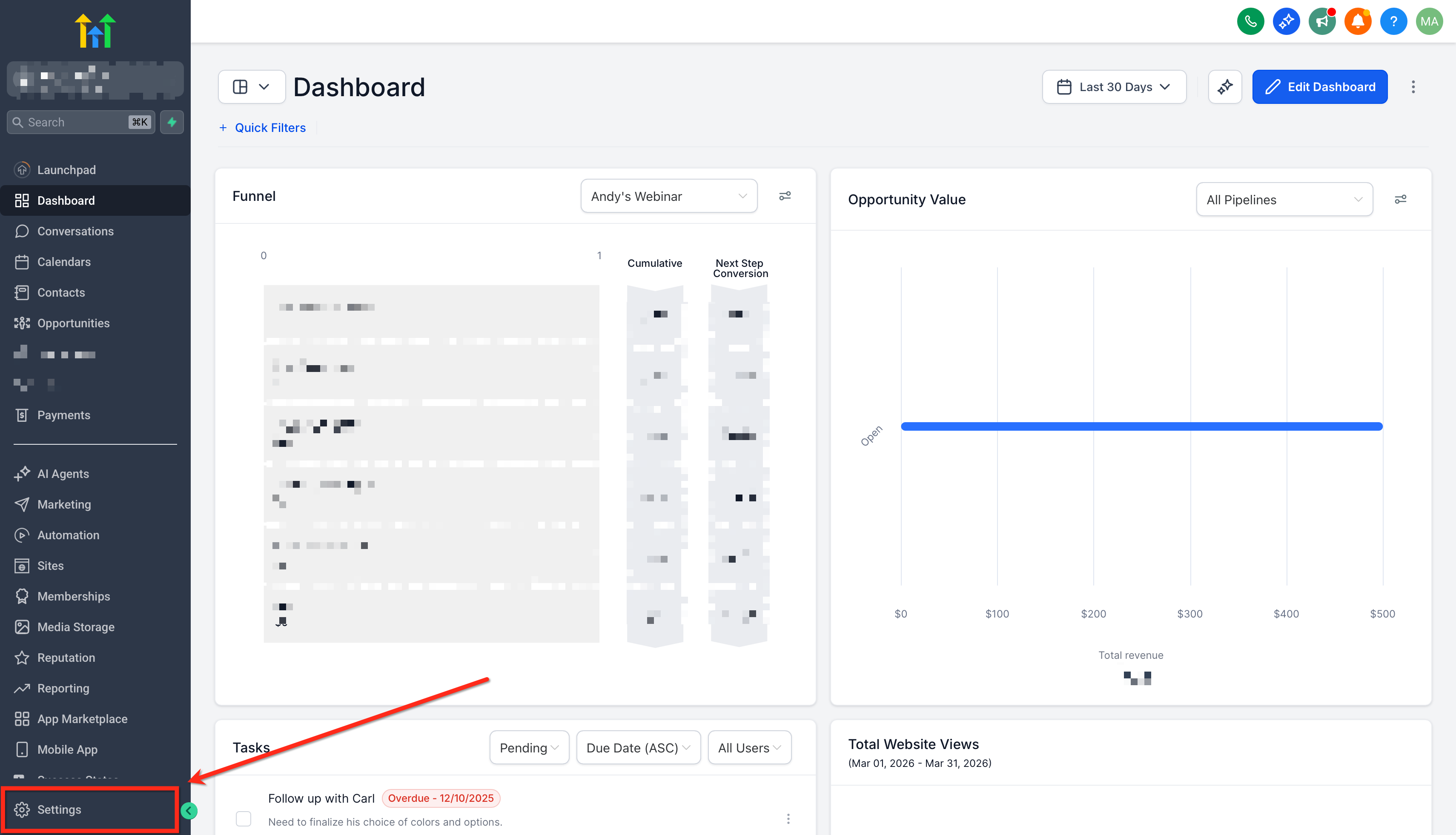
Navigate to Settings > Audit Logs from your left-hand menu.
Use the tabbed navigation or icons to switch between modules:
Funnels
Websites
Webinars
Stores (eCommerce)
Review the logs listed for the selected module.
Audit Log Coverage by Module
Each module maintains its own set of logs and filters, so you can focus on the specific type of asset you’re working with.
Funnels: Logs funnel settings changes, step edits, split tests, and deletions.
Websites: Tracks updates to pages, structures, and content.
Webinars: Captures scheduling, edits, and webinar configuration updates.
Stores: Records eCommerce changes like store configuration and product management.
This modular approach ensures the audit data remains relevant and easy to interpret for each asset type.
Tracked Actions and Event Types
SourCherry currently tracks the following types of actions across supported modules:
Folder Delete
Move to Folder
Funnel Delete
Funnel Settings Change
Funnel Settings Change (with domain removed)
Step Edit
Step Reorder
Step Delete
Step Restore Variation
Step Delete Variation
Step Choose Split Test Winner
Stats Reset
Page Edit
These logs include timestamps, user IDs, and action types to help you reconstruct exactly what happened and when.
Investigate deleted Page Builder assets
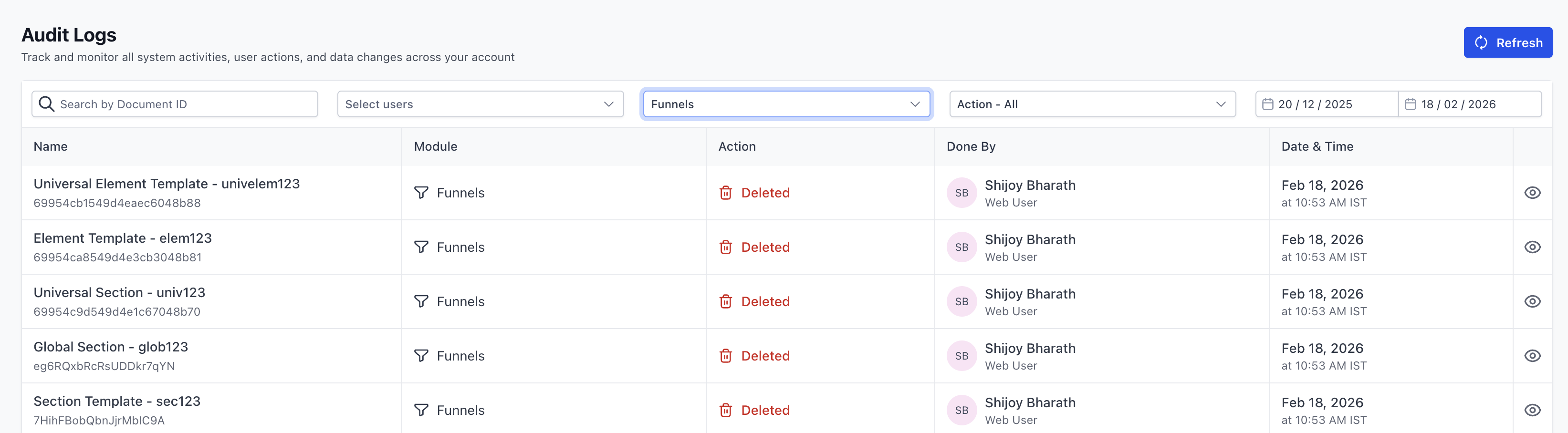
Audit Logs now records a Deleted entry when key saved Page Builder assets are removed in Funnels, Websites, Stores, or Webinars.
Assets covered
- Section Templates
- Global Sections
- Universal Sections
- Element Templates
- Universal Element Templates
What the log includes
- Asset name
- Asset ID
Filtering and Navigation Tips
Audit Logs include filters that make it easy to locate specific events or actions. Each module has independent filtering options.
You can filter logs by:
Module – Funnels, Websites, Webinars, or Stores
Action Type – e.g., Deleted, Updated, Created
Date/Time Range – View actions within a specific period (limited to the last 60 days)
Tips for navigation:
Use action filters to locate deletions, edits, or structural changes
Use date ranges to isolate events related to a campaign launch
Quickly switch between modules using the tabs/icons at the top of the interface
Data Retention Policy
Audit Logs are retained for a rolling 60-day period. After that, records are permanently deleted and cannot be recovered.
Important:
Logs older than 60 days are not retrievable
Consider exporting or recording key actions for long-term compliance needs
Set internal review processes to capture logs before they expire
Frequently Asked Questions
Q: Can I export audit logs?
Yes. You can export Audit Logs to CSV using the Export option on the Audit Logs page. See Export Audit Logs
Q: How long are logs stored?
Logs are retained for 60 days and then automatically purged from the system.
Q: Can I search logs by user?
Username-based filtering is available. Click on Select Users from the filters banner on top.
Q: Do deleted funnels or steps show up in the audit logs?
Yes, deletion events are recorded, including funnel and step deletions.
Next Steps
Check your logs regularly to monitor changes across digital assets
Implement an internal workflow to review logs after key updates
Share this feature with your team to improve accountability
Stay informed about upcoming expansions to audit tracking