
Bulk QR Code Creation lets you generate multiple QR codes at once. Simply drop in a CSV file and SourCherry will create a QR Code for each instance. Ideal for high‑volume use cases like event badges, discount coupons, product packaging, and any campaign that demands countless ready‑to‑scan links.
TABLE OF CONTENTS
- What is Bulk QR Code Generation?
- Key Benefits of Bulk QR Code Creation
- CSV Upload for Bulk Generation
- Troubleshooting CSV Errors
- Assigning QR Codes to a Folder
- How To Create QR Codes in Bulk
- Frequently Asked Questions
- Related Articles
What is Bulk QR Code Generation?
Bulk QR Code Creation is a built‑in feature within SourCherry’s QR Code Generator that allows you to turn a list of names and URLs into fully generated, ready‑to‑download QR codes within seconds. It eliminates repetitive manual work of creating each code individually, delivering a complete set of static QR codes that can be exported, printed, or embedded across your marketing channels.
Key Benefits of Bulk QR Code Creation
Bulk QR Code Creation removes friction for teams on high‑volume QR code projects.
- Time Savings: Generate 10 or 10,000 QR codes in seconds using a CSV file, no manual repetitive process
- Organization: Assign bulk‑created QR codes to a folder, keeping related codes grouped neatly together
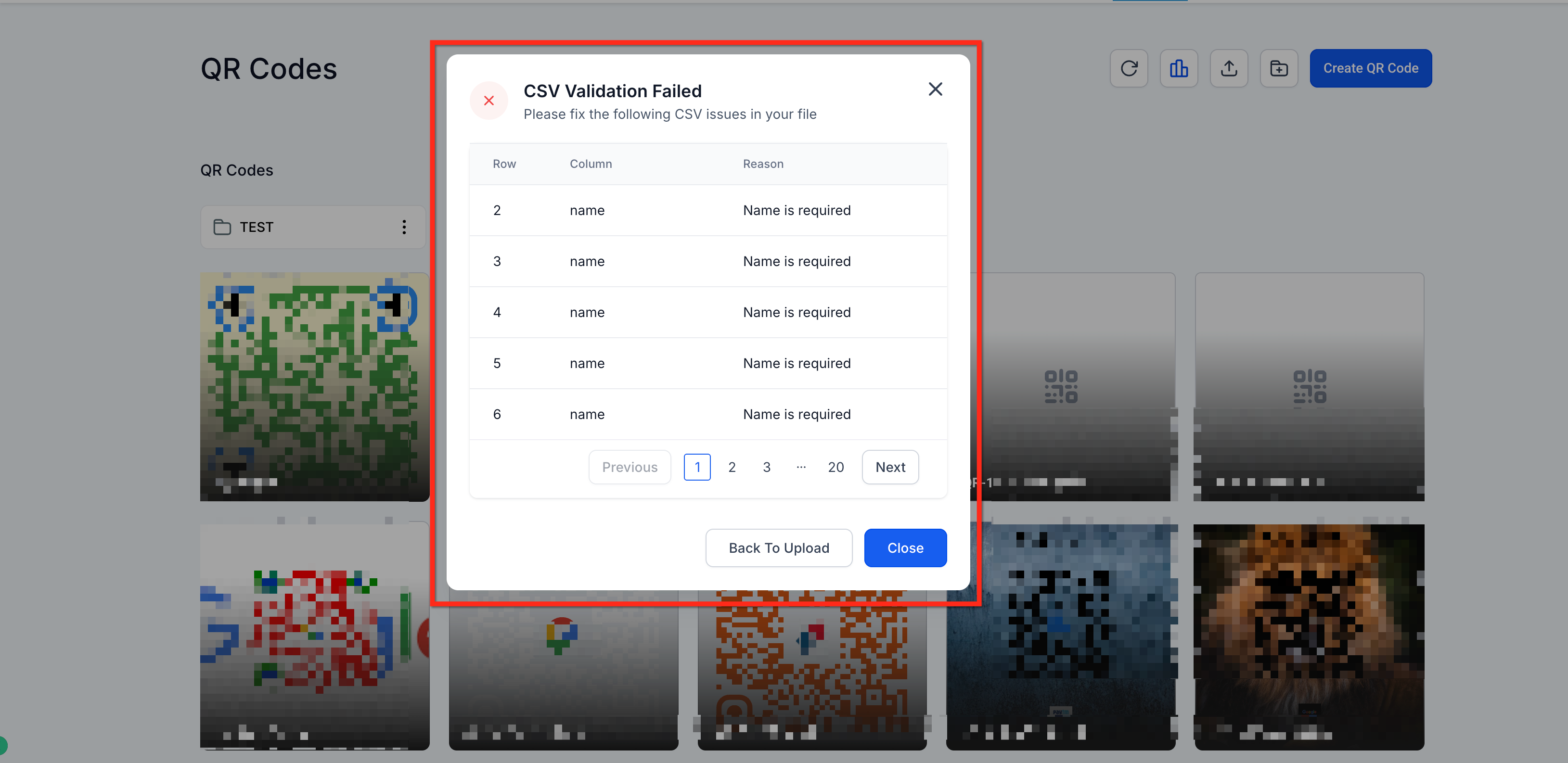
- Error Visibility: Built‑in validation flags any bad rows so you can fix issues immediately
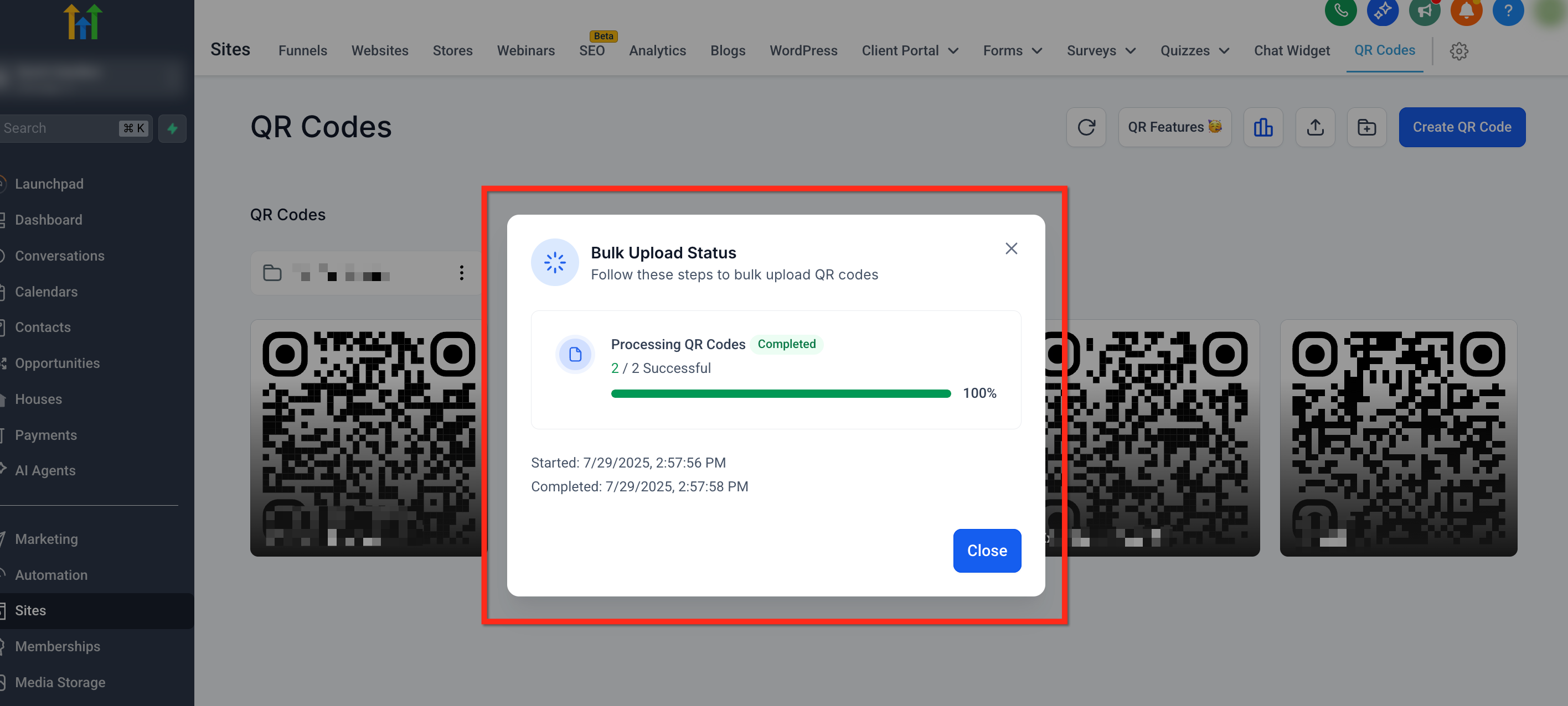
- Progress Transparency: Watch a live counter as codes are processed, so you always know when the batch is finished
- Ready‑To‑Use exports: Download print-ready PNG, SVG, or PDF versions once generation is complete
CSV Upload for Bulk Generation
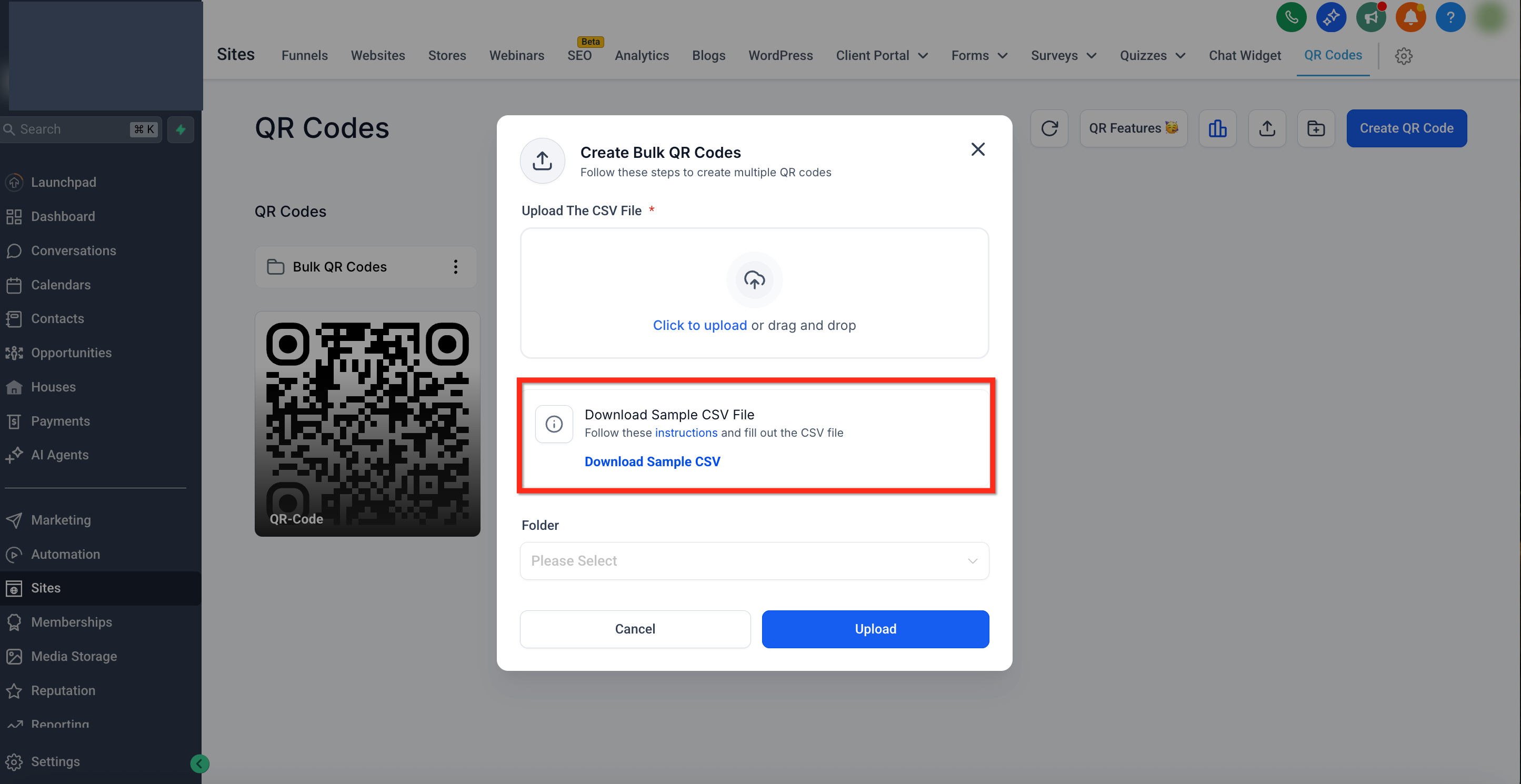
Uploading a properly formatted CSV is the heart of bulk QR code creation. By keeping the file lean (just two columns) you avoid mapping headaches and reduce error rates. Each row will generate one QR Code. Follow these guidelines to get started:
- Click Download Sample CSV in the Create Bulk QR Codes popup to use a pre-formatted template.
- Required Columns
- Name: the display name for the QR Code
- URL: the full destination URL
- Name: the display name for the QR Code
- Ensure there are no additional columns, blank rows or blank header cells.
Troubleshooting CSV Errors
Even small typos can break a bulk upload. Here are some common errors run into while uploading the CSV file:
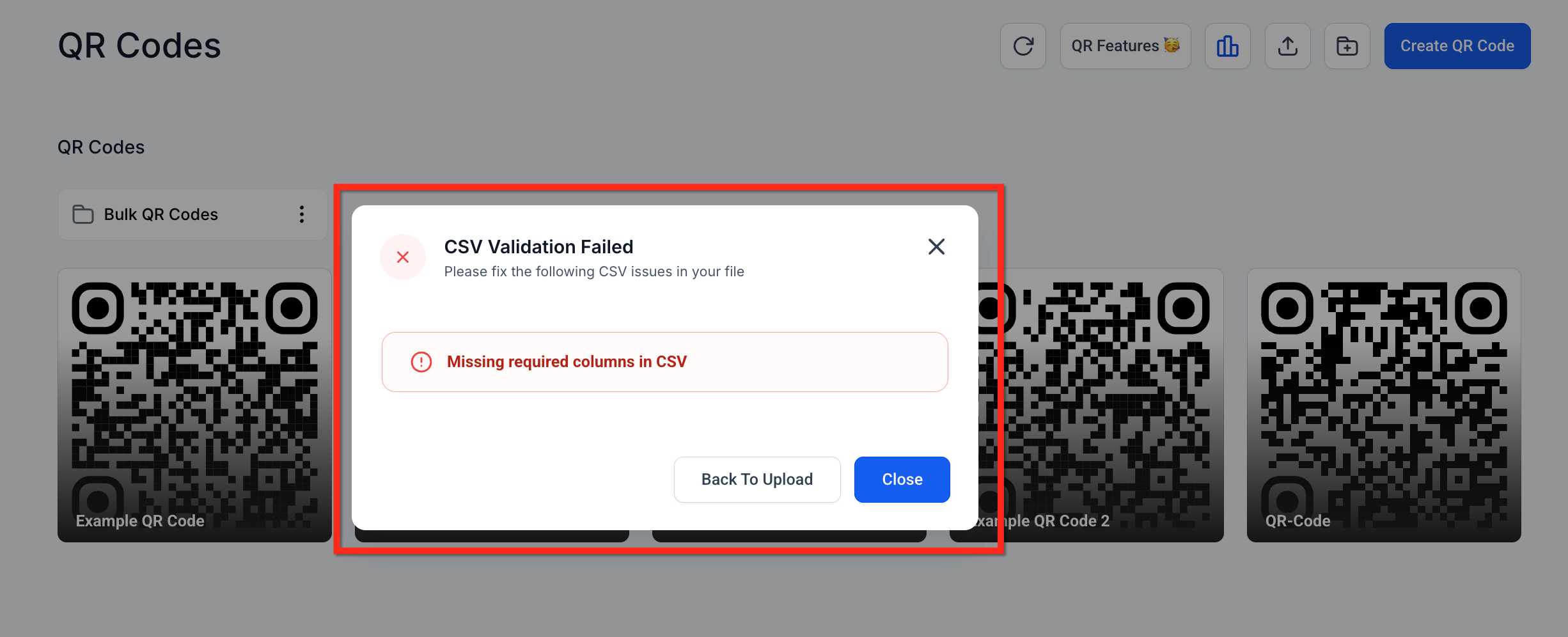
- Incorrect or Missing Headers: Ensure the top row reads exactly url, name. Incorrect headers will result in an error message.
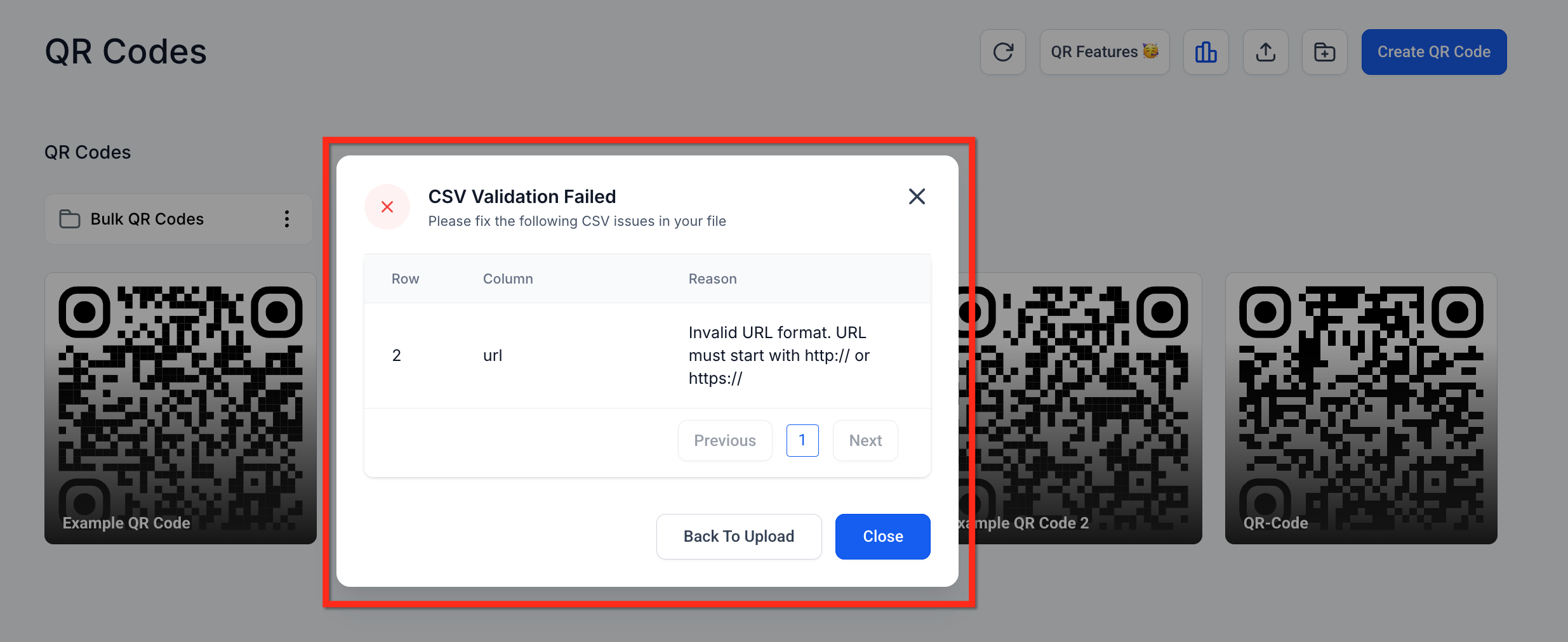
Invalid URL: Confirm each URL starts with http:// or https:// and contains no spaces. Invalid URLs will result in an error message pinpointing the row causing this error.
Assigning QR Codes to a Folder (Optional)
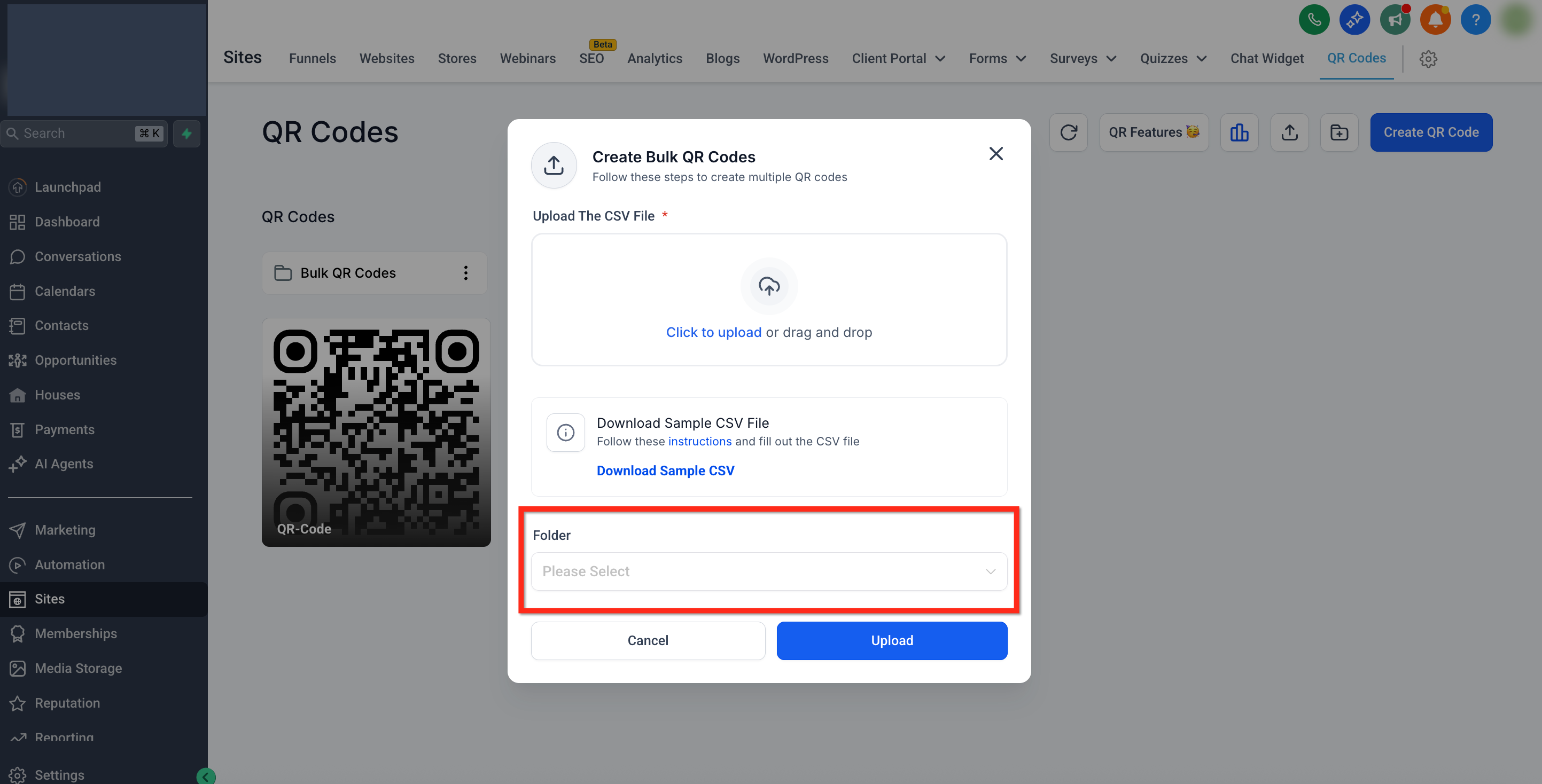
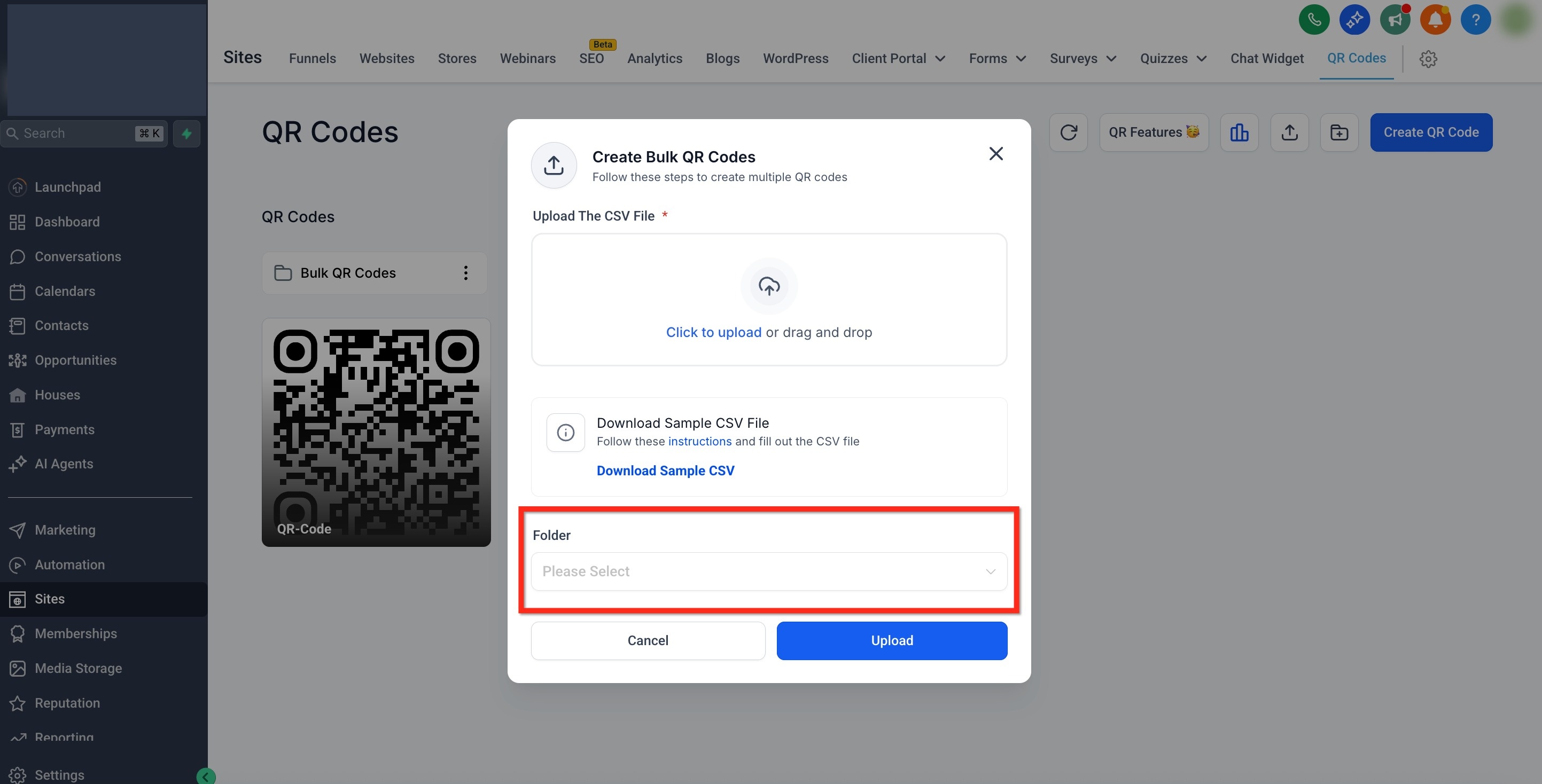
Folder assignment keeps your workspace tidy and makes organization a breeze. When bulk generating QR Codes, select an existing folder from the dropdown (you must create the folder beforehand, as only pre-existing folders appear during upload). All generated QR codes in the bulk creation will inherit the selected folder. If no folder is selected, the QR Codes will be stored in the root folder.
After creation, you can move your QR Codes into, out of or between folders. To move aQR code, click the 3 dot icon on the code and select Move to Folder, then choose the folder you would like to move it into.
How To Create QR Codes in Bulk
With your CSV prepared, configuring Bulk QR Code Creation and generating your codes takes just moments, follow these steps to get started:
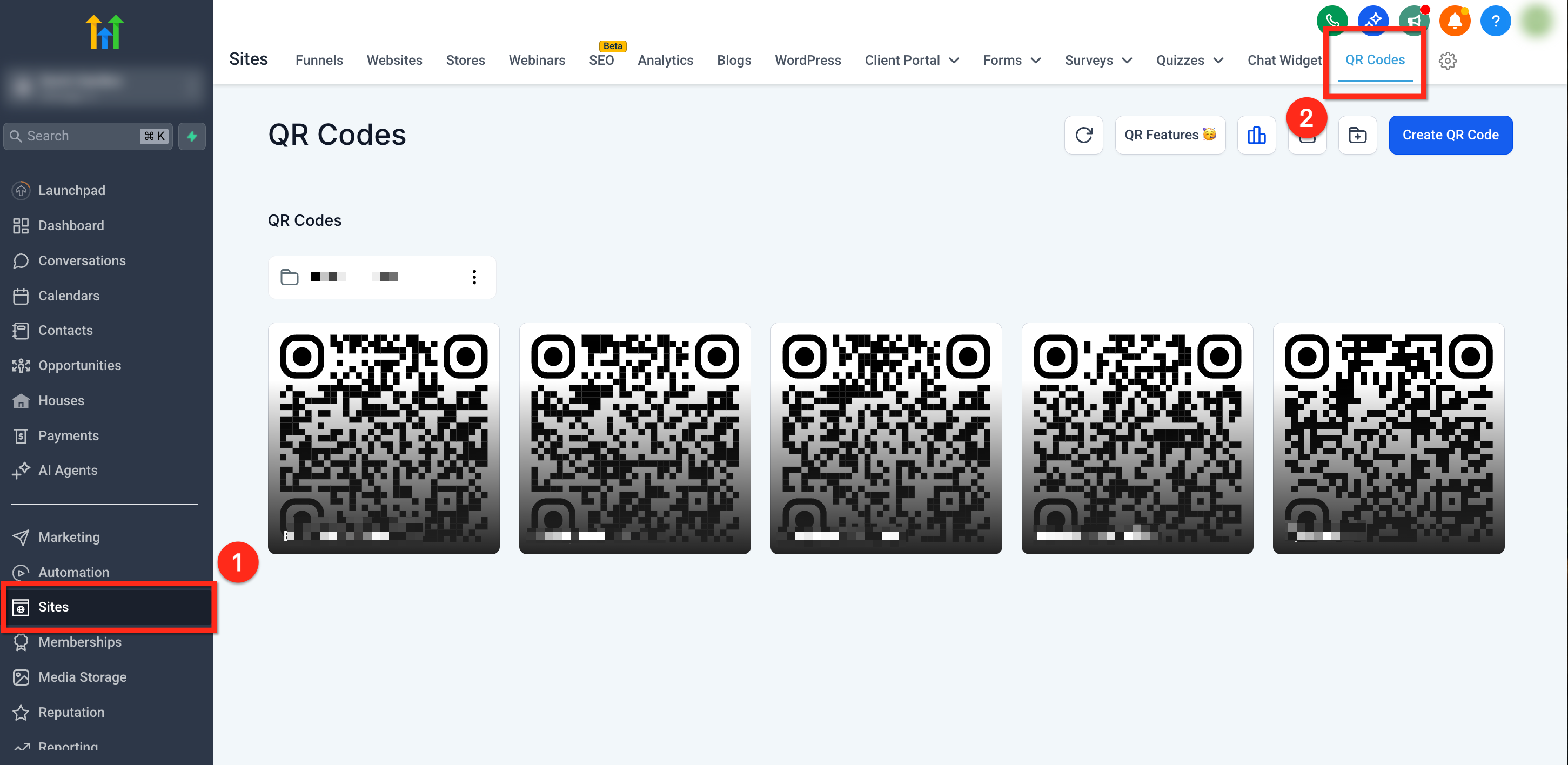
Step 1: Navigate to QR Codes
- Using the left‑hand sidebar, click Sites
- From the top navigation ribbon, select QR Codes
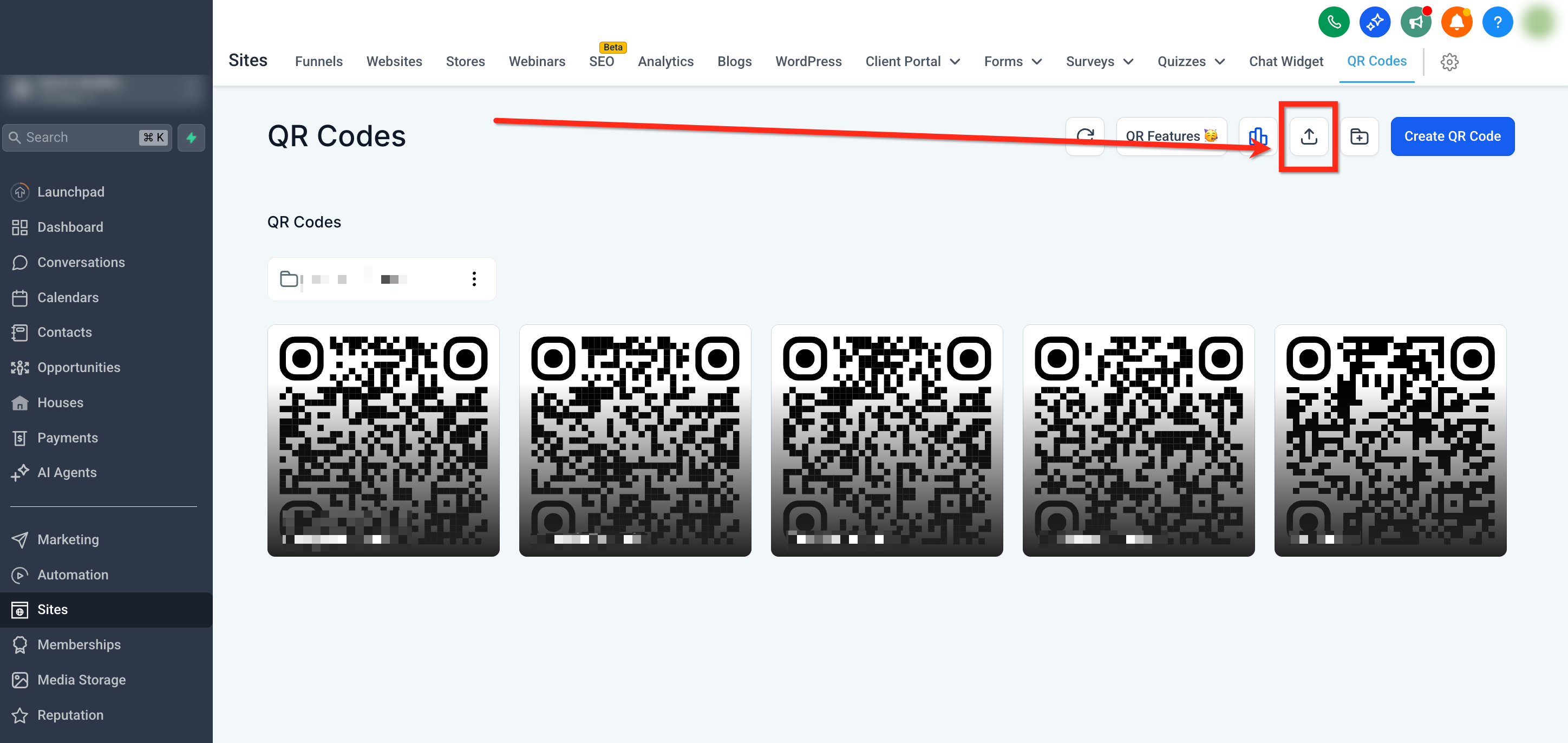
Step 2: Launch Bulk Modal
- Click the Create Bulk QR Codes icon in the upper-right corner
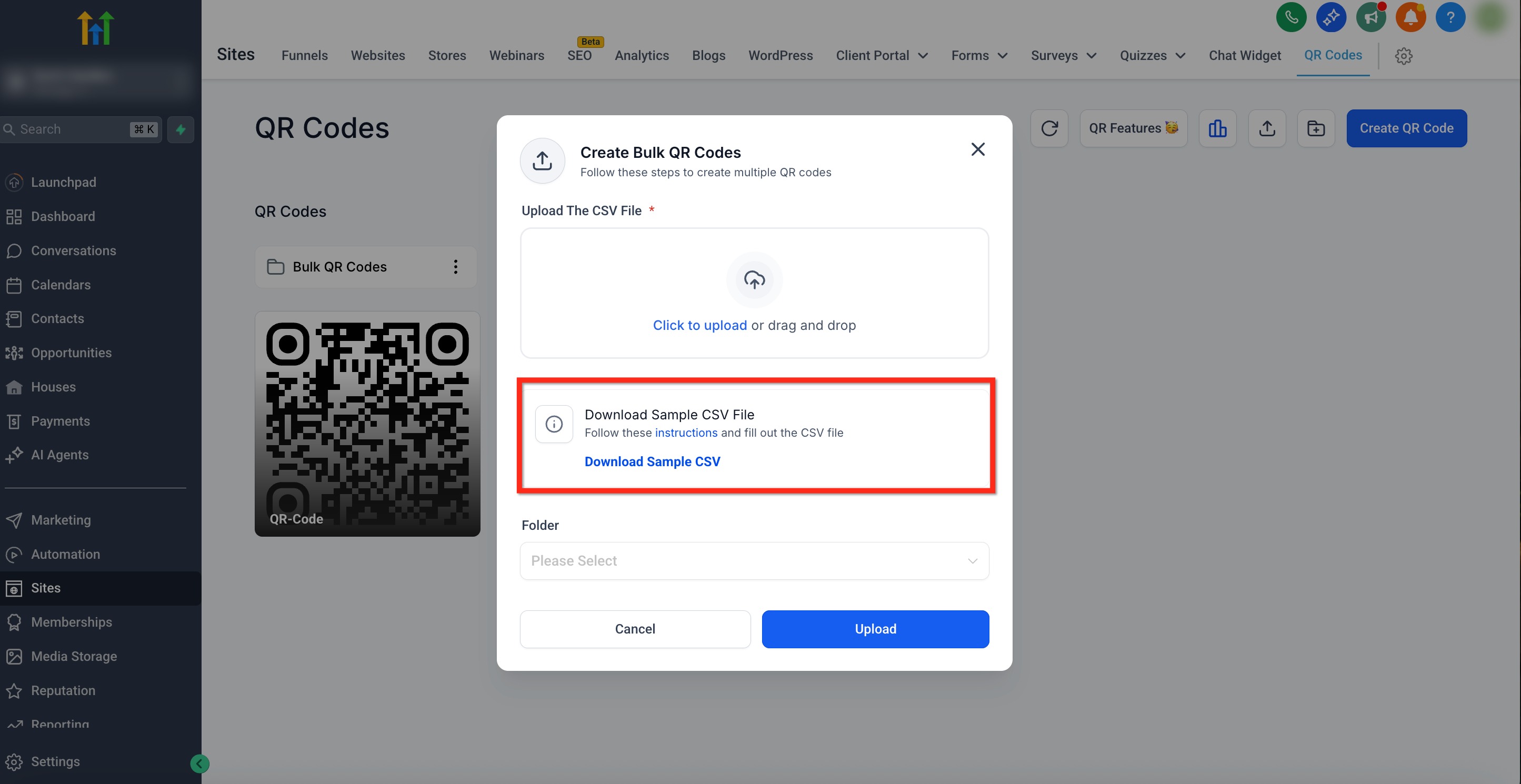
Step 3: Download CSV Template
- Use Download Sample CSV if you need a pre‑formatted file
- Once downloaded, update the file to hold your information for the QR Codes
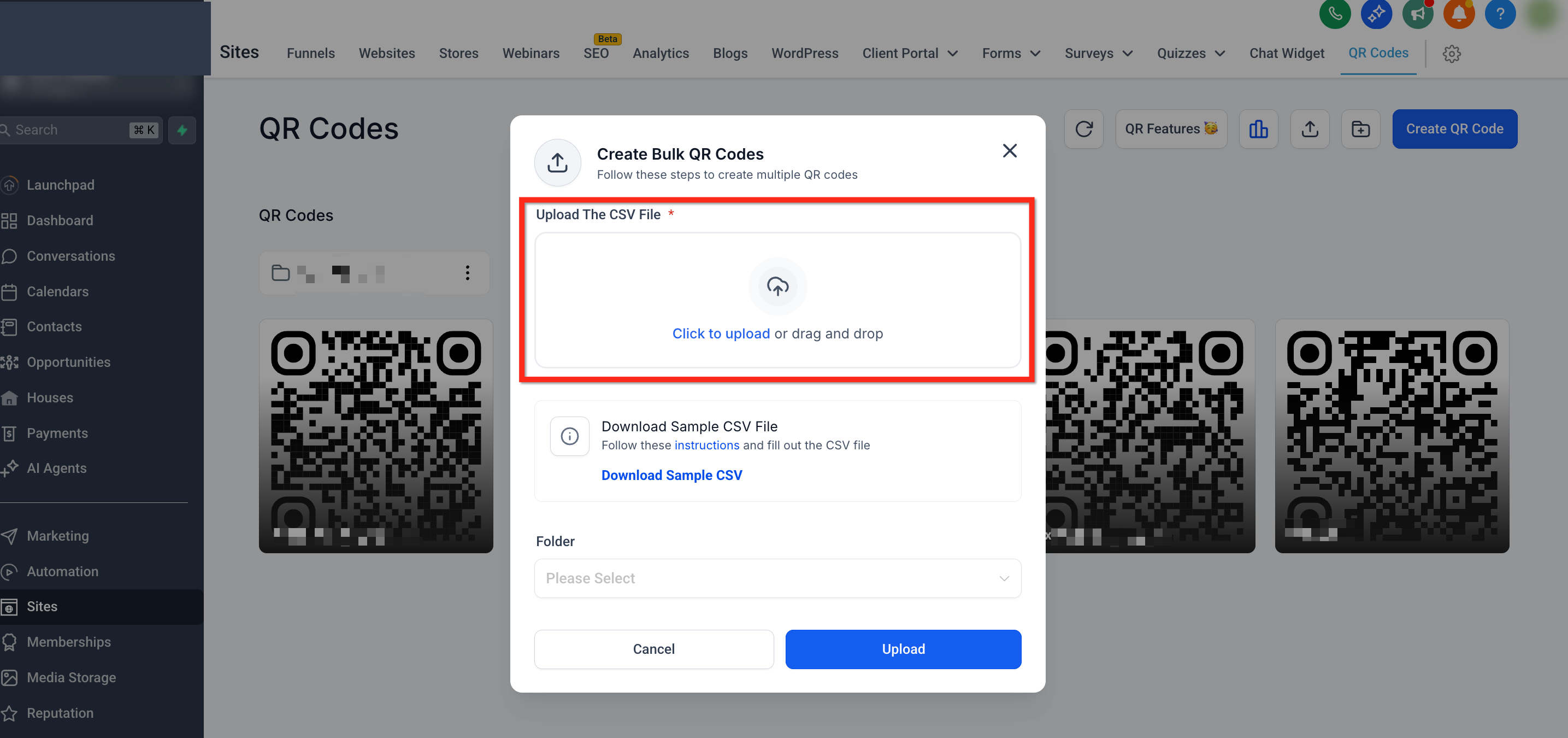
Step 4: Upload Your CSV
- Drag and drop your CSV file into the modal or use Click to upload to browse your files
Step 5: Select a Folder
- Choose an existing folder from the dropdown where the newly generated QR codes will be saved
- If no folder is selected, the QR Codes will be saved in the root folder
Step 6: Generate QR Codes
- Click the blue Upload button to start generation. The real‑time progress tracker will appear, showing successes and any errors
- If all rows show success, click Close. Navigate to your selected folder to view, select, and download PNG, SVG, or PDF versions of your newly created QR codes
Step 7: Troubleshoot Errors
- Watch the tracker for any flagged rows. Fix the errors in your CSV and re-upload
Frequently Asked Questions
Q: Can I download the QR code after it’s created?
Yes! Click the download icon next to any QR code to save a high-resolution PNG image.
Q: What happens when someone scans a QR code?
The user is redirected to the destination URL or asset, and any attached workflow is triggered.
Q: Can I track how many times my QR code has been scanned?
Yes. To track the number of times a QR code has been used, click the Analytics button on the QR Codes page.
Q: What if I need to update the destination URL of a QR code?
To update a QR code, click the blue Edit button and update the destination URL.
Q: Can I customize the appearance of the QR Codes?
Yes! You can edit the color and images in the QR Code to match your branding. For more information on this, see: QR Code Generation and Download Guide