
This article explains the new section-saving flow, the benefits of Universal, Global, and Template sections, and how to set up and manage them for maximum efficiency.
TABLE OF CONTENTS
- What are Saved Section Templates?
- Key Benefits of Saved Section Templates
- How To Set Up Saved Section Templates
- Best Practices for Section Management
- Frequently Asked Questions
- Related Articles
What are Saved Section Templates?
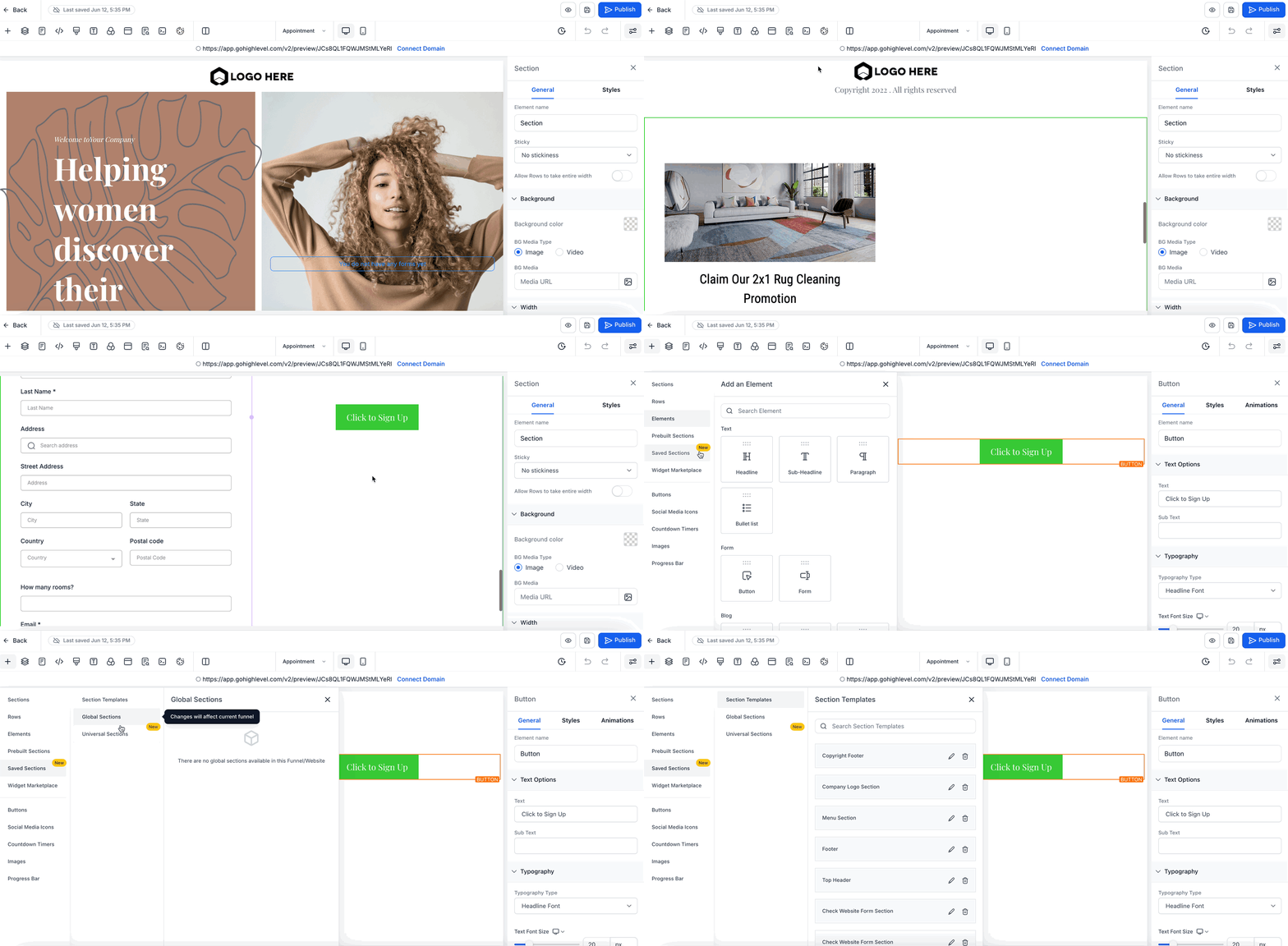
Saved Section Templates are a powerful enhancement in SourCherry that allow users to create, save, and reuse content sections across multiple assets, such as Funnels, Websites, Webinars, and E-Commerce Stores. With this update, you can choose between three types of saved sections: Universal (syncs everywhere), Global (syncs within a single asset), and Template (static, reusable, and non-syncing).
- Section Templates: Saves as a copy, which can be used anywhere as a template.
- Global Sections: Saves at the funnel level. Any changes in one instance will sync across this funnel only.
- Universal Sections: Saves at the account level. Any changes in one instance will sync across all instances, account-wide.
This system ensures design consistency, saves time, and reduces confusion about how content updates propagate.
Difference between Universal and Global Sections:

Universal Sections update automatically across every instance in the account across Funnels, Websites, Webinars, and E-Commerce Store.

Global Sections update only within the current funnel/website.
Key Benefits of Saved Section Templates
Saved Section Templates offer several advantages that help users manage content more efficiently and maintain brand consistency:
- Centralized Updates: Universal Sections automatically sync changes across all instances in Funnels, Websites, Webinars, and E-Commerce Stores.
- Flexible Reuse: Choose between Universal, Global, or Template sections based on your needs for syncing or static content.
- Visual Selection: Automated screenshots and clear labels make it easy to preview and select saved sections.
- Efficient Cloning: Cloned sections and snapshots get unique IDs, so edits to copies won’t affect originals.
- Improved Performance: Enhanced backend architecture ensures faster syncing, better reliability, and secure template management.
- Reduced Confusion: Clear section types and visual cues help users understand how edits will impact their content.
- No Personal Data Stored: Only layout information is saved, protecting user privacy.
How To Set Up Saved Section Templates
Proper setup of Saved Section Templates ensures your content is reusable and updates as intended. Follow these steps to save and use sections effectively:
Step 1: Open the Page Editor
Navigate to your Funnel, Website, Webinar, or E-Commerce Store in SourCherry and open the page editor.
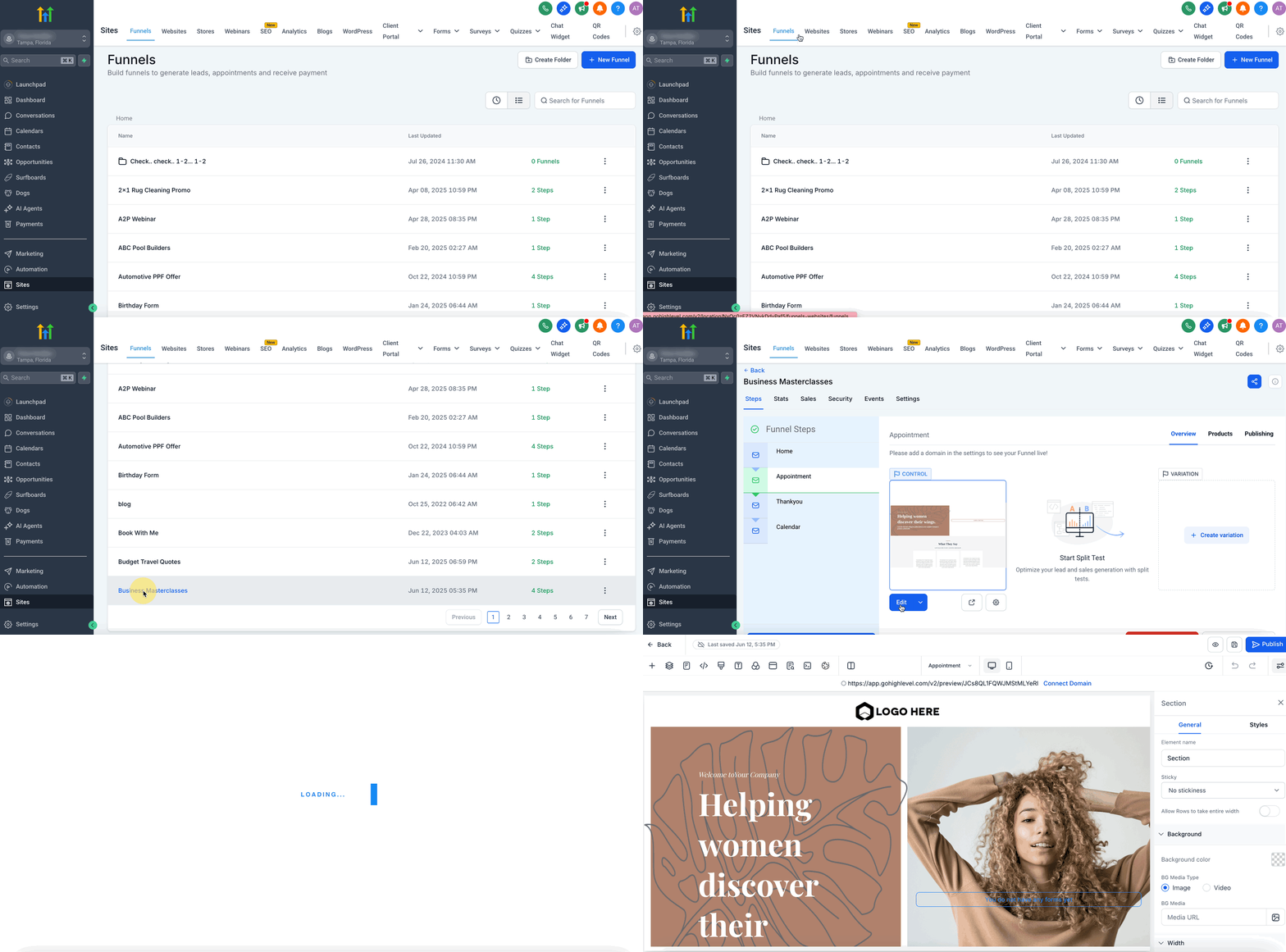
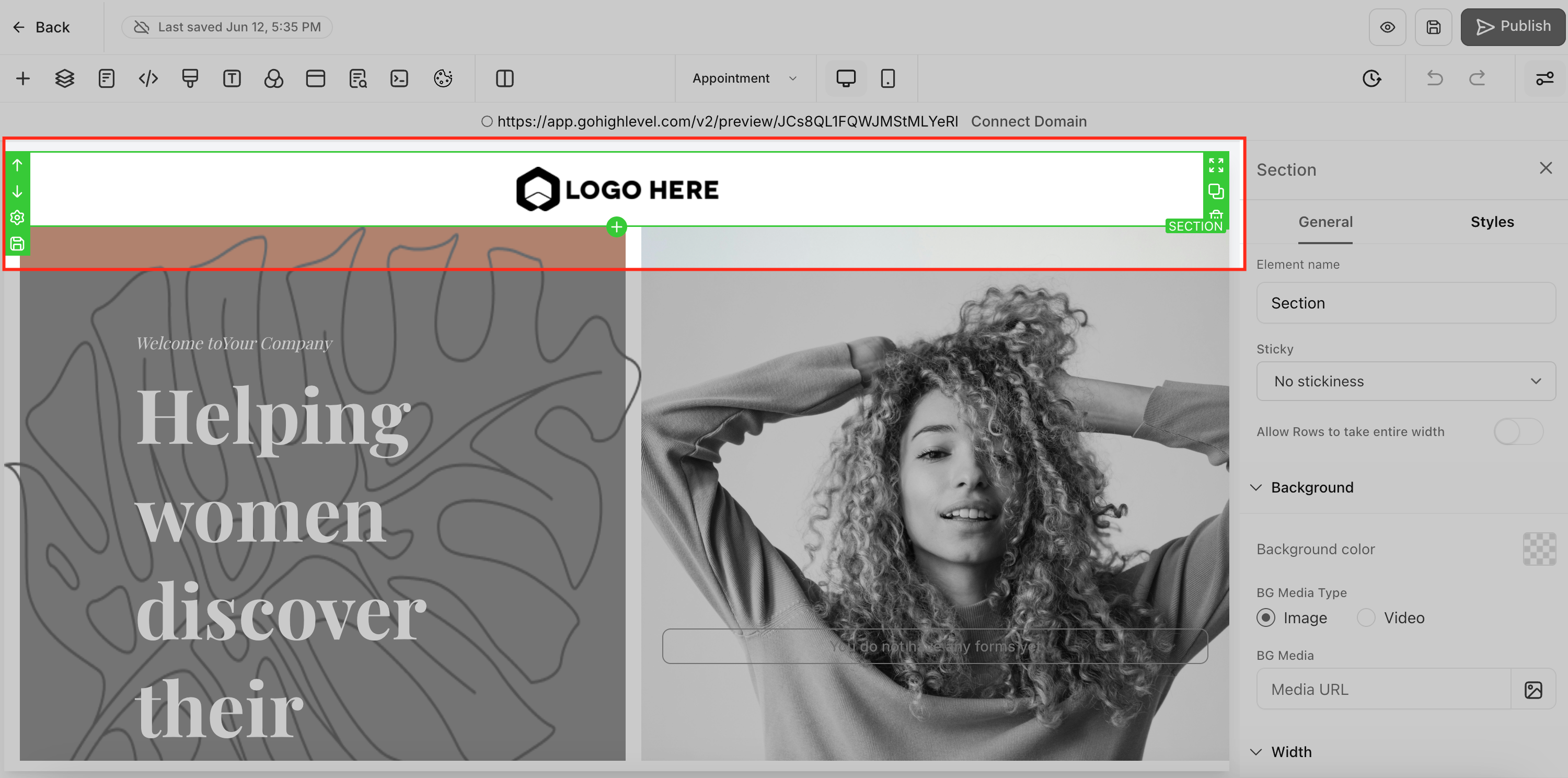
Step 2:Select a Section
Choose the section you want to save for reuse.
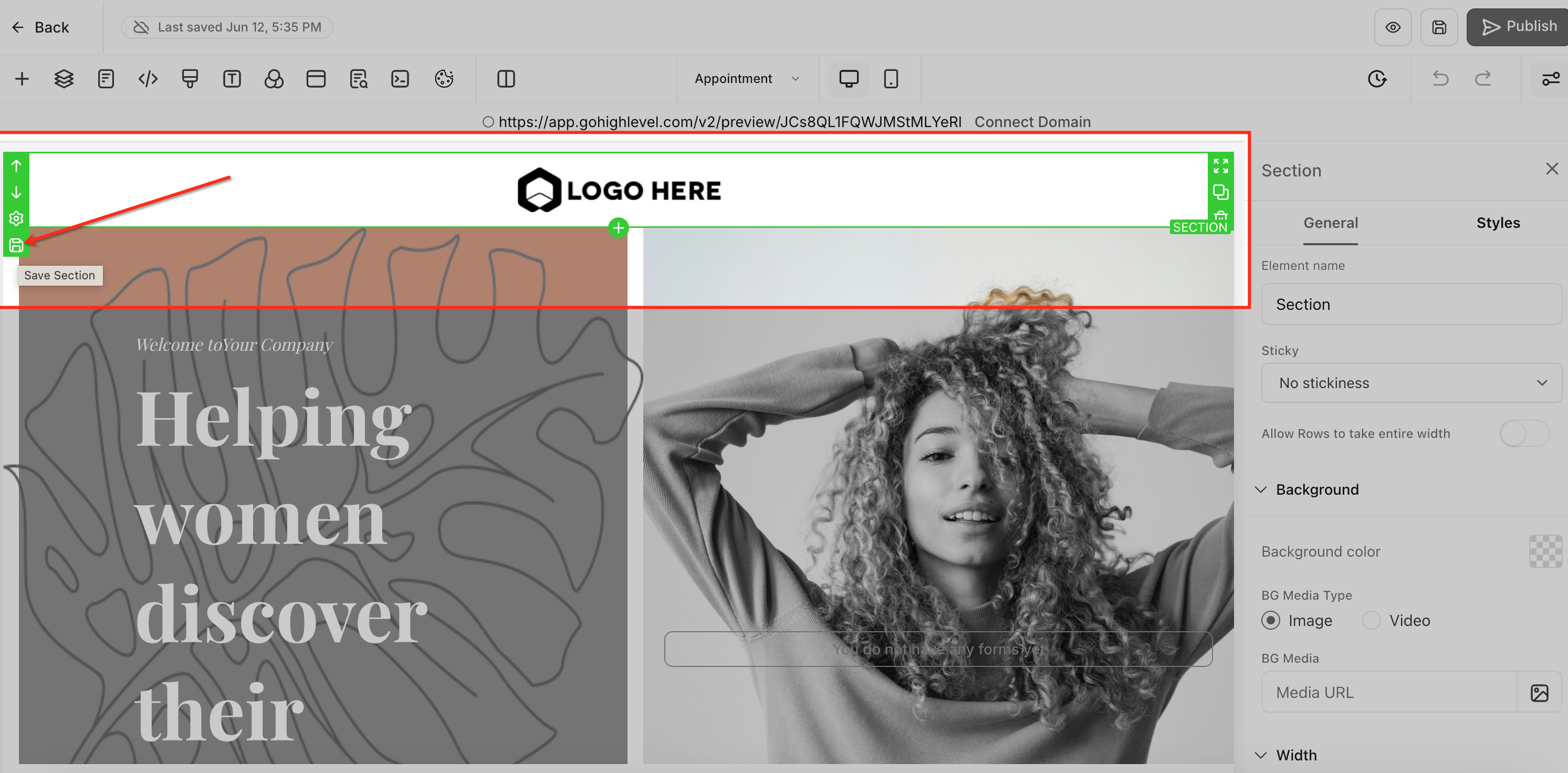
Step 3: Save the Section
Click the “Save Section” option. A unified save modal will appear.
Step 4: Choose Section Type:
- Universal: Syncs updates across all assets in your account.
- Global: Syncs updates only within the current funnel or website.
- Template: Creates a static, reusable section that does not sync when edited elsewhere.
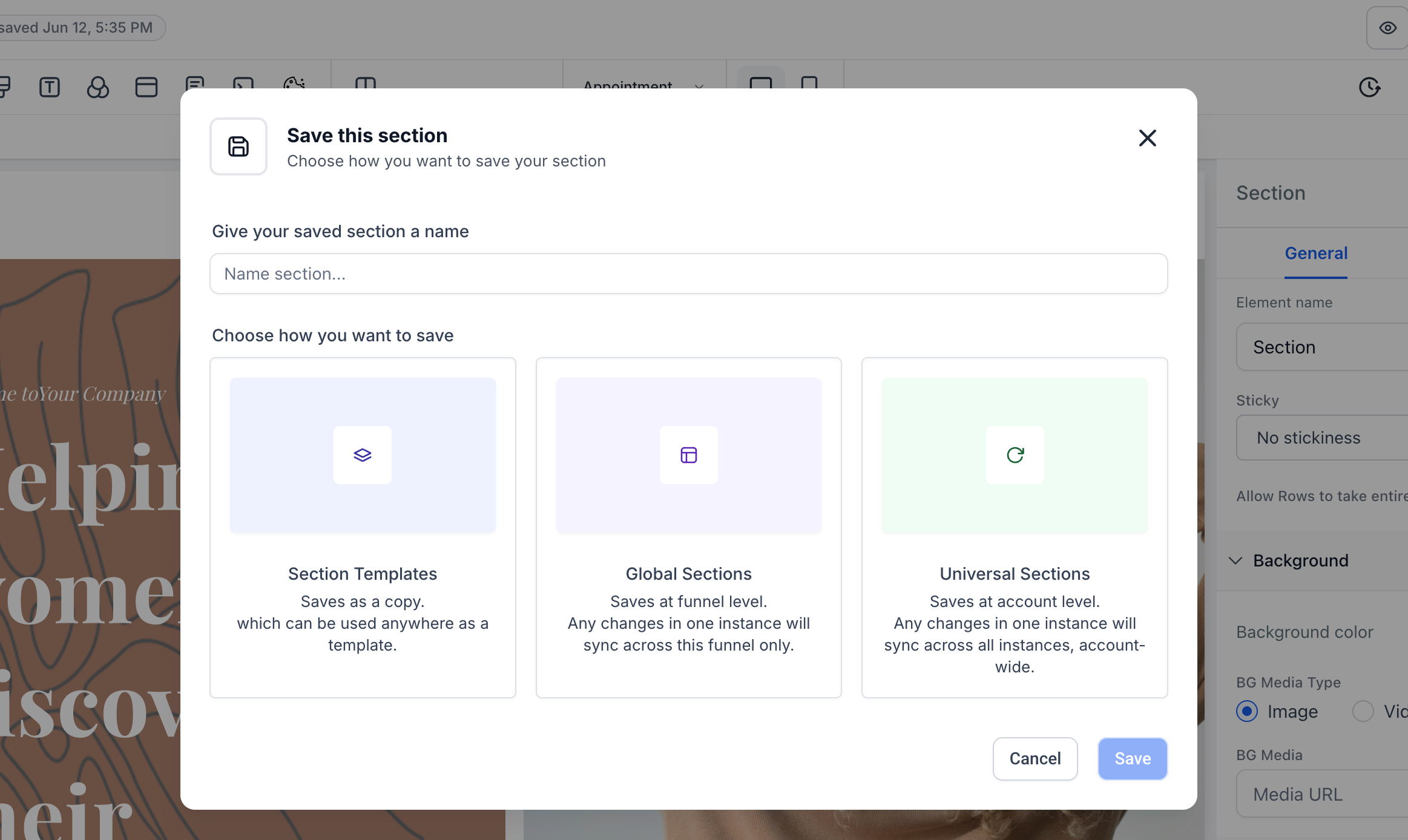
Note: Name your section and choose how you would like to save the section, as a Section Template or Global Section or a Universal Section. Once saved once a section is saved as Universal, Global, or Template, its type cannot be changed.
Step 6: Finalize Save and Insert Saved Section
When editing another page, use the “Add Section” option to browse and insert your saved Universal, Global, or Template sections.
Best Practices for Section Management
- Plan your section type before saving, as it cannot be changed later.
- Use Universal Sections for content that must stay consistent everywhere (e.g., headers, footers).
- Use Global Sections for content unique to a specific funnel or website.
- Use Templates for reusable blocks that may need customization in each instance.
- To change a section’s type, clone it and save the clone under the desired type.
Using AI with Saved Sections (Universal, Global, Template)
AI Page Revisions work best when you choose the right target scope—especially when your page contains saved sections that may sync.
Expected Behavior (by target)
Single saved section target: If you target a single saved section, the revision is intended to update only that section without changing other page areas.
Page-wide style target: If you request page-wide style changes, updates may affect multiple sections on the page, including saved sections, depending on what the AI updates (for example, global typography/colors).
Sync Implications
Universal / Global sections: If the revision edits a section that is linked and syncing, changes may propagate to other instances of that section once published.
Template sections: Template sections are intended to be reusable starting points; edits should remain local to the current page.
Best Practice
For a page-only variant, insert a Template (or clone the section) and revise that copy.
After any revision, review the change summary to confirm the scope and ensure no non-targeted sections were modified.
Frequently Asked Questions
Q: Can I change the type of a section after saving it?
No. Once saved as Universal, Global, or Template, the type cannot be changed. Clone the section and save it under a new type if needed.
Q: Can I restore an older version of a Global or Universal Section?
No. Saved sections do not have version history. Once edited, previous versions cannot be restored.
Q: Why does an older page version still show the latest section changes?
Global and Universal Sections always sync the latest saved version. Restoring a page does not restore an older section version.
Q: Will edits to a Universal Section update everywhere?
Yes. Changes sync across all funnels, websites, blogs, webinars, and stores.
Q: What’s the difference between Global and Universal Sections?
Universal Sections sync across the entire account.
Global Sections sync only within the funnel or website where they were created.
Q: What happens if I clone a section?
Cloning a saved section creates a new unique ID. It will no longer sync with the original.
Q: What happens if I clone a page that contains Global or Universal Sections?
The same section IDs are carried over. Edits will still sync everywhere unless you clone the section itself.