
SourCherry's Category Queue feature helps you automate and repurpose evergreen social content. Group posts under a category, define a recurring publishing schedule, and let the queue cycle through the posts continuously. This article explains how Category Queues work, how to create and manage them, and how to control future content.
TABLE OF CONTENTS
- What Is a Category Queue?
- Key Benefits of Category Queues
- Before You Begin
- How to Create a Category Queue
- How to Manage a Category Queue
- Important Notes
- Category Queue Public API
- Frequently Asked Questions
- Related Articles
What Is a Category Queue?
A Category Queue lets you group social posts under a category and publish them according to a recurring schedule. After the queue reaches the final post, it starts again from the beginning, making it useful for evergreen content.
You can build a queue from published posts assigned to a category, add new posts while configuring the queue, and automatically include future posts created under the same category.
Key Benefits of Category Queues
- Automated evergreen scheduling: Publish category-based content continuously without manually rescheduling every post.
- Reusable content: Repurpose published posts and include future posts assigned to the same category.
- Priority control: Choose whether new content appears at the beginning or end of the queue.
- Custom schedules: Set specific publishing days and time slots for each queue.
- Flexible queue management: Edit, reorder, pause, resume, reschedule, or delete a queue as needed.
Before You Begin
Note: To create a queue from existing content, make sure the published posts are assigned to the appropriate social category. You can also create a new category and add posts while setting up the queue.
How to Create a Category Queue
- Log in to your sub-account.
- Go to Marketing > Social Planner.
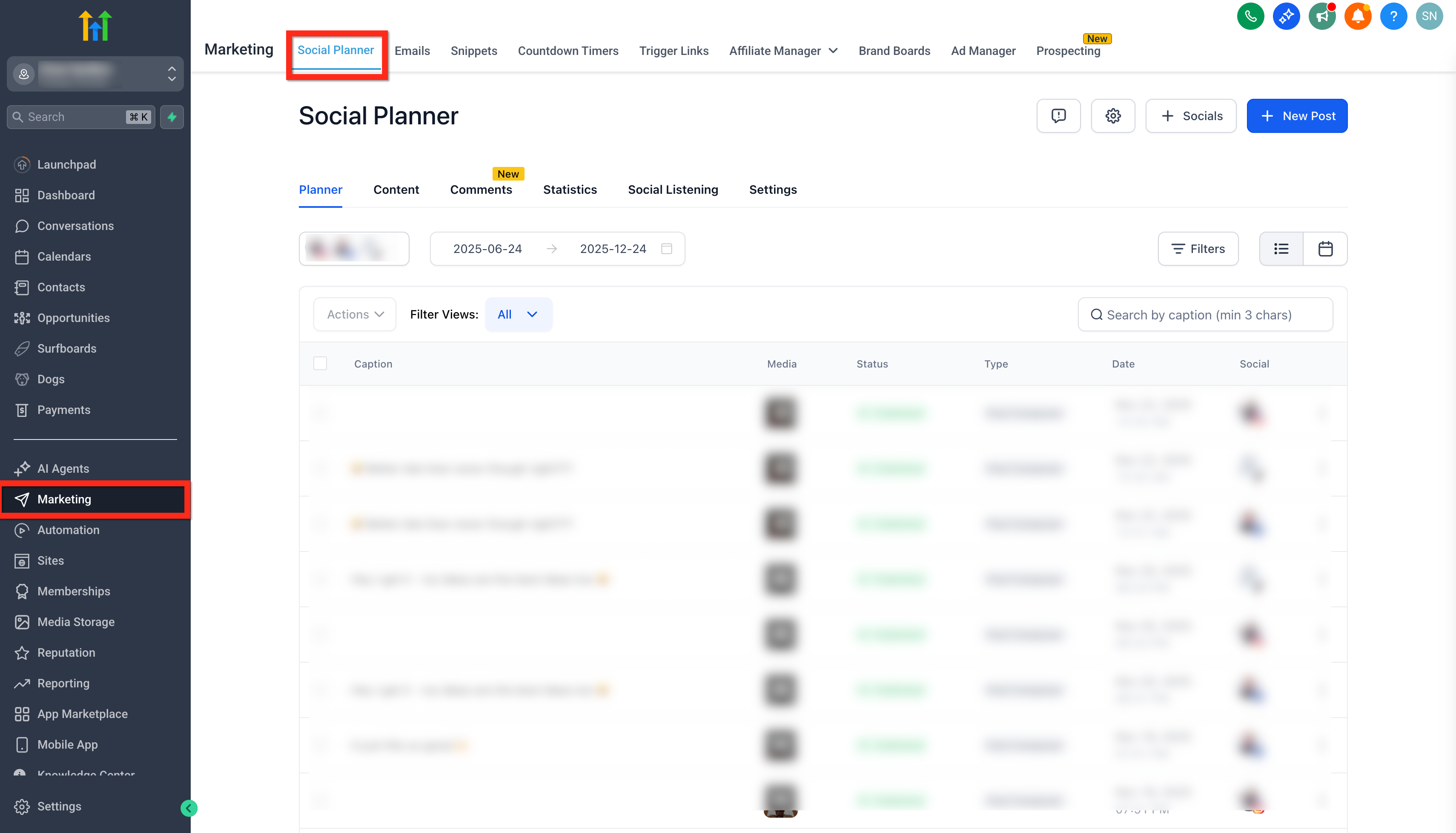
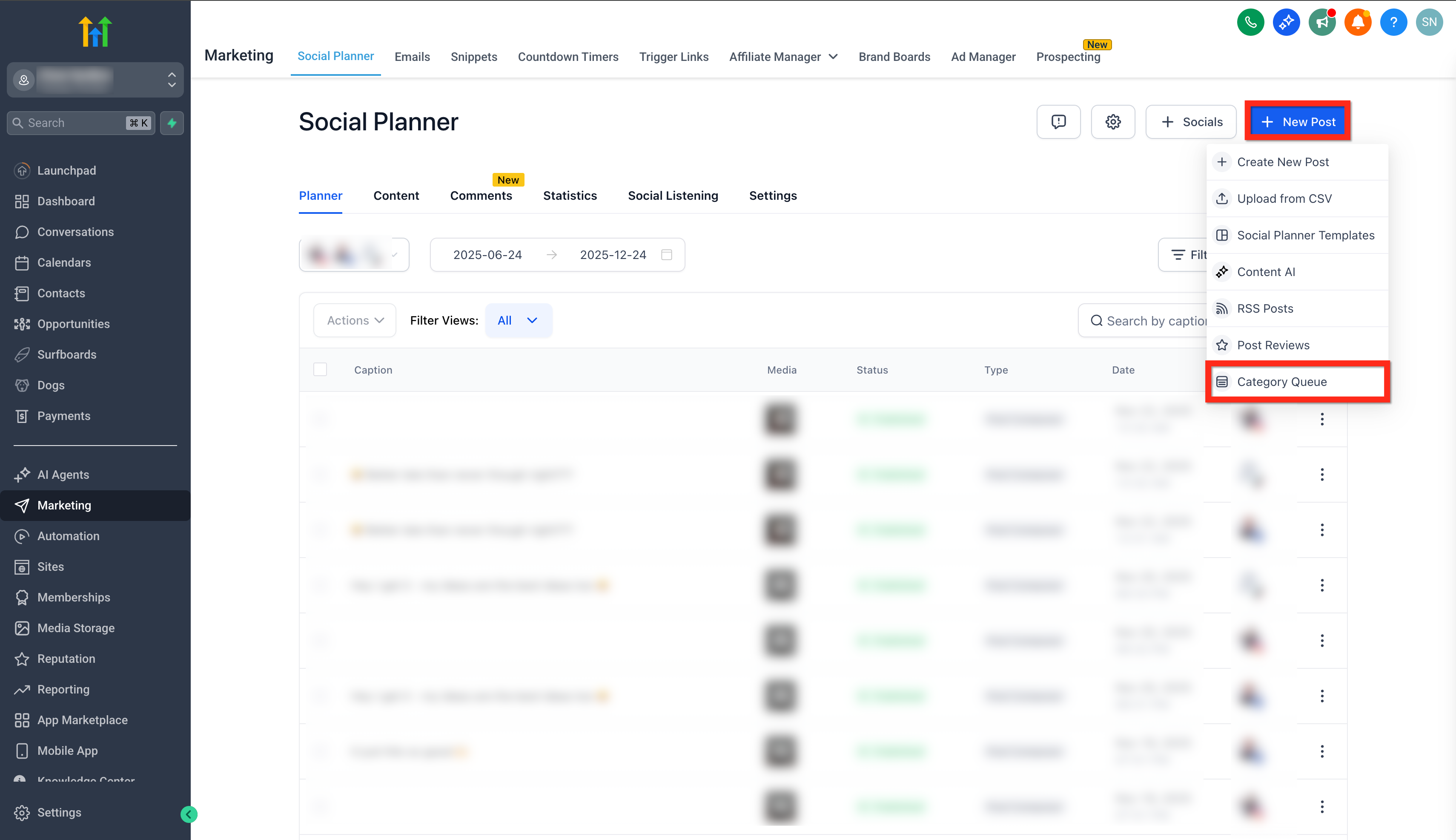
- Click + New Post, then select Category Queue.
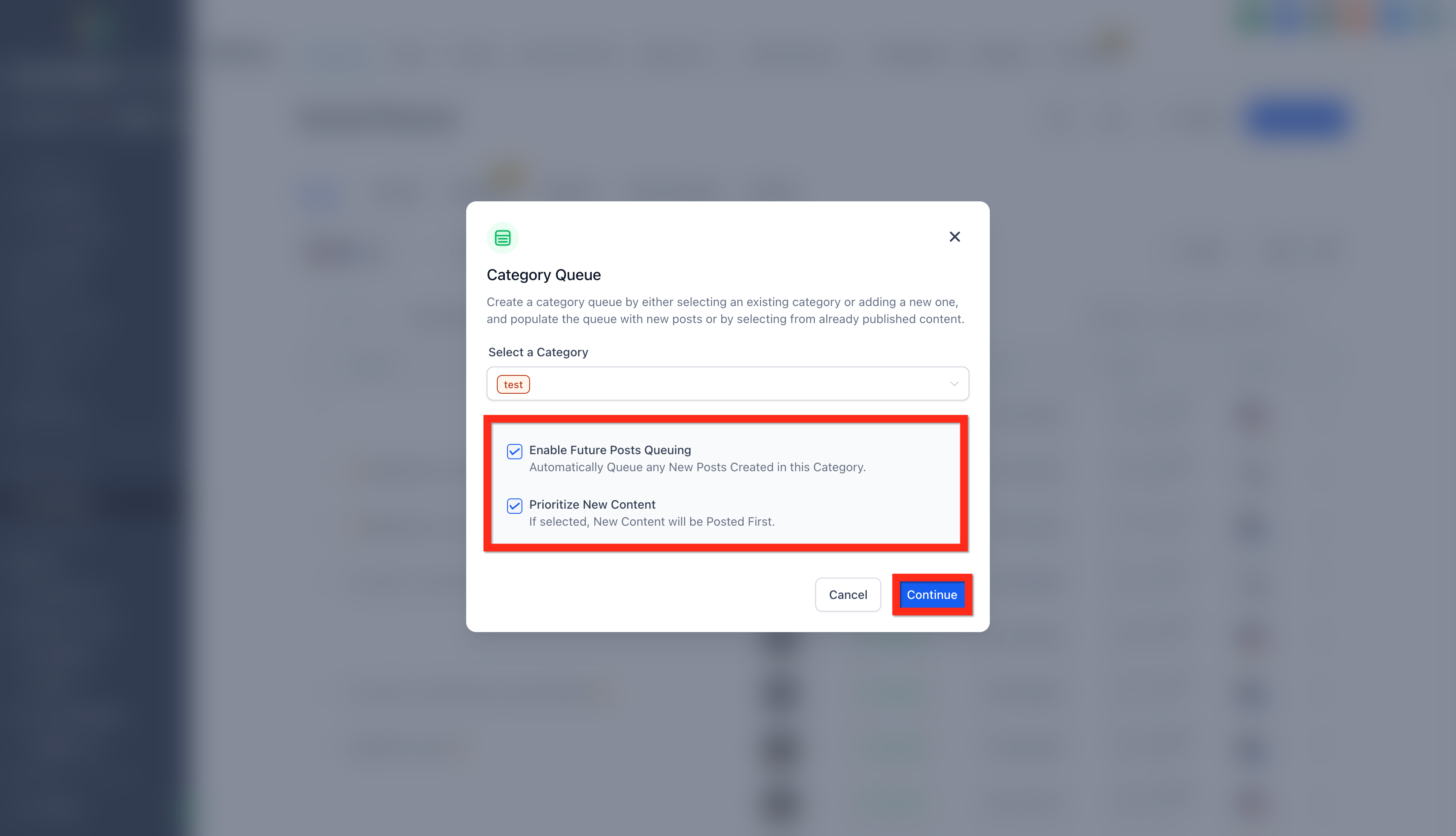
- Under Select a Category, choose the category you want to use for the queue.
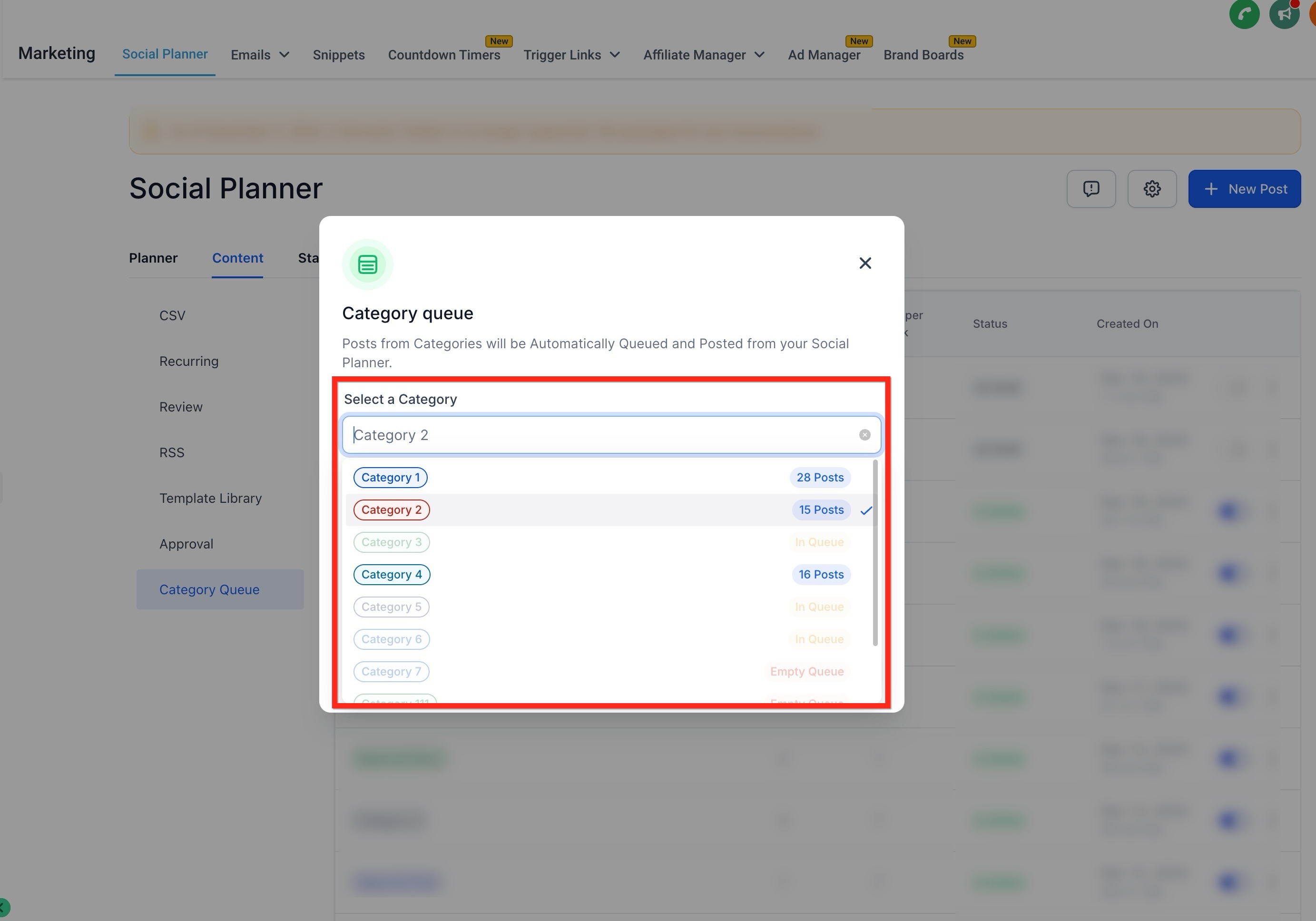
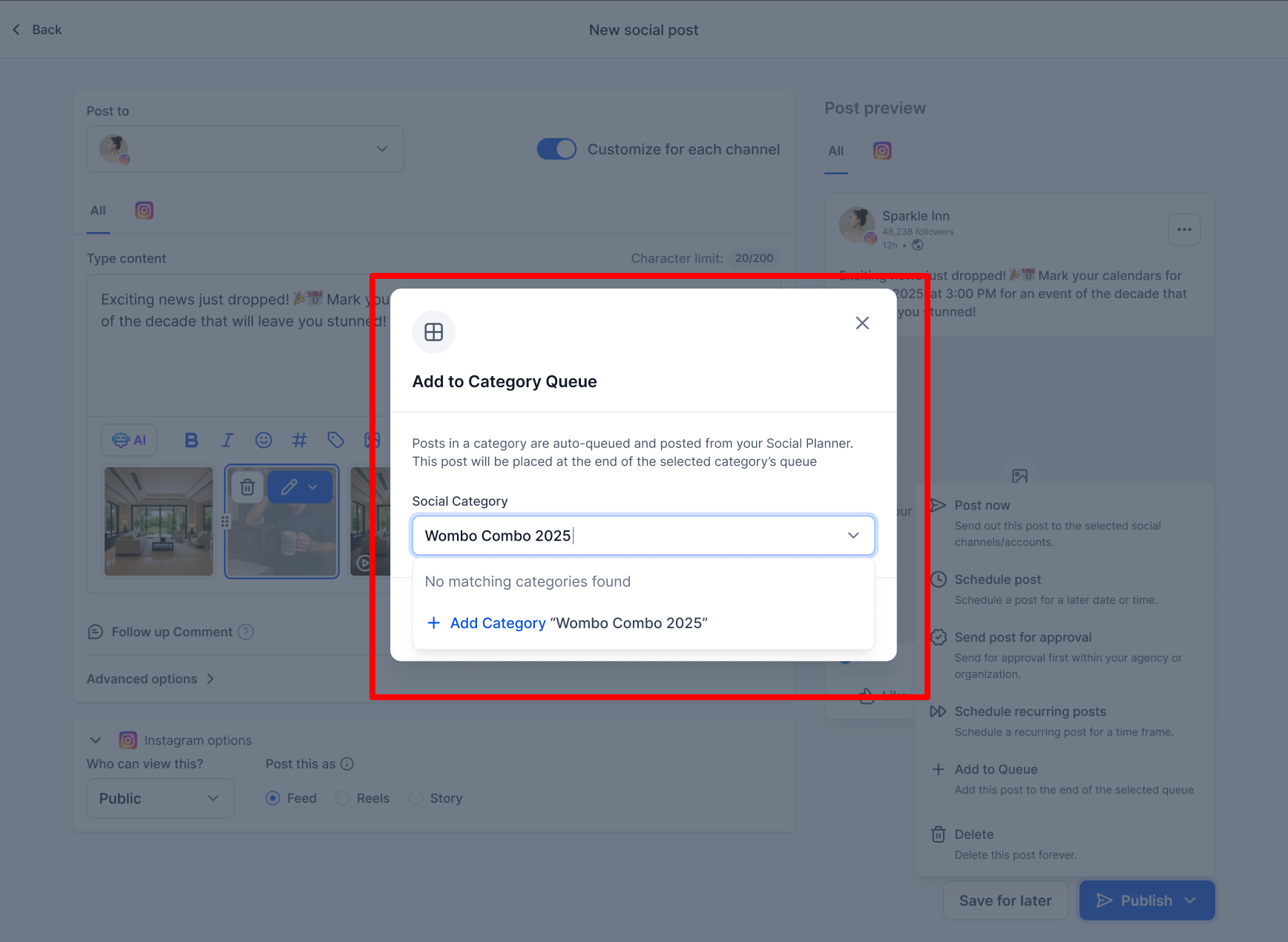
- To create a category, enter a new category name and select the option to add it.
- Enable Enable future posts queuing to automatically add future posts assigned to the category to this queue.
- Enable Prioritize new content to add newly queued content to the beginning of the queue. When disabled, new content is added to the end.
- Click Continue.
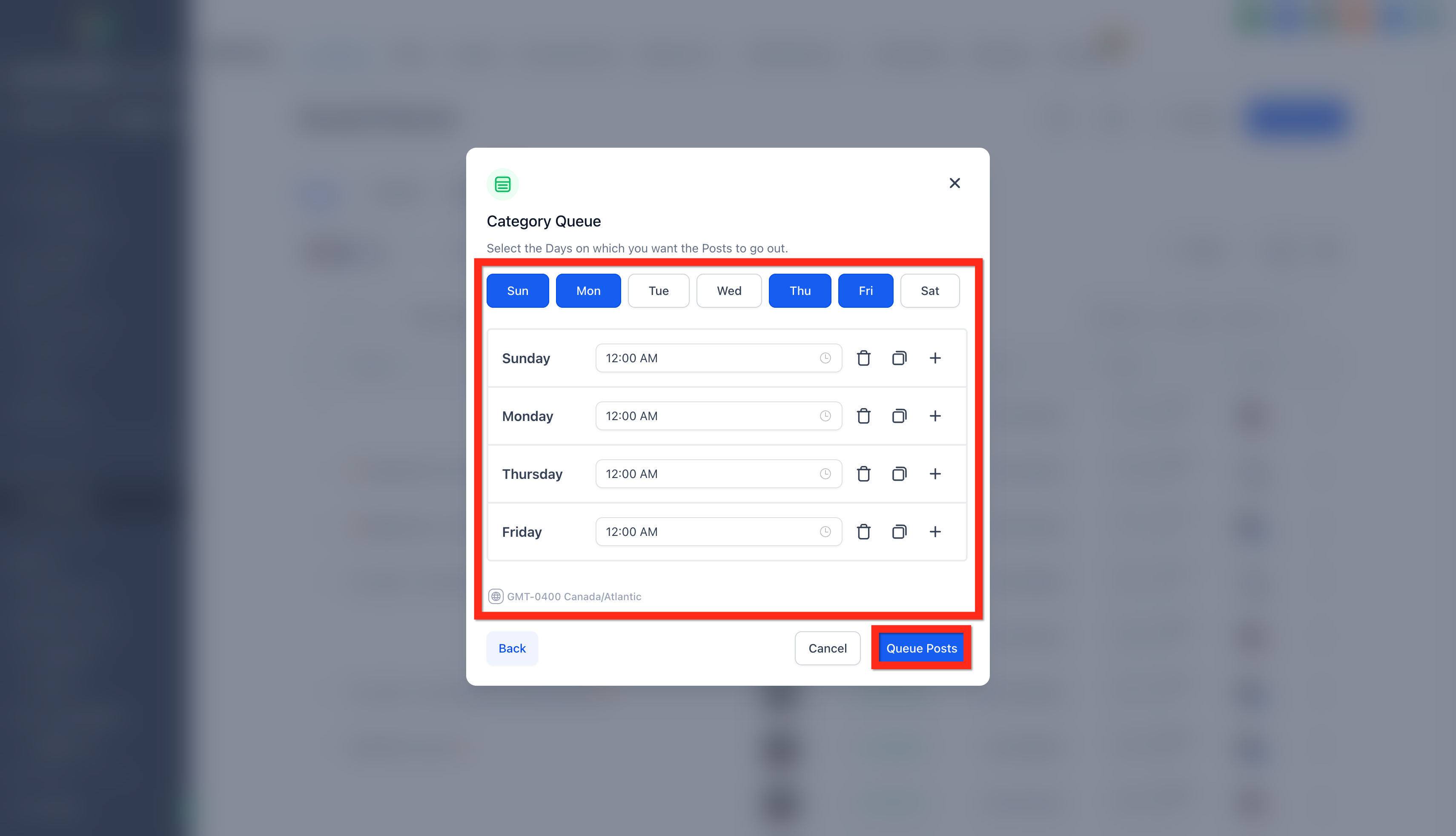
- Select the publishing days and time slots for the queue.
- Click Queue Posts to apply the schedule and continue to the queue editor.
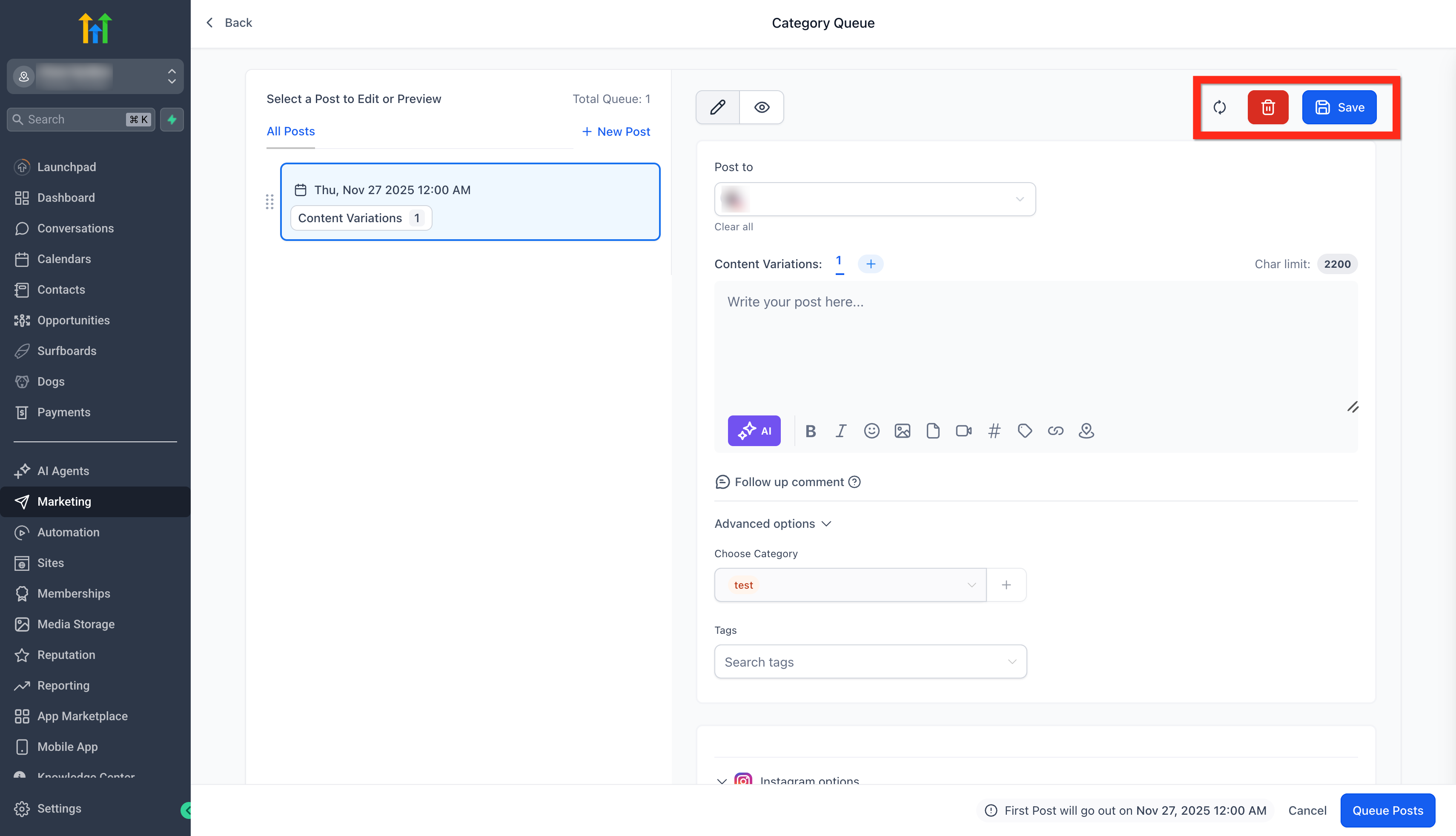
- Review the queued posts. Edit the post content or media as needed.
- To add another post, click New Post. You can then drag the post to the preferred position in the queue.
- Add multiple content variations when you want the queue to rotate different versions of a post.
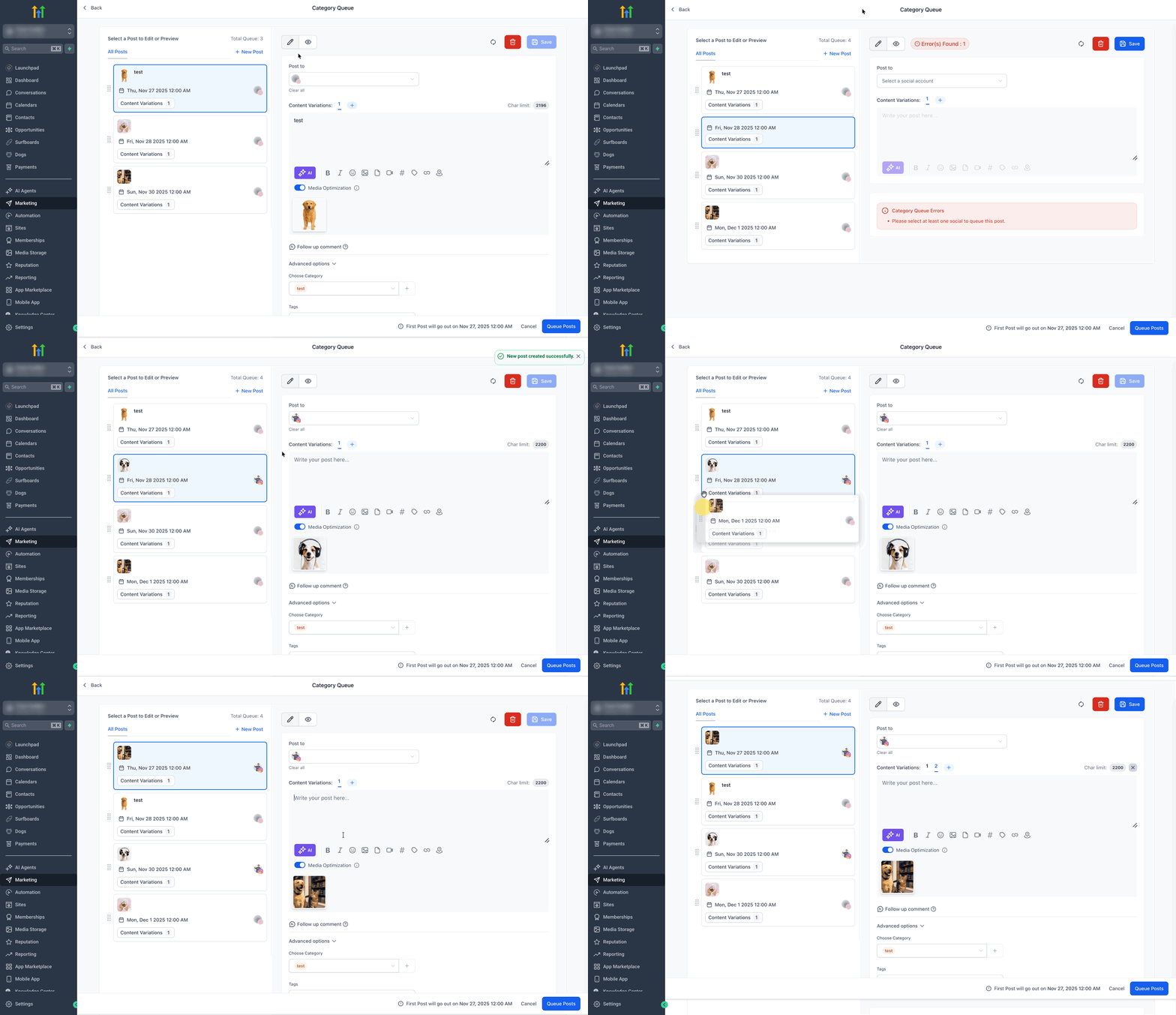
- Review all caution, warning, and error messages, and resolve any identified issues.
- When no blocking errors remain, click Queue Posts to activate the queue.
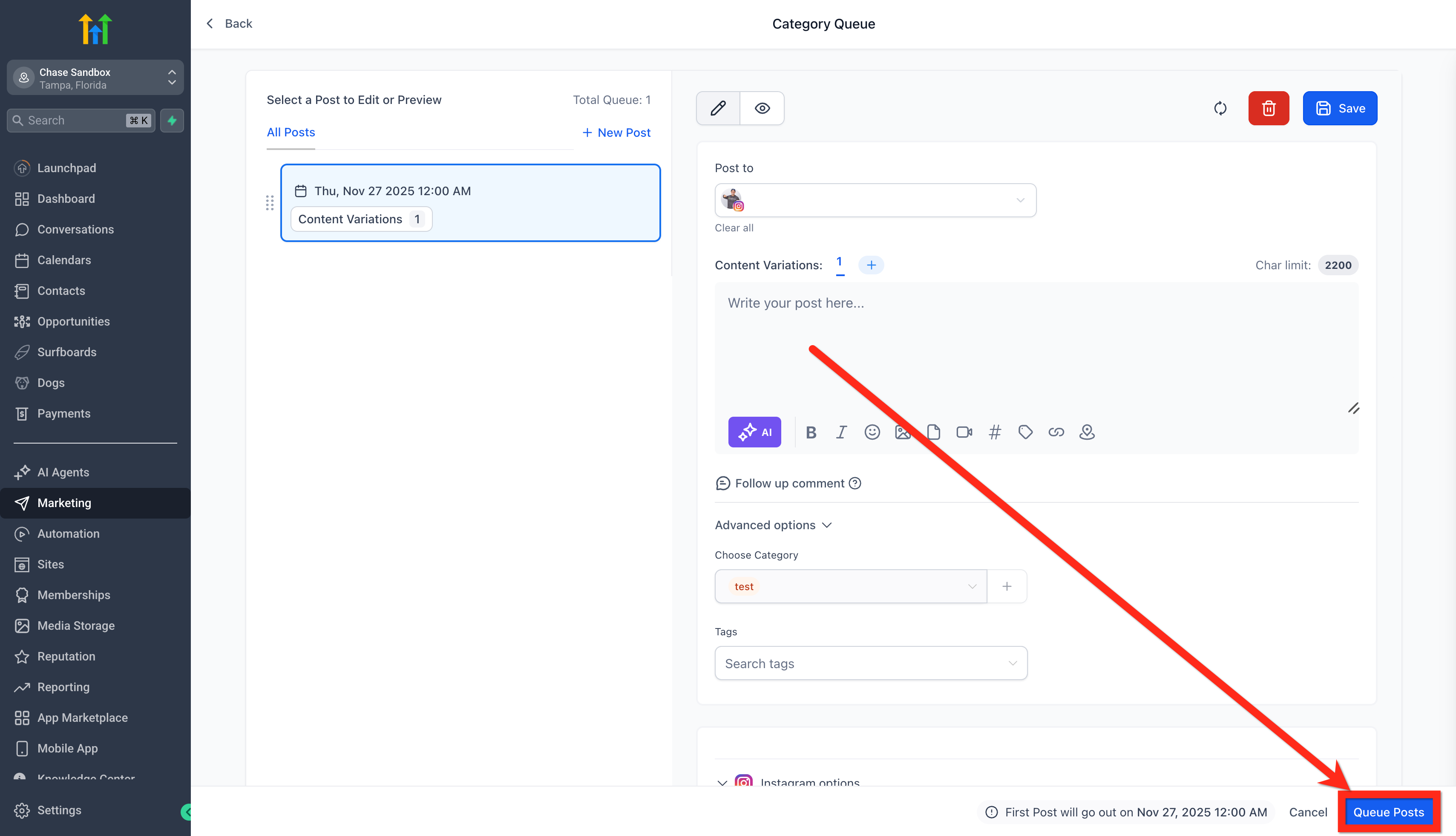
- Before activating the queue, you can select Save as Draft, Delete, or Reset, as needed.
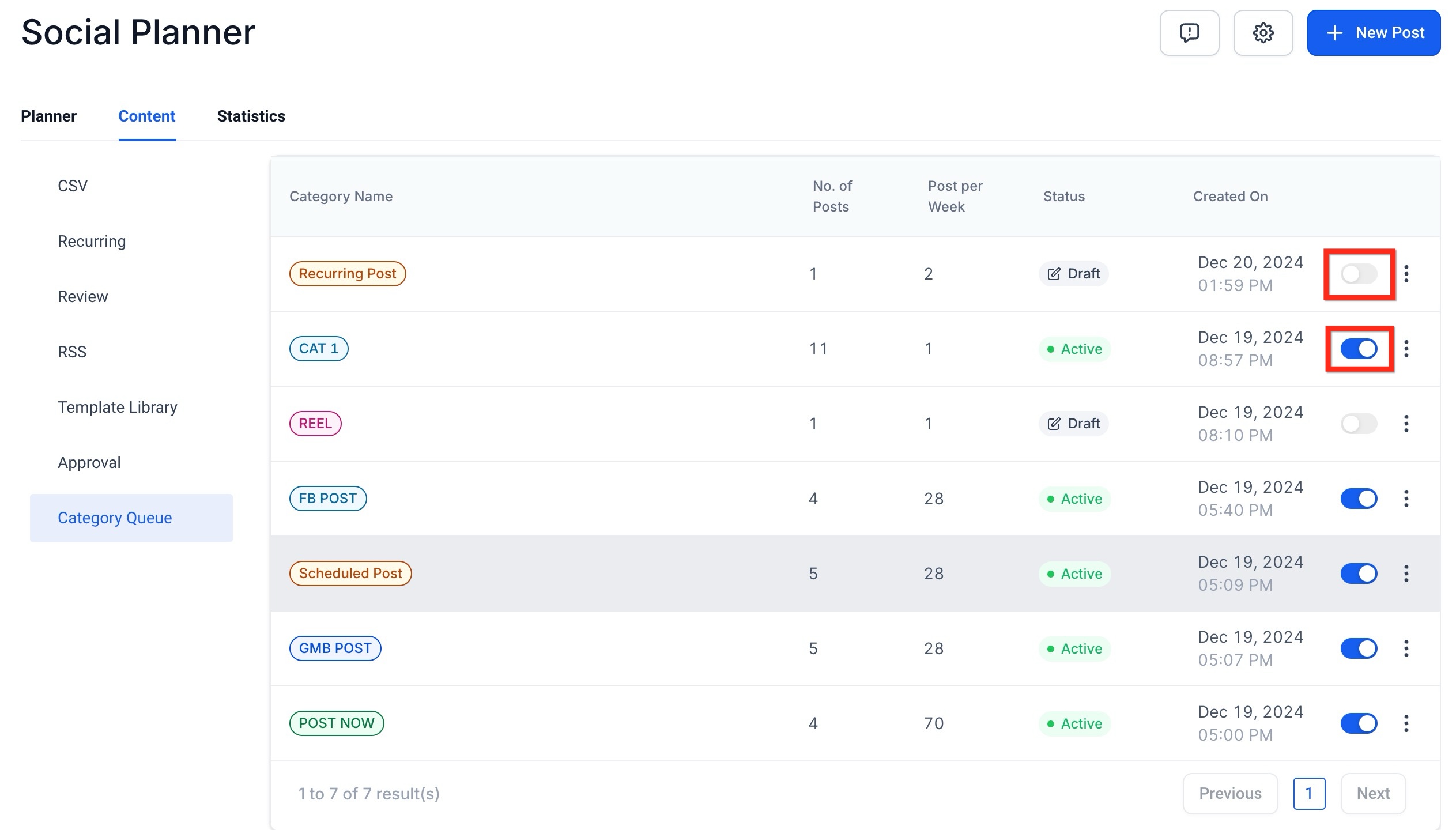
- To pause or resume the Category Queue later, go to the Content tab and use the queue status toggle.
How to Manage a Category Queue
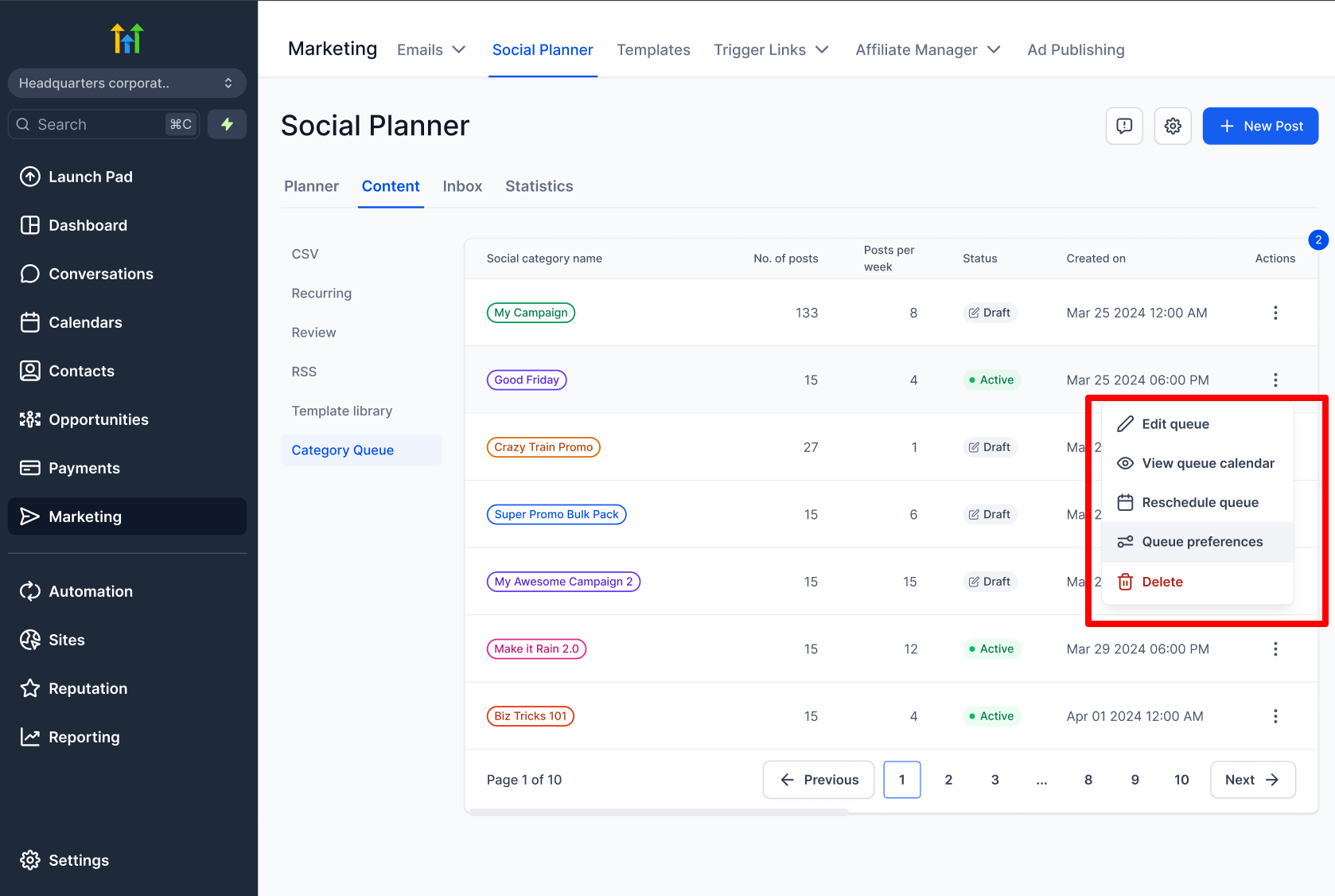
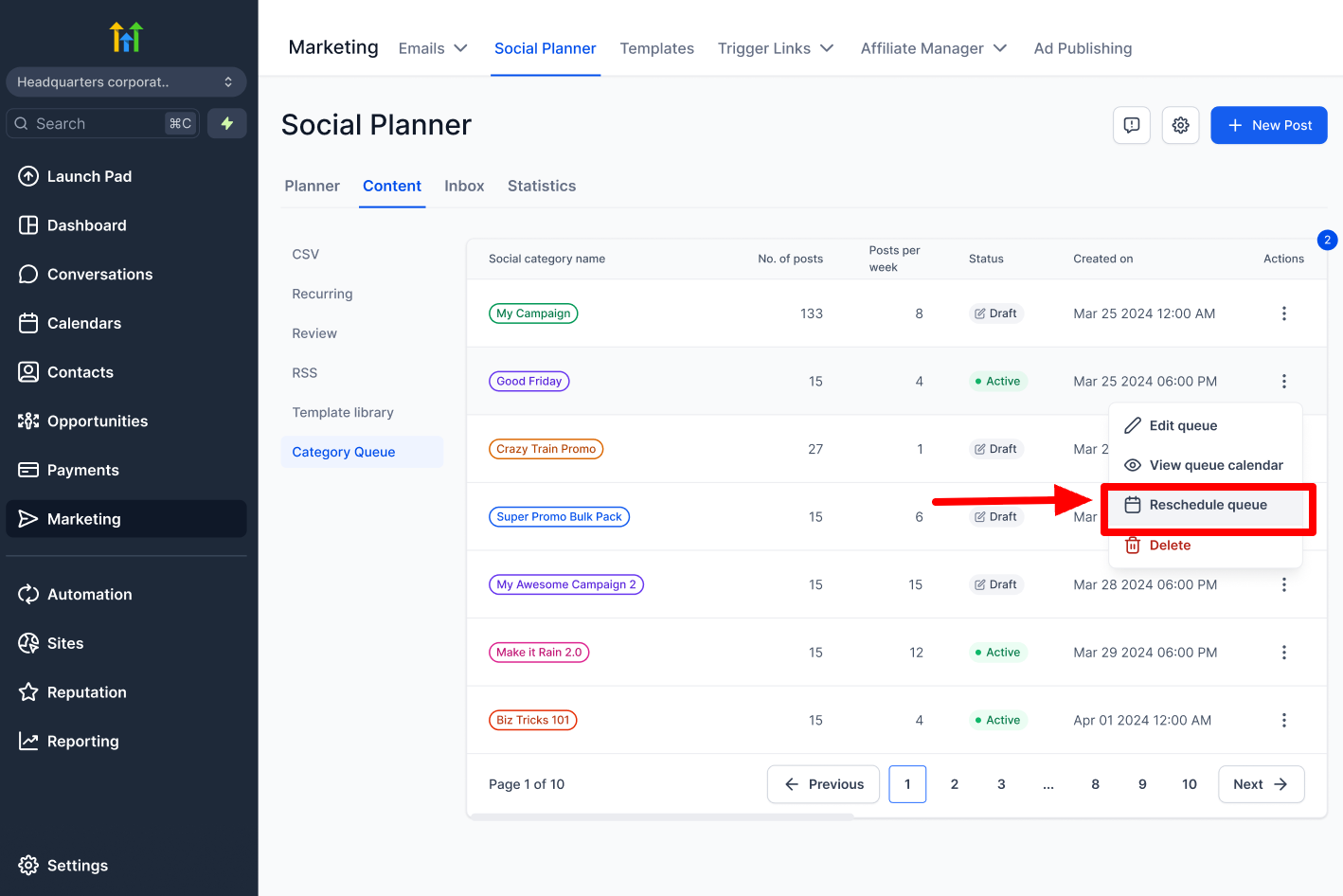
Go to Marketing > Social Planner > Content > Category Queue. Locate the queue, then click the More options icon to view the available management actions.
1. Edit a Category Queue
Select Edit queue to update the queue without deleting or recreating it. You can edit:
- Post details, captions, media, and variations
- Publishing frequency
- Queue time slots
- Post order by dragging and dropping items
2. Configure Queue Preferences
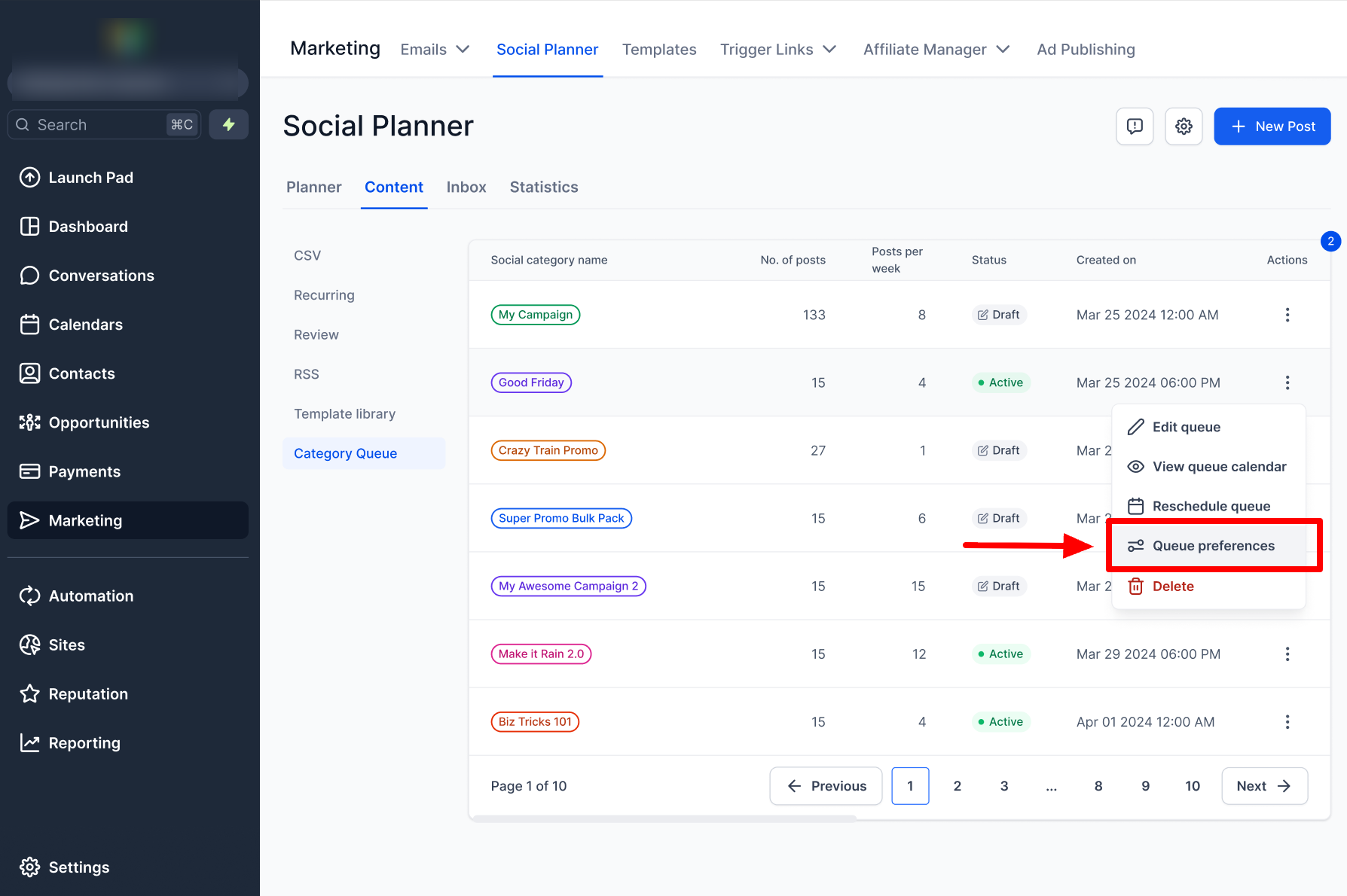
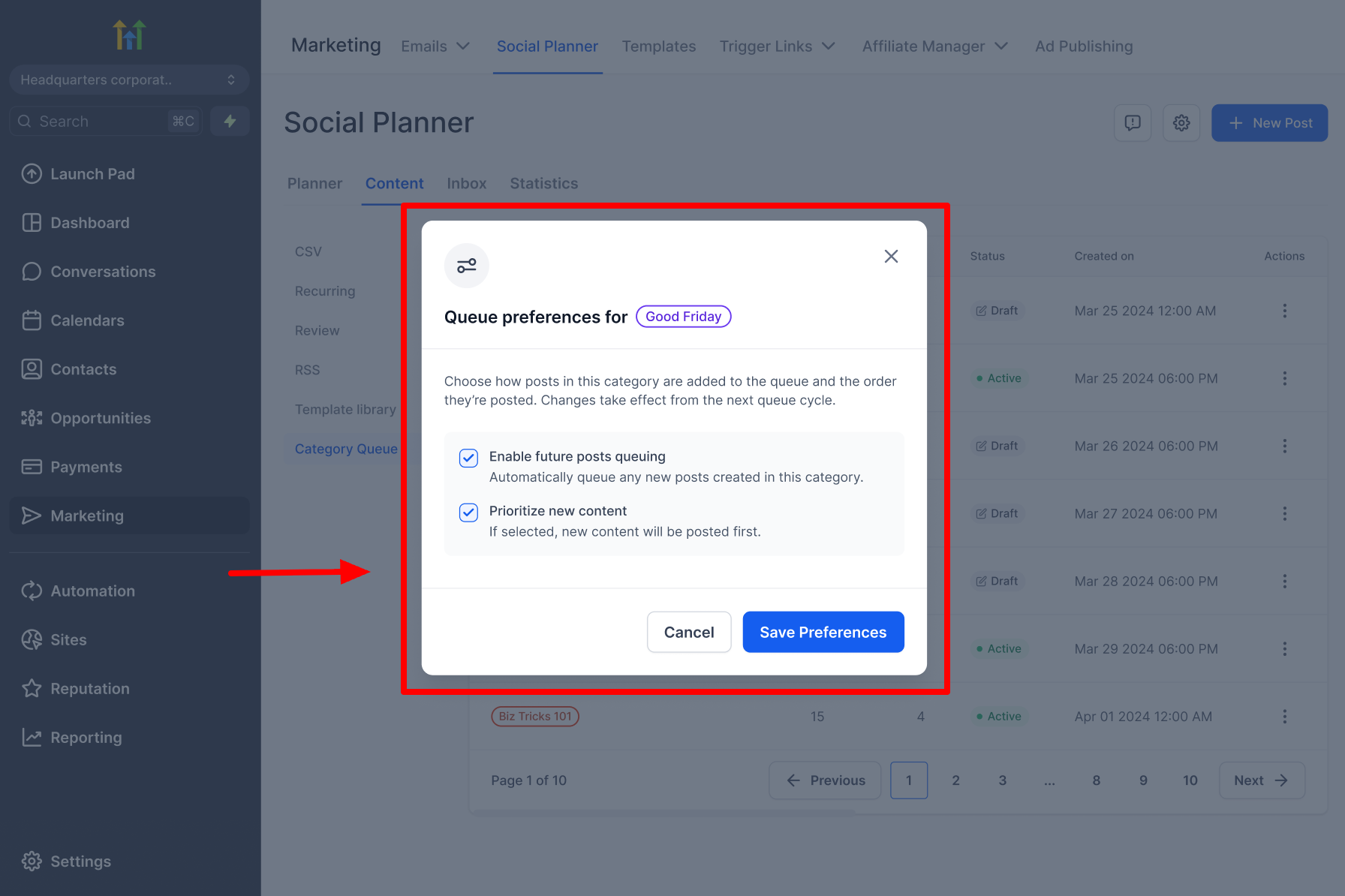
Select Queue preferences from the More options menu. The available settings control how future posts are added to the queue.
| Setting | When enabled | When disabled |
|---|---|---|
| Enable future posts queuing | Automatically adds new posts created under the category to the queue. | Future posts are not automatically added to the queue. |
| Prioritize new content | Adds new content to the beginning of the queue so it publishes first. | Adds new content to the end of the queue. |
3. View the Queue Calendar
Select View queue calendar to review the queue in weekly or monthly view. Use the calendar to see how posts are distributed and identify scheduling gaps or content-heavy days.
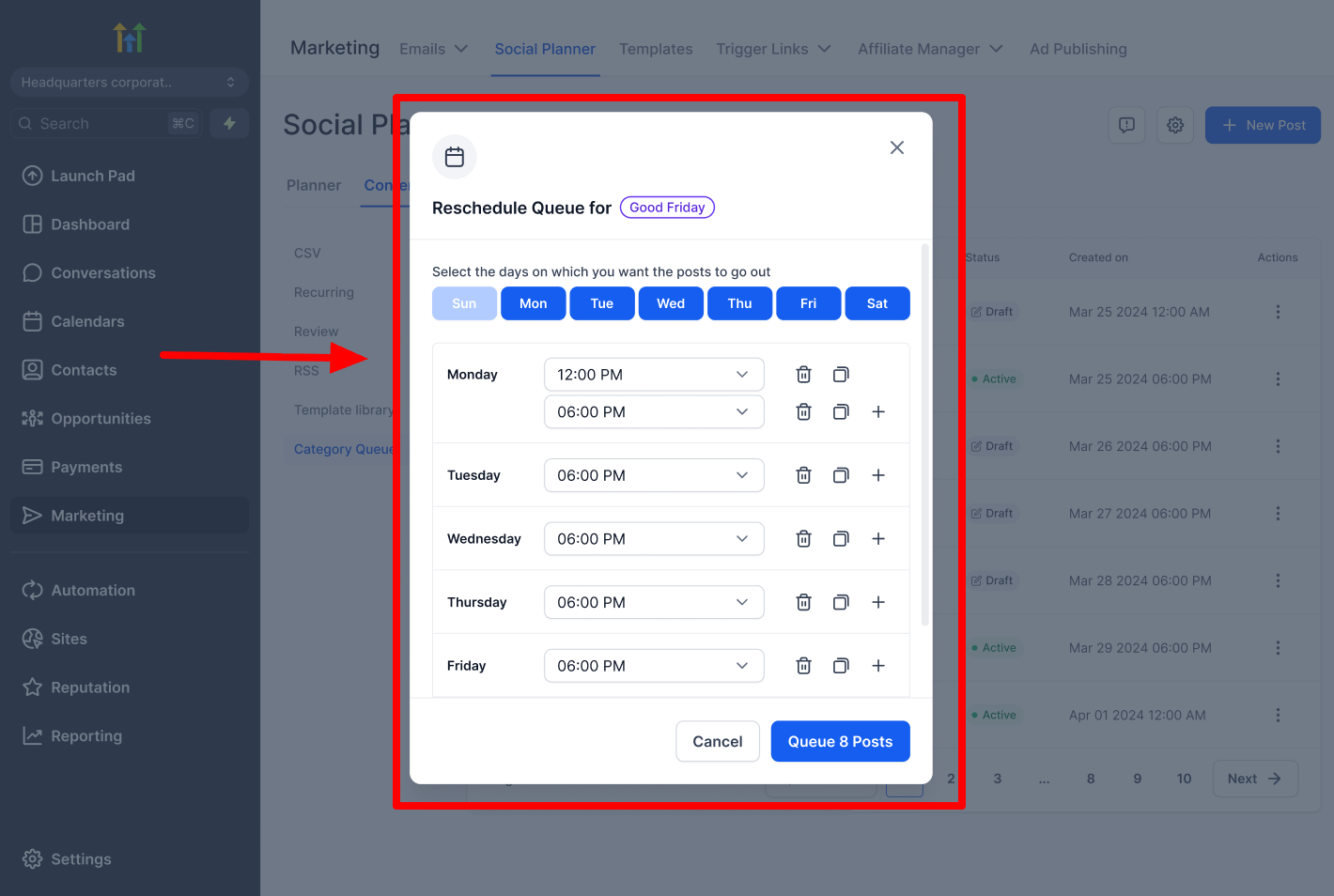
4. Reschedule the Entire Queue
Select Reschedule queue to move the entire queue to a new start date. SourCherry recalculates the post dates based on the queue's existing publishing frequency and time slots.
5. Add Posts from the Post Composer
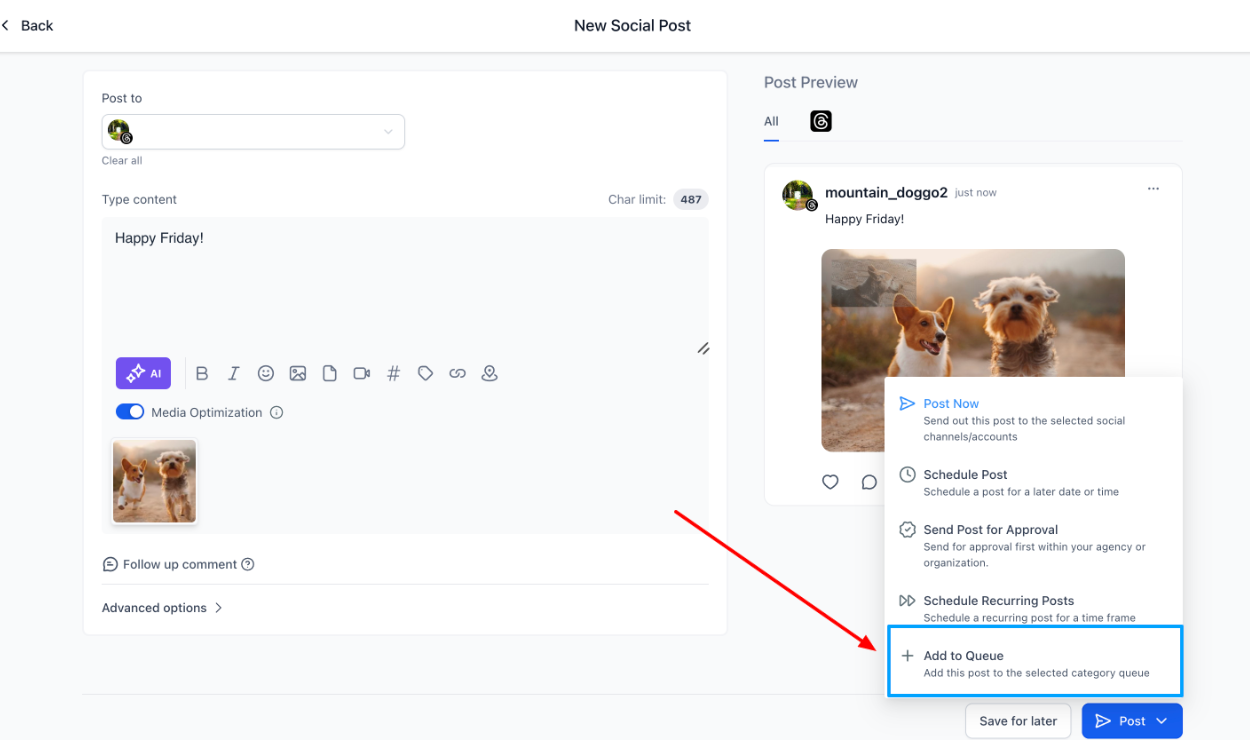
While creating a social post, select Add to Queue and choose a category.
- Selecting an existing category adds the post to that category's queue.
- Creating a new category creates a corresponding category queue for the post.
6. Pause, Resume, or Delete a Queue
- Use the status toggle on the Category Queue page to pause or resume a queue.
- Select Delete from the More options menu to remove a queue that you no longer need.
- Use Reset while editing a queue to discard changes to a queue item and restore its original content.
Important Notes
- Category Queues can include previously published posts assigned to a category. You can also create new posts and add them to the queue.
- Rescheduling an individual post in a Category Queue is not supported.
- You cannot reschedule or rearrange posts directly from the Category Queue calendar.
- Changes made under Queue preferences take effect from the next queue cycle.
- You can pause, resume, or delete a Category Queue from the Content tab.
- To review category and queue status, go to Marketing > Social Planner > Settings > Categories. The status column shows whether the queue is active, paused, or in draft.
Category Queue Public API
If you want to create or manage Category Queues programmatically for custom workflows, integrations, or automation, you can use the Category Queue Public API.
Find the API reference in Public API Docs → Social Planner → Category Queue.
Authenticate with your Location API key or an OAuth token, depending on your integration type.
Common Supported Actions
| Action | Description |
|---|---|
| Fetch categories | Fetch available categories and their queue status. |
| Manage Category Queues | Create, list, update, and fetch Category Queues. |
| Manage queue items | Add, update, reset, and delete queue items. |
| View calendar data | View scheduled posts in calendar formats. |
| Advance the queue | Delete the currently active post and schedule the next available post. |
For endpoint details, request and response schemas, and examples, use the official documentation.
Frequently Asked Questions
Q: How do I automatically add future posts to a Category Queue?
Open Queue preferences and enable Enable future posts queuing. SourCherry then automatically adds new posts created under that category to the queue.
Q: How do I publish newly added content before existing queue items?
Enable Prioritize new content under Queue preferences. New content is then added to the beginning of the queue.
Q: Can I change a Category Queue's schedule?
Yes. Use Edit queue to change the publishing frequency or time slots. Use Reschedule queue to move the entire queue to a new start date. Rescheduling an individual queue post is not supported.
Q: How do I add a new post to an existing queue?
Open the queue and select New Post, or select Add to Queue from the social post composer and choose the category. You can then drag the post to the preferred position while editing the queue.
Q: Can I add multiple content variations?
Yes. Add variations to rotate different versions of the post's content and media.
Q: Can I change the order of posts later?
Yes. Select Edit queue, then drag and drop the posts into the preferred order.