
This article will show you how to import historical transactions and orders into your SourCherry sub-account using CSV files. This allows businesses to centralize financial data from external platforms, keep dashboards accurate, and manage revenue reporting with ease.
TABLE OF CONTENTS
- What is Transactions & Orders Import?
- Key Benefits of Importing Transactions & Orders
- How to Import Transactions
- How to Import Orders
- CSV File Field Formats
- Frequently Asked Questions
- Next Steps
What is Transactions & Orders Import?
SourCherry now allows businesses to bulk import their past transactions and orders using CSV files. This feature helps consolidate historical financial data into your sub-account, ensuring your dashboards and contact timelines reflect accurate revenue history.
Key Benefits of Importing Transactions & Orders
Importing allows businesses to maintain clean, centralized financial records. Here’s what you can gain from this feature:
Easily import historical data from previous platforms.
Automatically impact revenue dashboards and metrics.
Create or update customer records with import.
Separate timestamps for data ingestion vs actual transaction time.
Simplified preview and validation before upload.
Built-in format guides and downloadable sample CSVs.
How to Import Transactions
Importing transactions lets you bring in data that reflects actual payment events, without necessarily creating linked order items.
Navigate to Payments > Transactions.
Click the Import button.
Download the Sample CSV and ensure your data matches the required format.
Upload your file and review the preview modal for validation.
Confirm the import.
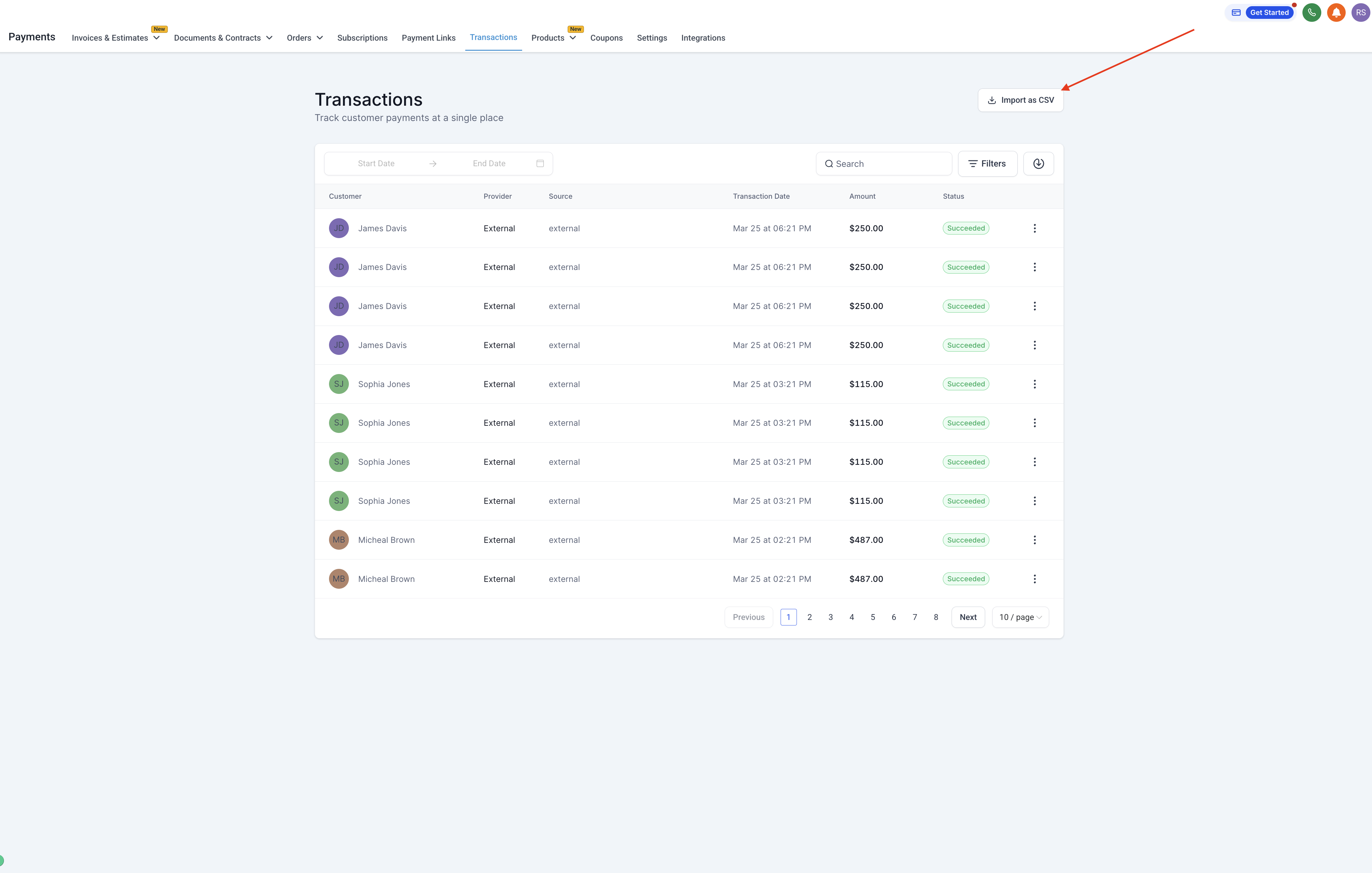
Note: Transactions impact revenue metrics immediately once added.
How to Import Orders
Orders represent itemized sales and automatically generate a linked transaction entry.
Go to Payments > Orders.
Select Import, then upload a properly formatted CSV.
Validate your data in the preview.
Each order record will auto-create a transaction and impact revenue.
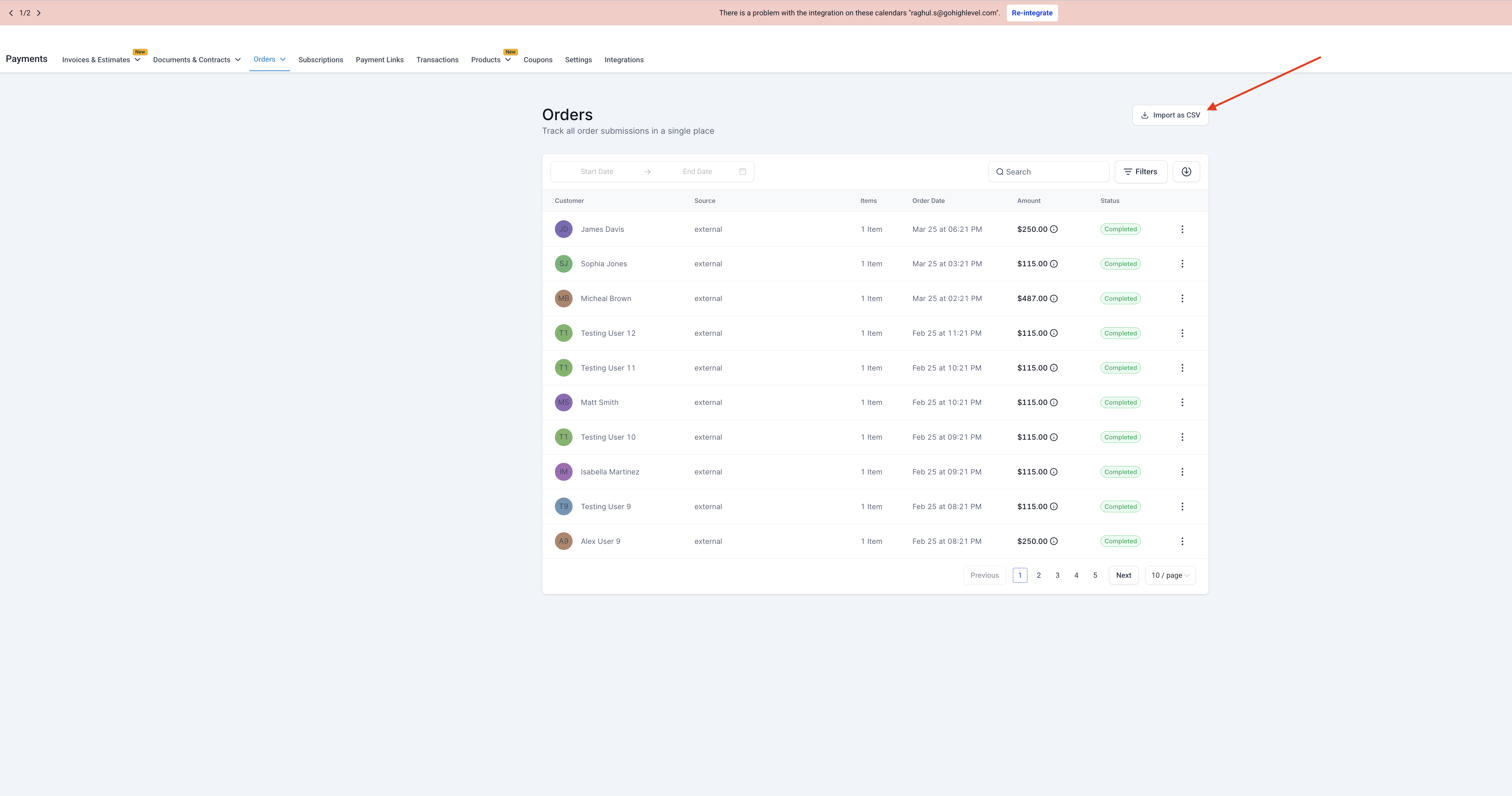
Note: Both order and transaction entries will reflect on dashboards and reporting.
CSV File Field Formats
Understanding the required structure for import ensures your data uploads without errors.
Field names must be exactly as defined.
Customer details must be included to match or create contacts.
Dates for execution and SourCherry ingestion must be properly set.
Frequently Asked Questions
Q: Will contacts be duplicated if they're already in SourCherry?
No. SourCherry attempts to match contacts via email or phone before creating new records.
Q: Can I backdate a transaction?
Yes. You can specify the transaction execution date separately from when it’s added to SourCherry.
Q: What happens if my CSV has errors?
You’ll see a preview highlighting any validation issues before proceeding with import.
Q: Can I import refunds or voided transactions?
Not at this time. Only successful, completed transactions/orders are supported.
Q: Does importing affect revenue tracking?
Yes. Revenue and other financial dashboards update based on your imports.
Next Steps
Explore the Revenue Dashboard to confirm data impact.
Review your Contact timelines for imported activity.
Setup automated workflows that trigger on new orders or transactions.