
What is Learn More Using AI?
Key Benefits of Learn More Using AI
- Get Instant Answers: Receive immediate answers directly within the builder, eliminating the need to search through documentation.
- Learn while you Build: Gain a deeper understanding of workflow elements with on-demand, contextual information.
- Build with Confidence: Benefit from clear guidance and validation tips that ensure accurate workflow setup from the start.
- Save Time: Access precise, AI-powered instruction at the moment of need, speeding up the configuration process.
Learn More Button
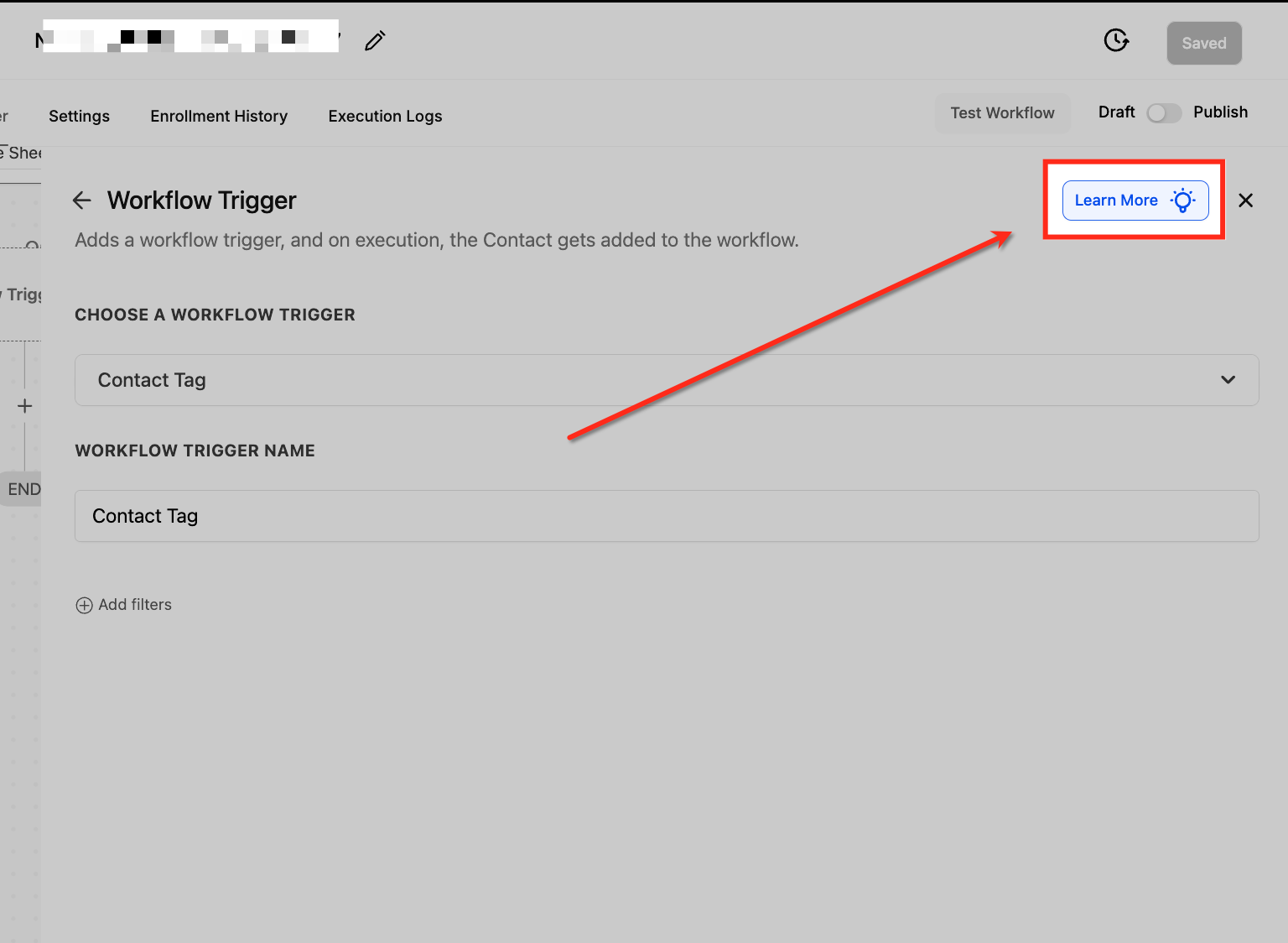
- A blue "Learn More" button with a bulb icon appears at the top-right corner of every trigger and action configuration panel.
- It is designed for one-click access, opening the Workflow AI Assistant sidebar rich with detailed contextual insights.
- This interface element ensures that useful information is just a click away whenever users need to configure workflow activities.
Workflow AI Assistant Sidebar
- Once activated by the Learn More button, the sidebar provides targeted help tailored to the specific trigger or action.
- It details configuration instructions, explains validation rules and constraints, and offers real-world examples to illustrate use cases.
- The interactive design allows users to ask follow-up questions, ensuring a personalized support experience.
Learn Mode 2.0

Learn Mode streams answers in real time and suggests follow-up questions at the end of each response.

Continue in Build Mode When you ask a build question in Learn Mode, you can switch to Build Mode using the Continue in Build Mode button.

This keeps your request and submits it in Build Mode without retyping.
How To Use Learn More Using AI in Workflows
Access Workflow Builder
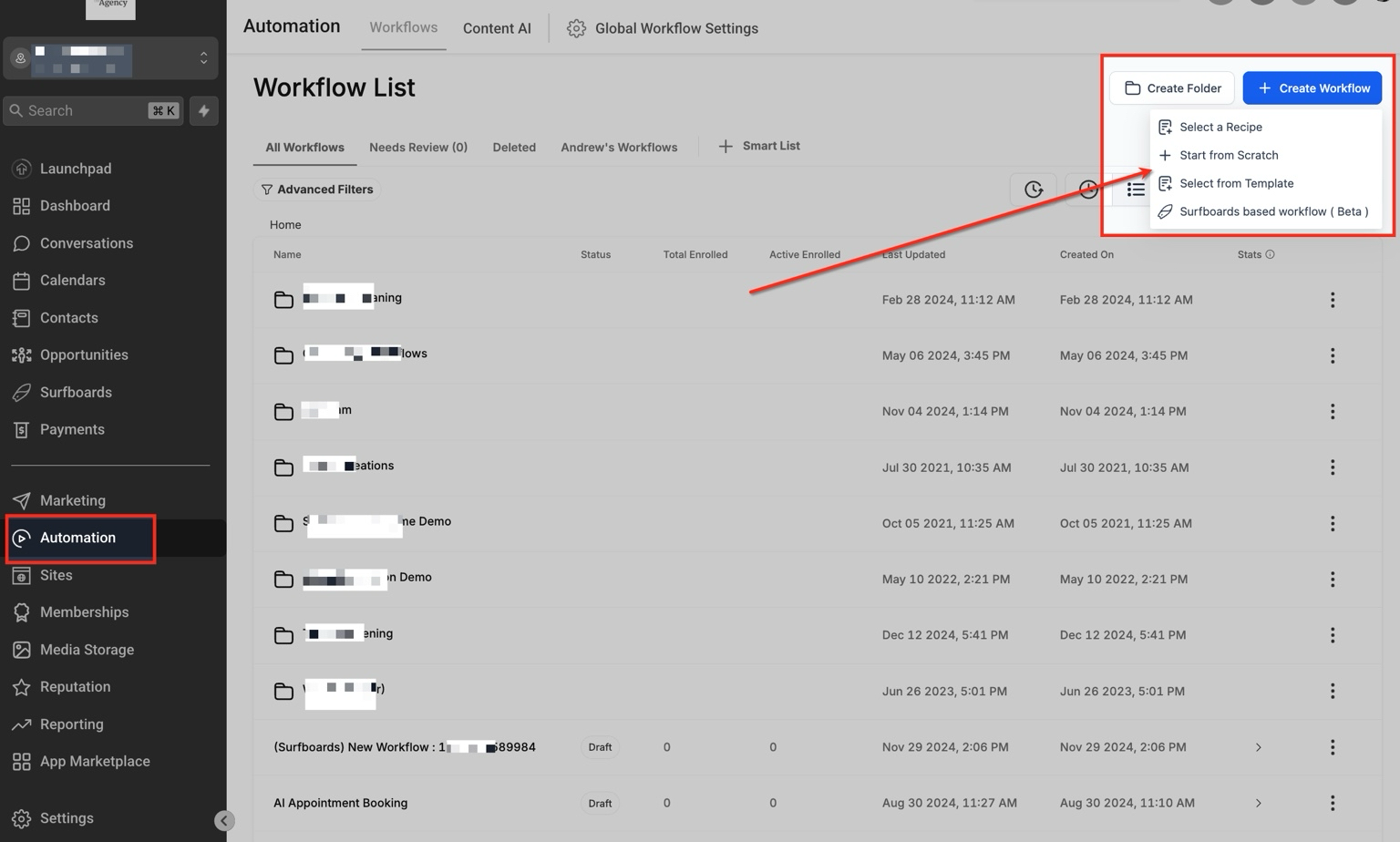
From the left-hand menu, click Automation, then select the Workflows tab. Click + Create Workflow in the top-right to start building from a recipe, template, or scratch.
Open a Trigger or Action
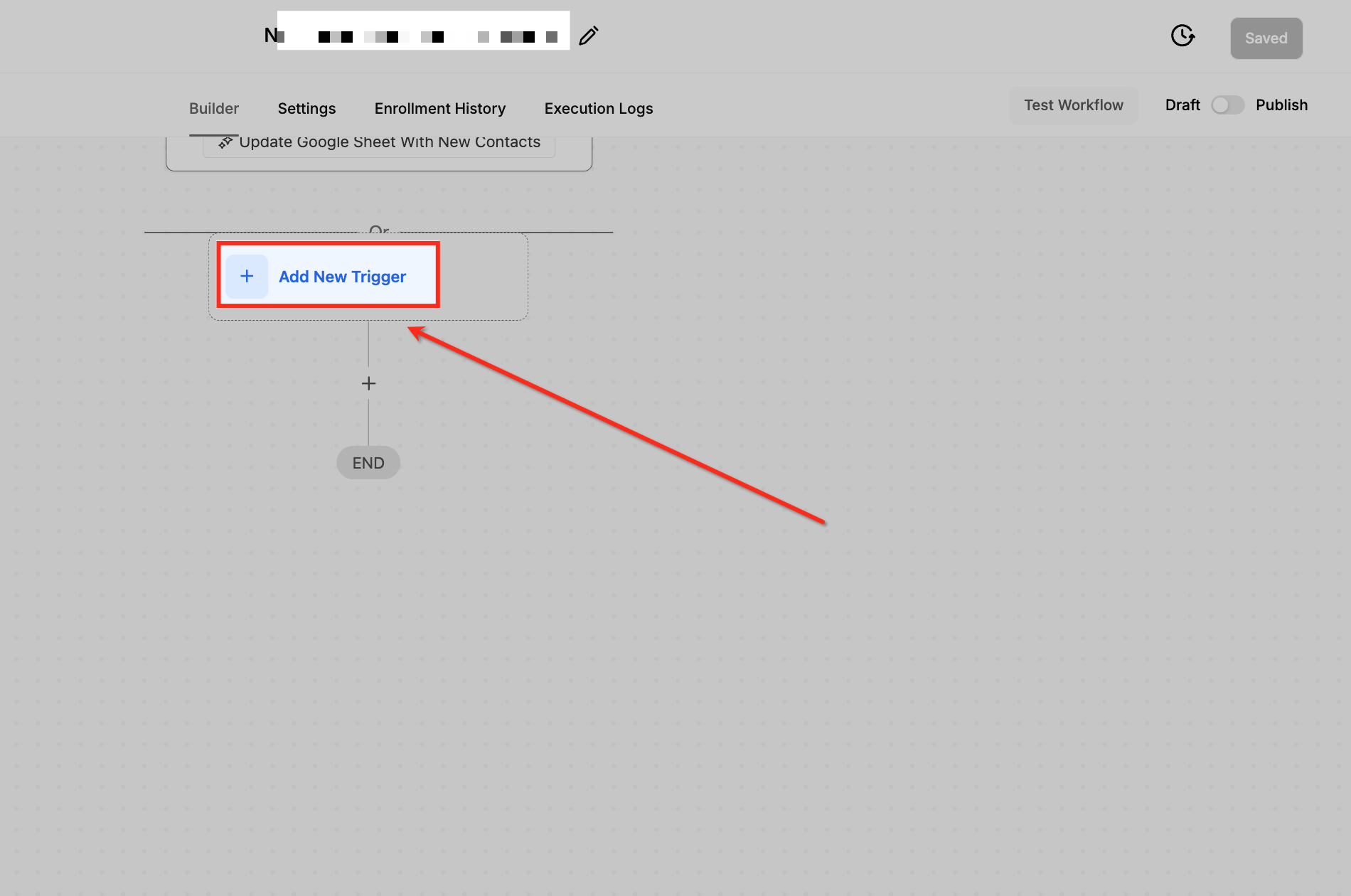
To activate the Learn More feature, click into any trigger or action configuration panel. In this example, we’re starting by selecting + Add New Trigger.
Select a Trigger Type
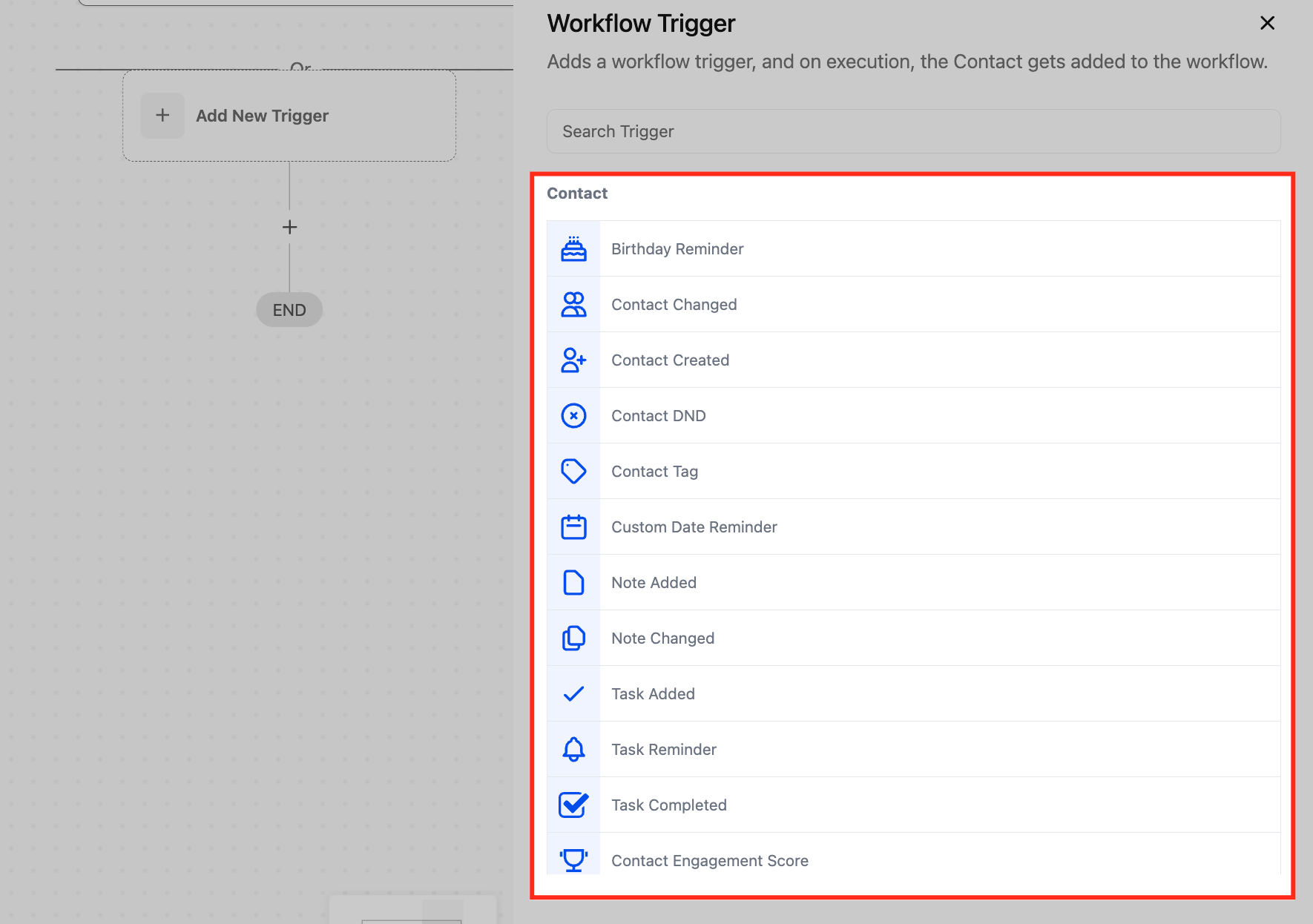
After opening the configuration panel, choose a trigger from the list. In this example, we’re selecting Contact Tag, but any standard trigger or action will display the Learn More button.
Click the Learn More Button
In the upper-right corner of the configuration panel, click the blue Learn More button with the lightbulb icon. This launches the Workflow AI Assistant with contextual guidance.
View Contextual Guidance
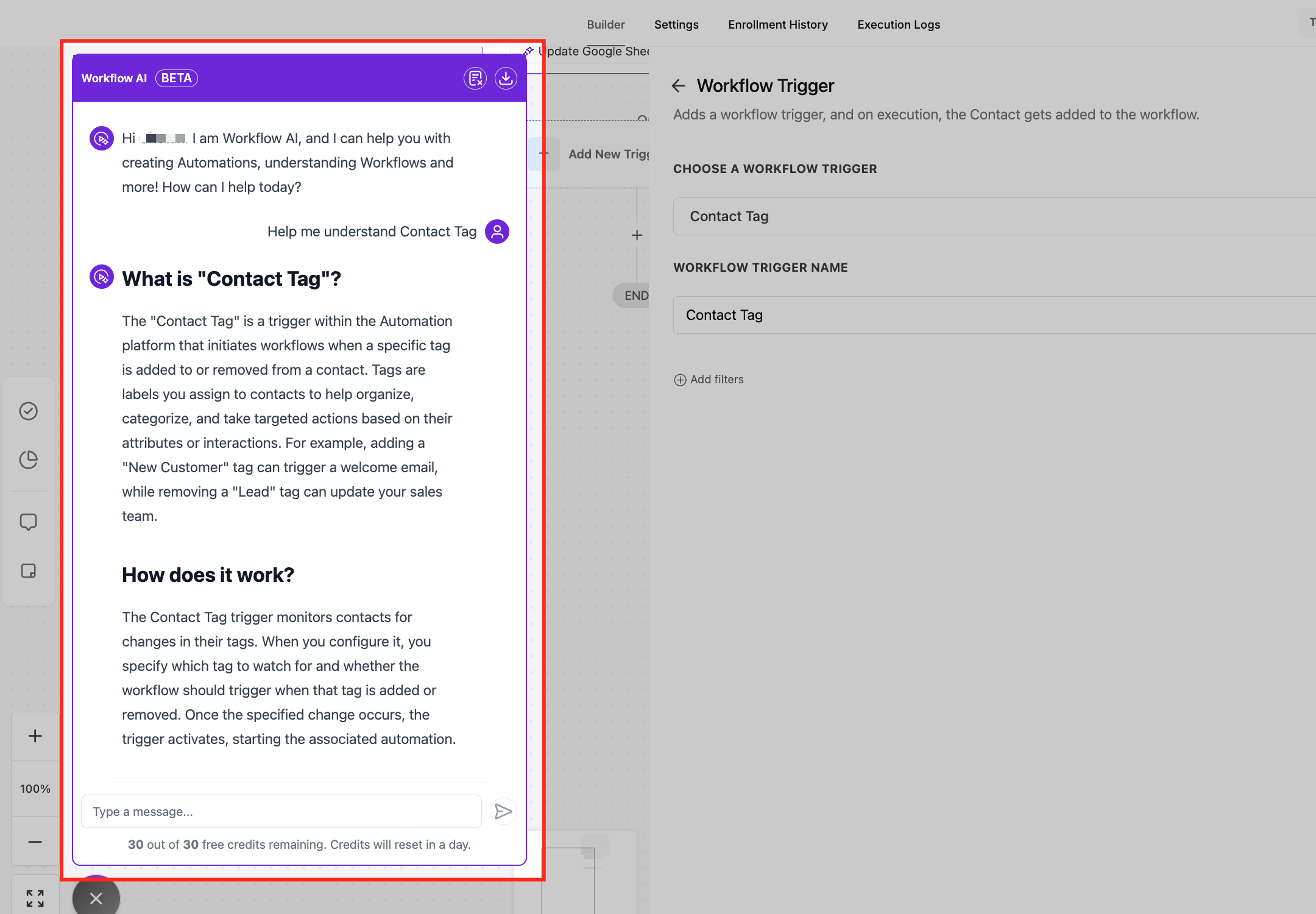
After clicking the Learn More button, the Workflow AI Assistant sidebar opens on the left. This panel gives you detailed, contextual information based on the exact trigger or action you’re configuring.
You’ll see explanations of what the feature does, how it works, step-by-step configuration guidance, and real-world use cases. You can also type follow-up questions directly into the chat box to get personalized answers — making it easy to troubleshoot, learn, and configure workflows correctly without leaving the page.
Frequently Asked Questions