
This article will show you how to use the Number Counter Widget to highlight your most important metrics in a bold, animated way! From revenue milestones to happy clients and social-proof stats, the Number Counter transforms plain numbers into dynamic visuals that grab attention and reinforce your brand story.
TABLE OF CONTENTS
- What is the Number Counter Widget?
- Key Benefits of the Number Counter Widget
- How to Add the Number Counter Widget to a Site or Funnel
- Setting Up Each Counter Metric (Configuration Values)
- Styling the Number Counter Widget (Customize Layout)
- Important Notes
- Frequently Asked Questions
- Related Articles
What is the Number Counter Widget?
The Number Counter Widget is a native element in the Funnels & Websites builder that transforms numerical values into lively, count‑up animations. By combining smart formatting, customizable layout controls, and on‑scroll triggers, it lets you present key achievements in a way that’s both visually compelling and brand‑consistent.
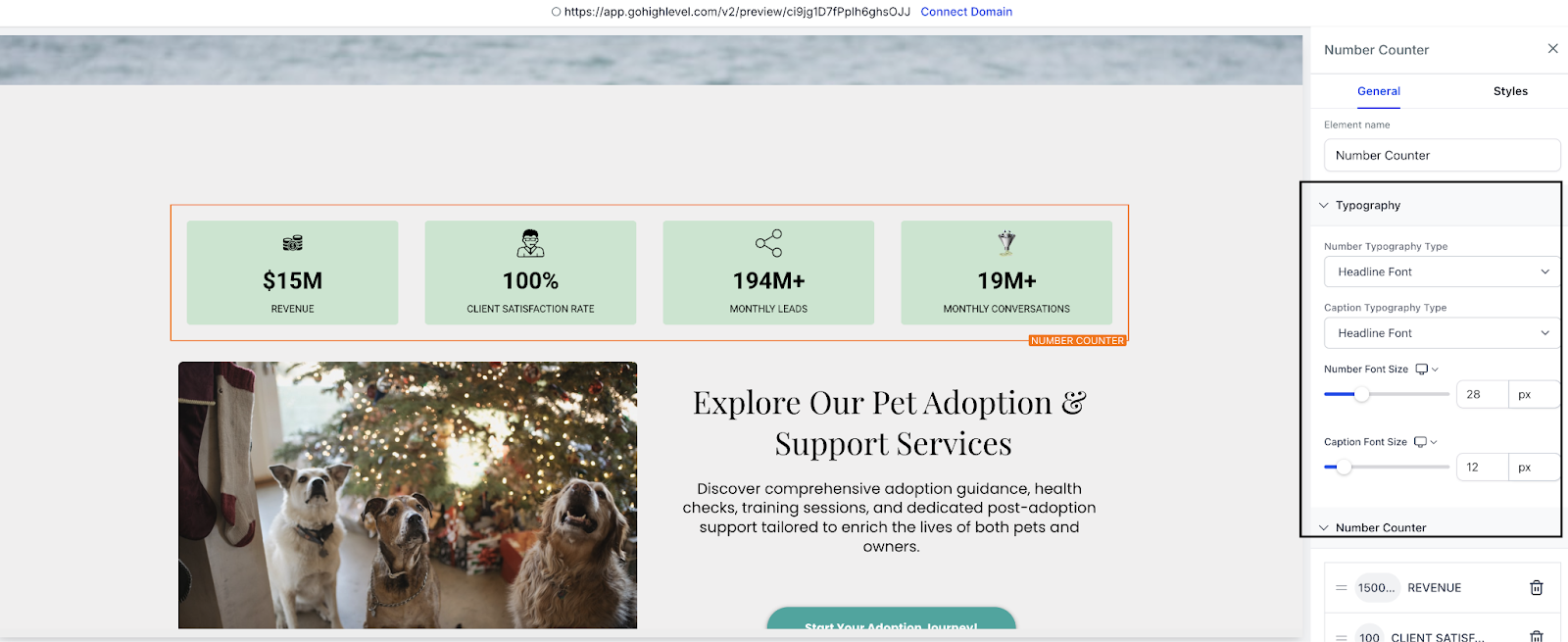
Key Benefits of the Number Counter Widget
Animated numbers do more than decorate your page — they help capture attention and instantly communicate credibility. Here’s why this widget is a game-changer:
Multiple Counters: Display many counters in a single element to visually highlight your most important metrics
Smart Number Formatting: Automatically abbreviates large figures with K, M, B, or T for instant clarity
Prefix & Suffix Fields: Add $, €, %, + or any custom text before/after values
Counter‑Specific Images: Pair each number with an icon, badge, or logo to reinforce meaning
Layout Precision: Control layout of columns and fine‑tune gaps for pixel‑perfect alignment on every device
Complete Styling Controls: Customize colors, borders, shadows, and typography to match any brand
How to Add the Number Counter Widget to a Site or Funnel
Quickly add the widget to any funnel or website page using the following steps:
Navigate to Sites → Funnels or Sites → Websites
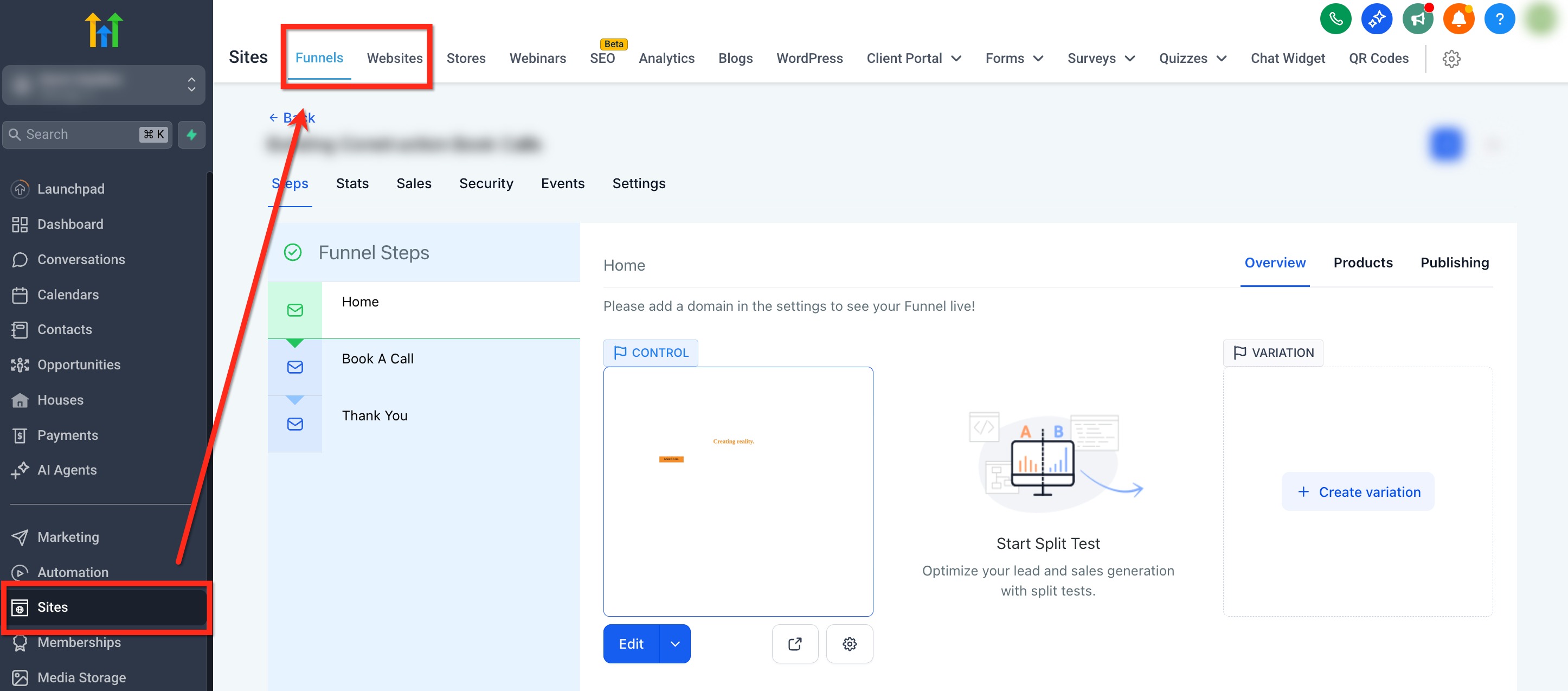
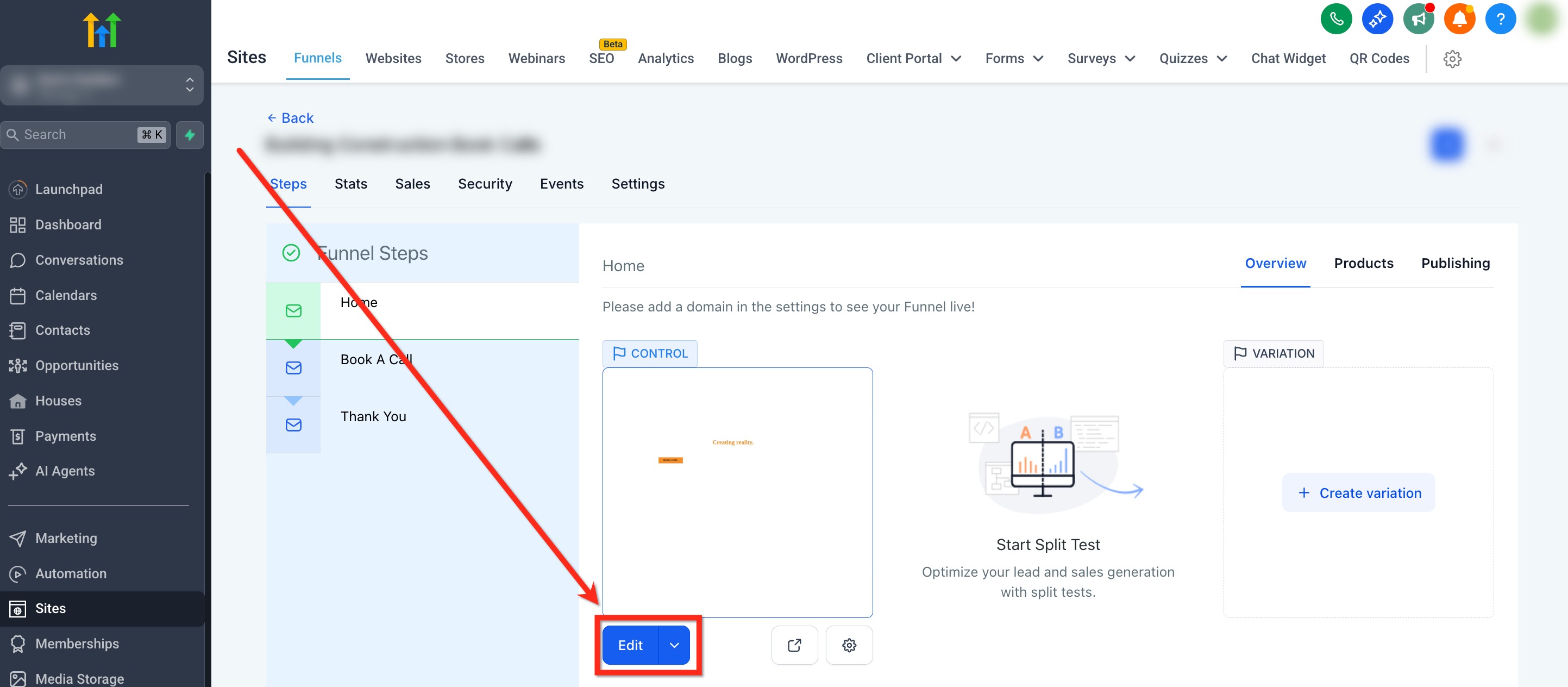
Click the blue Edit button on the desired page or step
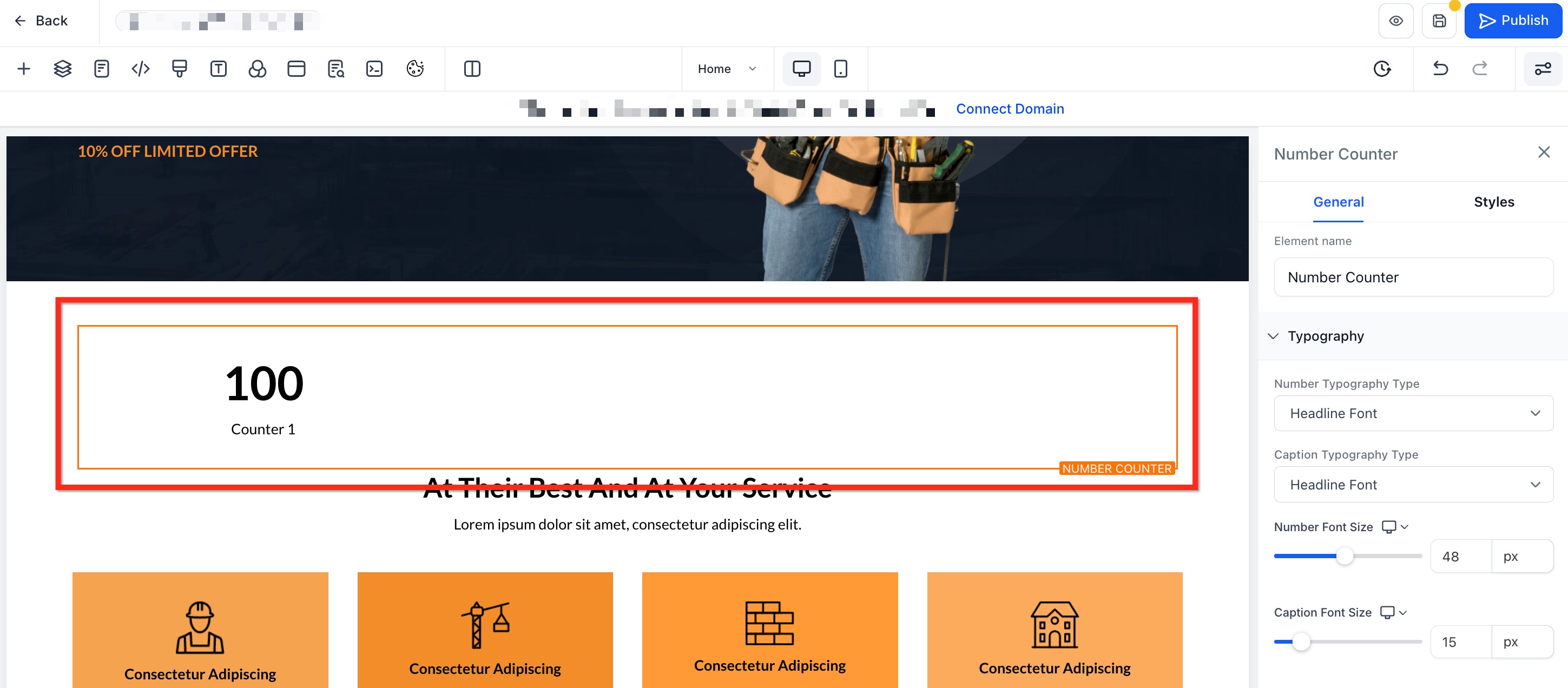
Select + Add Element in the sidebar and locate the Number Counter element
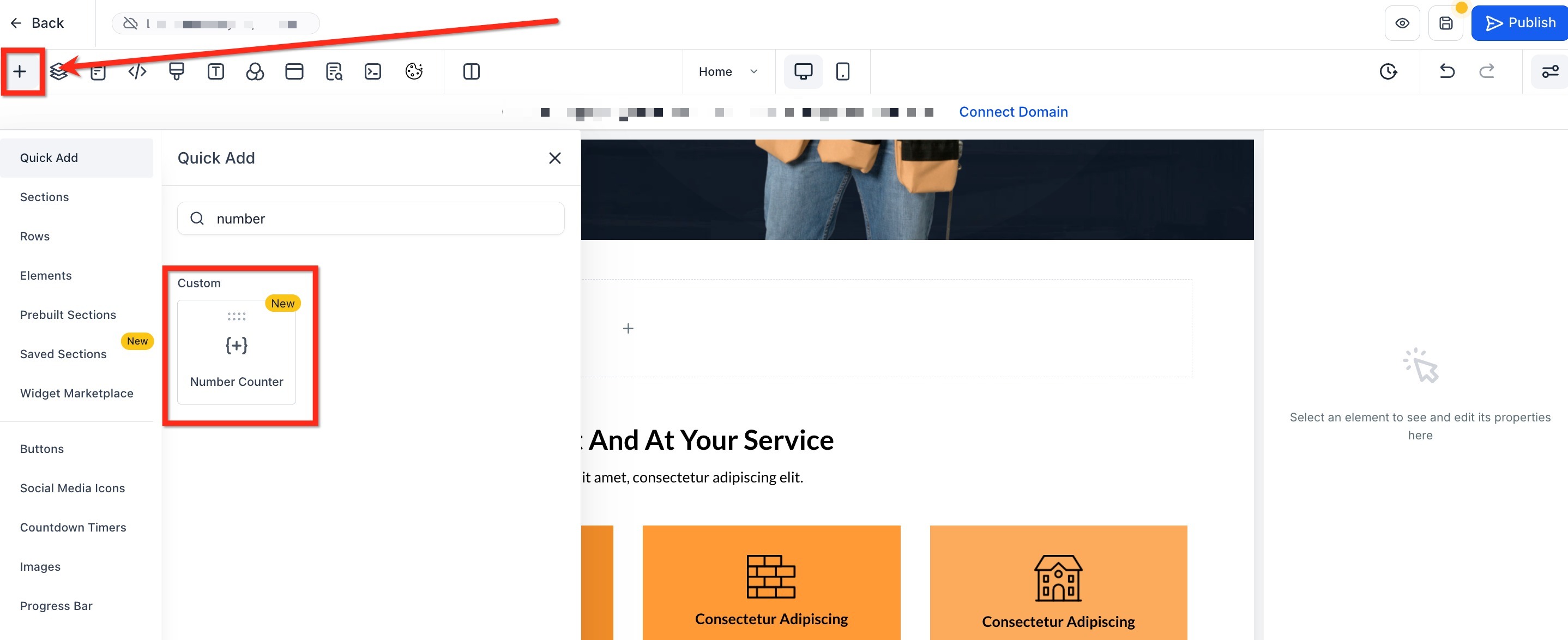
Drag Number Counter into your layout where you want the metrics to appear.
Setting Up Each Counter Metric (Configuration Values)
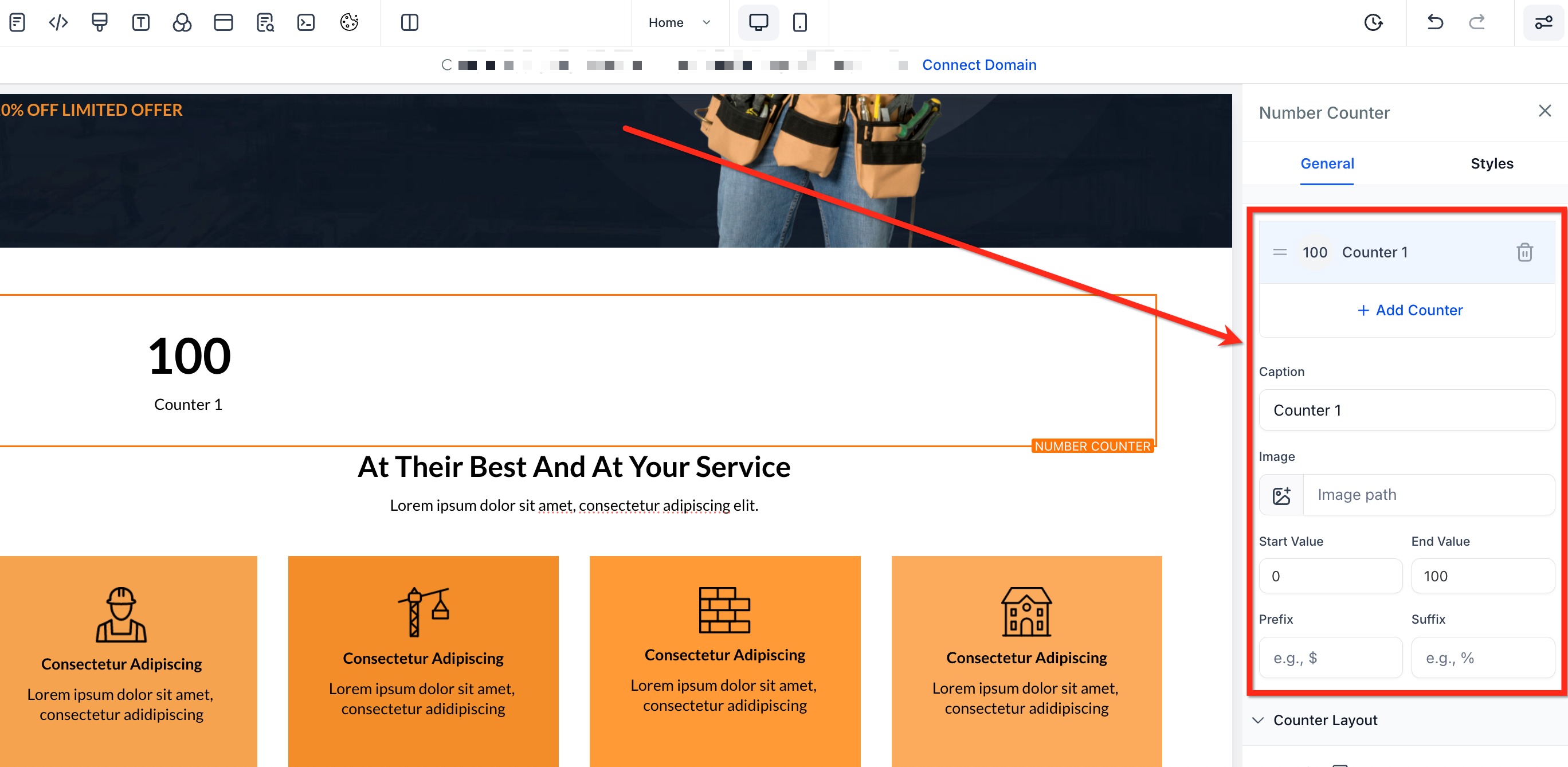
After the widget is on your canvas, you can shape each counter to fit your needs. Add new metrics, remove any you don’t need, and customize every detail directly from the settings panel.
- Add/Remove Counters: Click Add Counter to create more metrics or the trash icon to delete one.
Caption: Type a label such as “Total Sales” so visitors know what the number represents.
Image: Upload a PNG, JPEG, or SVG icon and adjust its size with the slider.
Start & End Values: Define where the animation begins (e.g., 0) and ends (e.g., 10 000).
Prefix/Suffix: Add context with $, €, %, +, or custom text placed before or after the value.
Styling the Number Counter Widget (Customize Layout)
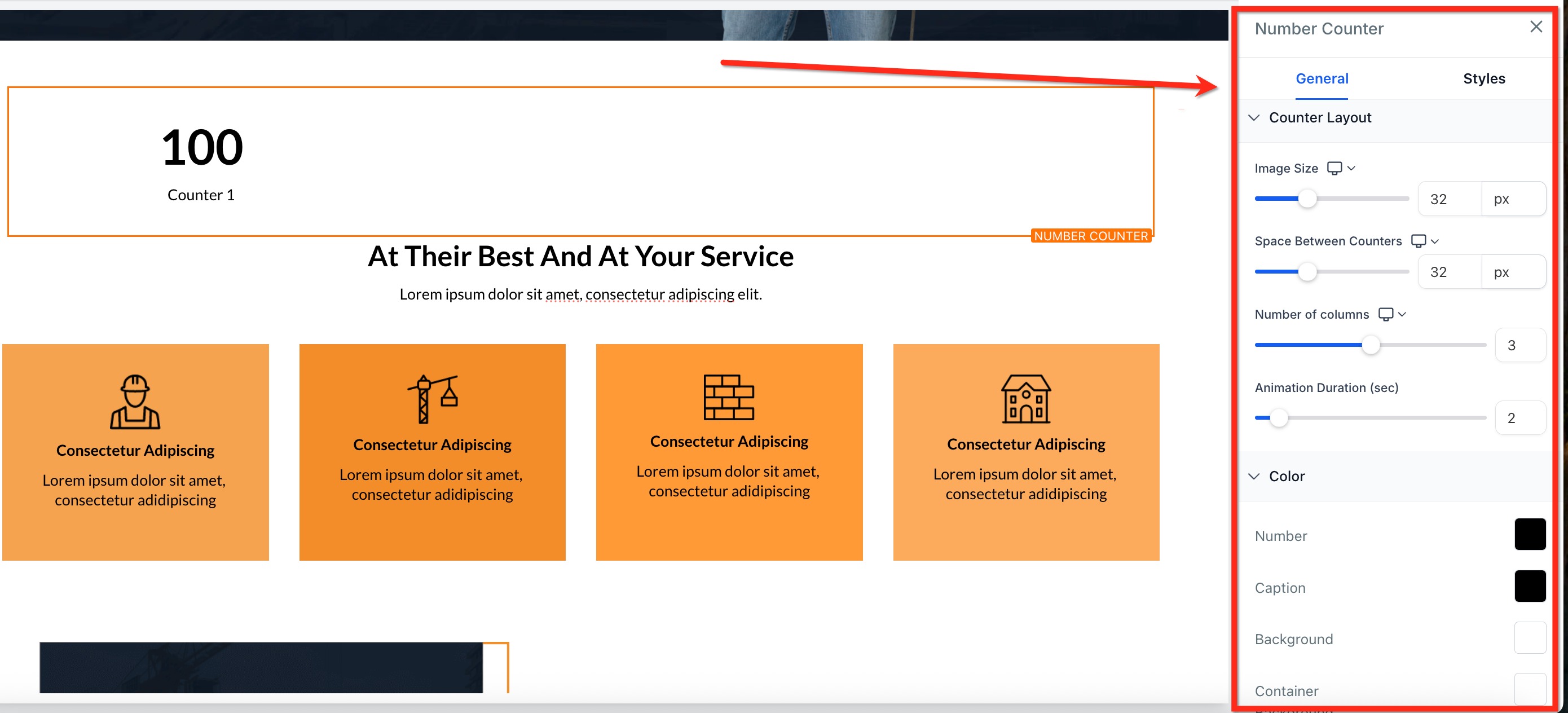
After configuring your metrics, use the options under Counter Layout to refine spacing, colors, animation speed, and overall layout so the counters blend perfectly with your brand. Key style controls include:
Image Size: Adjust icon dimensions
- Space Between Counters: Adjust horizontal gaps to fine-tune spacing between counters for a polished look.
Number of Columns: Choose how many counters appear per row (1-5)
- Animation Options: Define animation duration (1 s – 15 s) to control how quickly numbers count up. Use the viewport trigger so numbers animate only when scrolled into view.
- Colors: Select individual swatches for Number, Caption, Background, and Container Background. Add borders and shadows to align with your brand aesthetic.
Important Notes
- Performance: Keep counters ≤ 20 per widget for optimal load times
- Image formats: Supported types are PNG, JPEG, and SVG
- Smart Formatting: Numbers are auto-formatted (e.g., “2500000” becomes “2.5 M”) to keep large stats clean and easy to read.
- Images: Images are optional and can be toggled on or off per counter
- Animation: The animation triggers only once per page load to maintain smooth performance.
Frequently Asked Questions
Q: Can I add different colors to each individual counter?
Currently, global styles apply to all counters for consistency. You can adjust background or container color globally.
Q: Can counters include decimals?
Yes! You can include decimal points in start and end numbers.
Q: Will the animation restart if I scroll back up?
No. The counters animate once when they first enter the viewport.
Q: Do I have to use images for each counter?
No. Images are completely optional and can be added only where needed.
Q: How many counters can I add in one widget?
Technically unlimited. For best performance, keep it to 20 counters or fewer; beyond that, animations may appear sluggish on low‑powered devices.
Q: Will the counters adjust automatically on mobile?
Yes. Column settings and gap spacing respond to screen size so counters remain legible on any device.
Q: How can I replay the animation while editing?
Within the Number Counter settings panel, click Preview Animation to watch the count‑up again without leaving the editor.