
Unlock friction‑free content delivery with SourCherry’s Download File Action. This new feature lets you attach an asset (PDFs, images, videos, ZIPs) to buttons, SVGs, or images so visitors can grab resources instantly, without leaving your funnel or website. By removing extra steps and third‑party work‑arounds, you’ll boost engagement, streamline user experience, and keep every download on‑brand.
TABLE OF CONTENTS
- What is the Download File Action?
- Key Benefits of the Download File Action
- Requirements & Limitations
- Best Practices for Downloadable Resources
- How to Set Up the Download File Action
- Troubleshooting the Download File Action
- Frequently Asked Questions
- Related Articles
What is the Download File Action?
With the Download File Action, any button, image, or SVG becomes a direct bridge between your media library and your audience. Visitors simply click and instantly receive the file, no link copying, redirects, or external storage required. The entire experience is powered inside the intuitive SourCherry builder, so you can deploy downloads without writing a single line of code.
Key Benefits of the Download File Action
Give visitors instant, on‑page access to your resources while reinforcing brand consistency and boosting engagement.
Instant Resource Delivery: Visitors receive your file the second they click, no redirects or delays.
No‑Code Simplicity: Easily enable downloads inside the website builder; no coding required
Broad Element Support: Works on buttons, images, and SVGs, letting you get creative with the design
Custom File Names: Set the filename that appears in the user’s downloads for clear, branded assets
Seamless Media‑Picker Integration: Choose any file already stored in your SourCherry media library
Supports Multiple File Types: Offer PDFs, videos, ZIPs and more. Anything you can upload to the media library can be used be this action
Improved user experience: Keep visitors on the page, shortening funnels and increasing conversion rates
Requirements & Limitations
Understanding prerequisites prevents confusion and ensures a smooth rollout:
- Single file per element: Each button, image, or SVG links to only one downloadable file.
- File hosting: Asset must reside in the SourCherry media library for optimal reliability.
File‑size cap: Standard media‑library upload limits apply (see Media Library Specs & Formats)
- Supported Elements: Buttons, Images, and SVGs can trigger downloads
- Supported File Types: Any format accepted by the media picker (PDF, PNG/JPG, MP3, MP4, DOCX, XLSX, ZIP, etc.)
Tip: Need to distribute multiple assets? Compress them into a single ZIP so you can still link just one file.
Best Practices for Downloadable Resources
Follow these guidelines to deliver fast, professional downloads every time.
- Use Descriptive File Names: use names such as such as Brand_Name_Checklist.pdf to reinforce branding
Optimize File Size and Format: compress images or videos to reduce download times
Label the Call‑To‑Action Clearly: use labels such as Download Recipe PDF so users know exactly what they’ll receive
Only Use Final Versions: Replacing or deleting files in the media library may break saved links used in the Download Action
How to Set Up the Download File Action
Quickly add a single-click download action to a button, image or SVG using the following these steps:
Step 1: Navigate to the Website Page or Funnel Step
Click Sites in the left‑hand navigation bar
Choose the Websites or Funnels tab
Click the desired website or funnel then go to the specific page or step. Click Edit to launch the builder
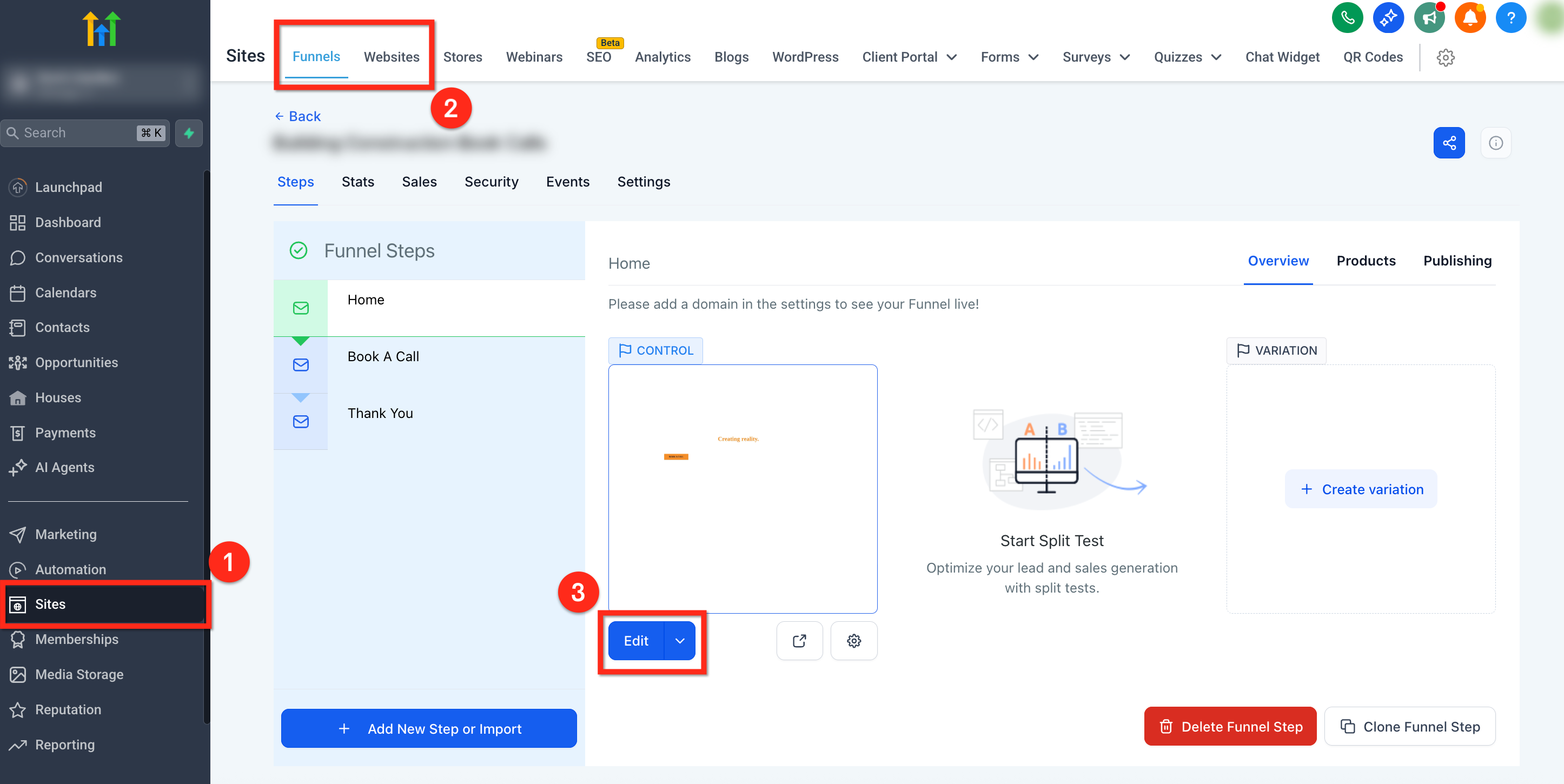
Step 2: Select Element and set Download Action
Click the button, image, or SVG you want to make downloadable
Buttons: To add the action for a button, go to the Settings panel. Under Button Actions, use the Link To dropdown to select Download File
Images: With an image selected, open the Settings panel. Use the Image Action dropdown to choose Download File
SVGs: With the SVG selected, open the Settings panel. Use the SVG Action dropdown to choose Download File
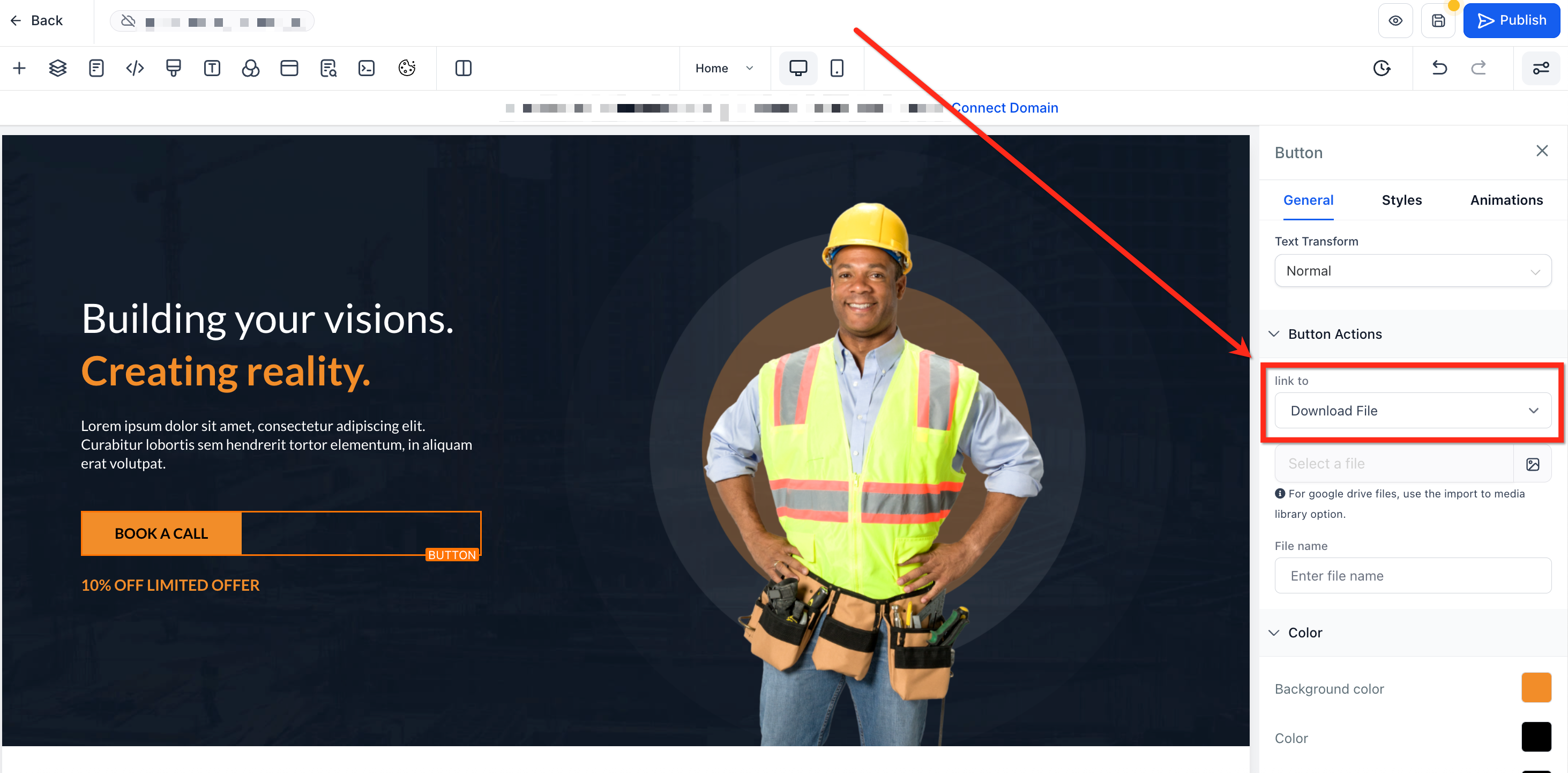
Step 3: Add the Download File
Click Select File to pick the asset from your media library or upload a new file
- Use the File Name box to set a custom file name users will see when saving the file
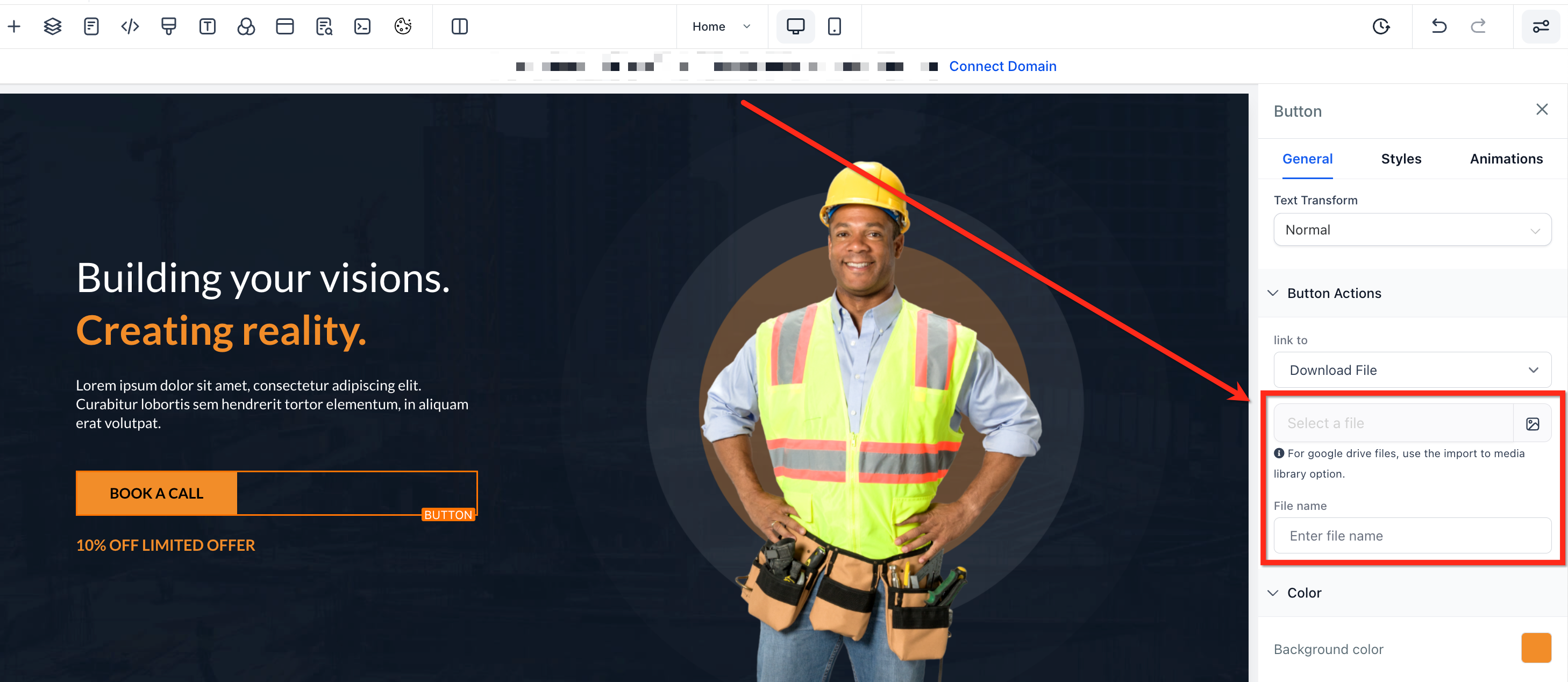
Troubleshooting the Download File Action
Resolve common issues quickly and keep user experience seamless:
Nothing Happens on Click: Confirm the Download File action is enabled and a file is attached
404 or Broken Link: Verify the asset still exists in the media library and the URL hasn’t changed
File Stalls: Check the file size against media‑library limits and compress if necessary
Need Multiple Files: Combine assets into a single ZIP and link that file
Frequently Asked Questions
Q: Can I attach more than one file to a single element?
No. Each element supports only one downloadable file. If multiple files are needed, combine files into a single ZIP file.
Q: How do I force a file to open in a new tab instead?
The Download File Action is designed for direct downloads. Use “Open URL in New Tab” if you prefer in‑browser viewing.
Q: Does this work with dynamic URLs?
The action supports only static files selected from the media library.
Q: Will mobile devices behave the same way?
Yes, though some mobile browsers prompt users to choose an app for opening the file.
Q: Do I need to store files on an external service like Dropbox or Google Drive?
No. Simply upload the asset to your SourCherry media library and link it. The Download File Action handles delivery without third‑party services.