
The Color Picker lets you define brand, default, and custom colors and apply them anywhere in your pages; even down to individual words or characters. This article explains what the Color Picker is, why it matters, and how to make the most of its features.
TABLE OF CONTENTS
- What is the Color Picker?
- Key Benefits of the Color Picker
- Per-Character and Per-Word Level Styling
- Custom Color Labels & Tooltip
- Supported Color Formats
- Validation and Duplicate-Color Prevention
- How to Use the Color Picker
- Frequently Asked Questions
- Related Articles
What is the Color Picker?
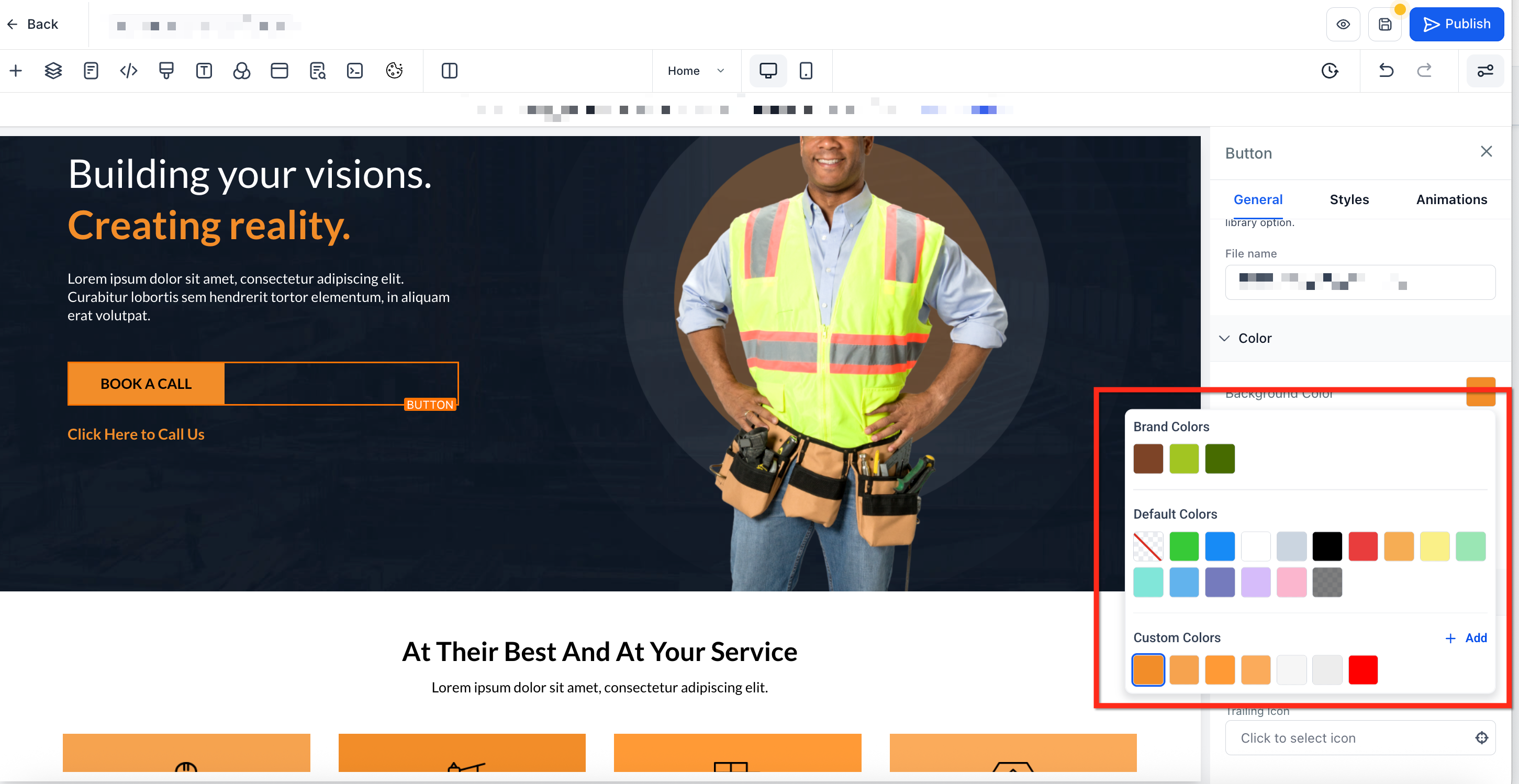
The Color Picker is the design component inside SourCherry’s Funnels & Websites Builder that controls every color you use, from section backgrounds to hyper-specific text highlights. It displays brand, default, and custom colors together, supports HEX, RGB, and custom values, and offers precise, per-character styling directly from the inline text toolbar.
Default colors in the picker may change over time as the Page Builder’s out-of-the-box styling is refreshed. For example, new default palette options can appear (such as Cobalt and Smoke) to support modern starter designs. If you need strict brand consistency, set your Brand Board colors or Global Custom Colors and select those instead.
Key Benefits of the Color Picker
A unified interface and smart controls help you style pages faster and more consistently.
Unified Palette: View brand, default, and custom colors in a single panel, so there is no need to switch tabs
Per-Character Control: Color a single word or letter for precise emphasis
Custom Labels: Name colors (for example, “CTA Blue”) for quick reuse
Format Flexibility: Enter and display colors in HEX, RGB, or custom values
Duplicate Protection: Validation prevents accidental shade duplicates
Compact Layout: Modern, space-efficient design loads quickly and stays out of your way
Per-Character and Per-Word Level Styling
With the updated inline text editor, you can now apply color to individual words or even individual characters in your text. This means you can highlight specific words or change the color of just a part of the text, giving you full control over your design's look and feel.
Custom Color Labels & Tooltip
Keep palettes organized, even when shades are similar, by giving your custom colors names!
Naming Colors
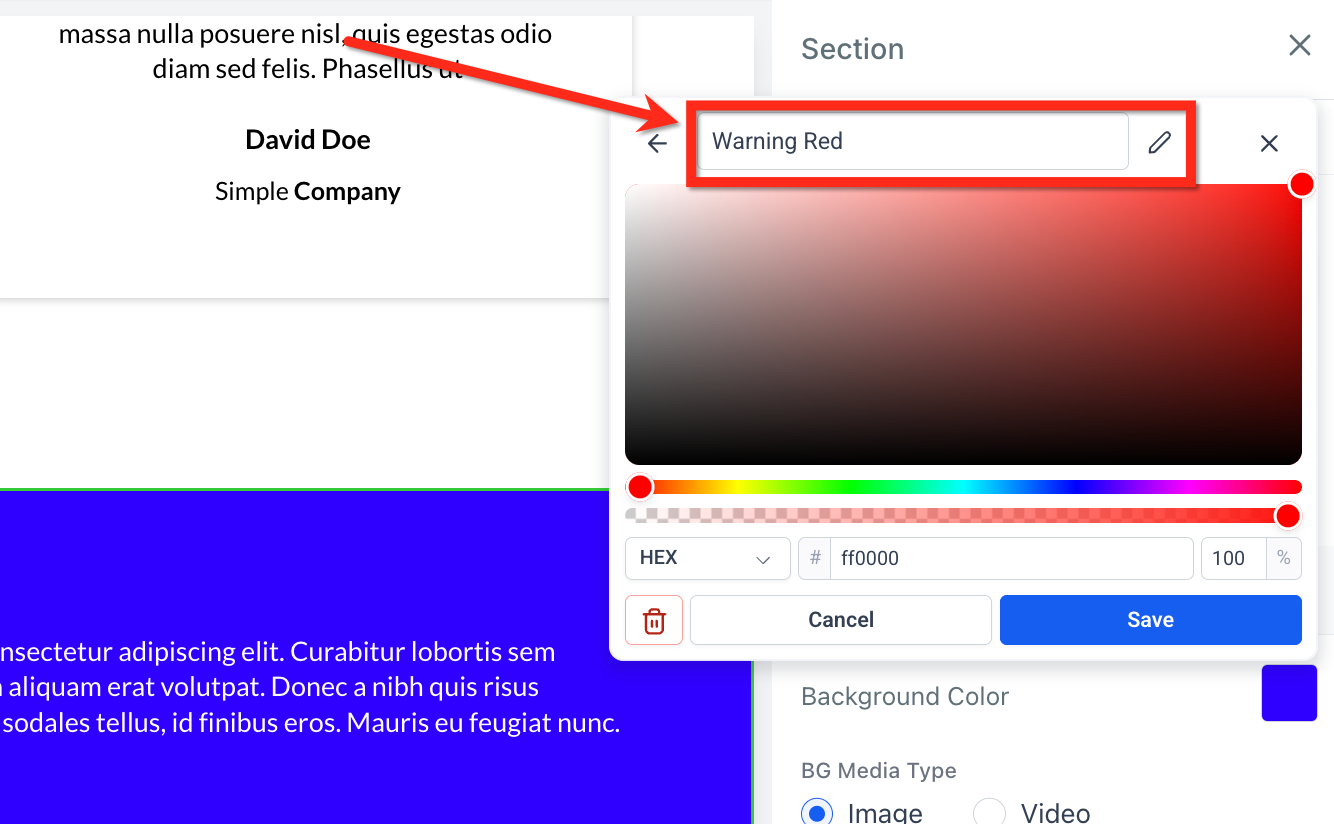
After picking a color, users can name and edit labels for custom colors (for example, “Warning Red”). Labels can be edited or removed at any time.
Custom Label Tooltips
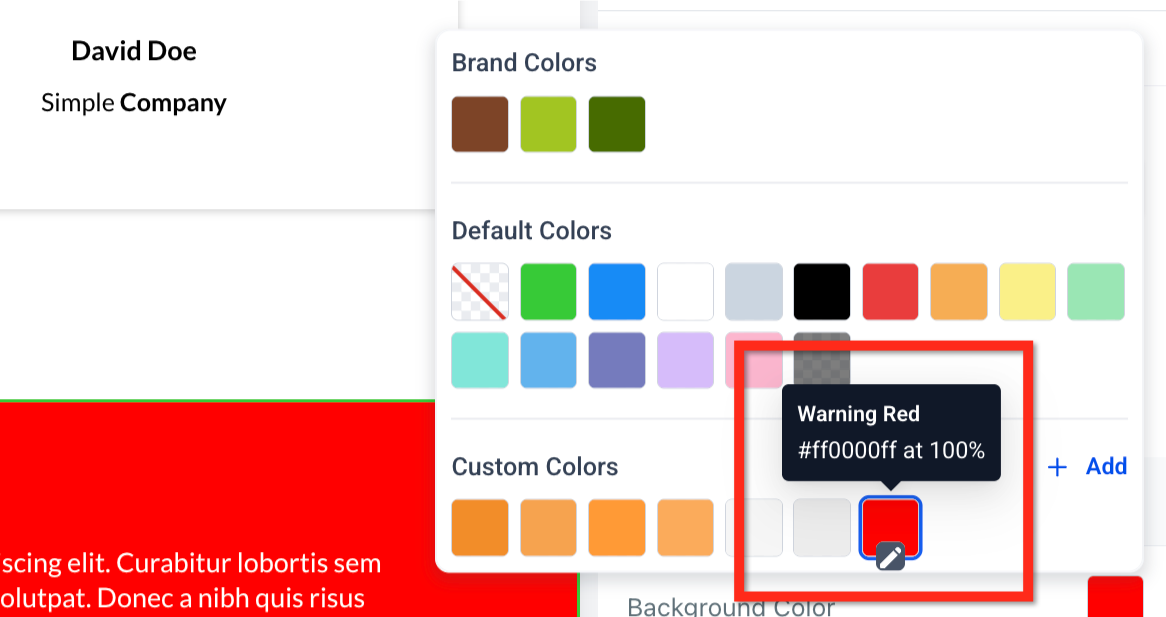
Hovering over a custom color displays its label as a tooltip. This makes it easier to distinguish similar shades, so your team can pick the right tint without memorizing HEX codes.
Supported Color Formats
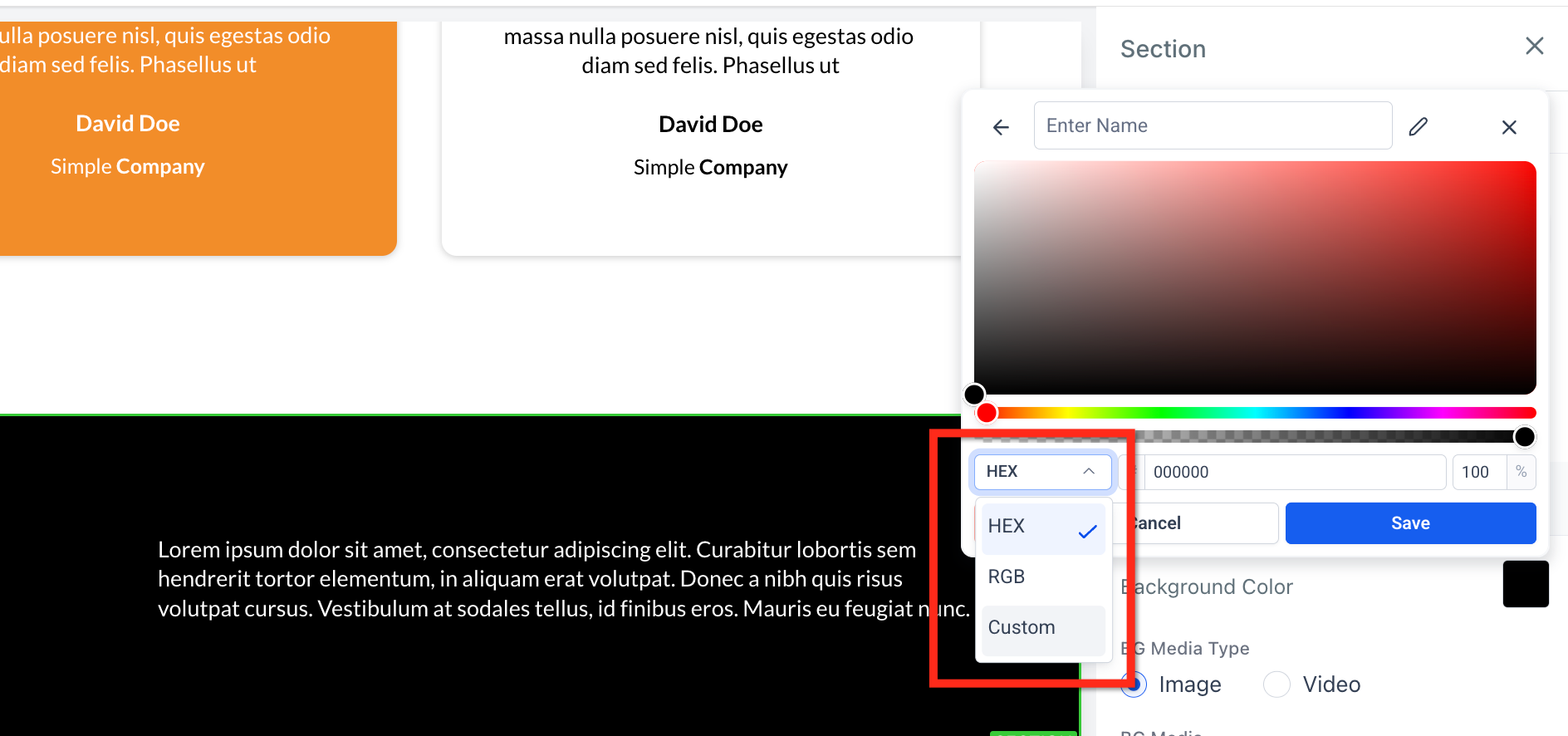
The Color Picker allows you to choose and save colors in multiple formats so you can work with the values that best suit your needs. Use the dropdown to switch between color formats.
- HEX: A six-character code that defines color (for example, #1E90FF). This is the most common format for web design.
- RGB: A set of three numbers that define color based on red, green, and blue values (for example, rgb(30,144,255)). This is useful for precise control over color blending and opacity.
- Custom Values: Accepts dynamic tokens such as {{ custom_values.primary_color }}. These allow the color to be pulled from your custom values, making it easy to change in one place and have it update everywhere it is used.
Validation and Duplicate-Color Prevention
Custom Color Validation
Custom token values must exist in the current location’s configuration before they can be stored, which prevents broken references.
Duplicate Color Prevention
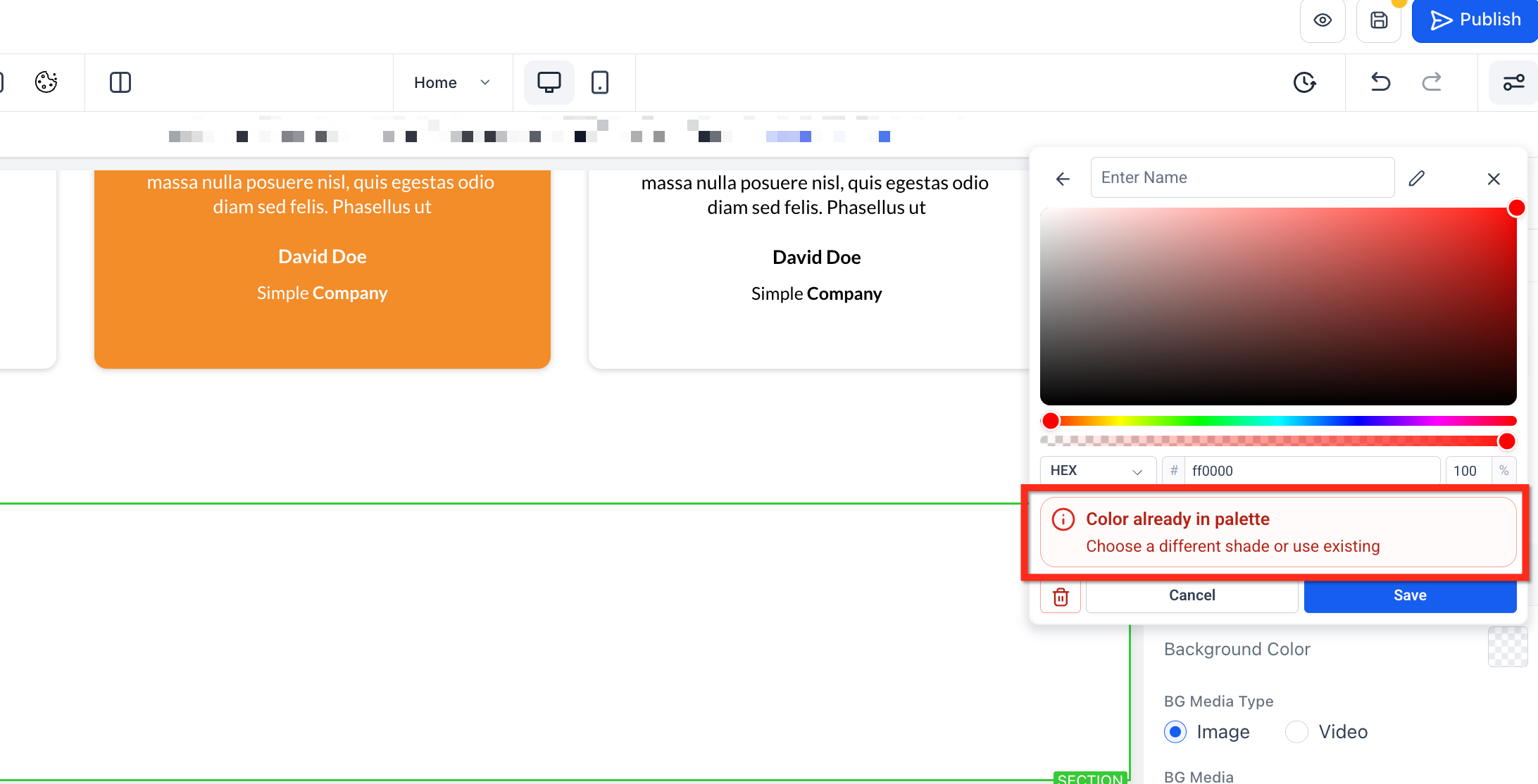
Stay consistent and error-free! If you try to save a shade already in the palette, the picker flags it instantly and prompts you to adjust the value.
How to Use the Color Picker
Follow the steps below to use the color picker:
Step 1: Open Color Picker
- Open an an existing funnel or website page
- Select a section, element, or text block
- Click the Color square in the style panel, or click the A-icon in the inline toolbar for text
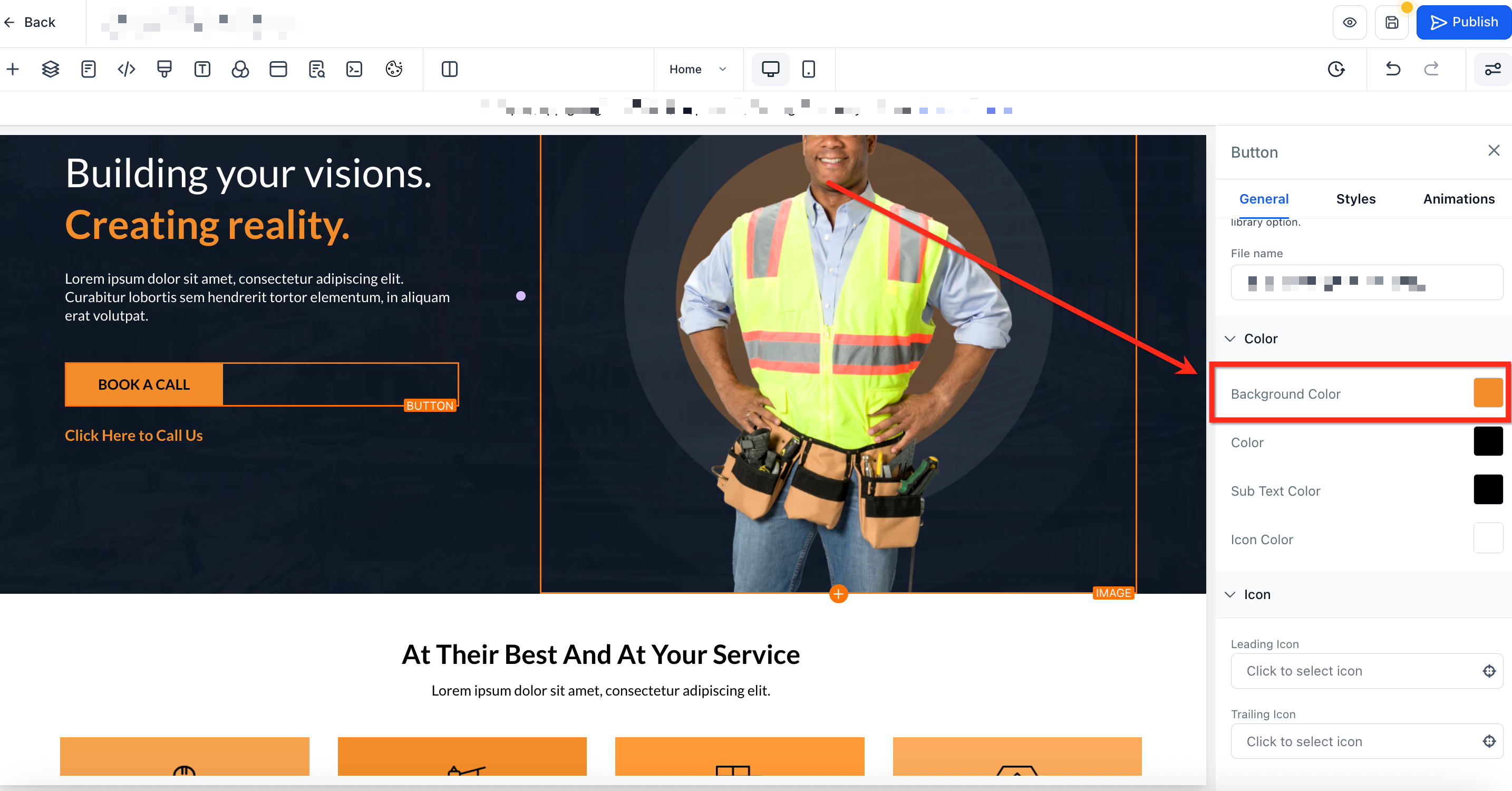
Step 2: Choose a Color
- Pick a shade from the default colors, brand colors or already created custom colors
- To create a new custom color, press + Add
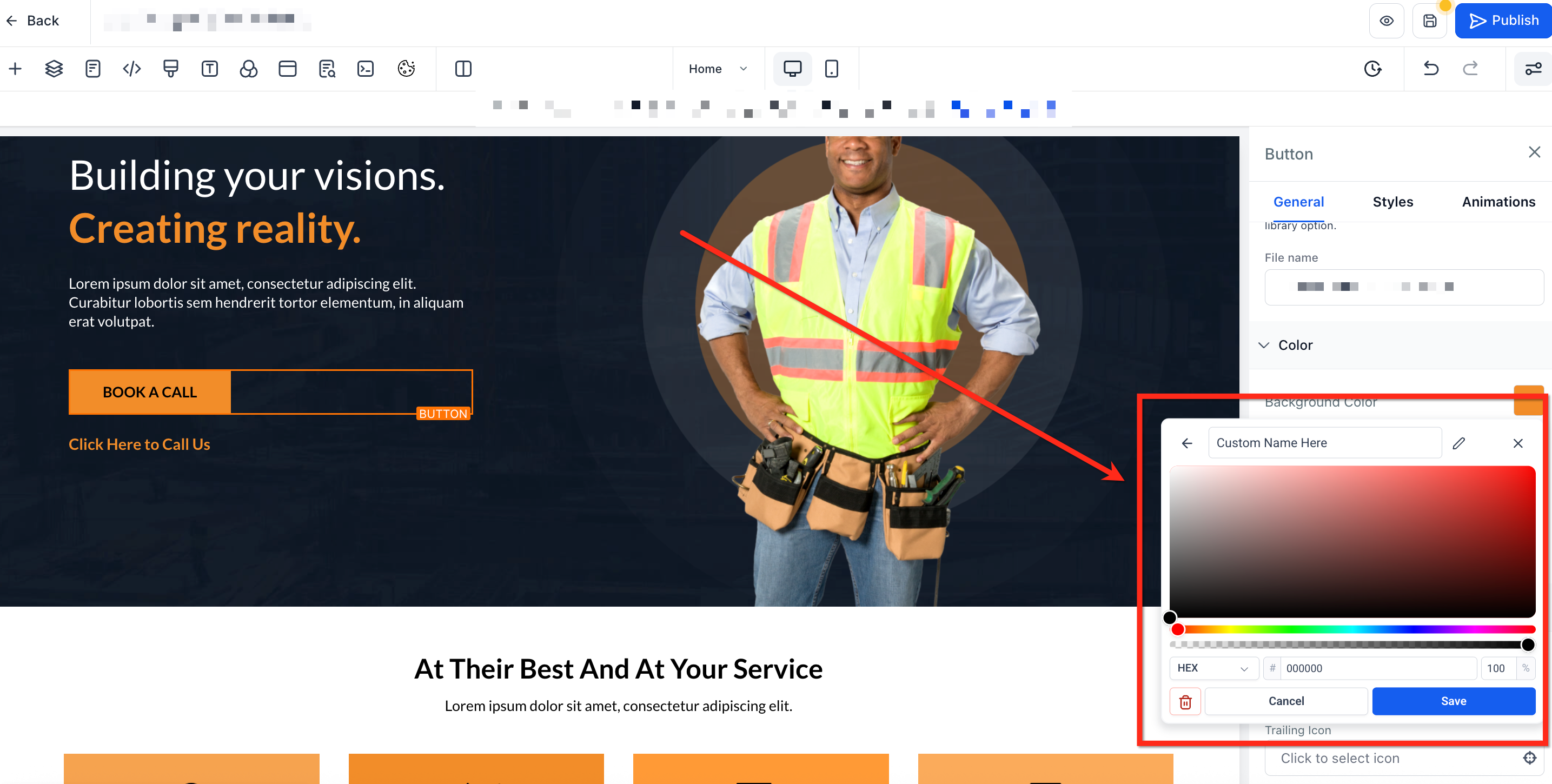
Step 3: Create Custom Color
- Once the custom color panel is open, select the desired color
- Use the dropdown to select between RBG, HEX and Custom color formats
- Type a descriptive name for the color
- Click Save. The new color tile will appear in your palette
Button Icon Color (Page Builder)
Button icons can now be colored independently, giving you precise control over icon visibility and brand alignment without affecting button text or subtext.
How it works
Independent control: Icon Color is separate from Text and Subtext colors.
Color sources: Uses the new Color Picker, including Brand Board colors and Custom colors.
Design flexibility: Adjust the icon to match brand accents while keeping text highly readable.
_Add a screenshot of the Button element’s **Colors** panel with the **Icon Color** swatch highlighted. Alt text: “Button element Colors panel showing the new Icon Color control.”_
Frequently Asked Questions
Q: Will existing pages change if I edit a Brand Color?
No. Brand Color updates apply going forward. Colors already saved on existing elements or text stay the same.
Q: Why do I see a “duplicate color” message when I try to save?
The value you entered already exists in the palette, or a saved custom value resolves to the same value. Change the value or edit the existing swatch instead.
Q: Can I rename or delete a custom color without breaking pages?
A: Yes. Renaming or deleting a swatch does not change colors that are already applied on existing pages.
Q: Can I bulk-import brand colors?
A: Add them in the Brand Board; they automatically appear at the top of the palette.
Q: Why won’t my custom value color save?
The token must exist in your current location’s Custom Values and the final value cannot duplicate an existing swatch. Check that the custom value exists in your account.
Q: Why do new pages look different from older pages?
Page Builder defaults (fonts, placeholders, and default palette colors) can be updated for newer designs. Your Brand Board or saved templates ensure consistent styling across pages.