
This article shows you how to add a custom wait time between cycles of a recurring countdown timer. Use the feature to run “Every Friday” flash sales, weekly webinar countdowns, or monthly product drops—without rebuilding timers each time they reset.
TABLE OF CONTENTS
- What Is Custom Wait Time for Recurring Timers?
- Key Benefits of Custom Wait Time
- How to Configure a Recurring Timer with Wait Time
- Timer Lifecycle Explained
- Use-Case Templates
- Known Behaviours & Tips
- Frequently Asked Questions
- Next Steps
What Is Custom Wait Time for Recurring Timers?
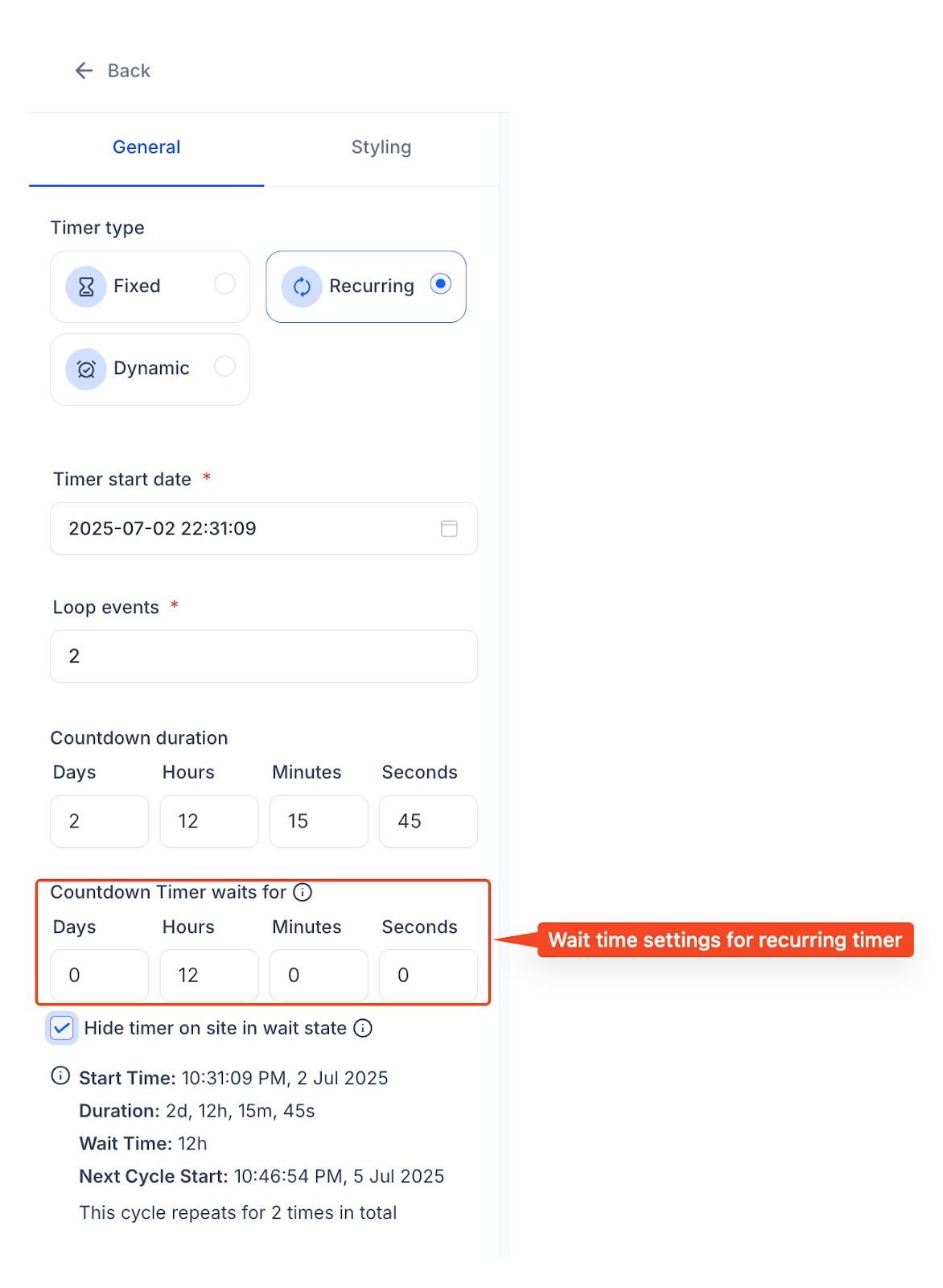
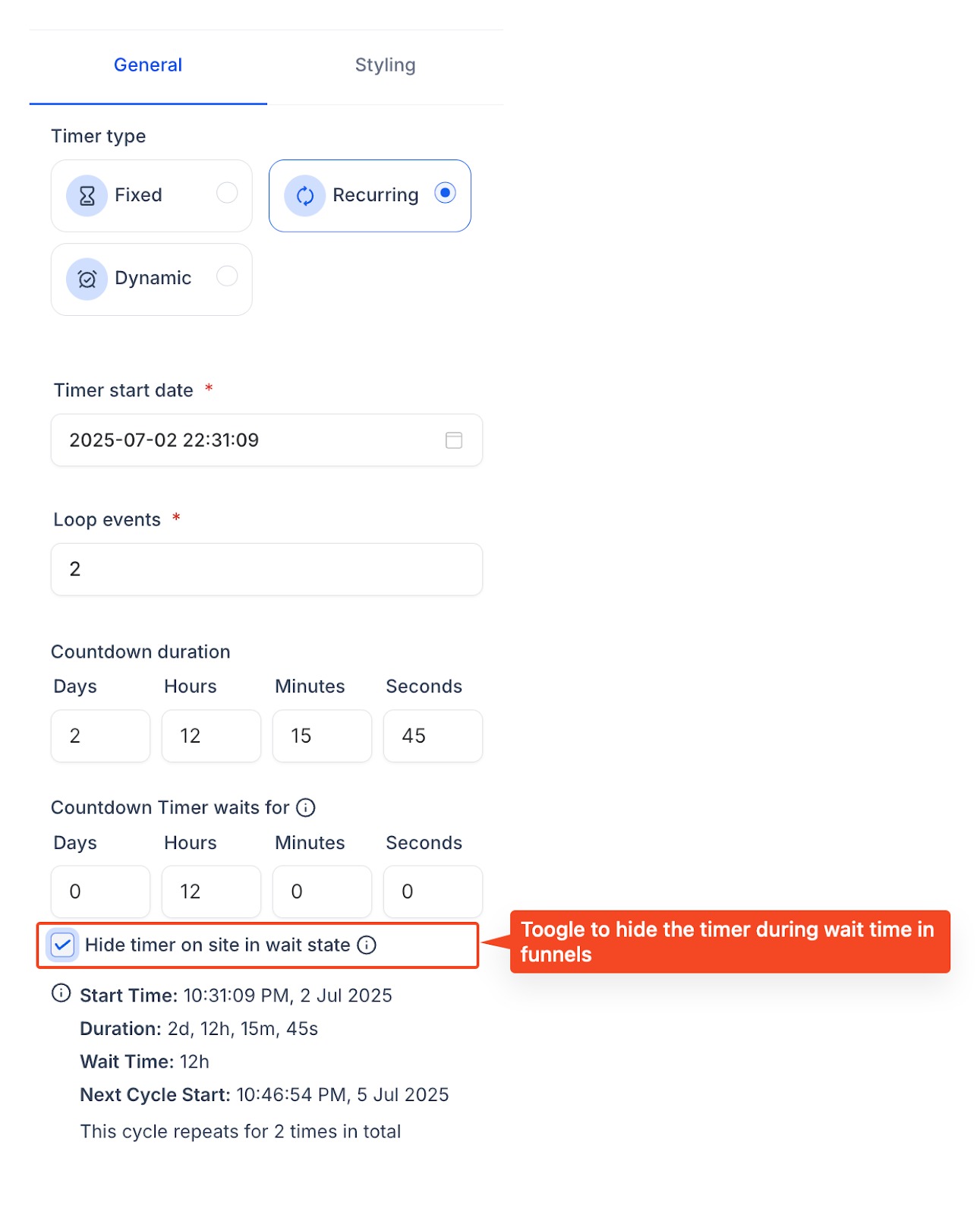
Custom wait time lets a recurring timer pause for a set duration after it reaches 00 : 00 : 00, then start the next cycle automatically. During the pause (the Wait state) you can decide whether the timer stays visible at zero or disappears entirely in funnels, while emails show a zero-state banner that links to your expiry page.
Key Benefits of Custom Wait Time
Adding a pause between cycles unlocks new campaign ideas and slashes repetitive setup work.
Automate recurring promos such as “Every Friday Sale” or weekly challenges.
Run evergreen webinars by counting down to the next session each week.
Control visibility—hide timers in funnels during off-hours to keep pages tidy.
Reuse a single asset across emails and funnels instead of cloning timers.
Align email & page logic with consistent zero-state and redirect behaviour.
How to Configure a Recurring Timer with Wait Time
Follow these steps once; the timer will self-manage every cycle.
Navigate to Marketing ▸ Countdown Timer ▸ New Timer.
Choose Recurring and set your Start and End offsets.
Toggle Custom Wait Time and enter a duration (e.g., 5 days 12 hours).
(Optional) Enable Hide Timer in Wait State to remove the timer from funnels during the pause.
Select the Expiry Page / URL visitors should see when they click the timer or refresh a funnel during Wait.
Save and embed the timer block in funnels and/or emails.
Timer Lifecycle Explained
Knowing what contacts see at each stage helps you design seamless journeys.
vbnet
CopyEdit
Active Cycle ─┐
│ hits 00:00
▼
Wait State (custom duration)
│ auto-restart
▼
Next Active Cycle → … (repeats)
Use-Case Templates
Plug-and-play numbers to hit the ground running.
Known Behaviours & Tips
Avoid surprises by understanding edge-case logic.
Email zero-state is unstyled “00 : 00 : 00”. Custom CSS/styling isn’t applied during Wait.
Hide-Timer toggle affects funnels only; emails always show zero-state.
If a visitor’s session spans Active → Wait without page refresh, they stay on the funnel page (no auto-redirect).
Max wait duration: 365 days; Min: 1 minute.
Analytics log a “Timer Expired” event the moment Wait starts—use it to trigger post-promo automations.
Frequently Asked Questions
Q1. Can a wait period cross Daylight-Saving-Time changes?
Yes—timers store durations, not fixed dates. The engine recalculates offsets when DST shifts.
Q2. What happens if I edit the wait time later?
New duration applies the next time the timer enters Wait; the current cycle is unaffected.
Q3. Can I style the zero-state in emails?
Not yet. Zero-state uses the default timer font and color for deliverability consistency.
Q4. Does the redirect fire in funnels if I disable Hide-Timer?
Yes—refreshing the page during Wait always redirects, regardless of visibility.
Q5. How many cycles can one timer run?
Unlimited—cycles continue until you archive or delete the timer.
Q6. Will contacts see different times in cached emails?
Email timers refresh with real-time data when opened; cached images are replaced server-side.
Q7. Can I add a wait period to non-recurring timers?
No—wait time is exclusive to the Recurring timer type.
Next Steps
Build a pilot “Every Friday Sale” timer with a 7-day wait period.
Embed the timer block in a funnel landing page and preview the Wait-state behaviour.
Schedule an email blast using the same timer block.
Review analytics after two promo cycles and fine-tune your start/end offsets.