
Ask AI has graduated from answering questions to executing actions. Whether you need to create a contact, reschedule an appointment, or bulk-update opportunities, you can now instruct the chat—and SourCherry’s Master Control Panel (MCP) does the work instantly. No menu diving, no tab switching, just conversational commands that save serious time.
TABLE OF CONTENTS
- Key Benefits of MCP-Powered Ask AI
- How It Works
- Command Syntax & Examples
- Safety & Permissions
- Best-Practice Prompt Recipes
- Frequently Asked Questions
- Next Steps
Key Benefits of MCP-Powered Ask AI
Educational overview: Turning chat into an action engine transforms how teams operate, collapsing long click-paths into a single sentence.
Zero-Click Workflows: Type “Add Jane Smith to the ‘NY Leads’ pipeline”—it’s done.
Context ↔ Action Loop: Ask for data, then act on it in the same thread (“Tag them as Hot”).
Universal Coverage: Anything the MCP API supports—contacts, payments, automations—now runs in chat.
Role-Aware Safety: Permissions match your user role; no one can exceed their access level.
Audit & Undo: Every action logs to Activity Feed; destructive commands ask for confirmation.
How It Works
Parse Intent: The AI identifies the verb (create, update, delete) and the object (contact, invoice).
Generate Payload: It maps your words to MCP fields (e.g., firstName, pipelineId).
Permission Check: The system verifies you have rights to run that action.
Confirmation (Destructive Only): For delete or bulk edits, Ask AI shows a summary and asks “Proceed?”
Execute & Respond: MCP runs the call; success or error details return inline and log to Audit Feed.
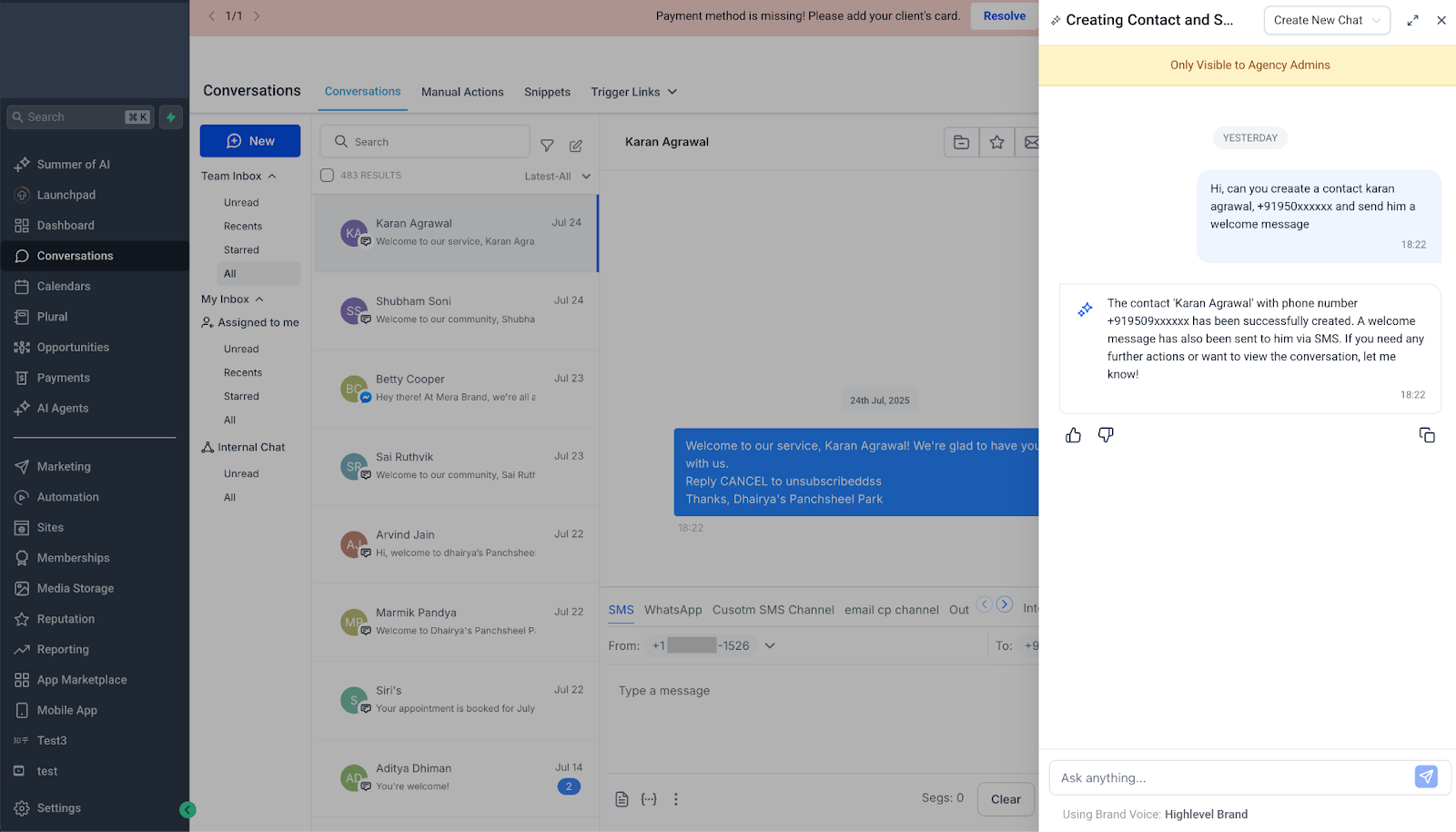
Command Syntax & Examples
Tip: End with “and show me the result” to receive a JSON snippet for quick validation.
Safety & Permissions
Role Enforcement: Your chat privileges mirror UI permissions—no secret back doors.
Confirmation Prompts: Any irreversible change triggers a human “Yes / No” step.
Audit Logs: Find every AI-initiated action under Settings ▸ Audit Logs ▸ AI Chat.
Credit Usage: Each successful MCP command costs 1 AI credit; previews/denied commands are free.
Best-Practice Prompt Recipes
Single-Action Command
“Create invoice for $299 for contact john@demo.com due in 30 days.”
Two-Step Data → Action
“List opportunities lost this week, then move them to ‘Re-Engage’ stage.”
Conditional Logic
“For contacts tagged ‘Trial-Ending’, if last login > 14 days ago, move to ‘Churn Risk’ pipeline.”
Frequently Asked Questions
Q: How do I see what the AI actually sent to the server?
A: Click the timestamp of the chat reply to open the raw JSON payload in the Audit Log sidebar.
Q: Can I reverse a mistaken action?
A: Use “Undo last action” within 5 minutes or restore from backups (Contacts CSV, etc.).
Q: Are bulk actions throttled?
A: Yes—1,000 records per minute to protect system performance.
Q: Does this work on mobile?
A: Read-only today; MCP actions launch on iOS & Android in Q4 2025.
Q: Can I restrict certain verbs (e.g., delete)?
A: Admins can toggle Allow AI Deletes per role under Settings ▸ Security ▸ AI Controls.
Q: What happens if the AI misunderstands my prompt?
A: It responds with a clarification question; no action runs until you confirm.
Next Steps
Open Ask AI in any Location and type “Create a test contact named Demo Bot”.
Check Audit Logs to view the JSON payload.
Try a safe bulk command (“Tag the last 5 contacts as Test”) and watch rate-limit handling.
Review AI Controls to ensure destructive commands match your security policy.