
The Testimonials Element in SourCherry’s Funnels & Websites builder makes it easy to add polished, on-brand social proof to any page. This article explains what the Testimonials Element is and how to set it up to match your brand!
TABLE OF CONTENTS
- What is the Testimonials Element?
- Key Benefits of the Testimonials Element
- Customization Options
- How To Setup the Testimonial Element
- Frequently Asked Questions
- Related Articles
What is the Testimonials Element?
The Testimonial Element allows users to display customer feedback directly within funnel or website pages. It provides flexible layout styles, card formatting, and content customization. This helps businesses build trust and reinforce their brand by showcasing real experiences from happy clients.
Unlike the Review Widget, which automatically pulls reviews from third-party platforms like Google or Facebook, the Testimonial Element is designed for manually entered feedback. This gives users full control over the content, order, and appearance of each testimonial. The Testimonial Element is ideal for curated quotes, in-depth client stories, or brand-specific messaging.
Key Benefits of the Testimonials Element
Highlight real client feedback in a polished and structured format that builds credibility at a glance.
- Increase Social Proof: Increases trust by showcasing real client outcomes
- Save Time: Prebuilt layouts and styles reduce design time
- Stay On-Brand: Reinforce brand identity by using custom fonts, colors, and styling
- Keep It Clean and Clear: Allow users to expand long testimonials with a simple “Read More” link
- Enhance Readability and Impact: Adjust font size, card shapes, and rating icons to make testimonials easy to scan
Customization Options
Fine-tune how testimonials appear on your page using various styling, layout, and content display controls. The configuration panel is divided into three major areas: Testimonial Settings, Card Styles, and Layout Options.
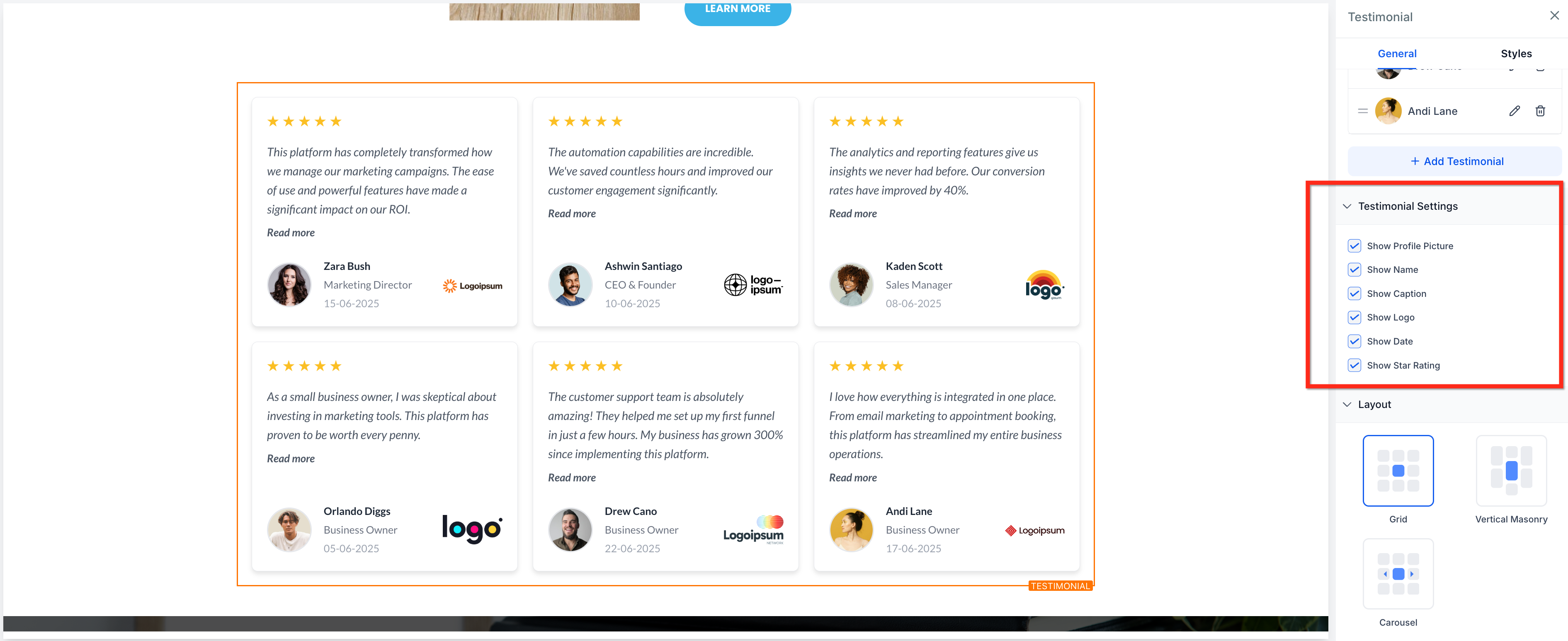
Testimonial Settings
Control what information is visible to ensure each testimonial emphasizes what matters most.
- Show Profile Picture: Toggle on/off to display customer images
Show Name, Caption, Date: Display or hide details of the testimonial author
Show Logo: Add branding to client reviews with logo display
Show Star Rating: Toggle to turn on/off the visual 1–5 star rating
Layout Options
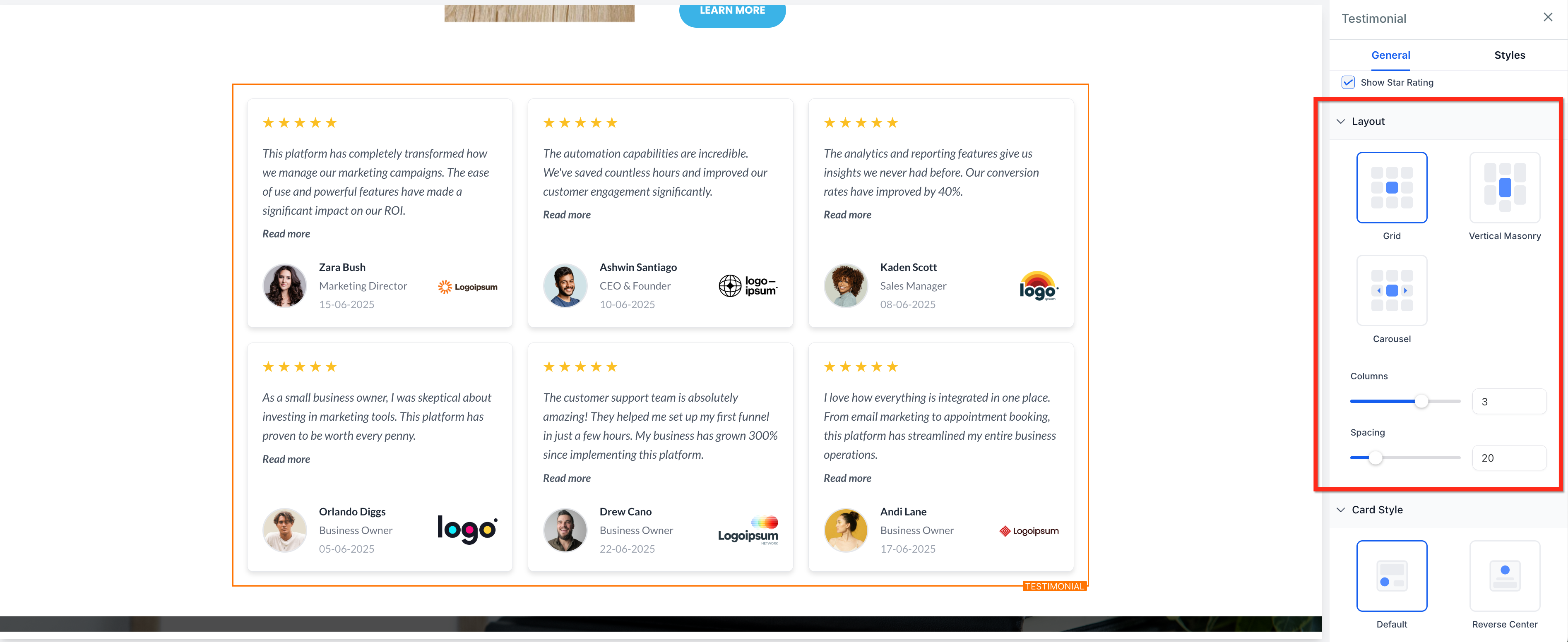
Determine how testimonials are arranged on your page to best complement your content and draw attention to social proof.
Choose from three layout options:
Grid: Uniform layout that aligns testimonials in a structured block
Vertical Masonry: Staggered testimonial display based on content height
Carousel: Interactive slider for rotating testimonials
You can also adjust the number of Columns (0–4) and the Spacing between cards using sliders for added control.
Card Style Options
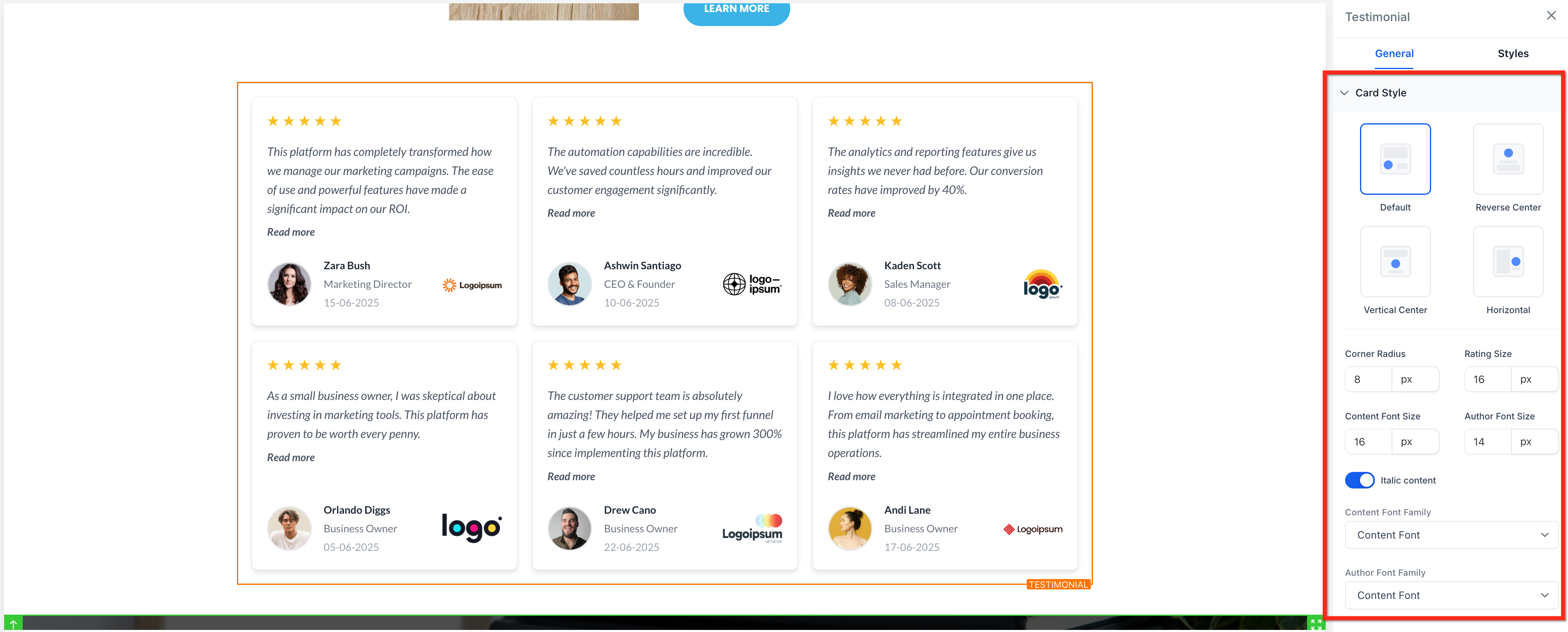
Select from clean card templates and tailor typography and color options to align with your brand’s visual identity.
Choose from four layout options:
- Default: Content above with profile/image below
- Reverse Center: Image centered above text
- Vertical Center: Image centered below text
- Horizontal: Side-by-side profile and testimonial layout
You can also adjust additional styling factors including:
- Adjust corner radius for rounded card borders
- Modify font style and size for the content and author text
- Customize colors for background, card, name, caption, content, rating, date, and “Read More” links
How To Setup the Testimonial Element
Follow these steps to add and configure the testimonial element in your page builder:
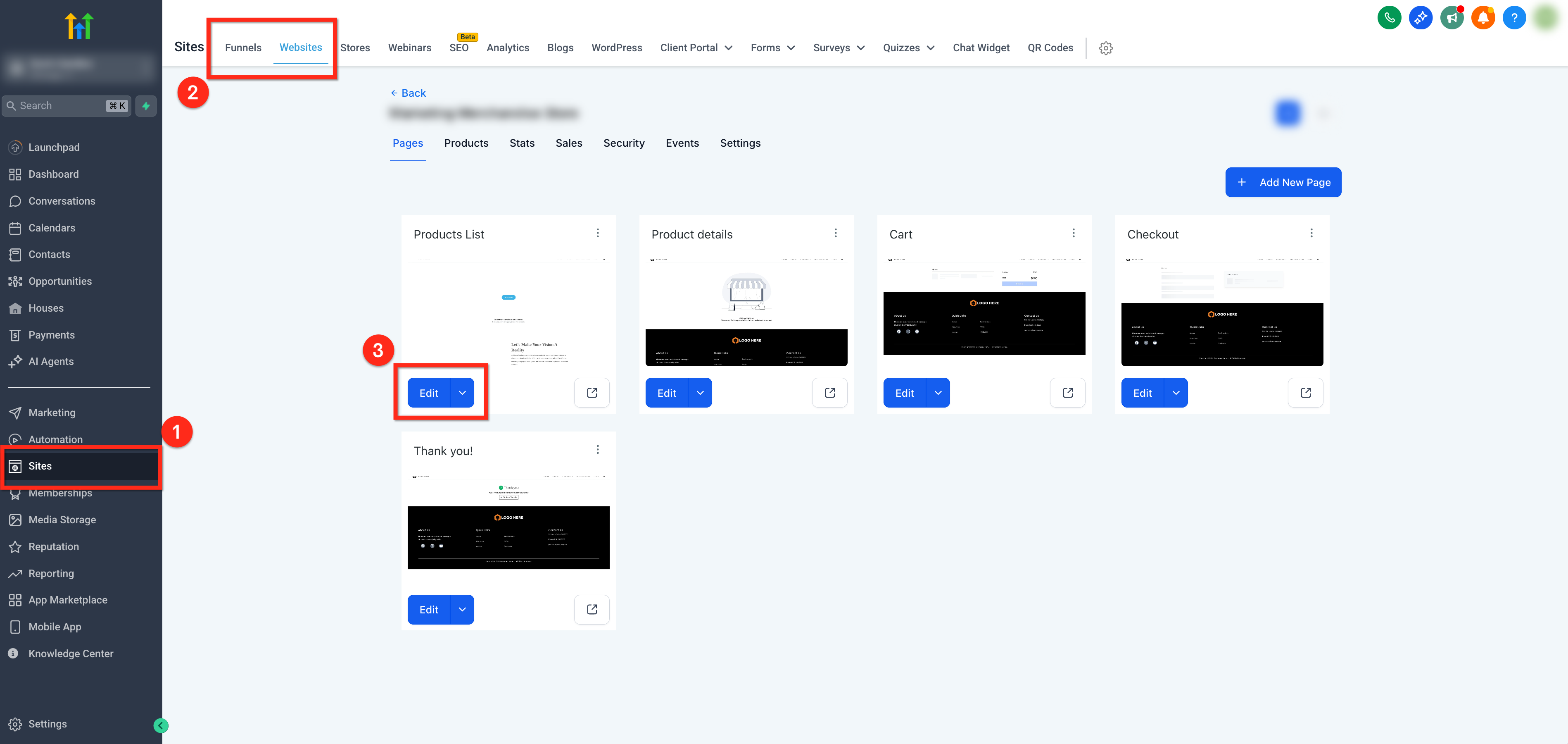
Step 1: Navigate to the Page Builder
- In the left-hand menu of your sub-account dashboard, click on Sites
- Using the top navigation ribbon, select either the Funnels or Websites tab
- Open your chosen funnel or website and click the blue Edit button to launch the page editor
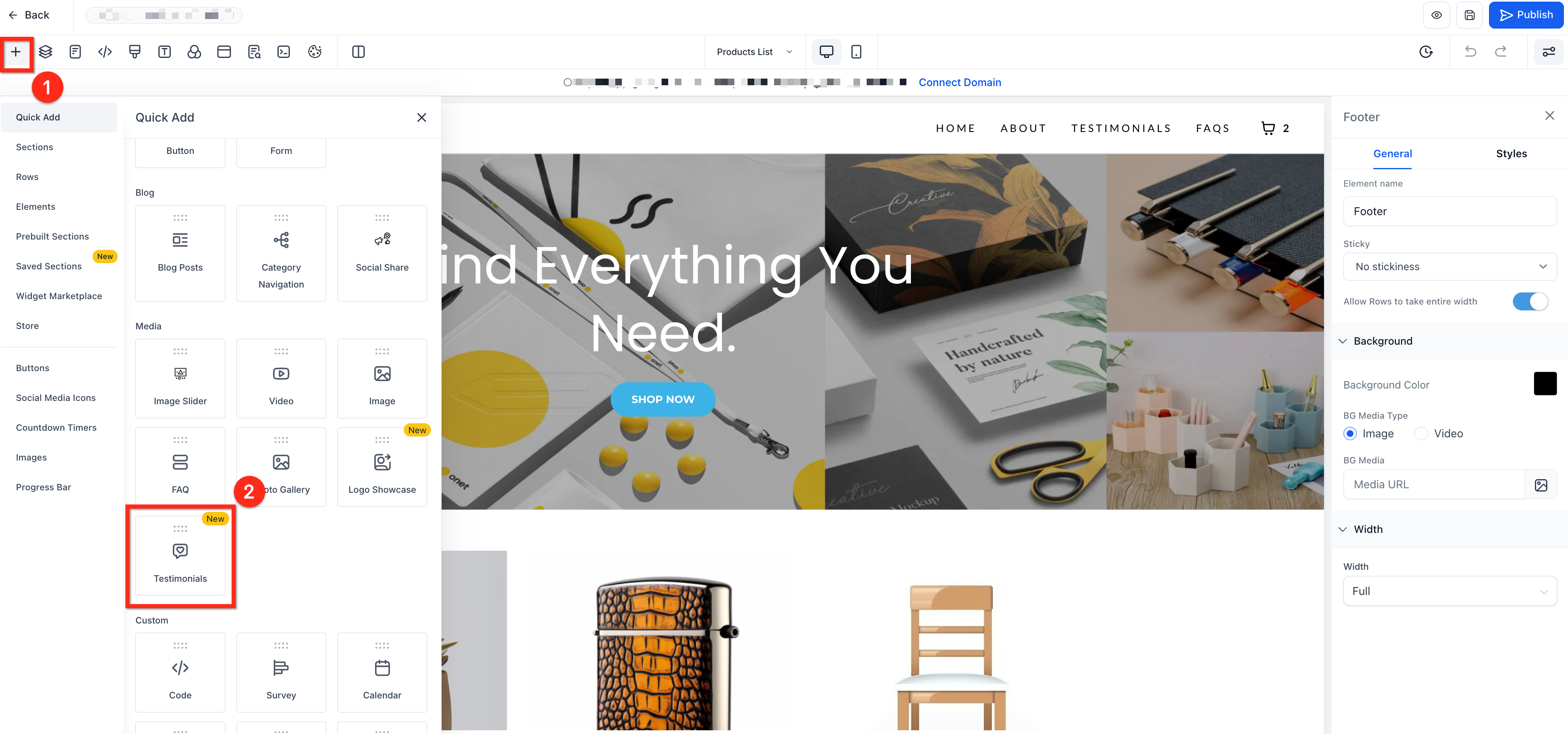
Step 2: Add the Testimonial Element
Click the Add Elements (+) button in the upper left corner
Drag and drop the Testimonial element into your page layout
Step 3: Add and Configure Testimonials
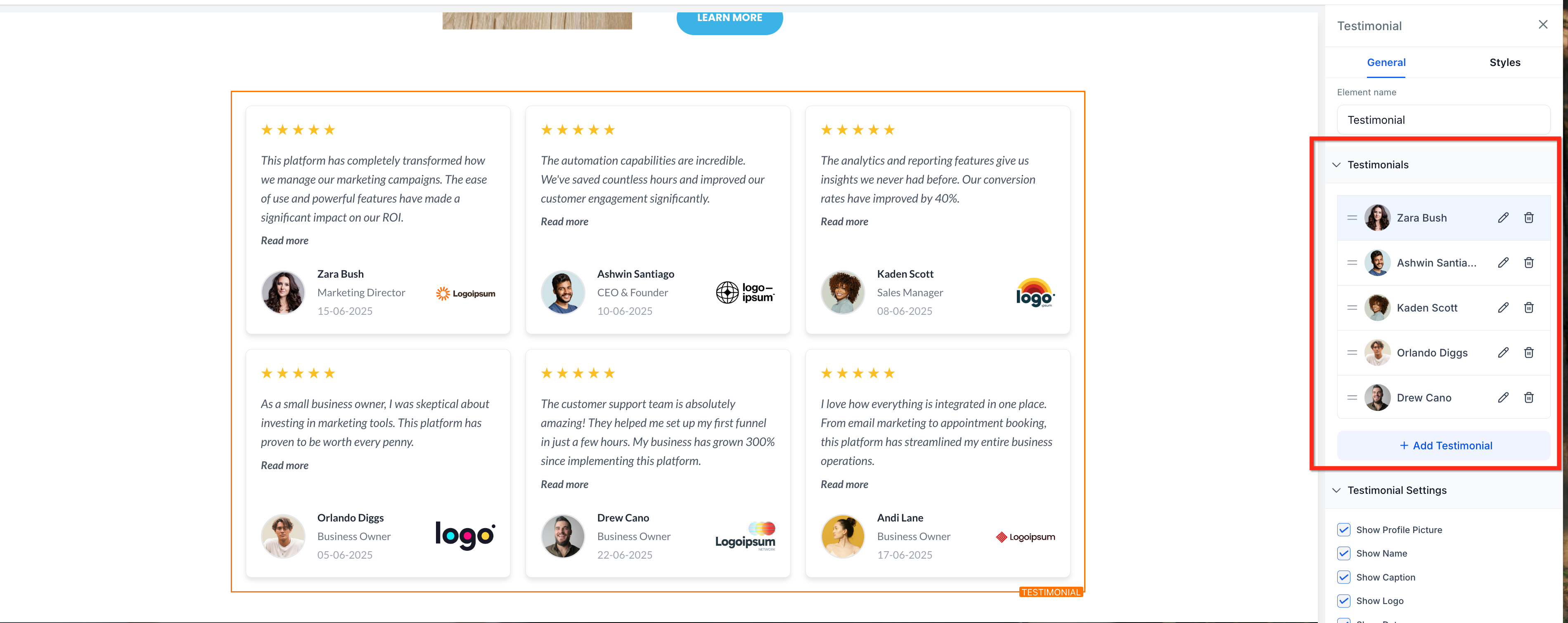
Click into the testimonial element to access the configuration panel
- Drag the handle (two-line icon) to reorder testimonials
- Click + Add Testimonial to create new entries
Use the Pencil icon to edit and the Trash icon to delete a testimonial
Step 4: Edit Testimonials
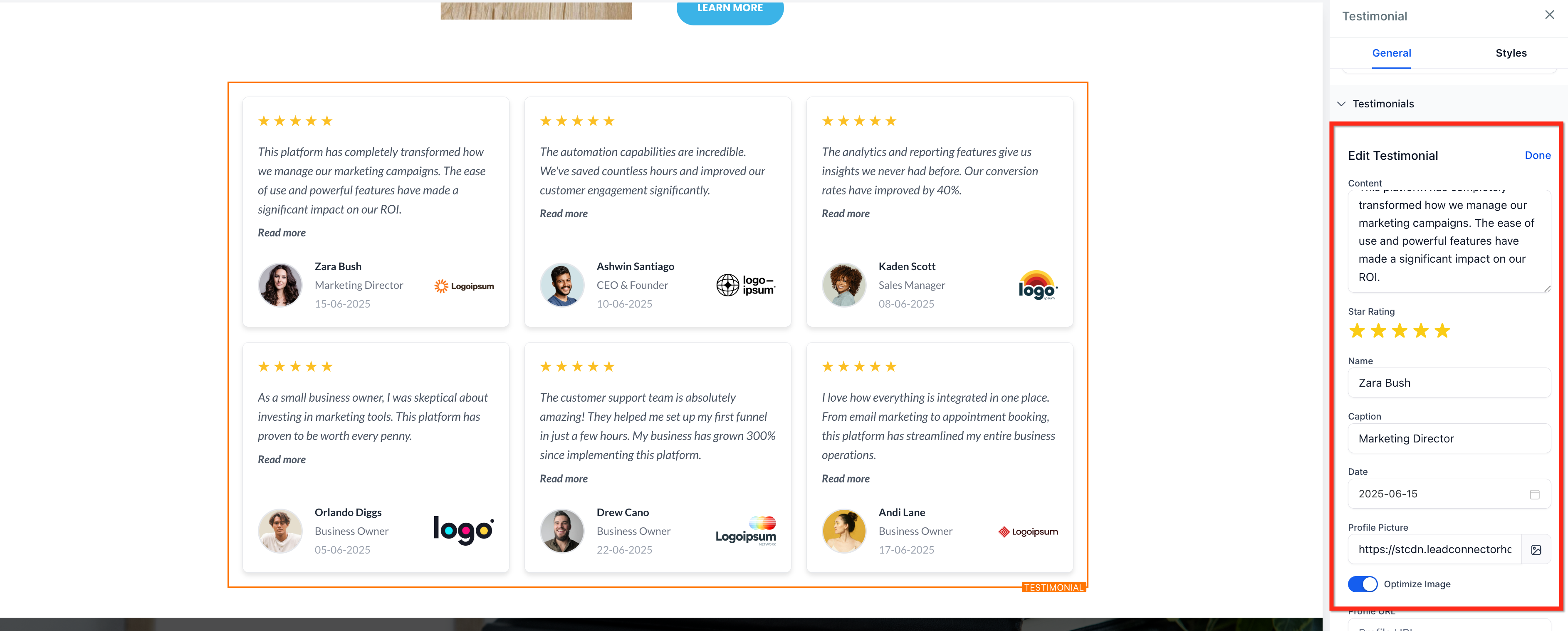
- Use the Pencil icon to open the testimonial editor
Edit fields such as name, caption, date, star rating, profile photo, profile URL, business URL, and logo
Step 5: Customize the Look and Layout of Your Testimonials
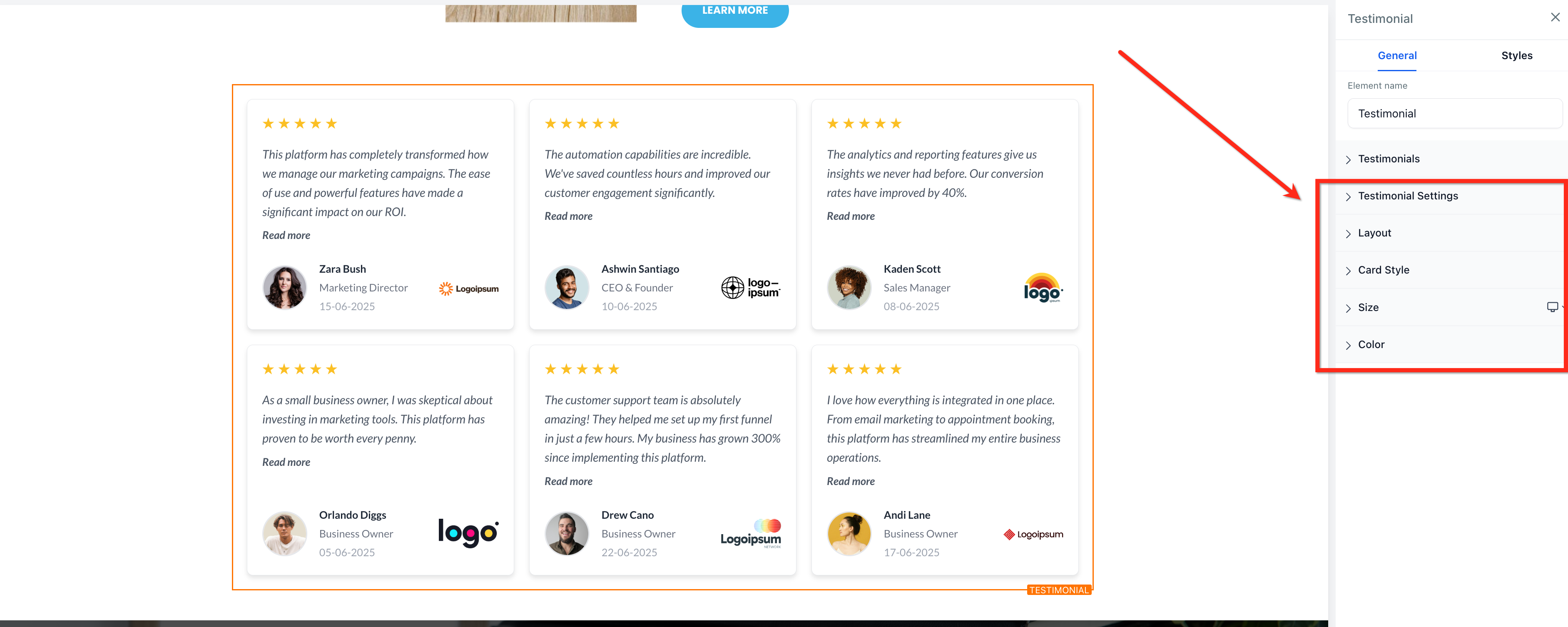
Use Testimonial Settings to choose which elements to display, such as profile pictures, names, dates, logos, and star ratings
Select a layout in the Layout Options to arrange testimonials as a grid, carousel, or masonry display, and control column and spacing settings
Choose a card style in Card Style Options, and then personalize fonts, borders, and other styling
Refine the design using the Size and Color Options to match your brand’s aesthetic with custom fonts, colors, and sizing
Frequently Asked Questions
Q: Can I pull testimonials from Google or Facebook reviews?
No, this element supports only manually added testimonials. Use the Review Widget for external review sources.
Q: Does the testimonial element support dynamic content?
No, this is a static content block. You need to add and update testimonials manually.
Q: Is there a way to truncate long testimonials with a "Read More" link?
Yes, long testimonials automatically shorten with an optional “Read More” expansion.
Q: Can I reorder the testimonials?
Yes, use the drag handle to change the testimonial order.
Q: Are there character limits on testimonial content?
A: There are no fixed limits, but long entries will be truncated and expandable using the "Read More" link.