
Bring real-time support into your Client Portal with the Chat Widget Integration. With this enhancement, users can now enable and use Chat Widgets across individual Client Portal child apps—empowering real-time communication and delivering better support experiences. Even better, widget visibility can be toggled independently per child app, offering complete flexibility and control.
TABLE OF CONTENTS
- What is Chat Widget Integration with the Client Portal?
- Key Benefits of Chat Widget Integration with the Client Portal:
- How To Setup Chat Widget Integration in the Client Portal
- Child App–Specific Widget Visibility
- Prerequisites & Permissions
- Limitations & Requirements
- Frequently Asked Questions
- Related Articles
What is Chat Widget Integration with the Client Portal?
Chat Widget Integration connects a single SourCherry Chat Widget to your Client Portal and lets you decide exactly which child apps display it. Instead of embedding code or managing multiple widgets, you select one existing widget and toggle its visibility for Communities, Courses, and Affiliates. Conversations route to your SourCherry inbox just like any other webchat.
Key Benefits of Chat Widget Integration with the Client Portal:
Real-time support: Customers get help where they’re working inside Communities, Courses, or Affiliates without switching tabs.
Granular control: Choose exactly which child apps show the widget to align support with business goals.
Centralized conversations: All chats land in SourCherry, keeping records unified for faster follow-up and reporting.
Lower friction: No code embed for the portal; selection happens inside Client Portal settings.
Higher engagement: Timely support increases course completions, community participation, and affiliate performance.
How To Setup Chat Widget Integration in the Client Portal
Follow these steps to connect your existing Chat Widget to the Client Portal and choose where it appears.
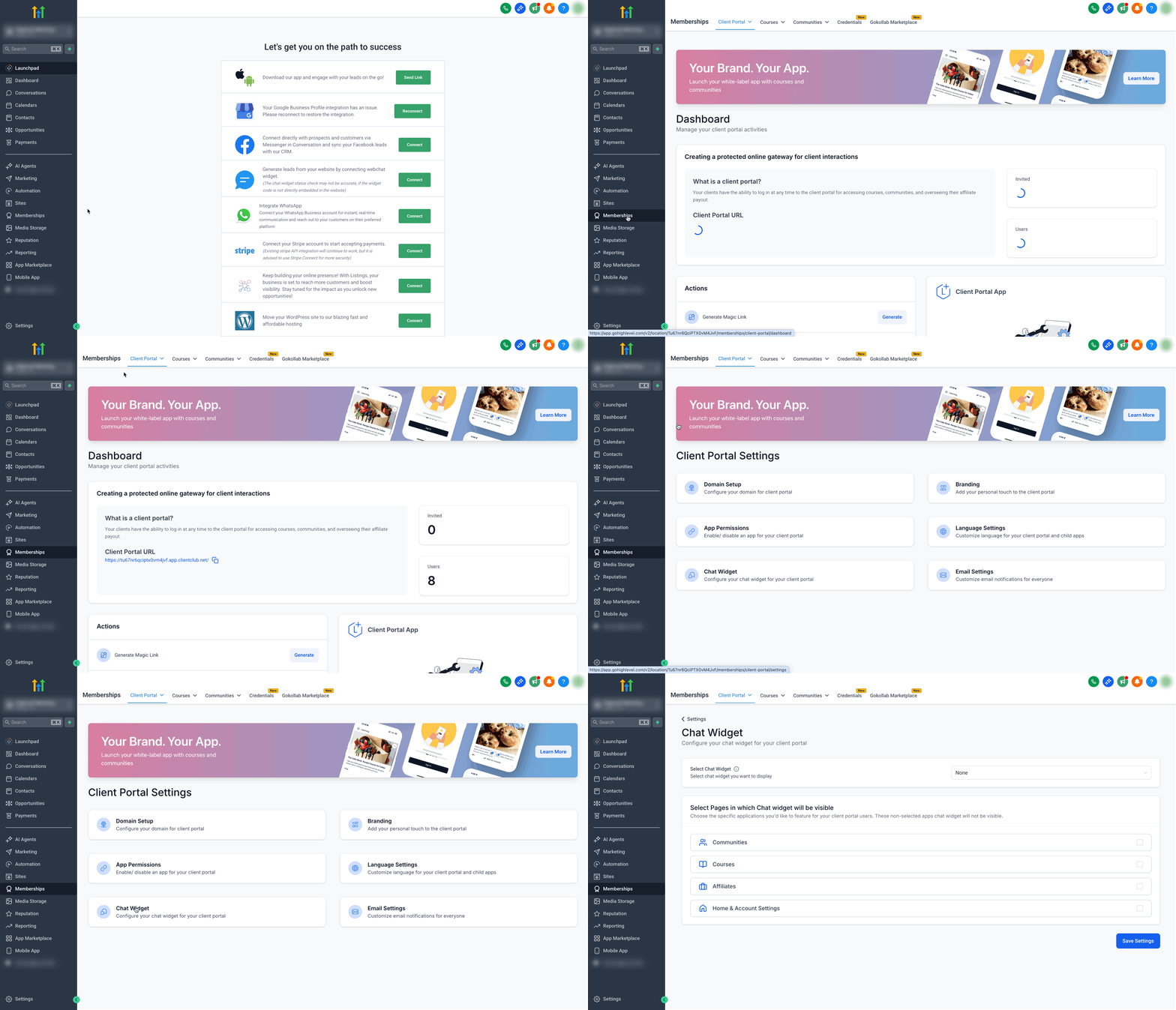
In your sub-account, go to Memberships → Client Portal → Settings → Chat Widget
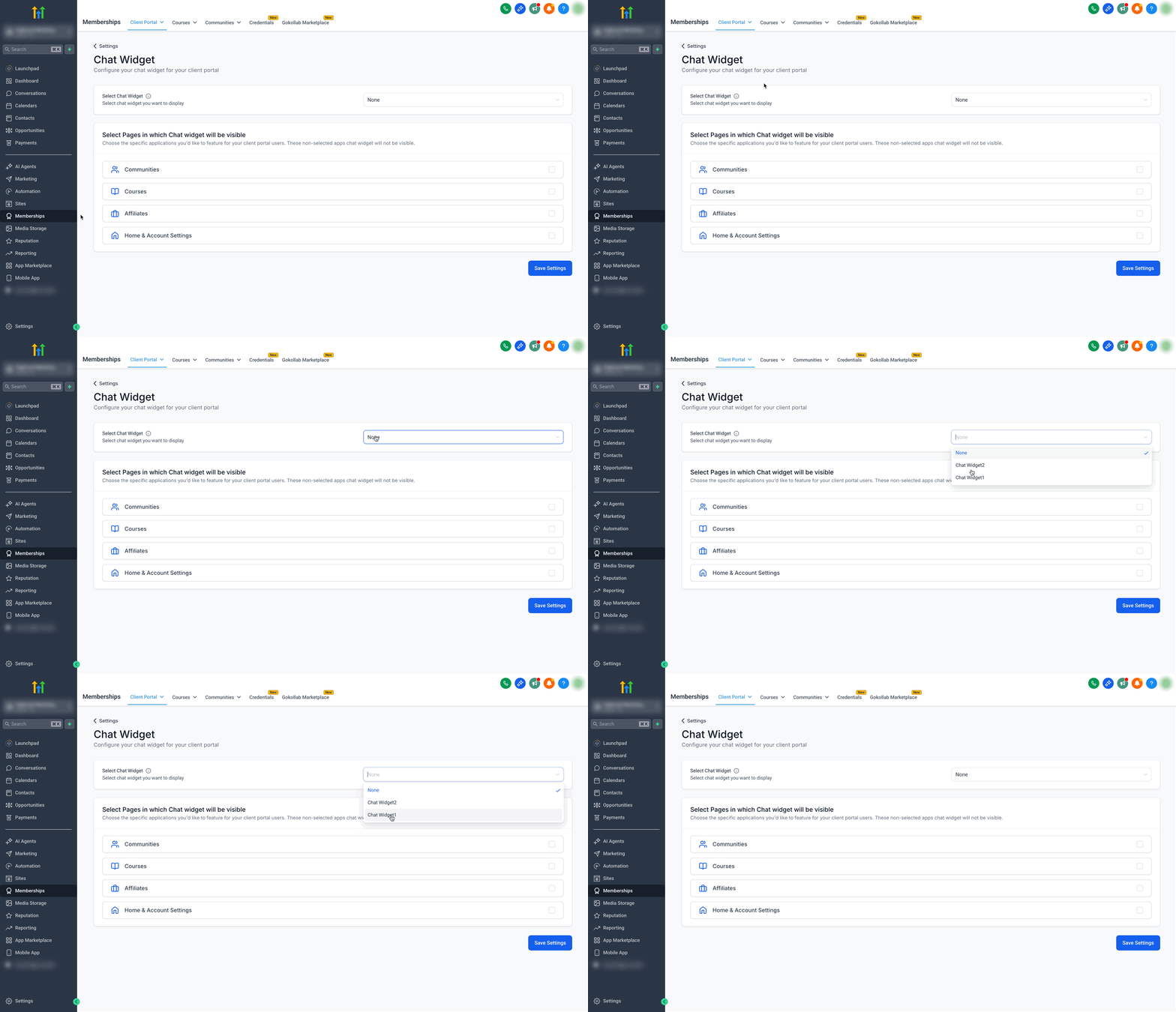
Open the Select Chat Widget dropdown and select the one Chat Widget you want to use across the Client Portal.
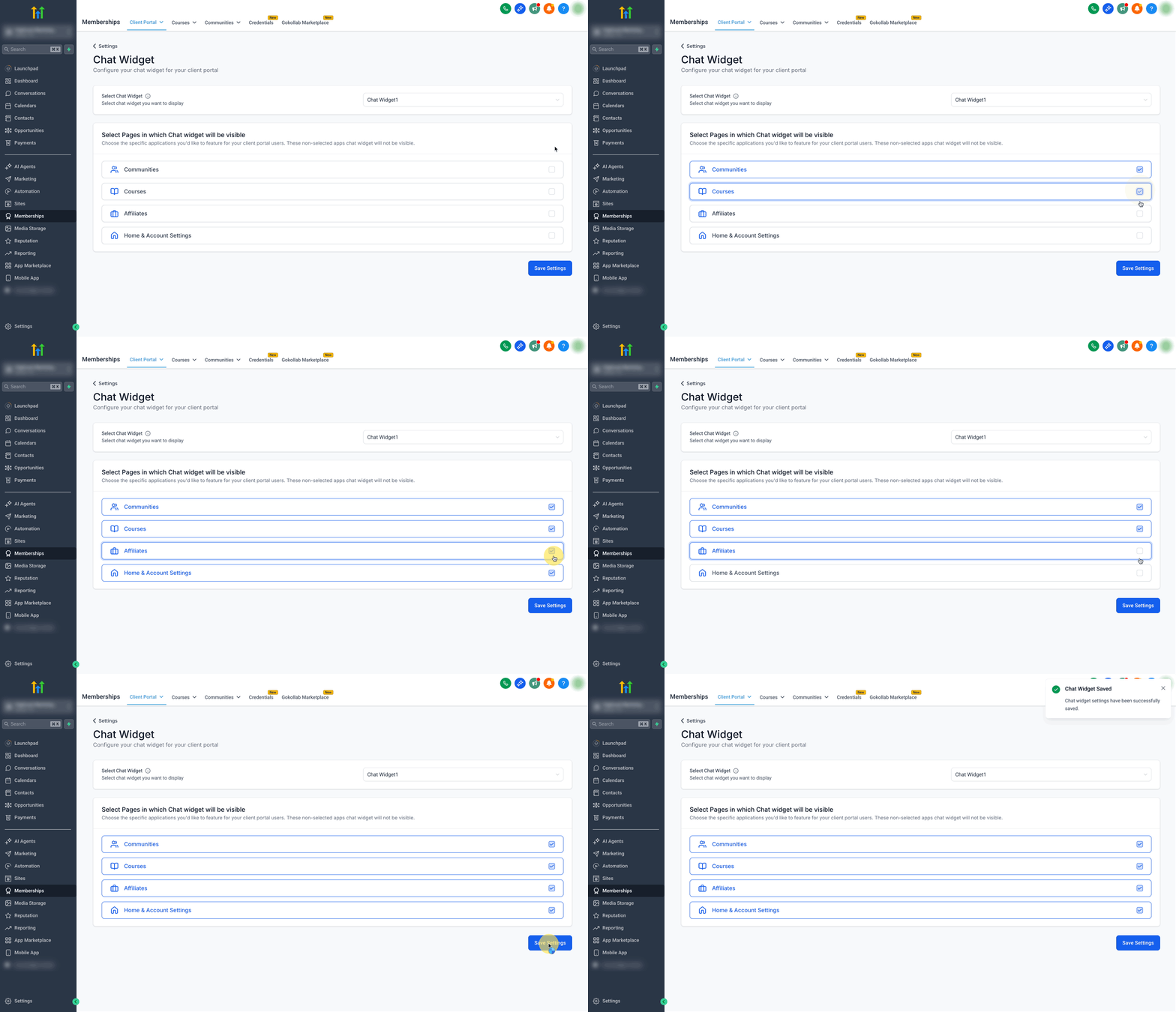
Under Select Pages, toggle visibility for Communities, Courses, Affiliates and Home & Account settings as needed and Save Settings.
- Validate in the portal:
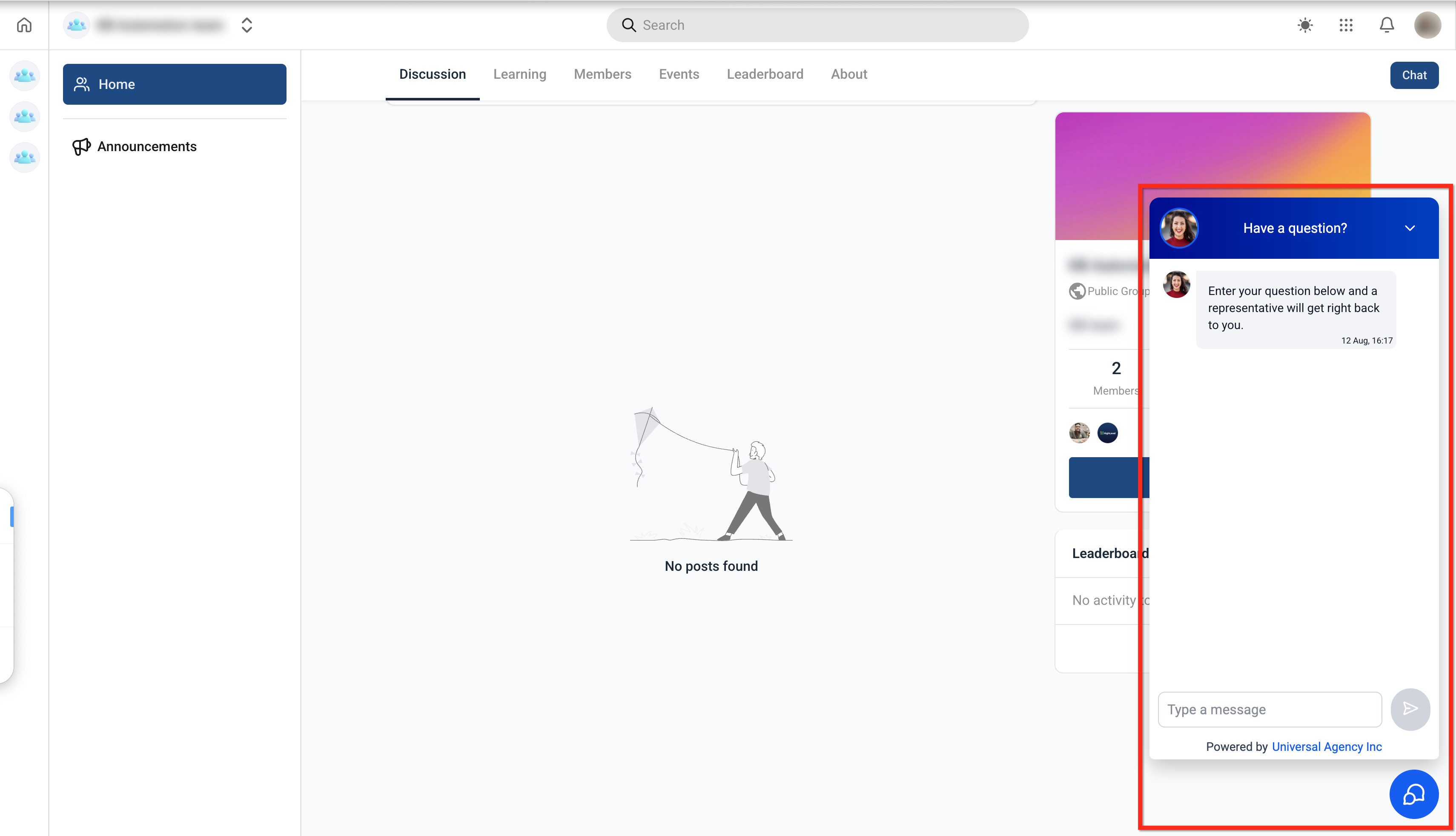
Tip: To change the widget’s look or channels (Live, Email/SMS, WhatsApp), edit the widget itself under Sites → Chat Widget and then refresh the Client Portal page.
Child App–Specific Widget Visibility
Visibility controls tailor your support strategy by audience and context. Turn the widget on for the apps where live help drives outcomes, and keep it off where it’s not needed.
Toggle visibility independently for Communities, Courses, and Affiliates.
Use different combinations (e.g., on for Courses + Affiliates, off for Communities).
Changes take effect after saving; refresh your portal page to validate.
Prerequisites & Permissions
Confirm these basics before setup to avoid “widget not showing” scenarios later.
You’ve already created at least one Chat Widget in the sub-account (see Getting Started with Chat Widget and How to Use the All-in-One Chat Widget).
You have access to Client Portal settings in the sub-account.
(Optional) Channel requirements are met (e.g., WhatsApp number if you plan to use WhatsApp in your widget).
Limitations & Requirements
Single widget in the Client Portal: You can select only one Chat Widget for the Client Portal.
Per–child app visibility only: You can show/hide the widget per child app, but you cannot assign multiple different widgets to different child apps.
Widget content is global: The selected widget’s configuration (branding, greeting, channels) applies wherever it appears in the portal.
Website vs. Client Portal: Multi-widget setups for websites/funnels do not apply inside the Client Portal.
Frequently Asked Questions
Q: Can I assign different widgets to different child apps?
Not at this time. The Client Portal supports a single widget selection with per-child app visibility.
Q: Do I need to paste any code to use the widget in the Client Portal?
No. Selection happens in Client Portal → Settings → Chat Widget. No embed code is required for the portal.
Q: Will the widget appear on every page inside a child app?
It appears in supported views of that child app. If you don’t see it, refresh and confirm the child app toggle is enabled.
Q: Can I still use multiple widgets on my public website or funnels?
Yes, multi-widget setups apply to websites/funnels. They do not apply inside the Client Portal.
Q: How do I change the widget’s greeting, color, or channels?
Edit the selected widget in Sites → Chat Widget. The updates carry into the Client Portal after you save and refresh.
Q: Does WhatsApp require extra setup?
Yes. You need a properly configured WhatsApp number before enabling that channel in your widget.