
Funnels And Websites Builder now supports custom fonts, eliminating the need for CSS hacks or external hosting. Designers and marketers can maintain brand consistency directly in funnels and websites. This articles shows how agencies can upload and manage their own font files natively within the site builder, improving platform usability and brand fidelity.
TABLE OF CONTENTS
- What is Custom Font Support in Funnels & Websites?
- Key Benefits of Custom Font Support in Funnels & Websites
- Custom Fonts Modal
- Supported Font Formats
- Media Storage Integration
- How To Apply Custom Font in Funnels & Websites
- Frequently Asked Questions
- Related Articles
What is Custom Font Support in Funnels & Websites?
Custom Font Support is a native SourCherry feature that allows you to upload, store, and apply your own font files directly inside the Funnels and Websites Builder. By removing the need for external font hosting or @font-face code, the feature gives designers and agencies full control over brand typography while streamlining page creation.
Key Benefits of Custom Font Support in Funnels & Websites
Brand Consistency: Maintain identical typography across every funnel and webpage for a unified customer experience.
No CSS Required: Apply custom fonts entirely through the builder—saving time and avoiding code errors.
Faster Workflow: Upload once, then select your font from the dropdown in any text element.
Flexible File Support: Use industry-standard formats and treat each style (e.g., Bold, Italic) as its own pick-list option for precise styling.
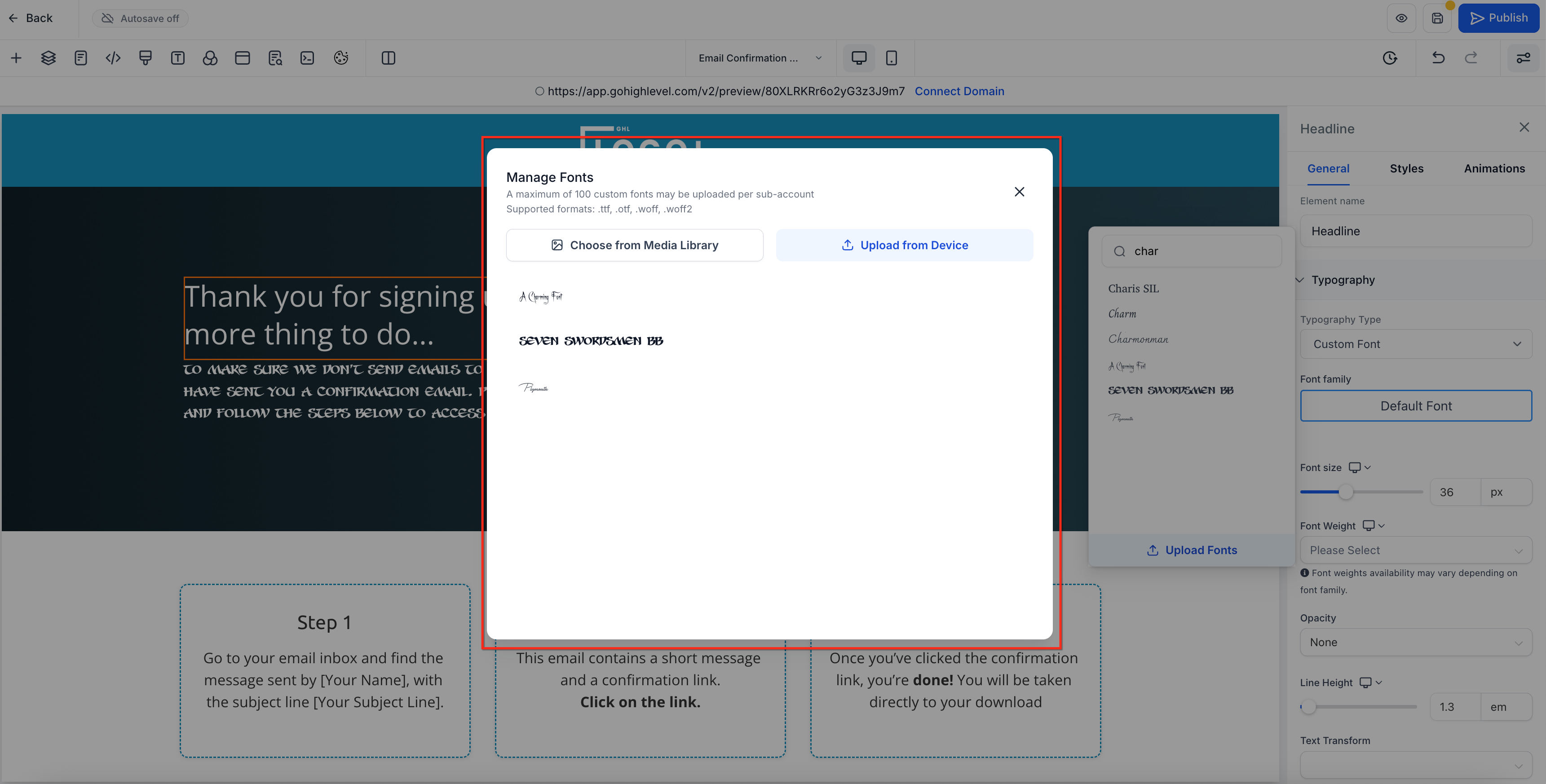
Custom Fonts Modal
The Custom Fonts Modal centralizes font management so you can add or update typefaces in seconds.
Access the modal by clicking Upload Fonts within any font dropdown.
Drag-and-drop or browse to select files from your device.
Review existing uploads and remove outdated versions with one click.
Supported Font Formats
SourCherry accepts the most common font standards, ensuring compatibility with professional type libraries.
.ttf– TrueType Font.otf– OpenType Font.woff– Web Open Font Format.woff2– Compressed Web Open Font Format
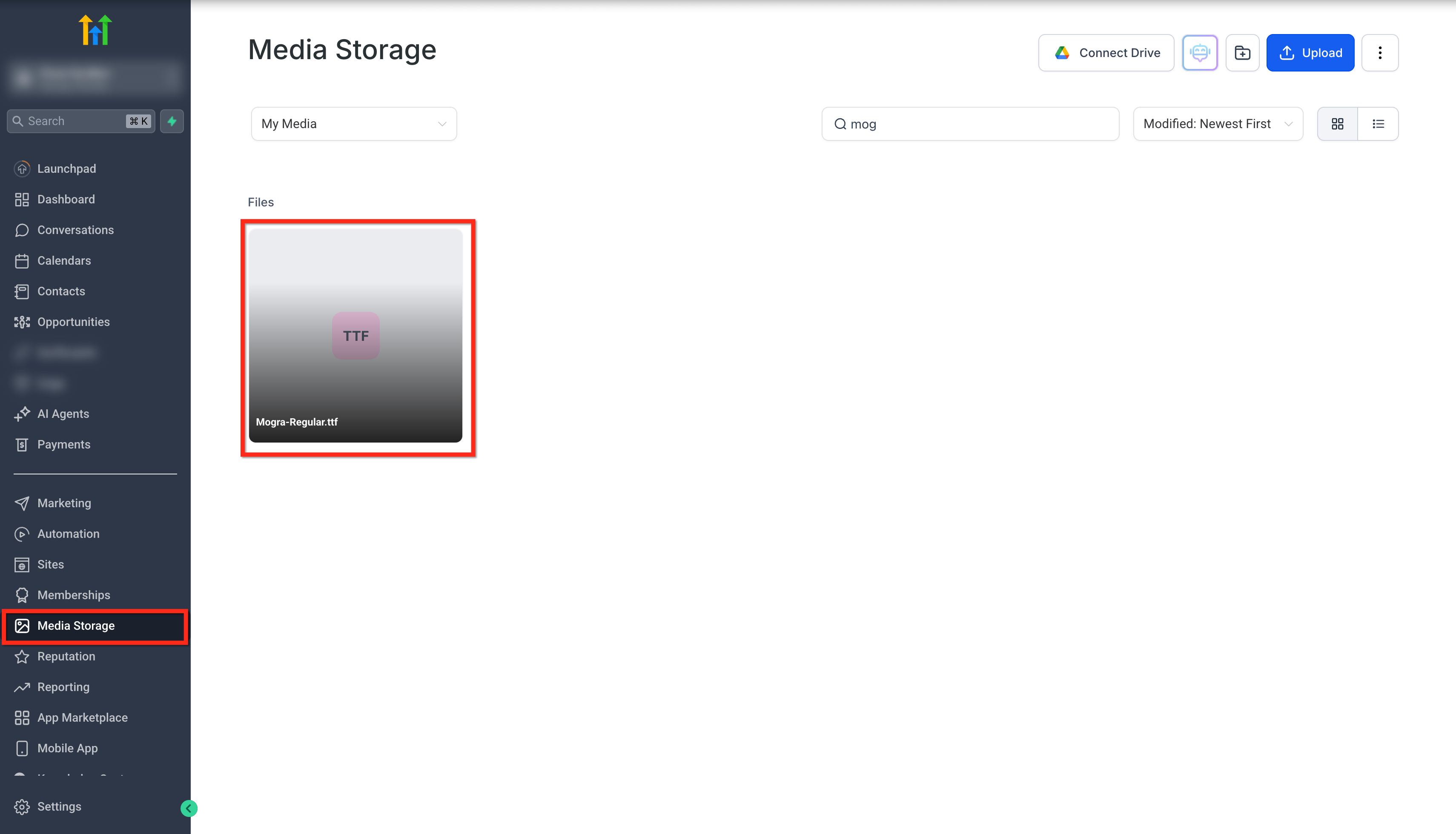
Media Storage Integration
Store fonts securely in SourCherry so your team can reuse them across accounts and projects.
Uploaded fonts are automatically saved to Media Storage for easy access.
Delete or rename fonts from Media Storage without breaking live pages—as long as the file name remains unchanged.
Centralized storage keeps your workspace organized when managing multiple brand assets.
How To Apply Custom Font in Funnels & Websites
Enable the Feature in Labs:
Go to Agency Settings → Labs
Locate Custom Font Support for Funnels and websites" and click on Manage.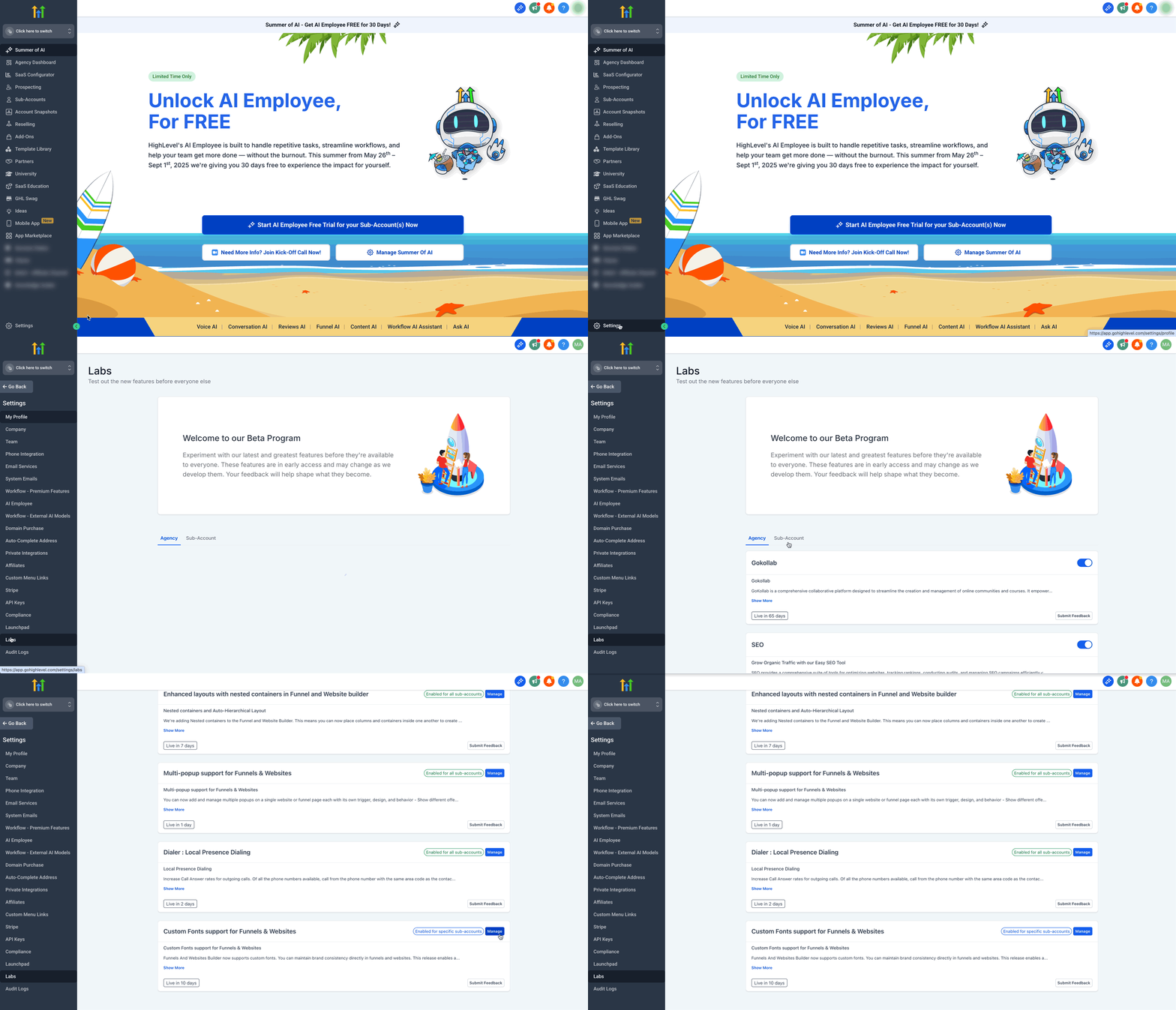
Switch to the Sub-Account and Open the Builder of the Funnel step or Webpage you want to edit.
- Select the text element (paragraph/heading/rich text)
In the right panel go to Typography → Typography type → Custom Font → Upload Fonts → Upload from Device.
Upload Your Font File:
Pick a.ttf,.otf,.woff, or.woff2file from your device or Media Storage. The Custom Fonts Modal will confirm once the upload is complete.Apply the New Font:
Your font now appears in the dropdown. Select it, then adjust size, weight, or style as needed.
Frequently Asked Questions
Q: How do I enable Custom Font Support if it’s behind Labs?
Go to Agency Settings → Labs, locate Custom Font Support for Funnels and Websites, and toggle it on.
Q: Which file types can I upload?
SourCherry supports .ttf, .otf, .woff, and .woff2 formats.
Q: Can I use the same custom font in both funnels and websites?
Yes—any font you upload becomes available across Funnels and Websites within the same sub-account.
Q: Do I need CSS to apply my custom font?
No. Everything is handled inside the builder—no additional code required.
Q: My font isn’t displaying after upload—what should I check?
Ensure you’ve applied the correct font family in the Typography panel and cleared your browser cache. Also confirm that the file name hasn’t been changed in Media Storage.
Q: Is there a limit to how many fonts I can store?
There’s no hard limit, but keeping your Media Storage organized and removing unused fonts is recommended for faster load times.